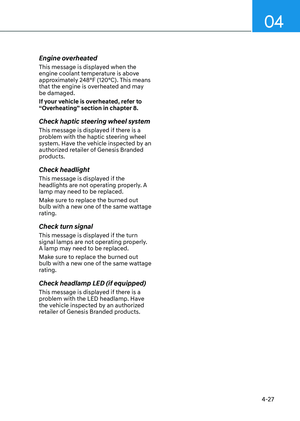
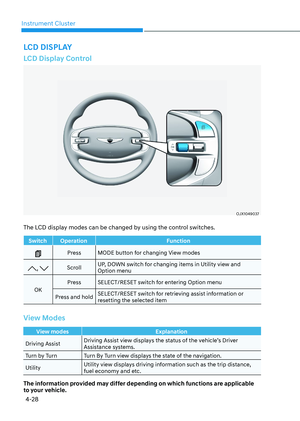
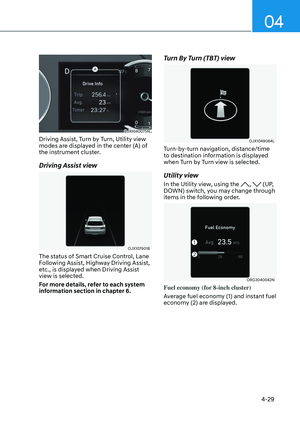
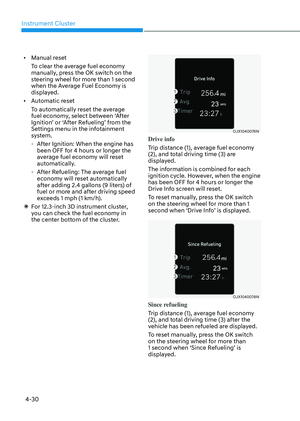
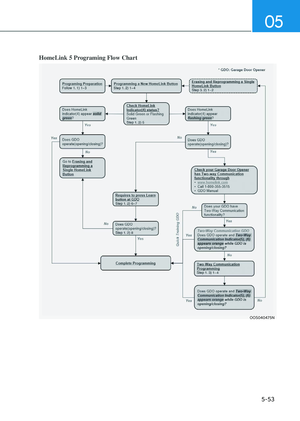
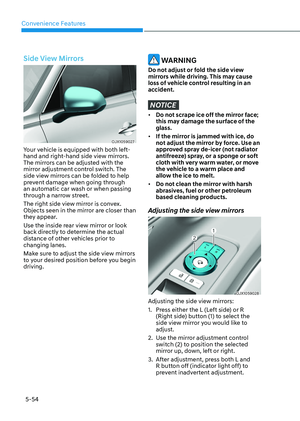
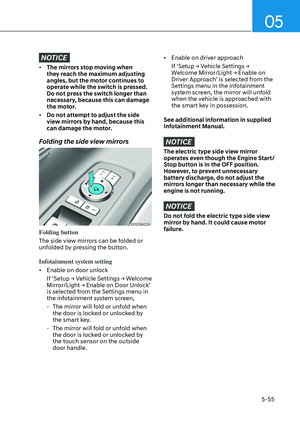
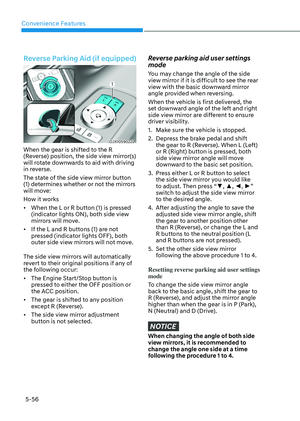
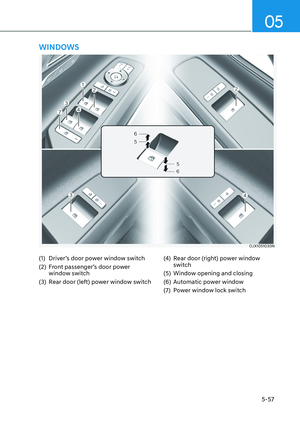
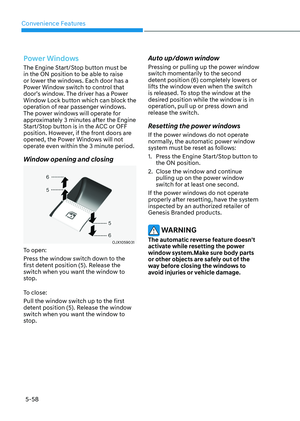
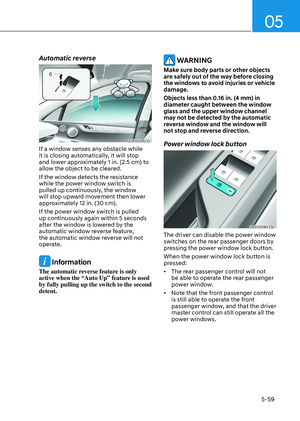
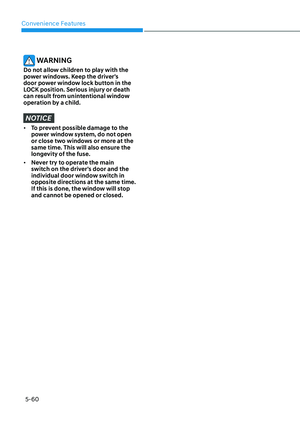
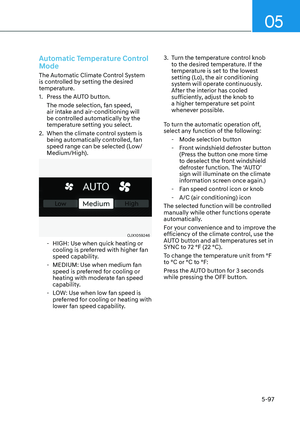
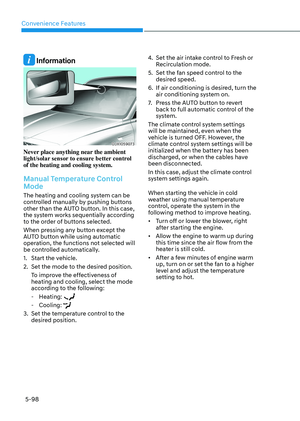
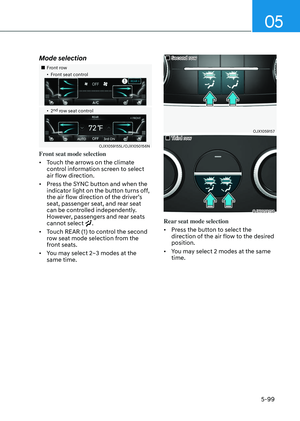
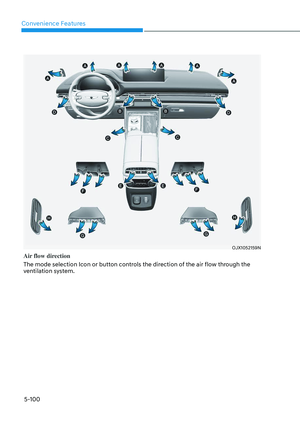
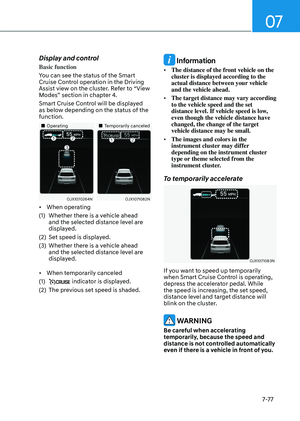
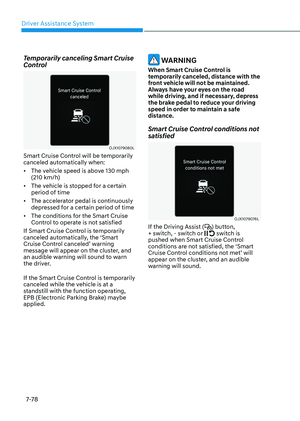
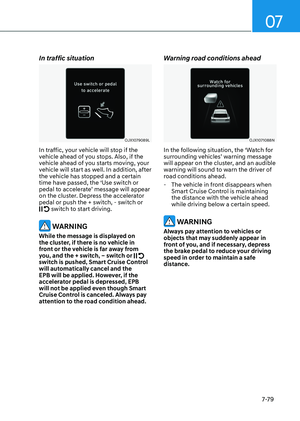
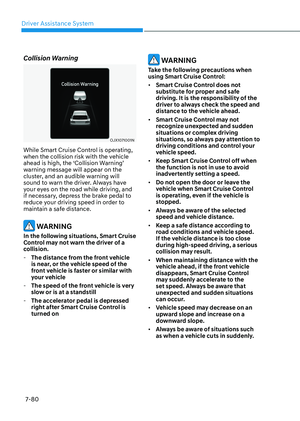
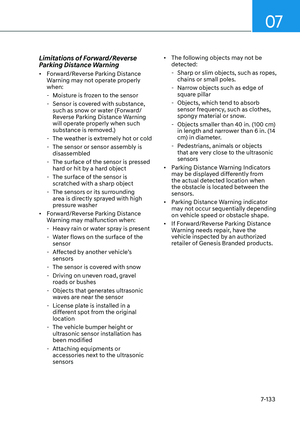
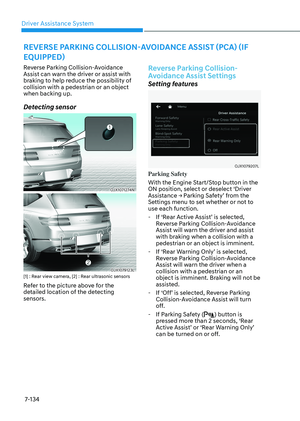
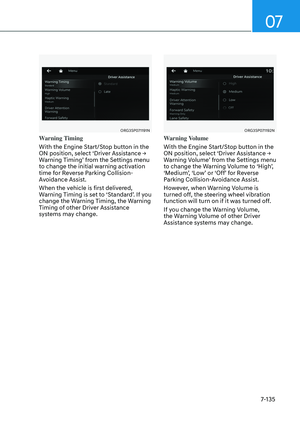
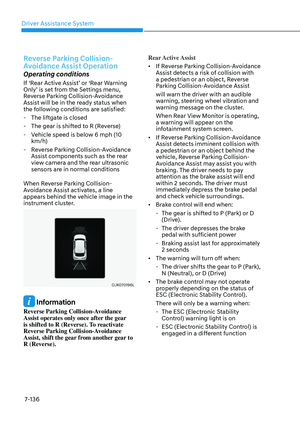
Page 465 of 650

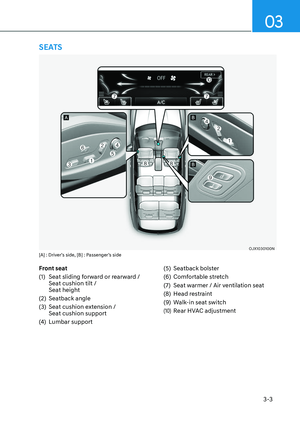
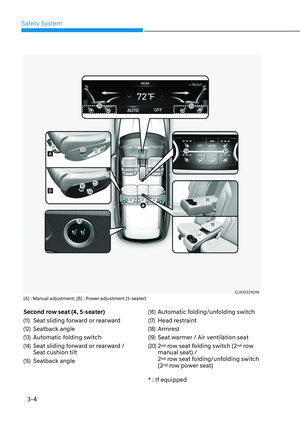
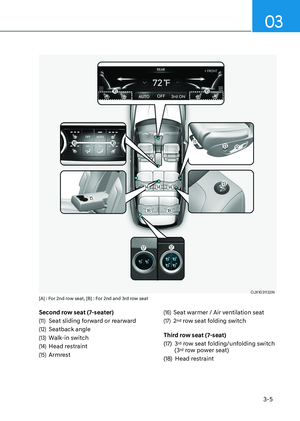
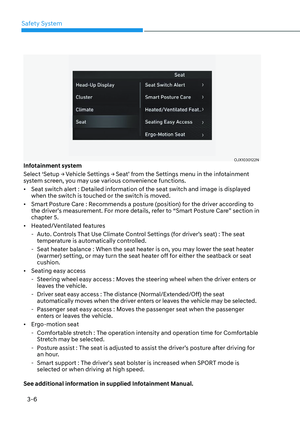
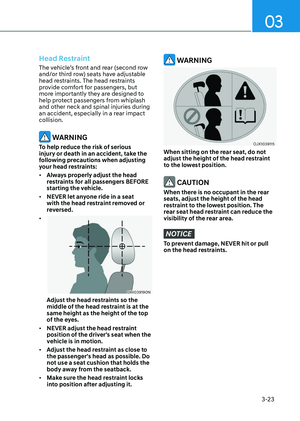
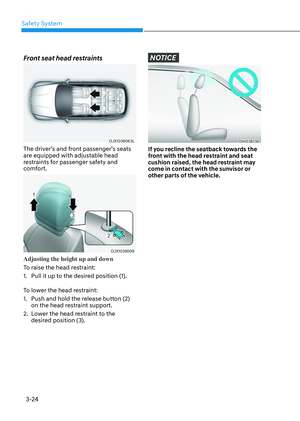
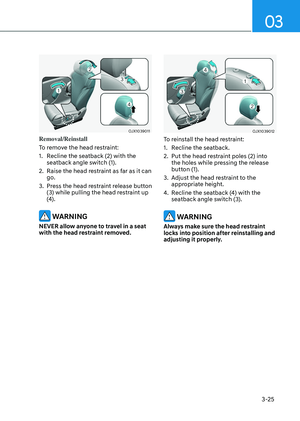
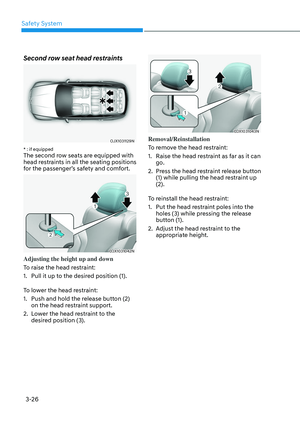
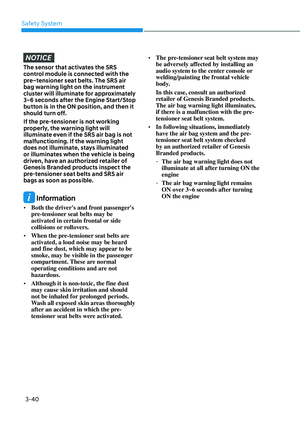
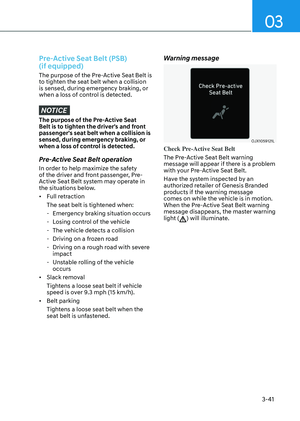
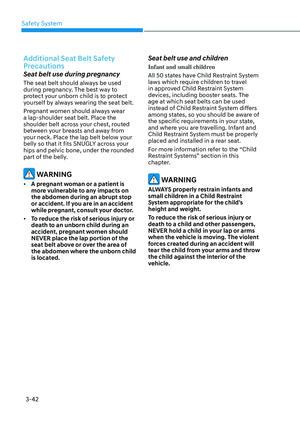
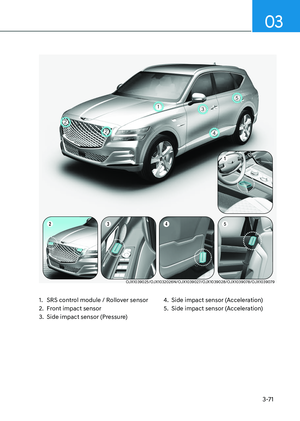
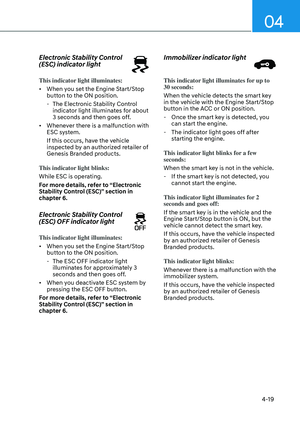
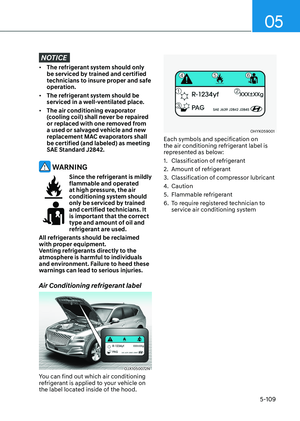
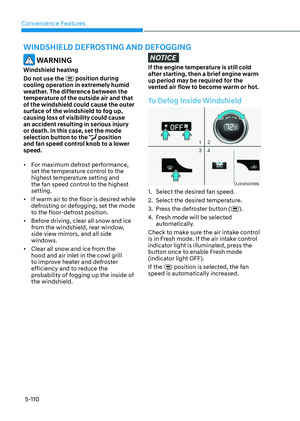
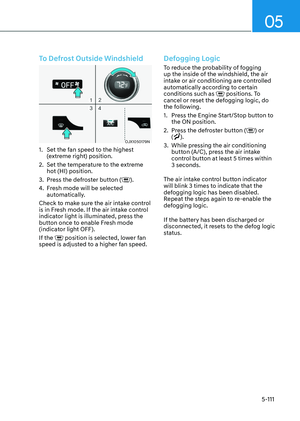
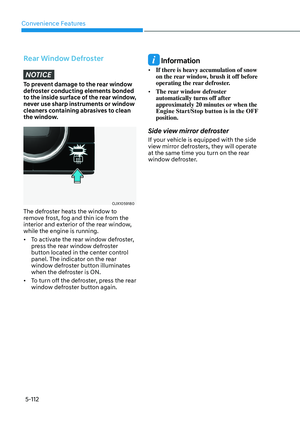
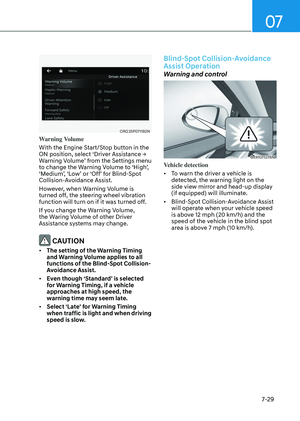
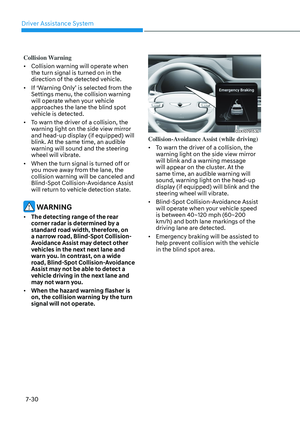
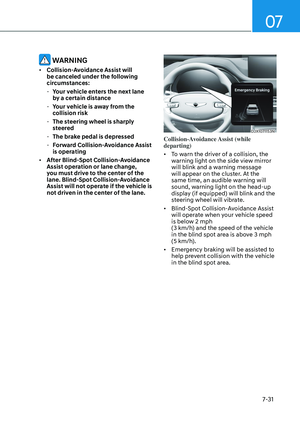
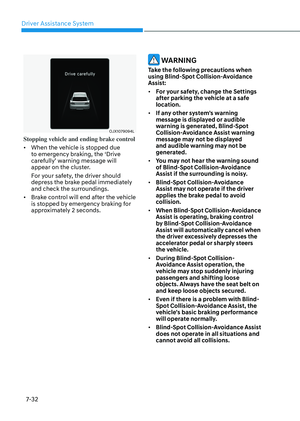
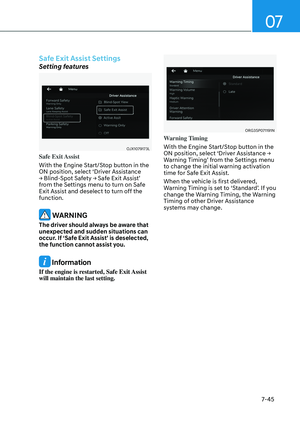
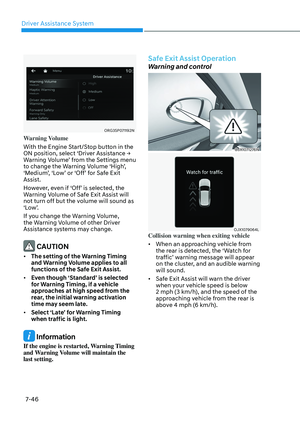
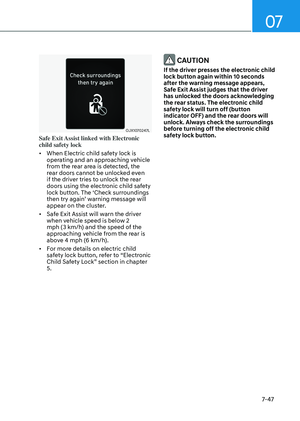
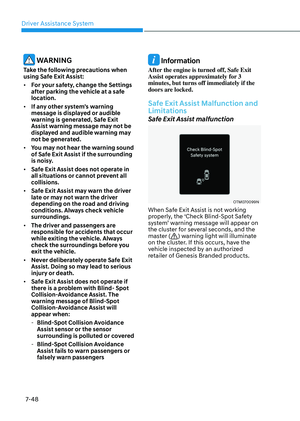
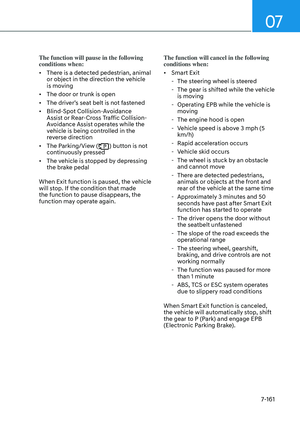
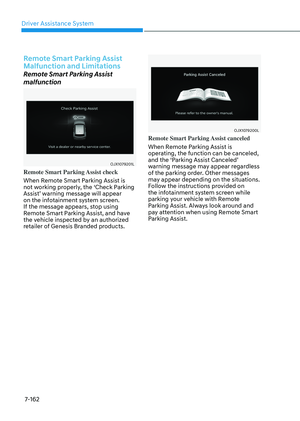
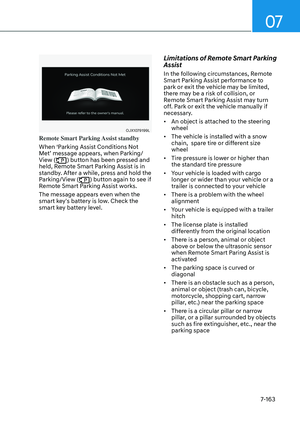
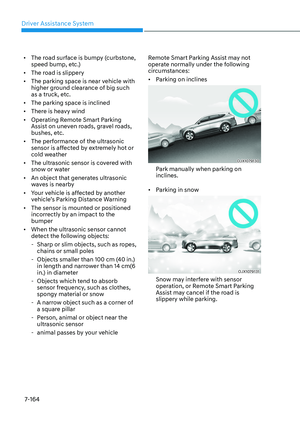
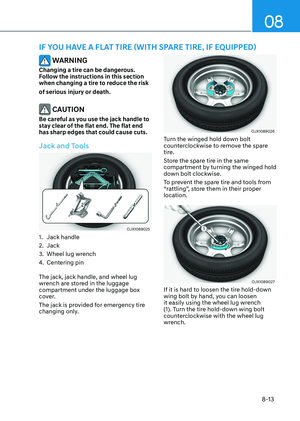
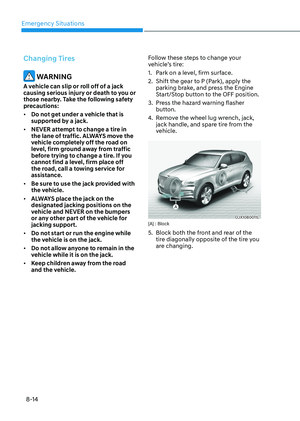
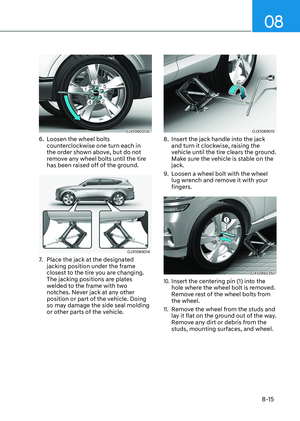
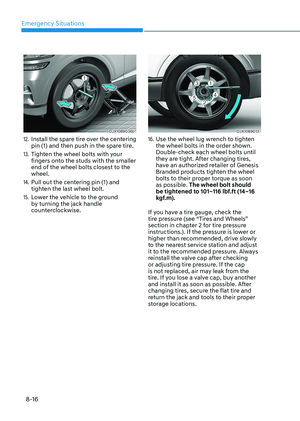
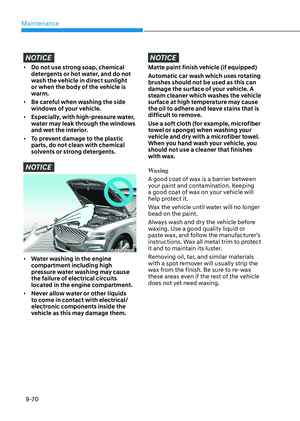
07
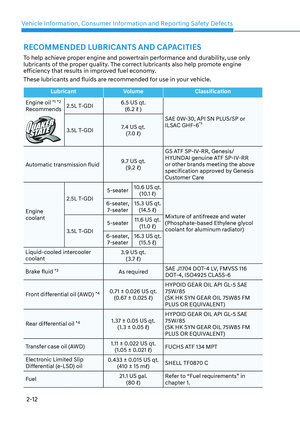
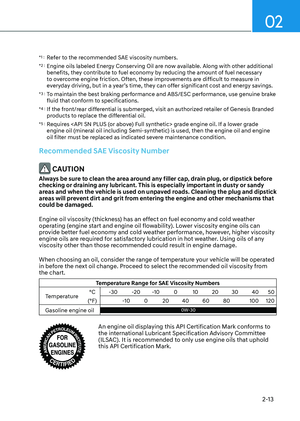
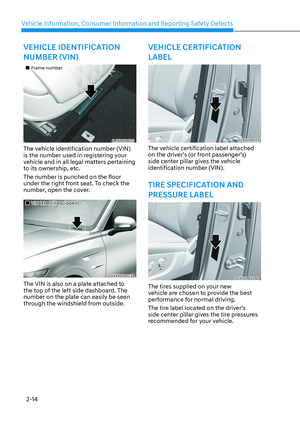
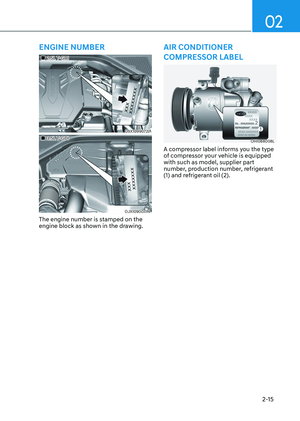
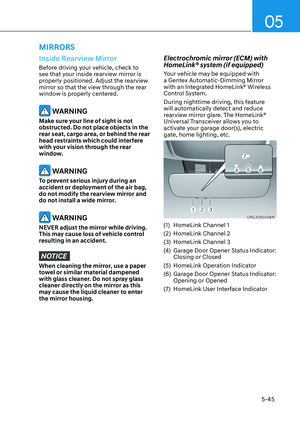
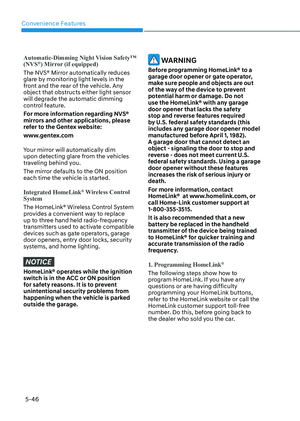
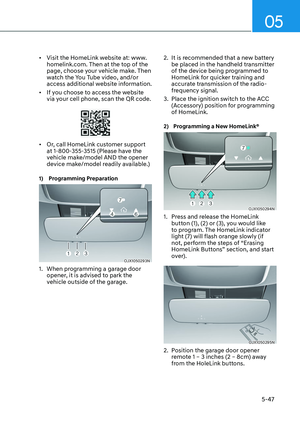
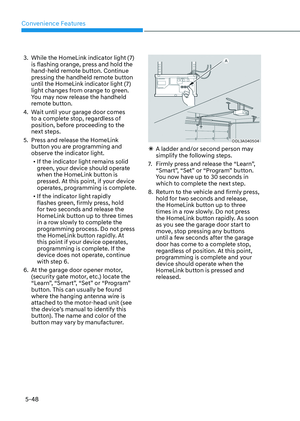
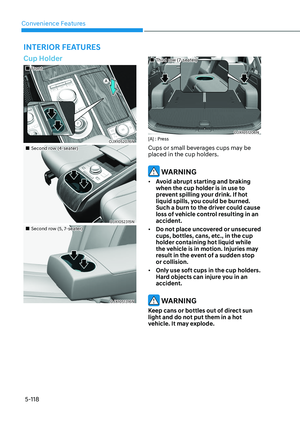
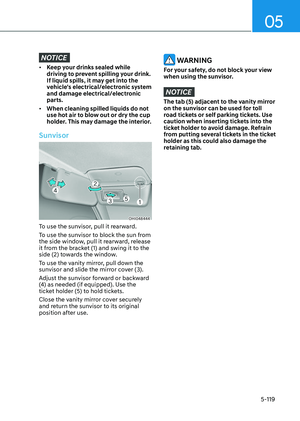
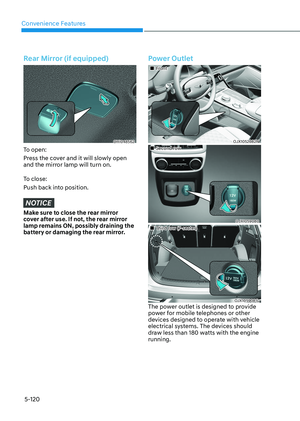
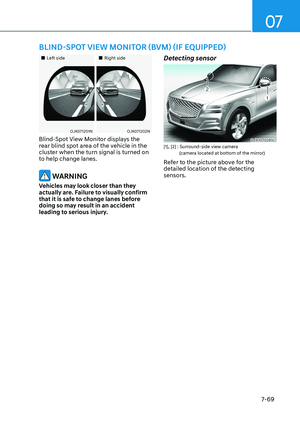
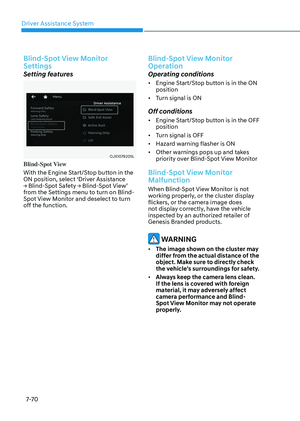
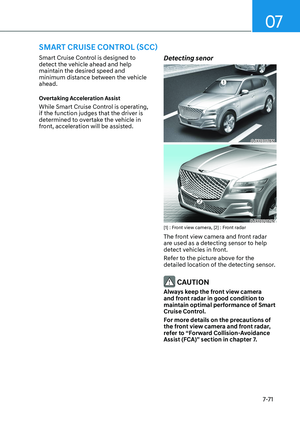
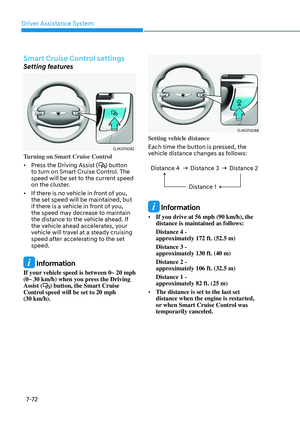
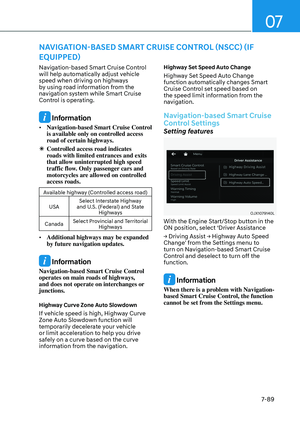
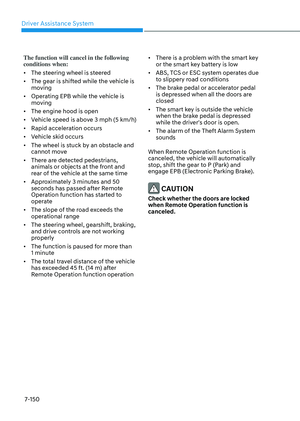
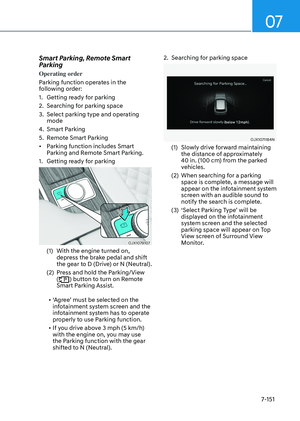
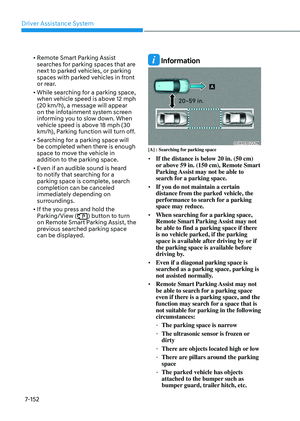
7-109
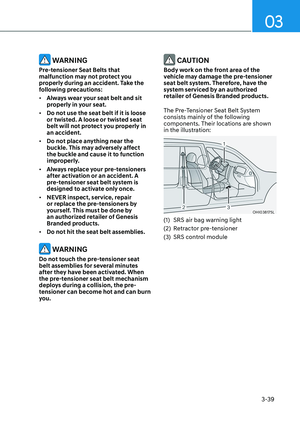
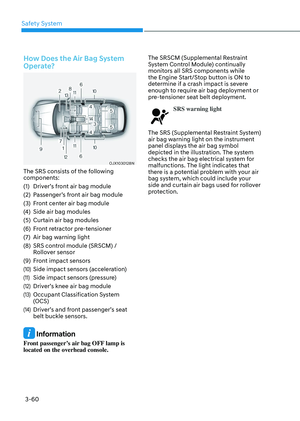
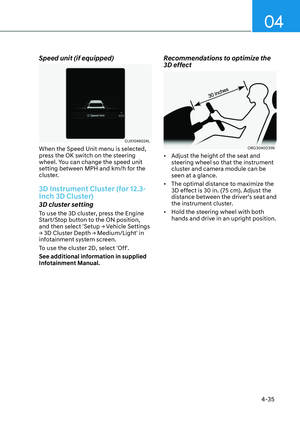
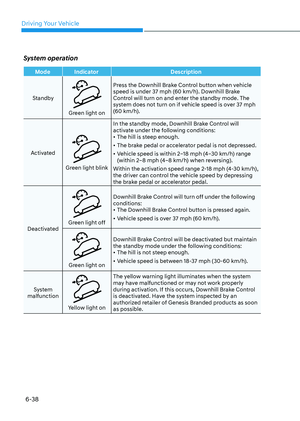
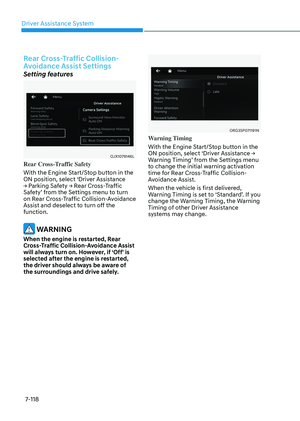
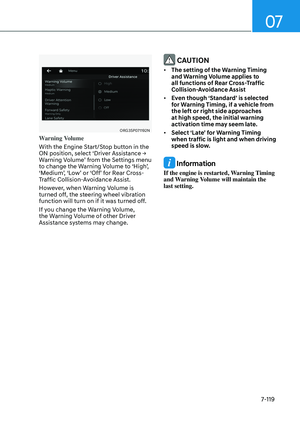
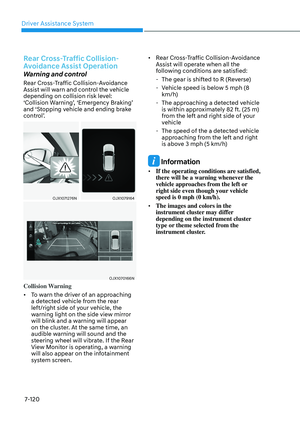
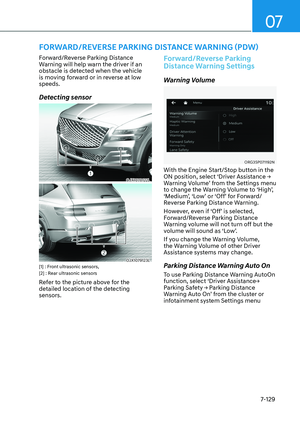
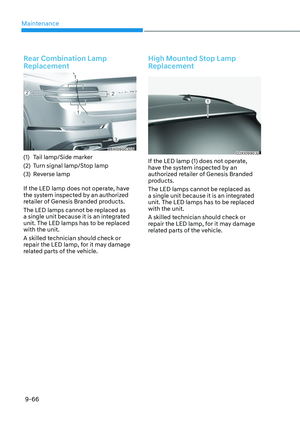
Rear View Monitor Settings
Camera settings
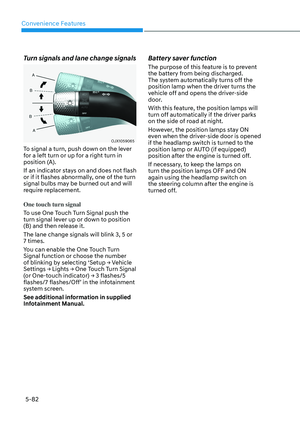
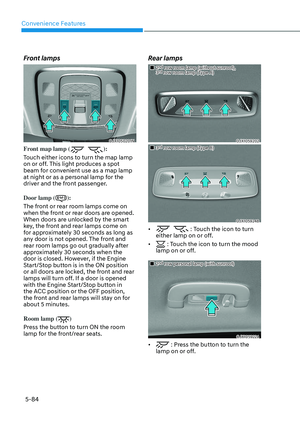
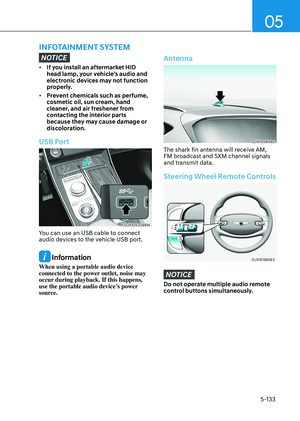
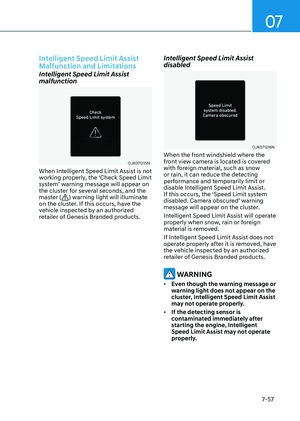
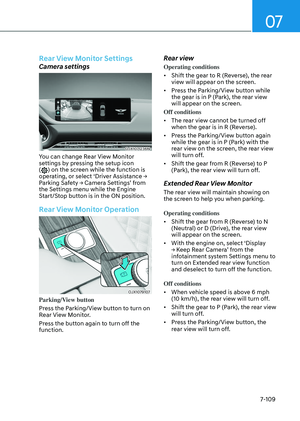
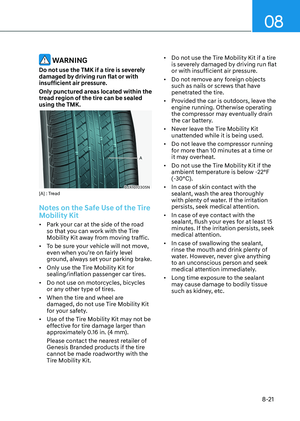
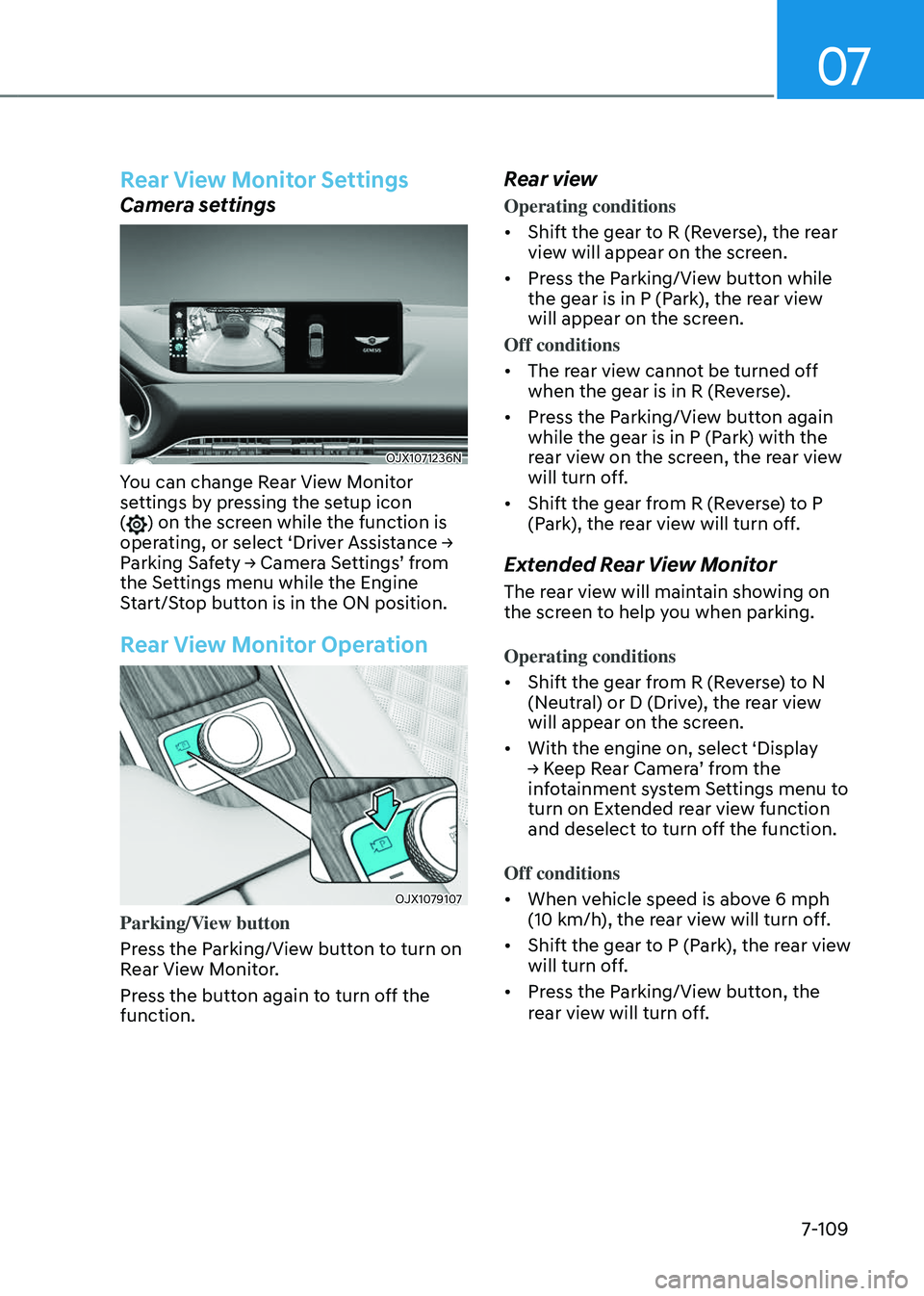
OJX1071236NOJX1071236N
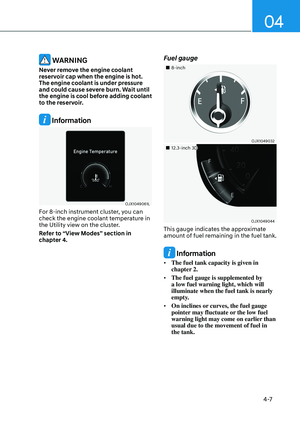
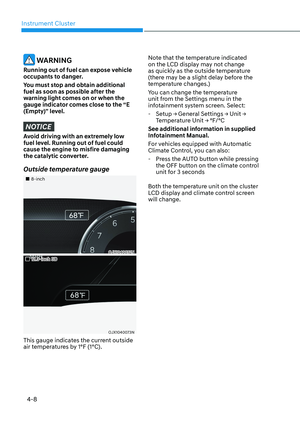
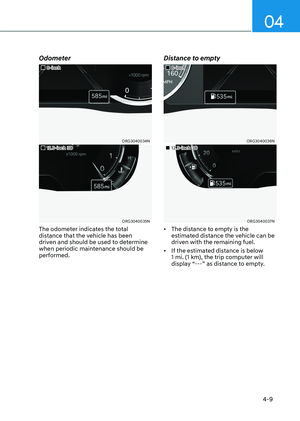
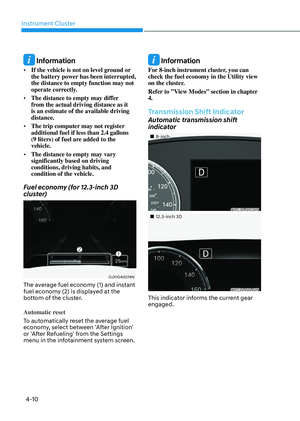
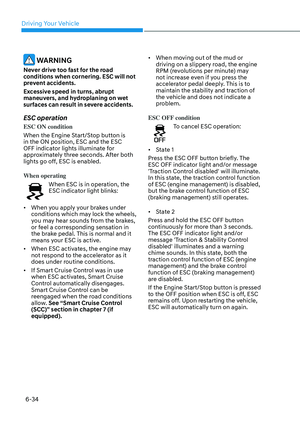
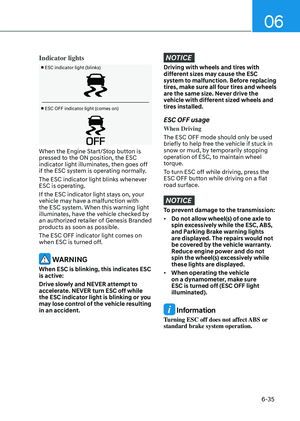
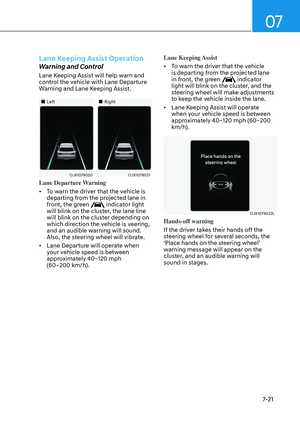
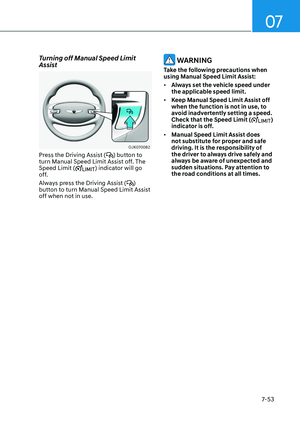
You can change Rear View Monitor
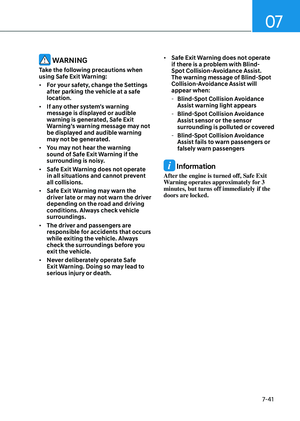
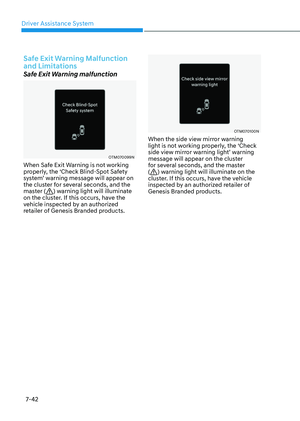
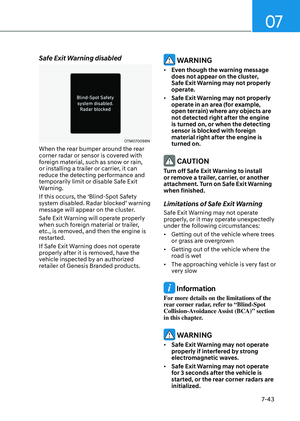
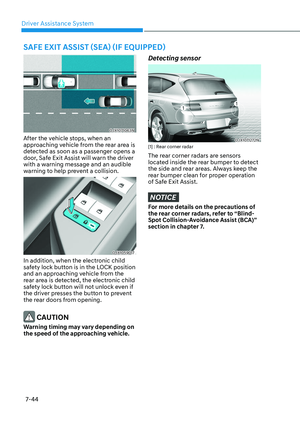
settings by pressing the setup icon
(
) on the screen while the function is
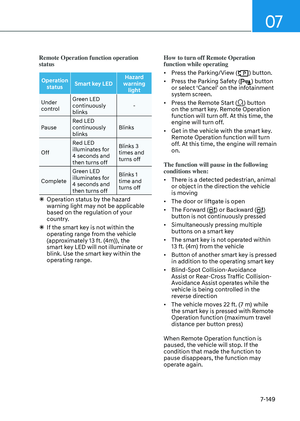
operating, or select ‘Driver Assistance →
Parking Safety → Camera Settings’ from
the Settings menu while the Engine
Start/Stop button is in the ON position.
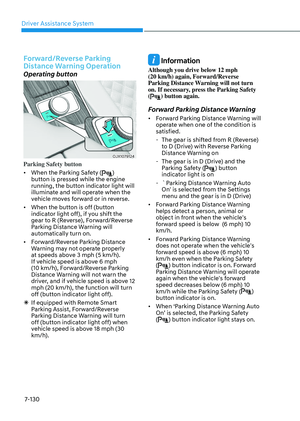
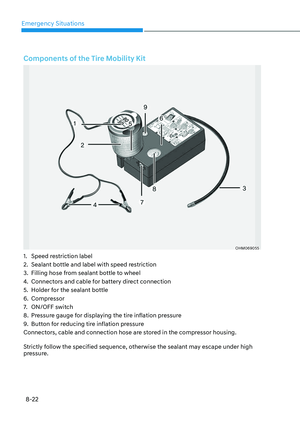
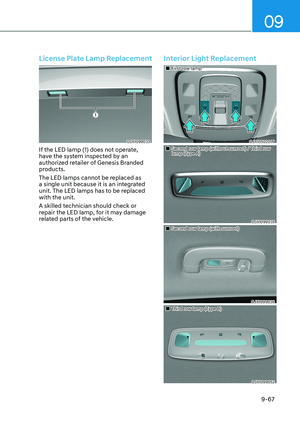
Rear View Monitor Operation
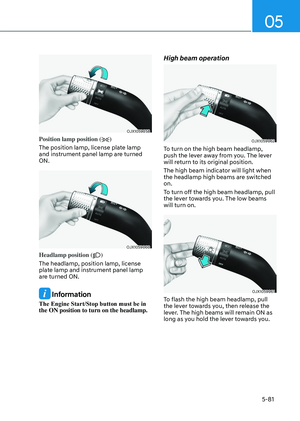
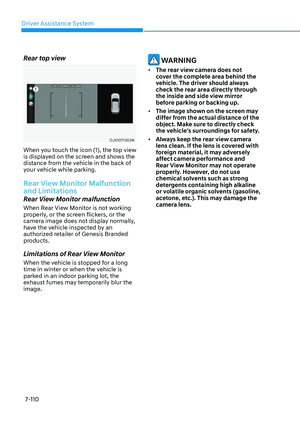
OJX1079107OJX1079107
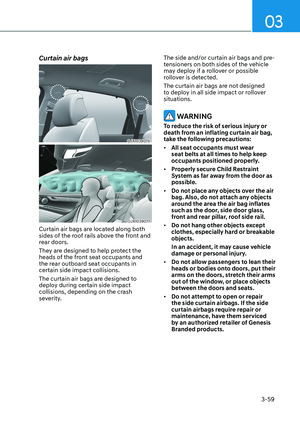
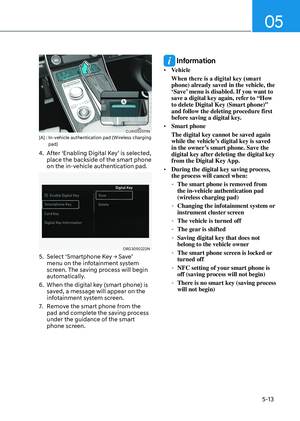
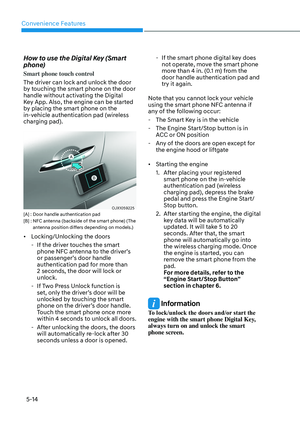
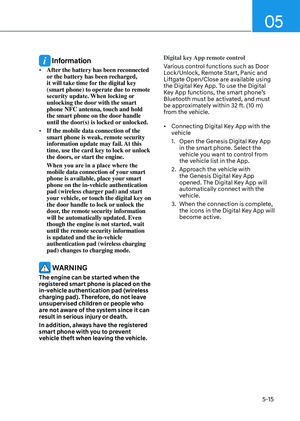
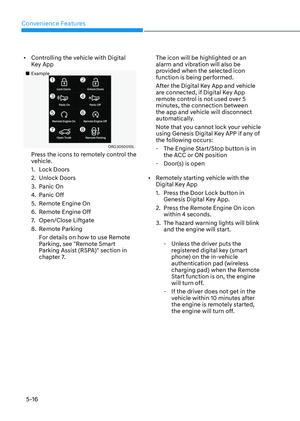
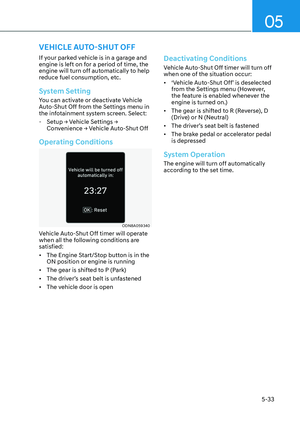
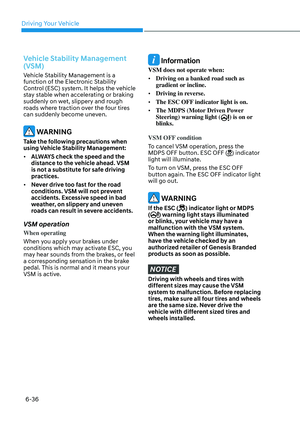
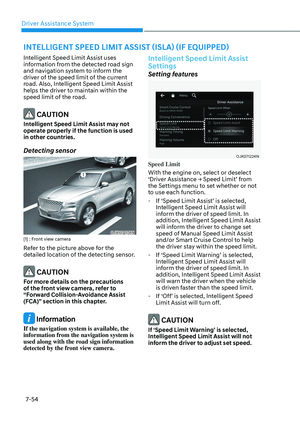
Parking/View button
Press the Parking/View button to turn on
Rear View Monitor.
Press the button again to turn off the
function.
Rear view
Operating conditions
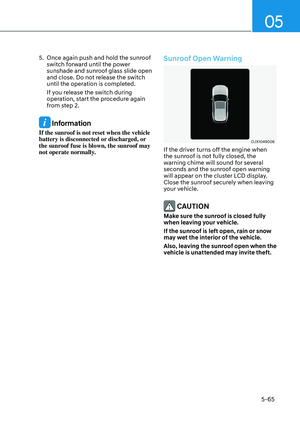
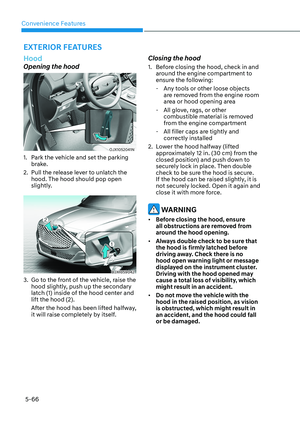
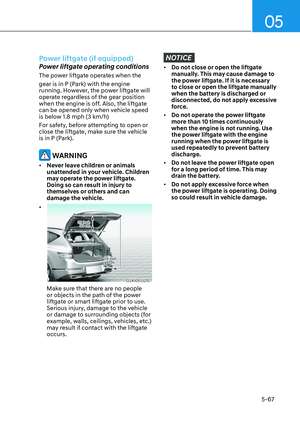
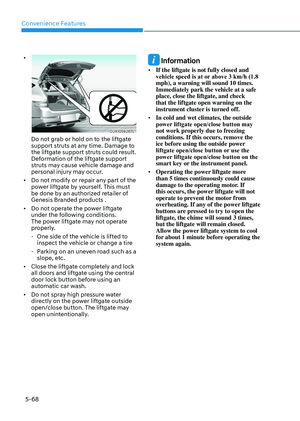
• Shift the gear to R (Reverse), the rear
view will appear on the screen.
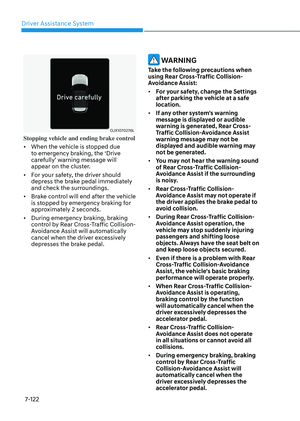
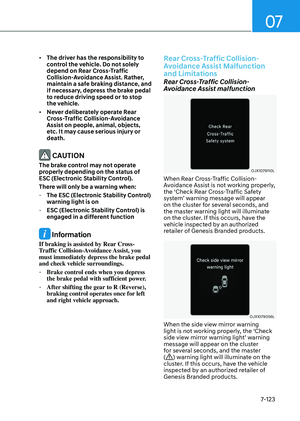
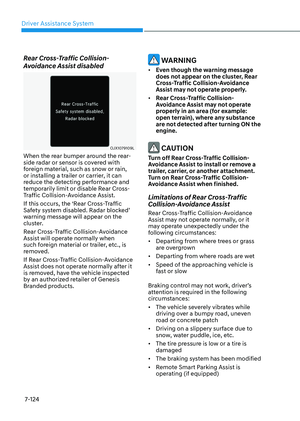
• Press the Parking/View button while
the gear is in P (Park), the rear view
will appear on the screen.
Off conditions
• The rear view cannot be turned off
when the gear is in R (Reverse).
• Press the Parking/View button again
while the gear is in P (Park) with the
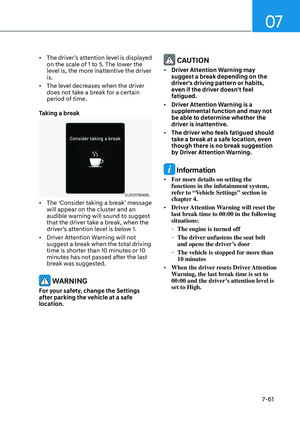
rear view on the screen, the rear view
will turn off.
• Shift the gear from R (Reverse) to P
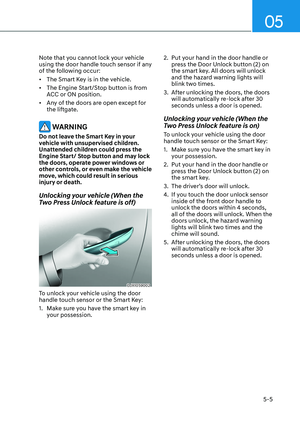
(Park), the rear view will turn off.
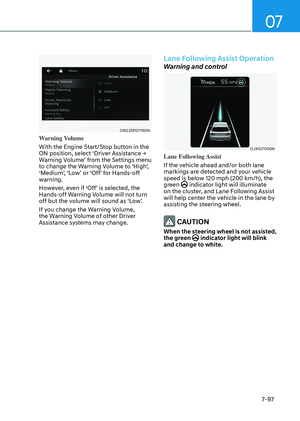
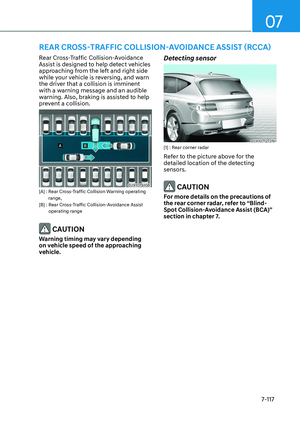
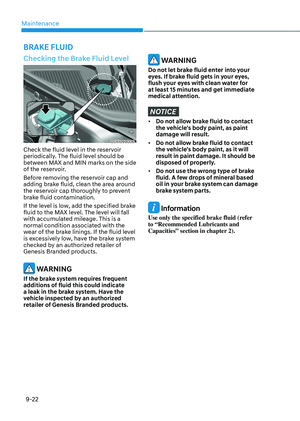
Extended Rear View Monitor
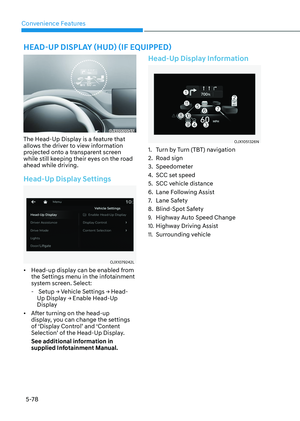
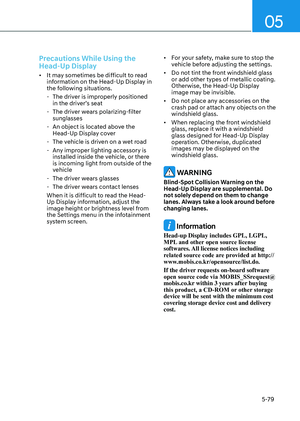
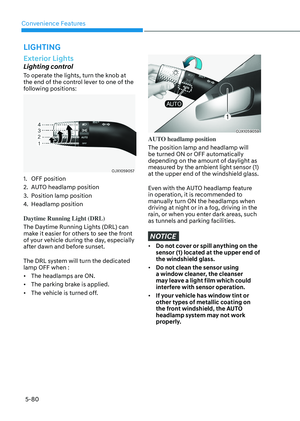
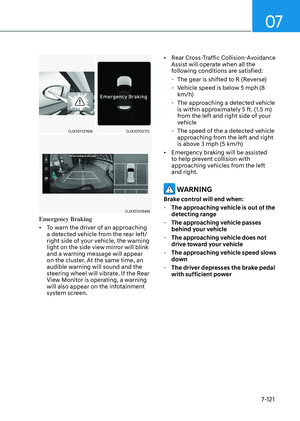
The rear view will maintain showing on
the screen to help you when parking.
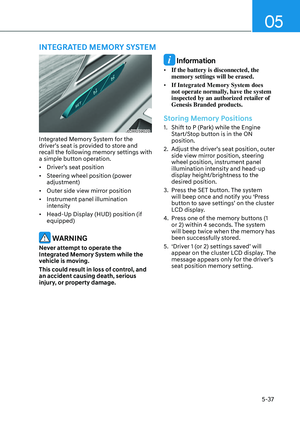
Operating conditions
• Shift the gear from R (Reverse) to N
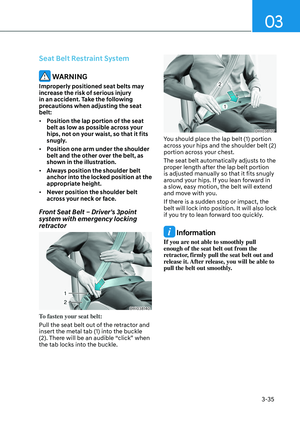
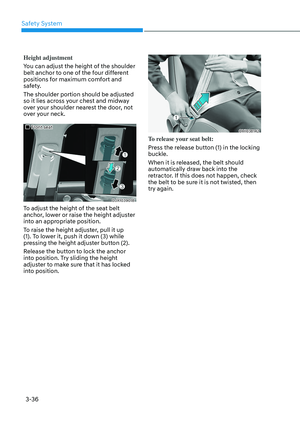
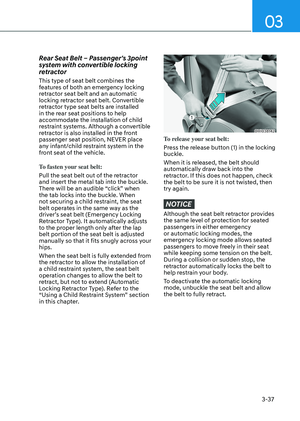
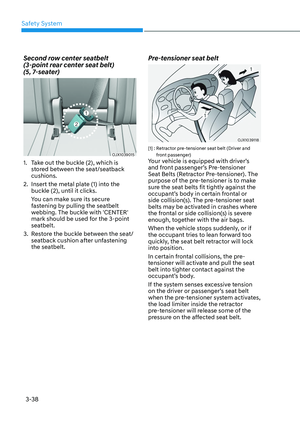
(Neutral) or D (Drive), the rear view
will appear on the screen.
• With the engine on, select ‘Display
→ Keep Rear Camera’ from the
infotainment system Settings menu to
turn on Extended rear view function
and deselect to turn off the function.
Off conditions
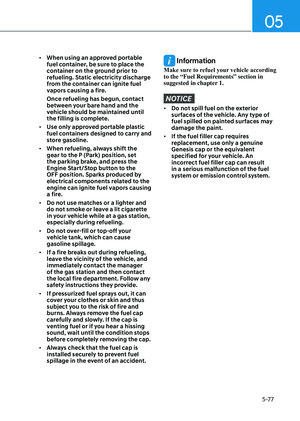
• When vehicle speed is above 6 mph
(10 km/h), the rear view will turn off.
• Shift the gear to P (Park), the rear view
will turn off.
• Press the Parking/View button, the
rear view will turn off.
Page 466 of 650

Driver Assistance System
7-110
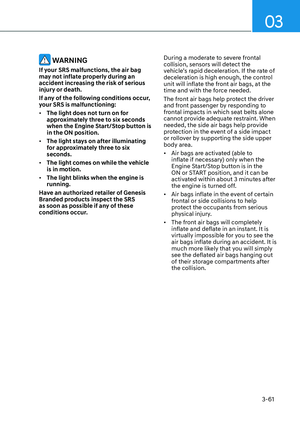
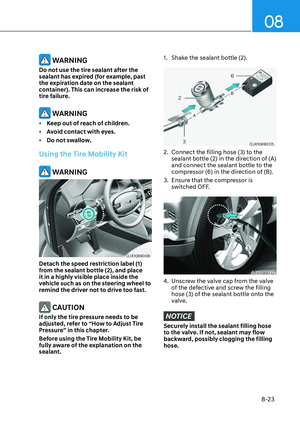
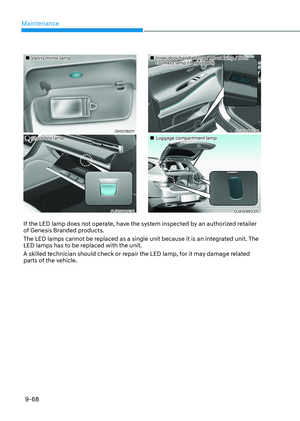
Rear top view
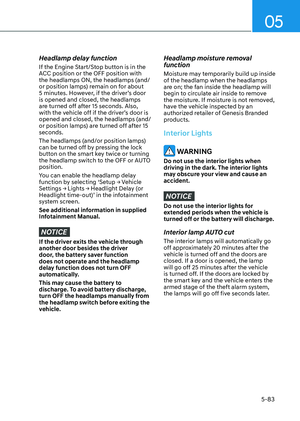
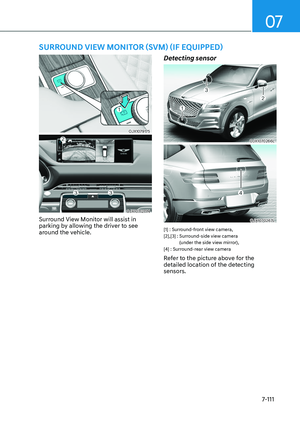
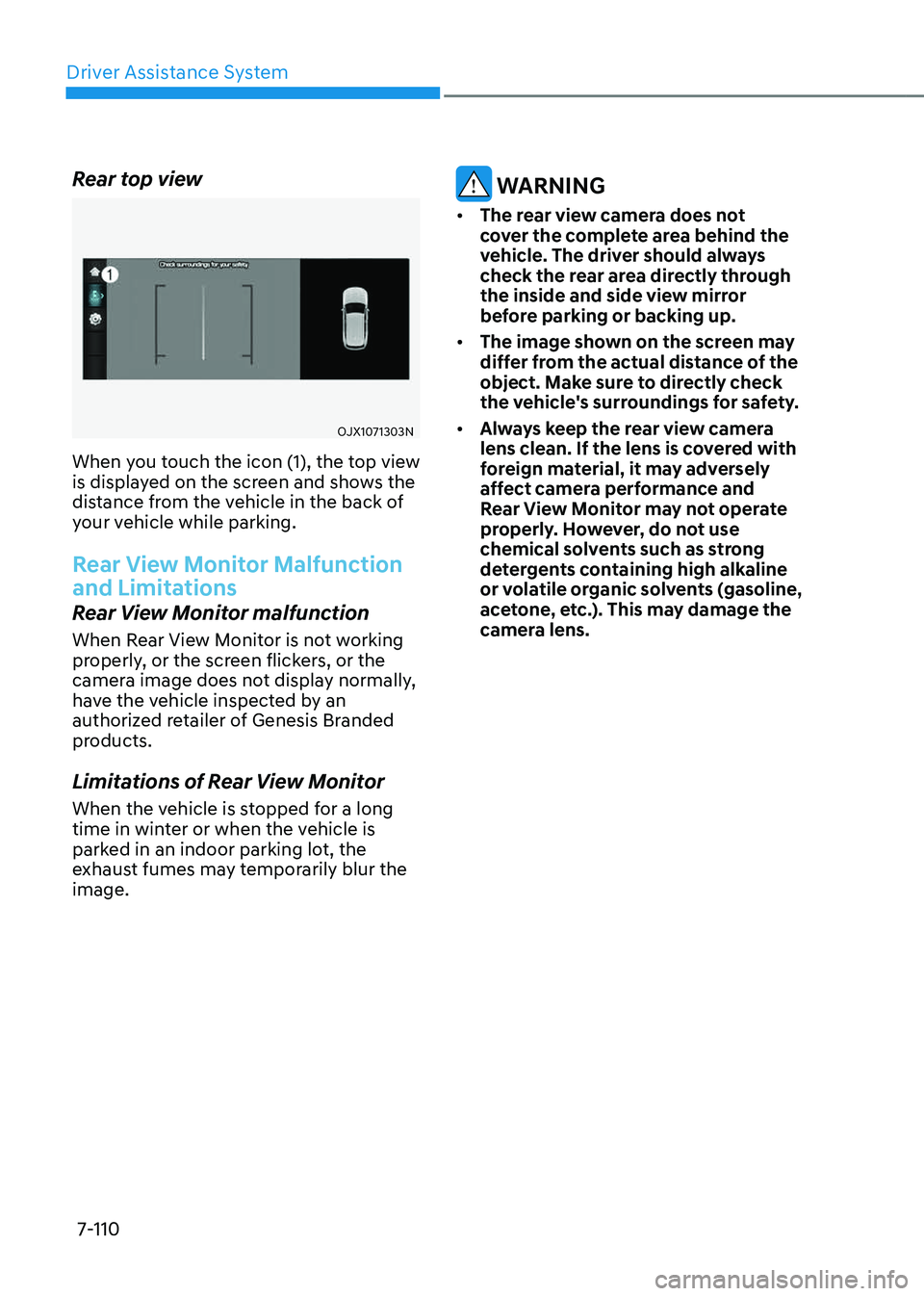
OJX1071303NOJX1071303N
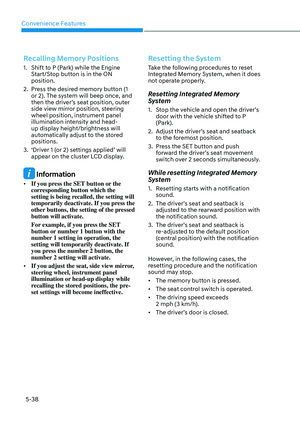
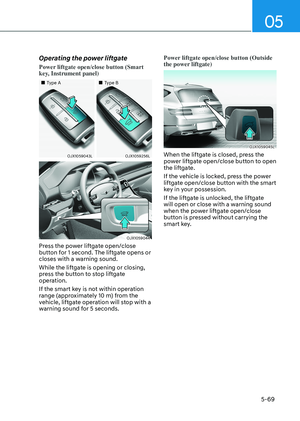
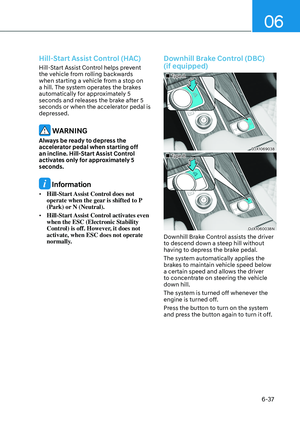
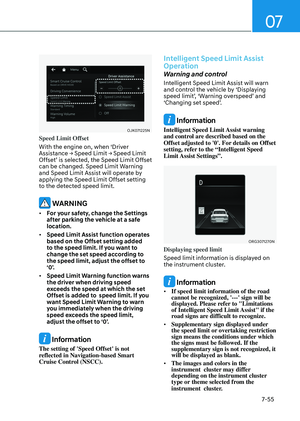
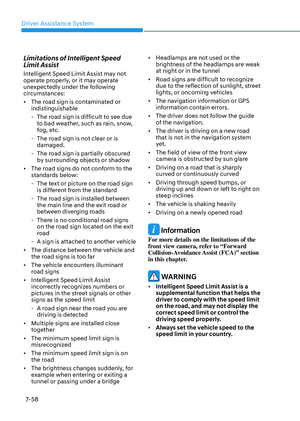
When you touch the icon (1), the top view
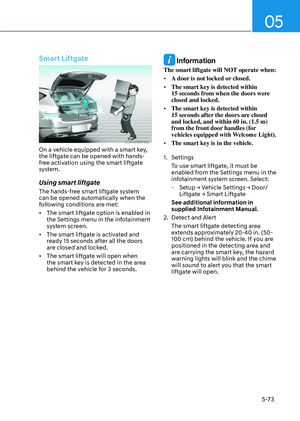
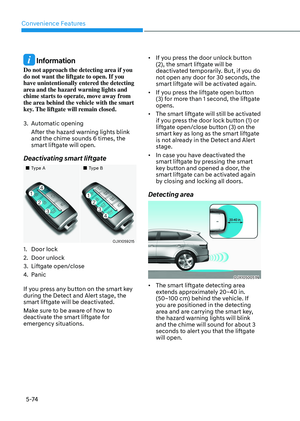
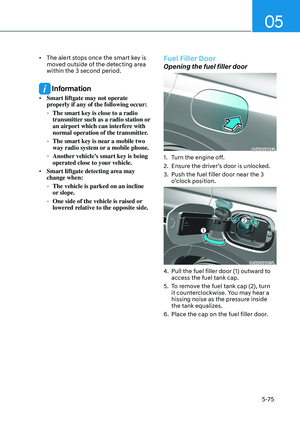
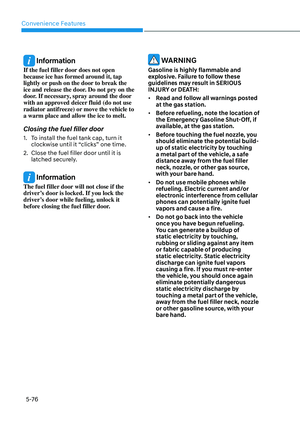
is displayed on the screen and shows the
distance from the vehicle in the back of
your vehicle while parking.
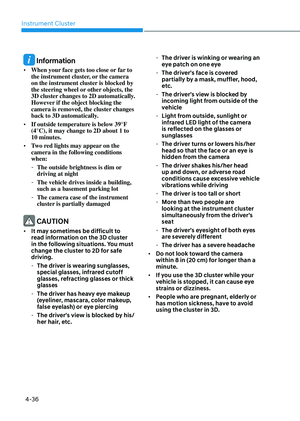
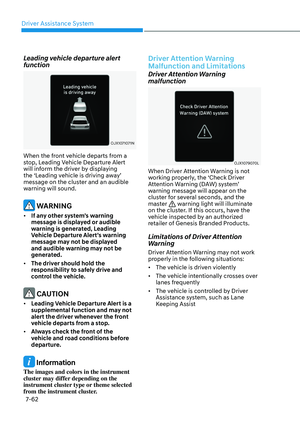
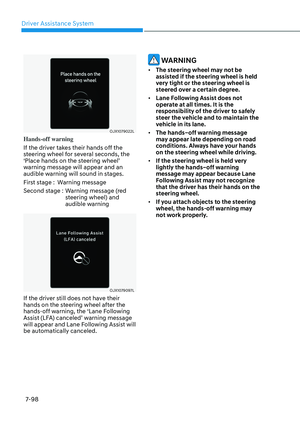
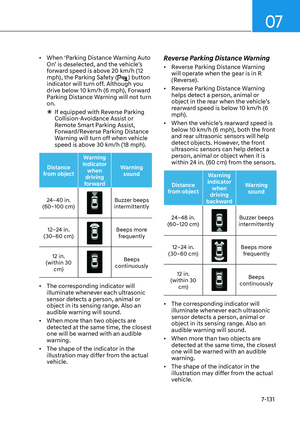
Rear View Monitor Malfunction
and Limitations
Rear View Monitor malfunction
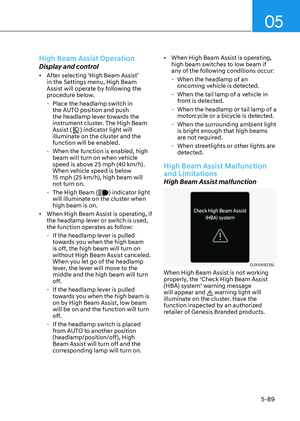
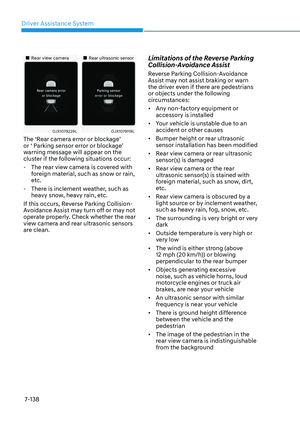
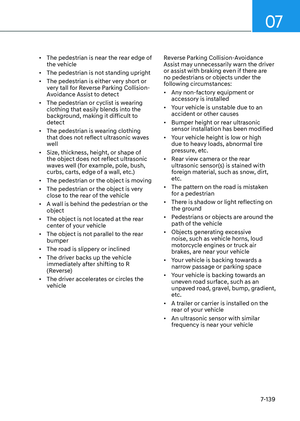
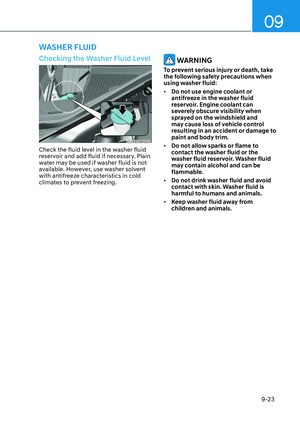
When Rear View Monitor is not working
properly, or the screen flickers, or the
camera image does not display normally,
have the vehicle inspected by an
authorized retailer of Genesis Branded
products.
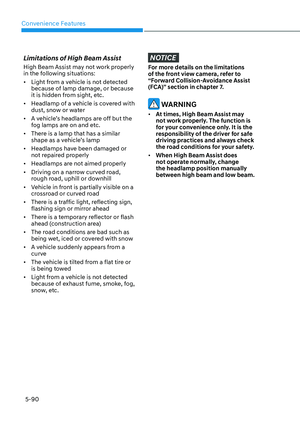
Limitations of Rear View Monitor
When the vehicle is stopped for a long
time in winter or when the vehicle is
parked in an indoor parking lot, the
exhaust fumes may temporarily blur the
image.
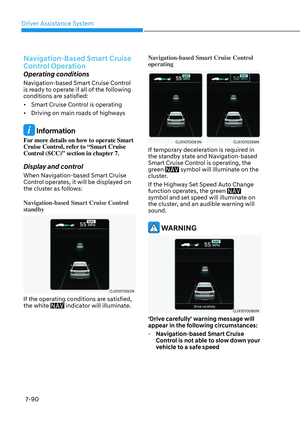
WARNING
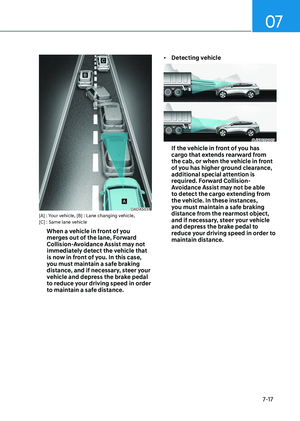
• The rear view camera does not
cover the complete area behind the
vehicle. The driver should always
check the rear area directly through
the inside and side view mirror
before parking or backing up.
• The image shown on the screen may
differ from the actual distance of the
object. Make sure to directly check
the vehicle's surroundings for safety.
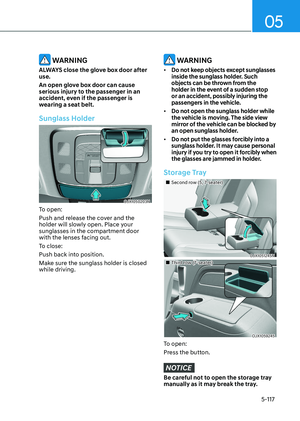
• Always keep the rear view camera
lens clean. If the lens is covered with
foreign material, it may adversely
affect camera performance and
Rear View Monitor may not operate
properly. However, do not use
chemical solvents such as strong
detergents containing high alkaline
or volatile organic solvents (gasoline,
acetone, etc.). This may damage the
camera lens.
Page 467 of 650
07
7-111
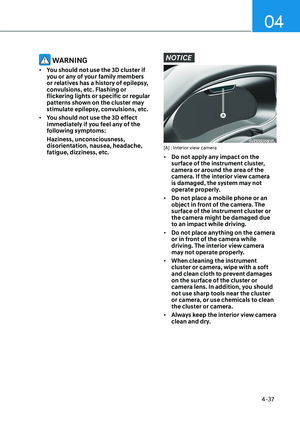
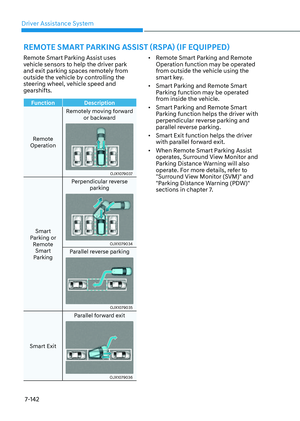
SURROUND VIEW MONITOR (SVM) (IF EQUIPPED)
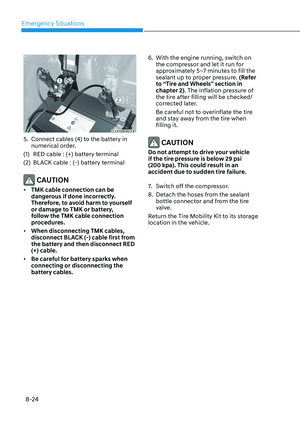
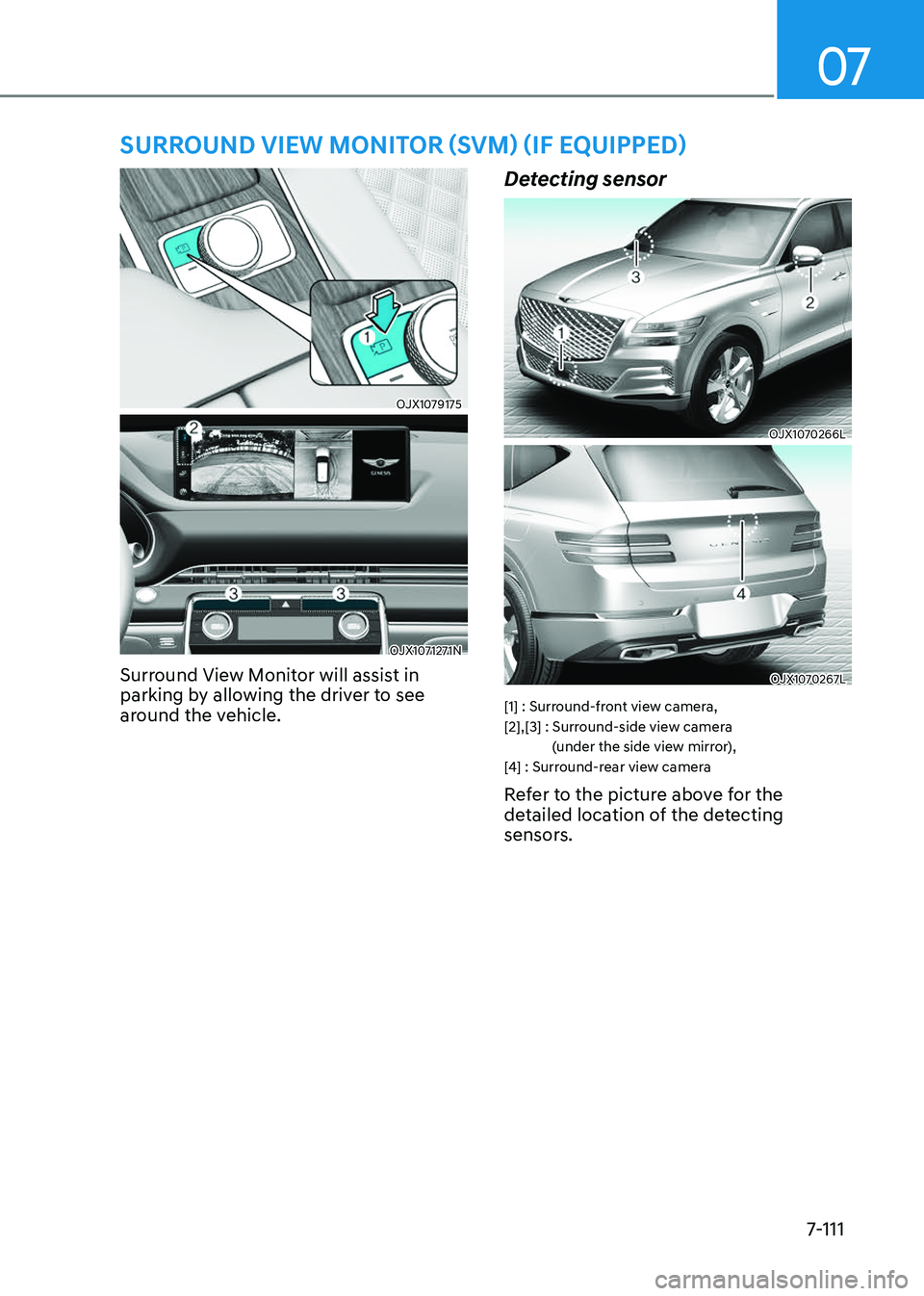
OJX1079175 OJX1079175
OJX1071271NOJX1071271N
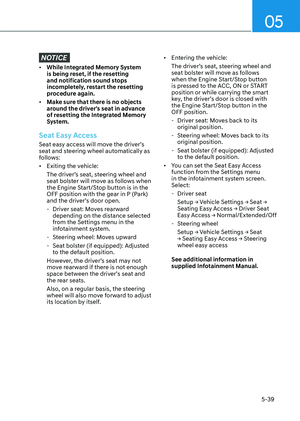
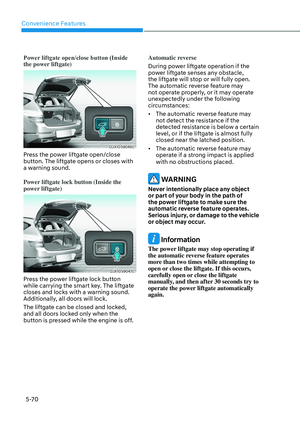
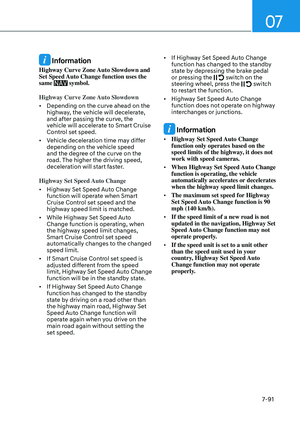
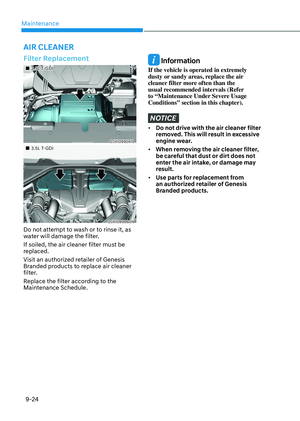
Surround View Monitor will assist in
parking by allowing the driver to see
around the vehicle.
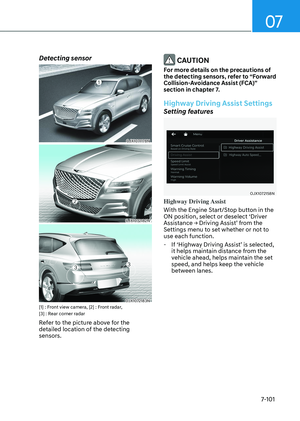
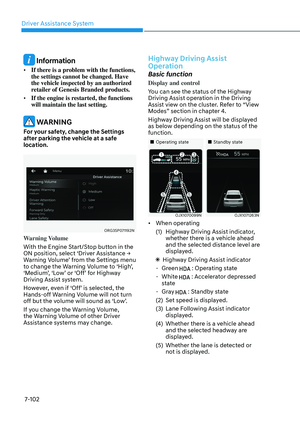
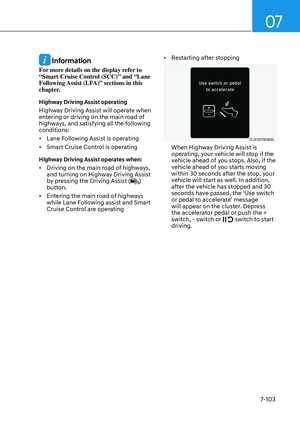
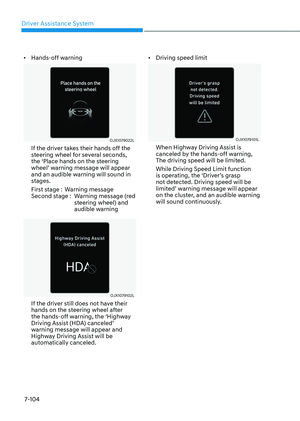
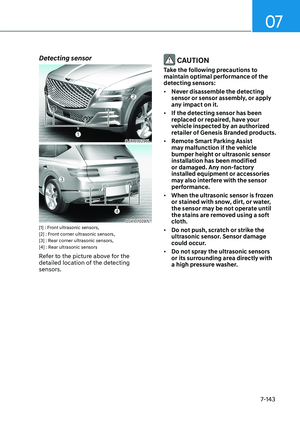
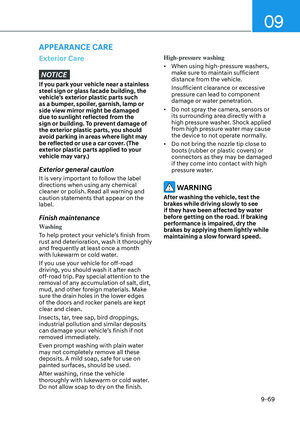
Detecting sensor
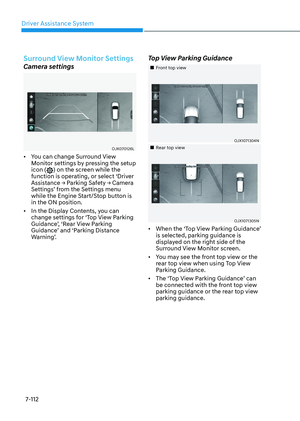
OJX1070266L OJX1070266L
OJX1070267LOJX1070267L
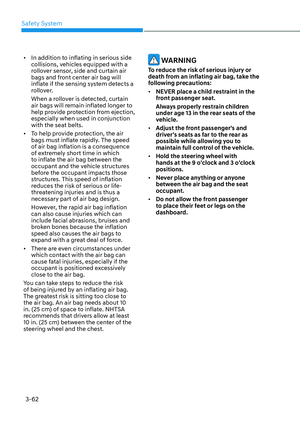
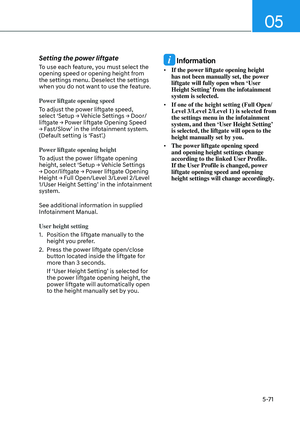
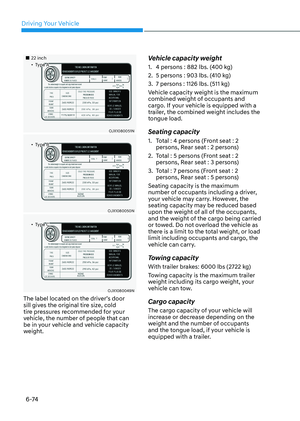
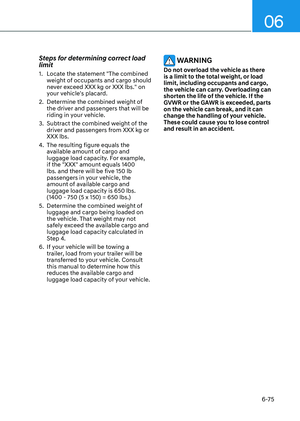
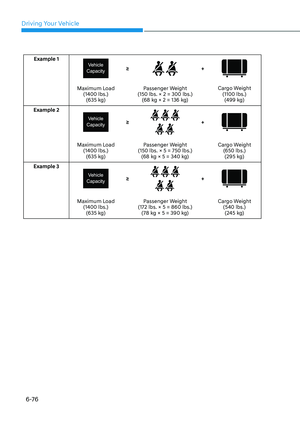
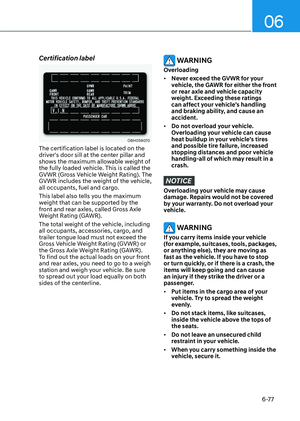
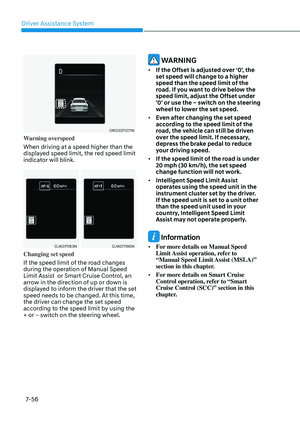
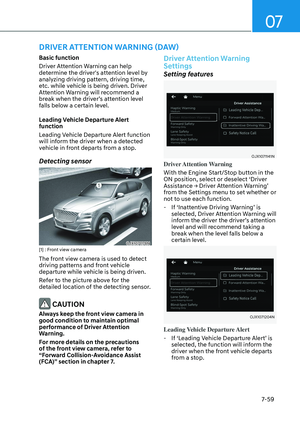
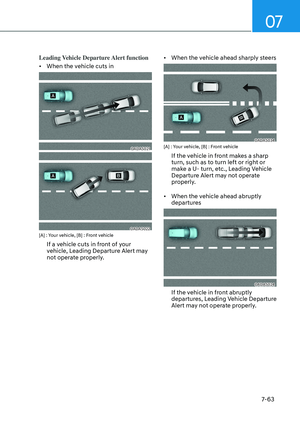
[1] : Surround-front view camera,
[2],[3] : Surround-side view camera (under the side view mirror),
[4] : Surround-rear view camera
Refer to the picture above for the
detailed location of the detecting
sensors.
Page 468 of 650
Driver Assistance System
7-112
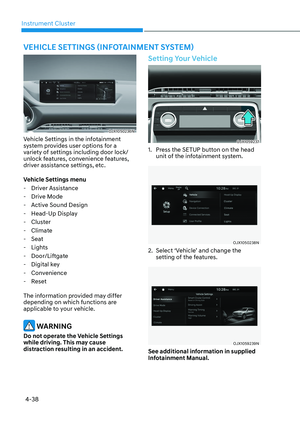
Surround View Monitor Settings
Camera settings
OJK070126LOJK070126L
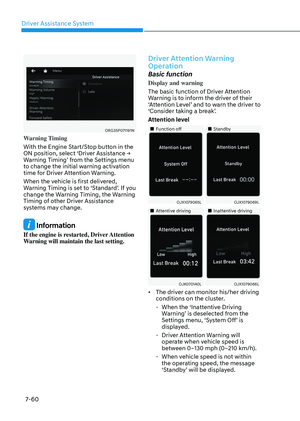
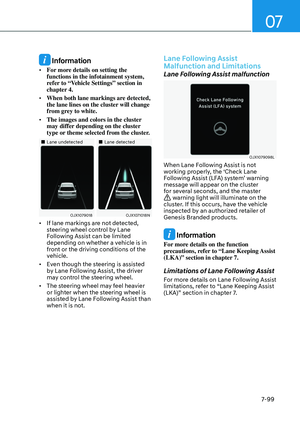
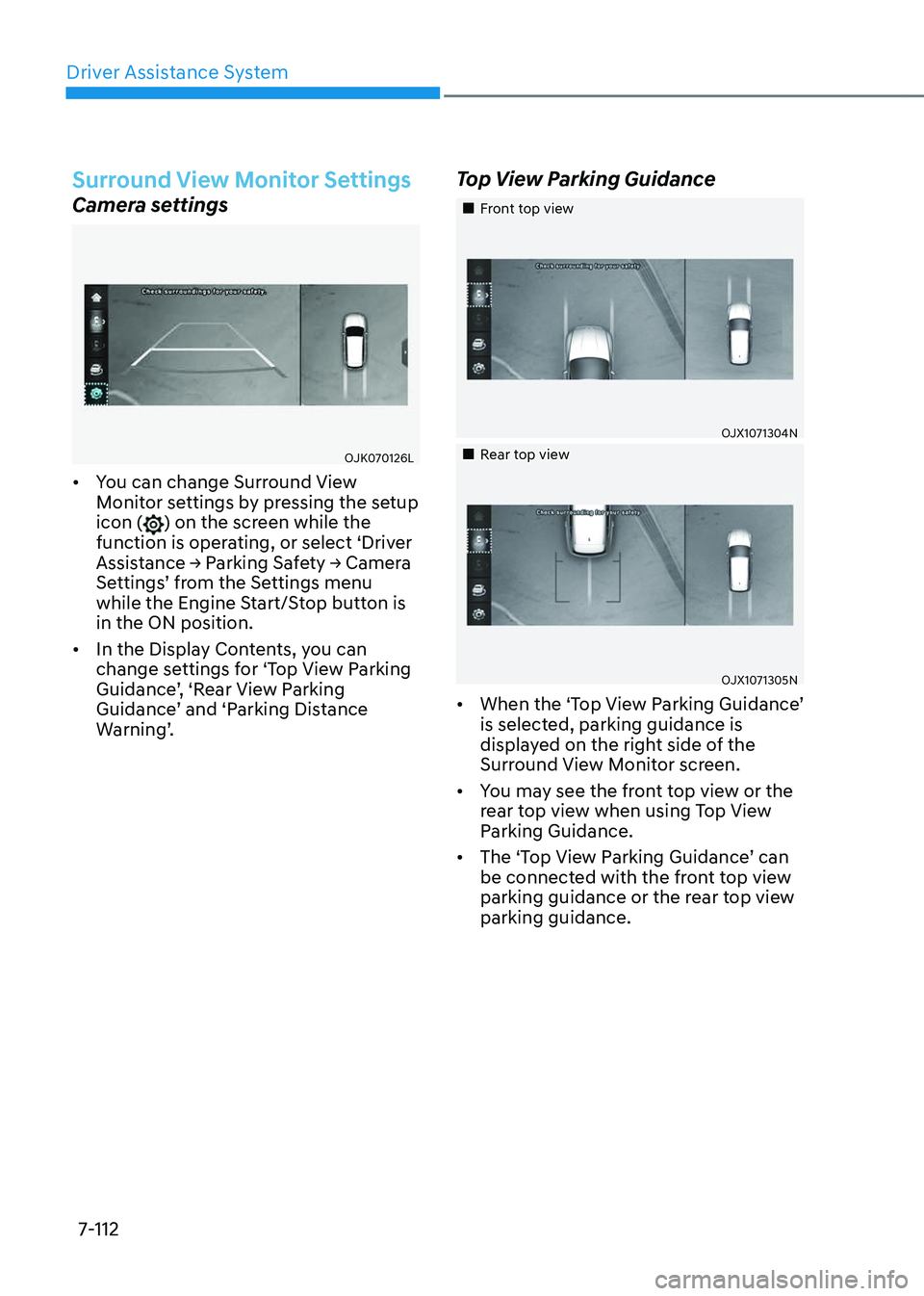
• You can change Surround View
Monitor settings by pressing the setup
icon (
) on the screen while the
function is operating, or select ‘Driver
Assistance → Parking Safety → Camera
Settings’ from the Settings menu
while the Engine Start/Stop button is
in the ON position.
• In the Display Contents, you can
change settings for ‘Top View Parking
Guidance’, ‘Rear View Parking
Guidance’ and ‘Parking Distance
Warning’.
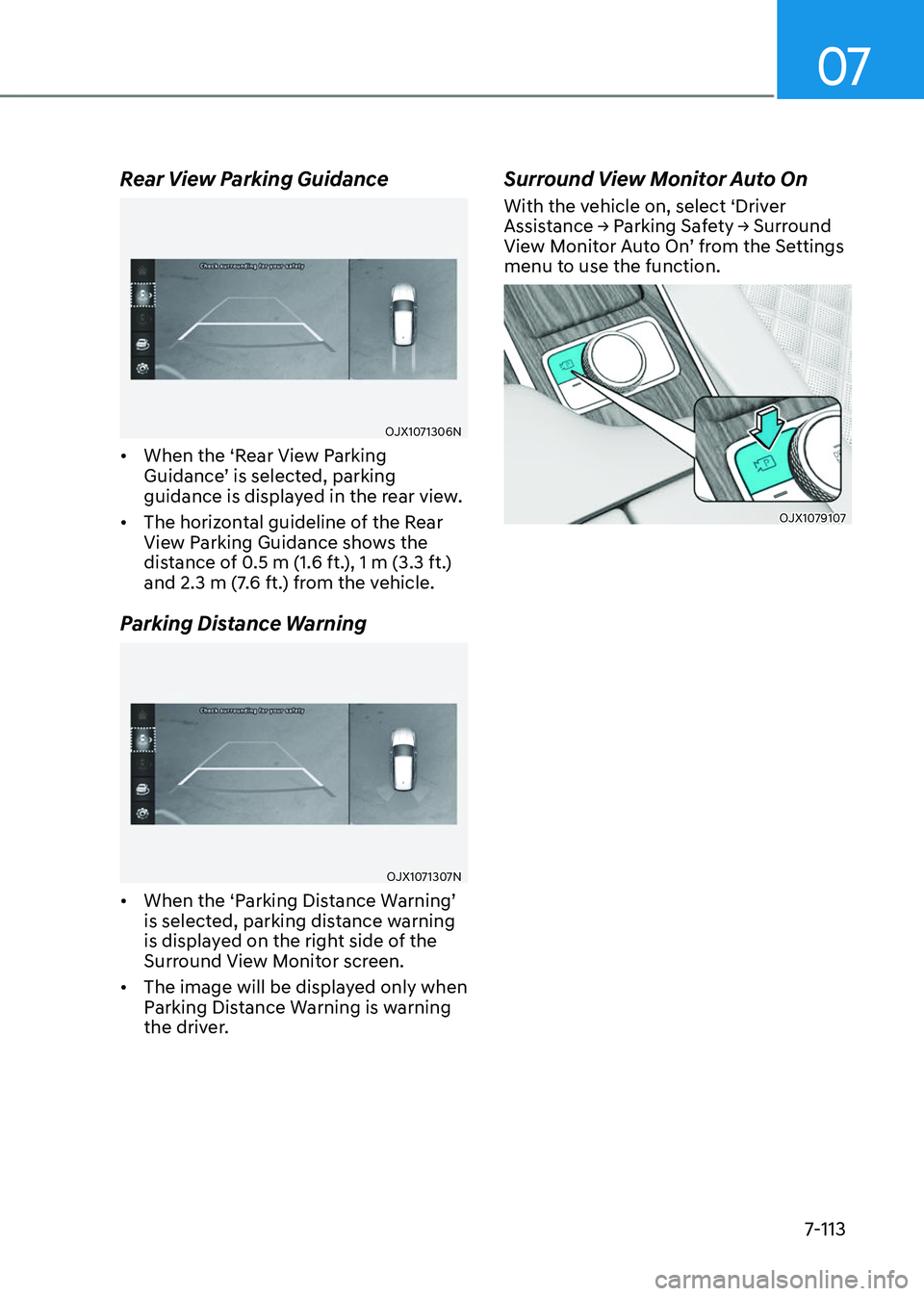
Top View Parking Guidance
Page 469 of 650
07
7-113
Rear View Parking Guidance
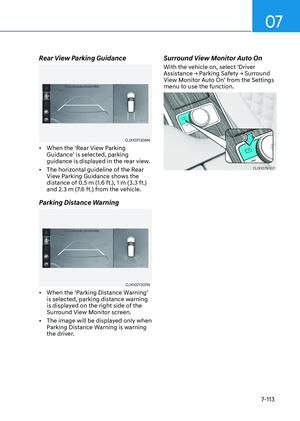
OJX1071306NOJX1071306N
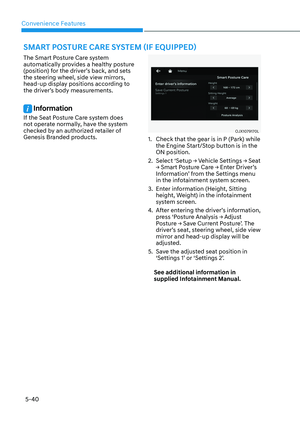
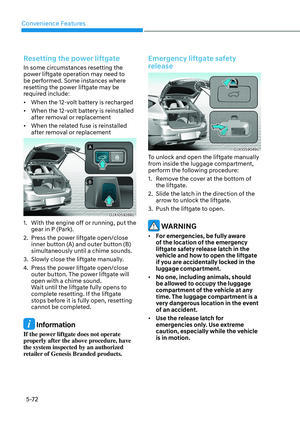
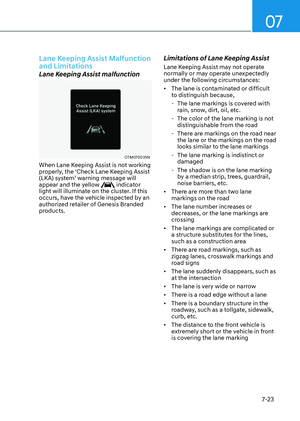
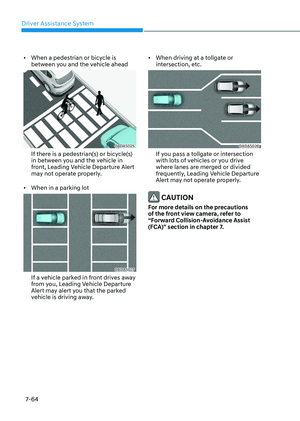
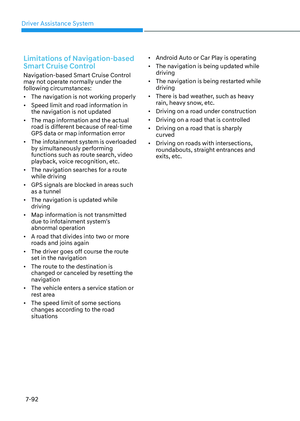
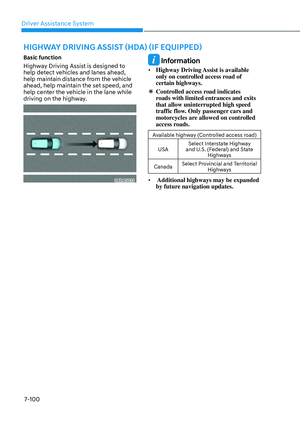
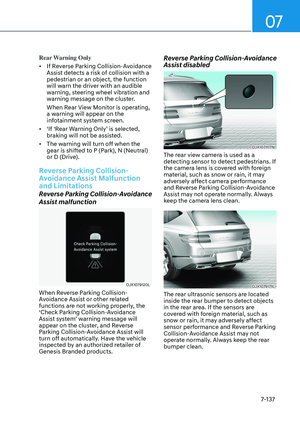
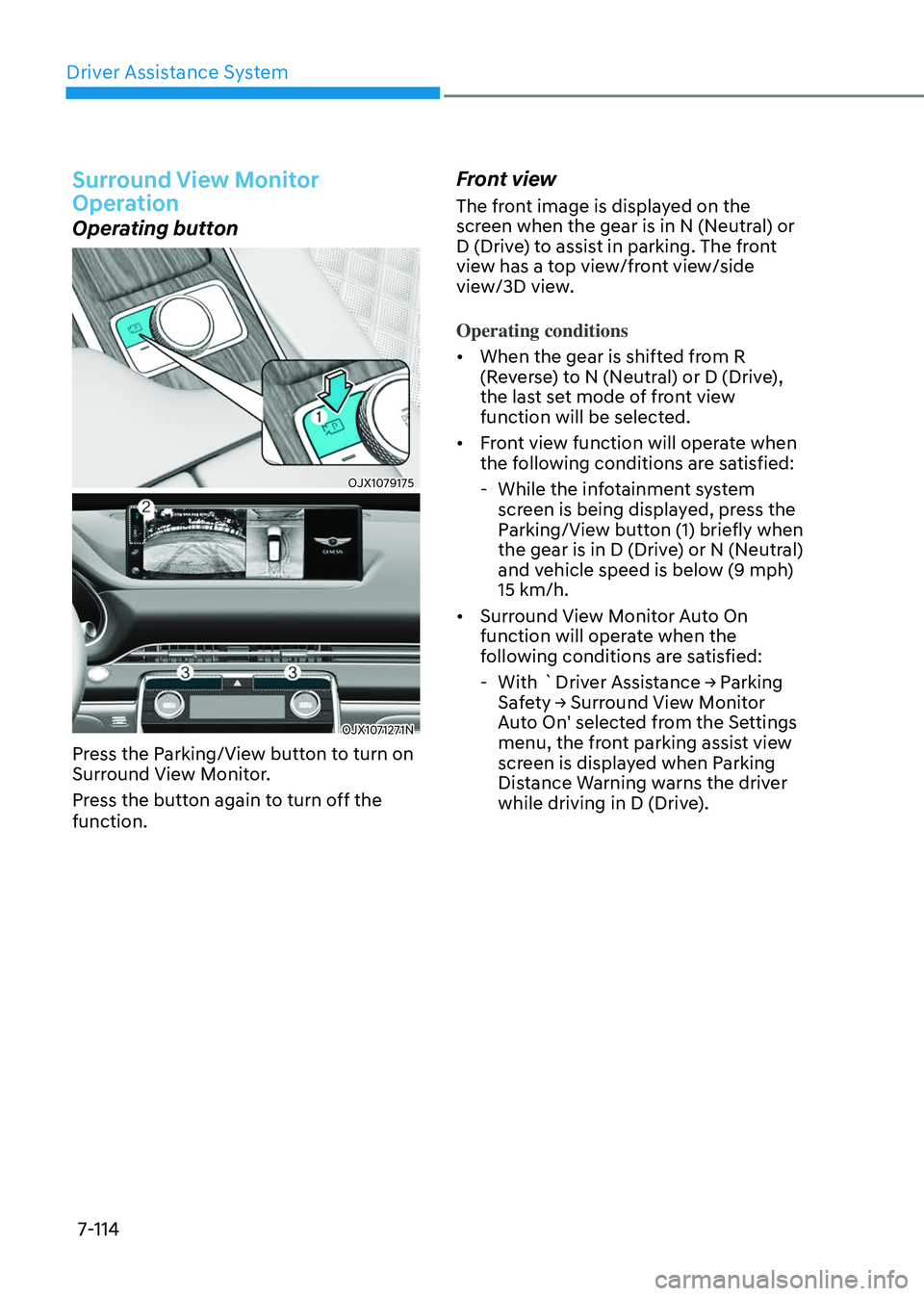
• When the ‘Rear View Parking
Guidance’ is selected, parking
guidance is displayed in the rear view.
• The horizontal guideline of the Rear
View Parking Guidance shows the
distance of 0.5 m (1.6 ft.), 1 m (3.3 ft.)
and 2.3 m (7.6 ft.) from the vehicle.
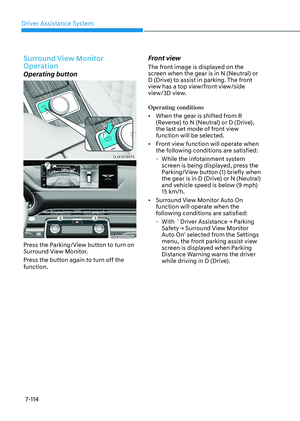
Parking Distance Warning
OJX1071307NOJX1071307N
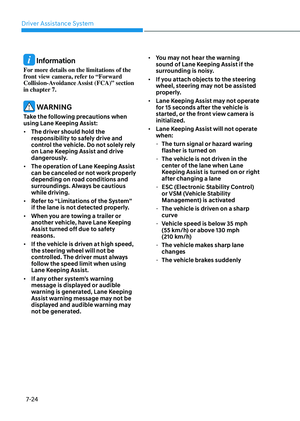
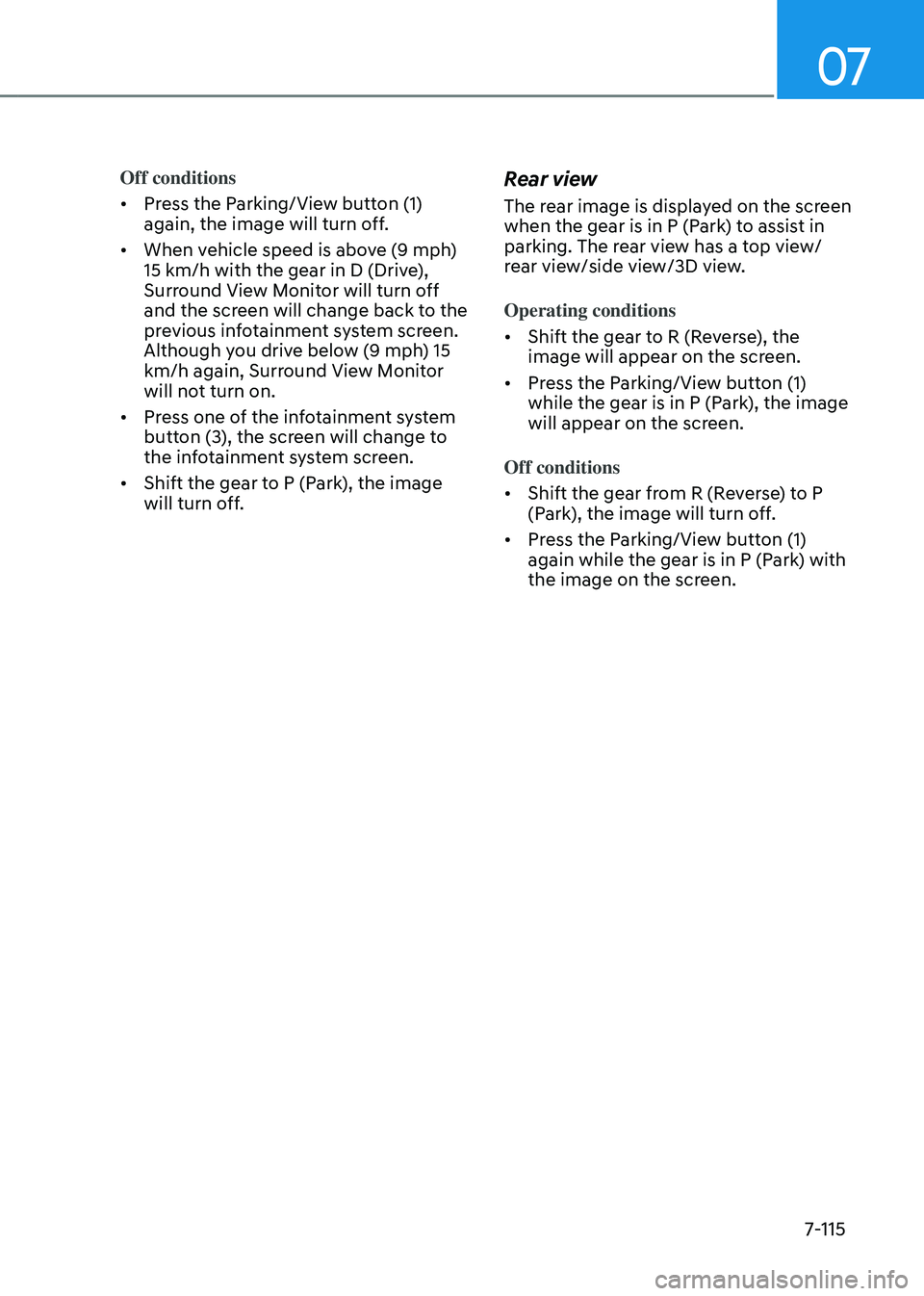
• When the ‘Parking Distance Warning’
is selected, parking distance warning
is displayed on the right side of the
Surround View Monitor screen.
• The image will be displayed only when
Parking Distance Warning is warning
the driver.
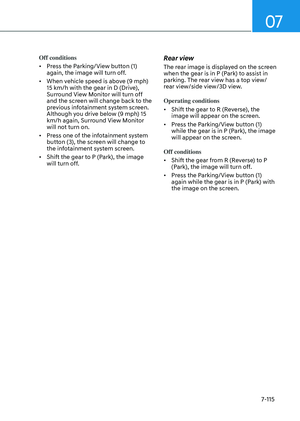
Surround View Monitor Auto On
With the vehicle on, select ‘Driver
Assistance → Parking Safety → Surround
View Monitor Auto On’ from the Settings
menu to use the function.
OJX1079107 OJX1079107
Page 470 of 650

Driver Assistance System
7-114
Surround View Monitor
Operation
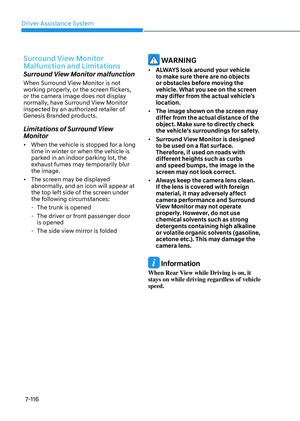
Operating button
OJX1079175OJX1079175
OJX1071271NOJX1071271N
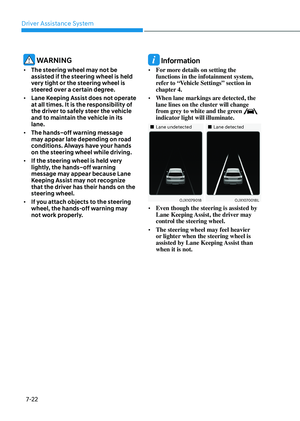
Press the Parking/View button to turn on
Surround View Monitor.
Press the button again to turn off the
function.
Front view
The front image is displayed on the
screen when the gear is in N (Neutral) or
D (Drive) to assist in parking. The front
view has a top view/front view/side
view/3D view.
Operating conditions
• When the gear is shifted from R
(Reverse) to N (Neutral) or D (Drive),
the last set mode of front view
function will be selected.
• Front view function will operate when
the following conditions are satisfied:
-While the infotainment system
screen is being displayed, press the
Parking/View button (1) briefly when
the gear is in D (Drive) or N (Neutral)
and vehicle speed is below (9 mph)
15 km/h.
• Surround View Monitor Auto On
function will operate when the
following conditions are satisfied:
-With `Driver Assistance → Parking
Safety → Surround View Monitor
Auto On' selected from the Settings
menu, the front parking assist view
screen is displayed when Parking
Distance Warning warns the driver
while driving in D (Drive).
Page 471 of 650

07
7-115
Off conditions
• Press the Parking/View button (1)
again, the image will turn off.
• When vehicle speed is above (9 mph)
15 km/h with the gear in D (Drive),
Surround View Monitor will turn off
and the screen will change back to the
previous infotainment system screen.
Although you drive below (9 mph) 15
km/h again, Surround View Monitor
will not turn on.
• Press one of the infotainment system
button (3), the screen will change to
the infotainment system screen.
• Shift the gear to P (Park), the image
will turn off.
Rear view
The rear image is displayed on the screen
when the gear is in P (Park) to assist in
parking. The rear view has a top view/
rear view/side view/3D view.
Operating conditions
• Shift the gear to R (Reverse), the
image will appear on the screen.
• Press the Parking/View button (1)
while the gear is in P (Park), the image
will appear on the screen.
Off conditions
• Shift the gear from R (Reverse) to P
(Park), the image will turn off.
• Press the Parking/View button (1)
again while the gear is in P (Park) with
the image on the screen.
Page 472 of 650

Driver Assistance System
7-116
Surround View Monitor
Malfunction and Limitations
Surround View Monitor malfunction
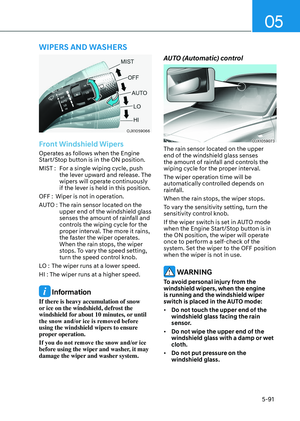
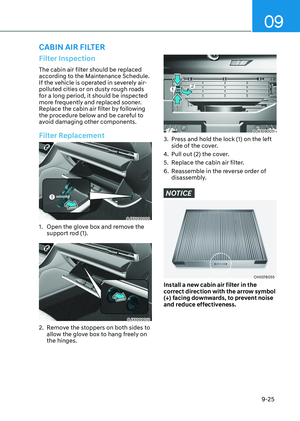
When Surround View Monitor is not
working properly, or the screen flickers,
or the camera image does not display
normally, have Surround View Monitor
inspected by an authorized retailer of
Genesis Branded products.
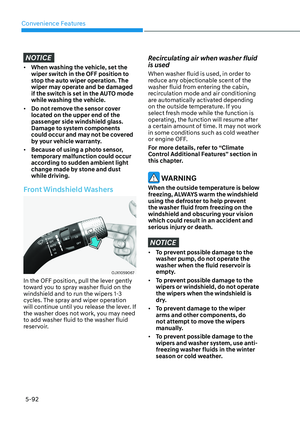
Limitations of Surround View
Monitor
• When the vehicle is stopped for a long
time in winter or when the vehicle is
parked in an indoor parking lot, the
exhaust fumes may temporarily blur
the image.
• The screen may be displayed
abnormally, and an icon will appear at
the top left side of the screen under
the following circumstances:
-The trunk is opened
-The driver or front passenger door
is opened
-The side view mirror is folded
WARNING
• ALWAYS look around your vehicle
to make sure there are no objects
or obstacles before moving the
vehicle. What you see on the screen
may differ from the actual vehicle’s
location.
• The image shown on the screen may
differ from the actual distance of the
object. Make sure to directly check
the vehicle's surroundings for safety.
• Surround View Monitor is designed
to be used on a flat surface.
Therefore, if used on roads with
different heights such as curbs
and speed bumps, the image in the
screen may not look correct.
• Always keep the camera lens clean.
If the lens is covered with foreign
material, it may adversely affect
camera performance and Surround
View Monitor may not operate
properly. However, do not use
chemical solvents such as strong
detergents containing high alkaline
or volatile organic solvents (gasoline,
acetone etc.). This may damage the
camera lens.
Information
When Rear View while Driving is on, it
stays on while driving regardless of vehicle
speed.