2012 MERCEDES-BENZ SL ROADSTER key
[x] Cancel search: keyPage 474 of 637
:
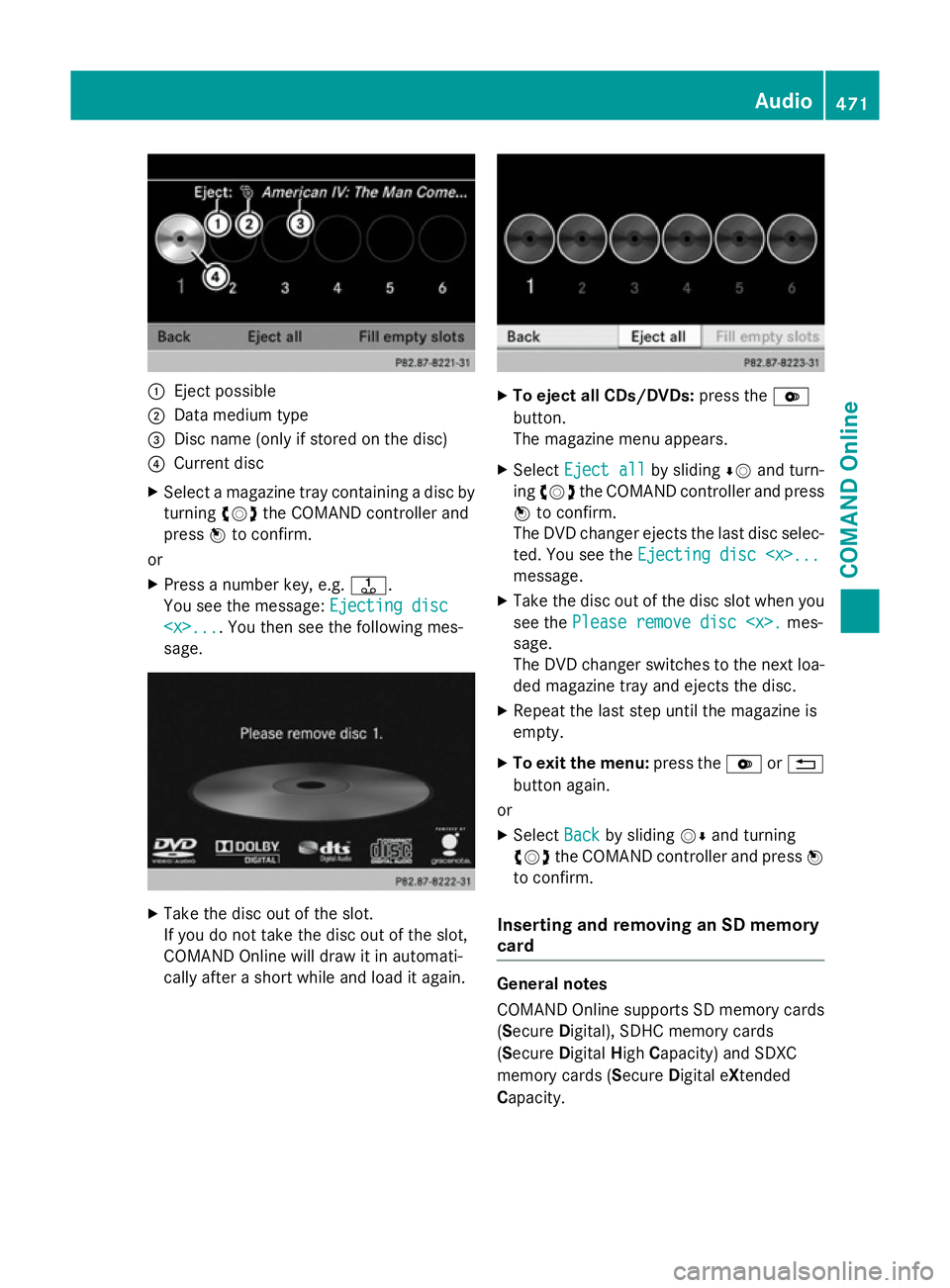
Eject possible
; Data medium type
= Disc name (only if stored on the disc)
? Current disc
X Select a magazine tray containing a disc by
turning cVdthe COMAND controller and
press Wto confirm.
or
X Press a number key, e.g. j.
You see the message: Ejecting disc
Ejecting disc
sage. X
Take the disc out of the slot.
If you do not take the disc out of the slot,
COMAND Online will draw it in automati-
cally after a short while and load it again. X
To eject all CDs/DVDs: press theV
button.
The magazine menu appears.
X Select Eject all Eject all by slidingÆVand turn-
ing cVd the COMAND controller and press
W to confirm.
The DVD changer ejects the last disc selec-
ted. You see the Ejecting disc
Ejecting disc
message.
X Take the disc out of the disc slot when you
see the Please remove disc
Please remove disc
sage.
The DVD changer switches to the next loa-
ded magazine tray and ejects the disc.
X Repeat the last step until the magazine is
empty.
X To exit the menu: press theVor%
button again.
or
X Select Back Backby sliding VÆand turning
cVd the COMAND controller and press W
to confirm.
Inserting and removing an SD memory
card General notes
COMAND Online supports SD memory cards
(S
ecure Digital), SDHC memory cards
(S ecure Digital HighCapacity) and SDXC
memory cards (Secure Digital eXtended
Capacity. Audio
471COMAND Online Z
Page 478 of 637
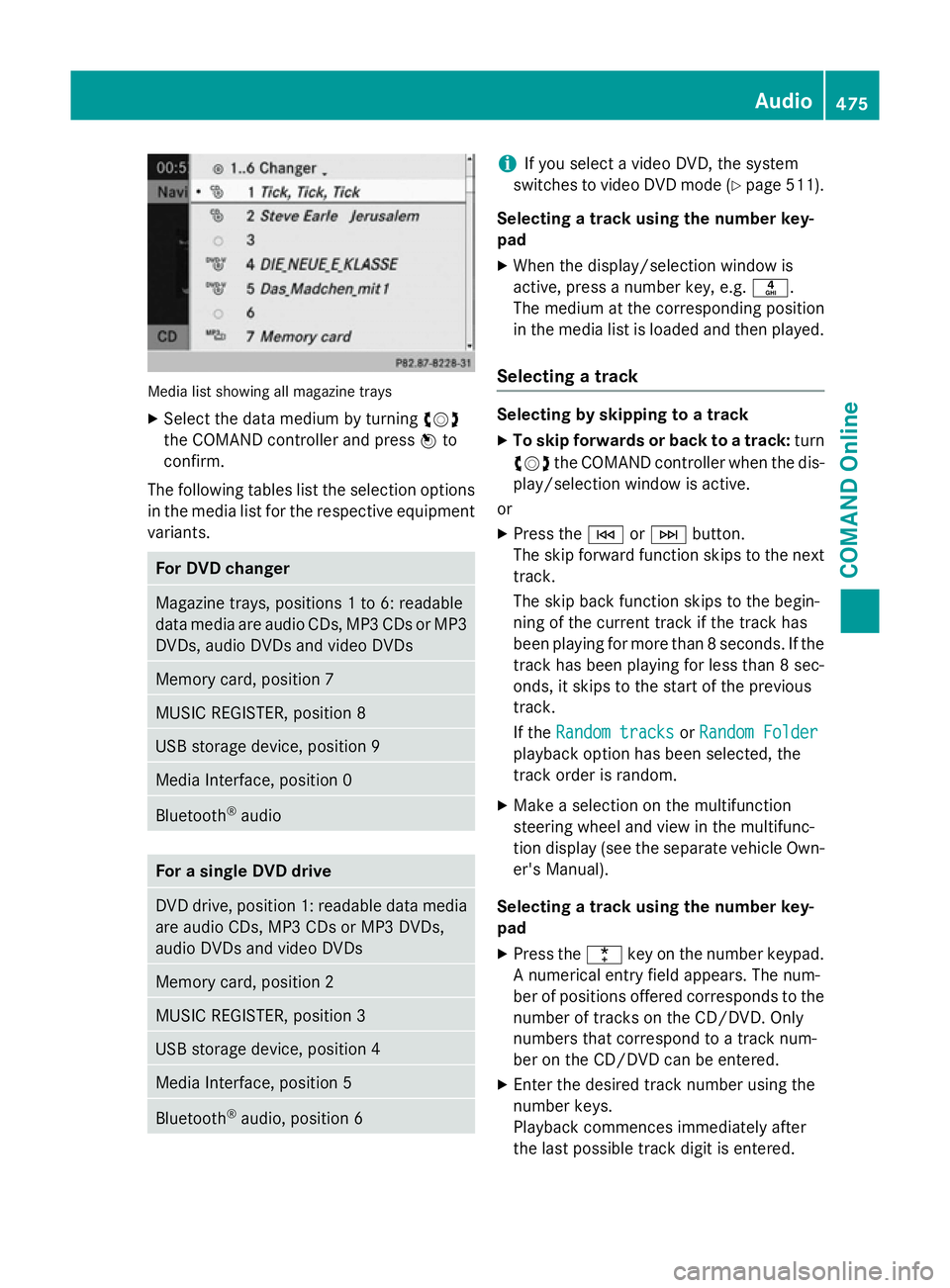
Media list showing all magazine trays
X Select the data medium by turning cVd
the COMAND controller and press Wto
confirm.
The following tables list the selection options
in the media list for the respective equipment variants. For DVD changer
Magazine trays, positions 1 to 6: readable
data media are audio CDs, MP3 CDs or MP3 DVDs, audio DVDs and video DVDs Memory card, position 7
MUSIC REGISTER, position 8
USB storage device, position 9
Media Interface, position 0
Bluetooth
®
audio For a single DVD drive
DVD drive, position 1: readable data media
are audio CDs, MP3 CDs or MP3 DVDs,
audio DVDs and video DVDs Memory card, position 2
MUSIC REGISTER, position 3
USB storage device, position 4
Media Interface, position 5
Bluetooth
®
audio, position 6 i
If you select a video DVD, the system
switches to video DVD mode (Y page 511).
Selecting a track using the number key-
pad X When the display/selection window is
active, press a number key, e.g. n.
The medium at the corresponding position
in the media list is loaded and then played.
Selecting a track Selecting by skipping to a track
X To skip forwards or back to a track: turn
cVd the COMAND controller when the dis-
play/selection window is active.
or
X Press the EorF button.
The skip forward function skips to the next track.
The skip back function skips to the begin-
ning of the current track if the track has
been playing for more than 8 seconds. If the
track has been playing for less than 8 sec-
onds, it skips to the start of the previous
track.
If the Random tracks Random tracks orRandom Folder
Random Folder
playback option has been selected, the
track order is random.
X Make a selection on the multifunction
steering wheel and view in the multifunc-
tion display (see the separate vehicle Own-
er's Manual).
Selecting a track using the number key-
pad X Press the ¯key on the number keypad.
A numerical entry field appears. The num-
ber of positions offered corresponds to the
number of tracks on the CD/DVD. Only
numbers that correspond to a track num-
ber on the CD/DVD can be entered.
X Enter the desired track number using the
number keys.
Playback commences immediately after
the last possible track digit is entered. Audio
475COMAND Online Z
Page 479 of 637
i
Pressing and holding a number key for
more than 2 seconds completes the entry
and the corresponding track is played.
Selecting a track using music search X
Select Current tracklist
Current tracklist ,Folder
Folder or a
category and press Wto confirm.
Select music via categories (e.g. albums,
artists etc.) with the music search function.
If you select a category, COMAND Online
starts a search for track information if the fol-
lowing conditions are fulfilled:
R the data carriers are inserted or connected.
R the track information from these data car-
riers is not yet contained in the COMAND
music database.
COMAND Online imports track information
from the following data carriers:
R disc (audio CD/DVD/MP3)
R memory card
R MUSIC REGISTER
R USB memory
The Track information is complete
Track information is complete
message appears once the search is comple-
ted. COMAND Online stores the music data in its own database. You can now select the
available music data within the desired cate-
gory.
You will find further information on searching
for music in the "Music search" section
(Y page 481).
X In audio CD/audio DVD mode/MP3 mode,
select Search
Search by sliding VÆand turning cVd
the COMAND controller and press W
to confirm.
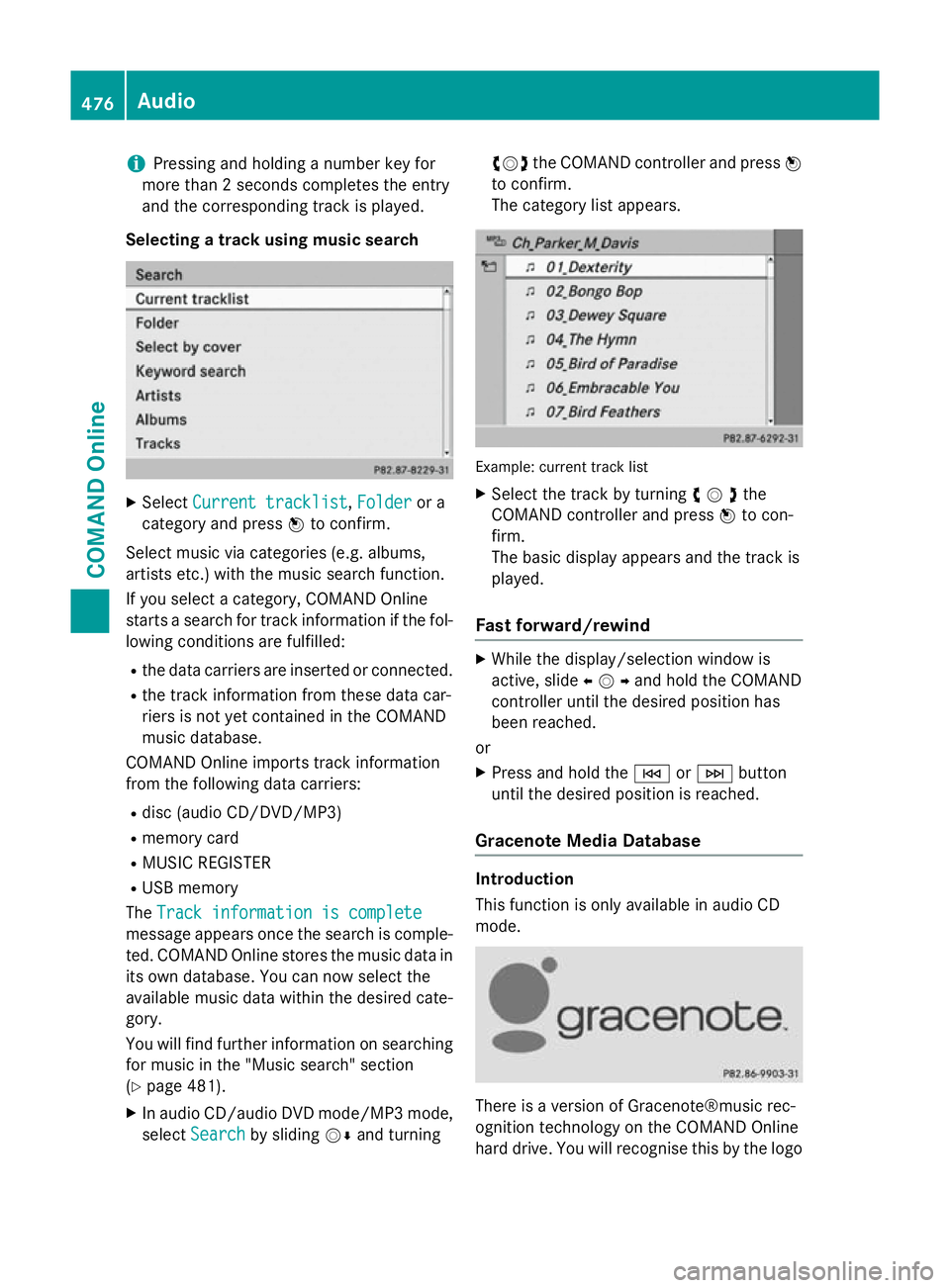
The category list appears. Example: current track list
X Select the track by turning cVdthe
COMAND controller and press Wto con-
firm.
The basic display appears and the track is
played.
Fast forward/rewind X
While the display/selection window is
active, slide XVYand hold the COMAND
controller until the desired position has
been reached.
or X Press and hold the EorF button
until the desired position is reached.
Gracenote Media Database Introduction
This function is only available in audio CD
mode.
There is a version of Gracenote®music rec-
ognition technology on the COMAND Online
hard drive. You will recognise this by the logo 476
AudioCOMAND Online
Page 485 of 637
X
Select Albums
Albums in the category list by turn-
ing cVd the COMAND controller and press
W to confirm.
The available albums are displayed alpha-
betically. If there is a cover available for an
album, it is displayed in front of the album
name.
Selecting a track X
Select Tracks Tracks in the category list
(Y page 481 )by turning cVdthe COMAND
controller and press Wto confirm.
The available tracks are displayed.
Selecting a year of publication X
Select Year
Yearin the category list
(Y page 481) by turning cVdthe COMAND
controller and press Wto confirm.
X Select an entry and press Wto confirm.
The genre list is displayed.
X Select a genre, e.g. pop, and press Wto
confirm.
The track list is displayed.
X Select a track and press Wto confirm.
Playback starts. Selecting composers
X Select Composers Composers in the category list by
turning cVdthe COMAND controller and
press Wto confirm.
The available composers are displayed
alphabetically.
Selecting music genres
X Select Genres Genres in the category list by turn-
ing cVd the COMAND controller and press
W to confirm.
The available music genres are displayed
alphabetically.
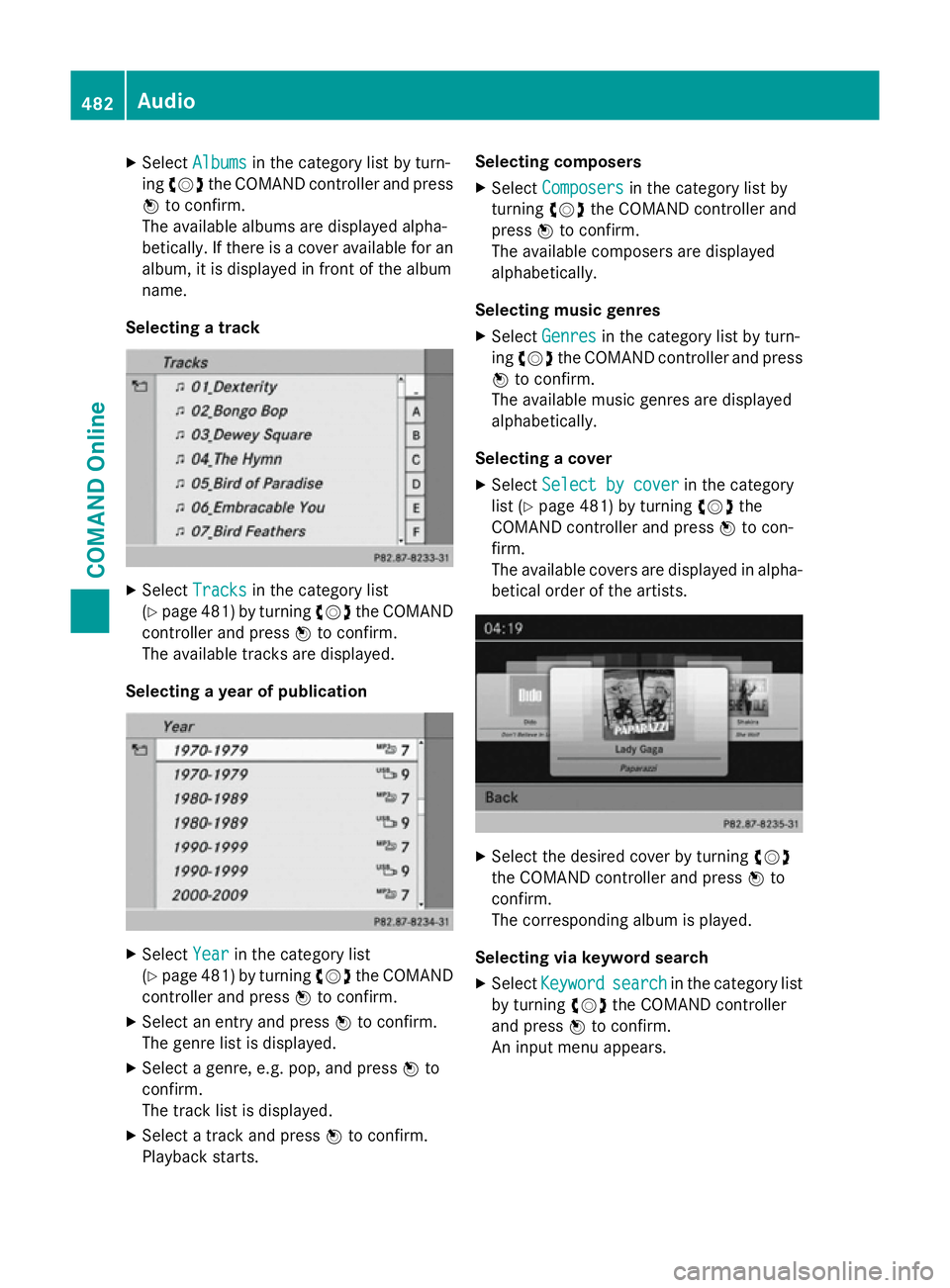
Selecting a cover X Select Select by cover Select by cover in the category
list (Y page 481) by turning cVdthe
COMAND controller and press Wto con-
firm.
The available covers are displayed in alpha- betical order of the artists. X
Select the desired cover by turning cVd
the COMAND controller and press Wto
confirm.
The corresponding album is played.
Selecting via keyword search X Select Keyword
Keyword search searchin the category list
by turning cVdthe COMAND controller
and press Wto confirm.
An input menu appears. 482
AudioCOMAND Online
Page 487 of 637
MUSIC REGISTER
General notes !
Retain the original music files in a secure
location. An error in COMAND Online might result in the loss of the music files stored in
the MUSIC REGISTER. Mercedes-Benz is
not liable for any loss of data.
You can store music files in a compressed
format in the MUSIC REGISTER (Y page 485).
The memory has a capacity of 10 GB.
Switching to the MUSIC REGISTER MUSIC REGISTER basic display
Example: MUSIC REGISTER
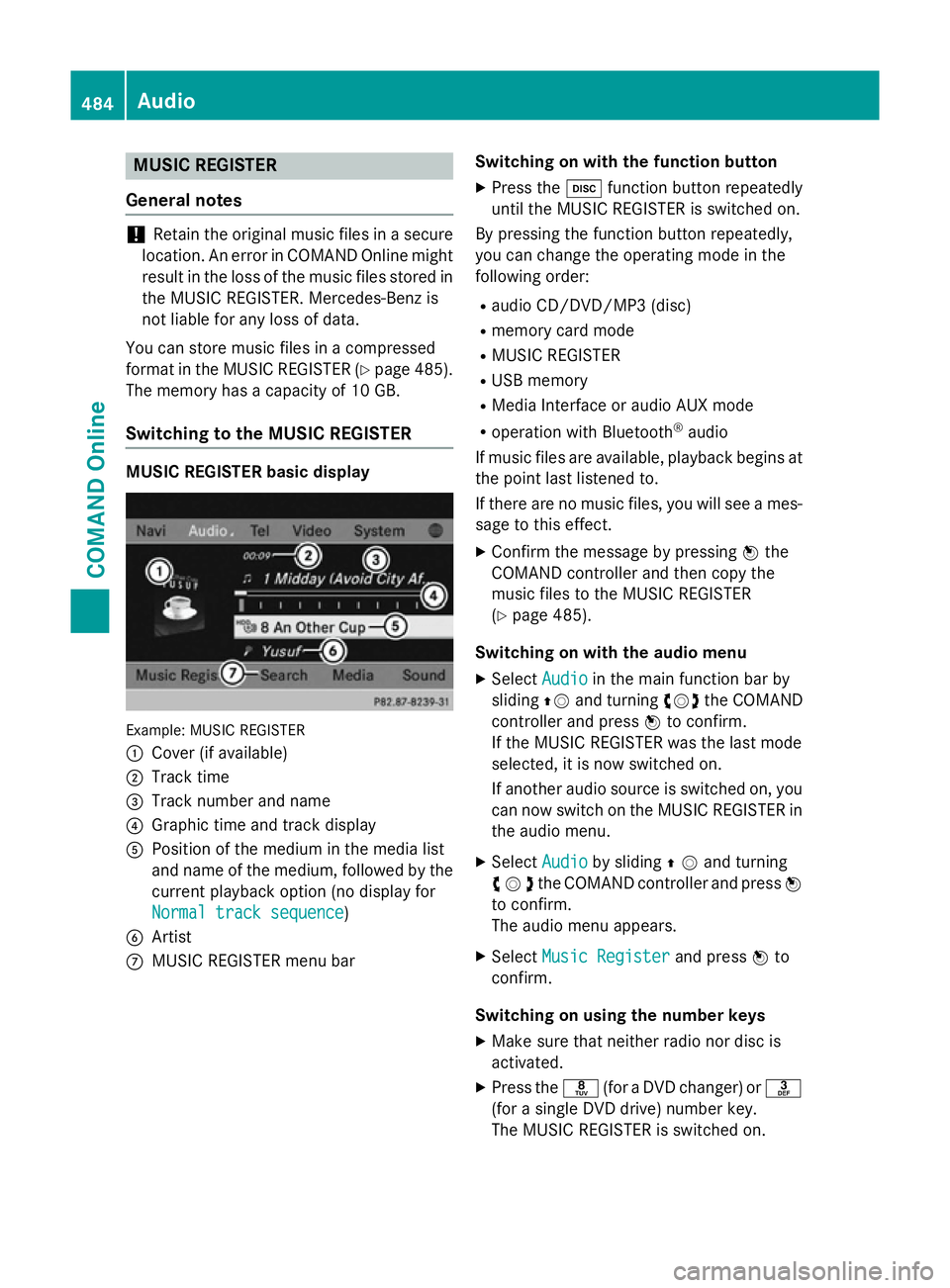
:
Cover (if available)
; Track time
= Track number and name
? Graphic time and track display
A Position of the medium in the media list
and name of the medium, followed by the
current playback option (no display for
Normal track sequence Normal track sequence)
B Artist
C MUSIC REGISTER menu bar Switching on with the function button
X Press the hfunction button repeatedly
until the MUSIC REGISTER is switched on.
By pressing the function button repeatedly,
you can change the operating mode in the
following order:
R audio CD/DVD/MP3 (disc)
R memory card mode
R MUSIC REGISTER
R USB memory
R Media Interface or audio AUX mode
R operation with Bluetooth ®
audio
If music files are available, playback begins at the point last listened to.
If there are no music files, you will see a mes- sage to this effect.
X Confirm the message by pressing Wthe
COMAND controller and then copy the
music files to the MUSIC REGISTER
(Y page 485).
Switching on with the audio menu
X Select Audio Audioin the main function bar by
sliding ZVand turning cVdthe COMAND
controller and press Wto confirm.
If the MUSIC REGISTER was the last mode
selected, it is now switched on.
If another audio source is switched on, you
can now switch on the MUSIC REGISTER in
the audio menu.
X Select Audio
Audio by sliding ZVand turning
cVdthe COMAND controller and press W
to confirm.
The audio menu appears.
X Select Music Register
Music Register and pressWto
confirm.
Switching on using the number keys
X Make sure that neither radio nor disc is
activated.
X Press the r(for a DVD changer) or m
(for a single DVD drive) number key.
The MUSIC REGISTER is switched on. 484
AudioCOMAND Online
Page 492 of 637
Searching for and authorising a Blue-
tooth ®
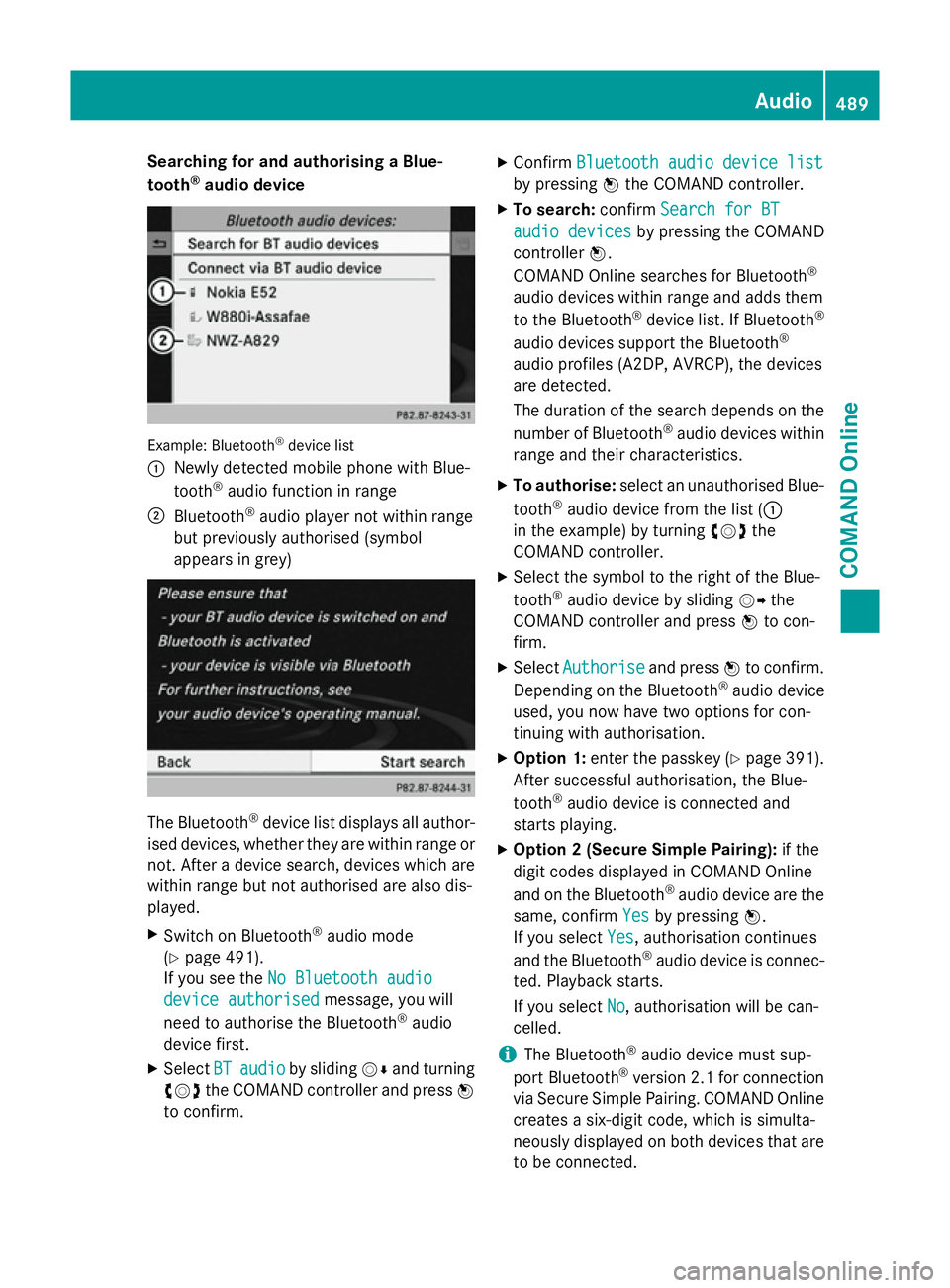
audio device Example: Bluetooth
®
device list
: Newly detected mobile phone with Blue-
tooth ®
audio function in range
; Bluetooth ®
audio player not within range
but previously authorised (symbol
appears in grey) The Bluetooth
®
device list displays all author-
ised devices, whether they are within range or not. After a device search, devices which arewithin range but not authorised are also dis-
played.
X Switch on Bluetooth ®
audio mode
(Y page 491).
If you see the No Bluetooth audio No Bluetooth audio
device authorised
device authorised message, you will
need to authorise the Bluetooth ®
audio
device first.
X Select BT
BTaudio
audio by sliding VÆand turning
cVd the COMAND controller and press W
to confirm. X
Confirm Bluetooth audio device list Bluetooth audio device list
by pressing Wthe COMAND controller.
X To search: confirmSearch for BT Search for BT
audio devices
audio devices by pressing the COMAND
controller W.
COMAND Online searches for Bluetooth ®
audio devices within range and adds them
to the Bluetooth ®
device list. If Bluetooth ®
audio devices support the Bluetooth ®
audio profiles (A2DP, AVRCP), the devices
are detected.
The duration of the search depends on the
number of Bluetooth ®
audio devices within
range and their characteristics.
X To authorise: select an unauthorised Blue-
tooth ®
audio device from the list (:
in the example) by turning cVdthe
COMAND controller.
X Select the symbol to the right of the Blue-
tooth ®
audio device by sliding VYthe
COMAND controller and press Wto con-
firm.
X Select Authorise Authorise and pressWto confirm.
Depending on the Bluetooth ®
audio device
used, you now have two options for con-
tinuing with authorisation.
X Option 1: enter the passkey (Y page 391).
After successful authorisation, the Blue-
tooth ®
audio device is connected and
starts playing.
X Option 2 (Secure Simple Pairing): if the
digit codes displayed in COMAND Online
and on the Bluetooth ®
audio device are the
same, confirm Yes Yesby pressing W.
If you select Yes Yes, authorisation continues
and the Bluetooth ®
audio device is connec-
ted. Playback starts.
If you select No
No, authorisation will be can-
celled.
i The Bluetooth ®
audio device must sup-
port Bluetooth ®
version 2.1 for connection
via Secure Simple Pairing. COMAND Online creates a six-digit code, which is simulta-
neously displayed on both devices that are
to be connected. Audio
489COMAND Online Z
Page 498 of 637
Applications (Apps) that are activated on
the connected device may lead to malfunc-
tions.
i Connecting a fully discharged iPod ®
or
MP3 player can result in an extended initi-
alisation period.
Error messages appear while the device is
being activated if:
R the connected device is not supported
(External device unavailable External device unavailable mes-
sage).
R the connected device consumes too much
power.
R the Media Interface connection is faulty.
R a mass storage device (e.g. USB memory
stick or USB hard drive) is connected to the Media Interface.
In this case the Please connect the Please connect the
device to the other USB port
device to the other USB port mes-
sage appears.
i The separate USB connection ensures
quick access and expanded media content
options.
i Information is available at any Mercedes-
Benz Service Centre.
Disconnecting an iPod ®
X Press the release buttons on iPod ®
plug ;
and pull the iPod ®
cable from the iPod ®
,
see the separate cable kit instructions.
Switching to Media Interface mode General notes
In extreme cases, starting up individual func-
tions can take up to several minutes; this
depends on the external device and its con-
tent (e.g. video podcasts).
Only use the original software to save files on
iPods ®
or MP3 players. Otherwise, some or all
functions may not be available. Switching on automatically
X Connect an external device (Y page 494).
COMAND Online activates the device (if
connected via the iPod ®
connector or USB
socket). The basic display then appears.
Switching on with the function button
The external device is connected to the Media Interface.
X Press the hfunction button one or more
times.
By pressing the function button repeatedly,
you can change the operating mode in the
following order: R audio CD/DVD/MP3 (disc)
R memory card mode
R MUSIC REGISTER
R USB memory
R Media Interface or audio AUX mode
R operation with Bluetooth ®
audio
Switching on using a number key
X Press the inumber key (for a DVD
changer) or the onumber key (for a
single DVD drive) number key.
This selects the connected external audio
device directly.
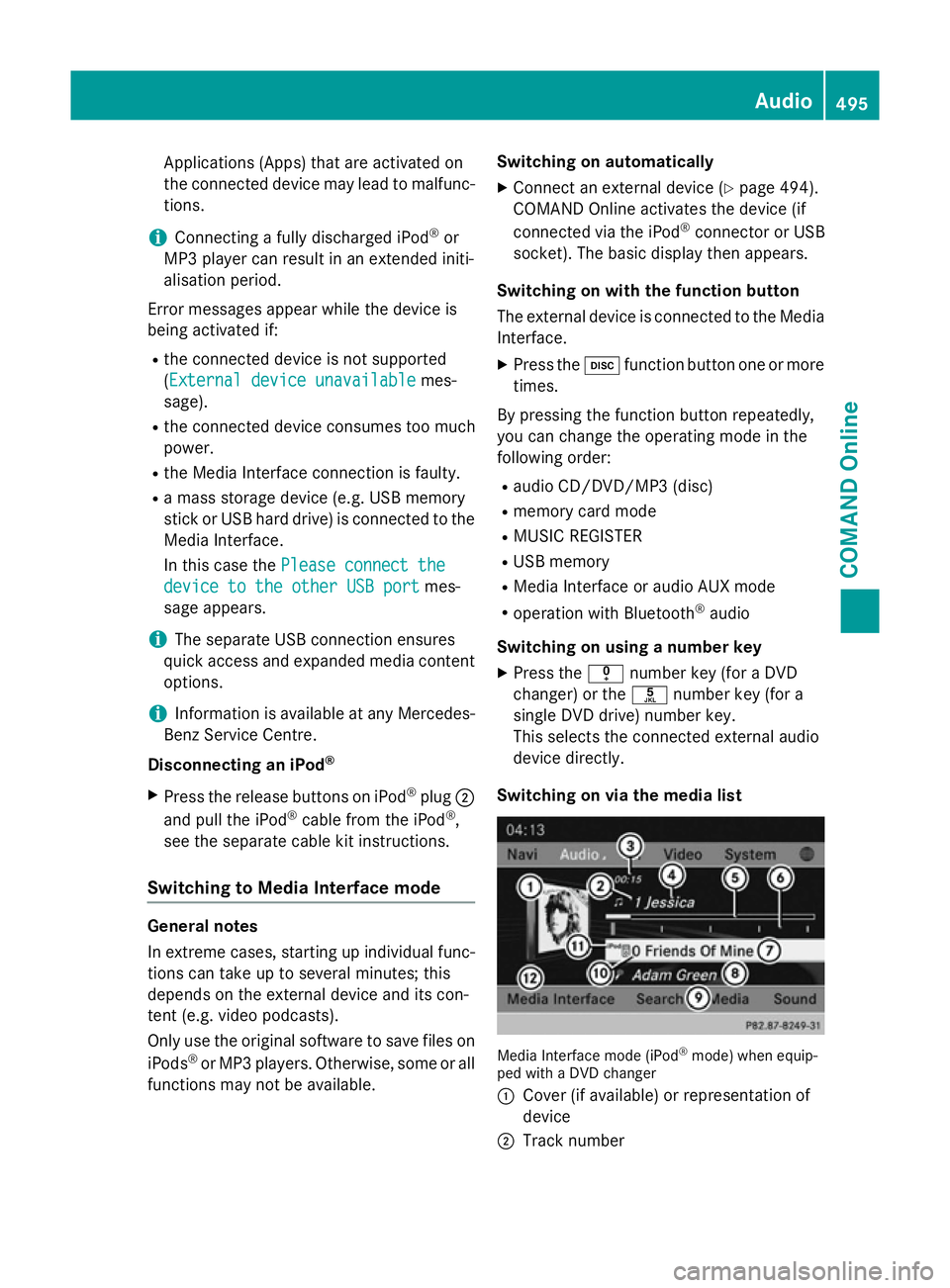
Switching on via the media list Media Interface mode (iPod
®
mode) when equip-
ped with a DVD changer
: Cover (if available) or representation of
device
; Track number Audio
495COMAND Online Z
Page 499 of 637
=
Elapsed track time (also in format
00:00:00 for audio books)
? Track name
A Graphic time display
B Track position in playlist
C Album name (if available)
D Artist (if available)
E Music search
F Position in the media list
G Data medium type
H Playback options
X Select the entry under position 0 (DVD
changer) or position 5 (single DVD drive) in
the media list by turning cVdthe COMAND
controller and press Wto confirm
(Y page 474).
COMAND Online activates the connected
device. You will see a message to this
effect. The basic display then appears.
If no device is connected, you will see the
Media Interface
Media Interface entry instead of a
device name.
The type of device connected is indicated by
the corresponding symbol for iPod ®
(iPhone ®
) or MP3 player.
The current playback option is shown with a
symbol behind album name (no display for
Normal track sequence Normal track sequence) (Y page 499).
i If the device connected does not contain
any playable tracks, a message appears to
this effect.
Selecting music files Note
COMAND Online displays the data stored on
the iPod
®
, iPhone ®
or MP3 player according
to the file structure used in the respective
medium. Selecting by skipping to a track
X To skip forwards or back to a track: turn
cVd the COMAND controller when the dis-
play/selection window is active.
or
X Press the EorF button.
The skip forward function skips to the next track. The skip back function skips to the
beginning of the current track if the track
has been playing for more than eight sec-
onds. If the track has been playing for less
than eight seconds, it skips to the start of
the previous track. If you have selected a
playback option other than Normal Normaltrack
track
sequence
sequence, the track sequence is random.
X On the multifunction steering wheel:
switch to Media Interface mode in
COMAND Online (Y page 495).
X On the multifunction steering wheel, press
the = or; button to select the
Audio
Audio menu.
X Press the 9or: button briefly.
If you hold down the 9or: button,
the system scrolls through the list more
quickly. Not all media players support this
function.
If track information is available on the
media player, the multifunction display
shows the number and name of the track.
Selecting using the number keypad X To make an entry: press thelbutton.
An input menu appears. The number of
characters available for input depends on
the number of stored tracks.
X To enter a track number: press a number
key, e.g. q.
The digit is entered in the first position in
the input line.
i COMAND Online will ignore and not dis-
play an invalid digit. 496
AudioCOMAND Online