2023 HYUNDAI IONIQ 6 infotainment
[x] Cancel search: infotainmentPage 388 of 582
Driver Assistance System
7-44
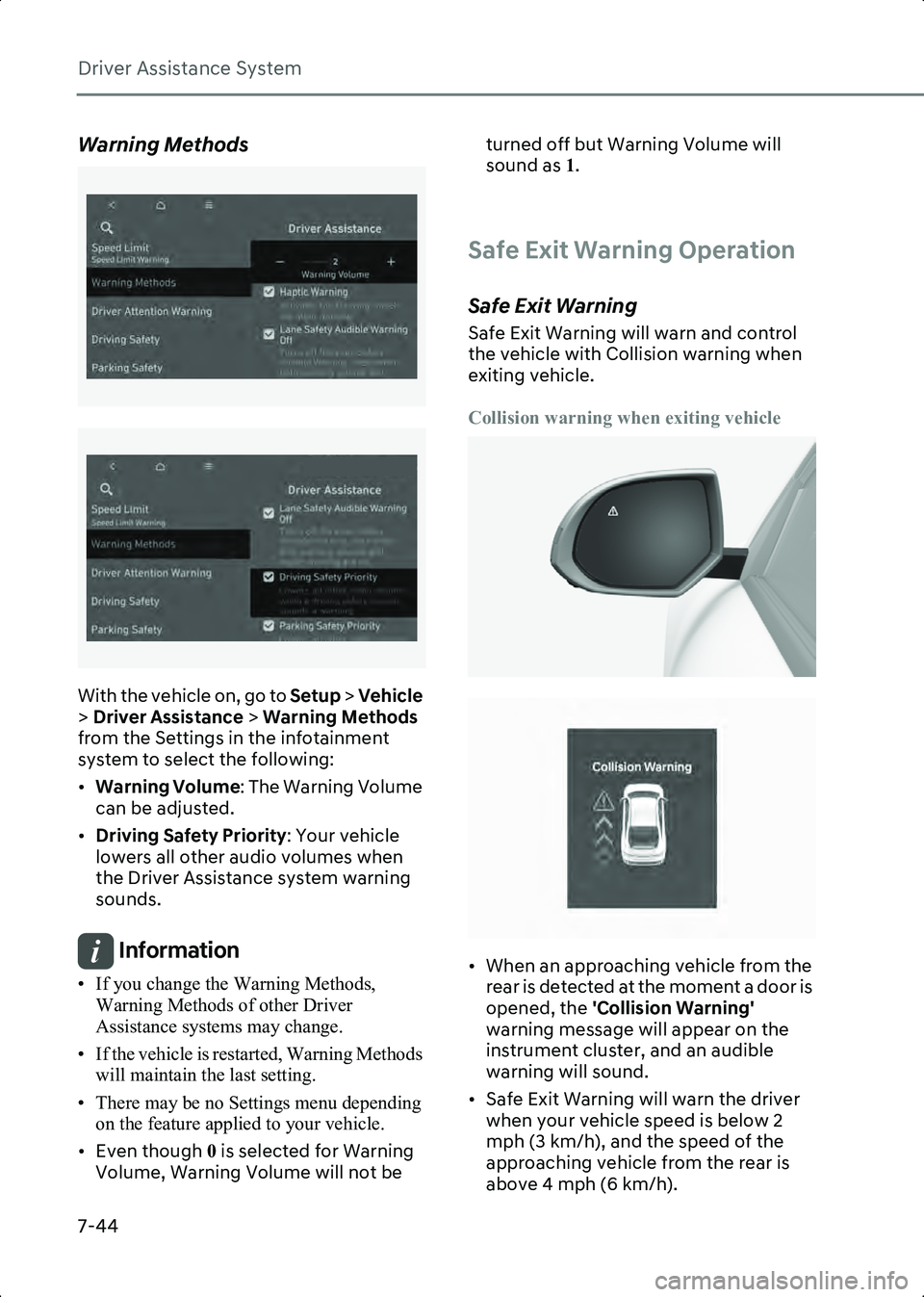
Warning Methods
B7001902
B7001902_1
With the vehicle on, go to Setup > Vehicle
> Driver Assistance > Warning Methods
from the Settings in the infotainment
system to select the following:
• Warning Volume : The Warning Volume
can be adjusted.
• Driving Safety Priority : Your vehicle
lowers all other audio volumes when
the Driver Assistance system warning
sounds.
Information • If you change the Warning Methods, Warning Methods of other Driver
Assistance systems may change.
• If the vehicle is restarted, Warning Methods will maintain the last setting.
• There may be no Settings menu depending on the feature applied to your vehicle.
• Even though 0 is selected for Warning
Volume, Warning Volume will not be turned off but Warning Volume will
sound as
1.
Safe Exit Warning Operation
Safe Exit Warning
Safe Exit Warning will warn and control
the vehicle with Collision warning when
exiting vehicle.
Collision warning when exiting vehicle
B7002001
B7002003
• When an approaching vehicle from the rear is detected at the moment a door is
opened, the 'Collision Warning'
warning message will appear on the
instrument cluster, and an audible
warning will sound.
• Safe Exit Warning will warn the driver when your vehicle speed is below 2
mph (3 km/h), and the speed of the
approaching vehicle from the rear is
above 4 mph (6 km/h).
Hyundai_CE_en_US.book Page 44
Page 393 of 582

7
7-49
Intelligent Speed Limit
if equipped
Assist (ISLA)
Intelligent Speed Limit Assist uses
information from the detected road signs
and uses the navigation system data to
inform you of the speed limit and to help
maintain within the speed limit on the
road.
CAUTION • Intelligent Speed Limit Assist may not operate properly if the function is used
in other countries.
• If a navigation system is equipped to your vehicle, the navigation needs to be
regularly updated for Intelligent Speed
Limit Assist to operate properly.
• The infotainment system may change after software updates. For more
information, refer to the user's manual
provided in the infotainment system
and the quick reference guide.
Detecting sensor
B7002501(1) Front view camera
Refer to the picture above for the detailed
location of the detecting sensor.
CAUTION For more information on the precautions
of the front view camera, refer to the
Forward Collision-Avoidance Assist (FCA)
section in this chapter.
Intelligent Speed Limit Assist
Settings
Speed Limit
B7002601
With the vehicle on, select or deselect
Setup > Vehicle > Driver Assistance >
Speed Limit from the Settings menu to
set whether to use each function.
• If Speed Limit Offset is selected, the
Speed Limit Offset can be adjusted.
Speed Limit Warning and Speed Limit
Assist will warn the driver and adjust
the driving speed when vehicle speed
exceeds the speed at which the set
Offset is added to speed limit.
• If Speed Limit Assist is selected,
Intelligent Speed Limit Assist will
inform the driver of speed limit and
additional road signs. In addition,
Intelligent Speed Limit Assist will
inform the driver to change set speed of
Manual Speed Limit Assist and/or
Smart Cruise Control to help the driver
stay within the speed limit.
• If Speed Limit Warning is selected,
Intelligent Speed Limit Assist will
inform the driver of speed limit. In
addition, Intelligent Speed Limit Assist
1
Hyundai_CE_en_US.book Page 49
Page 394 of 582
Driver Assistance System
7-50
will warn the driver when the vehicle is
driven faster than the speed limit.
• If Off is selected, Intelligent Speed
Limit Assist will turn off.
WARNING For your safety, only change the Settings
after parking the vehicle at a safe
location.
Information • Speed Limit Assist function operates based on the Offset setting added to the speed
limit. If you want to change the set speed
according to the speed limit, adjust the
offset to ‘0’.
• The setting of 'Speed Offset' is not reflected in Navigation-based Smart Cruise Control
(NSCC).
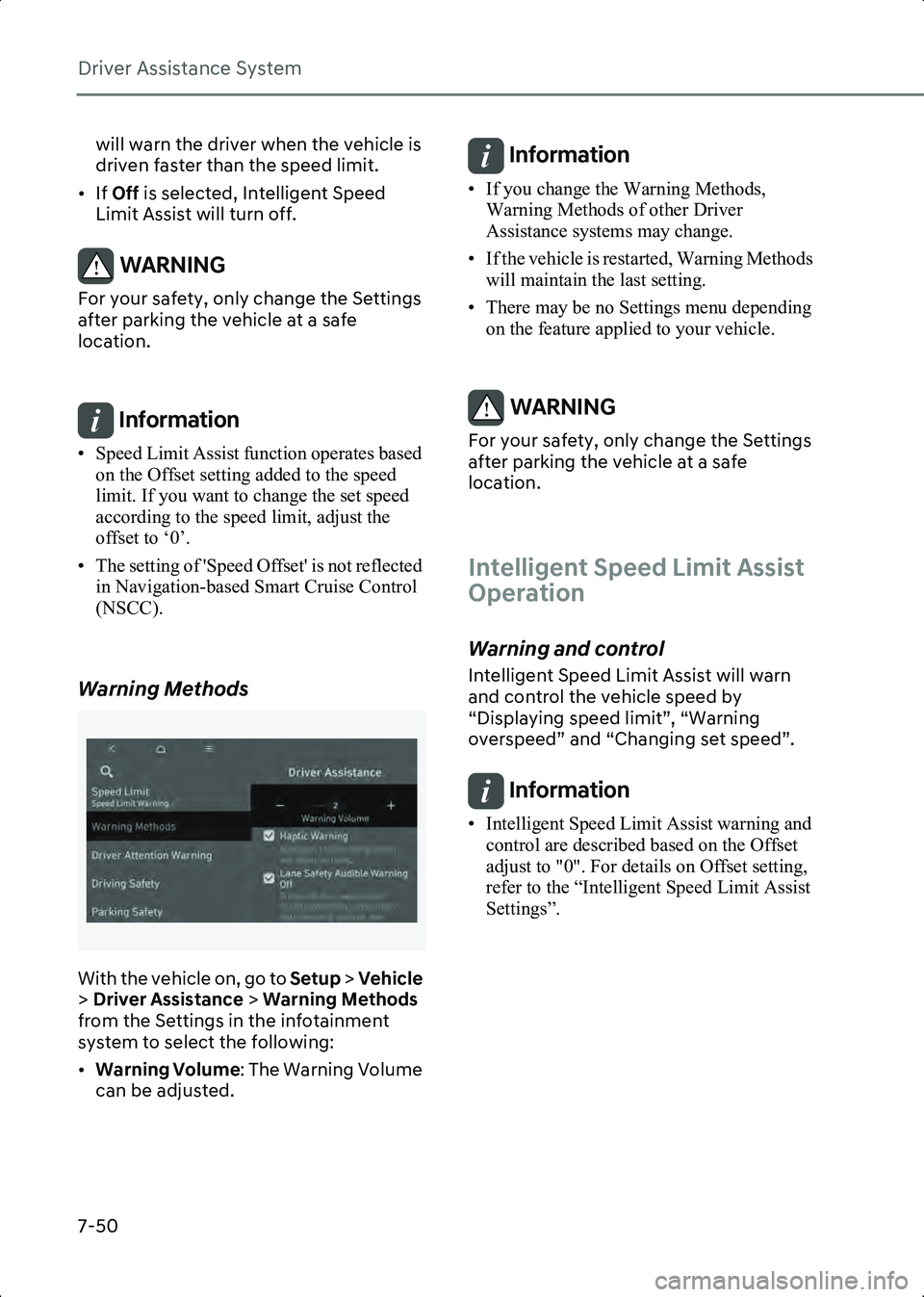
Warning Methods
B7001902
With the vehicle on, go to Setup > Vehicle
> Driver Assistance > Warning Methods
from the Settings in the infotainment
system to select the following:
• Warning Volume : The Warning Volume
can be adjusted.
Information • If you change the Warning Methods, Warning Methods of other Driver
Assistance systems may change.
• If the vehicle is restarted, Warning Methods will maintain the last setting.
• There may be no Settings menu depending on the feature applied to your vehicle.
WARNING For your safety, only change the Settings
after parking the vehicle at a safe
location.
Intelligent Speed Limit Assist
Operation
Warning and control
Intelligent Speed Limit Assist will warn
and control the vehicle speed by
“Displaying speed limit”, “Warning
overspeed” and “Changing set speed”.
Information • Intelligent Speed Limit Assist warning and control are described based on the Offset
adjust to "0". For details on Offset setting,
refer to the “Intelligent Speed Limit Assist
Settings”.
Hyundai_CE_en_US.book Page 50
Page 407 of 582
7
7-63
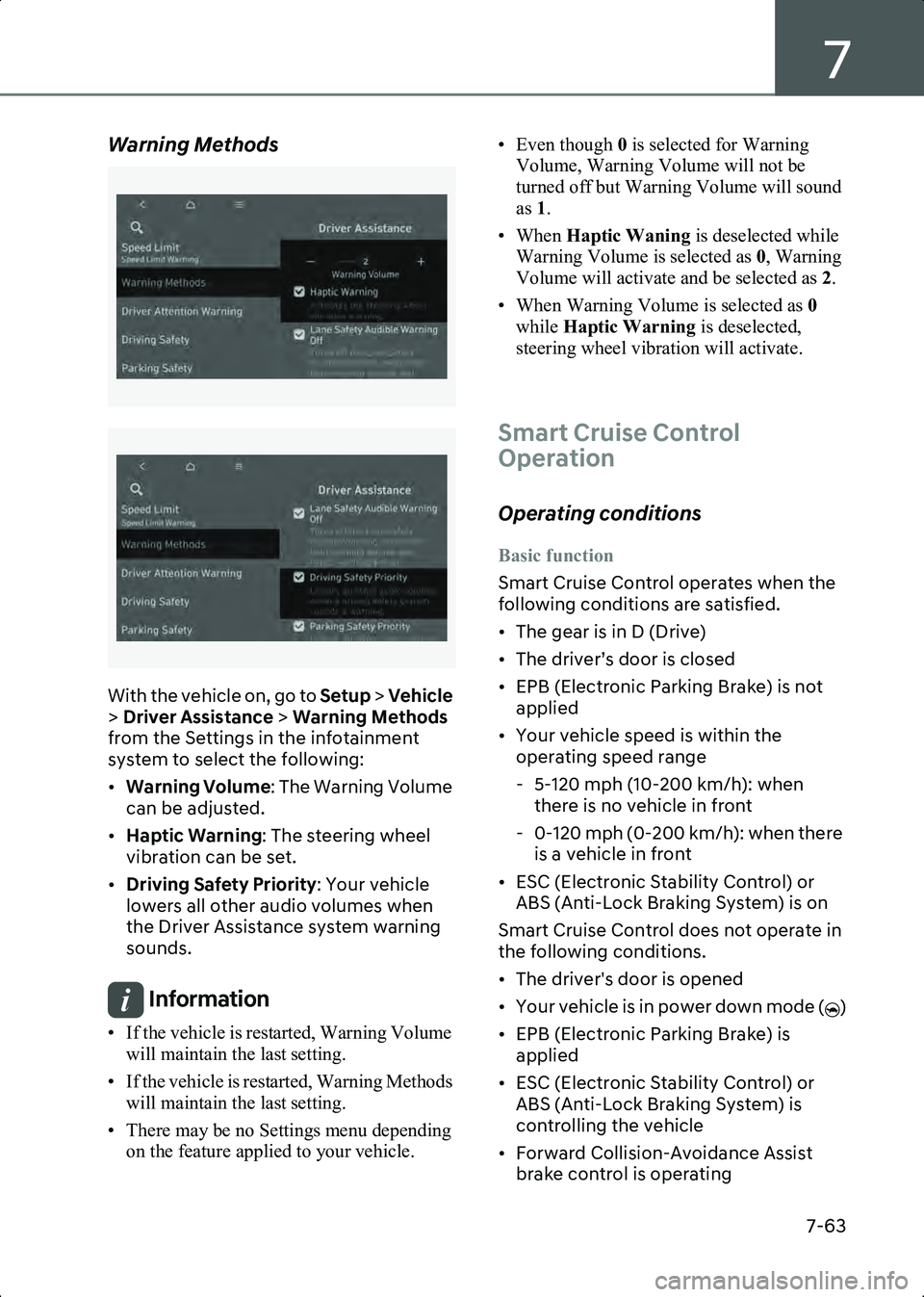
Warning Methods
B7000205
B7000205_1
With the vehicle on, go to Setup > Vehicle
> Driver Assistance > Warning Methods
from the Settings in the infotainment
system to select the following:
• Warning Volume : The Warning Volume
can be adjusted.
• Haptic Warning : The steering wheel
vibration can be set.
• Driving Safety Priority : Your vehicle
lowers all other audio volumes when
the Driver Assistance system warning
sounds.
Information • If the vehicle is restarted, Warning Volume will maintain the last setting.
• If the vehicle is restarted, Warning Methods will maintain the last setting.
• There may be no Settings menu depending on the feature applied to your vehicle. • Even though
0 is selected for Warning
Volume, Warning Volume will not be
turned off but Warning Volume will sound
as 1.
• When Haptic Waning is deselected while
Warning Volume is selected as 0, Warning
Volume will activate and be selected as 2.
• When Warning Volume is selected as 0
while Haptic Warning is deselected,
steering wheel vibration will activate.
Smart Cruise Control
Operation
Operating conditions
Basic function
Smart Cruise Control operates when the
following conditions are satisfied.
• The gear is in D (Drive)
• The driver’s door is closed
• EPB (Electronic Parking Brake) is not applied
• Your vehicle speed is within the operating speed range
- 5-120 mph (10-200 km/h): when there is no vehicle in front
- 0-120 mph (0-200 km/h): when there is a vehicle in front
• ESC (Electronic Stability Control) or ABS (Anti-Lock Braking System) is on
Smart Cruise Control does not operate in
the following conditions.
• The driver's door is opened
• Your vehicle is in power down mode ( )
• EPB (Electronic Parking Brake) is applied
• ESC (Electronic Stability Control) or ABS (Anti-Lock Braking System) is
controlling the vehicle
• Forward Collision-Avoidance Assist brake control is operating
Hyundai_CE_en_US.book Page 63
Page 423 of 582

7
7-79
Limitations of
Navigation-based Smart
Cruise Control
Navigation-based Smart Cruise Control
may not operate properly under the
following circumstances:
• The navigation is not working properly
• Map information is not transmitted due to infotainment system's abnormal
operation
• Speed limit and road information in the navigation is not updated
• The map information and the actual road is different because of real-time
GPS data or map information error
• The navigation searches for a route while driving
• GPS signals are blocked in areas such as a tunnel
• A road that divides into two or more roads and joins again
• The driver goes off course from the route set in the navigation
• The route to the destination is changed or cancelled by resetting the navigation
• The vehicle enters a service station or rest area
• Android Auto or Car Play is operating
• The navigation cannot detect the current vehicle position (for example,
elevated roads including overpass
adjacent to general roads or nearby
roads exist in a parallel way)
• The navigation is being updated while driving
• The navigation is being restarted while driving
• The speed limit of some sections changes according to the road
situations
• Driving on a road under construction
• Driving in lane-restricted driving situations • There is bad weather, such as heavy
rain, heavy snow, etc.
• Driving on a road that is sharply curved
B7004801(1) Set route,
(2) Branch line,
(3) Driving route,
(4) Main road,
(5) Curved road section
• When there is a difference between the navigation set route (branch line) and
the driving route (main road), Highway
Curve Zone Auto Slowdown function
may not operate until the driving route
is recognized as the main road.
• When the vehicle's driving route is recognized as the main road by
maintaining the main road instead of
the navigation set route, Highway
Curve Zone Auto Slowdown function
will operate. Depending on the distance
to the curve and the current vehicle
speed, vehicle deceleration may not be
sufficient or may decelerate rapidly.
Hyundai_CE_en_US.book Page 79
Page 426 of 582
Driver Assistance System
7-82
Lane Following Assist
(LFA)
Lane Following Assist detects lane
markings and/or a vehicle ahead on the
road, and center your vehicle in the lane.
Detecting sensor
B7004901(1) Front view camera
The front view camera is used as a
detecting sensor to detect lane markings
and front vehicles.
Refer to the picture above for the detailed
location of the detecting sensor.
CAUTION For more information on the precautions
of the front view camera, refer to the
“Forward Collision-Avoidance Assist
(FCA)” section in this chapter.
Lane Following Assist Settings
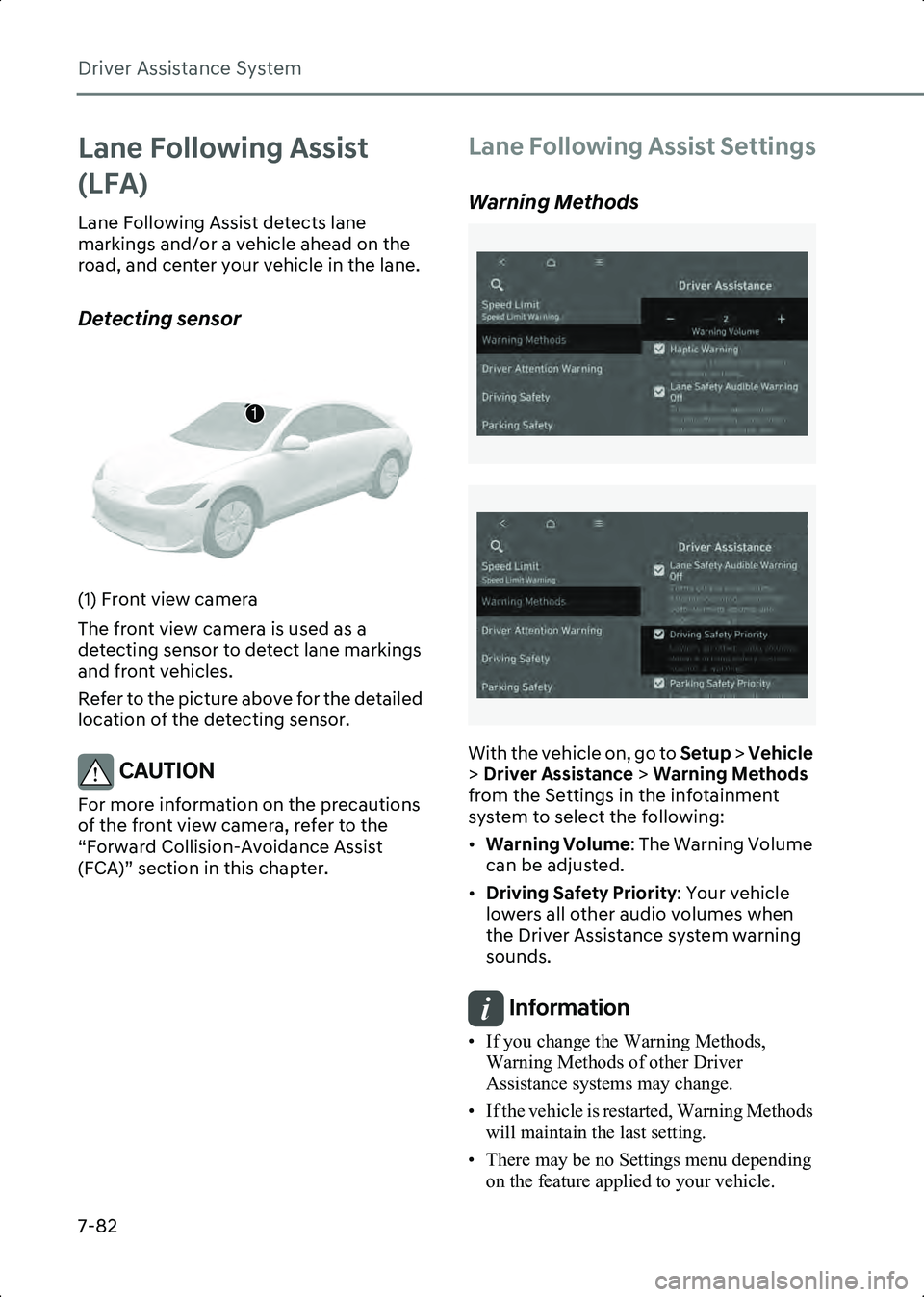
Warning Methods
B7001902
B7001902_1
With the vehicle on, go to Setup > Vehicle
> Driver Assistance > Warning Methods
from the Settings in the infotainment
system to select the following:
• Warning Volume : The Warning Volume
can be adjusted.
• Driving Safety Priority : Your vehicle
lowers all other audio volumes when
the Driver Assistance system warning
sounds.
Information • If you change the Warning Methods, Warning Methods of other Driver
Assistance systems may change.
• If the vehicle is restarted, Warning Methods will maintain the last setting.
• There may be no Settings menu depending on the feature applied to your vehicle.
1
Hyundai_CE_en_US.book Page 82
Page 431 of 582
7
7-87
CAUTION For more information on the precautions
of the detecting sensors, refer to the
“Forward Collision-Avoidance Assist
(FCA)” section in this chapter.
Highway Driving Assist
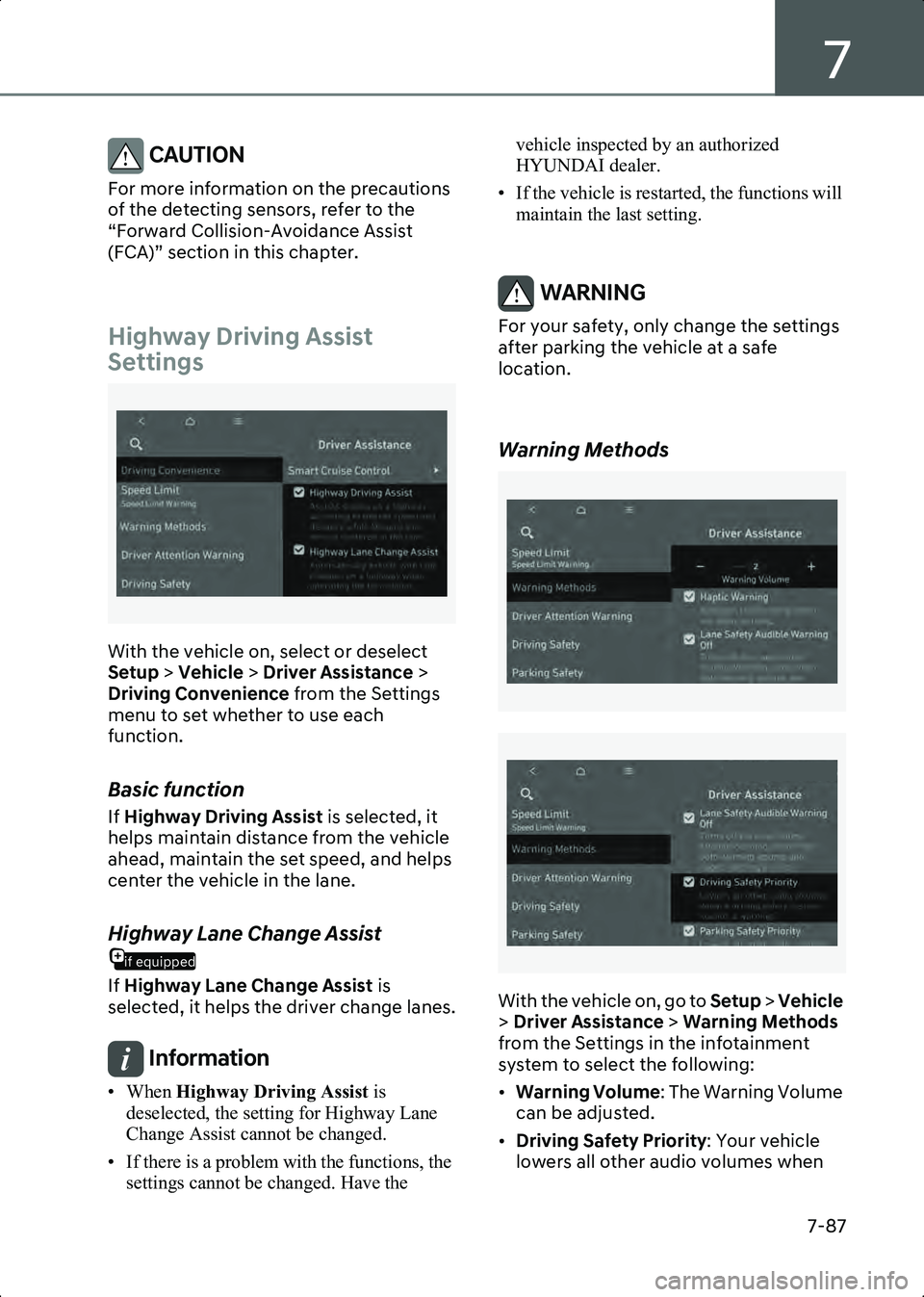
Settings
B7005401
With the vehicle on, select or deselect
Setup > Vehicle > Driver Assistance >
Driving Convenience from the Settings
menu to set whether to use each
function.
Basic function
If Highway Driving Assist is selected, it
helps maintain distance from the vehicle
ahead, maintain the set speed, and helps
center the vehicle in the lane.
if equipped
Highway Lane Change Assist
If Highway Lane Change Assist is
selected, it helps the driver change lanes.
Information • When Highway Driving Assist is
deselected, the setting for Highway Lane
Change Assist cannot be changed.
• If there is a problem with the functions, the settings cannot be changed. Have the vehicle inspected by an authorized
HYUNDAI dealer.
• If the vehicle is restarted, the functions will maintain the last setting.
WARNING For your safety, only change the settings
after parking the vehicle at a safe
location.
Warning Methods
B7001902
B7001902_1
With the vehicle on, go to Setup > Vehicle
> Driver Assistance > Warning Methods
from the Settings in the infotainment
system to select the following:
• Warning Volume : The Warning Volume
can be adjusted.
• Driving Safety Priority : Your vehicle
lowers all other audio volumes when
Hyundai_CE_en_US.book Page 87
Page 438 of 582

Driver Assistance System
7-94
Highway Driving Assist may not detect
possible collisions due to limitations of
the function. Always be aware of the
limitations of the function. Obstacles
such as vehicles, motorcycles, bicycles,
pedestrians, or unspecified objects or
structures such as guardrails, tollbooth,
etc., that may collide with the vehicle
may not be detected.
• Highway Driving Assist will turn off automatically under the following
situations:
- Driving on roads that Highway Driving Assist does not operate, such
as a rest area, intersection, junction,
etc.
- The navigation does not operate properly such as when the navigation
is being updated or restarted
• Highway Driving Assist may inadvertently operate or turn off
depending on road conditions
(navigation information) and
surroundings.
• Lane Following Assist function may be temporarily disabled when the front
view camera cannot detect lanes
properly or the hands-off warning is on.
• You may not hear the warning sound of Highway Driving Assist if the
surrounding is noisy.
• If the vehicle is driven at high speed above a certain speed at a curve, your
vehicle may drive to one side or may
depart from the driving lane.
• When you are towing a trailer or another vehicle, turn off Highway
Driving Assist for safety reasons.
• The hands-off warning message may appear early or late depending on how
the steering wheel is held or road
conditions. Always have your hands on
the steering wheel while driving.
• For your safety, please read the owner's manual before using the Highway
Driving Assist. • Highway Driving Assist will not operate
when the vehicle is started, or when the
detecting sensors or navigation is being
initialized.
Limitation of Highway Driving Assist
Highway Driving Assist and Highway Lane
Change function may not operate
properly, or may not operate under the
following circumstances:
• The map information and the actual road is different because the navigation
is not updated
• The map information and the actual road is different because of real-time
GPS data or map information error
• The infotainment system is overloaded by simultaneously performing
functions such as route search, video
playback, voice recognition, etc.
• GPS signals are blocked in areas such as a tunnel
• The driver goes off course or the route to the destination is changed or
canceled by resetting the navigation
• The vehicle enters a service station or rest area
• Android Auto or Car Play is operating
• The navigation cannot detect the current vehicle position (for example,
elevated roads including overpass
adjacent to general roads or nearby
roads exist in a parallel way)
• White single dotted lane line or road edge cannot be detected
• The road is temporarily controlled due to construction, etc.
• There is no structure, such as a medium strip, guardrails, etc., on the road
• There is a changeable lane in the direction of lane change
• If a trailer, carrier, etc., is installed
Hyundai_CE_en_US.book Page 94