2013 MERCEDES-BENZ SL-CLASS ROADSTER display
[x] Cancel search: displayPage 334 of 572
Route guidance to a destination that is not
on a digitized road
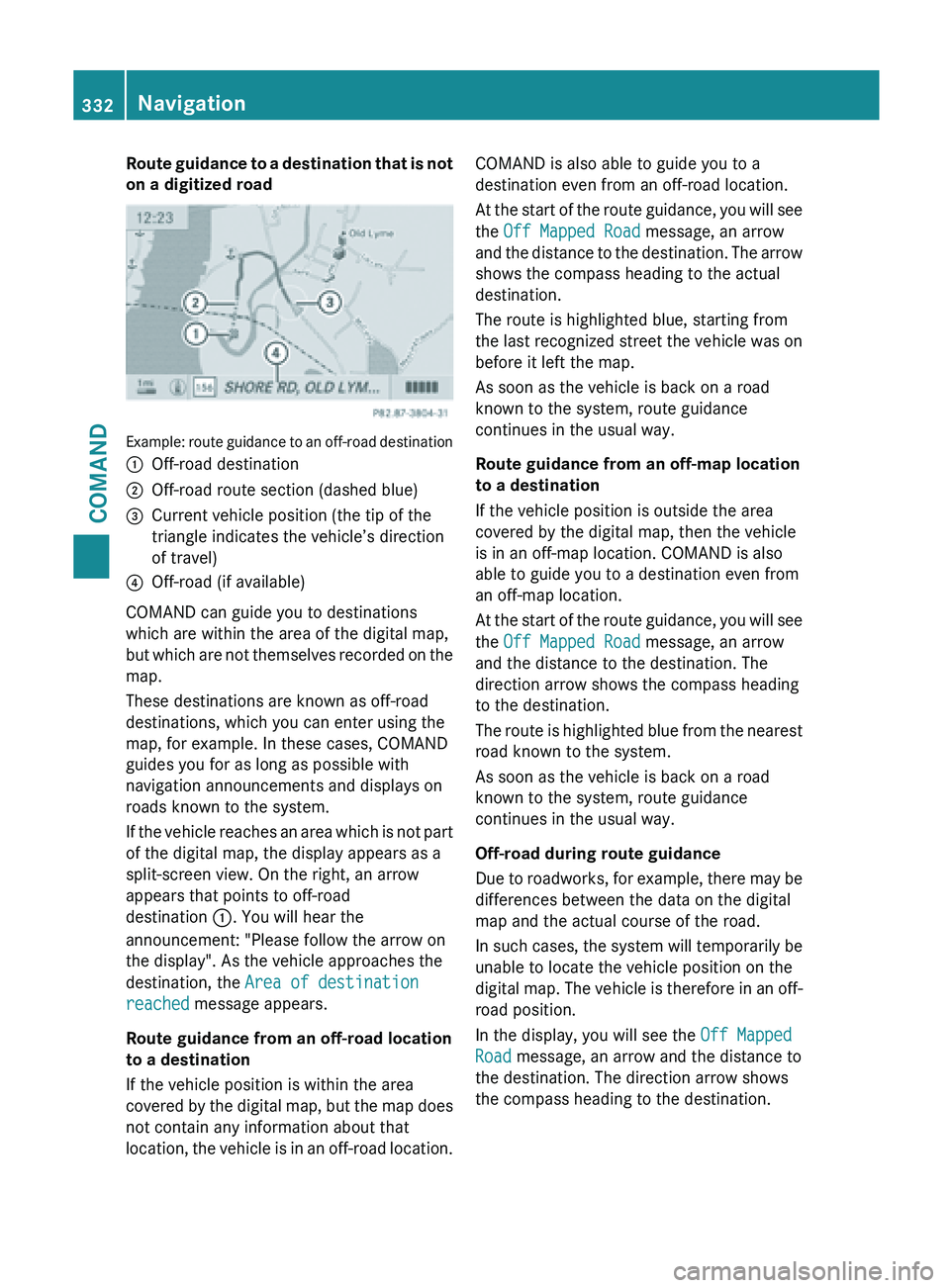
Example: route guidance to an off-road destination
:
Off-road destination
; Off-road route section (dashed blue)
= Current vehicle position (the tip of the
triangle indicates the vehicle’s direction
of travel)
? Off-road (if available)
COMAND can guide you to destinations
which are within the area of the digital map,
but which
are not themselves recorded on the
map.
These destinations are known as off-road
destinations, which you can enter using the
map, for example. In these cases, COMAND
guides you for as long as possible with
navigation announcements and displays on
roads known to the system.
If the vehicle reaches an area which is not part
of the digital map, the display appears as a
split-screen view. On the right, an arrow
appears that points to off-road
destination :. You will hear the
announcement: "Please follow the arrow on
the display". As the vehicle approaches the
destination, the Area of destination
reached message appears.
Route guidance from an off-road location
to a destination
If the vehicle position is within the area
covered by the digital map, but the map does
not contain any information about that
location, the vehicle is in an off-road location. COMAND is also able to guide you to a
destination even from an off-road location.
At
the
start of the route guidance, you will see
the Off Mapped Road message, an arrow
and the distance to the destination. The arrow
shows the compass heading to the actual
destination.
The route is highlighted blue, starting from
the last recognized street the vehicle was on
before it left the map.
As soon as the vehicle is back on a road
known to the system, route guidance
continues in the usual way.
Route guidance from an off-map location
to a destination
If the vehicle position is outside the area
covered by the digital map, then the vehicle
is in an off-map location. COMAND is also
able to guide you to a destination even from
an off-map location.
At the start of the route guidance, you will see
the Off Mapped Road message, an arrow
and the distance to the destination. The
direction arrow shows the compass heading
to the destination.
The route is highlighted blue from the nearest
road known to the system.
As soon as the vehicle is back on a road
known to the system, route guidance
continues in the usual way.
Off-road during route guidance
Due to roadworks, for example, there may be
differences between the data on the digital
map and the actual course of the road.
In such cases, the system will temporarily be
unable to locate the vehicle position on the
digital map. The vehicle is therefore in an off-
road position.
In the display, you will see the Off Mapped
Road message, an arrow and the distance to
the destination. The direction arrow shows
the compass heading to the destination. 332
Navigation
COMAND
Page 335 of 572
As soon as the system can assign the vehicle
position to the map again, route guidance
continues in the usual way.
Traffic reports
Conditions i
This function
is currently not available for
Canada.
To receive real-time traffic reports via
satellite radio, you require:
R optionally available satellite radio
equipment
R a subscription to SIRIUS XM Satellite Radio
Traffic Message Service
Further information on satellite radio
(Y page 416).
COMAND can receive traffic reports via
satellite radio and take account of these for
route guidance in the navigation system.
Received traffic reports are displayed on the
map either as text or as symbols.
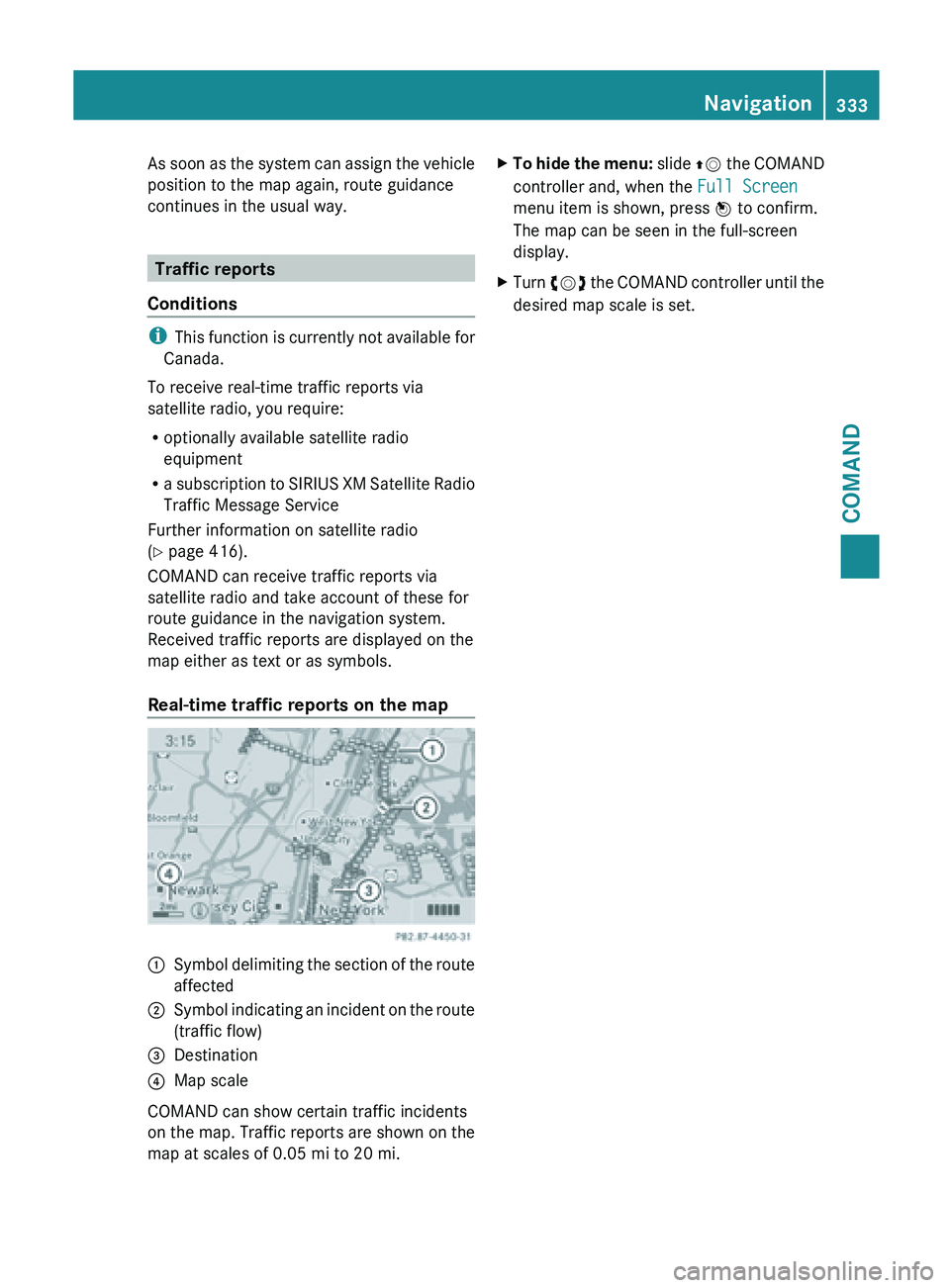
Real-time traffic reports on the map :
Symbol delimiting the section of the route
affected
; Symbol indicating an incident on the route
(traffic flow)
= Destination
? Map scale
COMAND can show certain traffic incidents
on the
map. Traffic reports are shown on the
map at scales of 0.05 mi to 20 mi. X
To hide the menu: slide ZV
the COMAND
controller and, when the Full Screen
menu item is shown, press W to confirm.
The map can be seen in the full-screen
display.
X Turn cVd the COMAND controller until the
desired map scale is set. Navigation
333
COMAND Z
Page 337 of 572
Displaying real-time traffic reports
Calling up a list
X
To switch to navigation mode: press the
Ø function button.
X To show the menu:
press W the COMAND
controller.
X Select Traffic by turning cVd the
COMAND controller and press W to
confirm.
If the dialog field shows the “No Traffic
Messages” message, this means that:
R no traffic reports have been received yet.
R no traffic reports are available.
X To cancel the search: select Cancel and
press W to confirm.
X To close the report window: select OK
and press W to confirm.
If traffic reports exist, a list is shown.
The content of the list varies depending on
whether route guidance is active or not.
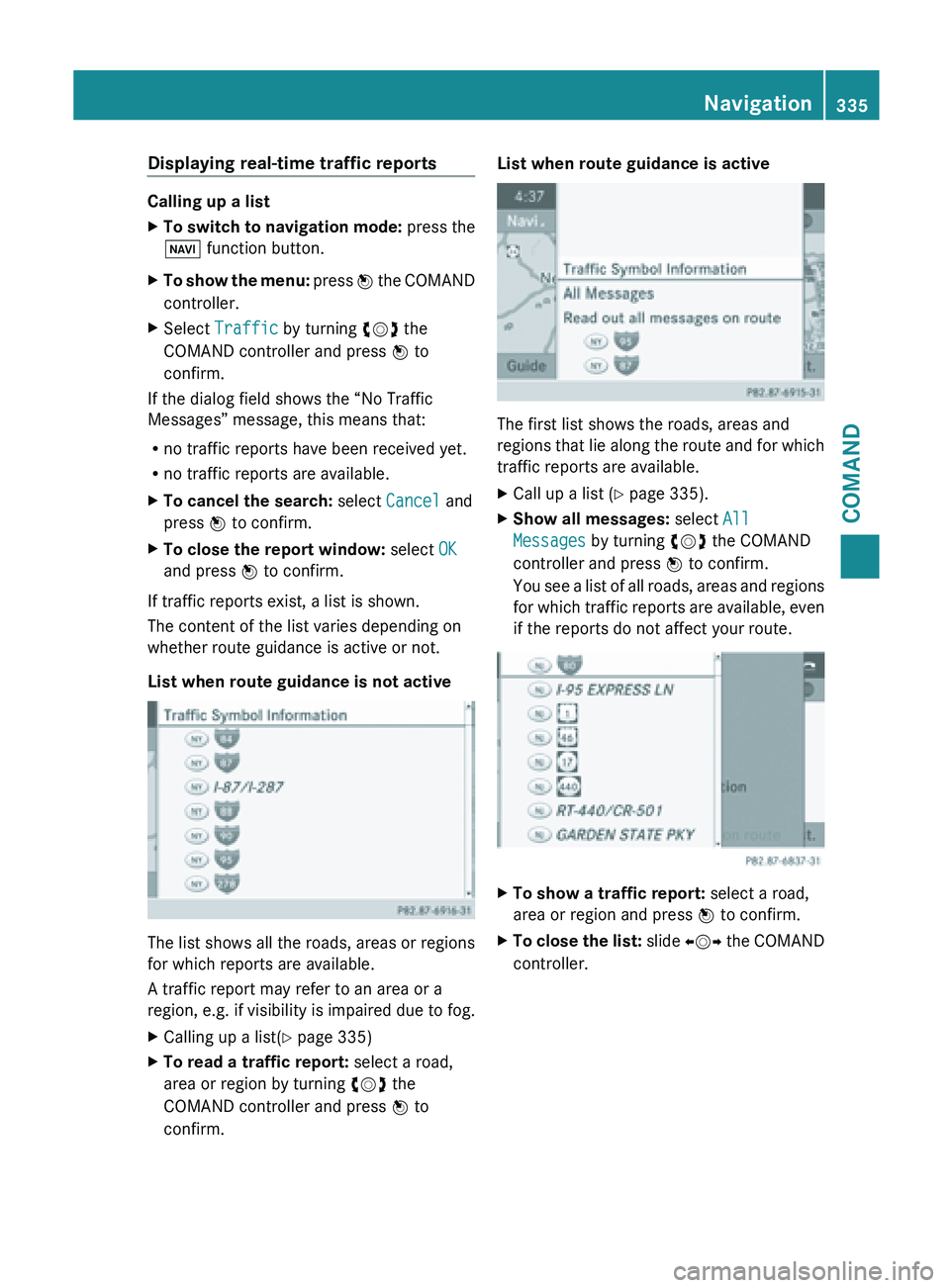
List when route guidance is not active The list shows all the roads, areas or regions
for which reports are available.
A traffic report may refer to an area or a
region,
e.g.
if visibility is impaired due to fog.
X Calling up a list( Y page 335)
X To read a traffic report: select a road,
area or region by turning cVd the
COMAND controller and press W to
confirm. List when route guidance is active
The first list shows the roads, areas and
regions
that
lie along the route and for which
traffic reports are available.
X Call up a list ( Y page 335).
X Show all messages: select All
Messages by turning cVd the COMAND
controller and press W to confirm.
You see
a list of all roads, areas and regions
for which traffic reports are available, even
if the reports do not affect your route. X
To show a traffic report: select a road,
area or region and press W to confirm.
X To close the list: slide XVY
the COMAND
controller. Navigation
335
COMAND Z
Page 338 of 572
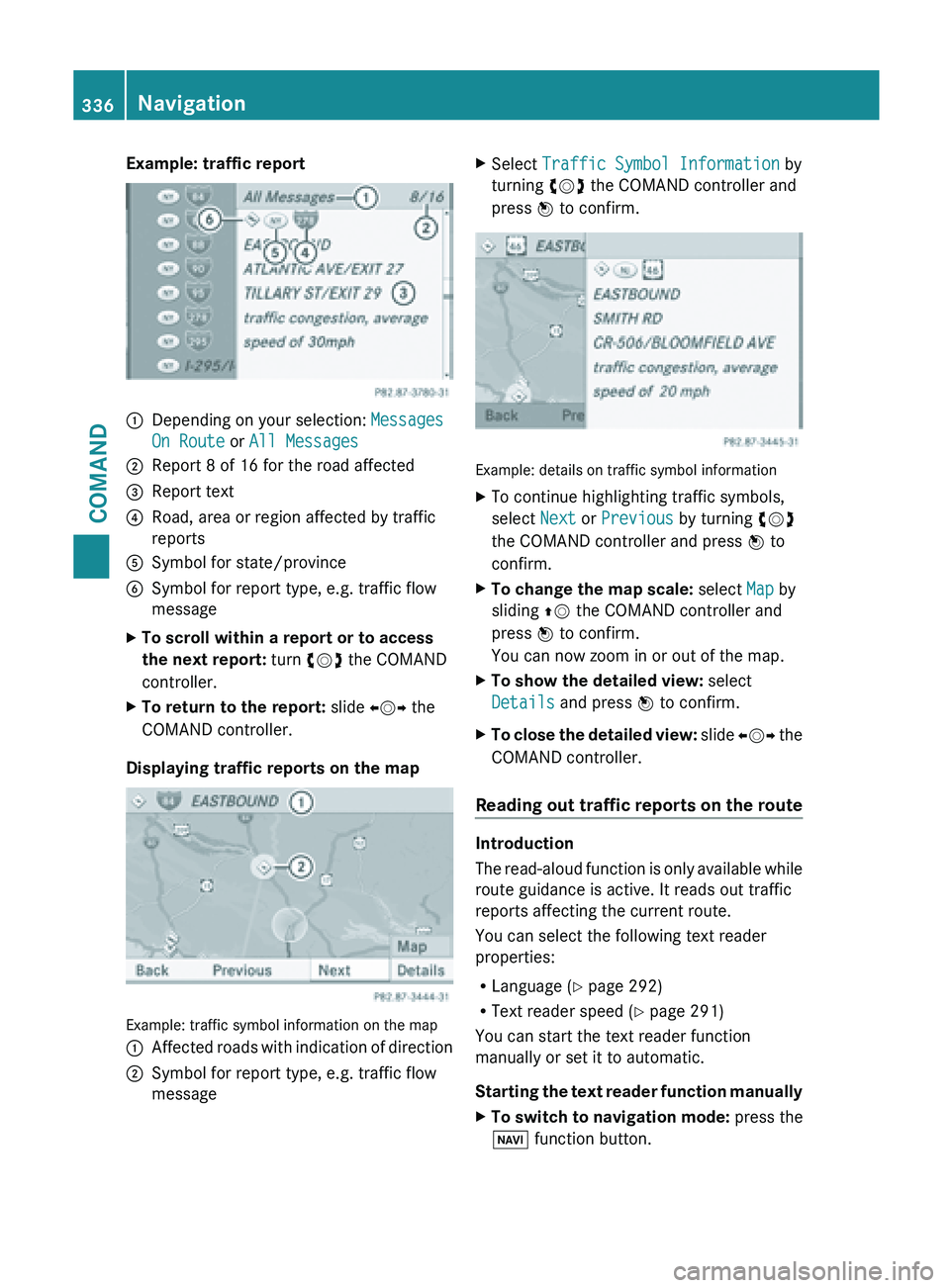
Example: traffic report
:
Depending on your selection: Messages
On Route or All Messages
; Report 8 of 16 for the road affected
= Report text
? Road, area or region affected by traffic
reports
A Symbol for state/province
B Symbol for report type, e.g. traffic flow
message
X To scroll within a report or to access
the next report: turn cVd the COMAND
controller.
X To return to the report: slide XVY the
COMAND controller.
Displaying traffic reports on the map Example: traffic symbol information on the map
:
Affected roads with indication of direction
; Symbol for report type, e.g. traffic flow
message X
Select Traffic Symbol Information by
turning cVd the COMAND controller and
press W to confirm. Example: details on traffic symbol information
X
To continue highlighting traffic symbols,
select Next or Previous by turning cVd
the COMAND controller and press W to
confirm.
X To change the map scale: select Map by
sliding ZV the COMAND controller and
press W to confirm.
You can now zoom in or out of the map.
X To show the detailed view: select
Details and press W to confirm.
X To close the detailed view: slide
XVY the
COMAND controller.
Reading out traffic reports on the route Introduction
The
read-aloud
function is only available while
route guidance is active. It reads out traffic
reports affecting the current route.
You can select the following text reader
properties:
R Language (Y page 292)
R Text reader speed ( Y page 291)
You can start the text reader function
manually or set it to automatic.
Starting the text reader function manually
X To switch to navigation mode: press the
Ø function button. 336
Navigation
COMAND
Page 340 of 572
Adopting an address book entry as a
home address
X
To switch on navigation mode: press the
Ø function button.
X To show the menu:
press W
the COMAND
controller.
X Select Dest. in the navigation system
menu bar by turning cVd the COMAND
controller and pressing W to confirm.
X Select From Memory and press W to
confirm.
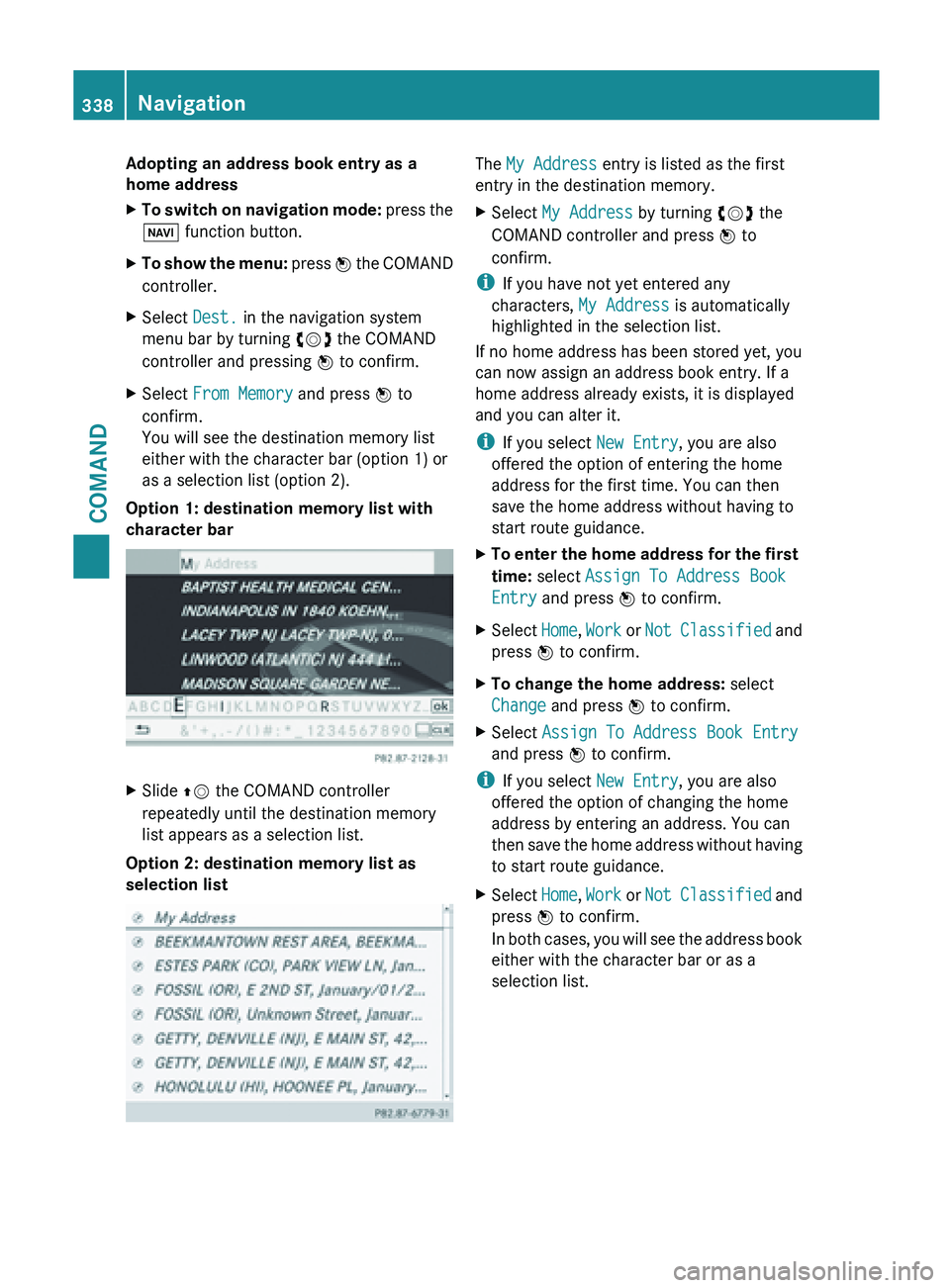
You will see the destination memory list
either with the character bar (option 1) or
as a selection list (option 2).
Option 1: destination memory list with
character bar X
Slide ZV the COMAND controller
repeatedly until the destination memory
list appears as a selection list.
Option 2: destination memory list as
selection list The My Address entry is listed as the first
entry in the destination memory.
X
Select My Address by turning cVd the
COMAND controller and press W to
confirm.
i If you have not yet entered any
characters, My Address is automatically
highlighted in the selection list.
If no home address has been stored yet, you
can now assign an address book entry. If a
home address already exists, it is displayed
and you can alter it.
i If you select New Entry, you are also
offered the option of entering the home
address for the first time. You can then
save the home address without having to
start route guidance.
X To
enter the home address for the first
time: select Assign To Address Book
Entry and press W to confirm.
X Select Home, Work or
Not
Classified and
press W to confirm.
X To change the home address: select
Change and press W to confirm.
X Select Assign To Address Book Entry
and press W to confirm.
i If you select New Entry, you are also
offered the option of changing the home
address by entering an address. You can
then save
the home address without having
to start route guidance.
X Select Home, Work or Not
Classified and
press W to confirm.
In both cases, you will see the address book
either with the character bar or as a
selection list. 338
Navigation
COMAND
Page 344 of 572
Storing the crosshair position in the list
of previous destinations
A crosshair appears on the map if you have
moved the map manually
(Y
page 343). You
can store the crosshair position as a
destination in the list of previous
destinations.
X To show the menu: press W
the COMAND
controller.
X Select Position in the navigation system
menu bar by turning cVd the COMAND
controller and press W to confirm.
X Select Save Crosshair Position and
press W to confirm.
Deleting one of the previous
destinations X
To switch on navigation mode: press
the
Ø function button.
X To show the menu:
press W
the COMAND
controller.
X Select Destination in the navigation
system menu bar by turning cVd the
COMAND controller and pressing W to
confirm.
X Select From Last Destinations and
press W to confirm.
The list of last destinations appears.
X Select the desired destination and press
W to confirm.
The destination address appears.
X Select Delete and press W to confirm.
A prompt
appears asking whether the entry
should be deleted.
X Select Yes or No and press W to confirm.
If you select Yes, the entry is deleted.
If you select No, the process will be
canceled. Map operation and map settings
General notes Company logos displayed on the map are
trademarks
of
the respective companies and
used solely for the purpose of indicating the
locations of these companies. The use of such
logos on the map does not indicate approval
of, support of or advertising by these
companies for the navigation system itself.
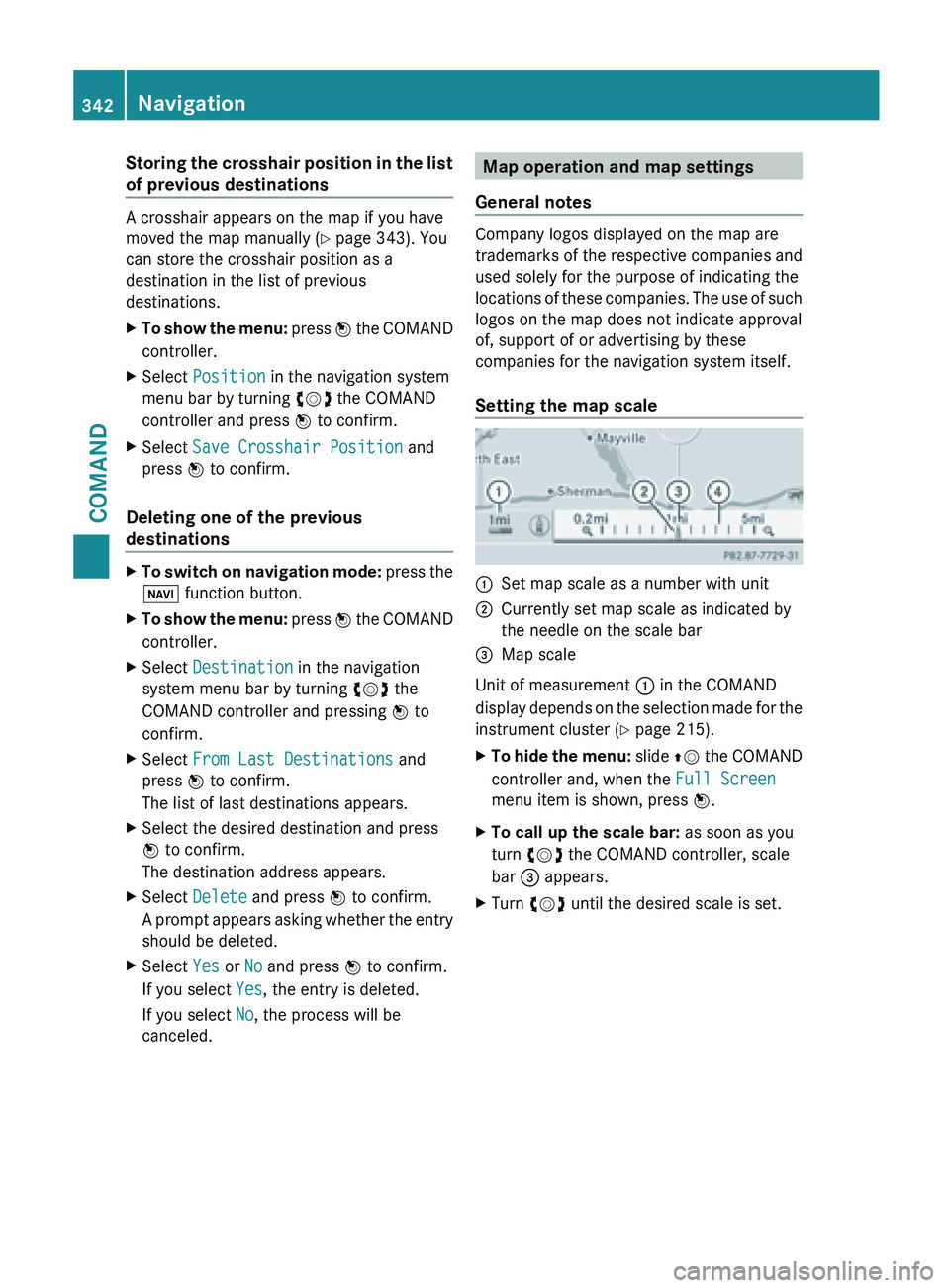
Setting the map scale :
Set map scale as a number with unit
; Currently set map scale as indicated by
the needle on the scale bar
= Map scale
Unit of measurement : in the COMAND
display depends
on the selection made for the
instrument cluster (Y page 215).
X To hide the menu: slide ZV
the COMAND
controller and, when the Full Screen
menu item is shown, press W.
X To call up the scale bar: as soon as you
turn cVd the COMAND controller, scale
bar = appears.
X Turn cVd until the desired scale is set.342
Navigation
COMAND
Page 345 of 572
Moving the map
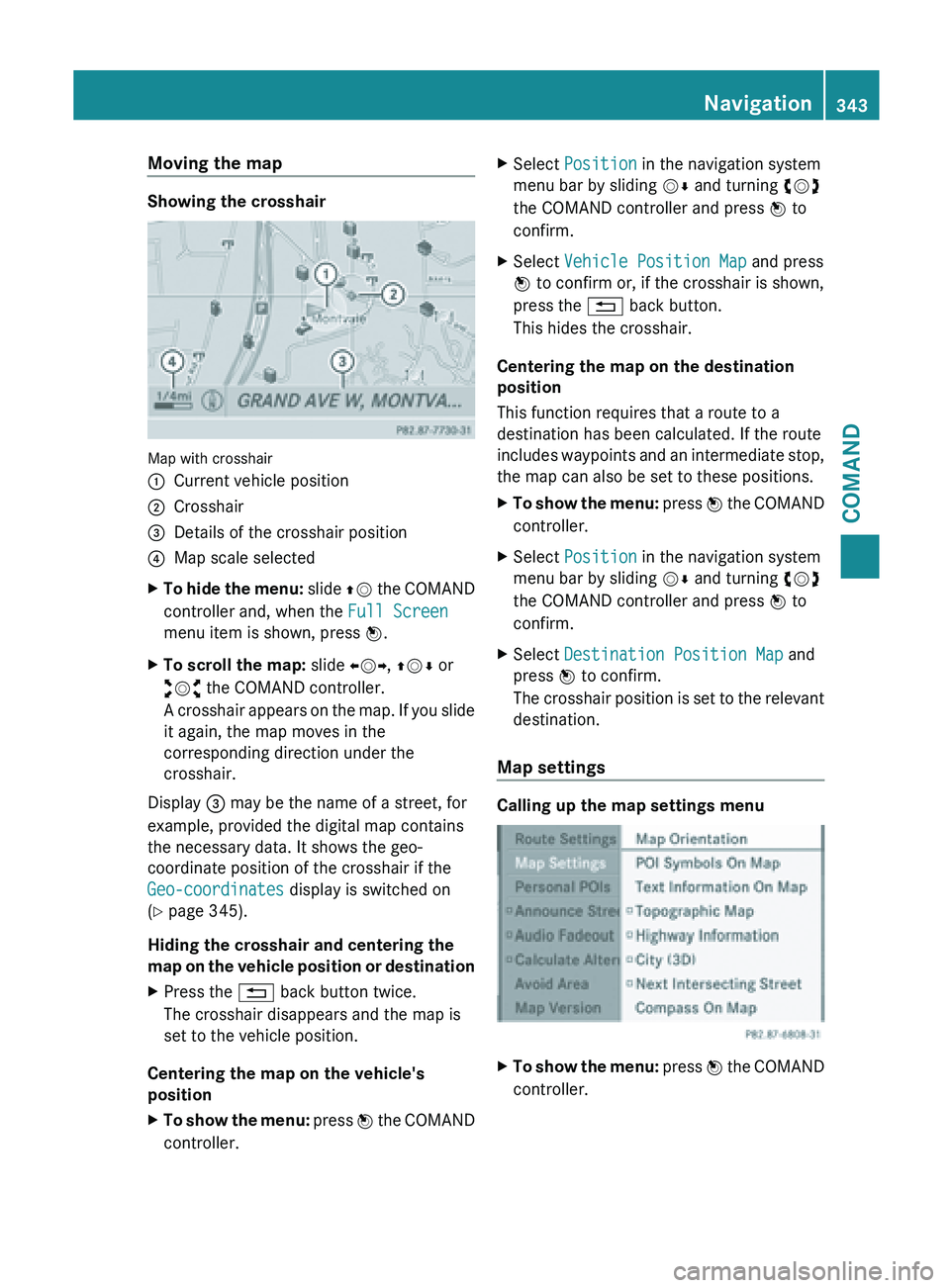
Showing the crosshair
Map with crosshair
:
Current vehicle position
; Crosshair
= Details of the crosshair position
? Map scale selected
X To hide the menu: slide
ZV the COMAND
controller and, when the Full Screen
menu item is shown, press W.
X To scroll the map: slide XVY, ZVÆ or
aVb the COMAND controller.
A crosshair
appears on the map. If you slide
it again, the map moves in the
corresponding direction under the
crosshair.
Display = may be the name of a street, for
example, provided the digital map contains
the necessary data. It shows the geo-
coordinate position of the crosshair if the
Geo-coordinates display is switched on
(Y page 345).
Hiding the crosshair and centering the
map on
the vehicle position or destination
X Press the % back button twice.
The crosshair disappears and the map is
set to the vehicle position.
Centering the map on the vehicle's
position
X To show the menu: press W
the COMAND
controller. X
Select Position in the navigation system
menu bar by sliding VÆ and turning cVd
the COMAND controller and press W to
confirm.
X Select Vehicle Position Map and press
W to confirm or, if the crosshair is shown,
press the % back button.
This hides the crosshair.
Centering the map on the destination
position
This function requires that a route to a
destination has been calculated. If the route
includes waypoints
and an intermediate stop,
the map can also be set to these positions.
X To show the menu: press W
the COMAND
controller.
X Select Position in the navigation system
menu bar by sliding VÆ and turning cVd
the COMAND controller and press W to
confirm.
X Select Destination Position Map and
press W to confirm.
The crosshair
position is set to the relevant
destination.
Map settings Calling up the map settings menu
X
To show the menu:
press W
the COMAND
controller. Navigation
343
COMAND Z
Page 346 of 572
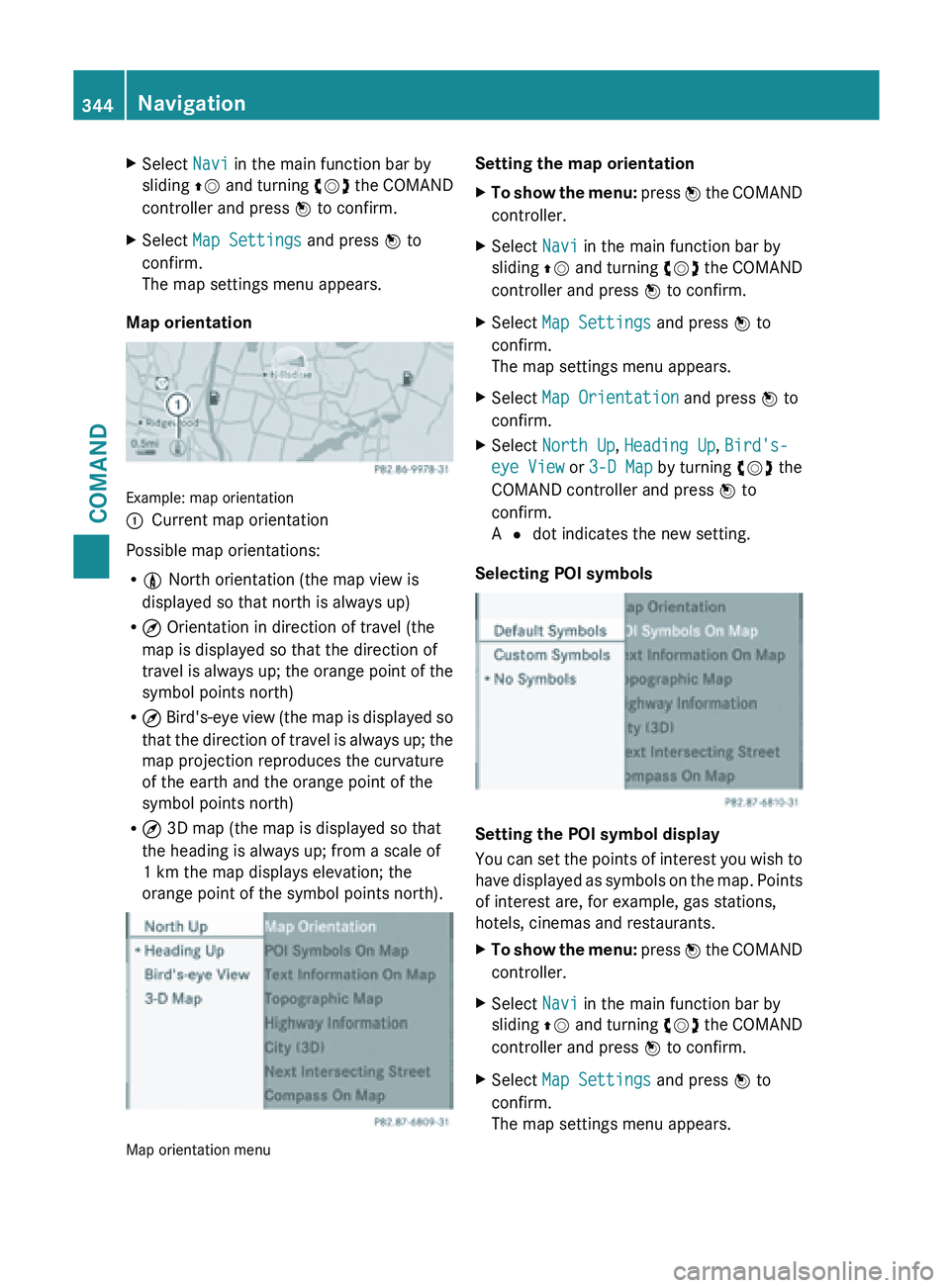
X
Select Navi in the main function bar by
sliding ZV and
turning cVd the COMAND
controller and press W to confirm.
X Select Map Settings and press W to
confirm.
The map settings menu appears.
Map orientation Example: map orientation
:
Current map orientation
Possible map orientations:
R 0 North orientation (the map view is
displayed so that north is always up)
R ¤ Orientation in direction of travel (the
map is displayed so that the direction of
travel is
always up; the orange point of the
symbol points north)
R ¤ Bird's-eye view (the map is displayed so
that the direction of travel is always up; the
map projection reproduces the curvature
of the earth and the orange point of the
symbol points north)
R ¤ 3D map (the map is displayed so that
the heading is always up; from a scale of
1 km the map displays elevation; the
orange point of the symbol points north). Map orientation menu Setting the map orientation
X
To show the menu: press W
the COMAND
controller.
X Select Navi in the main function bar by
sliding ZV and
turning cVd the COMAND
controller and press W to confirm.
X Select Map Settings and press W to
confirm.
The map settings menu appears.
X Select Map Orientation and press W to
confirm.
X Select North Up, Heading Up, Bird's-
eye View or 3-D Map by turning cVd the
COMAND controller and press W to
confirm.
A # dot indicates the new setting.
Selecting POI symbols Setting the POI symbol display
You
can
set the points of interest you wish to
have displayed as symbols on the map. Points
of interest are, for example, gas stations,
hotels, cinemas and restaurants.
X To show the menu: press W
the COMAND
controller.
X Select Navi in the main function bar by
sliding ZV and
turning cVd the COMAND
controller and press W to confirm.
X Select Map Settings and press W to
confirm.
The map settings menu appears. 344
Navigation
COMAND