2013 MERCEDES-BENZ SL-CLASS ROADSTER display
[x] Cancel search: displayPage 378 of 572
This may occur in exceptional cases, for
example when using certain mobile
phones/brackets and if the mobile phone
inbox holds a large number of text
messages.
i In order to be able to use the text
message function, the Bluetooth ®
mobile
phone has to support Bluetooth ®
MAP
(Message Access Profile).
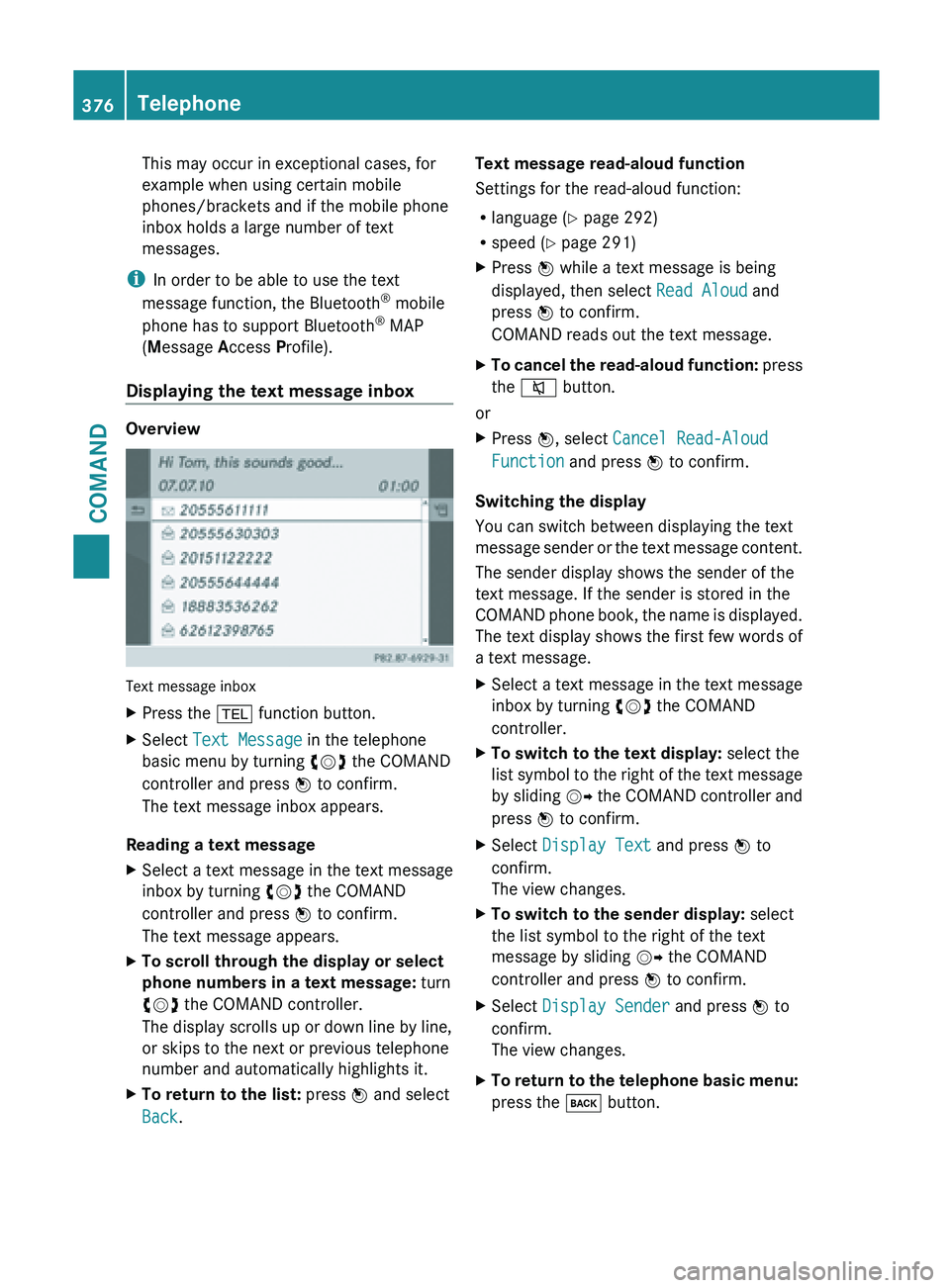
Displaying the text message inbox Overview
Text message inbox
X
Press the % function button.
X Select Text Message in the telephone
basic menu by turning cVd the COMAND
controller and press W to confirm.
The text message inbox appears.
Reading a text message
X Select a text message in the text message
inbox by turning cVd the COMAND
controller and press W to confirm.
The text message appears.
X To scroll through the display or select
phone numbers in a text message: turn
cVd the COMAND controller.
The display scrolls up or down line by line,
or skips to the next or previous telephone
number and automatically highlights it.
X To return to the list: press W and select
Back. Text message read-aloud function
Settings for the read-aloud function:
R
language (
Y
page 292)
R speed ( Y page 291)
X Press W while a text message is being
displayed, then select Read Aloud and
press W to confirm.
COMAND reads out the text message.
X To cancel the read-aloud function: press
the
8 button.
or
X Press W, select Cancel Read-Aloud
Function and press W to confirm.
Switching the display
You can switch between displaying the text
message sender
or the text message content.
The sender display shows the sender of the
text message. If the sender is stored in the
COMAND phone book, the name is displayed.
The text display shows the first few words of
a text message.
X Select a text message in the text message
inbox by turning cVd the COMAND
controller.
X To switch to the text display: select the
list symbol
to the right of the text message
by sliding VY the COMAND controller and
press W to confirm.
X Select Display Text and press W to
confirm.
The view changes.
X To switch to the sender display: select
the list symbol to the right of the text
message by sliding VY the COMAND
controller and press W to confirm.
X Select Display Sender and press W to
confirm.
The view changes.
X To return to the telephone basic menu:
press the k button.376
Telephone
COMAND
Page 379 of 572
Displaying details and phone numbers
COMAND can also show a shortened sender
display in full.
X
Select a text message in the text message
inbox by turning cVd the COMAND
controller.
X Select the list symbol to the right of the text
message by sliding VY the COMAND
controller and press W to confirm.
X Select Details and press W to confirm.
The detailed view appears.
X To close the detailed view: slide
XVY the
COMAND controller.
X To return to the telephone basic menu:
press the k button.
Managing text messages Calling a text message sender
X
Press W the COMAND controller while the
text message is being displayed.
X Select Call Sender
and press W to
confirm.
The telephone
makes the call to the sender.
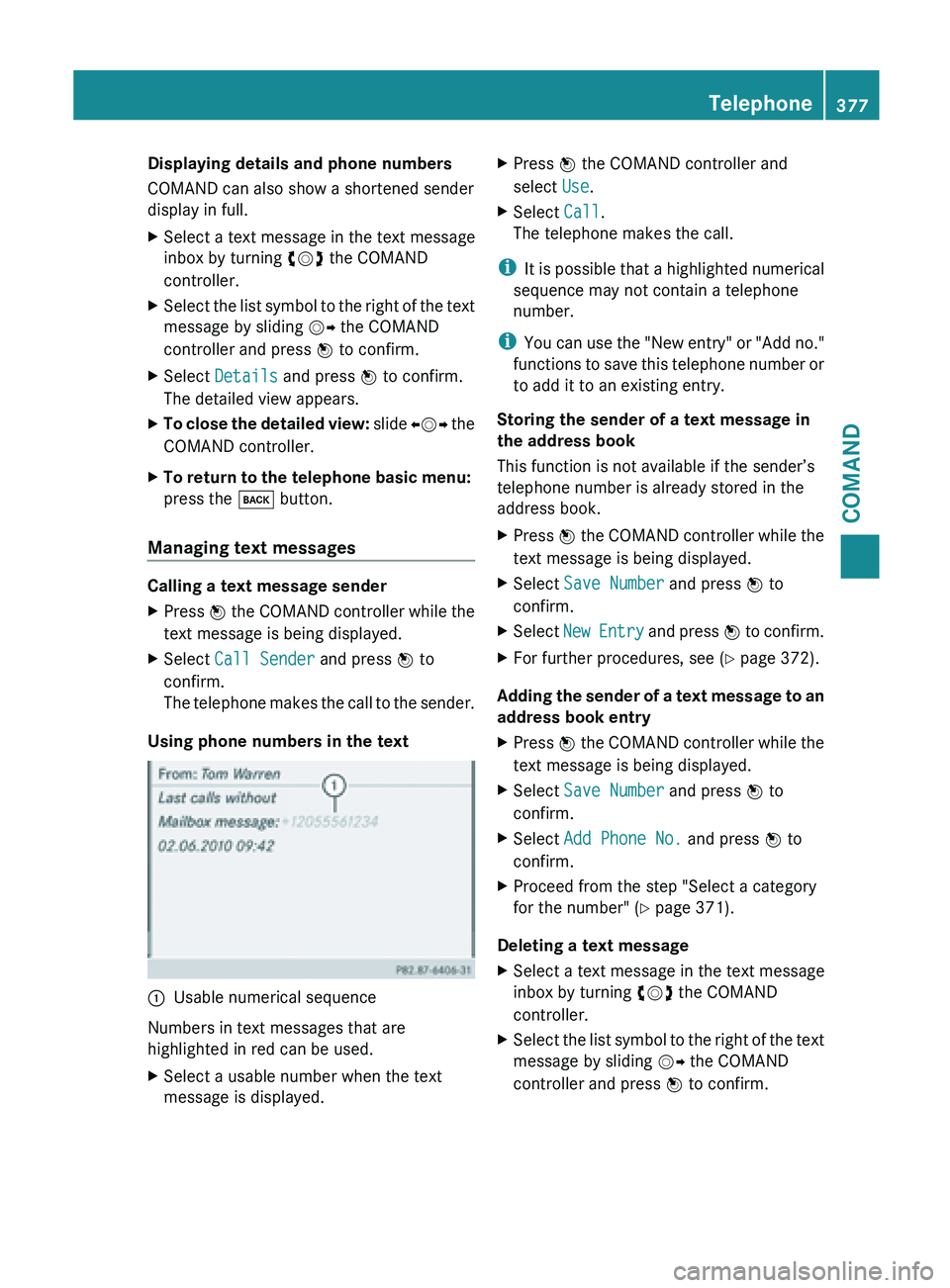
Using phone numbers in the text :
Usable numerical sequence
Numbers in text messages that are
highlighted in red can be used.
X Select a usable number when the text
message is displayed. X
Press W the COMAND controller and
select Use.
X Select Call.
The telephone makes the call.
i It is
possible that a highlighted numerical
sequence may not contain a telephone
number.
i You can use the "New entry" or "Add no."
functions to save this telephone number or
to add it to an existing entry.
Storing the sender of a text message in
the address book
This function is not available if the sender’s
telephone number is already stored in the
address book.
X Press W the COMAND controller while the
text message is being displayed.
X Select Save Number
and press W to
confirm.
X Select New Entry and press
W
to confirm.
X For further procedures, see ( Y page 372).
Adding the sender of a text message to an
address book entry
X Press W the COMAND controller while the
text message is being displayed.
X Select Save Number
and press W to
confirm.
X Select Add Phone No. and press W to
confirm.
X Proceed from the step "Select a category
for the number" (Y page 371).
Deleting a text message
X Select a text message in the text message
inbox by turning cVd the COMAND
controller.
X Select the list symbol to the right of the text
message by sliding VY the COMAND
controller and press W to confirm. Telephone
377
COMAND Z
Page 380 of 572
X
Select Delete and press W to confirm.
A deletion prompt appears.
X Select Yes or No and press W to confirm.
If you select Yes, the text message is
deleted.
If you
select No, the process will be aborted.
i This delete function is not supported by
all mobile phones. The Delete failed
message appears. Using the address book
Introduction G
WARNING
Always focus your attention on the traffic
conditions.
Before starting the journey, familiarize
yourself with the address book functions.
Only use COMAND if road and traffic
conditions permit. You could otherwise
become involved in an accident in which you
or others could be injured.
The address book organizes and stores
entries which are entered from different
sources (mobile phone, memory card, USB
storage device, COMAND telephone book,
navigation system).
You can
use these entries to make telephone
calls and for navigation.
i Number of contacts in the address
book: the address book can store a total of
4000 contacts.
1500 entries each are reserved in the
address book for:
R contacts from the mobile phone
R contacts that you create in COMAND or
import from other sources
The remaining 1,000 entries are assigned
by COMAND as necessary.
i Display of mobile phone contacts:
contacts downloaded from the mobile
phone remain in the address book even if you disconnect the mobile phone from
COMAND. Contacts that have previously
been
available
can be displayed as soon as
the mobile phone is reconnected.
COMAND downloads the contacts again so
that any new contacts that have been
added to the mobile phone can be
displayed.
Once you connect a new mobile phone to
COMAND, all contacts in the address book
from the previous mobile phone are
replaced by those from the new mobile
phone.
Address book entries remain stored when
the mobile phone is disconnected. For this
reason, delete your personal data using the
reset function before selling your vehicle,
for example ( Y page 294).
Calling up the address book Using the function button:
X
Press the % function button.
You see
either the telephone basic menu or
the address book, depending on which was
last active.
X If the telephone basic menu is displayed,
press the % function button again.
Using the telephone basic menu:
X With the telephone basic menu shown,
select Phone by sliding VZ the COMAND
controller and press W to confirm.
X Select Address Book from the menu and
press W to confirm. 378
Telephone
COMAND
Page 382 of 572
X
Option 2: search for an address book entry
( Y page 379).
X Select the list symbol to the right of the
entry by sliding VY the COMAND
controller and press W to confirm.
X Select Delete and press W to confirm.
Irrespective of
the option chosen, a prompt
will appear.
X Select Yes or No and press W to confirm.
If you select Yes, the
entry will be deleted.
If you select No, the process will be
canceled.
Displaying the detailed view for an
address book entry Selecting an entry
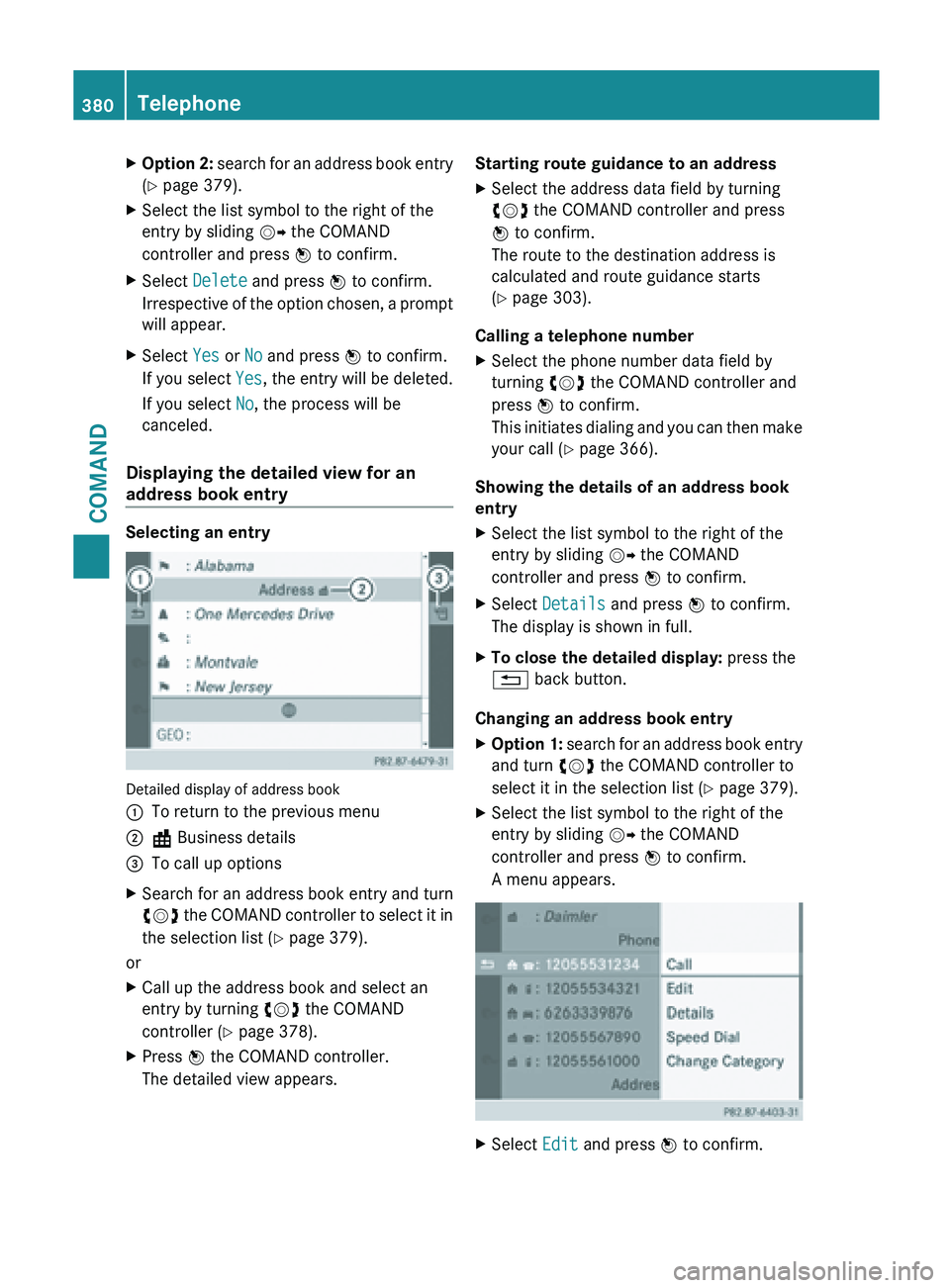
Detailed display of address book
:
To return to the previous menu
; \ Business details
= To call up options
X Search for an address book entry and turn
cVd the
COMAND controller to select it in
the selection list (Y page 379).
or
X Call up the address book and select an
entry by turning cVd the COMAND
controller (Y page 378).
X Press W the COMAND controller.
The detailed view appears. Starting route guidance to an address
X
Select the address data field by turning
cVd the COMAND controller and press
W to confirm.
The route to the destination address is
calculated and route guidance starts
(Y page 303).
Calling a telephone number
X Select the phone number data field by
turning cVd the COMAND controller and
press W to confirm.
This initiates
dialing and you can then make
your call ( Y page 366).
Showing the details of an address book
entry
X Select the list symbol to the right of the
entry by sliding VY the COMAND
controller and press W to confirm.
X Select Details and press W to confirm.
The display is shown in full.
X To close the detailed display: press the
% back button.
Changing an address book entry
X Option 1: search for an address book entry
and turn
cVd the COMAND controller to
select it in the selection list ( Y page 379).
X Select the list symbol to the right of the
entry by sliding VY the COMAND
controller and press W to confirm.
A menu appears. X
Select Edit and press W to confirm.380
Telephone
COMAND
Page 383 of 572
X
Option 2: call up the detailed view for an
address book entry ( Y page 380).
X Select the list symbol to the right of the
entry by sliding VY the COMAND
controller and press W to confirm.
X Select Edit and press W to confirm.
Irrespective of the option, the input menu
containing data fields appears.
Information about character entry
(Y page 281)
Changing the category of a telephone
number data field
X Display the detailed view for an address
book entry and highlight the telephone
number data field (Y
page 380).
X Select the list symbol to the right of the
entry by sliding VY the COMAND
controller and press W to confirm.
X Select Change Category and press W to
confirm.
X Select a number category, e.g. Home.
X Select a telephone category, e.g. Mobile
Phone.
X If desired, select Preferred and press W
to confirm.
Depending on the previous status, switch
the option on O or off ª. The phone
number is displayed as the first number in
the phone book and can be dialed
immediately.
X Select Save and press W to confirm.
The new category is stored.
Calling a number stored in an entry Conditions
The
mobile
phone must be connected via the
Bluetooth ®
interface (Y page 359).
Dialing a number
X Display details for an address book entry
(Y page 380).
X Select the phone number data field by
turning cVd the COMAND controller. X
Press W the COMAND controller to
confirm.
or
X Select the list symbol to the right of the
data field by sliding VY the COMAND
controller.
X Press W the COMAND controller to
confirm.
X Select Call and press W to confirm.
The telephone makes the call. The display
switches to telephone mode.
Storing the phone number as a speed
dial number X
Display details for an address book entry
(Y page 380).
X Select the phone number data field by
turning cVd the COMAND controller.
X Select the list symbol to the right of the
data field by sliding VY the COMAND
controller and press W to confirm.
X Select Speed Dial and press W to
confirm.
You can
now store the number in one of the
ten speed dial presets (Y page 374).
Starting route guidance to an entry Note
This
function
is available as soon as you have
stored a destination in the destination
memory ( Y page 339). COMAND also saves
destinations in the address book together
with all the data required for route guidance.
Address book entry with navigable data
X Search for an address book entry with the
L symbol and select it from the list
(Y page 379). Telephone
381
COMAND Z
Page 384 of 572
X
Display details for an address book entry
(Y page 380).
X Select the address data field by turning
cVd the COMAND controller and press
W to confirm.
Route guidance begins.
or
X Select the list symbol to the right of the
entry by sliding VY the COMAND
controller and press W to confirm.
X Select Navigate and press W to confirm.
Route guidance begins.
Address book entry without navigable
data
Route guidance can also be started for an
address book
entry without the L symbol. If
the address data or designations do not
match the digital map, COMAND prompts you
to re-enter the address.
X Enter the destination address
(Y page 298).
X Select Save from the address entry menu
and press W to confirm.
X Assign a destination to an address book
entry.
i If you then save the newly entered
address under the address book entry, it
becomes a navigable address book entry.
Voice tags Introduction
You
can
enter voice tags via the Voice Control
System (see the separate operating
instructions). Once you have assigned a voice
tag to an address book entry, you can call up
this entry with a voice command and dial a
phone number, for example. You can add one
voice tag per address book entry. Adding or changing a voice tag
X
Search for an address book entry with or
without a voice tag ( ¦) (Y page 379).
X Select the list symbol to the right of the
entry by sliding VY the COMAND
controller and press W to confirm.
X Select Voice Name and press W to
confirm.
X Select Add or Change and press W to
confirm.
Subsequent operation is voice-controlled.
The Voice Control System guides you
through the dialogs.
Deleting a voice tag
X Search for an address book entry with a
voice tag (Y page 379).
X Select the list symbol to the right of the
entry by sliding VY the COMAND
controller and press W to confirm.
X Select Voice Name and press W to
confirm.
X Select Delete and press W to confirm.
A deletion prompt appears.
X Select Yes or No and press the 9 button
to confirm.
If you select Yes, COMAND deletes the
voice tag.
If you select No, the process will be
canceled.
Listening to a voice tag
X Search for an address book entry with a
voice tag (Y page 379).
X Select the list symbol to the right of the
entry by sliding VY the COMAND
controller and press W to confirm.
X Select Voice Name and press W to
confirm.
X Select Listen and press W to confirm.
You hear the voice tag. 382
Telephone
COMAND
Page 386 of 572
select Phone by sliding
VÆ and turning
cVd the COMAND controller and press
W to confirm.
X Select Download Contacts and press W
to confirm.
A menu appears.
X Select From The Memory Card or From
USB device in the menu by turning cVd
the COMAND controller and press W to
confirm.
X Select Add or Overwrite and press W to
confirm.
Add imports the entries from the memory
card or USB device into the address book.
Overwrite imports the entries from the
memory card
or USB device and overwrites
all entries in the address book with the
¯ symbol. The previous entries are then
no longer available.
After the contact data has been imported
successfully, you will see a message to this
effect. The address book or the respective
telephone basic menu is displayed.
i You can
select Overwrite if the address
book already contains corresponding
entries. A message notifies you when the
address book is full.
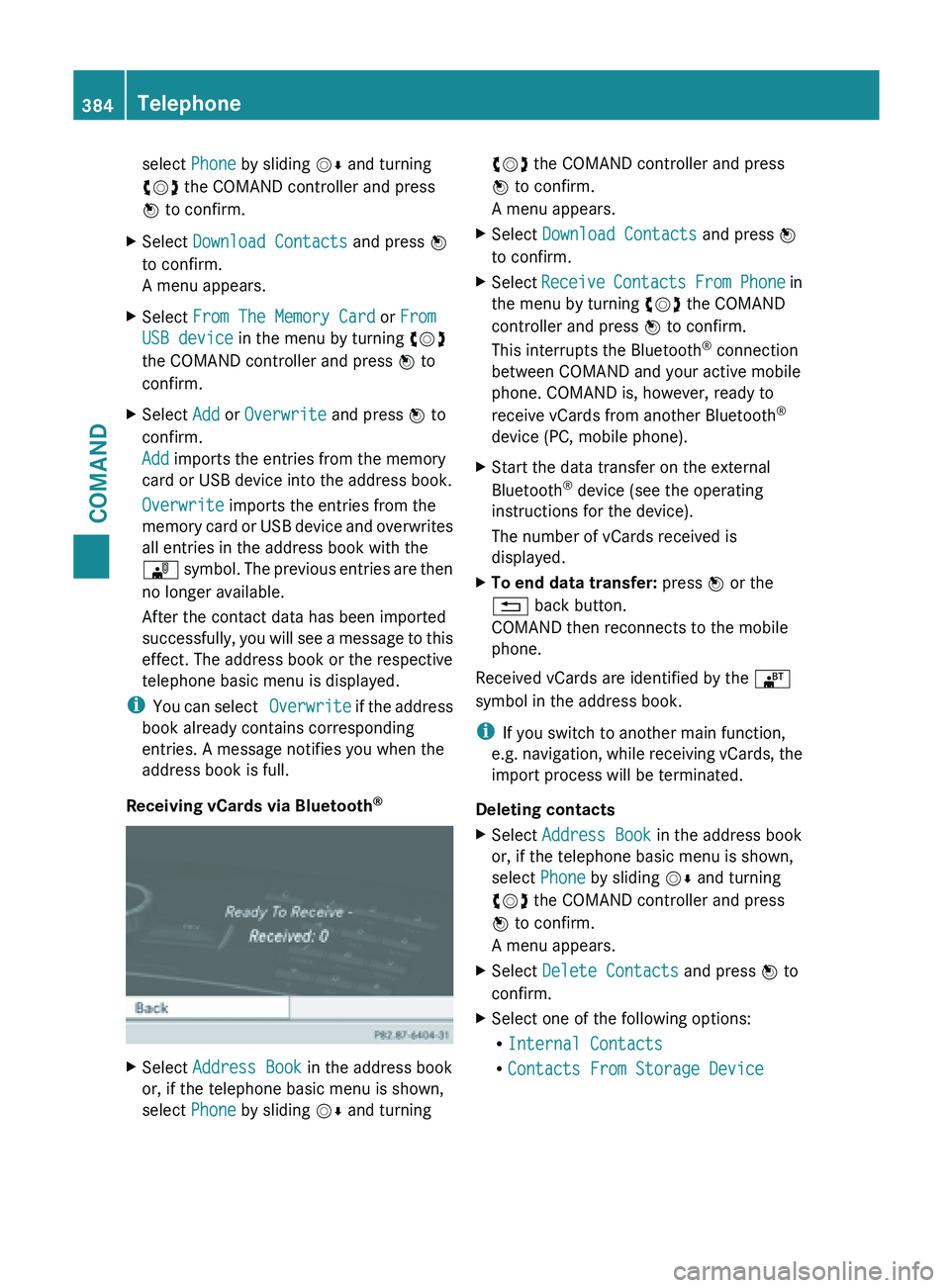
Receiving vCards via Bluetooth ®X
Select Address Book in the address book
or, if the telephone basic menu is shown,
select Phone by sliding VÆ and turning cVd the COMAND controller and press
W to confirm.
A menu appears.
X Select Download Contacts and press W
to confirm.
X Select Receive Contacts
From Phone in
the menu by turning cVd the COMAND
controller and press W to confirm.
This interrupts the Bluetooth ®
connection
between COMAND and your active mobile
phone. COMAND is, however, ready to
receive vCards from another Bluetooth ®
device (PC, mobile phone).
X Start the data transfer on the external
Bluetooth ®
device (see the operating
instructions for the device).
The number of vCards received is
displayed.
X To end data transfer: press W or the
% back button.
COMAND then reconnects to the mobile
phone.
Received vCards are identified by the ®
symbol in the address book.
i If you switch to another main function,
e.g. navigation,
while receiving vCards, the
import process will be terminated.
Deleting contacts
X Select Address Book in the address book
or, if the telephone basic menu is shown,
select Phone by sliding VÆ and turning
cVd the COMAND controller and press
W to confirm.
A menu appears.
X Select Delete Contacts and press W to
confirm.
X Select one of the following options:
R
Internal Contacts
R Contacts From Storage Device384
Telephone
COMAND
Page 389 of 572
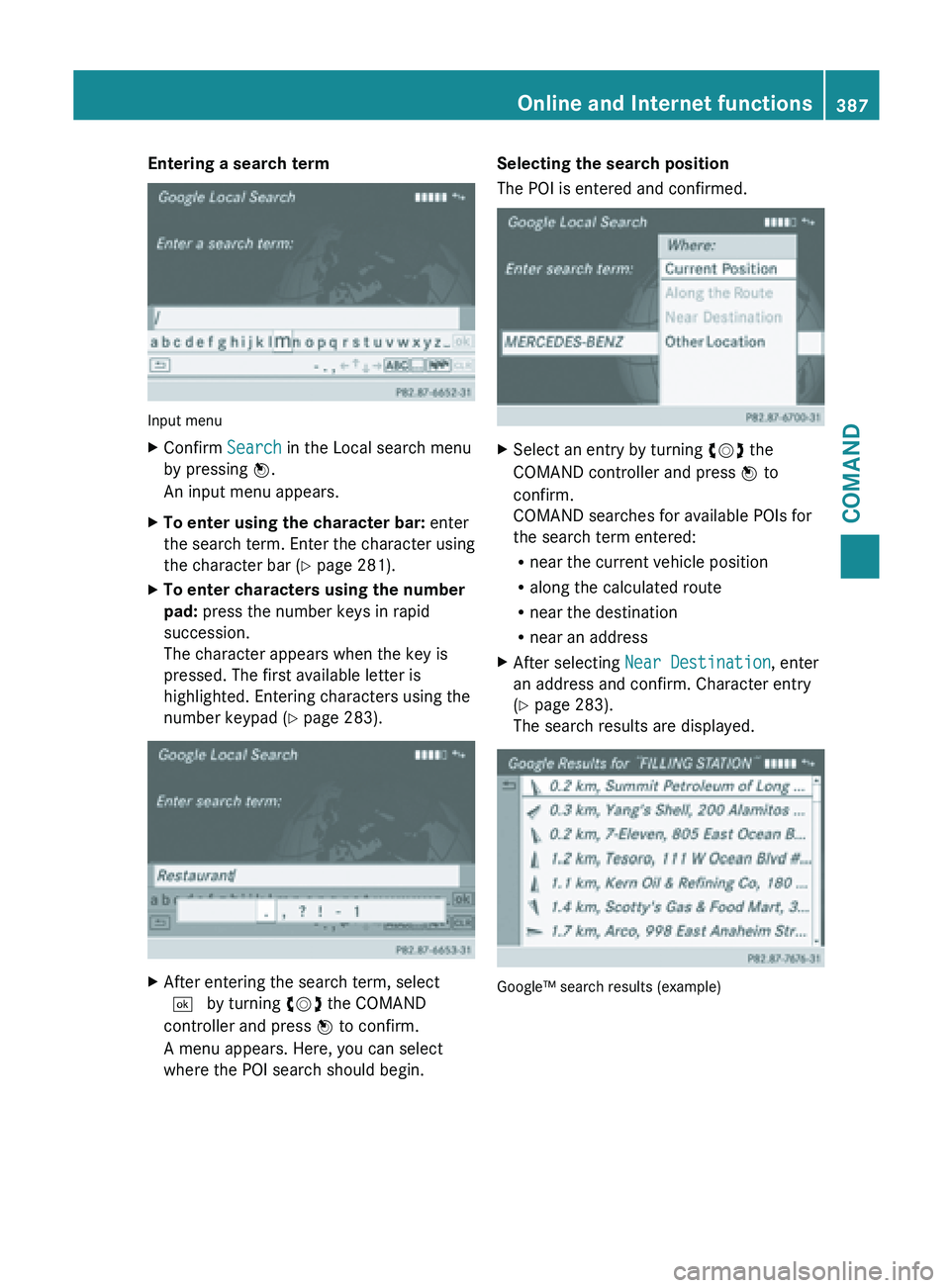
Entering a search term
Input menu
X
Confirm Search in the Local search menu
by pressing W.
An input menu appears.
X To enter using the character bar: enter
the search
term. Enter the character using
the character bar (Y page 281).
X To enter characters using the number
pad: press the number keys in rapid
succession.
The character appears when the key is
pressed. The first available letter is
highlighted. Entering characters using the
number keypad (
Y page 283).X
After entering the search term, select
¬ by turning cVd the COMAND
controller and press W to confirm.
A menu appears. Here, you can select
where the POI search should begin. Selecting the search position
The POI is entered and confirmed.
X
Select an entry by turning cVd the
COMAND controller and press W to
confirm.
COMAND searches for available POIs for
the search term entered:
R near the current vehicle position
R along the calculated route
R near the destination
R near an address
X After selecting Near Destination, enter
an address and confirm. Character entry
(Y page 283).
The search results are displayed. Google™ search results (example) Online and Internet functions
387
COMAND Z