2022 TOYOTA SUPRA light
[x] Cancel search: lightPage 61 of 498
59
3
3-1. CONTROLS
CONTROLS
visible in the split screen even if
you switch to a different menu.
■Switching on/off
1 Press the button.
2 "Split screen"
■Selecting the display
The display can be selected in the
menus in which a split screen view
is possible.
1 Tilt the Controller to the right
until the split screen is selected.
2 Press the Controller.
3 Select the desired setting.
■Defining the screen content
The screen content can be defined.
1 Tilt the Controller to the right
until the split screen is selected.
2 Press the Controller.
3 "Personalise menu"
4 Select the desired setting.
5 Tilt the Controller to the left.
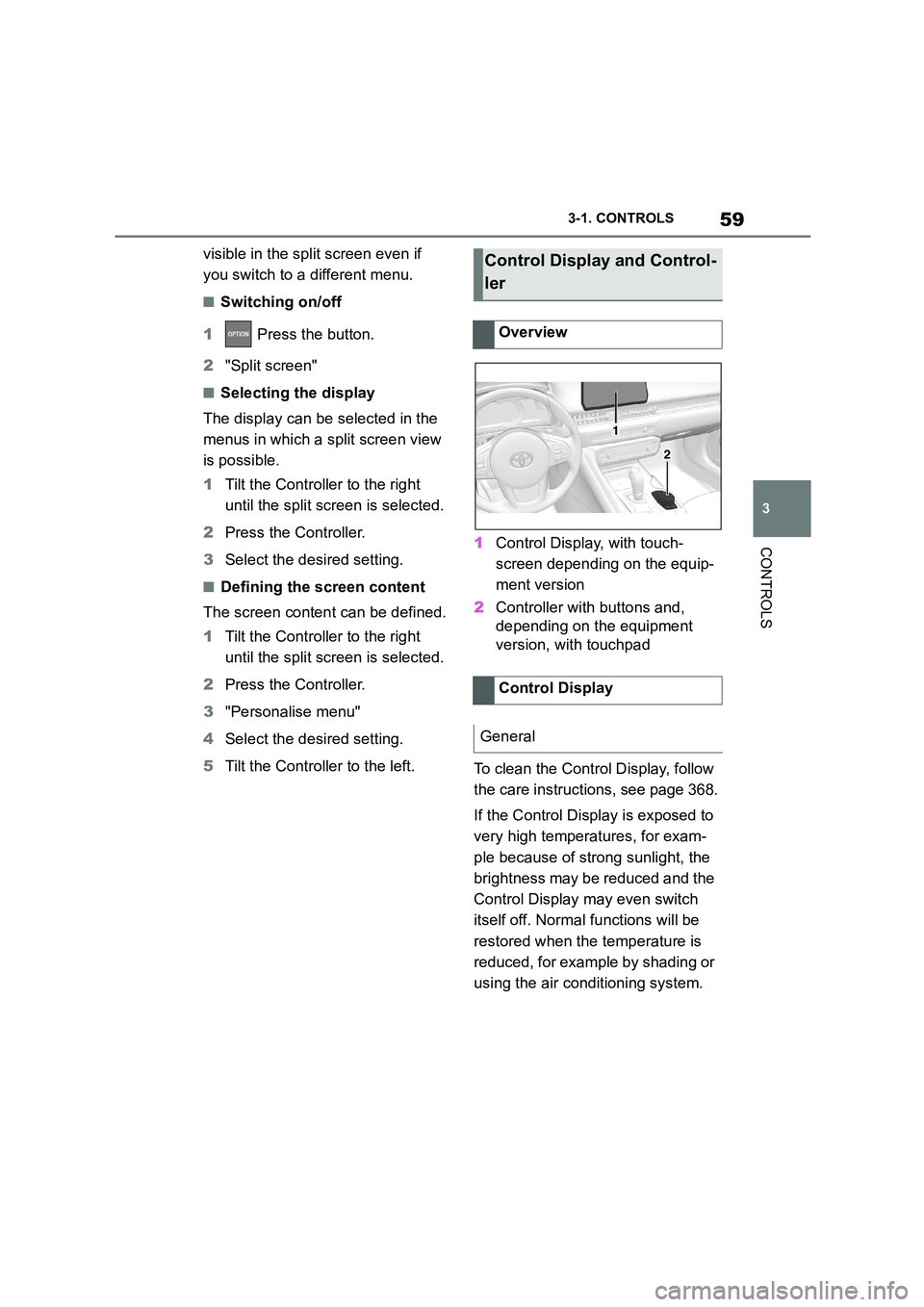
1 Control Display, with touch-
screen depending on the equip-
ment version
2 Controller with buttons and,
depending on the equipment
version, with touchpad
To clean the Control Display, follow
the care instructions, see page 368.
If the Control Display is exposed to
very high temperatures, for exam-
ple because of strong sunlight, the
brightness may be reduced and the
Control Display may even switch
itself off. Normal functions will be
restored when the temperature is
reduced, for example by shading or
using the air conditioning system.
Control Display and Control-
ler
Overview
Control Display
General
1
2
Page 64 of 498
623-1. CONTROLS
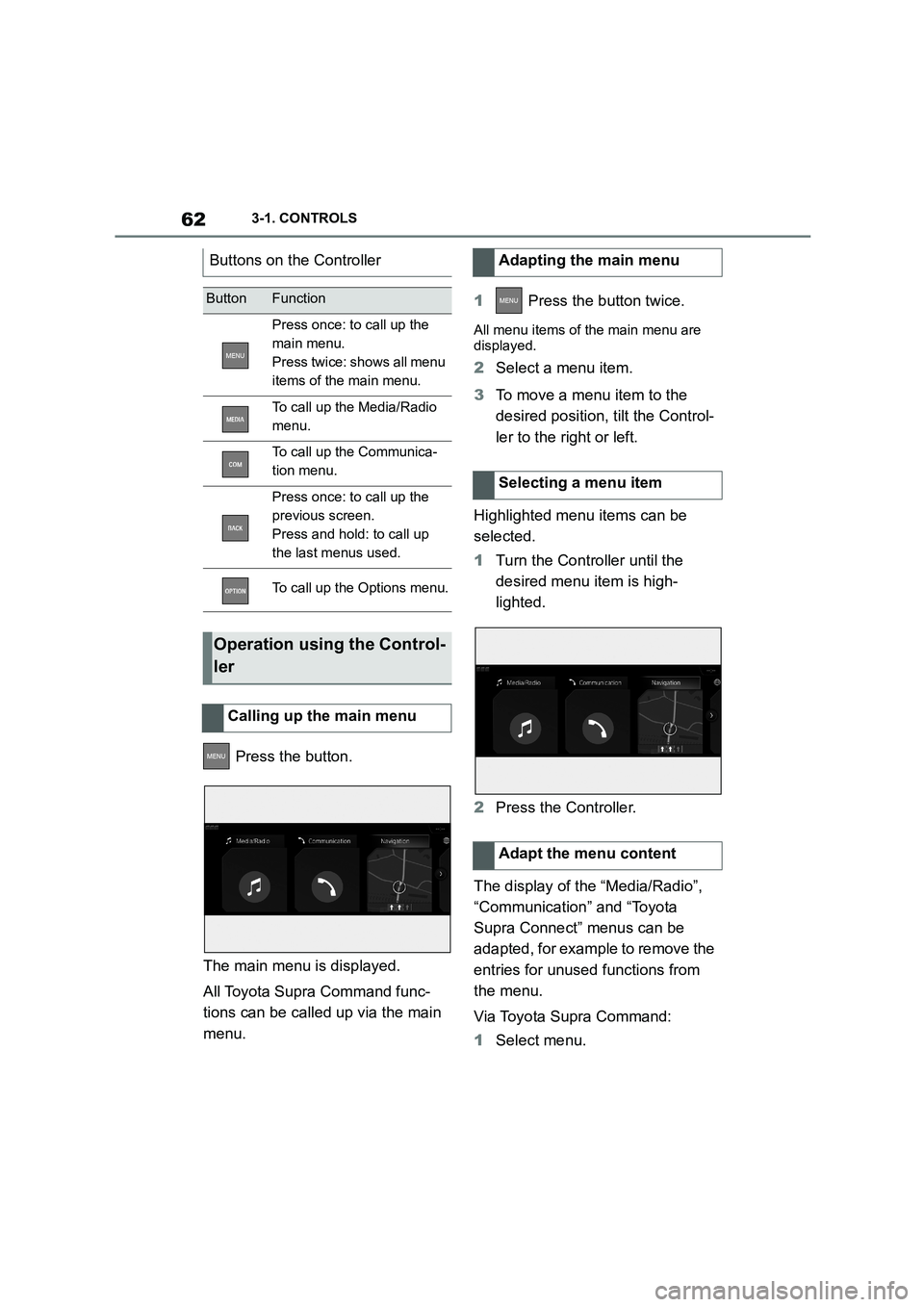
Press the button.
The main menu is displayed.
All Toyota Supra Command func-
tions can be called up via the main
menu.
1 Press the button twice.
All menu items of the main menu are
displayed.
2 Select a menu item.
3 To move a menu item to the
desired position, tilt the Control-
ler to the right or left.
Highlighted menu items can be
selected.
1 Turn the Controller until the
desired menu item is high-
lighted.
2 Press the Controller.
The display of the “Media/Radio”,
“Communication” and “Toyota
Supra Connect” menus can be
adapted, for example to remove the
entries for unused functions from
the menu.
Via Toyota Supra Command:
1 Select menu.
Buttons on the Controller
ButtonFunction
Press once: to call up the
main menu.
Press twice: shows all menu
items of the main menu.
To call up the Media/Radio
menu.
To call up the Communica-
tion menu.
Press once: to call up the
previous screen.
Press and hold: to call up
the last menus used.
To call up the Options menu.
Operation using the Control-
ler
Calling up the main menu
Adapting the main menu
Selecting a menu item
Adapt the menu content
Page 66 of 498
643-1. CONTROLS
■General
Letters and characters can be
entered using the Controller or the
touchscreen. The keyboard display
changes automatically.
■Entry
1 Selecting the input language.
2 Turn Controller: highlight letter
or syllable.
3 Press Controller: highlighted let-
ter or syllable is selected.
Tilt Controller upward: switch
between single and double
characters.
■Overview of symbols
Symbols that cannot be selected
are shown in grey.
■General
Letters and characters can be
entered using the Controller or the
touchscreen. The keyboard display
changes automatically.
■Entry
1 Selecting the input language.
2 Turn Controller: highlight col-
umn
3 Press Controller: highlighted
column is selected.
Tilt the Controller to the left;
return to column selection.
4 Highlight letter or syllable.
5 : select letter or syllable.
The letter or syllable is shown in the top
row.
■Overview of symbols
Symbols that cannot be selected
are shown in grey.
For alphabetical lists with more
than 30 entries, the letters for which
entries exist can be displayed on
the left.
1 Turn the Controller quickly to the
left or right.
All the letters for which an entry exists
are shown on the left.
For Korea
SymbolFunction
Confirm selection.
Switch between characters.
Delete the input.
Press and hold down:
deletes all inputs.
To insert spaces.
For Taiwan
SymbolFunction
Confirm selection.
Switch between characters.
Delete the input.
Press and hold down:
deletes all inputs.
To insert spaces.
Operating alphabetical lists
Page 75 of 498

73
3
3-1. CONTROLS
CONTROLS
Depending on the country specifi-
cations, it is poss ible to select the
units of measurement for various
values, for example consumption,
distances and temperature.
Via Toyota Supra Command:
1 "My Vehicle"
2 "System settings"
3 "Units"
4 Select the desired menu item.
5 Select the desired setting.
If vehicle tracking is activated, the
current vehicle position can be dis-
played in the Toyota Supra Apps.
Via Toyota Supra Command:
1 "My Vehicle"
2 "Vehicle settings"
3 "Vehicle tracking"
4 "Vehicle tracking"
Information windows are automati-
cally shown on the Control Display
for some functions. Some of these
information windows can be acti-
vated or deactivated.
Via Toyota Supra Command:
1 "My Vehicle"
2 "System settings"
3 "Pop-ups"
4 Select the desired setting.
Via Toyota Supra Command:
1 "My Vehicle"
2 "System settings"
3 "Displays"
4 "Control display"
5 "Brightness at night"
6 Turn the Controller until the
desired brightness is obtained.
7 Press the Controller.
Depending on the lighting condi-
tions, the brightness adjustment
may not be immediately apparent.
The content displayed in some
menu items of the main menu can
be selected.
1 Press the button.
2 "Contents of main menu"
Selecting the units ofmeas-
urement
Activating/deactivating dis-
play of the current vehicle
position
Principle
Activating/deactivating
Activating/deactivating
information windows
Control Display
Brightness
Selecting the content of the
main menu
Page 79 of 498

77
3
3-1. CONTROLS
CONTROLS
files.
To ensure that the correct driver
profile can be set, the system must
be able to allocate the detected
remote control uniquely to the
driver.
This is ensured if the following con-
ditions are met:
• The driver is only carrying their
own remote control.
• The driver unlocks the vehicle.
• The driver enters the vehicle
through the driver's door.
The name of the currently used
driver profile is displayed when the
Control Display is switched on.
Select a driver profile, see page 77.
As soon as the engine is started or
any button pressed, the display
selected last is shown on the Con-
trol Display.
To cancel the welcome screen via
Toyota Supra Command: "OK"
Settings for the following systems
and functions are saved in the cur-
rently used driv er profile. Which
settings can be saved depends on
the country and equipment.
• Unlocking and locking.
•Lights.
• Air conditioning.
• Radio.
• Instrument cluster.
• Favourites buttons.
• Volumes, sound.
• Control Display.
• Parking Sensors.
• Rear-view camera.
• Head-Up Display.
• Sport mode switch.
• Seat position, exterior mirror
position
The positions set via the seat memory
and the last position set are saved.
• Cruise Control.
• Toyota Supra Safety.
Regardless of which remote control
is currently being used, it is possi-
ble to call up a different driver pro-
file. This enables the personal
vehicle settings to be called up,
even if the vehicle was not
unlocked with the driver's own
remote control.
Via Toyota Supra Command:
1 "My Vehicle"
2 "Driver profiles"
3 Select a driver profile.
4 "OK"
• The settings saved in the
selected driver profile are
applied automatically.
Operating requirements
Currently used driver profile
Settings
Profile management
Selecting a driver profile
Page 91 of 498
89
3
3-1. CONTROLS
CONTROLS
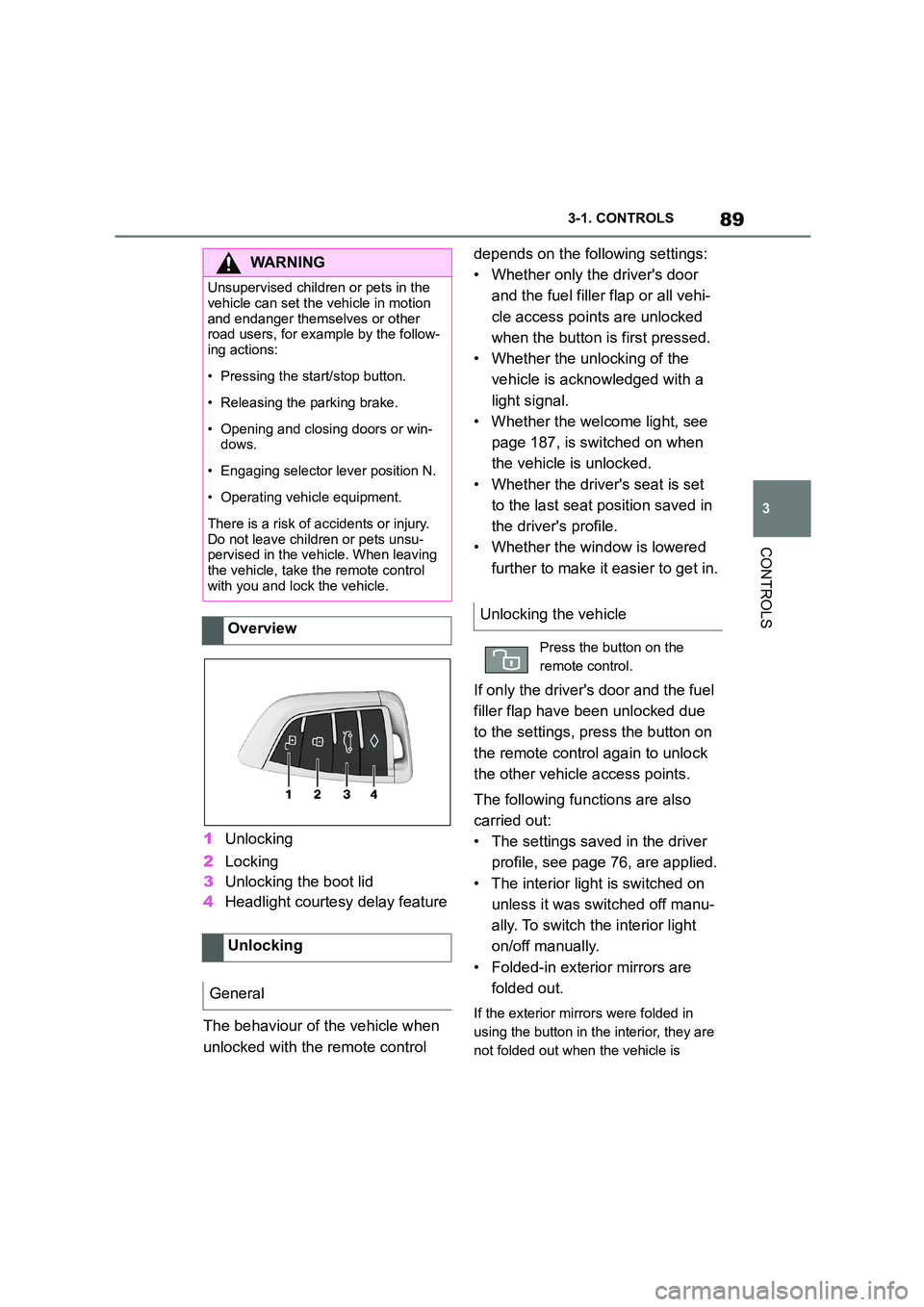
1 Unlocking
2 Locking
3 Unlocking the boot lid
4 Headlight courtesy delay feature
The behaviour of the vehicle when
unlocked with the remote control
depends on the following settings:
• Whether only the driver's door
and the fuel filler flap or all vehi-
cle access poin ts are unlocked
when the button is first pressed.
• Whether the unlocking of the
vehicle is acknowledged with a
light signal.
• Whether the welcome light, see
page 187, is switched on when
the vehicle is unlocked.
• Whether the driver's seat is set
to the last seat position saved in
the driver's profile.
• Whether the window is lowered
further to make it easier to get in.
If only the driver's door and the fuel
filler flap have been unlocked due
to the settings, press the button on
the remote control again to unlock
the other vehicle access points.
The following functions are also
carried out:
• The settings saved in the driver
profile, see page 76, are applied.
• The interior light is switched on
unless it was switched off manu-
ally. To switch the interior light
on/off manually.
• Folded-in exterior mirrors are
folded out.
If the exterior mirrors were folded in
using the button in the interior, they are
not folded out when the vehicle is
WA R N I N G
Unsupervised children or pets in the
vehicle can set the vehicle in motion
and endanger themselves or other road users, for example by the follow-
ing actions:
• Pressing the start/stop button.
• Releasing the parking brake.
• Opening and closing doors or win-
dows.
• Engaging selector lever position N.
• Operating vehicle equipment.
There is a risk of accidents or injury.
Do not leave children or pets unsu- pervised in the vehicle. When leaving
the vehicle, take the remote control
with you and lock the vehicle.
Overview
Unlocking
General
Unlocking the vehicle
Press the button on the
remote control.
Page 92 of 498
903-1. CONTROLS
unlocked.
• With anti-theft system: The
anti-theft system is switched off.
• With alarm system: The alarm
system is switched off.
Depending on the settings, the win-
dow is lowered further when open-
ing a door.
The vehicle is operational after one
of the front doors is opened.
The lighting functions may depend
on the ambient brightness.
The windows are opened for as
long as the button on the remote
control is pressed.
Exterior mirrors which were folded
in via the comfort closing feature
are folded out.
The behaviour of the vehicle in the
case of remote control locking
depends on the following settings:
• Whether locking of the vehicle is
acknowledged with a light signal.
• Whether the exterior mirrors are
automatically folded in when the
vehicle is unlocked and locked.
• Whether the headlight courtesy
delay feature is activated when
the vehicle is locked.
1 Close the driver's door.
2 Press the button on the
remote control.
The following functions are carried
out:
• All the doors, the boot lid and
fuel filler flap are locked.
• With anti-theft system: The
anti-theft system is switched on.
This prevents the doors from
being unlocked using the locking
buttons or the door openers.
• With alarm system: The alarm
system is switched on.
If the drive-ready state is still
switched on when locking, the vehi-
cle horn sounds twice. In this case,
switch off the drive-ready state
using start/ stop button.
Press remote control button
twice in direct succession to
activate comfort memory.
Comfort opening
Opening
Press and hold the button on
the remote control.
Locking
General
Locking the vehicle
Page 93 of 498
91
3
3-1. CONTROLS
CONTROLS
The windows are closed for as long
as the button on the remote control
is pressed.
The exterior mirrors are folded in.
If the hazard warning lights are
switched on, the exterior mirrors
are not folded in.
The function is not available for the
first 10 seconds after locking.
• The interior light is switched on
unless it was switched off manu-
ally. To switch th e interior light
on/off manually, see page 191.
• Depending on the settings, the
exterior lights, see page 187, are
switched on.
The lighting functions may depend
on the ambient brightness.
To prevent the remote control from
being locked in, do not place the
remote control in the boot.
It is possible to set whether the
doors are unlocked when the boot
lid is opened with the remote con-
trol. For settings, see page 101.
On some equipment versions, the
doors are also unlocked each time.
Comfort closing
Safety notes
WA R N I N G
Parts of the body can become trapped when the comfort closing fea-
ture is operated. There is a danger of
injury. When the comfort closing fea-
ture is operating, make sure that the area of movement is kept clear.
Closing
Keep the button on the
remote control pressed after
locking.
Switching on the interior
light and exterior lights
With the vehicle locked,
press the button on the
remote control.
Boot lid
General
Safety notes
WA R N I N G
Parts of the body can become trapped when the boot lid is operated.
There is a danger of injury. When
opening and closing, make sure that the area of movement of the boot lid
is kept clear.
NOTICE
The boot lid swings rearwards and upwards when opened. There is a
danger of damage to property. When
opening and closing, make sure that the area of movement of the boot lid
is kept clear.
Unlocking
Press and hold the button on
the remote control for approx-
imately 1 second.