2018 CHEVROLET CITY EXPRESS audio
[x] Cancel search: audioPage 20 of 74
Chevrolet City Express Infotainment System (GMNA-Localizing-U.S./Canada-
11683801) - 2018 - crc - 7/12/17
Audio Players 19
Repeat :Touch to apply a repeat
play pattern to the USB device.
When repeat is active,
Edisplays
to the left of the song title or album
name to show which repeat pattern
is applied. To cancel Repeat, touch
Repeat until the active
E
disappears.
Supported Apple Devices
See your dealer.
Playing from an iPod
Make sure the iPod firmware is
updated to the latest version.
To connect an iPod to the vehicle so
that it can be controlled with the
audio system controls and
infotainment display, use the USB
port on the center console below the
heater and air conditioner controls.
Connect the iPod specific end of the
cable to the iPod and the USB end
of the cable to the USB port on the
vehicle. If the iPod supports charging
through a USB connection, its
battery will be charged while
connected to the vehicle with the
ignition on.
To disconnect the iPod from the
vehicle, remove the USB end of the
cable from the USB port on the
vehicle, then remove the cable from
the iPod.
While the ignition is on, press AUX
on the center stack repeatedly to
switch to the iPod mode.
If the system has been turned off
while the iPod was playing, pressing
the PUSH/ON-OFF VOL knob will
start the iPod.
When AUX on the center stack is
pressed with the system off and the
iPod connected, the system will turn
on. If another audio source is
playing and the iPod is connected,
press AUX on the center stack
repeatedly until the infotainment
display changes to the iPod mode.iPod Interface
The interface for iPod operation
displayed on the vehicle’s audio
system is similar to the iPod
interface. Press BACK on the center
stack or touch the scroll bar to
navigate the menus on the display.
When the iPod is playing, press
Menu on the iPod to bring up the
iPod interface.
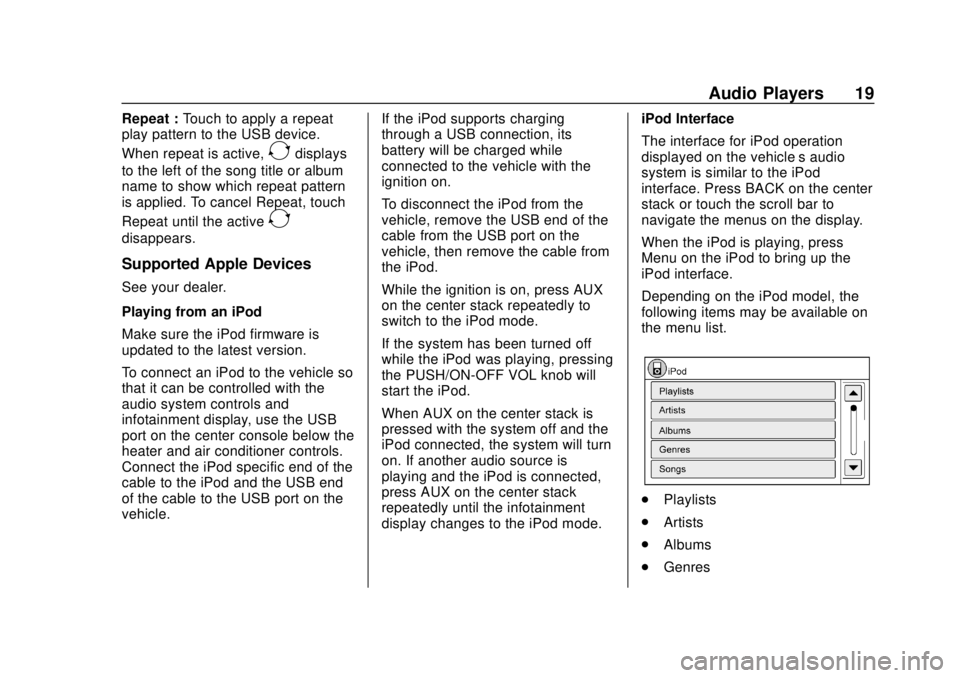
Depending on the iPod model, the
following items may be available on
the menu list.
.
Playlists
. Artists
. Albums
. Genres
Page 21 of 74
Chevrolet City Express Infotainment System (GMNA-Localizing-U.S./Canada-
11683801) - 2018 - crc - 7/12/17
20 Audio Players
.Songs
. Audiobooks
. Podcasts
Random and Repeat Play Mode
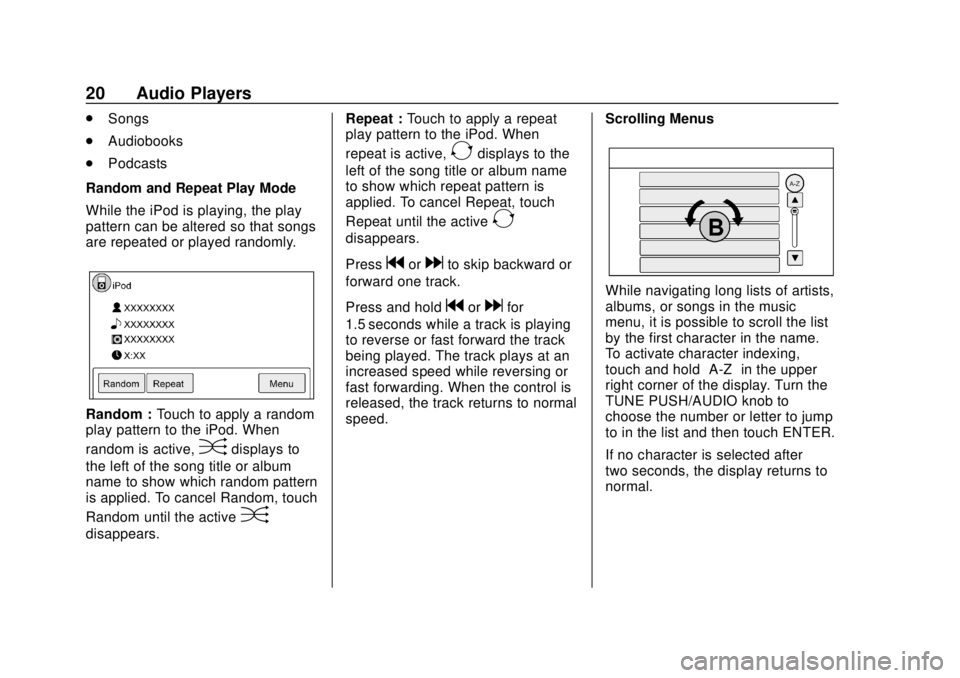
While the iPod is playing, the play
pattern can be altered so that songs
are repeated or played randomly.
Random : Touch to apply a random
play pattern to the iPod. When
random is active,
Ddisplays to
the left of the song title or album
name to show which random pattern
is applied. To cancel Random, touch
Random until the active
D
disappears. Repeat :
Touch to apply a repeat
play pattern to the iPod. When
repeat is active,
Edisplays to the
left of the song title or album name
to show which repeat pattern is
applied. To cancel Repeat, touch
Repeat until the active
E
disappears.
Press
gordto skip backward or
forward one track.
Press and hold
gordfor
1.5 seconds while a track is playing
to reverse or fast forward the track
being played. The track plays at an
increased speed while reversing or
fast forwarding. When the control is
released, the track returns to normal
speed. Scrolling Menus
While navigating long lists of artists,
albums, or songs in the music
menu, it is possible to scroll the list
by the first character in the name.
To activate character indexing,
touch and hold
“A-Z”in the upper
right corner of the display. Turn the
TUNE PUSH/AUDIO knob to
choose the number or letter to jump
to in the list and then touch ENTER.
If no character is selected after
two seconds, the display returns to
normal.
Page 22 of 74
Chevrolet City Express Infotainment System (GMNA-Localizing-U.S./Canada-
11683801) - 2018 - crc - 7/12/17
Audio Players 21
Auxiliary Devices
This vehicle has an auxiliary input
jack in the center console below the
heater and air conditioner controls.
Possible auxiliary audio sources
include:
.Laptop computer
. MP3 player
. Tape player
This jack is not an audio output. Do
not plug headphones into the
auxiliary input jack. Set up any
auxiliary device while the vehicle is
in P (Park).
Connect a 3.5 mm (1/8 in) cable
from the auxiliary device to the
auxiliary input jack. When a device
is connected, the system
automatically begins playing audio
from the device over the vehicle
speakers.
Press AUX on the center stack to
play a compatible device plugged
into the auxiliary input jack.
Bluetooth Audio
If equipped, music may be played
from a paired Bluetooth device. The
device can be connected to the
vehicle’s audio system so that the
audio files on the device play
through the vehicle’ s speakers.
Bluetooth Audio Menu
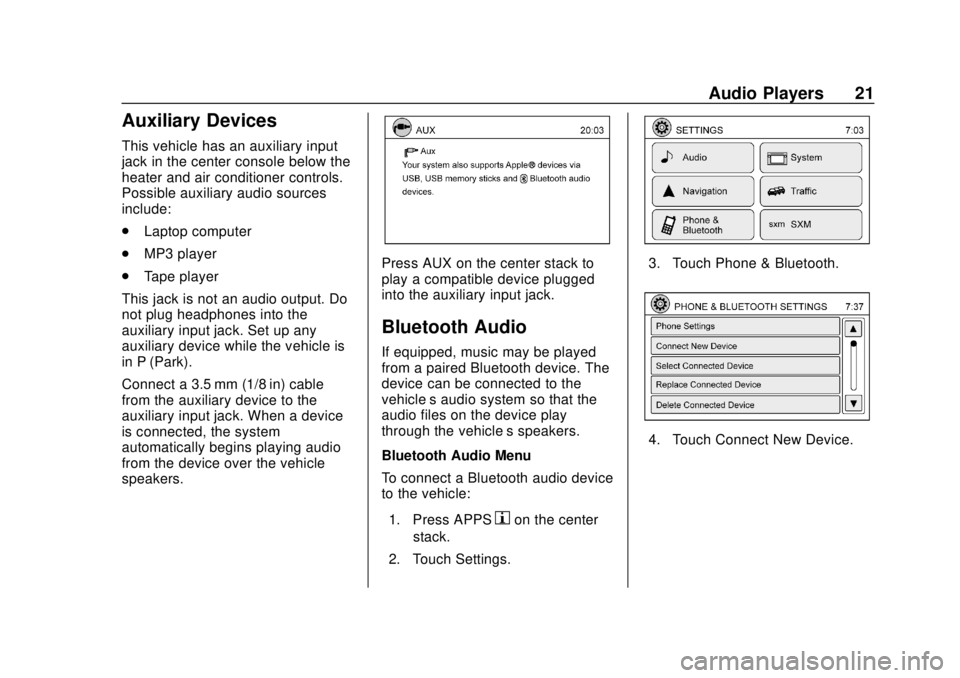
To connect a Bluetooth audio device
to the vehicle:
1. Press APPS
hon the center
stack.
2. Touch Settings.
3. Touch Phone & Bluetooth.
4. Touch Connect New Device.
Page 23 of 74

Chevrolet City Express Infotainment System (GMNA-Localizing-U.S./Canada-
11683801) - 2018 - crc - 7/12/17
22 Audio Players
5. The system confirms thecommand and asks to initiate
connecting from the phone
handset. The connecting
procedure of the cellular phone
varies according to each
cellular phone model. See the
manufacturer ’s manual for
details.
To switch to the Bluetooth audio
mode, press AUX on the center
stack repeatedly until the Bluetooth
audio mode displays.
The controls for the Bluetooth audio
are shown on the display.
Page 25 of 74
Chevrolet City Express Infotainment System (GMNA-Localizing-U.S./Canada-
11683801) - 2018 - crc - 7/12/17
24 Navigation
Map Types
.2-Dimensional (2D) View –The
2D map is a two-dimensional flat
representation of the map data,
similar to a road map.
. 2-Dimensional (2DN) View –The
2DN map is a two-dimensional
representation of the map data,
similar to a road map, focused
on the vehicle’s position with the
top of the map aligned North.
. 3-Dimensional (3D) View –The
3D map displays the map from
an elevated perspective,
providing a panoramic view over
a long distance.
The map in 3D view always
appears with the current forward
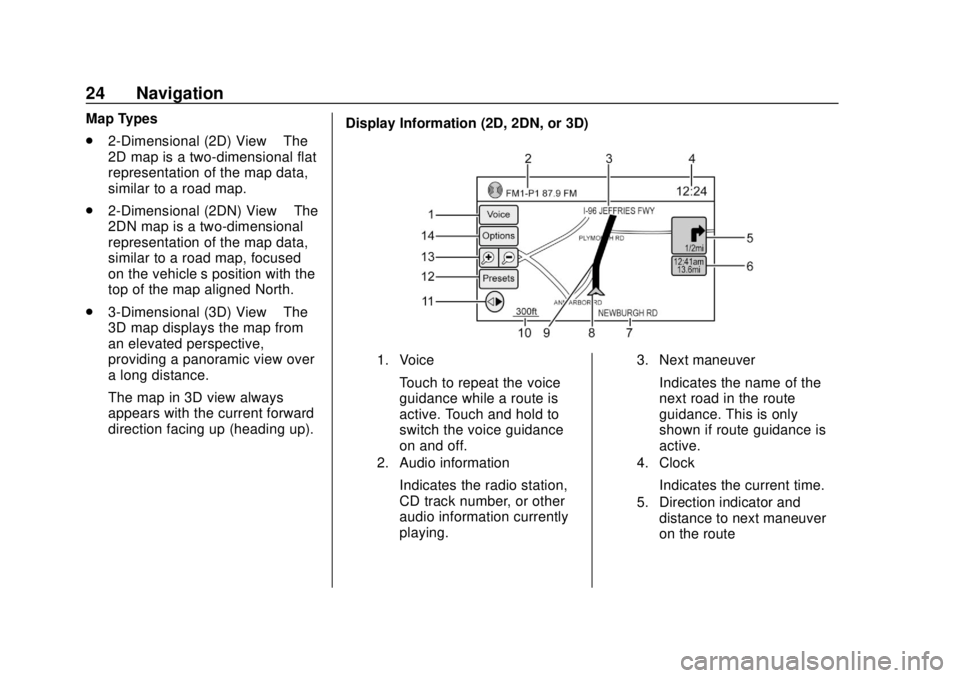
direction facing up (heading up). Display Information (2D, 2DN, or 3D)
1. Voice
Touch to repeat the voice
guidance while a route is
active. Touch and hold to
switch the voice guidance
on and off.
2. Audio information
Indicates the radio station,
CD track number, or other
audio information currently
playing.
3. Next maneuver
Indicates the name of the
next road in the route
guidance. This is only
shown if route guidance is
active.
4. Clock
Indicates the current time.
5. Direction indicator and
distance to next maneuver
on the route
Page 53 of 74

Chevrolet City Express Infotainment System (GMNA-Localizing-U.S./Canada-
11683801) - 2018 - crc - 7/12/17
52 Voice Recognition
Voice Recognition
Voice recognition allows for
hands-free operation of the
infotainment system features.
Using Voice Recognition
1. Keep the interior of the vehicleas quiet as possible. Close the
windows to eliminate the
surrounding noises such as
traffic and vibration sounds,
which may prevent the system
from recognizing the voice
commands correctly.
2. Press
g/Von the steering
wheel. The audio system
mutes. Wait until a tone sounds
before speaking a command.
Otherwise, the command will
not be received properly.
3. Start speaking a command within 3.5 seconds after
the tone.
4. Speak in a natural voice without pausing between
words.
The voice command display can
also be accessed from the Menu
display.
1. Press APPS
hon the center
stack.
2. Select Voice Commands.
Press
g/Vtwice on the steering
wheel to skip the voice prompt
messages.
Voice Recognition Commands
The following list shows the voice
commands available for the
infotainment system with a brief
description of each. The commands
are listed with the optional words in
parentheses. To use the voice
commands, see the previous
instructions.
Navigation System Voice
Commands
Some of the following voice
commands are available for the
navigation system:
. Home
. Call (name)
. Street Address (address)
Page 55 of 74

Chevrolet City Express Infotainment System (GMNA-Localizing-U.S./Canada-
11683801) - 2018 - crc - 7/12/17
54 Voice Recognition
.Canada and Alaska contain
many roads with incomplete map
data. As a result, when
searching for a route, the route
may include roads with
incomplete data. In regions
where road data is not complete,
voice guidance may stop for
long periods of time. Be sure to
follow the actual traffic
restrictions while driving.
Audio System Voice
Commands
To access the audio system voice
commands:
1. Press
g/Von the steering
wheel.
2. Say “Audio.”
3. Speak a command such as: .FM: Switches the audio
system to the FM mode.
. AM: Switches the audio
system to the AM mode. .
SXM: If equipped, switches
the audio system to the
SiriusXM Satellite
Radio mode.
. CD: Switches the audio
system to the CD mode.
A CD must be inserted for
this command to be
functional.
. iPod: Switches the audio
system to the iPod mode.
An iPod must be connected
for this command to be
available and functional.
The following
sub-commands are
available for iPod:
‐Now Playing
‐ Menu
‐ Playlists
‐ Artists
‐ Albums
‐ Genres
‐ Songs
‐ Shuffle Songs ‐
Composers
‐ Audiobooks
‐ Podcasts
. Say “Next Page” to access
these commands. Say
“Previous Page” to return to
the first page of commands.
. USB: Switches the audio
system to the USB mode.
A USB device must be
inserted for this command
to be available and
functional.
. Bluetooth: Switches the
audio system to the
Bluetooth audio mode.
A compatible Bluetooth
audio device must be
connected to the system for
this command to be
functional.
. AUX: Switches the audio
system to the AUX mode.
An AUX device must be
connected for this
command to be functional.
Page 58 of 74

Chevrolet City Express Infotainment System (GMNA-Localizing-U.S./Canada-
11683801) - 2018 - crc - 7/12/17
Settings 57
default settings. If No is chosen, the
default settings will not be restored
and the display returns to the
system settings display.
Infotainment Display Operation
and Setting
Switching the Display On or Off
To turn on the display:
.Press the
!control.
. Press any other control to turn
the display on.
To turn off the display, press and
hold the
!control. When the
display is turned off, the clock will
still be displayed.
When an incoming call is ended, the
display returns to the clock display.
If active, voice guidance continues
even when the display is turned off.
Press and hold
!for more than
two seconds to switch the display to
a larger display of the digital clock. Changing Day-Night Brightness
Press
!for less than two seconds
to switch:
. Between day and auto (night)
when the headlamps are on.
. Between night and auto (day)
when the headlamps are off.
While the display is showing the
current brightness mode, turn the
TUNE PUSH/AUDIO knob to adjust
the brightness.
The day or night mode can also be
switched from the Display
Settings menu.
Brightness
This menu allows the brightness of
the display to be adjusted.
1. Press APPS
hor MENU on
the center stack.
2. Touch the Settings icon.
3. Touch the System icon.
4. Touch the Display icon.
5. Adjust the brightness using + and −. 6. To save the setting, press
BACK on the center stack to
return to the previous display.
Rear Vision Camera Settings
Use this setting to change the
display mode (automatic/day/night)
for the rear vision camera.
Brightness, contrast, and color can
also be adjusted.
1. Press APPS
hon the center
stack.
2. Touch Settings.
3. Touch System.
4. Scroll down and touch Camera Settings.
Switch display mode and use + or −
to adjust brightness, contrast, and
color for the rear vision camera
display.
Temperature Unit Settings
Use this setting to change the
temperature units (Fahrenheit/
Celsius).
1. Press APPS
hor MENU on
the center stack.