2018 CHEVROLET CITY EXPRESS phone
[x] Cancel search: phonePage 2 of 74

Chevrolet City Express Infotainment System (GMNA-Localizing-U.S./Canada-
11683801) - 2018 - crc - 7/12/17
ContentsIntroduction . . . . . . . . . . . . . . . . . . . . . 2
Radio . . . . . . . . . . . . . . . . . . . . . . . . . . . 8
Audio Players . . . . . . . . . . . . . . . . . 14
Navigation . . . . . . . . . . . . . . . . . . . . . 23
Voice Recognition . . . . . . . . . . . . . 52
Settings . . . . . . . . . . . . . . . . . . . . . . . 56
Bluetooth Phone/Devices . . . . . . 60
Trademarks and LicenseAgreements . . . . . . . . . . . . . . . . . . 66
Index . . . . . . . . . . . . . . . . . . . . 70
Page 4 of 74
Chevrolet City Express Infotainment System (GMNA-Localizing-U.S./Canada-
11683801) - 2018 - crc - 7/12/17
Introduction 3
All functions are available when the
vehicle is parked. Before driving:
.Become familiar with the
controls on the center stack,
controls on the steering wheel,
and the infotainment display.
. Set up the audio by presetting
favorite stations, setting the
tone, and adjusting the
speakers.
. Set up phone numbers in
advance so they can be called
easily by touching a single icon
or by using a single voice
command for vehicles equipped
with phone capability.
The navigation system should not
be left running with the engine
stopped. Doing so may discharge
the vehicle battery.
Infotainment System Overview
The infotainment system is operated
by using the controls, infotainment
display, steering wheel controls, and
voice recognition.
See Using the System 06.
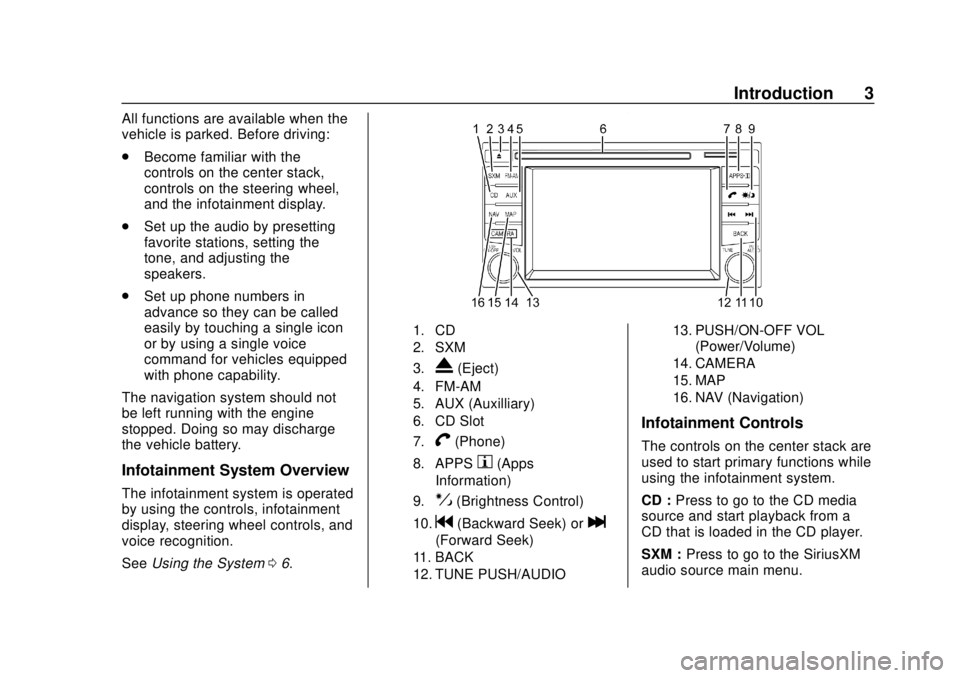
1. CD
2. SXM
3.
X(Eject)
4. FM-AM
5. AUX (Auxilliary)
6. CD Slot
7.
V(Phone)
8. APPSh(Apps
Information)
9.!(Brightness Control)
10.g(Backward Seek) orl
(Forward Seek)
11. BACK
12. TUNE PUSH/AUDIO 13. PUSH/ON-OFF VOL
(Power/Volume)
14. CAMERA
15. MAP
16. NAV (Navigation)
Infotainment Controls
The controls on the center stack are
used to start primary functions while
using the infotainment system.
CD : Press to go to the CD media
source and start playback from a
CD that is loaded in the CD player.
SXM : Press to go to the SiriusXM
audio source main menu.
Page 5 of 74
Chevrolet City Express Infotainment System (GMNA-Localizing-U.S./Canada-
11683801) - 2018 - crc - 7/12/17
4 Introduction
FM-AM :Press to go to the FM or
AM audio source main menu.
AUX : Press to go to the auxiliary
media source and start playback
from a device that is connected to
the AUX input jack.
X: Press to eject a CD that is
loaded into the CD player.
NAV : Press to access the functions
of the navigation system.
MAP : Press to display the current
location on the map view.
PUSH/ON-OFF VOL:
. Press to turn the system on
and off.
. Turn to adjust the volume.
TUNE PUSH/AUDIO : Turn to scroll
through the items in a list. Press to
select a menu item. When the
display is not showing a list or
menu, the knob is used to control
the audio system.
BACK : Press to return to the
previous display in a menu.
V:
. Press to enter the phone main
display. See Bluetooth060.
. Press and hold to mute or
unmute the infotainment system.
!:Press to change the display
brightness between day and night
modes. While the mode is being
displayed, the brightness can be
adjusted using the TUNE knob.
Press and hold for more than
two seconds to switch the display to
a larger display of the digital clock.
APPS
h: Press to access the
system’ s settings.
CAMERA : Press to turn the Rear
Vision Camera on or off.
Functions Disabled While
Driving
Some functions cannot be operated
or have limited operation when the
vehicle driving speed is above
8 km/h (5 mph). The on-screen text and icons for
these restricted functions will be
grayed out or muted and cannot be
selected while driving. In some
cases, a display message will
appear indicating a restricted
function.
Restricted functions while driving
include:
.
Character and number input
during destination entry
. Searching by name and
city name
. Scrolling and viewing of certain
navigation lists
. Adding or editing a home
location
. Storing current position,
information, and destinations
These functions will become
available again when the vehicle
speed is reduced to 8 km/h (5 mph).
Page 7 of 74
Chevrolet City Express Infotainment System (GMNA-Localizing-U.S./Canada-
11683801) - 2018 - crc - 7/12/17
6 Introduction
QorR:
. For AM and FM stations, press
and hold for less than
15 seconds to tilt the tuning
switch up or down to increase or
decrease the preset station.
Press and hold for more than
15 seconds to tilt the tuning
switch up or down to seek to the
previous or next station.
. While listening to a saved
favorite, press and hold for less
than 15 seconds to tilt the tuning
switch up or down to change to
the previous or next favorite
radio station.
. For SXM (if equipped), press
and hold for less than
15 seconds to tilt the tuning
switch up or down to increase or
decrease the preset station.
Press and hold for more than
15 seconds to tilt the tuning
switch up or down to go to the
previous or next category.
. For CD, press and hold for less
than 15 seconds to tilt the tuning
switch up or down to increase or decrease the track number.
Press and hold for more than
15 seconds to tilt the tuning
switch up or down to increase or
decrease the folder number if
playing compressed audio files,
or to fast forward or rewind the
current track.
. For USB devices, press and
hold for less than 15 seconds to
tilt the tuning switch up or down
to increase or decrease the track
number. Press and hold for more
than 15 seconds to tilt the tuning
switch up or down to fast
forward or rewind the current
track.
. For Bluetooth Audio, press and
hold for less than 15 seconds to
tilt the tuning switch up or down
to skip ahead or back to the
next song.
–
x+ : Press the volume control
switch to decrease or increase the
volume.
gV: If equipped, press to interact
with Bluetooth or answer an
incoming call. See Bluetooth Phone/
Devices 060.
V:If equipped, press and hold to
end a call or reject a call.
For more information on using the
steering wheel controls for the
Bluetooth Hands-Free calling
system, see Bluetooth Phone/
Devices 060
Using the System
The infotainment system is operated
by touching icons on the
infotainment display, and by using
the knobs and other controls on the
center stack.
Voice recognition, through the
steering wheel controls, can be
used to control the infotainment
features.
Press
g/Von the steering wheel
controls to begin voice recognition.
See Voice Recognition 052.
Page 14 of 74
Chevrolet City Express Infotainment System (GMNA-Localizing-U.S./Canada-
11683801) - 2018 - crc - 7/12/17
Radio 13
are also subject to interference as
they travel from transmitter to
receiver.
Satellite Radio Reception (If
Equipped)
When the satellite radio is used for
the first time or the battery has been
replaced, the satellite radio may not
work properly. This is not a
malfunction. Wait more than
10 minutes with satellite radio on
and the vehicle outside of any metal
or large building for satellite radio to
receive all of the necessary data.
No satellite radio reception is
available and“NO SAT”is displayed
when the SAT band option is
selected unless an optional satellite
receiver and antenna are installed
and a SiriusXM Satellite Radio
service subscription is active.
Satellite radio performance may be
affected if cargo carried on the roof
blocks the satellite radio signal.
If possible, do not put cargo over
the satellite antenna. A build up of ice on the satellite
radio antenna can affect satellite
radio performance. Remove the ice
to restore satellite radio reception.
Cellular Phone Usage
Cellular phone usage can cause
interference with the vehicle's radio.
Fixed Mast Antenna
The fixed mast antenna will go
through most car washes as long as
it is securely attached. If the
antenna becomes slightly bent,
straighten it out by hand. If it is
badly bent, replace it.
Occasionally check that the antenna
is tight at the base. If tightening is
required, protect the paint from
damage.
Page 22 of 74
Chevrolet City Express Infotainment System (GMNA-Localizing-U.S./Canada-
11683801) - 2018 - crc - 7/12/17
Audio Players 21
Auxiliary Devices
This vehicle has an auxiliary input
jack in the center console below the
heater and air conditioner controls.
Possible auxiliary audio sources
include:
.Laptop computer
. MP3 player
. Tape player
This jack is not an audio output. Do
not plug headphones into the
auxiliary input jack. Set up any
auxiliary device while the vehicle is
in P (Park).
Connect a 3.5 mm (1/8 in) cable
from the auxiliary device to the
auxiliary input jack. When a device
is connected, the system
automatically begins playing audio
from the device over the vehicle
speakers.
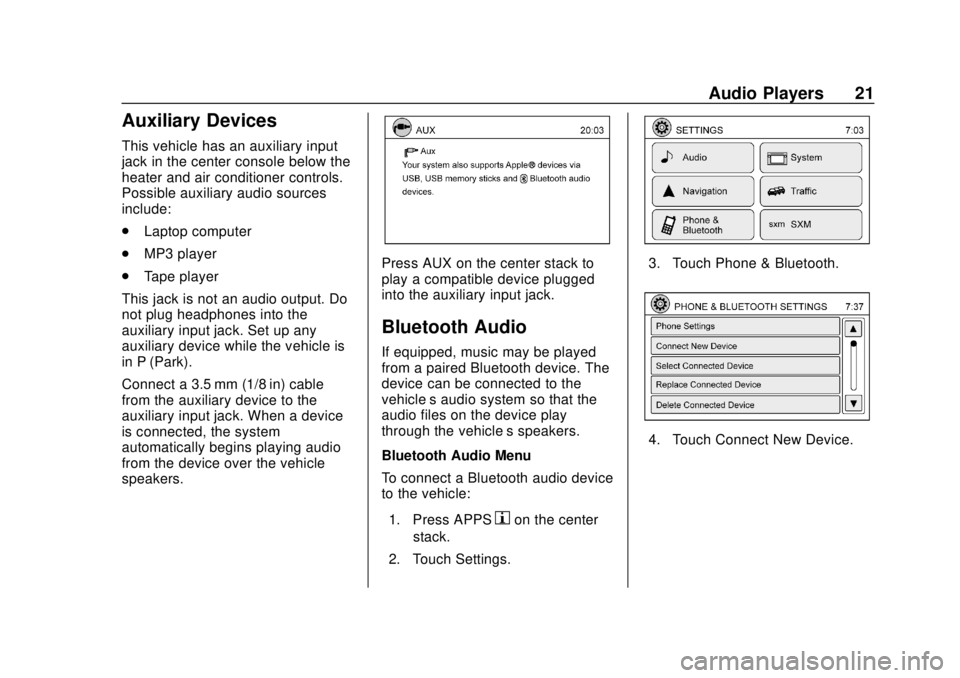
Press AUX on the center stack to
play a compatible device plugged
into the auxiliary input jack.
Bluetooth Audio
If equipped, music may be played
from a paired Bluetooth device. The
device can be connected to the
vehicle’s audio system so that the
audio files on the device play
through the vehicle’ s speakers.
Bluetooth Audio Menu
To connect a Bluetooth audio device
to the vehicle:
1. Press APPS
hon the center
stack.
2. Touch Settings.
3. Touch Phone & Bluetooth.
4. Touch Connect New Device.
Page 23 of 74

Chevrolet City Express Infotainment System (GMNA-Localizing-U.S./Canada-
11683801) - 2018 - crc - 7/12/17
22 Audio Players
5. The system confirms thecommand and asks to initiate
connecting from the phone
handset. The connecting
procedure of the cellular phone
varies according to each
cellular phone model. See the
manufacturer ’s manual for
details.
To switch to the Bluetooth audio
mode, press AUX on the center
stack repeatedly until the Bluetooth
audio mode displays.
The controls for the Bluetooth audio
are shown on the display.
Page 37 of 74
Chevrolet City Express Infotainment System (GMNA-Localizing-U.S./Canada-
11683801) - 2018 - crc - 7/12/17
36 Navigation
the right shows the direction of
the destination. Touch the
desired destination on the list.
A maximum of 200 destinations
will be listed when searching
with this method.
6. A detailed description is provided.
.Press BACK on the center
stack to go back and pick
another destination.
. Touch Call to call the
destination if the phone
number is available using
the Bluetooth Hands-Free
Phone system.
. Touch Map to show a map
of the destination.
. Touch Start to calculate the
route to the destination.
Searching for Places Near Current
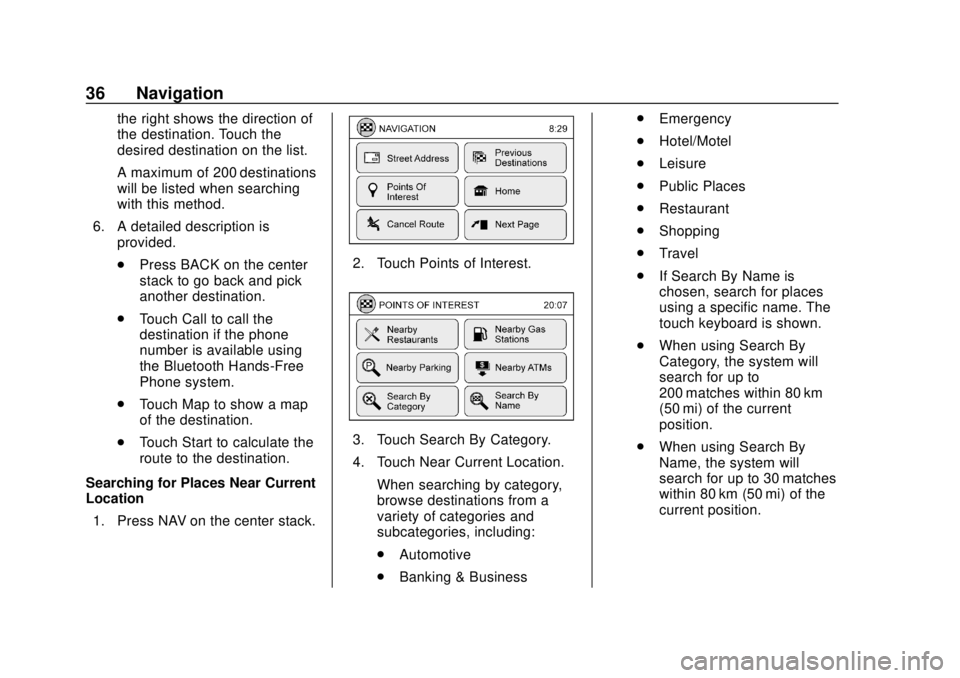
Location 1. Press NAV on the center stack.
2. Touch Points of Interest.
3. Touch Search By Category.
4. Touch Near Current Location.
When searching by category,
browse destinations from a
variety of categories and
subcategories, including:
.Automotive
. Banking & Business .
Emergency
. Hotel/Motel
. Leisure
. Public Places
. Restaurant
. Shopping
. Travel
. If Search By Name is
chosen, search for places
using a specific name. The
touch keyboard is shown.
. When using Search By
Category, the system will
search for up to
200 matches within 80 km
(50 mi) of the current
position.
. When using Search By
Name, the system will
search for up to 30 matches
within 80 km (50 mi) of the
current position.