2018 CHEVROLET CITY EXPRESS phone
[x] Cancel search: phonePage 40 of 74
Chevrolet City Express Infotainment System (GMNA-Localizing-U.S./Canada-
11683801) - 2018 - crc - 7/12/17
Navigation 39
.In order to save the user-defined
points of interest data, a USB
mass storage device is required.
The user-defined points of
interest data cannot be saved on
the SD card that contains the
navigation data.
. User-defined points of interest
are not shown in the map
representation.
. The system recognizes the
user-defined POI data and then
displays a pop-up message to
ask whether the data needs to
be downloaded into the system.
. If the download is confirmed, the
available user POIs in the
system internal memory will be
deleted and the new ones in the
USB mass storage device will be
downloaded into the internal
memory of the system.
. The progress of the download is
shown by a progress bar. When
the download is finished, the
system indicates that the USB
mass storage device can be
removed. Creating User-Defined Points of
Interest (POIs)
.
Longitude
. Latitude
. Name
. Location/Folder to save
. File name
POI data can be downloaded from
the Internet or created in a simple
text editor in Comma Separated
Values (CSV) file format.
There are two kinds of POI data
supported by the system:
. User POIs –user-defined points
of interest (POIs) that can later
be set as a destination and
found using route guidance.
. POI-Warnings –user-supplied
areas such as hazard spots that
the system displays in a pop-up
window when the vehicle is
approaching the
designated area. To create your own User POIs:
1. Connect a USB mass storage device to your personal
computer.
2. Use a standard software program to create a list of
POIs. Make sure the software
can support the CSV file
format.
3. In the first column, enter the longitude value of the position
of the POI.
4. In the second column, enter the latitude value of the
position of the POI.
5. In the third column, enter the name of the POI. Information
entered in the fourth column,
such as address or phone
number, will be appended to
the name of the POI.
6. Add more rows if necessary.
Page 48 of 74
Chevrolet City Express Infotainment System (GMNA-Localizing-U.S./Canada-
11683801) - 2018 - crc - 7/12/17
Navigation 47
.In Another City
Select to view weather
information for a different city.
Follow the on-screen prompts
and character input display to
select the desired location.
When the weather function is
accessed for the first time of the
day, the GPS location may not be
used. If this occurs, touch Location
to update the location.
This feature can also be accessed
using the voice recognition system.
Press
g/Von the steering wheel
and when prompted, say
“Information” then“Current Weather”
or “Weather Forecast.”
Fuel Pricing
To display fuel prices at gas stations
in the surrounding area on the
display:
1. Press APPS
hor MENU on
the center stack.
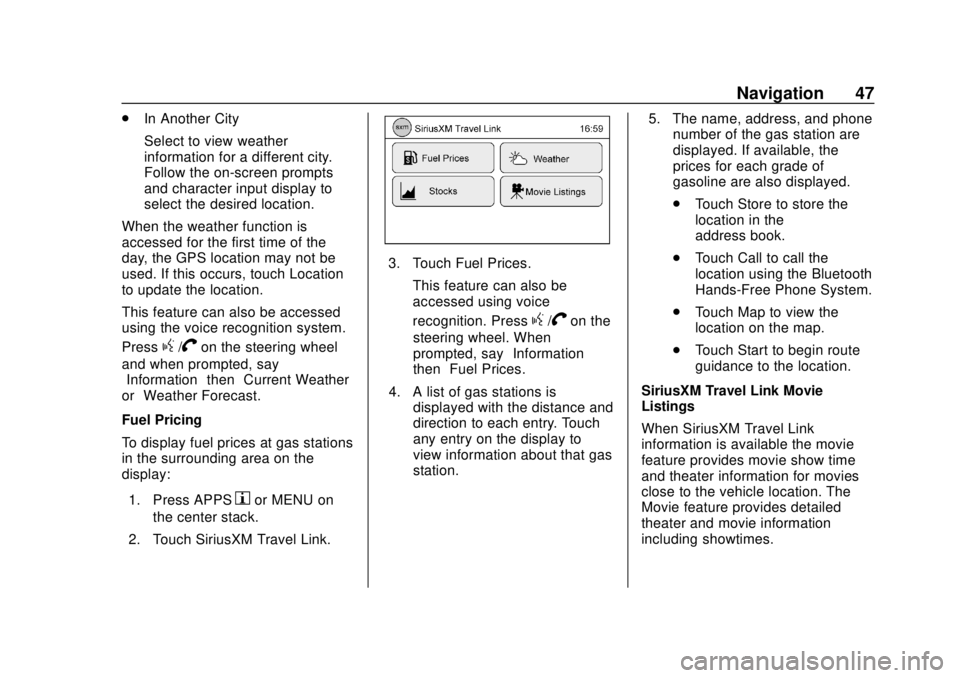
2. Touch SiriusXM Travel Link.
3. Touch Fuel Prices. This feature can also be
accessed using voice
recognition. Press
g/Von the
steering wheel. When
prompted, say “Information”
then “Fuel Prices.”
4. A list of gas stations is displayed with the distance and
direction to each entry. Touch
any entry on the display to
view information about that gas
station. 5. The name, address, and phone
number of the gas station are
displayed. If available, the
prices for each grade of
gasoline are also displayed.
.Touch Store to store the
location in the
address book.
. Touch Call to call the
location using the Bluetooth
Hands-Free Phone System.
. Touch Map to view the
location on the map.
. Touch Start to begin route
guidance to the location.
SiriusXM Travel Link Movie
Listings
When SiriusXM Travel Link
information is available the movie
feature provides movie show time
and theater information for movies
close to the vehicle location. The
Movie feature provides detailed
theater and movie information
including showtimes.
Page 49 of 74

Chevrolet City Express Infotainment System (GMNA-Localizing-U.S./Canada-
11683801) - 2018 - crc - 7/12/17
48 Navigation
From the SiriusXM Travel Link
menu, touch SiriusXM Movie. The
system displays the Movie and
Theater search page.
To search movies:
.Touch Movie to choose a
movie name.
. Touch Theater to choose a
specific theater.
. Touch Date to choose which
date to search movies and/or
theaters.
. Touch Search to view a list of
movies or theaters.
When searching by movie, a list will
display movies to select. When a
movie is selected, a theater list will
appear with a direction arrow and
distance from the current vehicle
location. The direction and distance
will update every 10 seconds as the
vehicle is moving. The direction
arrow represents the location of the
theater from the current vehicle
location. The distance represents
the straight line distance between
the vehicle location and the theater. Movie details are available when a
movie is selected. The details
include Cast, Synopsis, and Theater
Information. Touch the appropriate
icon to display more information.
Cast and Synopsis:
.
Actors
. Show Times
. Rating (G, PG-13, R, etc.)
. Length of movie
Theater information includes
address, phone number, distance,
and amenities.
Troubleshooting
XM Travel Link services use the
SiriusXM Satellite Signal and GPS
Satellite Signal to provide this
feature.
When the vehicle is started, it can
take up to five minutes for the radio
to receive the Travel Link services.
Travel Link Messages
No GPS Signal : Move the vehicle
into a position that is visible to
the sky. Acquiring Signal :
Radio is
downloading the activation
information or not receiving a good
signal. Move the vehicle to an open
area and restart the vehicle.
No XM Signal : Reception is
blocked. Move the vehicle into an
open area.
Global Positioning
System (GPS)
This navigation system combines
the data obtained from the vehicle
and from GPS (Global Positioning
System) satellites to calculate the
current location of the vehicle. This
position is then displayed
throughout route guidance to a
destination.
Vehicle Positioning
At times, the position of the vehicle
on the map could be inaccurate due
to one or more of the following
reasons:
. The road system has changed.
Page 61 of 74

Chevrolet City Express Infotainment System (GMNA-Localizing-U.S./Canada-
11683801) - 2018 - crc - 7/12/17
60 Bluetooth Phone/Devices
Bluetooth Phone/
Devices
Bluetooth
Overview
The vehicle may be equipped with
the Bluetooth Hands-Free Phone
System. If there is a compatible
Bluetooth enabled cellular phone, it
can be set up with a wireless
connection between your cellular
phone and the in-vehicle phone
module. With Bluetooth wireless
technology, hands-free telephone
calls can be made with the cellular
phone in the vehicle.
Once the cell phone is connected to
the in-vehicle phone module, no
other phone connecting procedure
is required. The phone is
automatically connected with the
in-vehicle phone module when the
ignition is turned on with the
connected cell phone turned on and
carried in the vehicle.Up to five different Bluetooth cell
phones can be registered to the
in-vehicle phone module. However,
only one cell phone can be used at
a time.
Before using the Bluetooth
Hands-Free Phone System:
.
Set up the wireless connection
between a cellular phone and
the in-vehicle phone module
before using the hands-free
phone system.
. Some Bluetooth enabled cellular
phones may not be recognized
by the in-vehicle phone module.
. The hands-free phone will not be
usable under the following
conditions:
‐The vehicle is outside of the
cellular service area.
‐ The vehicle is in an area
where it is difficult to receive a
cellular signal; such as in a
tunnel, in an underground
parking garage, near a tall
building, or in a
mountainous area. ‐
The cellular phone is locked to
prevent it from being dialed.
. When the radio wave condition
is not ideal or ambient sound is
too loud, it may be difficult to
hear the other person’s voice
during a call.
. Immediately after the ignition is
turned on, it may be impossible
to receive a call for a short
period of time.
. Do not place the cellular phone
in an area surrounded by metal
or far away from the in-vehicle
phone module to prevent tone
quality degradation and wireless
connection disruption.
. While a cellular phone is
connected through the Bluetooth
wireless connection, the battery
power of the cellular phone may
discharge quicker than usual.
The Bluetooth Hands-Free
Phone System cannot charge
cellular phones.
. Some cellular phones or other
devices may cause interference
or a buzzing noise to come from
Page 62 of 74

Chevrolet City Express Infotainment System (GMNA-Localizing-U.S./Canada-
11683801) - 2018 - crc - 7/12/17
Bluetooth Phone/Devices 61
the audio system speakers.
Storing the device in a different
location may reduce or eliminate
the noise.
. Refer to the cellular phone
owner ’s manual regarding the
telephone charges, cellular
phone antenna, and cellular
phone.
. The signal strength display on
the monitor will not match the
signal strength display of some
cellular phones.
Some audio and Bluetooth controls
(if equipped) can be adjusted at the
steering wheel. SOURCE :
Press to change
between AM, FM, CD, USB, and
AUX devices.
QorR: For most audio sources,
tilting the tuning switch up or down
for more than 15 seconds provides a
different function than a tilting up or
down for less than 15 seconds.
Press and hold to tilt the tuning
switch up or down to change to the
previous or next radio station or
track on a CD. Press and hold to
increase or decrease the track
number on a USB device or to fast
forward or rewind the current track.
Press and hold to skip ahead or
back to the next song while using
Bluetooth audio.
g V:If equipped, press to interact
with Bluetooth or answer an
incoming call.
V: If equipped, press and hold to
end a call or reject a call.
−
x+ : Press −xto decrease
volume or press + to increase the
volume.
Voice Recognition
The voice recognition system uses
commands to control the system
and dial phone numbers.
When using voice recognition:
. The system may not recognize
voice commands if there is too
much background noise.
. A tone sounds to indicate that
the system is ready for a voice
command. Wait for the tone and
then speak.
. Speak clearly in a calm and
natural voice.
See Voice Recognition 052.
Giving Voice Commands
1. Press
g/Von the steering
wheel. In most cases you can
interrupt the voice feedback to
speak the next command by
pressing
g/V. After
interrupting the system, wait for
a beep before speaking the
command.
Page 63 of 74

Chevrolet City Express Infotainment System (GMNA-Localizing-U.S./Canada-
11683801) - 2018 - crc - 7/12/17
62 Bluetooth Phone/Devices
Audio System
Sound comes through the vehicle's
front audio system speakers and
overrides the audio system. Use the
PUSH/ON-OFF VOL knob during a
call to change the volume level. The
adjusted volume level remains in
memory for later calls. The system
maintains a minimum volume level.
Connecting with Infotainment
Controls
A Bluetooth-enabled cell phone
must be connected to the vehicle
before it can be used. The
connecting procedure must be
performed when the vehicle is
stationary. If the vehicle starts
moving during the procedure, the
procedure will be canceled.1. Press APPS
hon the center
stack.
2. Touch Settings.
3. Touch Phone & Bluetooth.
4. Touch Connect New Device.
5. Initiate the connecting process from the handset. The system
will display the message: “Is
PIN XXXXXX displayed on
your Bluetooth device?” If the
PIN is displayed on your Bluetooth device, select Yes to
complete the connecting
process.
Making a Call Using the
Infotainment Controls
To make a call:
1. Press
Von the center stack.
The Phone menu displays.
2. Select one of the following options to make a call:
.Phonebook: Select the
name from an entry stored
in the vehicle phonebook.
. Call Lists: Select the name
from the incoming,
outgoing, or missed call
history.
. Redial: Dial the last
outgoing call from the
vehicle.
.
V: Input the phone number
manually using a keypad
showing on the display.
Page 64 of 74

Chevrolet City Express Infotainment System (GMNA-Localizing-U.S./Canada-
11683801) - 2018 - crc - 7/12/17
Bluetooth Phone/Devices 63
Receiving a Call
When a ringtone is heard, pressg/V.
A few ways to accept the
incoming call:
. Press
g/Von the steering
wheel.
. Touch the green
Vdisplay icon.
A few ways to reject the
incoming call:
. Once the call has ended press
Von the steering wheel.
. Touch the red
Vdisplay icon.
Connecting with Voice
Recognition
1. Pressg/Von the steering
wheel. The system announces
the available commands.
2. Say “Connect Phone.” The
system acknowledges the
command and announces the
next set of available
commands.
3. Say “Add Phone.” The system
acknowledges the command
and asks to initiate connecting
from the phone handset.
The connecting procedure of
the cellular phone varies
according to the model and
manufacturer. See the
manufacturer ’s manual for
details.
When prompted for a Passkey
code, enter “1234”from the
handset. The Passkey code
“1234” is assigned through the
system and cannot be
changed. 4. The system prompts to say a
name for the phone. If the
name is too long or too short,
the system prompts for
another name.
If more than one phone is
connected and the name
sounds too much like a name
already used, the system
prompts for another name.
List of Voice Commands
Press and releaseg/Von the
steering wheel to choose from
commands on the Main Menu.
After the Main Menu, say “Help”to
hear the list of commands currently
available any time the system is
waiting for a response.
To end an action before completing
it, say “Cancel” or“Quit” at any time
the system is waiting for a
response. The system will end the
voice recognition session.
Whenever the voice recognition is
canceled, a double beep is heard.
Page 65 of 74

Chevrolet City Express Infotainment System (GMNA-Localizing-U.S./Canada-
11683801) - 2018 - crc - 7/12/17
64 Bluetooth Phone/Devices
To go back to the previous
command, say“Go Back”or
“Correction” any time the system is
waiting for a response.
Call by Entering a Phone Number
1. Press
g/Von the steering
wheel. A tone will be heard.
2. Say “Call.”The system
acknowledges the command
and announces the next set of
available commands.
3. Say “Phone Number.” The
system acknowledges the
command and announces the
next set of available
commands.
4. Say the number to call starting with the area code in single
digit format. If the system has
trouble recognizing the correct
phone number, try entering the
number in the following groups:
three digit area code, three digit
prefix, and the last four digits.
To dial more than 10 digits or
any special characters, say
“Special Number.” 5. When finished speaking the
phone number, the system
repeats it back and announces
the available commands.
6. Say “Dial.”The system
acknowledges the command
and makes the call.
Call by Speaking the Name
If there are stored entries in the
phonebook, a number associated
with a name can be dialed.
When prompted by the system, say
the name of the phonebook entry to
be called. The system
acknowledges the name.
Once the name and location is
confirmed, the system begins
the call.
Call by Speaking the Digits
When prompted by the system, say
the number to be called. To dial
more than 10 digits or any special
characters, say “Special Number.”
When the system acknowledges the
command, the system will prompt to
speak the number. Redial
Use the Redial command to call the
last number that was dialed. The
system acknowledges the
command, repeats the number, and
begins dialing.
If the redial number does not exist,
the system announces,
“There is no
number to redial” and ends the
voice recognition session.
Hands-Free Phone
Using Bluetooth Voice
Recognition
To use voice recognition, press
g
/Von the steering wheel. Use the
commands below for the various
voice features. For additional
information, say “Help”while in a
voice recognition menu.
Making a Call
Calls can be made using the
following commands.
Dial or Call : These commands can
be used interchangeably to dial a
phone number.