2016 SUBARU OUTBACK Acc switch
[x] Cancel search: Acc switchPage 274 of 572

Audio/Audio set
Audio panel
No. Function
&1Turn to adjust volume.
Press to turn the audio system on/off.
&2Press to display the sound setting
screen. Refer to“Unit settings”F5-19.
&3Press to display the station operation
screen.
Press to select an audio mode.
&4
Turn to display the next/previous con-
tent item.
Press to select an audio source. Refer
to“Selecting an audio source”F5-18.
&5Press to display the next/previous con-
tent item.
NOTE
.For safety reasons, certain func-
tions are not available while your
vehicle is in motion.
.In order to maximize signal recep-
tion, performance and precision of the
smartphone, please ensure the smart-
phone is placed as close to the system
as possible, while ensuring it is stowed
and secure while driving.
.When the ignition switch is in the
“ACC”or“ON”position, the battery of
the connected iPhone/iPod touch is
charged.
.iPhone/iPod touch may not be re-
cognized when the ignition switch is in
the“ACC”or“ON”position. In this
case, remove the iPhone/iPod touch
and reconnect it.
.The accuracy of the displayed in-
formation or the signal reception per-
formance depends on the smartphone
or the connected device, and it’s wire-
less connection.
.Since the aha application uses sig-
nals from GPS satellites and wireless
communication lines, it may not work
properly in the following locations.
–In a tunnel
–In underground parking lots
5-46
Page 275 of 572

–Outside wireless communication
range, such as some countryside
areas
–Where the wireless communica-
tion network is congested, or where
communications are restricted
.Depending on the circumstances
and environment, the signal may be
weak or not be received. In such cases,
an error may occur.
.Top 35 entries in the preset station
list on the smartphone are displayed.
When there are more than 35 entries in
the preset station list, change the order
of the entries in the list on the smart-
phone. You can change the priority of
your preset stations within the aha
application (after disconnected from
this system) to modify the station list
shown on the screen. Please see your
smartphone aha application“Edit Pre-
sets (in Main menu)”to modify this list.
.For operating the smartphone, see
the instruction manual that comes with
it.
.If there are multiple music files
stored on your iPhone or iPod touch,
it may take some time until playback
starts.
.Playback may be intermittent when
you switch to streaming Bluetooth
audio from aha on your smartphonedevice.
.When connecting the device via
Bluetooth, the communication speed
may become slower than via USB.
!Before using aha application
In order to use the aha application on this
system, the application must be installed
on the smartphone.
!Settings required to use aha
application
.Search and download the aha applica-
tion from your smartphone app store.
–iPhone and iPod touch: Apple App
Store via iTunes
–Android device: Google Play Store
.Create an account and login to the aha
application on the smartphone.
NOTE
Please use the latest version of the aha
application.
!About app-based connected con-
tent
Requirements for using the connected
content services of the aha application
on this system.
.Latest version of the system is compa-
tible with connected content application(s)
for the smartphone, available from aha,downloaded to your smartphone.
.A current account with a wireless
content service provider.
.A smartphone data plan: If the data
plan for your smartphone does not provide
for unlimited data usage, additional
charges from your carrier may apply for
accessing app-based connected content
via 3G, 4G, Wi-Fi or 4G LTE wireless
networks.
.Connection to the internet via 3G, 4G,
Wi-Fi or 4G LTE networks.
NOTE
.Changes to product specifications
may result in differences between the
content of the manual and features of
the product.
.Be careful not to exceed the data
usage limits for your smartphone.
Doing so will result in additional data
usage charges from your phone car-
rier.
.Access to app-based connected
content will depend on the availability
of wireless cell and/or Wi-Fi network
coverage for the purpose of allowing
your smartphone to connect to the
internet.
.Service availability may be geogra-
phically limited by region. Consult the
wireless connected content service
Audio/Audio set
–CONTINUED–5-47
Page 288 of 572

Audio/Audio set
NOTE
.Depending on the Bluetooth device
that is connected to the system, the
music may start playing when selecting
the
key while it is paused. Con-
versely, the music may pause when
selecting the
key while it is playing.
.In the following conditions, the sys-
tem may not function:
–The Bluetooth device is turned
off.
–The Bluetooth device is not con-
nected.
–The Bluetooth device has a low
battery.
.It may take time to connect the
phone when Bluetooth audio is being
played.
.For operating the portable player,
see the instruction manual that comes
with it.
.If the Bluetooth device is discon-
nected due to poor reception from the
Bluetooth network when the ignition
switch is in the“ACC”or“ON”posi-
tion, the system will automatically
reconnect to the portable player.
.If the Bluetooth device is discon-
nected on purpose, such as it was
turned off, this does not happen.
Reconnect the portable player manu-
ally..Bluetooth device information is re-
gistered when the Bluetooth device is
connected to the Bluetooth audio sys-
tem. When selling or disposing of the
vehicle, remove the Bluetooth audio
information from the system. Refer to
“Bluetooth®settings”F5-66.
!Connecting a Bluetooth device
To use the Bluetooth audio system, it is
necessary to register a Bluetooth device
with the system.
.Registering an additional device
1. Select the“Select Add”key on the
Bluetooth audio control screen.
2. For more information: Refer to“Regis-
tering/connecting Bluetooth
®device”F5-
66.
.Selecting a registered device
1. Select the“Select Device”key on the
Bluetooth audio control screen.
2. For more information: Refer to“BT
Devices Connection screen”F5-69.
!How to change the source
Select the“BT Audio”key on the source
select screen. Refer to“Selecting an audio
source”F5-18.
NOTE
Depending on the type of portable
player connected, some functions
may not be available and/or the screen
may look differently than shown in this
manual.
!Select play mode
The play mode settings display will appear
when play mode key is touched. Select
the preferred play mode from the following
items.
Icon Function
Touch to start 1 track repeat.
Touch to start repeat all.
Touch to repeat the tracks in the
group.
Touch to start shuffle all.
Touch to play tracks in the order
in which they are registered in
the audio device.
Touch to start shuffle group.
5-60
Page 294 of 572
Audio/Bluetooth®settings
Bluetooth®settings
WARNING
Be sure to park the vehicle in a safe
location before connecting or oper-
ating a Bluetooth phone or audio
device. Failure to do so may result
in loss of control of your vehicle and
cause an accident or serious injury.
&Regulatory information
The Bluetooth®word mark and logos are
registered trademarks owned by Bluetooth
SIG, Inc.
&Registering/connecting
Bluetooth®device
You can register up to five devices,
regardless of whether they are Bluetooth
phones or audio devices.
NOTE
.Once the phone has been regis-
tered, it is possible to use the hands-
free system or Bluetooth audio.
.Devices cannot be registered duringdriving.
!Registering a Bluetooth phone for
the first time
To use the hands-free system, it is
necessary to register a Bluetooth phone
with the system.
For details about registering a Bluetooth
device: Refer to“Registering a Bluetooth
Audio device for the first time”F5-67.
1. Turn the Bluetooth connection setting
of your cell phone on.
.This function is not available when
Bluetooth connection setting of your
cell phone is set to off.
2. Press the HOME button and select the
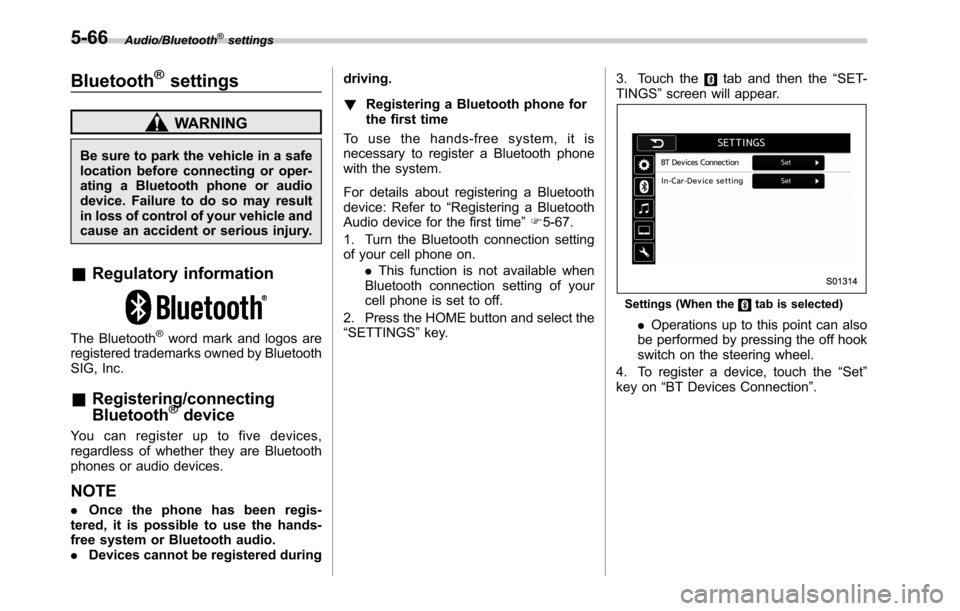
“SETTINGS”key.3. Touch the
tab and then the“SET-
TINGS”screen will appear.
Settings (When thetab is selected)
.Operations up to this point can also
be performed by pressing the off hook
switch on the steering wheel.
4. To register a device, touch the“Set”
key on“BT Devices Connection”.
5-66
Page 306 of 572
Audio/Hands–free phone system
!By off/on hook switch
When you receive a call, you can also
answer it by pressing the off hook switch
on the steering switch. To end a call, press
the on hook switch.
&Talking on the phone
The call screen opens when you perform
the following operations.
.When you accept a call on the incom-
ing call screen (by selecting the
key),
the call screen opens.
.When you are on the outgoing call
screen, the screen changes to the call
screen when the other party answers the
call.
While talking on the phone, this screen is
displayed. The operations outlined below
can be performed on this screen.
.When the incoming call screen is
displayed and you accept the call, the
screen changes to the call screen. The
screen stays on the incoming call screen if
you reject the call.
.The
andkeys are disabled on
the incoming call screen.
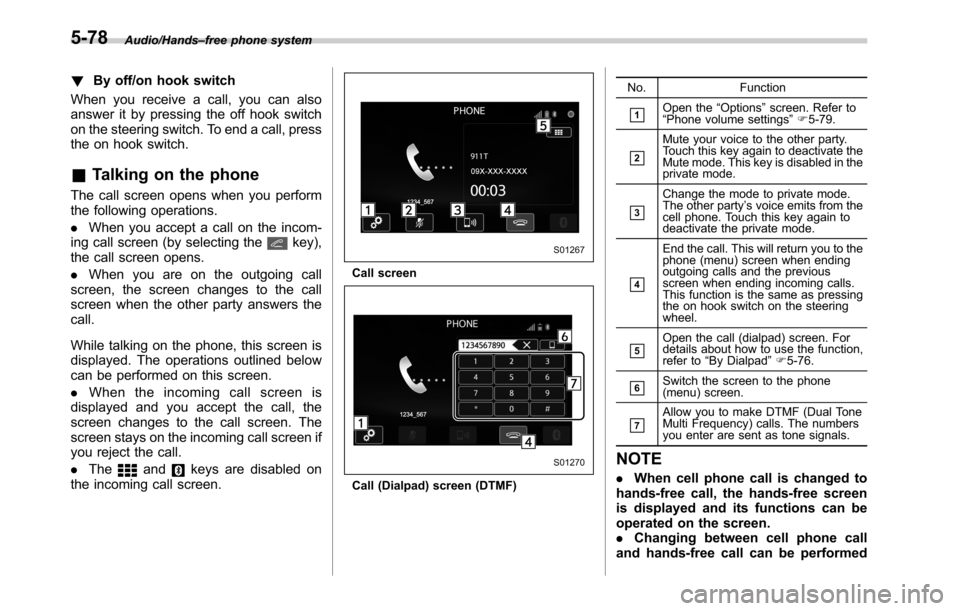
Call screen
Call (Dialpad) screen (DTMF)No. Function
&1Open the“Options”screen. Refer to
“Phone volume settings”F5-79.
&2
Mute your voice to the other party.
Touch this key again to deactivate the
Mute mode. This key is disabled in the
private mode.
&3
Change the mode to private mode.
The other party’s voice emits from the
cell phone. Touch this key again to
deactivate the private mode.
&4
End the call. This will return you to the
phone (menu) screen when ending
outgoing calls and the previous
screen when ending incoming calls.
This function is the same as pressing
the on hook switch on the steering
wheel.
&5Open the call (dialpad) screen. For
details about how to use the function,
refer to“By Dialpad”F5-76.
&6Switch the screen to the phone
(menu) screen.
&7Allow you to make DTMF (Dual Tone
Multi Frequency) calls. The numbers
you enter are sent as tone signals.
NOTE
.When cell phone call is changed to
hands-free call, the hands-free screen
is displayed and its functions can be
operated on the screen.
.Changing between cell phone call
and hands-free call can be performed
5-78
Page 307 of 572
by operating the cell phone directly.
.Transferring methods and opera-
tions will be different depending on
the type of cell phone you have.
.For the operation of the cell phone,
see the manual that comes with it.
.The sound quality of the voice heard
from the other party’s speaker may be
negatively impacted.
&Phone settings
You can transfer the phonebook informa-
tion and adjust the volume of your phone
using the Buletooth phone system.
NOTE
.The ringer volume for outgoing and
incoming calls, as well as the volume
while on hold or during a call are
controlled independently from the vo-
lume of the audio source. The volume
setting in the phone setting is applied.
.When making a call, receiving a call
or while talking on the phone, you can
adjust the volume by using the AUDIO/
TUNE knob on the audio panel or the
volume control switch on the steering
wheel.!Phone volume settings
The call and ringtone volume can be
adjusted. A ringtone can be selected.
1. Display the“PHONE”screen. Refer to
“How to change the hands-free phone
system”F5-73.
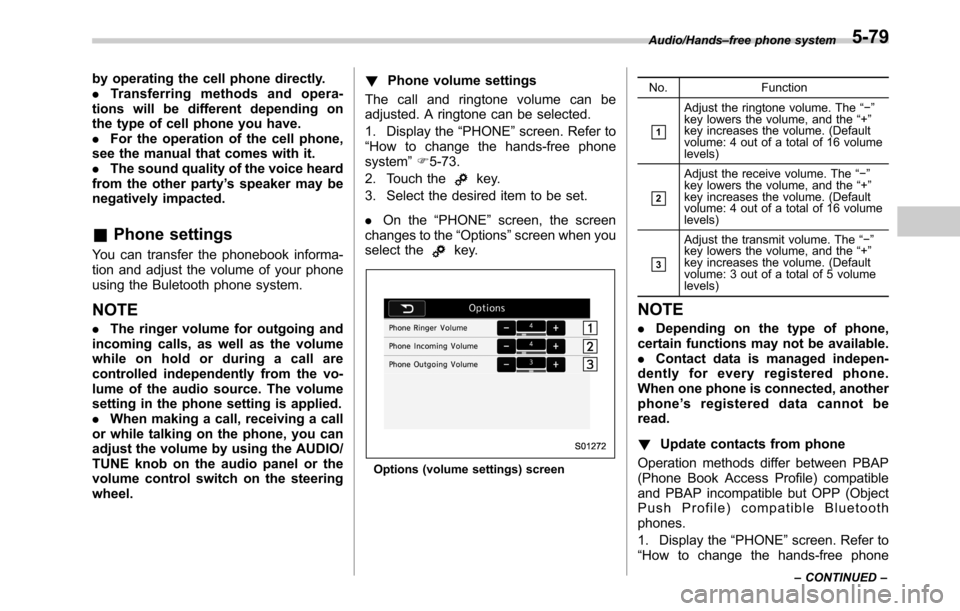
2. Touch the
key.
3. Select the desired item to be set.
.On the“PHONE”screen, the screen
changes to the“Options”screen when you
select the
key.
Options (volume settings) screenNo. Function
&1
Adjust the ringtone volume. The“−”
key lowers the volume, and the“+”
key increases the volume. (Default
volume: 4 out of a total of 16 volume
levels)
&2
Adjust the receive volume. The“−”
key lowers the volume, and the“+”
key increases the volume. (Default
volume: 4 out of a total of 16 volume
levels)
&3
Adjust the transmit volume. The“−”
key lowers the volume, and the“+”
key increases the volume. (Default
volume: 3 out of a total of 5 volume
levels)
NOTE
.Depending on the type of phone,
certain functions may not be available.
.Contact data is managed indepen-
dently for every registered phone.
When one phone is connected, another
phone’s registered data cannot be
read.
!Update contacts from phone
Operation methods differ between PBAP
(Phone Book Access Profile) compatible
and PBAP incompatible but OPP (Object
Push Profile) compatible Bluetooth
phones.
1. Display the“PHONE”screen. Refer to
“How to change the hands-free phone
Audio/Hands–free phone system
–CONTINUED–5-79
Page 310 of 572
Audio/Voice command system
open.
–Passengers are talking while
voice commands are spoken.
–The air conditioning speed is set
high.
–The air conditioning vents are
turned towards the microphone.
.In the following conditions, the sys-
tem may not recognize the command
properly and using voice commands
may not be possible:
–The command is incorrect or
unclear. Note that certain words,
accents or speech patterns may be
difficult for the system to recognize.
–There is excessive background
noise, such as wind noise.&Voice command system op-
eration
1. Press the talk switch on the steering
wheel.
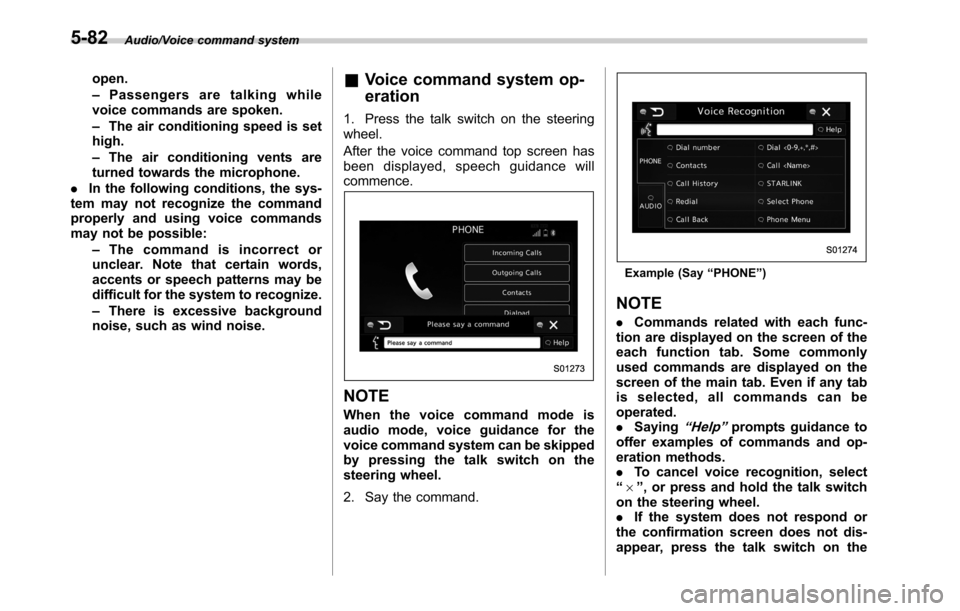
After the voice command top screen has
been displayed, speech guidance will
commence.
NOTE
When the voice command mode is
audio mode, voice guidance for the
voice command system can be skipped
by pressing the talk switch on the
steering wheel.
2. Say the command.
Example (Say“PHONE”)
NOTE
.Commands related with each func-
tion are displayed on the screen of the
each function tab. Some commonly
used commands are displayed on the
screen of the main tab. Even if any tab
is selected, all commands can be
operated.
.Saying
“Help”prompts guidance to
offer examples of commands and op-
eration methods.
.To cancel voice recognition, select
“6”, or press and hold the talk switch
on the steering wheel.
.If the system does not respond or
the confirmation screen does not dis-
appear, press the talk switch on the
5-82
Page 312 of 572

Audio/Voice command system
!Casual speech recognization
Due to natural language speech recogni-
tion technology, this system enables re-
cognition of a command when spoken
naturally. However, the system cannot
recognize every variation of each com-
mand. In some situations, it is possible to
omit the command for the procedure and
directly state the desired operation. Not all
voice commands are displayed in the
function menu.
NOTE
If the command cannot be recognized
completely, the command input screen
will be displayed. (Search results will
be shown based on the part of the
command that was recognized.)
!Expression examples for each
function
Command Expression examples
“Dial
Phone
&Command list
Recognizable voice commands and their
actions are shown below.
NOTE
.Some voice commands may not be
available depending on the market,
vehicle specifications or the device
connection status.
.Frequently used commands are
listed in the following tables.
.For devices that are not installed in
the vehicle, the related commands will
not be displayed on the screen. Also,
according to conditions, other com-
mands may not be displayed on the
screen.
.The functions available may vary
according to the system installed.
.Voice recognition language can be
changed. Refer to“Unit settings”F5-
19.
.The notations used in the com-
mands are as follows.
–<
>: Numbers, titles or
names to be spoken
–(
): There is no need to
speak the command, the voice
command system will recognize
the content.!Basic command
Voice command Function
BackGo back one hierar-
chy or cancel the
voice recognition
(voice command top
screen)
HelpAsk for help with the
current task
Cancel, CloseCancel the current
task
Ye s
No
Display OFF Turns the display off
Audio ONTurns the audio sys-
tem on
Audio OFFTurns the audio sys-
tem off
STARLINKSwitch to APPS mode
5-84