Page 214 of 572

Instruments and controls/Mirrors
1) HomeLink®button 1
2) HomeLink®button 2
3) HomeLink®button 3
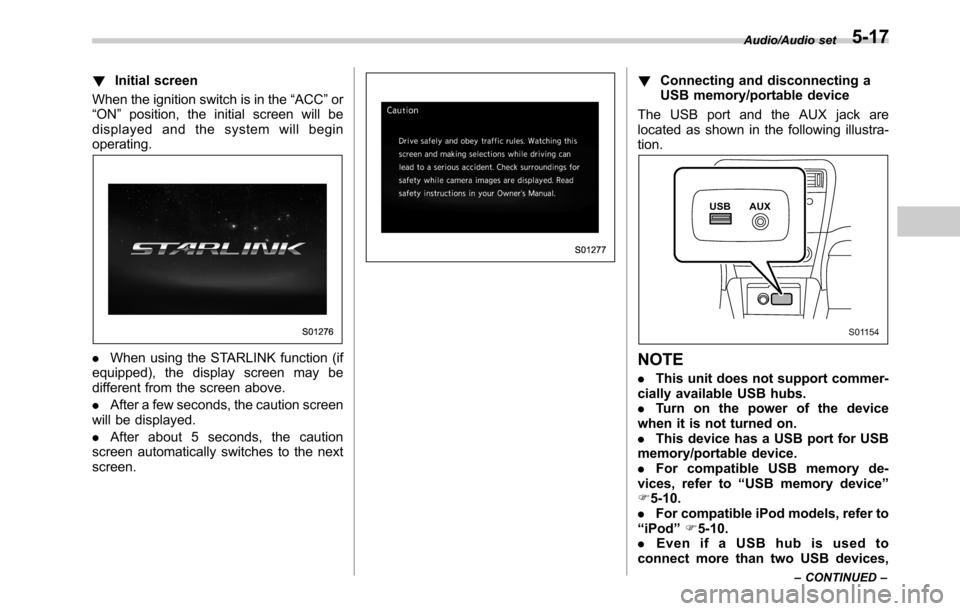
1. Press and hold the two outer buttons
(button 1 and button 3) until the indicator
light begins to flash (after approximately
20 seconds).
2. Release both buttons.
!In case a problem occurs
If you cannot activate a device using the
corresponding HomeLink
®button after
programming, contact HomeLink®at
www.homelink.com or call 1-800-355-
3515 for assistance.
&Outside mirrors
!Convex mirror (passenger side)
WARNING
Objects look smaller in a convex
mirror and farther away than when
viewed in a flat mirror. Do not use
the convex mirror to judge the
distance of vehicles behind you
when changing lanes. Use the inside
mirror (or glance backwards) to
determine the actual size and dis-
tance of objects that you view in
convex mirror.!Remote control mirror switch
: Select side to adjust
: Direction control
The remote control mirrors operate only
when the ignition switch is in the“ON”or
“ACC”position.
1. Turn the control switch to the side that
you want to adjust.“L”is for the left mirror,
“R”is for the right mirror.
2. Move the control switch in the direction
you want to move the mirror.
3. Return the control switch to the neutral
position to prevent unintentional opera-
tion.
The mirrors can also be adjusted manu-
ally.
3-62
Page 225 of 572
WARNING
Continued operation in the ON posi-
tion may fog up the windows. Switch
to the OFF position as soon as the
outside dusty condition clears.
Defrosting
Select the desired“”mode or“”mode
to defrost or dehumidify the windshield
and front door windows by performing the
following procedures.
.To select the“
”mode, press the
defroster button.
.To select the“
”mode, press the
airflow mode selection button and select
the“
”mode.
NOTE
.When the“”mode or“”mode
is selected, the air conditioner com-
pressor automatically operates to more
quickly defog the windshield. (The air
conditioner indicator light does not
illuminate in this case.) At the same
time, the air inlet selection is automa-
tically set to the outside air mode. For
details, refer to“Airflow mode selec-
tion”F4-6.
.If the defroster button is pressed
while the“
”mode is selected, it will
return to the previous mode before
selecting the“
”mode.
Operating tips for heater and
air conditioner
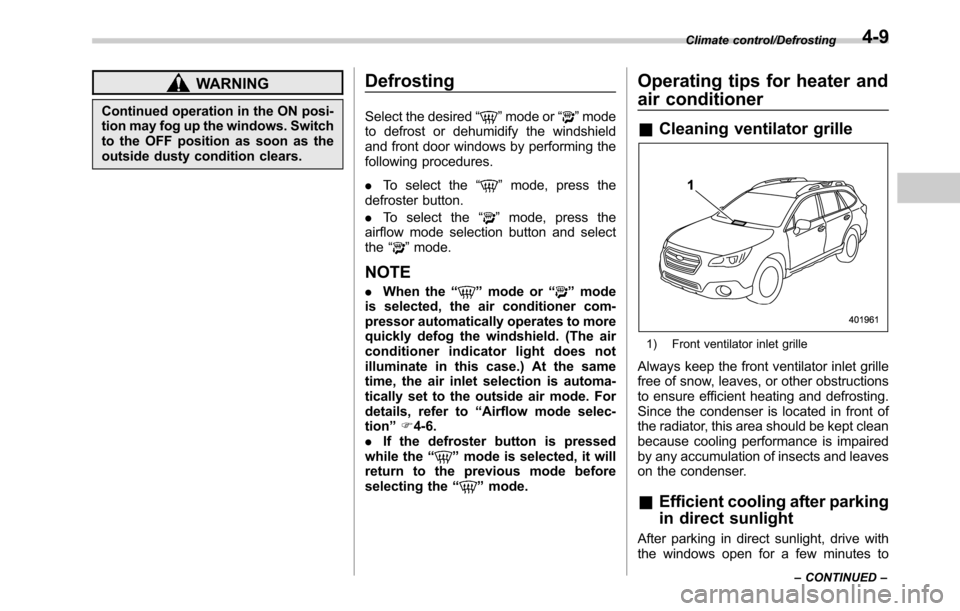
&Cleaning ventilator grille
1) Front ventilator inlet grille
Always keep the front ventilator inlet grille
free of snow, leaves, or other obstructions
to ensure efficient heating and defrosting.
Since the condenser is located in front of
the radiator, this area should be kept clean
because cooling performance is impaired
by any accumulation of insects and leaves
on the condenser.
&Efficient cooling after parking
in direct sunlight
After parking in direct sunlight, drive with
the windows open for a few minutes to
Climate control/Defrosting
–CONTINUED–4-9
Page 232 of 572
Audio/Audio set
&Base display audio set (if equipped)
1) Power/VOLUME knob
2) Eject button
3) AUDIO/TUNE knob
4) HOME button5) APPS button
6) Display
7) SEEK/TRACK buttons
The audio set will operate only when the
ignition switch is in the“ACC”or“ON”
position.
.Power and audio controls: refer to
“Basic operation”F5-18.
.STARLINK (if equipped): refer to
“STARLINK”F5-26.
.Radio operation: refer to“AM/FM radio”
F5-28.
.Satellite radio operation (if equipped):
refer to“SiriusXM Satellite Radio”F5-37.
.aha
TM: refer to“ahaTMby HARMAN”
F5-44.
.Pandora
®(if equipped): refer to“Pan-
dora®”F5-50.
.CD (compact disc) player operation:
refer to“CD”F5-53.
.USB storage device: refer to“USB
memory”F5-55.
.iPod operation: refer to“iPod”F5-56.
.Bluetooth
®audio: refer to“Bluetooth
audio”F5-58.
.Auxiliary input jack: refer to“AUX”F5-
61.
.Hands-free phone system: refer to
“Hands-free phone system”F5-71.
5-4
Page 234 of 572
Audio/Audio set
&SUBARU STARLINKTMMultimedia Plus audio set (U.S. spec.
models only, if equipped)The audio set will operate only when the
ignition switch is in the“ACC”or“ON”
position.
For details about how to use the SUBARU
STARLINK
TMMultimedia Plus audio set,
refer to the 2016 Legacy/Outback
SUBARU STARLINK
TMMultimedia Plus
and SUBARU STARLINKTMMultimedia
Navigation Owner’s Manual.
NOTE
HD Radio Technology should be in-
cluded as a feature in the SUBARU
STARLINK
TMMultimedia Plus audio
set.
5-6
Page 245 of 572
!Initial screen
When the ignition switch is in the“ACC”or
“ON”position, the initial screen will be
displayed and the system will begin
operating.
.When using the STARLINK function (if
equipped), the display screen may be
different from the screen above.
.After a few seconds, the caution screen
will be displayed.
.After about 5 seconds, the caution
screen automatically switches to the next
screen.
!Connecting and disconnecting a
USB memory/portable device
The USB port and the AUX jack are
located as shown in the following illustra-
tion.
NOTE
.This unit does not support commer-
cially available USB hubs.
.Turn on the power of the device
when it is not turned on.
.This device has a USB port for USB
memory/portable device.
.For compatible USB memory de-
vices, refer to“USB memory device”
F5-10.
.For compatible iPod models, refer to
“iPod”F5-10.
.Even if a USB hub is used to
connect more than two USB devices,
Audio/Audio set
–CONTINUED–5-17
Page 246 of 572
Audio/Audio set
only the first two connected devices
will be recognized.
&Basic operation
This section describes some of the basic
features of the audio/visual system. Some
information may not pertain to your sys-
tem.
Your audio/visual system works when the
ignition switch is turned to the“ACC”or
“ON”position.
CAUTION
To prevent the battery from being
discharged, do not leave the audio/
visual system on longer than neces-
sary when the engine is not running.
NOTE
Some functions can also be operated
by using the voice command system.
For details, refer to“Voice command
system”F5-81.!Turning the system on and off
Press the power/VOLUME knob to turn
the audio/visual system on and off. When
the system turns on, the mode that was in
use the last time the system was turned off
will be displayed. Press and hold the knob
to turn the display off.
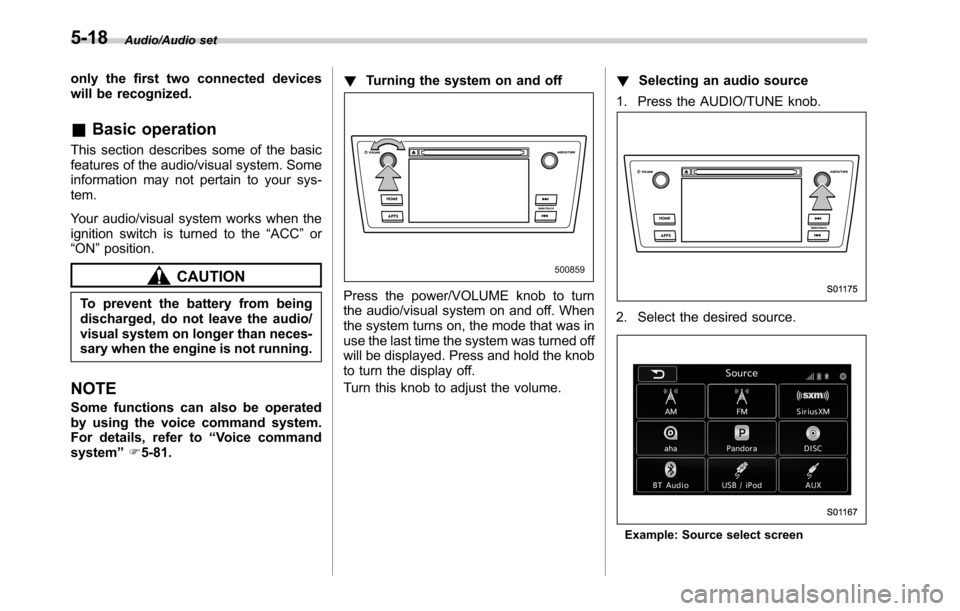
Turn this knob to adjust the volume.!Selecting an audio source
1. Press the AUDIO/TUNE knob.
2. Select the desired source.
Example: Source select screen
5-18
Page 253 of 572
!Display settings
Touch the
tab to set display.
Item Function
Day/Night
ModeThe“Auto”,“Day”or“Night”key
can be selected on the pop-up
screen.
When the“Auto”key is selected,
the screen changes to day or
night mode depending on the
position of the headlight switch.
BrightnessTouch“+”or“−”to adjust the
brightness.
NOTE
.When the screen is viewed through
polarized sunglasses, a rainbow pat-
tern may appear on the screen due to
optical characteristics of the screen. If
this is disruptive, please operate thescreen without polarized sunglasses.
.If the screen is set to“Day”mode
with the headlight switch turned on,
this condition is memorized even with
the engine turned off.
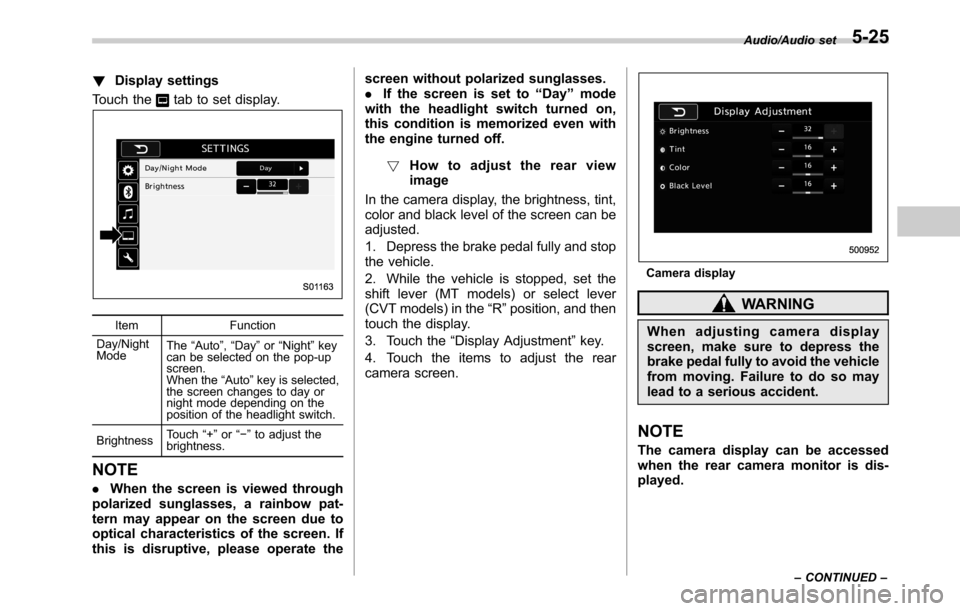
!How to adjust the rear view
image
In the camera display, the brightness, tint,
color and black level of the screen can be
adjusted.
1. Depress the brake pedal fully and stop
the vehicle.
2. While the vehicle is stopped, set the
shift lever (MT models) or select lever
(CVT models) in the“R”position, and then
touch the display.
3. Touch the“Display Adjustment”key.
4. Touch the items to adjust the rear
camera screen.
Camera display
WARNING
When adjusting camera display
screen, make sure to depress the
brake pedal fully to avoid the vehicle
from moving. Failure to do so may
lead to a serious accident.
NOTE
The camera display can be accessed
when the rear camera monitor is dis-
played.
Audio/Audio set
–CONTINUED–5-25
Page 256 of 572
Audio/Audio set
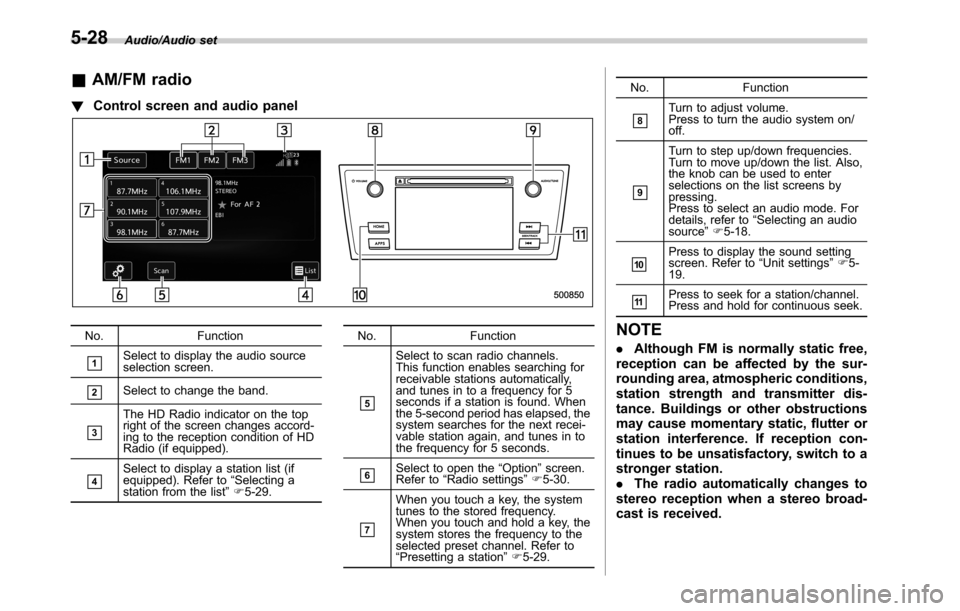
&AM/FM radio
!Control screen and audio panel
No. Function
&1Select to display the audio source
selection screen.
&2Select to change the band.
&3
The HD Radio indicator on the top
right of the screen changes accord-
ing to the reception condition of HD
Radio (if equipped).
&4Select to display a station list (if
equipped). Refer to“Selecting a
station from the list”F5-29.No. Function
&5
Select to scan radio channels.
This function enables searching for
receivable stations automatically,
and tunes in to a frequency for 5
seconds if a station is found. When
the 5-second period has elapsed, the
system searches for the next recei-
vable station again, and tunes in to
the frequency for 5 seconds.
&6Select to open the“Option”screen.
Refer to“Radio settings”F5-30.
&7
When you touch a key, the system
tunes to the stored frequency.
When you touch and hold a key, the
system stores the frequency to the
selected preset channel. Refer to
“Presetting a station”F5-29.No. Function
&8Turn to adjust volume.
Press to turn the audio system on/
off.
&9
Turn to step up/down frequencies.
Turn to move up/down the list. Also,
the knob can be used to enter
selections on the list screens by
pressing.
Press to select an audio mode. For
details, refer to“Selecting an audio
source”F5-18.
&10Press to display the sound setting
screen. Refer to“Unit settings”F5-
19.
&11Press to seek for a station/channel.
Press and hold for continuous seek.
NOTE
.Although FM is normally static free,
reception can be affected by the sur-
rounding area, atmospheric conditions,
station strength and transmitter dis-
tance. Buildings or other obstructions
may cause momentary static, flutter or
station interference. If reception con-
tinues to be unsatisfactory, switch to a
stronger station.
.The radio automatically changes to
stereo reception when a stereo broad-
cast is received.
5-28