Page 139 of 429

1. If you have not registered with Uconnect® Access,
begin by pressing the “Apps” button on the touch-
screen inside your vehicle, and then press “Uconnect
Registration.”
2. Once you receive an email from “Uconnect Access,”
click on the secure link to complete your registration
onmoparownerconnect.comwhere you’ll be guided
through setup of your Via Mobile profile.
3. Next, link app accounts to your Via Mobile profile by
entering your login information for apps like Slacker
Radio.
If you’ve already registered with Uconnect Access, log
in tomoparownerconnect.comto set up your Via
Mobile profile. Click on “Via Mobile Profile”.
4. Next, connect your smartphone to the vehicle touch-
screen. The Uconnect® Access app is compatible with
select iPhone® and Android smartphones. Visit
UconnectPhone.comto confirm that your smart-
phone is compatible with Uconnect®. Once you’ve
confirmed your smartphone is compatible, pair it to
the vehicle touchscreen via Bluetooth® to use Via
Mobile apps. If using an iPhone®, a USB cable may
also be supported for the data connection.
5. Launch the Uconnect® Access app on your connected
smartphone and log in with your Mopar Owner
Connect Username/Email and password. From the
vehicle touchscreen press the “Apps” button and
select Slacker Radio from the list. Slacker Radio is
located within the “All Apps” tab. To launch Slacker
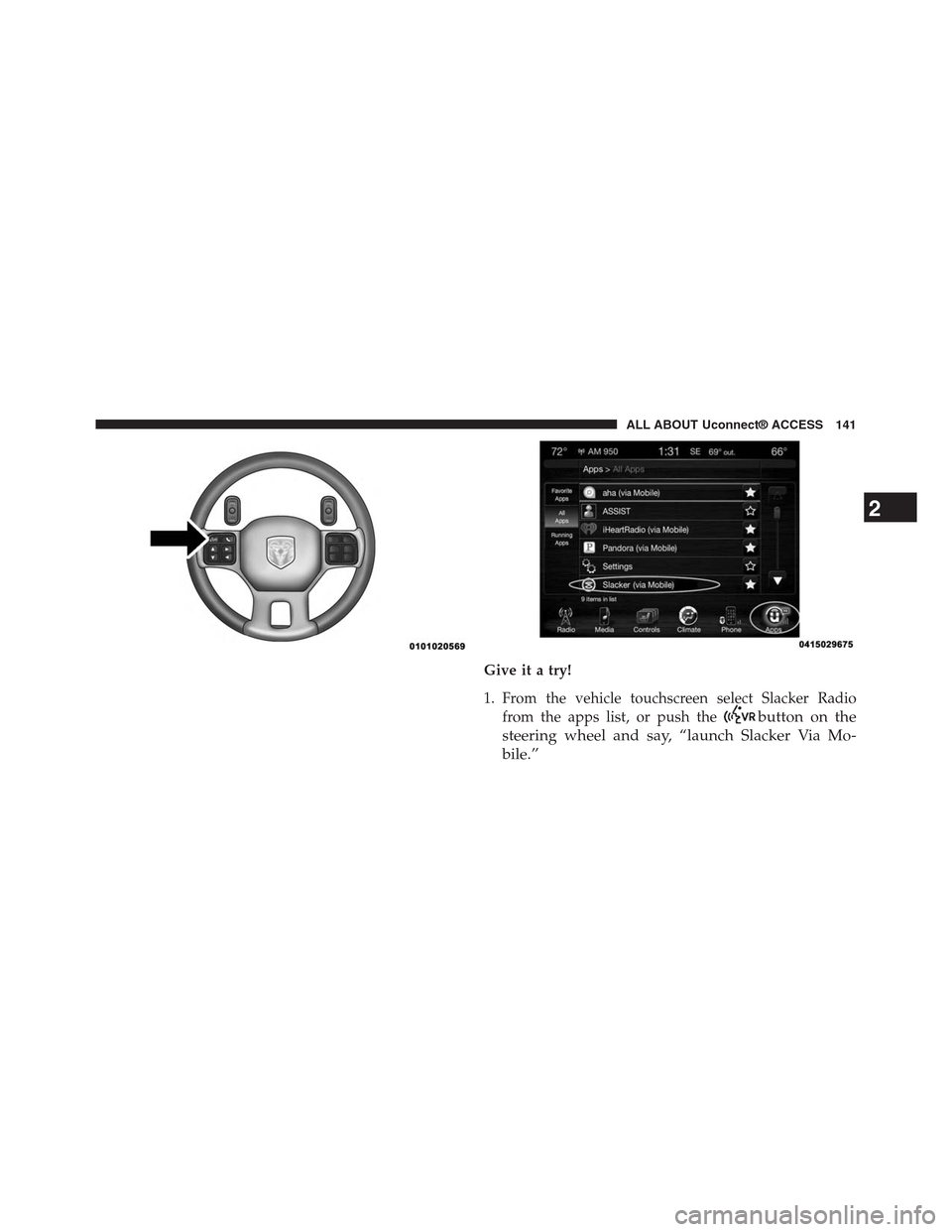
Radio using voice recognition, push the button on the
steering wheel and say, “launch Slacker Via Mobile.”
138 ALL ABOUT Uconnect® ACCESS
Page 142 of 429
Give it a try!
1. From the vehicle touchscreen select Slacker Radio
from the apps list, or push thebutton on the
steering wheel and say, “launch Slacker Via Mo-
bile.”
2
ALL ABOUT Uconnect® ACCESS 141
Page 143 of 429

2. Select Slacker Radio Stations
3. Select Top Stations > Today’s Hits
Your chosen station will play. Use the “Heart” and “Ban”
buttons on the touchscreen to quickly and easily custom-
ize your experience. Like a song? Heart it to hear it more
often. Dislike a song? Ban it and the song or artist will be
removed from your station. Slacker Radio makes it easy
and personal.
Requirements
•Vehicle must be properly equipped with the
Uconnect® Access System.
•Your smartphone must be compatible with the
Uconnect® Access App and properly connected to the
vehicle.
•Your connected smartphone must be in range of a
usable cellular signal.
•Vehicle must be registered with Uconnect® Access and
have an active subscription that includes the appli-
cable feature or App.
•Vehicle must be powered in the ON/RUN or ACC
(Accessory) position with a properly functioning elec-
trical system.
•Vehicle must be equipped with Uconnect 8.4A/8.4AN.
Not available on Uconnect 5.0.
Tips and Shortcuts
•Continue to use the “like” icon (Heart), and “dislike”
icon (circle with line through it) to confirm your music
preferences and refine the music being played on that
station.
•Steering wheel controls supported for “next track”
(until reaching maximum skips – for free account).
142 ALL ABOUT Uconnect® ACCESS
Page 144 of 429
FAQs
1.Why can’t I get Slacker Radio Via Mobile to work?
Here are some things to consider:
•Check to ensure you have linked your Slacker Radio
account credentials with Uconnect® Access. This is
usually done during registration and setup. Then,
check to ensure you have properly connected your
compatible smartphone to the vehicle touchscreen.
The Uconnect® Access App must be open and you
must be logged in. A blue light indicates that it’s
providing data to the vehicle.
•If you recently changed your password for Slacker
Radio, it may need to be updated on Mopar Owner
Connect under the “Via Mobile” section.
2.How do I customize the music being played on the
station?As you listen to music, use the button on the
touchscreen to confirm your preference to the music
currently being played. Press the “like” icon to con-
firm what you want to hear more of, and the “dislike”
icon to eliminate what you do not want to hear.
3.How do I know when Slacker Radio is playing one
of the songs I indicated I “liked”?The heart button
on the touchscreen will appear in yellow when play-
ing a song you previously liked. When you see it
appear in yellow, you do not need to “like” it again,
and you know that Slacker Radio is playing your
preferences.
4.Can I ban a particular artist from playing in Slacker
Radio?Yes, Slacker Radio gives you the capability to
ban all songs from a particular artist or song by using
the “dislike” button on the touchscreen.
2
ALL ABOUT Uconnect® ACCESS 143
Page 145 of 429
5.Can I create a Slacker Radio account during
Uconnect® Access registration and set-up?There is a
link from the Via Mobile profile page where the
customer can go to Slacker Radio’s website to create a
new account.
6.How do I set up a Slacker Radio account?You can
create an account with Slacker Radio by visiting their
website atslacker.com. To make changes to an exist-
ing Slacker Radio account, visit Slacker Radio’s web-
site.
7.Can I create custom content from within the vehicle?
To create a custom station, visit Slacker Radio’s web-
site atslacker.comor the Slacker Radio mobile app.
Custom content cannot be created from within the
vehicle.
8.Should I have the Slacker Radio app downloaded to
my smartphone to use Uconnect® Access Via Mo-
bile?You do not need to have the Slacker Radio app
on your smartphone to use Slacker Radio Via Mobile.
However, the Uconnect® Access App is required.
9.How do I know how much data is being used?
Uconnect® Access Via Mobile uses your smartphone’s
existing data plan to stream content. Data usage varies
by phone/device, content (e.g. videos), high quality
audio and several other factors. Please refer to your
device carrier for specific details.
Aha™ by HARMAN — If Equipped
Aha™ makes it easy to instantly access your favorite Web
content on the go. Choose from over 40,000+ stations
spanning internet radio, personalized music, news, en-
tertainment, hotels, weather, audiobooks, Facebook®,
Twitter®, and more.
144 ALL ABOUT Uconnect® ACCESS
Page 146 of 429
Description
Aha™ lets you easily access and organize your favorite
web content on your phone, then seamlessly integrates
the experience with your vehicle.
•Listen to audio updates from Facebook® or Twitter®
(Vehicle must be registered with Uconnect®Access).
•Organize your favorite content from the web into
personalized on-demand radio stations.
•Aha™ gives customers the flexibility to create up to 30
pre-set stations from within the vehicle, on the Aha™
website (aharadio.com), or through the Aha™ mobile
app.
•“Like” and “Dislike” buttons on the touchscreen are
available to refine songs being played on the station.
•Ability to perform location-based local searches (e.g.
“Hungry” and “Coffee”) and route to a point of
interest by sending the address to the navigation
system (if nav equipped).
•Real-time traffic reports and audio books (read aloud).
•Access your favorite podcasts, internet radio, on-
demand music, traffic reports and restaurant
recommendations.
•News, sports, talk, social, comedy and special interest
podcasts.
How It Works
Via Mobile uses the Uconnect® Access smartphone app
and your smartphone’s data plan to access your personal
Aha™ account from the vehicle and control it using the
vehicle touchscreen. A compatible smartphone is re-
quired. The Aha™ mobile app on your mobile phone
does not need to be launched to use Aha™ Via Mobile.
2
ALL ABOUT Uconnect® ACCESS 145
Page 151 of 429
Give it a try!
1. From the vehicle touchscreen select Aha™ from the
apps list, or push thebutton on the steering
wheel and say, “launch Aha™ Via Mobile.”
•If you have not used Aha™ before, you will see a list
of default stations. Only after you personalize it will
your presets be shown. Presets can be set from
within the vehicle, from the Aha™ website, or
through the Aha™ mobile app. Some stations may
not be available on Aha™.
2. Select an Aha™ station. Your chosen station will play.
Refine the content for select stations using the “Like”
and “Dislike” buttons on the touchscreens.
•Featured – Takes you back to Aha™ featured content
list
•Nearby – Search for POIs from the following catego-
ries: Hungry, Coffee, Hotels, Weather
•Settings – Designate preference to allow explicit
content
3. Select the “List” button on the touchscreen to see
additional content within the current station
4. Select a program
5. Add station to Presets
You can associate your Aha™ account with your personal
Facebook®, Twitter® and Slacker accounts. If you have
the Aha™ app downloaded to your smartphone visit the
Aha™ settings screen and look for “Associate Accounts.”
You can also associate your Aha™ account from
aharadio.com.
150 ALL ABOUT Uconnect® ACCESS
Page 153 of 429
•If you recently changed your password for Aha™, it
may need to be updated on Mopar Owner Connect
under the “Via Mobile” section.
2.How does Aha™ help refine my music options?It
organizes your favorite content into personalized on-
demand radio stations. You can access podcasts, inter-
net radio, personalized traffic reports and even restau-
rant recommendations. It will assemble content for
you based on your use of the “like” and “dislike”
buttons on the touchscreen.
3.Where does the search function search from?The
search function will provide results based on the
location of your vehicle. As you drive, the search
results will change to reflect your vehicle’s current
location.
4.How do I sync my Aha™ account with Facebook®,
Twitter® and Slacker?Associate your Aha™ account
with Facebook®, Twitter® and Slacker services at
aharadio.com, or from the Aha™ smartphone app.
From the Aha™ smartphone app, visit the Aha™
settings screen and look for “Associate Accounts.”
5.If I enter personalized preferences on the web, will it
also save my setting when I am in the vehicle?Yes,
your personalized selections are saved to a common
area, so they will be reflected wherever you access
Aha™ in the vehicle on the vehicle touchscreen,
smartphone or the Aha™ websiteaharadio.com.
152 ALL ABOUT Uconnect® ACCESS