Page 16 of 429
Features And Packages
After the trial period, you can subscribe to continue your
service by visiting the Uconnect® Store located within
the Mopar Owner Connect website
(moparownerconnect.com). If you need assistance, you
can also call Uconnect® Care at 855-792-4241. For the
latest information on packages and pricing information,
visitDriveUconnect.com.
GETTING STARTED WITH Uconnect® ACCESS
Registration
To unlock the full potential of Uconnect® Access in your
vehicle, you first need to register with Uconnect® Access.
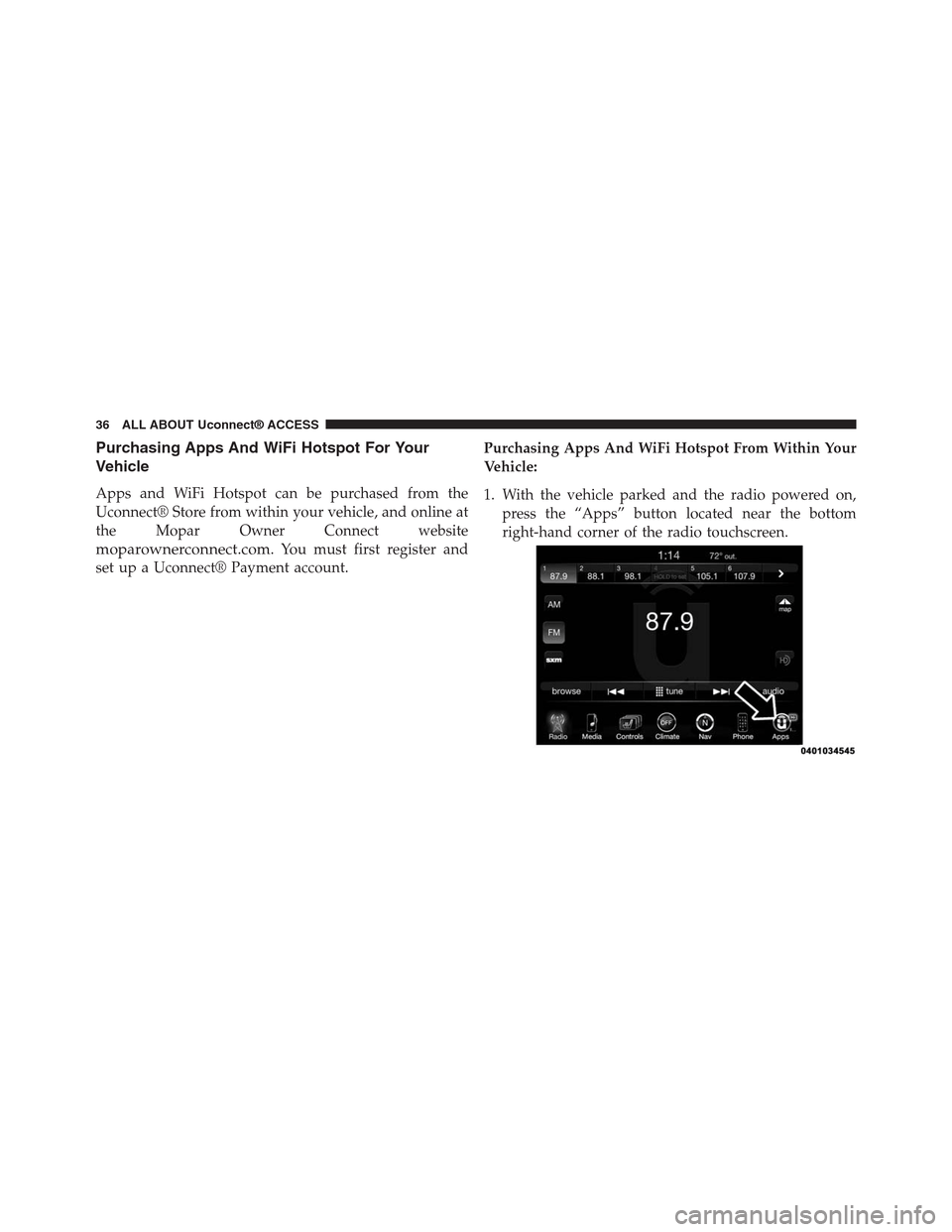
1. From the parked vehicle with the radio touchscreen
powered on, press the “Apps” button located near the
bottom right-hand corner of the radio touchscreen.
NOTE:Should you require assistance anytime during the
registration process, call Uconnect® Care at
1-855-792-4241.
2
ALL ABOUT Uconnect® ACCESS 15
Page 18 of 429
4. Enter your email address into the radio touchscreen. 5. This message will display on the touchscreen indicat-
ing your email submission was accepted. In a few
minutes, you will receive an email which will allow
you to register your vehicle for Uconnect® Access. You
should open this email and begin your Uconnect®
Access registration within 72 hours.
1 — Press To Enter Email Address2 — Press To Re-enter Email Address3—PressToSend
2
ALL ABOUT Uconnect® ACCESS 17
Page 19 of 429
6. Check for an email from Uconnect® Access that con-
tains your personalized registration link. If you don’t
see it, check your spam or junk mail folder. Open the
email and click on the link to continue registering.
NOTE:For security reasons, this link is valid for 72 hours
from the time you submitted your email address into the
radio touchscreen. If the link has expired, simply re-enter
your email address into the Uconnect® Registration App
on the radio touchscreen to receive another link. The
secured registration link will take you through the
Uconnect® Access registration process step by step.
18 ALL ABOUT Uconnect® ACCESS
Page 27 of 429
Download the Uconnect® Access App
The Uconnect® Access smartphone app allows you to
remotely lock or unlock your doors, start your engine (if
equipped) and activate your horn and lights from virtu-
ally anywhere. The smartphone app also features Via
Mobile (if equipped) which uses your smartphone’s data
plan to access your personal Pandora®, iHeartRadio,
Slacker Radio and Aha™ accounts and control them
using your vehicle touchscreen.
26 ALL ABOUT Uconnect® ACCESS
Page 29 of 429
Why do I need the Uconnect® Access App?
Unlike your key fob, the Uconnect® Access app on your
smartphone can send commands to your vehicle from
any distance so long as your phone and vehicle are both
in cellular range. The Uconnect® Security PIN that was
set up during registration is required for remote services.
•Lock or unlock your car doors from virtually any
location
•Start your car to warm it up, or cool it down, before
you get inside
•Sound your horn and flash your lights to find your
vehicle in a crowded parking lot
•Contact Customer Care or Roadside Assistance with
the push of a button on your smartphone
•Use Via Mobile to access your personal Pandora®,
iHeartRadio, Slacker Radio and Aha™ from the ve-
hicle and control them using your vehicle touchscreen
28 ALL ABOUT Uconnect® ACCESS
Page 33 of 429
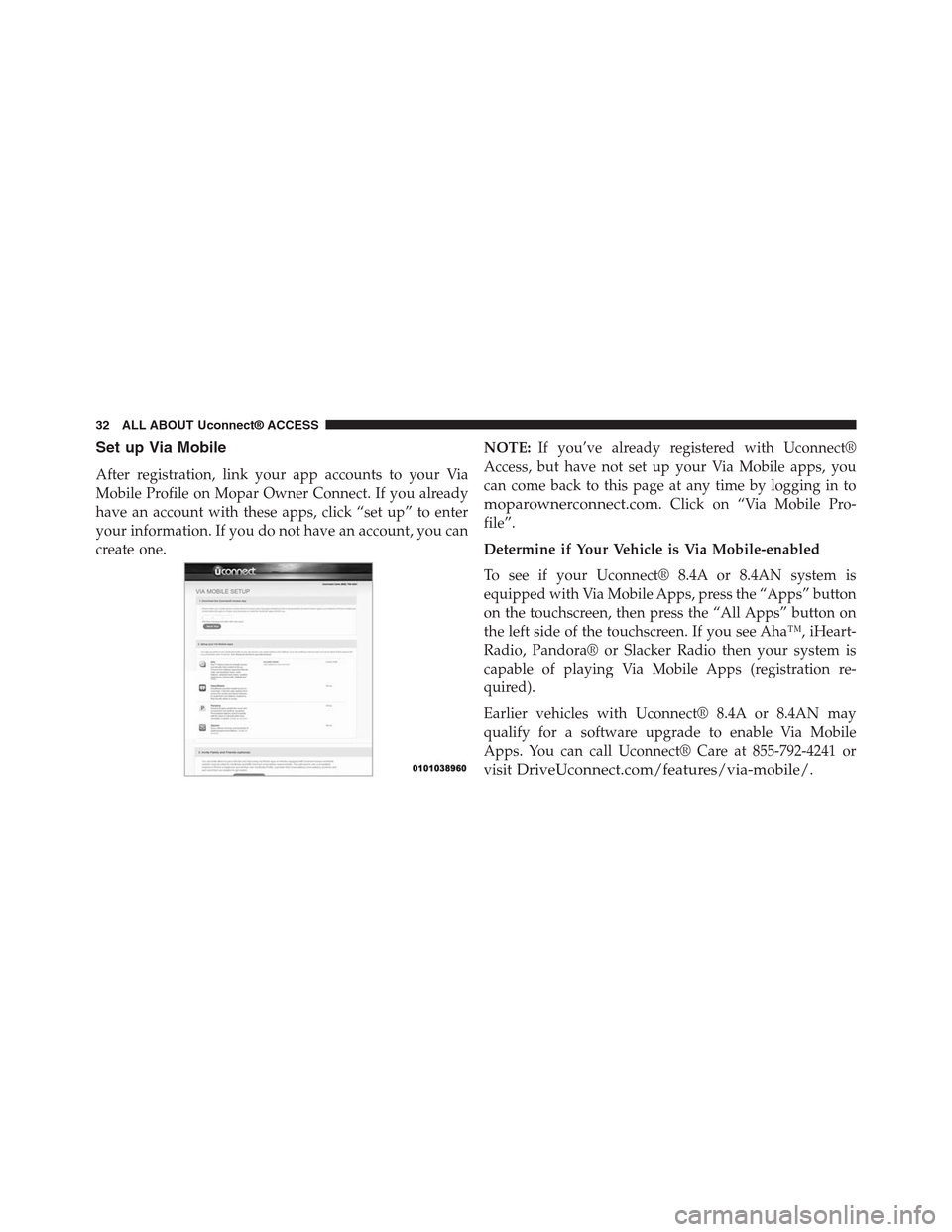
Set up Via Mobile
After registration, link your app accounts to your Via
Mobile Profile on Mopar Owner Connect. If you already
have an account with these apps, click “set up” to enter
your information. If you do not have an account, you can
create one.
NOTE:If you’ve already registered with Uconnect®
Access, but have not set up your Via Mobile apps, you
can come back to this page at any time by logging in to
moparownerconnect.com. Click on “Via Mobile Pro-
file”.
Determine if Your Vehicle is Via Mobile-enabled
To see if your Uconnect® 8.4A or 8.4AN system is
equipped with Via Mobile Apps, press the “Apps” button
on the touchscreen, then press the “All Apps” button on
the left side of the touchscreen. If you see Aha™, iHeart-
Radio, Pandora® or Slacker Radio then your system is
capable of playing Via Mobile Apps (registration re-
quired).
Earlier vehicles with Uconnect® 8.4A or 8.4AN may
qualify for a software upgrade to enable Via Mobile
Apps. You can call Uconnect® Care at 855-792-4241 or
visitDriveUconnect.com/features/via-mobile/.
32 ALL ABOUT Uconnect® ACCESS
Page 37 of 429
Purchasing Apps And WiFi Hotspot For Your
Vehicle
Apps and WiFi Hotspot can be purchased from the
Uconnect® Store from within your vehicle, and online at
the Mopar Owner Connect website
moparownerconnect.com. You must first register and
set up a Uconnect® Payment account.
Purchasing Apps And WiFi Hotspot From Within Your
Vehicle:
1. With the vehicle parked and the radio powered on,
press the “Apps” button located near the bottom
right-hand corner of the radio touchscreen.
36 ALL ABOUT Uconnect® ACCESS
Page 48 of 429
USING Uconnect® ACCESS
Getting Started With Apps
Applications (Apps for short) in your Uconnect® Access
system are designed to deliver the features and services
that you want. There are two basic categories:
•Built-In Apps— uses the built-in Cellular Network on
your Uconnect® 8.4A or 8.4AN radio.
•Uconnect® Access via Mobile (if equipped)— uses
the Uconnect® Access app and your smartphone’s
data plan to access your personal Pandora®, iHeart-
Radio, Aha™ and Slacker accounts from the vehicle
and control them using the vehicle touchscreen. Cus-
tomer’s data plan charges will apply.
Get started with your Uconnect® Access Apps by press-
ing the Uconnect® “Apps” button on the menu bar at the
bottom right corner of the in-vehicle touchscreen. Avail-
able Apps and features are organized by the tabs on the
left of the screen.
•Favorite Apps— this is the default screen when you
first press the “Apps” button on the touchscreen, and
is a good place to put the Apps you use most fre-
quently. To make an App a “favorite,” press the
“Settings” button on the touchscreen to the right of the
App and select “Make a favorite.”
•All Apps— all of your available Apps will reside in
the “All Apps” folder.
•Running Apps— press this tab to see which Apps are
currently running.
NOTE:Most Uconnect® Access features do not require
that you have a compatible Smartphone. The Uconnect®
2
ALL ABOUT Uconnect® ACCESS 47