Page 64 of 429

Safety Information
WARNING!
•ALWAYS drive safely with your hands on the
steering wheel. You have full responsibility and
assume all risks related to the use of the Uconnect®
features and applications in this vehicle. Only use
Uconnect® when it is safe to do so. Failure to do so
may result in an accident involving serious injury
or death.
•It is not possible to use some of the touchscreen
features while the vehicle is in motion (e.g. key
pad).
Tips And Shortcuts
•To improve your search results, use single search terms
like “coffee” rather than multiple words, which may
deliver mixed results, for example, “home improve-
ment and gardening stores.”
•Press the “microphone” on the touchscreen to use
voice commands.
•If you wish to cancel a search request, press “Cancel.”
•To learn more about a listing, press the line that
appears on the display details such as the address,
phone number and hours of operation (if applicable).
•Sort results by Best Match, Rating or Distance (default
is Best Match).
•The Rating tab will re-sort your search based on
ratings submitted by everyday users to Yelp®’s online
database.
2
ALL ABOUT Uconnect® ACCESS 63
Page 88 of 429

Only the 10 most recent saved runs will be stored and
available on the website, so the oldest run will be
overwritten for another if there are already 10. Each
saved run will be stored on the website until it is
overwritten.
The Timers page is only shown when the driver selects
the Timers button on the faceplate. It will not appear
when criteria for a timer has been met or when prior
performance exceeded. However, the timer results will be
calculated upon meeting the criteria of that timer.
7. If you chose the G-Force tab, you will see displays of
the vehicle dynamics from G-Force page including
information such as:
•Vehicle Drift Graphic — Vehicle graphic will adjust
based on vehicle’s movement.
•Current speed — Same as the instrument cluster.
•Steering Angle — Uses the steering angle sensor to
measure the degree of steering wheel.
•Lateral G-force — Measures the left and right turn-
ing force of the vehicle.
•Longitudinal G-force — The longitudinal g-force will
measure the acceleration and braking force of the
vehicle.
•G-force visual — Visual of the current amount of
g-force the vehicle is producing, either longitudinal
or lateral.
2
ALL ABOUT Uconnect® ACCESS 87
Page 96 of 429

Generic Phone Setup Instructions (your phone’s setup
process may be similar):
1. On phone select “Settings” (or the equivalent on your
phone)
2. Select Wireless/Bluetooth® settings
3. Ensure Bluetooth® is on (box checked)
4. Select Bluetooth® settings
5. Select Advanced setting
6. Ensure Message Access service is on (box checked)
7. Select Message Access settings
8. Check the box for SMS
9. Press the back button twice to return to the Bluetooth®
settings screen
10. Check the box for Discoverable
If a Bluetooth® authorization window appears showing
your phone requesting permissions, check the box for
Always and press Accept.
Sending A New Text Message From Radio
1. Pushon the steering wheel.
2. Say“Send text message.”
3. The system will respond “Say the phone number or
the full name and the phone type of the contact that
you want to send a message to.”
4. Dictate message (“I will be home at eight.”)
5. When finished dictating, wait for prompt and say
“Send.”
2
ALL ABOUT Uconnect® ACCESS 95
Page 98 of 429
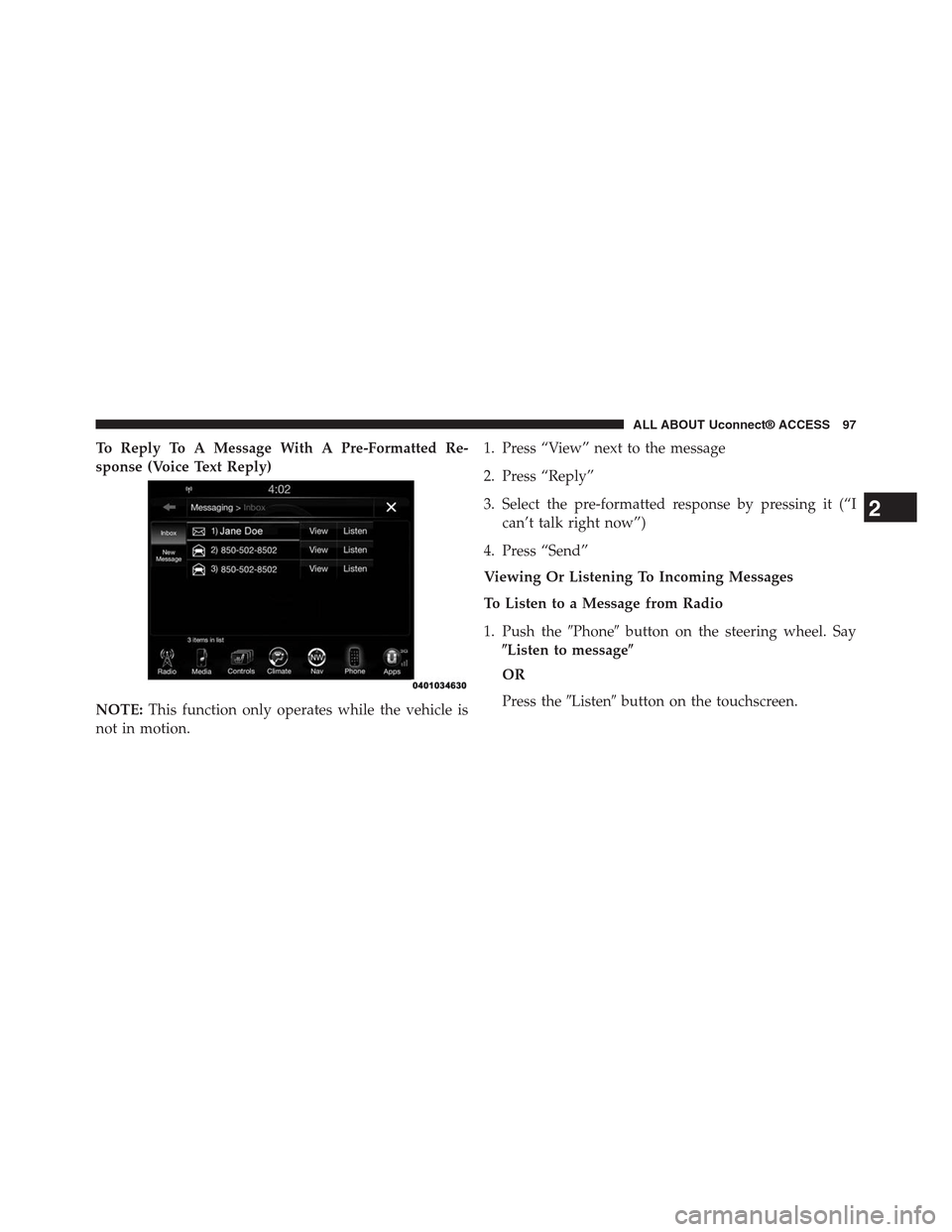
To Reply To A Message With A Pre-Formatted Re-
sponse (Voice Text Reply)
NOTE:This function only operates while the vehicle is
not in motion.
1. Press “View” next to the message
2. Press “Reply”
3. Select the pre-formatted response by pressing it (“I
can’t talk right now”)
4. Press “Send”
Viewing Or Listening To Incoming Messages
To Listen to a Message from Radio
1. Push the#Phone#button on the steering wheel. Say
$Listen to message$
OR
Press the#Listen#button on the touchscreen.
2
ALL ABOUT Uconnect® ACCESS 97
Page 99 of 429
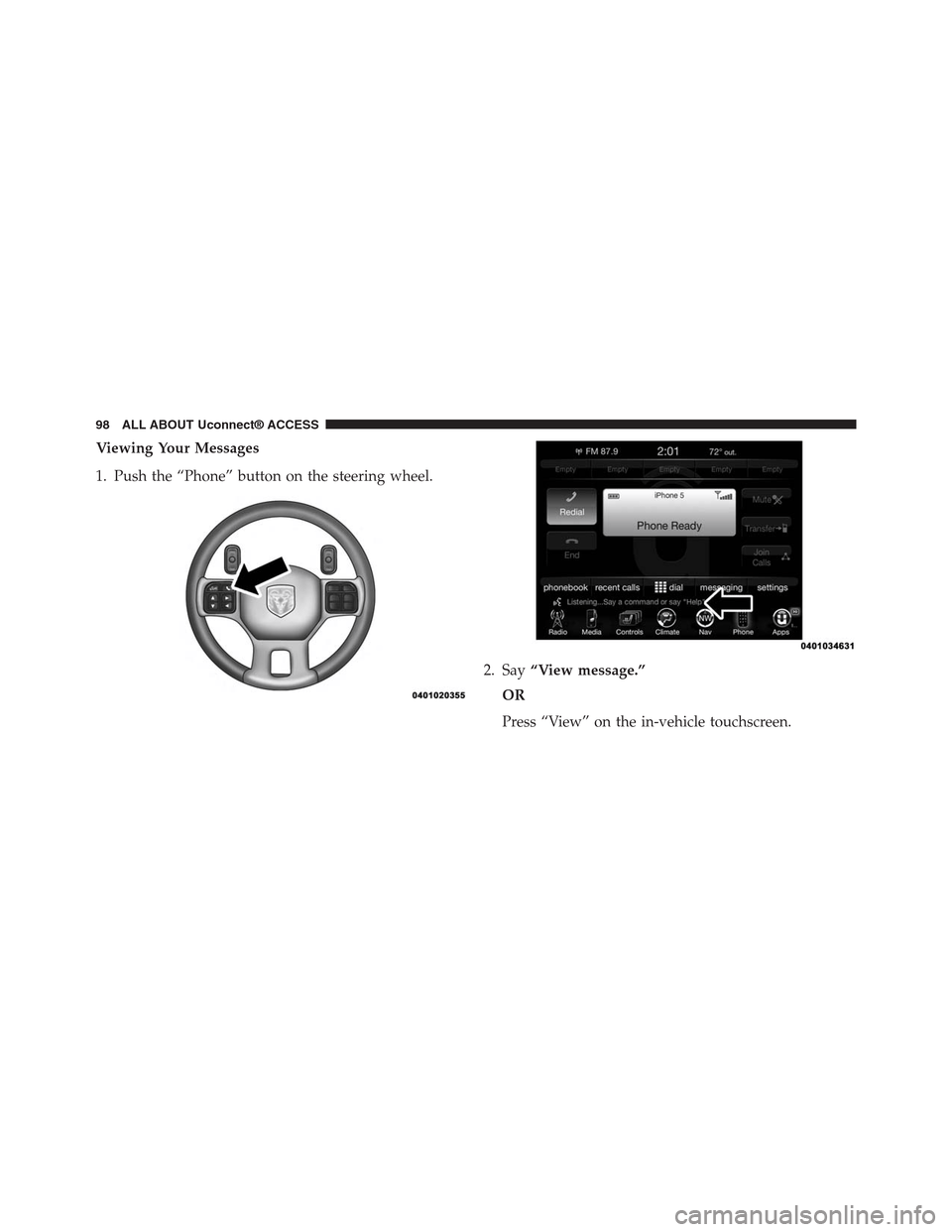
Viewing Your Messages
1. Push the “Phone” button on the steering wheel.
2. Say“View message.”
OR
Press “View” on the in-vehicle touchscreen.
98 ALL ABOUT Uconnect® ACCESS
Page 100 of 429
Contact names or phone numbers of the message
sender appears in a list along withViewandListen
buttons on the touchscreen.
Viewing A Specific Message
1. Press “View” next to the contact name/phone number
of the message you want to be displayed.
OR
Say“Show message n”
n = the number of the message
Listening To A Message
1. Press “Listen” on the touchscreen or push the “Phone”
button on the steering wheel and say “Listen,” the
Uconnect® system will read the received text message
over the vehicle audio system.
Barge-In
Barge-in is a feature that enables a user to say a valid
command without waiting for the system to finish speak-
ing. When the system is “speaking” you can push the
button on the steering wheel and say a valid
command.
For example, if the system is explaining all of the options
available after dictating a text message, at any time the
2
ALL ABOUT Uconnect® ACCESS 99
Page 101 of 429

user can press#Listen#on touchscreen or push the
#Phone#button on the steering wheel and say#Listen.#
Requirements
•(MAP may not be compatible with Apple iPhones®
(pre iOS 6). Apple iOS 6 supports receiving text
messages, but does not support sending text mes-
sages).
•Available on vehicles sold in the United States with a
Uconnect® 8.4A (sales code RA3) or Uconnect® 8.4AN
(sales code RA4) radio equipped with Uconnect®
Access.
•Vehicle must be registered with an active Uconnect®
Access Advantage trial or paid subscription for free
form text response to work.
•Vehicle and phone must be in range of the cellular
network.
•Customer must have a properly paired and connected
cellular device with Bluetooth® Message Access Pro-
file (MAP) enabled. Voice Texting is compatible with
many newer BlackBerry and Android mobile devices.
Apple iOS 5 and earlier does not support MAP so
iPhones will not send free form text messages. Apple
iOS 6 supports receiving, not sending text messages.
To check if your device has been tested to be compat-
ible please visitUconnectPhone.com.
Disclaimers
•Not all Voice Texting features may be available on your
phone.
•Your MAP supported phone must be paired and
connected to a compatible Uconnect® radio.
•You must have an active cellular connection and be
within cellular range to voice text.
100 ALL ABOUT Uconnect® ACCESS
Page 102 of 429
•Chrysler Uconnect® and its affiliates are not respon-
sible for errant text messages.
•Vehicle must be registered with an active Uconnect®
Access trial or paid subscription.
WARNING!
ALWAYS drive safely with your hands on the
steering wheel. You have full responsibility and
assume all risks related to the use of the
Uconnect® features and applications in this ve-
hicle. Only use Uconnect® when it is safe to do so.
Failure to do so may result in an accident involv-
ing serious injury or death.
FAQs
1.Can I still voice text if my phone is not listed?We are
constantly testing phones and updating our compat-
ibility database. If your phone is not listed, you may
still be able to pair and connect your MAP supported
phone to a compatible Uconnect® radio to see if all or
most voice texting functions work. Check your phone
manufacturer if MAP is supported on your phone.
2.Can I use voice texting while in my other Chrysler
vehicle?The Voice Texting free text response feature is
available only on Uconnect® 8.4A (sales code RA3) or
Uconnect® 8.4AN (sales code RA4) radios. Other
Chrysler vehicles do support hands free texting, but
only with fixed responses.
2
ALL ABOUT Uconnect® ACCESS 101