Page 139 of 429

1. If you have not registered with Uconnect® Access,
begin by pressing the “Apps” button on the touch-
screen inside your vehicle, and then press “Uconnect
Registration.”
2. Once you receive an email from “Uconnect Access,”
click on the secure link to complete your registration
onmoparownerconnect.comwhere you’ll be guided
through setup of your Via Mobile profile.
3. Next, link app accounts to your Via Mobile profile by
entering your login information for apps like Slacker
Radio.
If you’ve already registered with Uconnect Access, log
in tomoparownerconnect.comto set up your Via
Mobile profile. Click on “Via Mobile Profile”.
4. Next, connect your smartphone to the vehicle touch-
screen. The Uconnect® Access app is compatible with
select iPhone® and Android smartphones. Visit
UconnectPhone.comto confirm that your smart-
phone is compatible with Uconnect®. Once you’ve
confirmed your smartphone is compatible, pair it to
the vehicle touchscreen via Bluetooth® to use Via
Mobile apps. If using an iPhone®, a USB cable may
also be supported for the data connection.
5. Launch the Uconnect® Access app on your connected
smartphone and log in with your Mopar Owner
Connect Username/Email and password. From the
vehicle touchscreen press the “Apps” button and
select Slacker Radio from the list. Slacker Radio is
located within the “All Apps” tab. To launch Slacker
Radio using voice recognition, push the button on the
steering wheel and say, “launch Slacker Via Mobile.”
138 ALL ABOUT Uconnect® ACCESS
Page 142 of 429
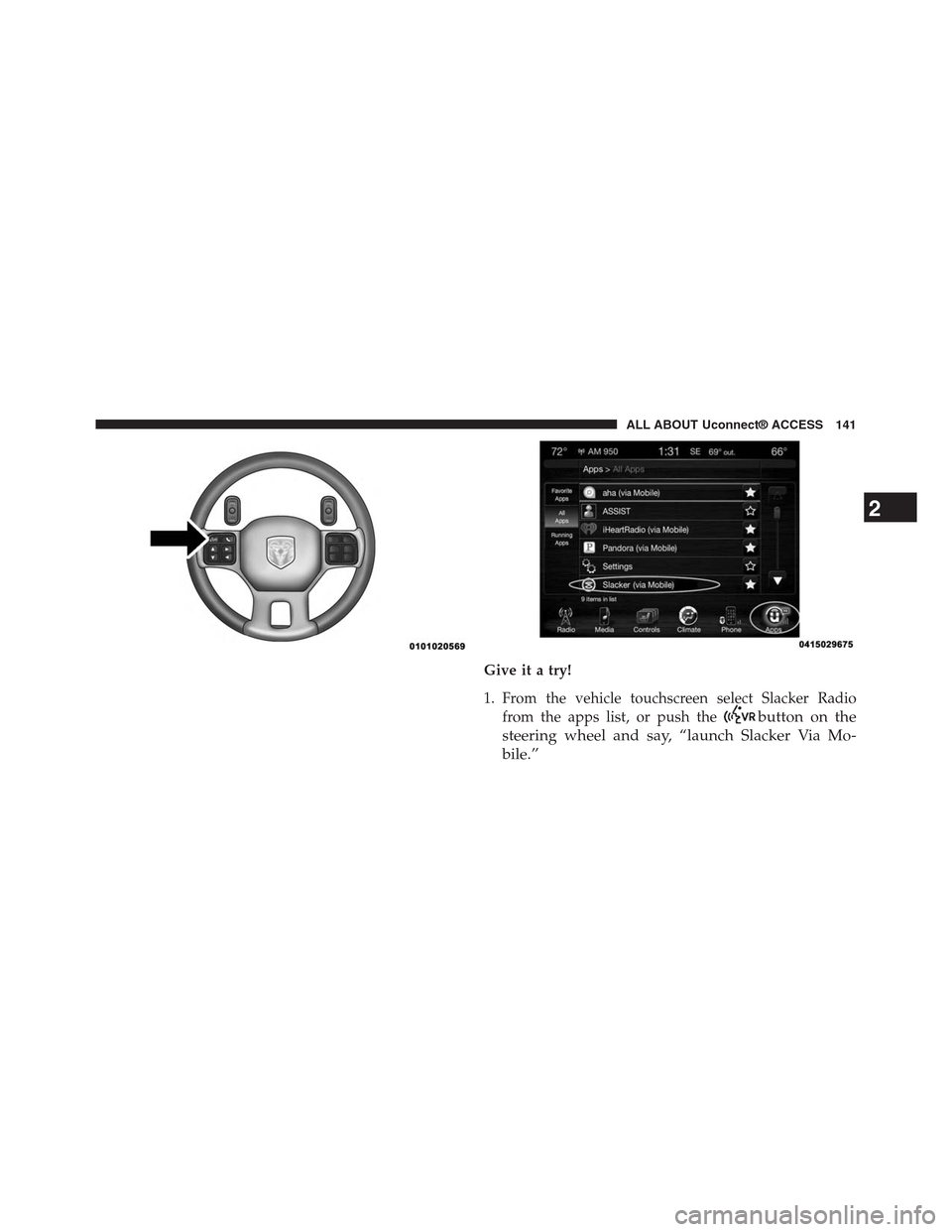
Give it a try!
1. From the vehicle touchscreen select Slacker Radio
from the apps list, or push thebutton on the
steering wheel and say, “launch Slacker Via Mo-
bile.”
2
ALL ABOUT Uconnect® ACCESS 141
Page 143 of 429

2. Select Slacker Radio Stations
3. Select Top Stations > Today’s Hits
Your chosen station will play. Use the “Heart” and “Ban”
buttons on the touchscreen to quickly and easily custom-
ize your experience. Like a song? Heart it to hear it more
often. Dislike a song? Ban it and the song or artist will be
removed from your station. Slacker Radio makes it easy
and personal.
Requirements
•Vehicle must be properly equipped with the
Uconnect® Access System.
•Your smartphone must be compatible with the
Uconnect® Access App and properly connected to the
vehicle.
•Your connected smartphone must be in range of a
usable cellular signal.
•Vehicle must be registered with Uconnect® Access and
have an active subscription that includes the appli-
cable feature or App.
•Vehicle must be powered in the ON/RUN or ACC
(Accessory) position with a properly functioning elec-
trical system.
•Vehicle must be equipped with Uconnect 8.4A/8.4AN.
Not available on Uconnect 5.0.
Tips and Shortcuts
•Continue to use the “like” icon (Heart), and “dislike”
icon (circle with line through it) to confirm your music
preferences and refine the music being played on that
station.
•Steering wheel controls supported for “next track”
(until reaching maximum skips – for free account).
142 ALL ABOUT Uconnect® ACCESS
Page 147 of 429
1. If you have not yet registered with Uconnect® Access,
begin by pressing the “Apps” icon on the touchscreen
inside your vehicle, then pressing “Uconnect Registra-
tion.”
2. Once you receive an email from “Uconnect Access,”
click on the secure link to complete your registration
onmoparownerconnect.comwhere you will be
guided through the setup of your Via Mobile profile.
3. Next, link app accounts to your Via Mobile profile by
entering your login information for Aha™.
If you have already registered with Uconnect® Access,
log in tomoparownerconnect.comto set up your Via
Mobile profile. Click on “Via Mobile Profile.”
4. Next, connect your smartphone to the vehicle touch-
screen. The Uconnect® Access app is compatible with
select iPhone® and Android smartphones. Visit
UconnectPhone.comto confirm that your smart-
phone is compatible with Uconnect. Once you have
confirmed your smartphone is compatible, pair it to
the vehicle touchscreen via Bluetooth® to use Via
Mobile apps. If using an iPhone®, a USB cable may
also be supported for the data connection.
5. Launch the Uconnect® Access app on your connected
smartphone and log in with your Mopar Owner
Connect Username/Email and password. From the
vehicle touchscreen press the#Apps#button and select
Aha™ from the list. Aha™ is located within the “All
Apps” tab. To launch Aha™ using voice recognition,
push the VR button on the steering wheel and say,
“launch Aha™ Via Mobile.”
146 ALL ABOUT Uconnect® ACCESS
Page 151 of 429
Give it a try!
1. From the vehicle touchscreen select Aha™ from the
apps list, or push thebutton on the steering
wheel and say, “launch Aha™ Via Mobile.”
•If you have not used Aha™ before, you will see a list
of default stations. Only after you personalize it will
your presets be shown. Presets can be set from
within the vehicle, from the Aha™ website, or
through the Aha™ mobile app. Some stations may
not be available on Aha™.
2. Select an Aha™ station. Your chosen station will play.
Refine the content for select stations using the “Like”
and “Dislike” buttons on the touchscreens.
•Featured – Takes you back to Aha™ featured content
list
•Nearby – Search for POIs from the following catego-
ries: Hungry, Coffee, Hotels, Weather
•Settings – Designate preference to allow explicit
content
3. Select the “List” button on the touchscreen to see
additional content within the current station
4. Select a program
5. Add station to Presets
You can associate your Aha™ account with your personal
Facebook®, Twitter® and Slacker accounts. If you have
the Aha™ app downloaded to your smartphone visit the
Aha™ settings screen and look for “Associate Accounts.”
You can also associate your Aha™ account from
aharadio.com.
150 ALL ABOUT Uconnect® ACCESS
Page 167 of 429
Safety Guidelines
WARNING!
ALWAYS drive safely with your hands on the
steering wheel. You have full responsibility and
assume all risks related to the use of the
Uconnect® features and applications in this ve-
hicle. Only use Uconnect® when it is safe to do so.
Failure to do so may result in an accident involv-
ing serious injury or death.
Ensure that all persons read this manual carefully before
using the radio system. It contains instructions on how to
use the system in a safe and effective manner.
•Glance at the screen only when safe to do so. If
prolonged viewing of the screen is required, park in a
safe location and set the parking brake.
•Stop use of the system immediately if a problem
occurs. Failure to do so may cause injury or damage to
the product. Return it to your authorized dealer to
repair.
•Ensure the volume level of the system is set to a level
that still allows you to hear outside traffic and emer-
gency vehicles.
Safe Usage Of The Uconnect® Access System
•Read all instructions in this manual carefully before
using your system to ensure proper usage!
•Your system is a sophisticated electronic device. Do
not let young children use your system.
•Permanent hearing loss or damage may occur if you
play your music or otherwise operate the system at
loud volumes. Exercise caution when setting the vol-
ume on your system.
166 ALL ABOUT Uconnect® ACCESS
Page 174 of 429
Uconnect® 8.4A SYSTEM
1. Radio
Press the “Radio” button on the touchscreen to enter
Radio Mode. The different tuner modes; AM, FM and
SXM can be selected by pressing the corresponding
buttons on the touchscreen in Radio Mode.
2. Media
Press the “Media” button on the touchscreen to access
media sources such as: Disc, USB Device and AUX as
long as the requested media is present.
3. Controls
Press the “Controls” button on the touchscreen to cus-
tomize settings for heated seat and heated steering
wheel. Also provides access to the “Settings” screen.
4. Climate
Refer to Climate Controls in your vehicles Owner ’s
Manual for further details.
5. Nav (If Equipped)
The Uconnect® 8.4A System is Navigation-Capable for
dealer activation.
3
Uconnect® 8.4A — If Equipped 173
Page 176 of 429

VOLUME/MUTE Control
Push the VOLUME/MUTE control knob to mute the
radio. Push the VOLUME/MUTE control knob a second
time to unmute the radio.
The electronic volume control turns continuously (360
degrees) in either direction, without stopping. Turning
the Volume control knob clockwise increases the volume,
and counter-clockwise decreases it.
TUNE/SCROLL Control
When the audio system is turned on, the sound will be
set at the same volume level as last played.
Turn the rotary TUNE/SCROLL control knob clockwise
to increase or counterclockwise to decrease the radio
station frequency. Press the ENTER/BROWSE button to
choose a selection.
Screen Close
The “X” button on touchscreen, located at the top right,
provides a means to close the Direct Tune Screen. The
Direct Tune Screen also auto closes if no activity occurs
within 10 seconds.
Seek And Direct Tune Functions
The Seek Up and Down functions are activated by
pressing the “double arrow”buttons on the
touchscreen to the right and left of the radio station
display, or by pushing the left “Steering Wheel Audio
Control” (if equipped) up or down.
Seek Up
Press and release the “Seek Up”button on the
touchscreen to tune the radio to the next listenable
station or channel. During a Seek Up function, if the
3
Uconnect® 8.4A — If Equipped 175