Page 104 of 429

10.Can I use Text Messaging if the “messaging” button
doesn’t turn white?Only MAP compatible phones
will work with Text Messaging. If your phone is
compatible, the “messaging” light will turn white,
after the phone is Bluetooth® connected, and you
will then be able to do hands free Text Messaging.
The system will respond with “Sorry, I didn’t under-
stand you” if you push the steering wheel “Phone”
button and say a voice command for Text Messaging,
when the button isn’t active (“white”).
Remote Door Lock/Unlock
Lock Or Unlock Your Vehicle From Virtually Anywhere
Using Your Computer Or Smartphone App.
Description
The Remote Door Lock/Unlock feature provides you the
ability to lock or unlock the door on your vehicle,
without the keys and from virtually any distance. You
can send a request to your vehicle in one of three ways:
•Using the Uconnect® Access App from a compatible
smartphone
•From the Mopar® Owner Connect website
(moparownerconnect.com)
•Contacting Uconnect® Care
If you want, you can set up notifications for your account
to receive an email or text (SMS) message every time a
command is sent to lock or unlock your doors.
How It Works
Uconnect® Access App:
1. Download the Uconnect® Access App to a compatible
smartphone and login using your username and pass-
word.
2. To lock the doors, push the button with the closed lock
icon; to unlock the driver ’s door push the button with
the open lock icon.
2
ALL ABOUT Uconnect® ACCESS 103
Page 121 of 429

Via Mobile Apps
Pandora® — If Equipped
Pandora® gives people the music and comedy they love
anytime, anywhere. Personalized stations launch in-
stantly, with the input of a favorite artist, track, come-
dian, or genre.
Description
Easily control your Pandora® app through an intuitive
interface via the vehicle touchscreen and steering wheel
controls.
•Reduce the need to use your Smartphone to access
Pandora® so you can stay focused on driving.
•Launch Pandora® using Voice Recognition (VR) via a
button on the steering wheel.
•Pandora® offers personalized radio based on your
favorite artists, or songs and can create a custom
#station#playing similar music. Custom stations are
created on the Pandora® website or the mobile app.
•Listen to previously created stations in “shuffle” mode
•For the best music experience, continuously personal-
ize your music using the “Like” or “Dislike” buttons
on the touchscreen whenever a particular song is
played that you want to hear more or less of.
•Enjoy a higher quality of music by adjusting the
Pandora® settings.
•Customers can leverage an existing Pandora® account,
or set up a new account on the Pandora® website at
pandora.com.
•Customers can also create a new Pandora® account by
clicking on a link from the Uconnect® Access Via
Mobile profile page during registration and setup.
120 ALL ABOUT Uconnect® ACCESS
Page 123 of 429
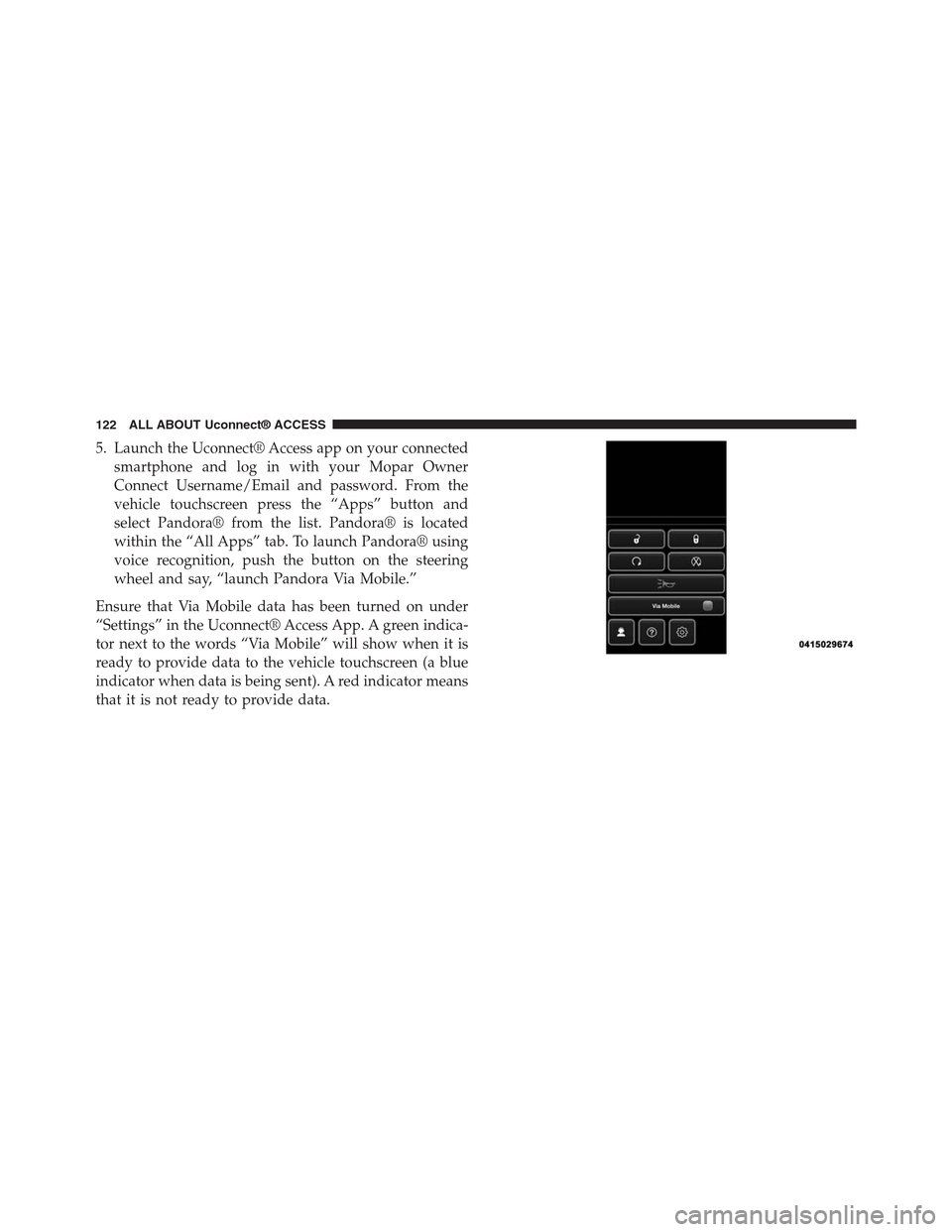
5. Launch the Uconnect® Access app on your connected
smartphone and log in with your Mopar Owner
Connect Username/Email and password. From the
vehicle touchscreen press the “Apps” button and
select Pandora® from the list. Pandora® is located
within the “All Apps” tab. To launch Pandora® using
voice recognition, push the button on the steering
wheel and say, “launch Pandora Via Mobile.”
Ensure that Via Mobile data has been turned on under
“Settings” in the Uconnect® Access App. A green indica-
tor next to the words “Via Mobile” will show when it is
ready to provide data to the vehicle touchscreen (a blue
indicator when data is being sent). A red indicator means
that it is not ready to provide data.
122 ALL ABOUT Uconnect® ACCESS
Page 126 of 429
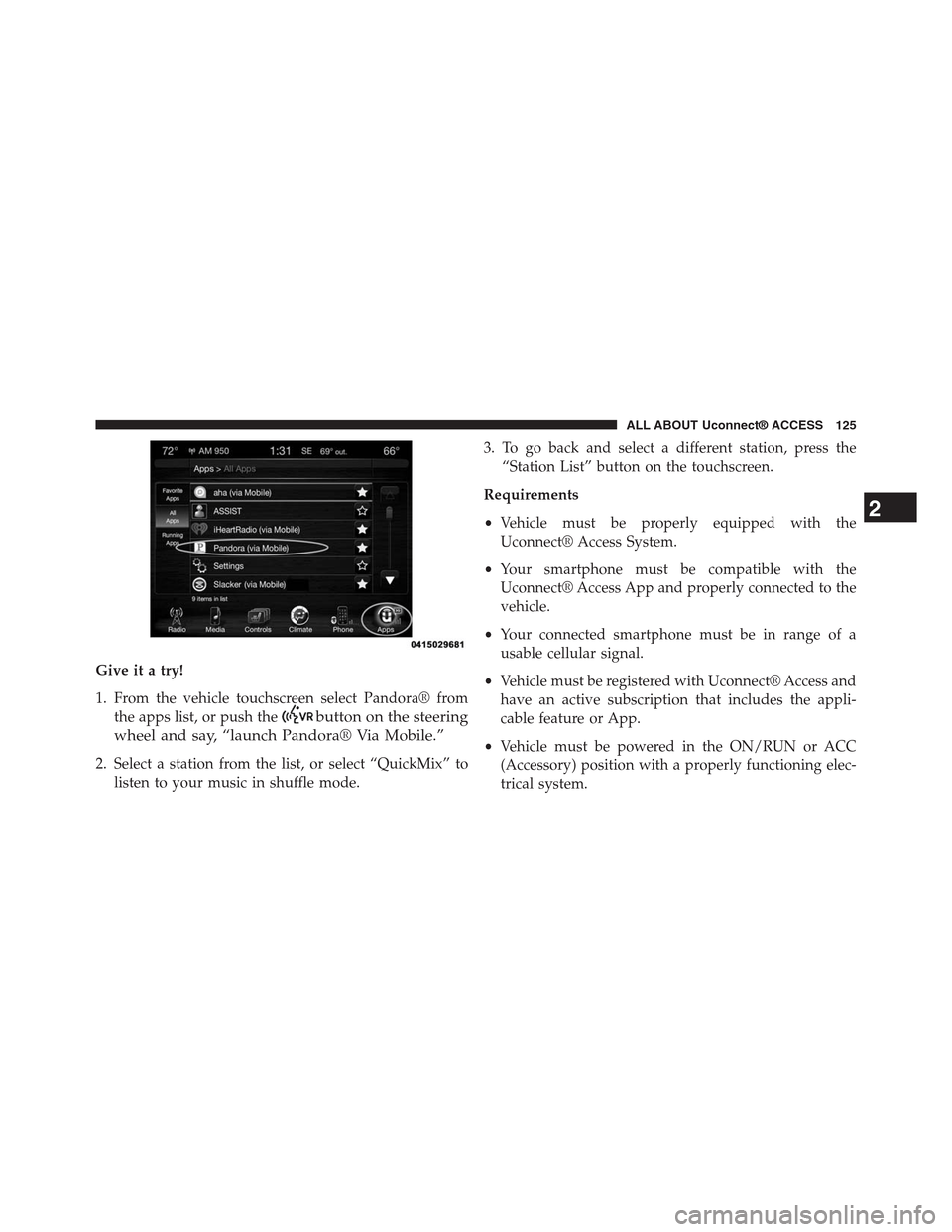
Give it a try!
1. From the vehicle touchscreen select Pandora® from
the apps list, or push thebutton on the steering
wheel and say, “launch Pandora® Via Mobile.”
2. Select a station from the list, or select “QuickMix” to
listen to your music in shuffle mode.
3. To go back and select a different station, press the
“Station List” button on the touchscreen.
Requirements
•Vehicle must be properly equipped with the
Uconnect® Access System.
•Your smartphone must be compatible with the
Uconnect® Access App and properly connected to the
vehicle.
•Your connected smartphone must be in range of a
usable cellular signal.
•Vehicle must be registered with Uconnect® Access and
have an active subscription that includes the appli-
cable feature or App.
•Vehicle must be powered in the ON/RUN or ACC
(Accessory) position with a properly functioning elec-
trical system.
2
ALL ABOUT Uconnect® ACCESS 125
Page 127 of 429
•Vehicle must be equipped with Uconnect 8.4A/8.4AN.
Not available on Uconnect 5.0.
Tips and Shortcuts
•Pandora® will launch with the last setting and play list
you chose. To change this, select the “Station List”
button on the touchscreen in lower left corner to select
another station.
•Steering wheel controls supported are for “next track”
(until reaching maximum skips – for free account).
FAQs
1.Why can’t I get Pandora® Via Mobile to work?Here
are some things to consider:
•Check to ensure you have linked your Pandora®
account credentials with Uconnect® Access. This is
usually done during registration and setup. Then,
check to ensure you have properly connected your
compatible smartphone to the vehicle touchscreen.
The Uconnect® Access App must be open and you
must be logged in. A blue light indicates that it’s
providing data to the vehicle.
•If you recently changed your password for
Pandora®, it may need to be updated on Mopar
Owner Connect under the “Via Mobile” section.
2.If I changed my password for Pandora®, do I have to
update it with Uconnect® Access?Yes. Visit
moparownerconnect.com, log in, and click on Via
Mobile.
3.How do I set up a Pandora® account?You can create
an account with Pandora® by visitingpandora.com.
To make changes to an existing Pandora® account,
visit the Pandora® website.
4.Can I create a Pandora® account during Uconnect®
Access registration and setup?There is a link from the
Via Mobile profile page where the customer can go to
the Pandora® website to create a new account.
126 ALL ABOUT Uconnect® ACCESS
Page 129 of 429

iHeartRadio — If Equipped
iHeartRadio provides instant access to more than 1,500
live radio stations from across the country and allows
listeners to create custom music stations inspired by their
favorite artists or songs.
Description
•Easily control your iHeartRadio app through an intui-
tive interface via the touchscreen and steering wheel
controls.
•Reduce the need to use your Smartphone to access
iHeartRadio so you can stay focused on driving.
•Leverage an existing iHeartRadio account, or set up a
free account atiHeartRadio.com.
•Customers can also create a new iHeartRadio account
by clicking on a link from the Uconnect® Access Via
Mobile profile page during registration and set-up.
•Launch iHeartRadio using Voice Recognition (VR) or
through touchscreen controls.
•Browse, listen, and save radio stations for easy access.
•Browse and create custom stations (e.g. Zac Brown Band).
•Create a new custom station based on what’s currently
playing with a single button press.
•Steering wheel controls supported for preset jump and
“next track” (until reaching maximum skips).
•Listen to live radio stations from across the U.S.
•Continually refine stations to your liking using the
“Thumbs Up” and “Thumbs Down” buttons.
How It Works
Via Mobile uses the Uconnect® Access smartphone app
and your smartphone’s data plan to access your personal
iHeartRadio account from the vehicle and control it using
128 ALL ABOUT Uconnect® ACCESS
Page 133 of 429
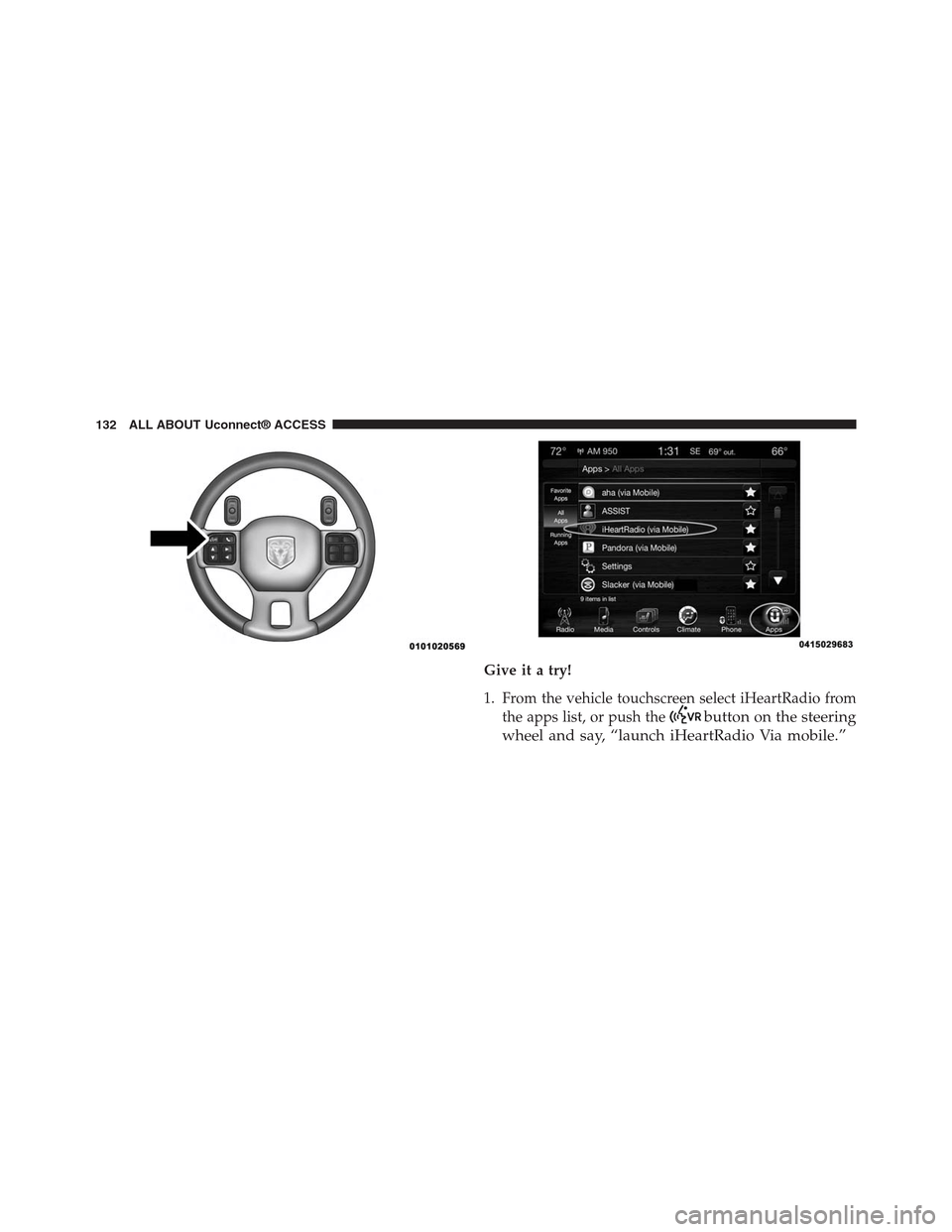
Give it a try!
1. From the vehicle touchscreen select iHeartRadio from
the apps list, or push thebutton on the steering
wheel and say, “launch iHeartRadio Via mobile.”
132 ALL ABOUT Uconnect® ACCESS
Page 137 of 429
5.Can I create an iHeartRadio account during
Uconnect® Access registration and set-up?There is a
link from the Via Mobile profile page where the
customer can go to iHeartRadio’s website to create a
new account.
6.How do I set up an iHeartRadio account?You can
create or make changes to an existing iHeartRadio
account by visiting their website atiHeartRadio.com.
7.Can I create custom content from within the vehicle?
Yes. From the iHeartRadio Home screen, press “Create
Station.”
8.Should I have the iHeartRadio app downloaded to
my smartphone to use Uconnect® Access Via Mo-
bile?You do not need to have the iHeartRadio app on
your smartphone in order to use iHeartRadio Via
Mobile. The Uconnect® Access App is required, how-
ever.
9.How do I know how much data is being used?
Uconnect® Access Via Mobile uses your smartphone’s
existing data plan to stream content. Data usage varies
by phone/device, content (e.g. videos), high quality
audio and several other factors. Please refer to your
device carrier for specific details.
10.How do I block explicit content?Customers have
the ability to block explicit content within the iHeart-
Radio Settings menu. Go to iHeartRadio Home and
select the “gear” icon.
Slacker Radio — If Equipped
Enjoy millions of songs and hundreds of handcrafted
stations.
Description
•Easily control your Slacker Radio app through an
intuitive interface via the vehicle touchscreen and
steering wheels controls.
136 ALL ABOUT Uconnect® ACCESS