Page 331 of 429
Recent Calls
You may browse up to 31 of the most recent of each of the
following call types:
•All Calls
•Incoming Calls
•Outgoing Calls
•Missed Calls
These can be accessed by pressing the “recent calls”
button on the Phone main screen.
You can also push thebutton on your steering wheel
and say “Show my incoming calls” from any screen
and the Incoming calls will be displayed.
NOTE:Incoming can also be replaced with “Outgoing,”
“Recent” or “Missed.”
Answer Or Ignore An Incoming Call — No Call
Currently In Progress
When you receive a call on your mobile phone, the
Uconnect® Phone will interrupt the vehicle audio sys-
tem. Push the Phonebutton on the steering wheel to
accept the call. You can also press the “answer” button
on the touchscreen or press the caller ID box.
Answer Or Ignore An Incoming Call — Call
Currently In Progress
If a call is currently in progress and you have another
incoming call, you will hear the same network tones for
call waiting that you normally hear when using your
mobile phone. Press the “Uconnect® Phone”button
on the steering wheel, answer button on the touch-
screen or caller ID box to place the current call on hold
and answer the incoming call.
330 Uconnect® 8.4AN — If Equipped
Page 332 of 429
NOTE:The Uconnect® Phone compatible phones in the
market today do not support rejecting an incoming call
when another call is in progress. Therefore, the user can
only answer an incoming call or ignore it.
Place/Retrieve A Call From Hold
During an active call, press the “Hold” button on the
Phone main screen.
Making A Second Call While Current Call Is In
Progress
You can place a call on hold by pressing the “Hold”
button on the Phone main screen, then dial a number
from the dialpad, recent calls, SMS Inbox or from the
phonebooks. To go back to the first call, refer to “Toggling
Between Calls” in this section. To combine two calls, refer
to “Join Calls” in this section.
Toggling Between Calls
If two calls are in progress (one active and one on hold),
press the “Swap” button on the Phone main screen. Only
one call can be placed on hold at a time.
You can also push the Phonebutton to toggle be-
tween the active and held phone call.
Join Calls
When two calls are in progress (one active and one on
hold), press the “Join Calls” button on the Phone main
screen to combine all calls into a Conference Call.
Call Termination
To end a call in progress, momentarily press the Phone
“End”button on the touchscreen or the Phone
“End” button on the steering wheel. Only the active
call(s) will be terminated and if there is a call on hold,
it will become the new active call.
4
Uconnect® 8.4AN — If Equipped 331
Page 410 of 429
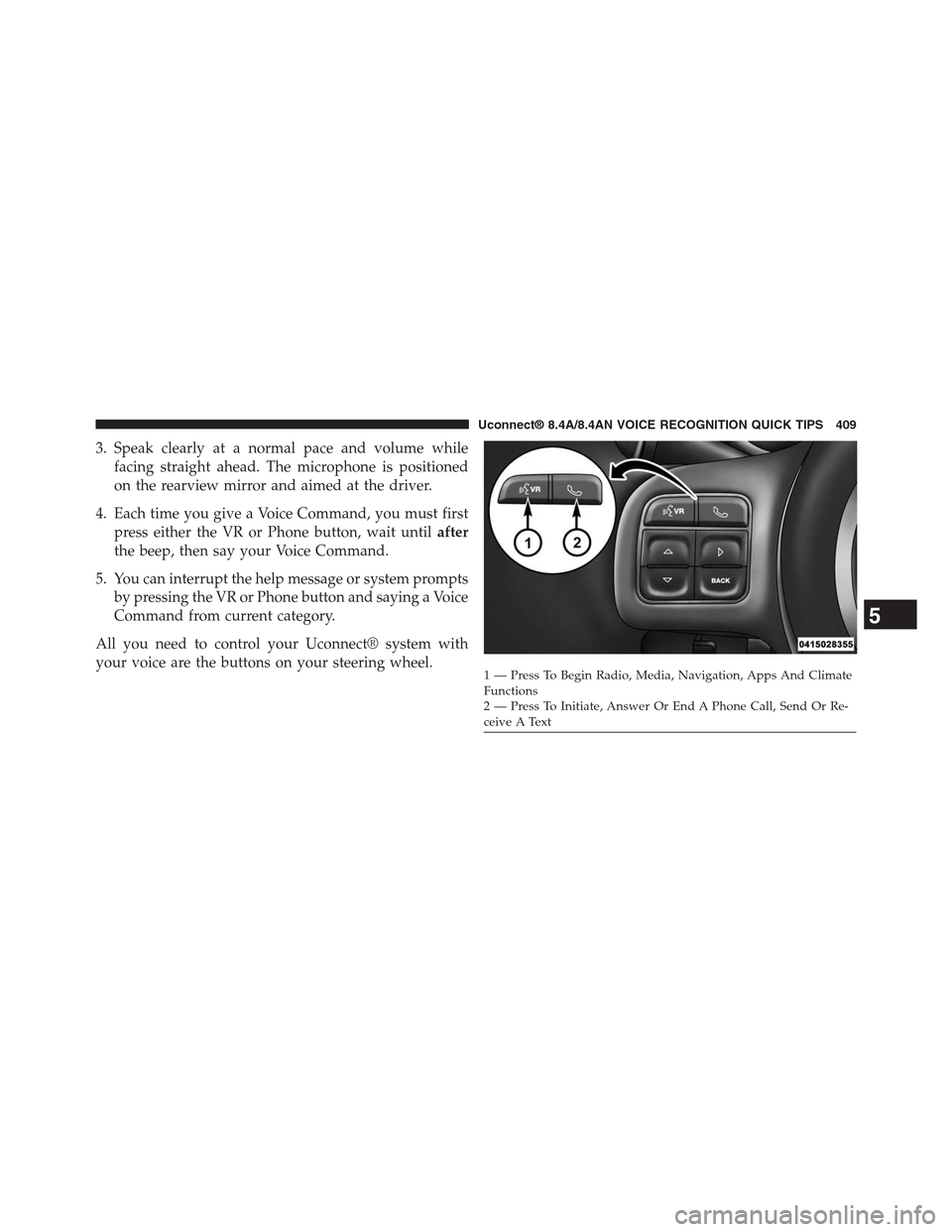
3. Speak clearly at a normal pace and volume while
facing straight ahead. The microphone is positioned
on the rearview mirror and aimed at the driver.
4. Each time you give a Voice Command, you must first
press either the VR or Phone button, wait untilafter
the beep, then say your Voice Command.
5. You can interrupt the help message or system prompts
by pressing the VR or Phone button and saying a Voice
Command from current category.
All you need to control your Uconnect® system with
your voice are the buttons on your steering wheel.1—PressToBeginRadio,Media,Navigation,AppsAndClimateFunctions2—PressToInitiate,AnswerOrEndAPhoneCall,SendOrRe-ceive A Text
5
Uconnect® 8.4A/8.4AN VOICE RECOGNITION QUICK TIPS 409
Page 414 of 429
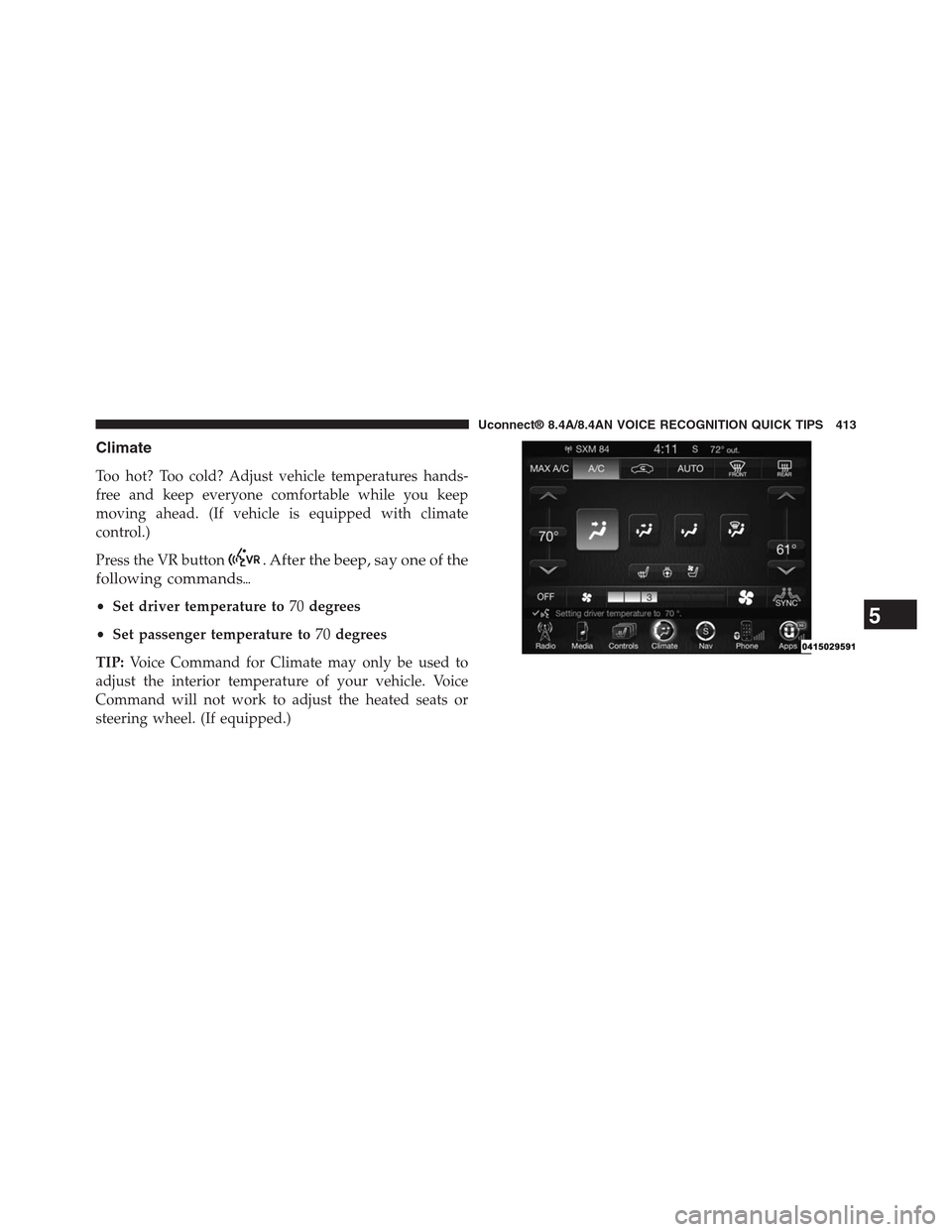
Climate
Too hot? Too cold? Adjust vehicle temperatures hands-
free and keep everyone comfortable while you keep
moving ahead. (If vehicle is equipped with climate
control.)
Press the VR button. After the beep, say one of the
following commands%
•Set driver temperature to70degrees
•Set passenger temperature to70degrees
TIP:Voice Command for Climate may only be used to
adjust the interior temperature of your vehicle. Voice
Command will not work to adjust the heated seats or
steering wheel. (If equipped.)
5
Uconnect® 8.4A/8.4AN VOICE RECOGNITION QUICK TIPS 413
Page 425 of 429
SAFETY GUIDELINES
WARNING!
ALWAYS drive safely with your hands on the
steering wheel. You have full responsibility and
assume all risks related to the use of the
Uconnect® features and applications in this ve-
hicle. Only use Uconnect® when it is safe to do so.
Failure to do so may result in an accident involv-
ing serious injury or death.
Ensure that all persons read this manual carefully before
using the system. It contains instructions on how to use
the system in a safe and effective manner.
Please read and follow these safety precautions. Failure
to do so may result in injury or property damage.
•Glance at the screen only when safe to do so. If
prolonged viewing of the screen is necessary, park in a
safe location and set the parking brake.
•Stop use immediately if a problem occurs. Failure to
do so may cause injury or damage to the product.
Return it to your authorized dealer for repair.
•Make certain that the volume level of the system is set
to a level that still allows you to hear outside traffic
and emergency vehicles.
Safe Usage of the Uconnect® Access System
•Read all instructions in this manual carefully before
using your system to ensure proper usage!
•Your system is a sophisticated electronic device. Do
not let young children use your system.
424 SAFETY GUIDELINES