Page 11 of 429
1.The ASSIST And 9-1-1 Buttons On Your Rearview
Mirror
The ASSIST Button is used for contacting Roadside
Assistance, Vehicle Care and Uconnect® Care. The 9-1-1
button connects you directly to emergency services.
2.The Uconnect® “Apps” Button On The Menu Bar At
The Bottom Right Corner Of The In-Vehicle Touch-
screen
This is where you can begin registration for
Uconnect® Access, find the apps and purchase WiFi
Hotspot on demand.
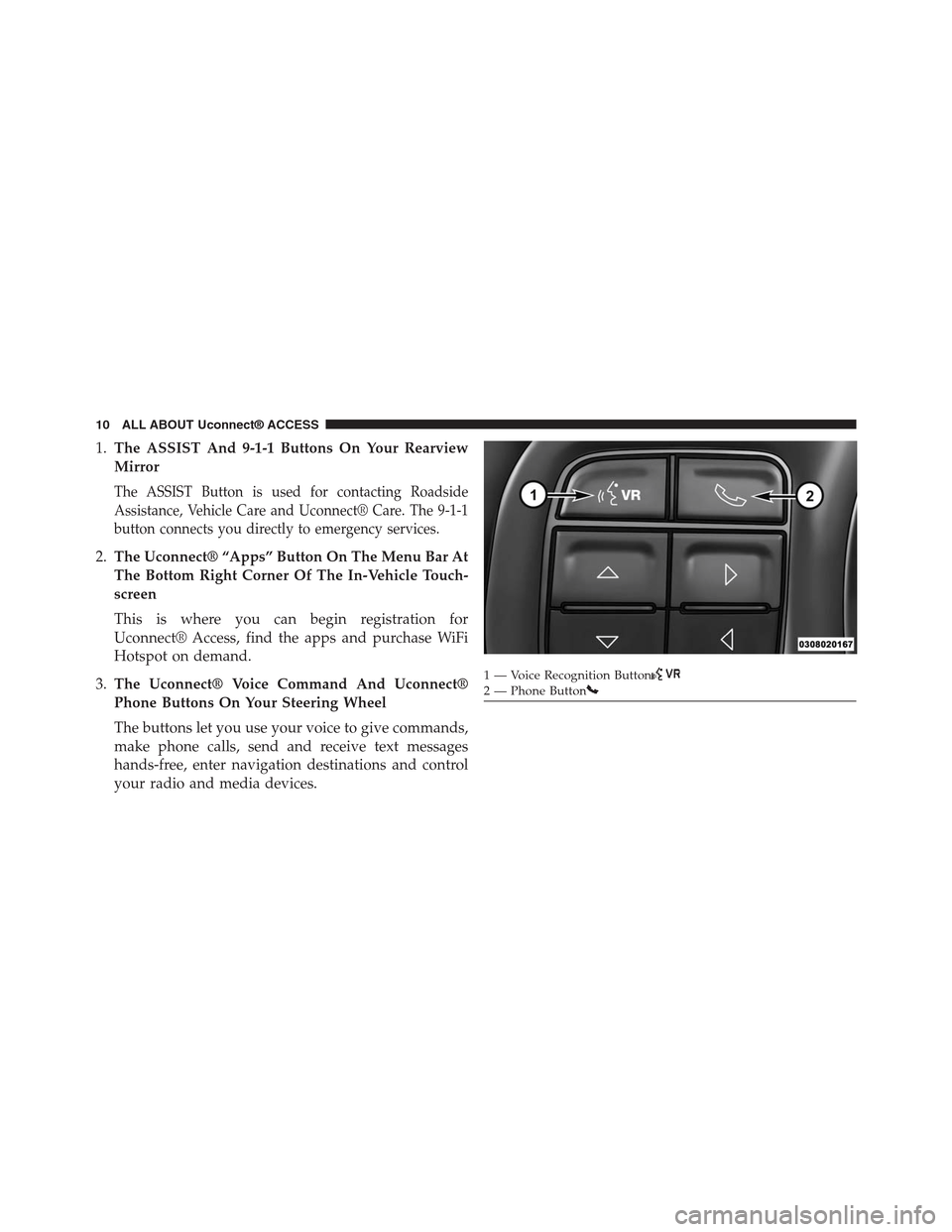
3.The Uconnect® Voice Command And Uconnect®
Phone Buttons On Your Steering Wheel
The buttons let you use your voice to give commands,
make phone calls, send and receive text messages
hands-free, enter navigation destinations and control
your radio and media devices.
1 — Voice Recognition Button2—PhoneButton
10 ALL ABOUT Uconnect® ACCESS
Page 41 of 429
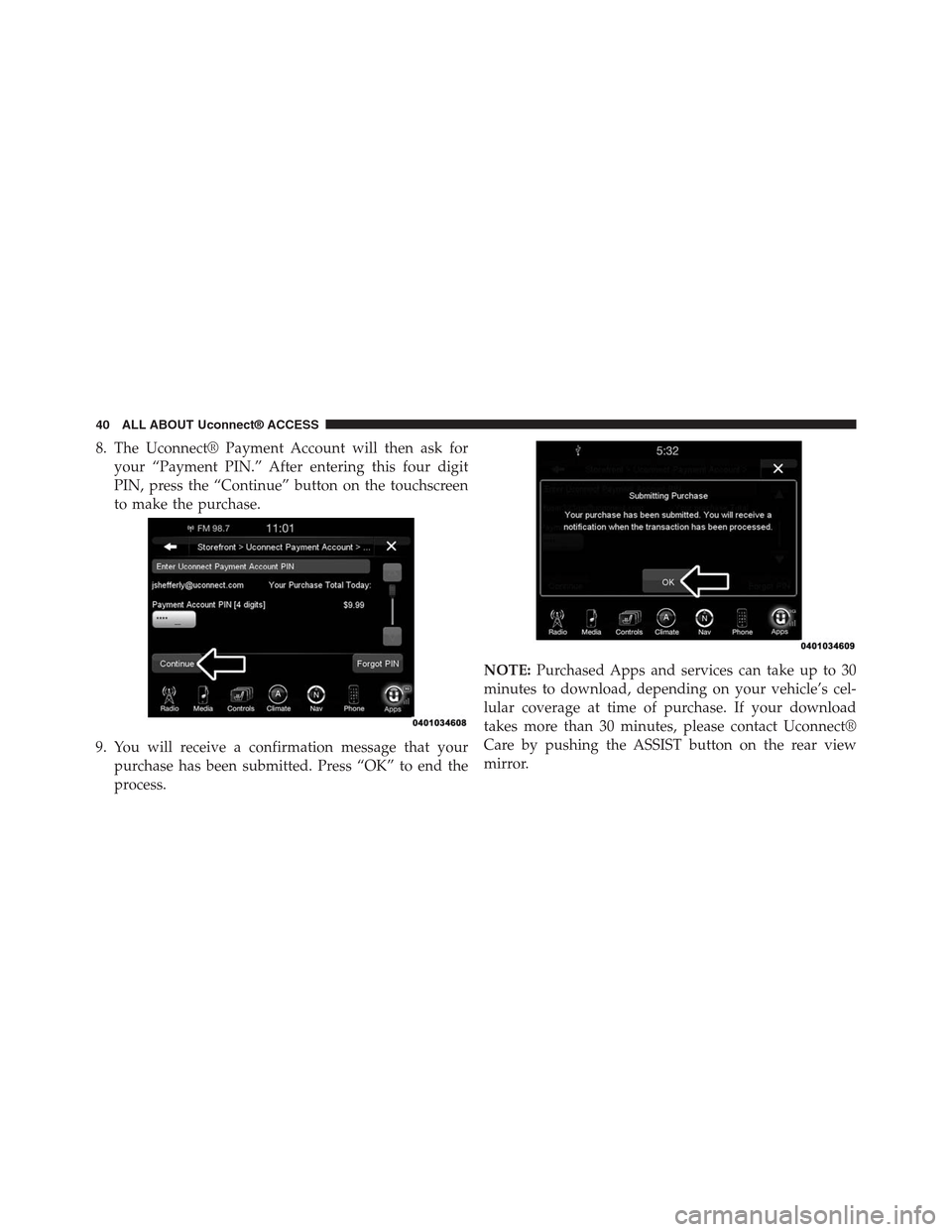
8. The Uconnect® Payment Account will then ask for
your “Payment PIN.” After entering this four digit
PIN, press the “Continue” button on the touchscreen
to make the purchase.
9. You will receive a confirmation message that your
purchase has been submitted. Press “OK” to end the
process.
NOTE:Purchased Apps and services can take up to 30
minutes to download, depending on your vehicle’s cel-
lular coverage at time of purchase. If your download
takes more than 30 minutes, please contact Uconnect®
Care by pushing the ASSIST button on the rear view
mirror.
40 ALL ABOUT Uconnect® ACCESS
Page 49 of 429

Access features work using the built-in cellular connec-
tion. Only Voice Texting the Uconnect® Access App and
Via Mobile Apps require a compatible smartphone to
work with your Uconnect® Access system.
9-1-1 Call
Access To Emergency Services At The Push Of A Button
Uconnect® Access In-Vehicle Assistance Features
With Uconnect® Access, your vehicle has on-board assis-
tance features located on the rear view mirror designed to
enhance your driving experience if you should ever need
assistance or support.
Description
9-1-1 Call is a feature that, at the push of a button, can
contact emergency services. It’s a convenient way to get
in contact with a 9-1-1 operator in the event of an
emergency. When the connection between the vehicle
and a 9-1-1 operator is made, your vehicle will automati-
cally transmit location information to the 9-1-1 operator.
How It Works
1. Push the “9-1-1” Call button on the Rearview Mirror;
the indicator light will turn green indicating a call has
been placed.
48 ALL ABOUT Uconnect® ACCESS
Page 50 of 429

NOTE:In case the “9-1-1” Call button is accidentally
pushed, there is a 10 second delay before the 9-1-1 call is
placed. The system will verbally alert you that a call is
about to be made. To cancel the 9-1-1 Call connection,
push the “9-1-1” Call button on the Rearview Mirror or
press the “Cancellation” button on the Phone Screen.
2. Once a connection between the vehicle and a 9-1-1
operator is made, the 9-1-1 Call system will transmit
the following important vehicle information to a 9-1-1
operator:
•Indication that the occupant placed a 9-1-1 Call.
•The vehicle brand.
•The last known GPS coordinates of the vehicle.
3. You should be able to speak with the 9-1-1 operator
through the vehicle audio system to determine if
additional help is needed.
If a connection is made between a 9-1-1 operator and
your vehicle, you understand and agree that 9-1-1 opera-
tors may, like any other 9-1-1 call, record conversations
and sounds in and near your vehicle upon connection.
9-1-1 Call System Limitations
Vehicles sold in Canada and MexicoDO NOThave 9-1-1
Call system capabilities. 9-1-1 or other emergency line
operators in Canada and Mexico may not answer or
respond to 9-1-1 system calls. If the 9-1-1 Call system
detects a malfunction, any of the following may occur at
the time the malfunction is detected.
•The Rearview Mirror light will continuously be illu-
minated red.
•The screen will display the following message “Vehicle
phone requires service. Please contact your dealer.”
•An In-Vehicle Audio message will state “Vehicle phone
requires service. Please contact your dealer.”
2
ALL ABOUT Uconnect® ACCESS 49
Page 52 of 429

Requirements
•This feature is available only on vehicles sold in the
US.
•Vehicle must be properly equipped with the
Uconnect® Access System.
•Vehicle must be in range of a usable and authorized
cellular signal.
•Vehicle must be powered in the ON/RUN or ACC
(Accessory) position with a properly functioning elec-
trical system.
WARNING!
•Never place anything on or near the vehicle’s
wireless and GPS antennas. You could prevent
wireless and GPS signal reception, which can pre-
vent your vehicle from placing an emergency call.
Wireless and GPS signal reception is required for
the 9-1-1 Call system to function properly.
•Failure to perform scheduled maintenance and
regularly inspect your vehicle may result in vehicle
damage, accident or injury.
•Ignoring the Rearview Mirror light could mean you
will not have 9-1-1 Call services if needed. If the
Rearview Mirror light is illuminated, have an au-
thorized dealer service the 9-1-1 Call system imme-
diately.
(Continued)
2
ALL ABOUT Uconnect® ACCESS 51
Page 55 of 429

Uconnect® Access In-Vehicle Assistance Features
With Uconnect® Access, your vehicle has on-board assis-
tance features located on the rear view mirror designed to
enhance your driving experience if you should ever need
assistance or support.
Description
Vehicles equipped with the Uconnect® Access system
feature will contain an ASSIST button on the rear view
mirror. Once the vehicle has been registered and is
subscribed to the Advantage Package, the ASSIST button
can connect you directly to one of three important care
centers for support.
•Roadside Assistance— If you get a flat tire, or need a
tow, you’ll be connected to someone who can help
anytime. Additional fees may apply. (see the Disclaim-
ers section below for more detail).
•Uconnect® Care— In vehicle support for Uconnect®
Access System, Apps, and Features.
•Vehicle Care— Total support for your Chrysler Group
vehicle.
How It Works
You or someone in the vehicle simply presses the ASSIST
button located on the rear view mirror and you will be
presented with your ASSIST options. Make your selec-
tion by pressing the screen.
54 ALL ABOUT Uconnect® ACCESS
Page 161 of 429
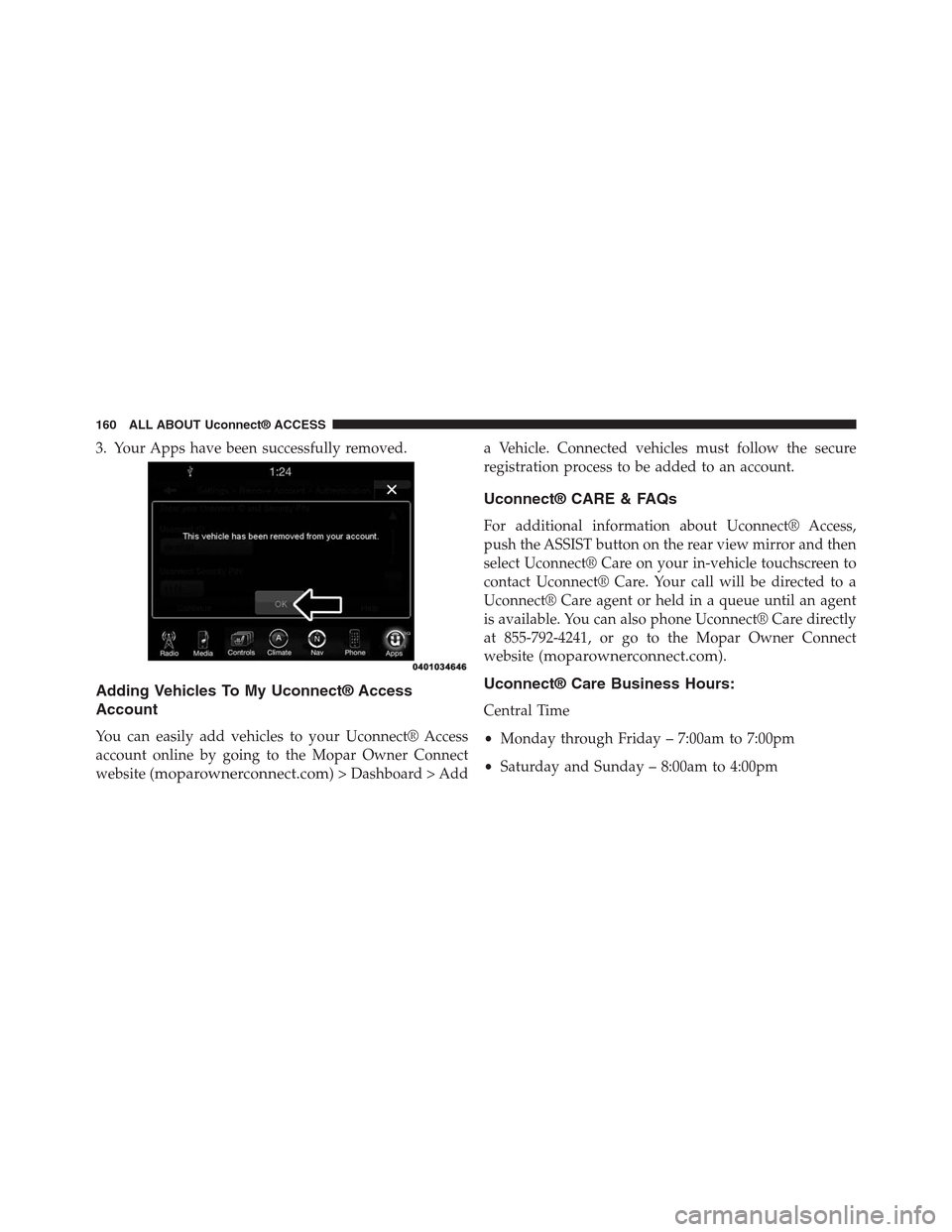
3. Your Apps have been successfully removed.
Adding Vehicles To My Uconnect® Access
Account
You can easily add vehicles to your Uconnect® Access
account online by going to the Mopar Owner Connect
website (moparownerconnect.com) > Dashboard > Add
a Vehicle. Connected vehicles must follow the secure
registration process to be added to an account.
Uconnect® CARE & FAQs
For additional information about Uconnect® Access,
push the ASSIST button on the rear view mirror and then
select Uconnect® Care on your in-vehicle touchscreen to
contact Uconnect® Care. Your call will be directed to a
Uconnect® Care agent or held in a queue until an agent
is available. You can also phone Uconnect® Care directly
at 855-792-4241, or go to the Mopar Owner Connect
website (moparownerconnect.com).
Uconnect® Care Business Hours:
Central Time
•Monday through Friday – 7:00am to 7:00pm
•Saturday and Sunday – 8:00am to 4:00pm
160 ALL ABOUT Uconnect® ACCESS
Page 218 of 429
NOTE:Certain brands of mobile phones do not send the
dial ring to the Uconnect® Phone to play it on the vehicle
audio system, so you will not hear it. Under this situa-
tion, after successfully dialing a number the user may feel
that the call did not go through even though the call is in
progress. Once your call is answered, you will hear the
audio.
Mute/Un-Mute (Mute ON/OFF)
When you mute the Uconnect® Phone, you will still be
able to hear the conversation coming from the other
party, but the other party will not be able to hear you. To
mute the Uconnect® Phone simply press the “Mute”
button on the Phone main screen.
Advanced Phone Connectivity
Transfer Call To And From Mobile Phone
The Uconnect® Phone allows ongoing calls to be trans-
ferred from your mobile phone to the Uconnect® Phone
without terminating the call. To transfer an ongoing call
from your connected mobile phone to the Uconnect®
Phone or vice versa, press the “Transfer” button on the
Phone main screen.
Connect Or Disconnect Link Between The
Uconnect® Phone And Mobile Phone
If you would like to connect or disconnect the Bluetooth®
connection between a Uconnect® Phone paired mobile
phone and the Uconnect® Phone, follow the instructions
described in your mobile phone User’s Manual.
Things You Should Know About Your Uconnect®
Phone
Voice Command
For the best performance:
•Adjust the rearview mirror to provide at least½inch
(1 cm) gap between the overhead console (if equipped)
and the mirror.
3
Uconnect® 8.4A — If Equipped 217