2012 Seat Exeo format
[x] Cancel search: formatPage 103 of 167

Navigation (NAV)*
102If you are approaching a turn-off, an arrow will indicate the direction of the
turn-off. The name of the street onto which you must turn-off will also appear
under the arrow. The bar graph (countdown) ⇒page 101, fig. 119 on the
right in the display corresponds to the distance up to the turn-off.
If a change of lanes (e.g. on the motorway) is necessary before the turn-off,
you will be informed accordingly beforehand ⇒page 99, fig. 116 . Route guidance on the instrument panel display remains visible during navi-
gation even when you have selected other functions (e.g. radio).
Note
To switch from the route guidance display to the on-board computer* display,
press the Reset* button for the on-board computer. Press the Reset* button
repeatedly to return to the route guidance screen. For detailed information
regarding the on-board computer*, please refer to your Owner's Manual.Switching on the navigation system
The navigation functions can be selected with the func-
tion button.– Press the function button ⇒
page 9. The main navigation
menu ⇒fig. 120 , the route plan ⇒ page 120, fig. 143 or the
previous active navigation function menu will appear on the
display.
– Press one of the control buttons ⇒page 9 ( to ⇒ fig. 120)
to move to the appropriate submenus.
Display
DescriptionRemaining distance to next turn-off.Indication of whether TMC radio stations are being received
and whether the dynamic navigation function is switched
on or off ⇒page 146.Estimated time of arrival at destination or stopover.Motorway, major road and street names displayed accord-
ing to the vehicle location.
A turn-off arrow ahead of these names indicates the road
onto which you should turn-off.Total miles to destination or stopover.Directional arrowBar graph (countdown): the bars decrease in size to indi-
cate how the distance to the immediate turn-off point is
decreasing. The bar graph is not shown until a change of
direction arrow is displayed.If there is another side street before the turn-off point that
is not part of current guidance, this side street is repre-
sented by a side-street symbol on the instrument panel dis-
play. The side-street symbol will disappear as soon as there
are no more before the turn-off point.
A1A2A3A4A5A6A7A8
NAV
Fig. 120 Display: Main
navigation system menu
NAV
A1
A4
media_systemE_EN.book Seite 102 Montag, 21. September 2009 1:48 13
Page 104 of 167

Navigation (NAV)*103
Operating
RADIO, MEDIA (audiovisual
systems)
NAME, TEL
NAV, INFO
CAR, SETUP
The Navigation menu has the following options:
The following settings are possible in navigation setup menu:
Co n tro l but to n
functions
⇒page 102, fig. 120
Navigation system options
Memory
Last destinations
Top categories
Load from directory
Store in directory
Load route
Store route
Delete route
Route
Route with/without stopover
Route list
Route criteria
Avoid route from here
Map
Zoom
Map side menu
Nav-Info
Location data
Longitude/latitude of current location
Receivable satellites
Data for final destination
Stopover data
Time of arrival
Distance
A1A2A3A4
Navigation system options
Press the
⇒ page 131 function but-
ton
in the NAV menu
Map scheme (day/night)
Orientation
Map type
Voice information
Map contents
Delete last destinations
Turn list
Motorway info
Intersection map
Auto intersection zoom
Compass
Software version info
Demo mode
Set position/direction
SETUP
media_systemE_EN.book Seite 103 Montag, 21. September 2009 1:48 13
Page 106 of 167
Navigation (NAV)*105
Operating
RADIO, MEDIA (audiovisual
systems)
NAME, TEL
NAV, INFO
CAR, SETUP
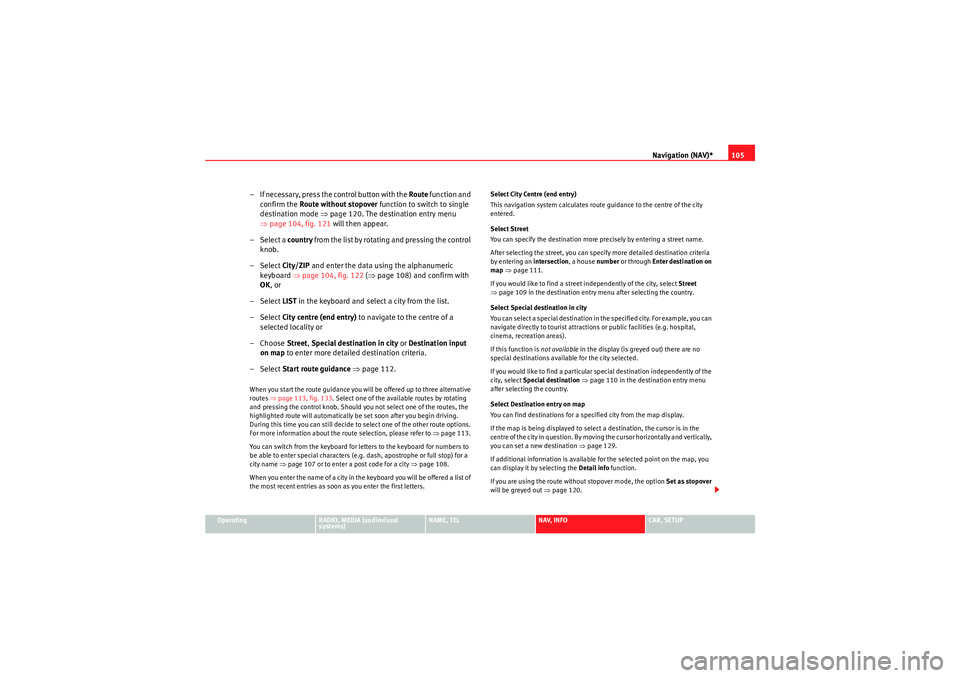
– If necessary, press the control button with the Route function and
confirm the Route without stopover function to switch to single
destination mode ⇒page 120. The destination entry menu
⇒ page 104, fig. 121 will then appear.
–Select a country from the list by rotating and pressing the control
knob.
–Select City/ZIP and enter the data using the alphanumeric
keyboard ⇒page 104, fig. 122 (⇒ page 108) and confirm with
OK , or
–Select LIST in the keyboard and select a city from the list.
–Select City centre (end entry) to navigate to the centre of a
selected locality or
–Choose Street, Special destination in city or Destination input
on map to enter more detailed destination criteria.
–Select Start route guidance ⇒ page 112.When you start the route guidance you will be offered up to three alternative
routes ⇒ page 113, fig. 133 . Select one of the available routes by rotating
and pressing the control knob. Should you not select one of the routes, the
highlighted route will automatically be set soon after you begin driving.
During this time you can still decide to select one of the other route options.
For more information about the route selection, please refer to ⇒page 113.
You can switch from the keyboard for letters to the keyboard for numbers to
be able to enter special characters (e.g. dash, apostrophe or full stop) for a
city name ⇒page 107 or to enter a post code for a city ⇒ page 108.
When you enter the name of a city in the keyboard you will be offered a list of
the most recent entries as soon as you enter the first letters. Select City Centre (end entry)
This navigation system calculates route guidance to the centre of the city
entered.
Select Street
You can specify the destination more precisely by entering a street name.
After selecting the street, you can specify more detailed destination criteria
by entering an intersection
, a house number or through Enter destination on
map ⇒ page 111.
If you would like to find a street independently of the city, select Street
⇒ page 109 in the destination entry menu after selecting the country.
Select Special destination in city
You can select a special destination in the specified city. For example, you can
navigate directly to tourist attractions or public facilities (e.g. hospital,
cinema, recreation areas).
If this function is not available in the display (is greyed out) there are no
special destinations available for the city selected.
If you would like to find a particular special destination independently of the
city, select Special destination ⇒ page 110 in the destination entry menu
after selecting the country.
Select Destination entry on map
You can find destinations for a specified city from the map display.
If the map is being displayed to select a destination, the cursor is in the
centre of the city in question. By moving the cursor horizontally and vertically,
you can set a new destination ⇒page 129.
If additional information is available for the selected point on the map, you
can display it by selecting the Detail info function.
If you are using the route without stopover mode, the option Set as stopover
will be greyed out ⇒page 120.
media_systemE_EN.book Seite 105 Montag, 21. September 2009 1:48 13
Page 107 of 167
Navigation (NAV)*
106You can also store the selected map destination using the option Store in
directory ⇒ page 117.
Enter a street name to specify a more detailed position of the map.
Note
Once you have entered a city in the keyboard, you can confirm the entry by
pressing and holding down the control knob. Or, you can enter the first few
letters of a city until you see the desired town listed on the keyboard display
and then shift directly to the city list by pressing down on the control knob.Route plan (route with stopover)
In the route with stopover mode you can enter up to three
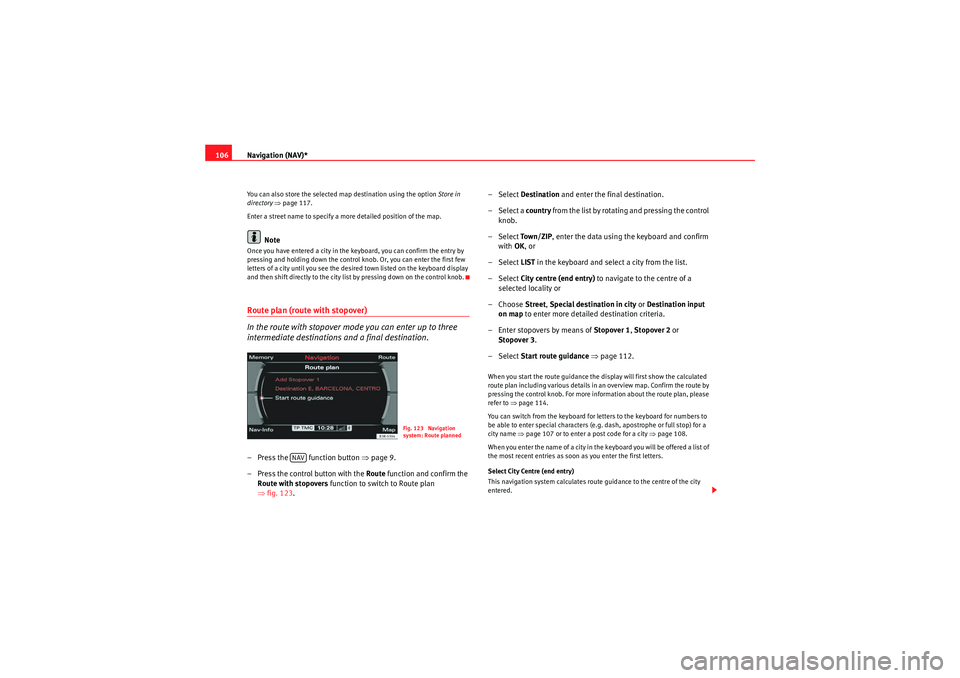
intermediate destinations and a final destination.– Press the function button ⇒page 9.
– Press the control button with the Route function and confirm the
Route with stopovers function to switch to Route plan
⇒ fig. 123 . – Select
Destination and enter the final destination.
– Select a country from the list by rotating and pressing the control
knob.
– Select To w n / Z I P , enter the data using the keyboard and confirm
with OK, or
– Select LIST in the keyboard and select a city from the list.
– Select City centre (end entry) to navigate to the centre of a
selected locality or
– Choose Street, Special destination in city or Destination input
on map to enter more detailed destination criteria.
– Enter stopovers by means of Stopover 1, Stopover 2 or
Stopover 3 .
– Select Start route guidance ⇒ page 112.
When you start the route guidance the display will first show the calculated
route plan including various details in an overview map. Confirm the route by
pressing the control knob. For more information about the route plan, please
refer to ⇒page 114.
You can switch from the keyboard for letters to the keyboard for numbers to
be able to enter special characters (e.g. dash, apostrophe or full stop) for a
city name ⇒page 107 or to enter a post code for a city ⇒page 108.
When you enter the name of a city in the keyboard you will be offered a list of
the most recent entries as soon as you enter the first letters.
Select City Centre (end entry)
This navigation system calculates route guidance to the centre of the city
entered.
Fig. 123 Navigation
system: Route planned
NAV
media_systemE_EN.book Seite 106 Montag, 21. September 2009 1:48 13
Page 108 of 167
Navigation (NAV)*107
Operating
RADIO, MEDIA (audiovisual
systems)
NAME, TEL
NAV, INFO
CAR, SETUP
Select Street
You can specify the destination more precisely by entering a street name.
After selecting the street, you can specify more detailed destination criteria
by entering an intersection
, a house number or through Enter destination on
map ⇒ page 111.
If you would like to find a street independently of the city, select Street
⇒ page 109 in the destination entry menu after selecting the country.
Select Special destination in city
You can select a special destination in the specified city. For example, you can
navigate directly to tourist attractions or public facilities (e.g. hospital,
cinema, recreation areas).
If this function is not available in the display (is greyed out) there are no
special destinations available for the city selected.
If you would like to find a particular special destination independently of the
city, select Special destination ⇒ page 110 in the destination entry menu
after selecting the country.
Select Destination entry on map
You can find destinations for a specified city from the map display.
If the map is being displayed to select a destination, the cursor is in the
centre of the city in question. By moving the cursor horizontally and vertically,
you can set a new destination ⇒page 129.
If additional information is available for the selected point on the map, you
can display it by selecting the Detail info function.
You can also select a stopover from the map display using the option Set as
stopover ⇒ page 120.
You can also store a selected map destination using the option Store in direc-
tory ⇒ page 117.
Enter a street name to specify a more detailed position of the map.
Note
•Once you have entered a city in the keyboard, you can confirm the entry
by pressing and holding down the control knob. Or, you can enter the first few
letters of a city until you see the desired town listed on the keyboard display
and then shift directly to the city list by pressing down on the control knob.•Once they have been entered, you can store route plans and then use
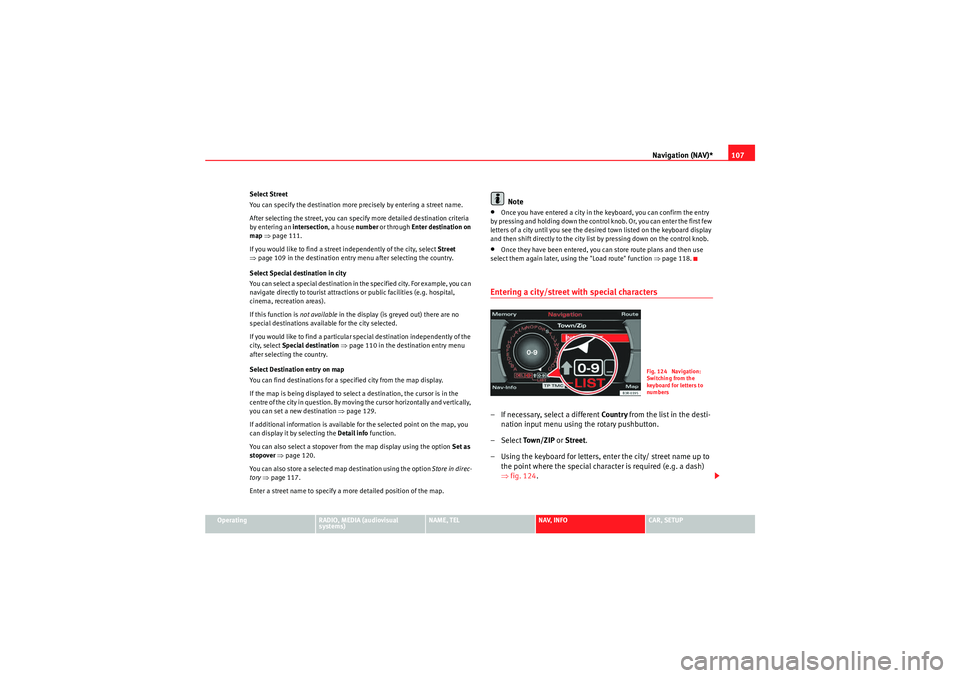
select them again later, using the "Load route" function ⇒page 118.Entering a city/street with special characters– If necessary, select a different Countr y from the list in the desti-
nation input menu using the rotary pushbutton.
– Select To w n / Z I P or Street .
– Using the keyboard for letters, enter the city/ street name up to the point where the special character is required (e.g. a dash)
⇒fig. 124 .
Fig. 124 Navigation:
Switching from the
keyboard for letters to
numbers
media_systemE_EN.book Seite 107 Montag, 21. September 2009 1:48 13
Page 113 of 167

Navigation (NAV)*
112
– Press the control knob to switch to the map side menu ⇒page 125.
– Change the map scale if required ⇒page 126.
– Activate the cursor in the active side menu by rotating and pressing the control knob ⇒page 129.
– Use the cursor to find the corresponding destination on the map.
– Press the button to disable the cursor.
– Select the third legend option (destination flag) ⇒page 111,
fig. 130 using the rotary pushbutton.
– Select Set as destination ⇒ page 111, fig. 131 .
– Enter stopover(s) if desired ⇒page 120.
– Select Start route guidance ⇒ page 112.If you enter a town in the destination input menu ⇒page 104, fig. 121 before
you press the control button Map, the map display will switch to the centre of
the town you have selected.
Select Detail info
If additional information is available for the selected point on the map, you
can display it by selecting the Detail info function. If the “Detail info” function
is greyed out, no details are available on the navigation DVD.
Select Set as stopover
You can set additional stopovers via the map display if the mode rou te with
stopover ⇒ page 120 is activated.
If you have not activated the mode route with stopover , this option cannot be
selected (it is greyed out). Option Store in directory
You can also store the selected point on the map in the directory ⇒
page 117.
This position can be assigned to an existing entry or to a new entry in the
directory. If you are creating a new entry, first enter a name using the
keyboard. You can then enter additional information for the entry. Should you
wish to have the entry listed in the destination input menu ⇒page 104,
fig. 121, select the option Display as top destination ⇒ page 115.
Note
•You can also select a destination from the map in the town and street
submenus ⇒page 104.•You can also set a point on the map as the destination using the cursor,
even if the destination is not located on a street (e.g. via position coordi-
nates). In such cases, the system attempts to bring you as close as possible
to your destination using digitalised streets.Starting route guidance
RETURN
A1
Fig. 132 Navigation
system: Start route guid-
ance
media_systemE_EN.book Seite 112 Montag, 21. September 2009 1:48 13
Page 114 of 167

Navigation (NAV)*113
Operating
RADIO, MEDIA (audiovisual
systems)
NAME, TEL
NAV, INFO
CAR, SETUP
– Enter all required information fo r the route guidance. To do so,
you can use any of the various options described on
⇒ page 104.
–Select Start route guidance ⇒ page 112, fig. 132 ; the route will
be calculated and the map will be automatically displayed.
– Using the rotary pushbutton, select one of the available routes shown on the map (applies only to route without stopover)
⇒page 113, or
– Press the rotary pushbutton to select the suggested route on the map ⇒page 114.After the route has been calculated the navigation system will automatically
switch to the map display mode. Route guidance is shown in simplified form
on the instrument panel display ⇒page 101. You will also receive spoken
navigation information ⇒page 100.
When you have entered a single destination ⇒page 104 and started route
guidance, you will be offered up to three different routes to reach your desti-
nation ⇒page 113.
Once you have entered a route plan and started route guidance an overview
map will be displayed showing all stopovers and various information
regarding the route ⇒ page 114.
Entered destinations can be saved ⇒page 117 and ⇒page 118.
Route criteria ⇒page 121 can be changed at any time during guidance and
the route will be recalculated.
If you start a route guidance, but do not complete it, this guidance will be
continued automatically when you start driving again. This also applies to
entered destinations that were not reached due to unexpected circumstances
(e.g. change of plans). To end route guidance, select Stop route guidance
⇒ page 115.
Note
Calculated destinations can also be changed on the map display by moving
the cursor ⇒page 129.Single destination navigation: Information before route guidanceOnce you have entered the destination ⇒page 104 you will be
offered up to three alternative routes ⇒fig. 133 .
– Select one of the possible routes by turning the rotary push- button.
– Press the rotary pushbutton to start the route guidance for the selected route.When you select a route by rotating the control knob, you are shown different
information about this route. The information pertaining to the selected route
is highlighted in white.
Fig. 133 Navigation:
Example of map display
after route has been calcu-
lated.
media_systemE_EN.book Seite 113 Montag, 21. September 2009 1:48 13
Page 115 of 167

Navigation (NAV)*
114The following information for individual routes can be displayed ⇒page 113,
fig. 133:
Route includes motorway sections
Calculated motorway kilometres/miles
Route includes toll road sections with indication of length of section
Route includes ferry connection(s)
Route includes motorrail section(s)
Route includes season-restricted roads
Route includes time-restricted roads
Estimated distance to destination
Estimated time of arrival at destination
Destination on the map
Possible route 1
Suggested route 2
Suggested route 3
Starting point highlighted (arrow)
Orientation
Map scale
Once you have entered a single destination in the system and started route
guidance, the route selection display will automatically appear.
In the route selection display the route which was calculated on the basis of
your criteria ⇒ page 121 is highlighted. For example: If you set fast in “Route
criteria”, the route with the shortest estimated time of arrival is highlighted
after switching automatically to the map display. You will also be offered a
second fastest route and a shortest route if they are available.
Should you not select one of the routes, the highlighted route will automati-
cally be set soon after you begin driving. During this time you can still decide
to select one of the other route options.
Note
The time required by the system for calculating the route plans depends on
the possible route options. Once the system has finished calculating the
routes they will be displayed on the map. The routes shown may overlap,
making it difficult to differentiate between them. In this case, please refer to
the mileage and estimated arrival time.Route plan information before starting route guidance– Press the rotary pushbutton to start the route guidance for the selected route with stopovers.When using the route with stopover mode the system will not calculate alter-
native routes. The route shown in the display corresponds to the selected
route criteria ⇒page 121.
The following information can be viewed before beginning route guidance
⇒ fig. 134 :
Route includes motorway sections
Calculated motorway kilometres/miles
A1A2A3A4A5A6A7A8A9A10A11A12A13A14A15A16
Fig. 134 Navigation
system: Example of route
map overview
A1A2
media_systemE_EN.book Seite 114 Montag, 21. September 2009 1:48 13