2012 Seat Exeo format
[x] Cancel search: formatPage 140 of 167
Navigation (NAV)*139
Operating
RADIO, MEDIA (audiovisual
systems)
NAME, TEL
NAV, INFO
CAR, SETUP
The software version of the current navigation DVD will be displayed.
Note
You can obtain information on updates for the navigation DVD from your
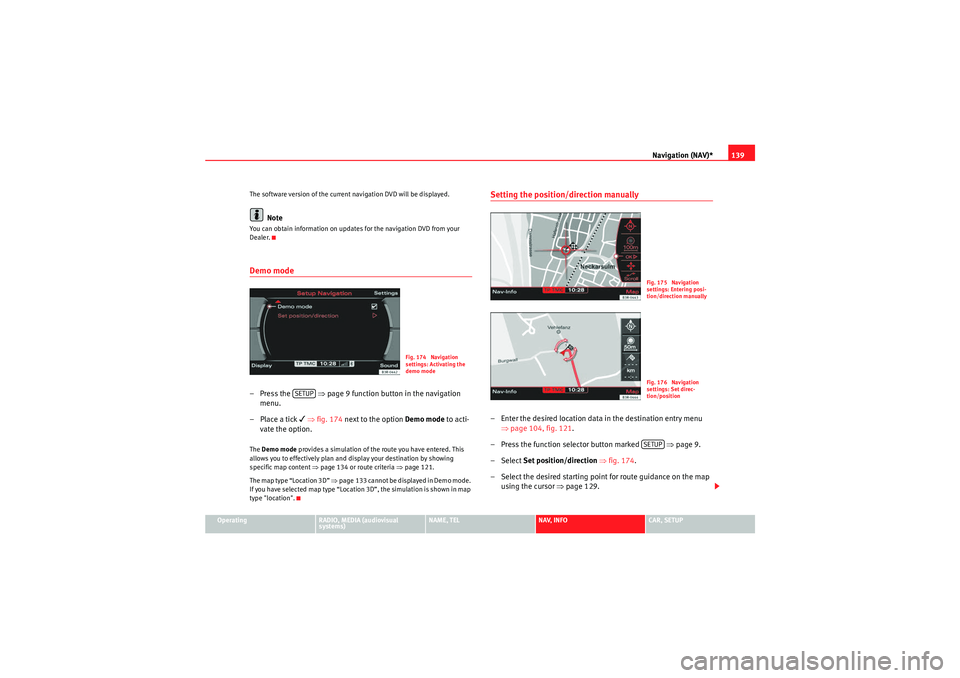
Dealer.Demo mode– Press the
⇒page 9 function button in the navigation
menu.
– Place a tick
⇒ fig. 174 next to the option Demo mode to acti-
vate the option.
The Demo mode provides a simulation of the route you have entered. This
allows you to effectively plan and display your destination by showing
specific map content ⇒page 134 or route criteria ⇒page 121.
The map type “Location 3D” ⇒page 133 cannot be displayed in Demo mode.
If you have selected map type “Location 3D”, the simulation is shown in map
type "location".
Setting the position/direction manually– Enter the desired location data in the destination entry menu ⇒page 104, fig. 121 .
– Press the function selector button marked ⇒page 9.
– Select Set position/direction ⇒ fig. 174.
– Select the desired starting point for route guidance on the map using the cursor ⇒page 129.
Fig. 174 Navigation
settings: Activating the
demo mode
SETUP
Fig. 175 Navigation
settings: Entering posi-
tion/direction manuallyFig. 176 Navigation
settings: Set direc-
tion/positionSETUP
media_systemE_EN.book Seite 139 Montag, 21. September 2009 1:48 13
Page 141 of 167
Navigation (NAV)*
140
– Select OK in the active side menu ⇒ page 139, fig. 175.
– Set the direction of the location ⇒page 139, fig. 176 by rotating
the control knob.
– When you press the control knob, the system automatically jumps back to the navigation setup menu.You can calculate the route from anothe r position than the present vehicle
location.
We recommend entering the data for the starting point into a destination
entry menu ⇒page 104, fig. 121 before you select the Set
Position/Direction . That way the system will jump to the point entered on the
map display. It is easier to set the location on the map from this point.
You can use the cursor to search for the starting point ⇒page 129. You can
manually enter the starting location of the vehicle, for example to calculate
future navigation routes starting from a location other than the current loca-
tion of the vehicle. Once you have set a location on the map, you can switch
to the destination input menu to enter the information for the desired desti-
nation. Use the demo mode to simulate a route guidance ⇒page 139.
Note
For technical reasons, setting the start location manually and simulating
route guidance in demo mode is only possible when the vehicle is stationary
and there is no GPS reception ⇒page 98 (e.g. in an underground garage).
media_systemE_EN.book Seite 140 Montag, 21. September 2009 1:48 13
Page 142 of 167
INFO (Traffic information)141
Operating
RADIO, MEDIA (audiovisual
systems)
NAME, TEL
NAV, INFO
CAR, SETUP
INFO (Traffic information)IntroductionIntroduction
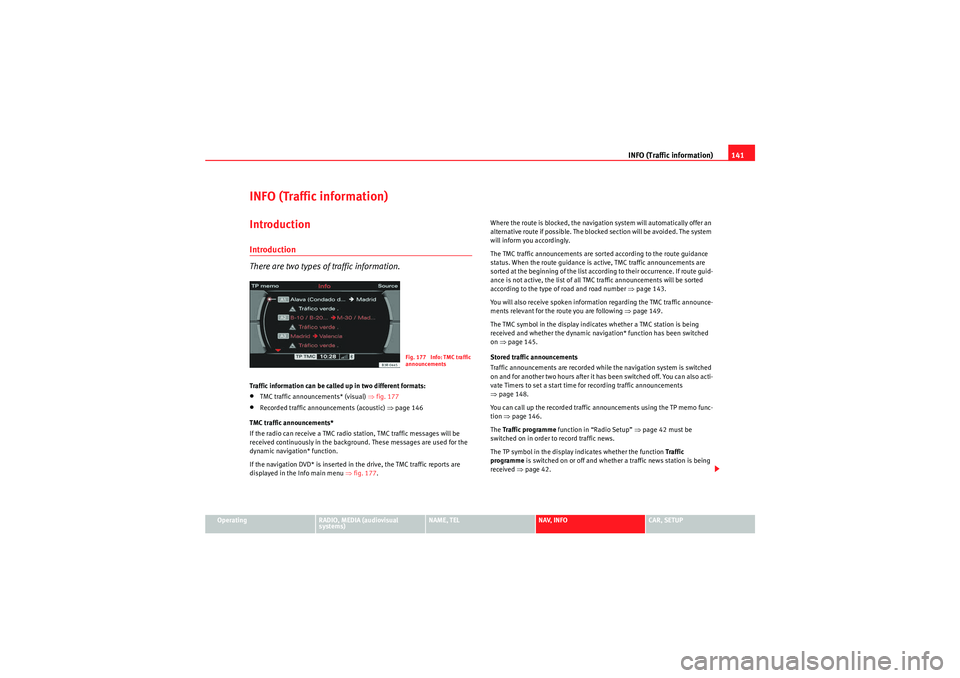
There are two types of traffic information.Traffic information can be called up in two different formats:•TMC traffic announcements* (visual) ⇒fig. 177•Recorded traffic announcements (acoustic) ⇒ page 146
TMC traffic announcements*
If the radio can receive a TMC radio station, TMC traffic messages will be
received continuously in the background. These messages are used for the
dynamic navigation* function.
If the navigation DVD* is inserted in the drive, the TMC traffic reports are
displayed in the Info main menu ⇒fig. 177 . Where the route is blocked, the navigation system will automatically offer an
alternative route if possible. The blocked section will be avoided. The system
will inform you accordingly.
The TMC traffic announcements are sorted according to the route guidance
status. When the route guidance is active, TMC traffic announcements are
sorted at the beginning of the list according to their occurrence. If route guid-
ance is not active, the list of all TMC traffic announcements will be sorted
according to the type of road and road number
⇒page 143.
You will also receive spoken information regarding the TMC traffic announce-
ments relevant for the route you are following ⇒ page 149.
The TMC symbol in the display indicates whether a TMC station is being
received and whether the dynamic navigation* function has been switched
on ⇒page 145.
Stored traffic announcements
Traffic announcements are recorded while the navigation system is switched
on and for another two hours after it has been switched off. You can also acti-
vate Timers to set a start time for recording traffic announcements
⇒ page 148.
You can call up the recorded traffic announcements using the TP memo func-
tion ⇒page 146.
The Traffic programme function in “Radio Setup” ⇒page 42 must be
switched on in order to record traffic news.
The TP symbol in the display indicates whether the function Traffic
programme is switched on or off and whether a traffic news station is being
received ⇒page 42.
Fig. 177 Info: TMC traffic
announcements
media_systemE_EN.book Seite 141 Montag, 21. September 2009 1:48 13
Page 143 of 167
INFO (Traffic information)
142
Note•You can select a preferred station for TMC reports* ⇒page 147.•When the dynamic navigation* ⇒page 121 is switched on, the route
guidance will automatically avoid any obstructions.Selecting traffic information
TMC traffic announcements* are displayed in the main menu;
recorded traffic announcements can be called up via “TP
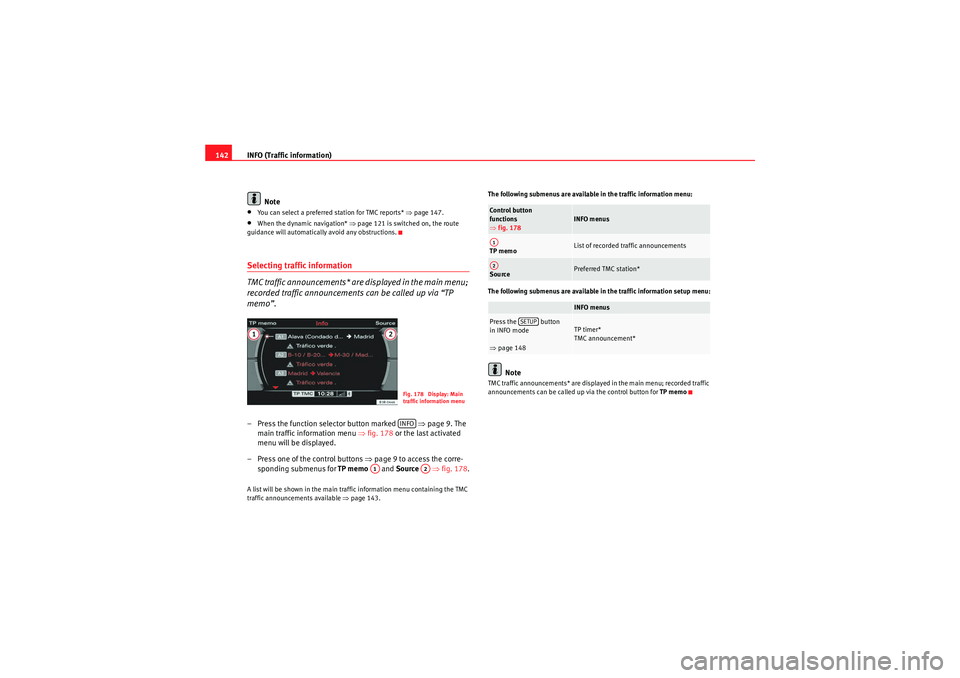
memo”.– Press the function selector button marked ⇒ page 9. The
main traffic information menu ⇒fig. 178 or the last activated
menu will be displayed.
– Press one of the control buttons ⇒page 9 to access the corre-
sponding submenus for TP memo and Source ⇒fig. 178 .A list will be shown in the main traffic information menu containing the TMC
traffic announcements available ⇒page 143. The following submenus are available in the traffic information menu:
The following submenus are available in the traffic information setup menu:
Note
TMC traffic announcements* are displayed in the main menu; recorded traffic
announcements can be called up via the control button for
TP memo
Fig. 178 Display: Main
traffic information menuINFO
A1
A2
Control button
functions
⇒fig. 178
INFO menus
TP memo
List of recorded traffic announcements
Source
Preferred TMC station*INFO menus
Press the button
in INFO mode
⇒page 148
TP timer*
TMC announcement*
A1A2
SETUP
media_systemE_EN.book Seite 142 Montag, 21. September 2009 1:48 13
Page 144 of 167
INFO (Traffic information)143
Operating
RADIO, MEDIA (audiovisual
systems)
NAME, TEL
NAV, INFO
CAR, SETUP
Main traffic information menuTraffic announcements
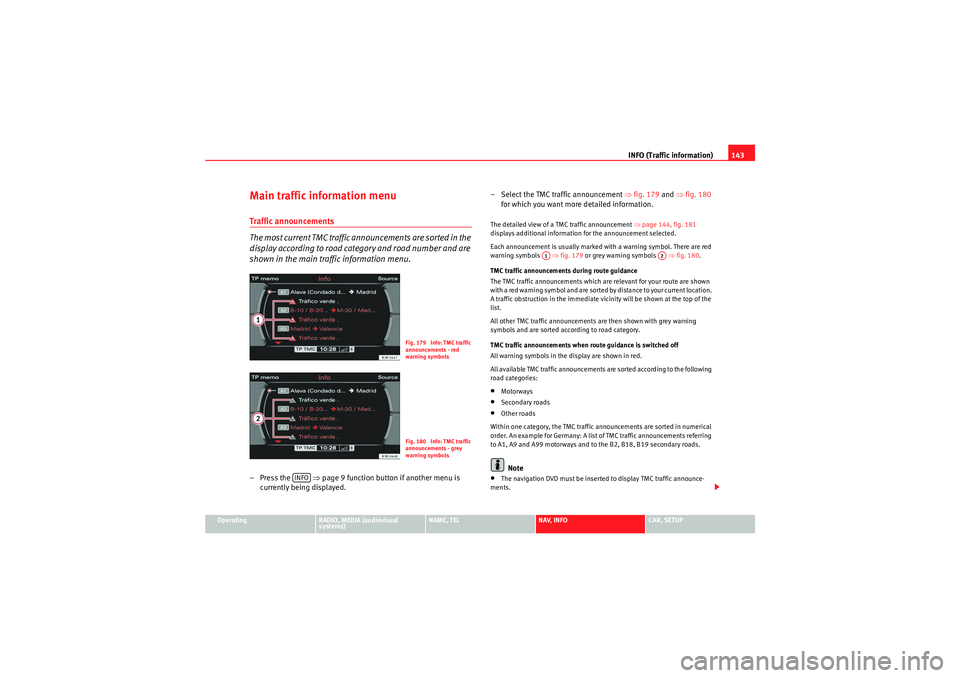
The most current TMC traffic announcements are sorted in the
display according to road category and road number and are
shown in the main traffic information menu.– Press the ⇒page 9 function button if another menu is
currently being displayed. – Select the TMC traffic announcement
⇒fig. 179 and ⇒ fig. 180
for which you want more detailed information.
The detailed view of a TMC traffic announcement ⇒page 144, fig. 181
displays additional information for the announcement selected.
Each announcement is usually marked with a warning symbol. There are red
warning symbols ⇒fig. 179 or grey warning symbols ⇒fig. 180.
TMC traffic announcements during route guidance
The TMC traffic announcements which are relevant for your route are shown
with a red warning symbol and are sorted by distance to your current location.
A traffic obstruction in the immediate vicinity will be shown at the top of the
list.
All other TMC traffic announcements are then shown with grey warning
symbols and are sorted according to road category.
TMC traffic announcements when route guidance is switched off
All warning symbols in the display are shown in red.
All available TMC traffic announcements are sorted according to the following
road categories:•Motorways•Secondary roads•Other roads
Within one category, the TMC traffic announcements are sorted in numerical
order. An example for Germany: A list of TMC traffic announcements referring
to A1, A9 and A99 motorways and to the B2, B18, B19 secondary roads.Note
•The navigation DVD must be inserted to display TMC traffic announce-
ments.
Fig. 179 Info: TMC traffic
announcements - red
warning symbolsFig. 180 Info: TMC traffic
announcements - grey
warning symbols
INFO
A1
A2
media_systemE_EN.book Seite 143 Montag, 21. September 2009 1:48 13
Page 145 of 167
INFO (Traffic information)
144•TMC traffic announcements of the highest priority (e.g. car travelling in
wrong direction) are displayed regardless of the main function you are using.
You can cancel these announcements by pressing the button.Consult the next TMC traffic announcement
You can scroll through the list of TMC traffic announcements
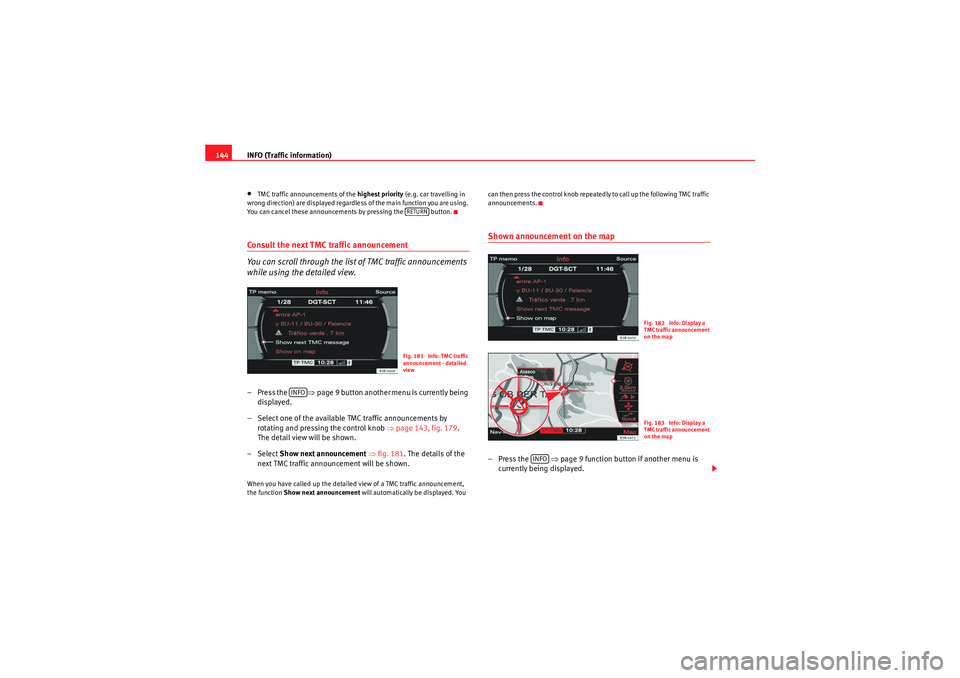
while using the detailed view.– Press the ⇒page 9 button another menu is currently being
displayed.
– Select one of the available TMC traffic announcements by rotating and pressing the control knob ⇒page 143, fig. 179 .
The detail view will be shown.
– Select Show next announcement ⇒ fig. 181 . The details of the
next TMC traffic announcement will be shown.When you have called up the detailed view of a TMC traffic announcement,
the function Show next announcement will automatically be displayed. You can then press the control knob repeatedly to call up the following TMC traffic
announcements.
Shown announcement on the map–Press the ⇒
page 9 function button if another menu is
currently being displayed.
RETURNFig. 181 Info: TMC traffic
announcement - detailed
vie w
INFO
Fig. 182 Info: Display a
TMC traffic announcement
on the mapFig. 183 Info: Display a
TMC traffic announcement
on the map
INFO
media_systemE_EN.book Seite 144 Montag, 21. September 2009 1:48 13
Page 146 of 167
INFO (Traffic information)145
Operating
RADIO, MEDIA (audiovisual
systems)
NAME, TEL
NAV, INFO
CAR, SETUP
– Select one of the available TMC traffic announcements by
rotating and pressing the control knob ⇒page 143, fig. 179 .
The detail view will be shown.
–Select Show announcement on map ⇒ page 144, fig. 182 . The
map will be displayed ⇒page 144, fig. 183 .When you select Show announcement on map , the system will automatically
jump to the position of the traffic obstruction on the map.
The extent of the traffic obstruction is marked with a red line. The arrow indi-
cates the direction of travel affected by the traffic obstruction ⇒page 144,
fig. 183 . From a certain zoom factor onwards, only the arrow indicating the
direction of travel affected by the traffic obstruction will be displayed.
Note
Whether this information can be displayed depends on the zoom scale you
have selected.TMC Symbol
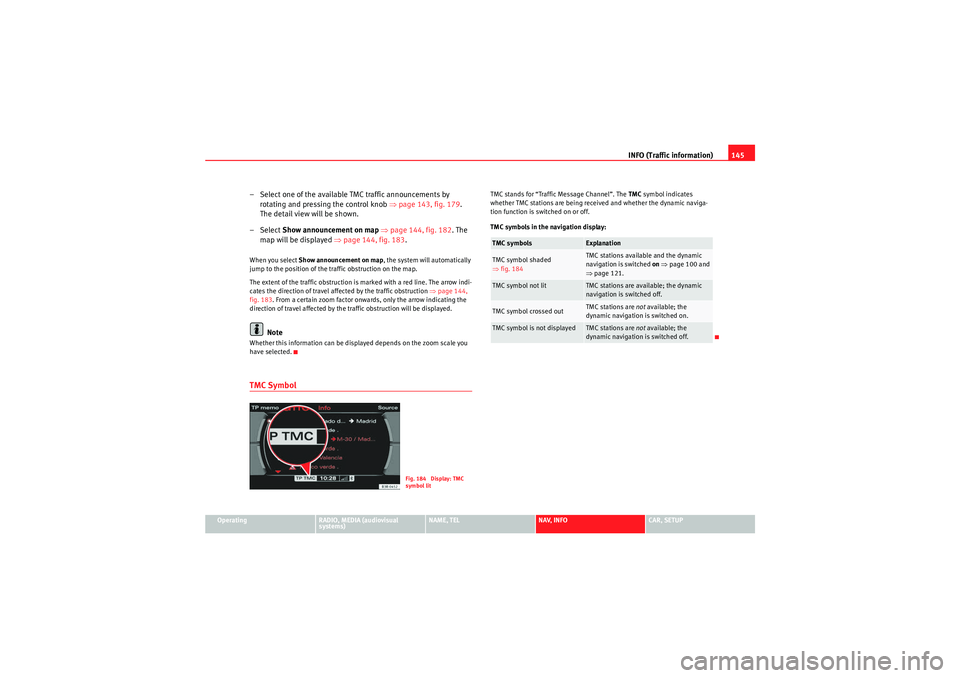
TMC stands for “Traffic Message Channel”. The TMC symbol indicates
whether TMC stations are being received and whether the dynamic naviga-
tion function is switched on or off.
TMC symbols in the navigation display:
Fig. 184 Display: TMC
symbol lit
TMC symbols
Explanation
TMC symbol shaded
⇒ fig. 184
TMC stations available and the dynamic
navigation is switched on ⇒ page 100 and
⇒ page 121.
TMC symbol not lit
TMC stations are available; the dynamic
navigation is switched off.
TMC symbol crossed out
TMC stations are not available; the
dynamic navigation is switched on.
TMC symbol is not displayed
TMC stations are not available; the
dynamic navigation is switched off.
media_systemE_EN.book Seite 145 Montag, 21. September 2009 1:48 13
Page 147 of 167
INFO (Traffic information)
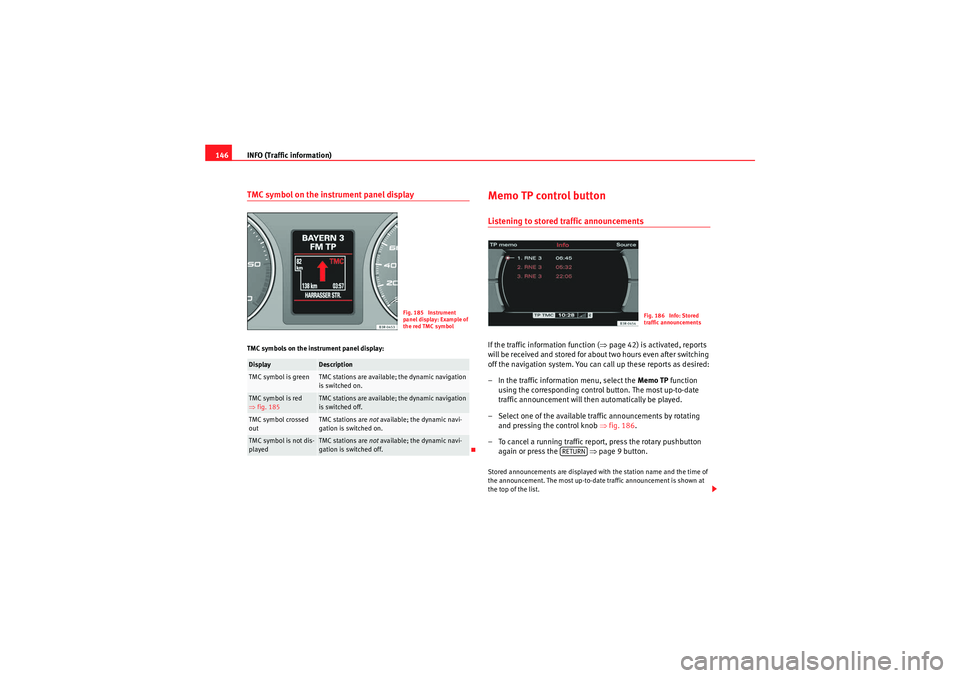
146TMC symbol on the instrument panel displayTMC symbols on the instrument panel display:
Memo TP control buttonListening to stored traffic announcementsIf the traffic information function ( ⇒page 42) is activated, reports
will be received and stored for about two hours even after switching
off the navigation system. You can call up these reports as desired:
– In the traffic information menu, select the Memo TP function
using the corresponding control button. The most up-to-date
traffic announcement will then automatically be played.
– Select one of the available traffic announcements by rotating and pressing the control knob ⇒fig. 186 .
– To cancel a running traffic repo rt, press the rotary pushbutton
again or press the ⇒page 9 button.Stored announcements are displayed with the station name and the time of
the announcement. The most up-to-date traffic announcement is shown at
the top of the list.
Display
Description
TMC symbol is green
TMC stations are available; the dynamic navigation
is switched on.
TMC symbol is red
⇒ fig. 185
TMC stations are available; the dynamic navigation
is switched off.
TMC symbol crossed
out
TMC stations are not available; the dynamic navi-
gation is switched on.
TMC symbol is not dis-
played
TMC stations are not available; the dynamic navi-
gation is switched off.
Fig. 185 Instrument
panel display: Example of
the red TMC symbol
Fig. 186 Info: Stored
traffic announcements
RETURN
media_systemE_EN.book Seite 146 Montag, 21. September 2009 1:48 13