2012 Seat Exeo format
[x] Cancel search: formatPage 116 of 167

Navigation (NAV)*115
Operating
RADIO, MEDIA (audiovisual
systems)
NAME, TEL
NAV, INFO
CAR, SETUP
Route includes toll road sections with indication of length of section
Route includes ferry connection(s)
Route includes motorrail section(s)
Route includes season-restricted roads
Route includes time-restricted roads
Estimated distance to destination
Estimated time of arrival at destination
Starting point highlighted (arrow)
Stopover 1 on the map
Stopover 2 on the map
Stopover 3 on the map
Final destination on the map
Orientation
Map scale
Changing/Interrupting route guidance– Press the button or the button.
–Select
Stop route guidance .
– Change the information if necessary.
–Select Start route guidance .The previously entered data and settings remain unchanged even when you
cancel the route guidance. This means you can change e.g. the route criteria
⇒page 121 and then re-calculate the route.
If you start a route guidance, but do not complete it, this guidance will be
continued automatically when you start driving again. This also applies to
entered destinations that were not reached due to unexpected circumstances (e.g. change of plans). To end route guidance, select Stop route guidance
⇒ page 115.
Note
Calculated destinations can also be changed on the map display by moving
the cursor ⇒page 129.To p d e s t i n a t i o n s
A3A4A5A6A7A8A9A10A11A12A13A14A15A16
NAV
RETURN
Fig. 135 Navigation
system: Set entry as top
destinationFig. 136 Navigation
system: Map display of a
top destination (push pin)
media_systemE_EN.book Seite 115 Montag, 21. September 2009 1:48 13
Page 117 of 167

Navigation (NAV)*
116
– In the main navigation menu ⇒ page 104, fig. 121, select the
top destination from the “Start route guidance” list.
– Select Start route guidance ⇒ page 112.If you have activated the Display as top destination function when making
entries in the directory ( ⇒page 117 or ⇒page 66) ⇒page 115, fig. 135 ,
they are listed in a destination entry menu ⇒page 104, fig. 121 under the
menu item “Start route guidance” ⇒page 118.
You can choose to have entries which are stored in the directory as top desti-
nations displayed with a “push pin” on the map ⇒ page 115, fig. 136; to
activate this function, call up the “Map contents” submenu and place a
checkmark
next to Top destinations ⇒ page 134.
"Memory" MenuLast destinations
The last entered destinations are stored and can be loaded
directly as a new destination.
–Press the Memory control button in the navigation menu.
– Select Last destinations ⇒ fig. 137 . You will see a list of the most
recently entered destinations. This list is updated automatically.
– Select the desired station from the list of radio stations.
– Select Start route guidance ⇒ page 112.
Note•There are sometimes destination entries in the list that cannot be
displayed completely because they are too long (too many characters). If you
select one of these entries using the control knob, a second window will open
up after a few seconds. This screen will show more information about the
selected entry.•You can delete the list of last destinations in the Setup Navigation menu
⇒ page 135.To p c a te g o r i e s
Fig. 137 Navigation:
Select last destinations
Fig. 138 Navigation: Top
categories
media_systemE_EN.book Seite 116 Montag, 21. September 2009 1:48 13
Page 120 of 167

Navigation (NAV)*119
Operating
RADIO, MEDIA (audiovisual
systems)
NAME, TEL
NAV, INFO
CAR, SETUP
– Enter a route plan ⇒page 118, fig. 141 .
– Press the Memory control button.
–Select Store route .
– Use the keyboard to enter a name for the route you want to store.
–Select OK in the alphanumeric keyboard. The route plan you
entered will be stored.You can store a destination and up to three stopovers in the route plan
⇒ page 106. You can then drive to these destinations in the order that you
set.
The route entered will be saved with the final destination and stopovers and
can be loaded again as a new destination ⇒page 119.
You can edit the route plan at any time as necessary. To do so, select one of
the destinations and press the control knob. You can then select Edit, Move ,
Delete or Drive to now as desired ⇒ page 119.
If you have selected Drive to now and do not wish to edit the route the system
will use the existing route plan and the current start position once you have
confirmed Start route guidance .
If the option Store route is greyed out this indicates that the route memory is
full or that the mode Route without stopover is activated. Delete routes not
needed from the route memory ⇒page 120. Or select the Route with
stopover function ⇒page 120.
Note
You can store individual destinations to the directory ⇒page 117.
Loading a route–Press the Memory control button in the navigation menu.
– Select Load route ⇒ page 116, fig. 137 .
– Select the route you would like to load from the list.
– Select Start route guidance .Route plans that have been stored ⇒page 118 can be loaded again quickly
and conveniently.
You can change the route plan at any time. To do so, select one of the desti-
nations and press the control knob. You can then select Edit, Move , Delete or
Drive to now as desired.
Modifying
To enter new information for the final destination or stopover.
Moving
To change the order of destinations in the route plan.
Deleting
To delete the selected final destination or stopover. If you delete the final
destination, a stopover will automatically be set as the new destination.
Driving to now
You can drive directly to the selected final destination or stopover.
If you do not want to edit the stored route, the route plan will be loaded upon
selecting Start route guidance and the starting point will be the current posi-
tion of the vehicle.
media_systemE_EN.book Seite 119 Montag, 21. September 2009 1:48 13
Page 122 of 167
Navigation (NAV)*121
Operating
RADIO, MEDIA (audiovisual
systems)
NAME, TEL
NAV, INFO
CAR, SETUP
Stopovers already entered can be deleted, changed or moved. You can also
drive to them immediately ⇒
page 119.
Route without stopover
Select this option to navigate directly to your destination.
Note
If you switch to the navigation function and you are shown the menu for Route
planning ⇒ page 120, fig. 143 , you are in Route guidance with stopover. If
you would like to navigate directly to a final destination, select and confirm
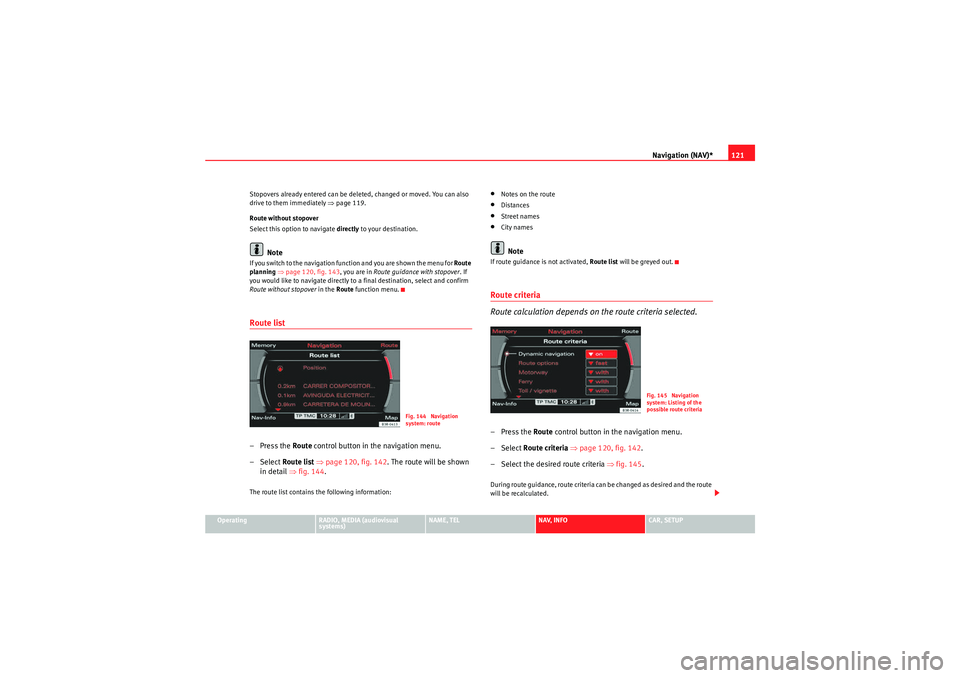
Route without stopover in the Route function menu.Route list– Press the Route control button in the navigation menu.
–Select Route list ⇒ page 120, fig. 142 . The route will be shown
in detail ⇒fig. 144 .The route list contains the following information:
•Notes on the route•Distances•Street names•City namesNote
If route guidance is not activated, Route list will be greyed out.Route criteria
Route calculation depends on the route criteria selected.–Press the Route control button in the navigation menu.
– Select Route criteria ⇒ page 120, fig. 142 .
– Select the desired route criteria ⇒fig. 145 .During route guidance, route criteria can be changed as desired and the route
will be recalculated.
Fig. 144 Navigation
system: route
Fig. 145 Navigation
system: Listing of the
possible route criteria
media_systemE_EN.book Seite 121 Montag, 21. September 2009 1:48 13
Page 123 of 167
Navigation (NAV)*
122The following route criteria are available:
Dynamic navigation
Select on or off. The dynamic navigation function optimises a route plan by
using the most current TMC traffic messages to recalculate routes and avoid
traffic jams etc.
For more information about the dynamic navigation function, please refer to
⇒ page 100.
Route options
If you select fast , the system will calculate a route that takes you to your desti-
nation as quickly as possible. If you select short the system will calculate a
route that is as short as possible.
Motorway
Comprising the options include or exclude from the route. By choosing avoid
Motorway , the system will attempt to plan a route without motorway
sections. However, if the final destination is more than 300 km away,
motorway sections will not be avoided.
Ferry
Comprising the options include or exclude from the route. By choosing avoid
Ferry , the system will attempt to plan a route without using ferry connections.
Toll road
Comprising the options include or exclude from the route. By choosing avoid
toll road , the system will attempt to plan a route without using toll roads.
Time-restricted road
Comprising the options include or exclude from the route. If you select avoid
time-restricted road the system will try to exclude such roads when calcu-
lating the route. However, only those roads stored on the navigation DVD as
time-restricted roads can be avoided.
When avoid has been selected these roads will be avoided regardless of the
time of day and the day of the week. This means that roads which are blocked at night and therefore listed as time-restricted, will always be excluded from
the route if this option is activated.
Season-restricted road
Comprising the options include
or exclude from the route. If you select avoid
season-restricted road the system will try to exclude such roads when calcu-
lating the route. However, only those roads stored on the navigation DVD as
season-restricted roads can be avoided.
When avoid has been selected these roads will be avoided regardless of the
season. If a road is, for example, closed in winter, it will be excluded in the
route calculation even during the summer months.
Motorrail
Comprising the options include or exclude from the route. When you have
selected avoid Motorrail , the system will attempt to plan a route without
using Motorrail sections. However, only those sections stored on the naviga-
tion DVD as Motorrail can be avoided.
Note
•If you would like to avoid a route criterion but this makes route guidance
impossible, this criterion is still included when calculating the route (e.g.
ferry to Ireland). A voice message will inform you of this.•If the navigation does not display a detour route, although dynamic navi-
gation function is on and a traffic jam has been reported on the planned
route, this is because the estimated time required for the detour is longer
than the estimated time required for remaining on the route with the traffic
jam.
media_systemE_EN.book Seite 122 Montag, 21. September 2009 1:48 13
Page 124 of 167
Navigation (NAV)*123
Operating
RADIO, MEDIA (audiovisual
systems)
NAME, TEL
NAV, INFO
CAR, SETUP
Avoiding route sectionsThis function is available once you start travelling on a calculated
route.
– Press the Route control button in the navigation menu.
–Select Avoid route from here ⇒ page 120, fig. 142 .
– Turn the control knob to select the appropriate section on the current route.
– Confirm the section to be avoided by pressing the control knob.The navigation system will attempt to calculate an alternative route plan for
the section you want to avoid.
If you stop and then restart the route guidance, it will be necessary to re-enter
the route section to avoid.
Note
•If the function Avoid route from here is greyed out and the navigation
system is not able to offer an alternative route, this indicates that there is no
suitable detour.•If you do not follow the calculated route or if you leave the route, the
system will automatically calculate a new route plan based on your current
location.
Map control buttonIntroduction
There are various displays for maps and information with
different options possible.Map representation:•Map and information representation during route guidance with inactive
side menu ⇒ page 124•Map representation with active side menu ⇒ page 125Note
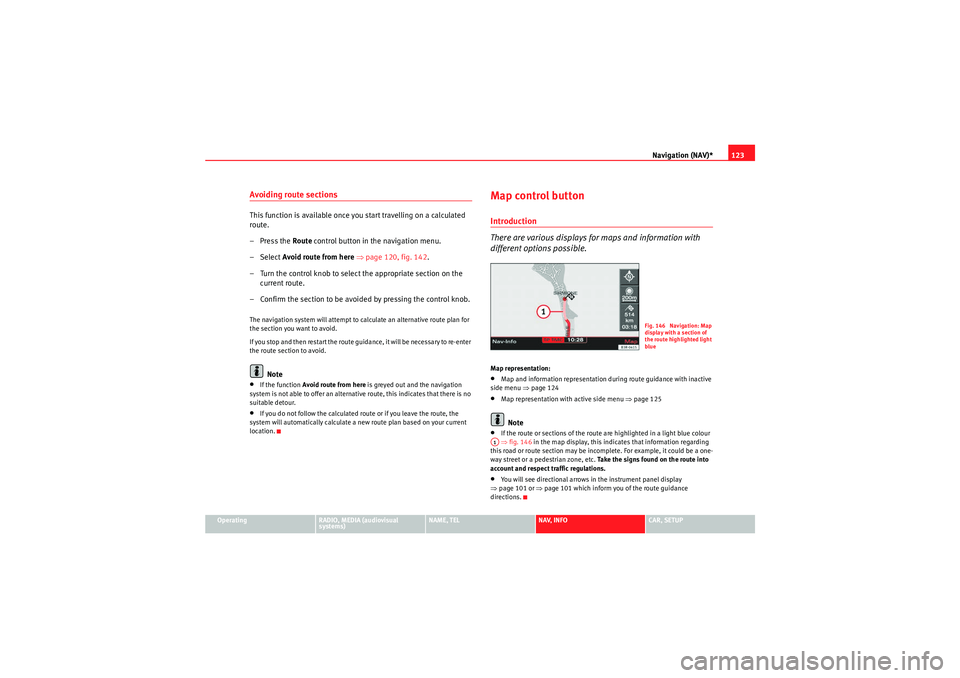
•If the route or sections of the route are highlighted in a light blue colour
⇒ fig. 146 in the map display, this indicates that information regarding
this road or route section may be incomplete. For example, it could be a one-
way street or a pedestrian zone, etc. Take the signs found on the route into
account and respect traffic regulations.•You will see directional arrows in the instrument panel display
⇒ page 101 or ⇒page 101 which inform you of the route guidance
directions.
Fig. 146 Navigation: Map
display with a section of
the route highlighted light
blue
A1
media_systemE_EN.book Seite 123 Montag, 21. September 2009 1:48 13
Page 125 of 167
Navigation (NAV)*
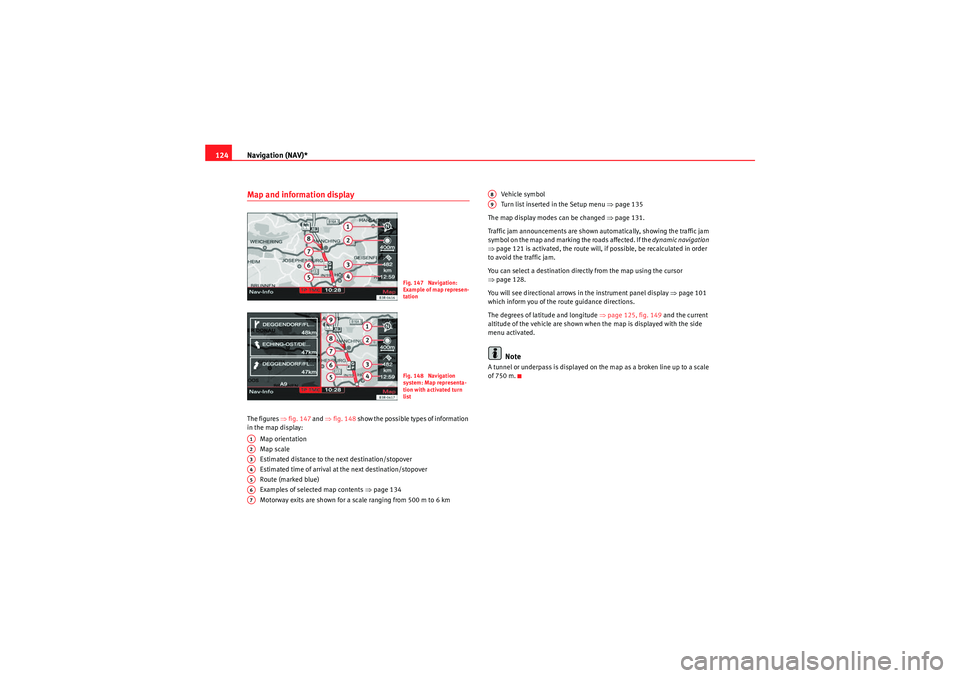
124Map and information displayThe figures ⇒fig. 147 and ⇒fig. 148 show the possible types of information
in the map display:
Map orientation
Map scale
Estimated distance to the next destination/stopover
Estimated time of arrival at the next destination/stopover
Route (marked blue)
Examples of selected map contents ⇒page 134
Motorway exits are shown for a scale ranging from 500 m to 6 km Vehicle symbol
Turn list inserted in the Setup menu
⇒page 135
The map display modes can be changed ⇒page 131.
Traffic jam announcements are shown automatically, showing the traffic jam
symbol on the map and marking the roads affected. If the dynamic navigation
⇒ page 121 is activated, the route will, if possible, be recalculated in order
to avoid the traffic jam.
You can select a destination directly from the map using the cursor
⇒ page 128.
You will see directional arrows in the instrument panel display ⇒page 101
which inform you of the route guidance directions.
The degrees of latitude and longitude ⇒page 125, fig. 149 and the current
altitude of the vehicle are shown when the map is displayed with the side
menu activated.
Note
A tunnel or underpass is displayed on the map as a broken line up to a scale
of 750 m.
Fig. 147 Navigation:
Example of map represen-
tationFig. 148 Navigation
system: Map representa-
tion with activated turn
list
A1A2A3A4A5A6A7
A8A9
media_systemE_EN.book Seite 124 Montag, 21. September 2009 1:48 13
Page 126 of 167
Navigation (NAV)*125
Operating
RADIO, MEDIA (audiovisual
systems)
NAME, TEL
NAV, INFO
CAR, SETUP
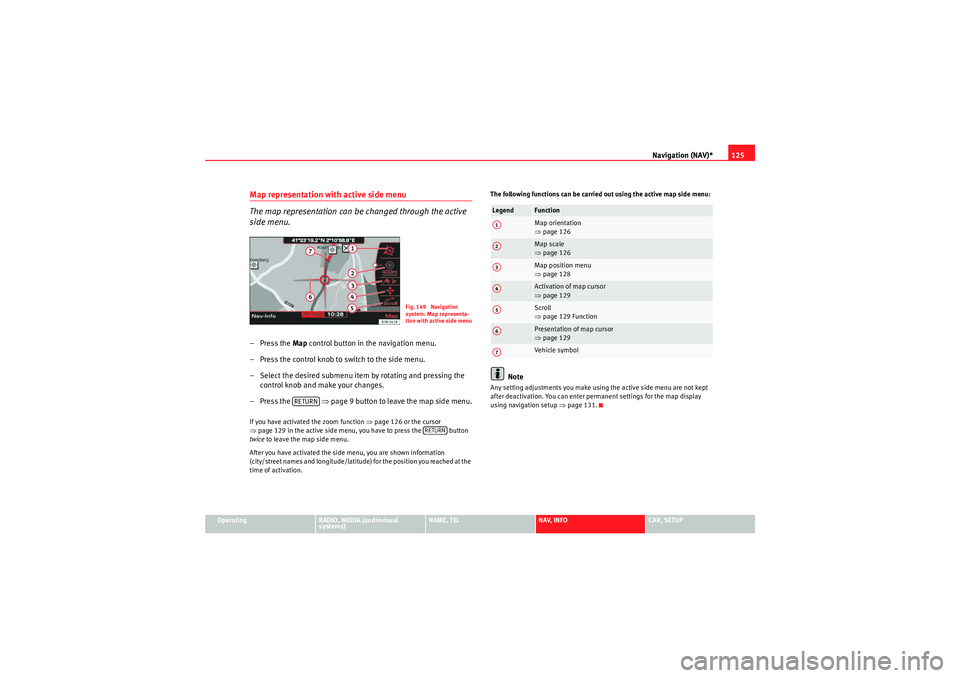
Map representation with active side menu
The map representation can be changed through the active
side menu.– Press the Map control button in the navigation menu.
– Press the control knob to switch to the side menu.
– Select the desired submenu item by rotating and pressing the control knob and make your changes.
– Press the ⇒page 9 button to leave the map side menu.If you have activated the zoom function ⇒page 126 or the cursor
⇒ page 129 in the active side menu, you have to press the button
twice to leave the map side menu.
After you have activated the side menu, you are shown information
(city/street names and longitude/latitude) for the position you reached at the
time of activation. The following functions can be carried out using the active map side menu:
Note
Any setting adjustments you make using the active side menu are not kept
after deactivation. You can enter permanent settings for the map display
using navigation setup
⇒page 131.
Fig. 149 Navigation
system: Map representa-
tion with active side menu
RETURN
RETURN
Legend
FunctionMap orientation
⇒page 126Map scale
⇒page 126Map position menu
⇒page 128Activation of map cursor
⇒page 129Scroll
⇒page 129 FunctionPresentation of map cursor
⇒page 129Vehicle symbol
A1A2A3A4A5A6A7
media_systemE_EN.book Seite 125 Montag, 21. September 2009 1:48 13