2012 Seat Exeo format
[x] Cancel search: formatPage 129 of 167

Navigation (NAV)*
128Map position– Press the Map control button in the navigation menu.
– Press the control knob to switch to the map side menu.
– Rotate the control knob to the third menu item ⇒fig. 153 .
– Press the control knob.
– Select Detail info , Set as destination , Set as stopover or Store in
directory as desired.
You can set the point on the map currently marked with the cursor as a desti-
nation or stopover, or store it to the directory. If additional information is
available for the selected point on the map, you can display it by selecting the
Detail info function.
You can also select a new point on the map by moving the cursor
⇒ page 129. You can then choose between the options Set as destination,
Set as stopover or Store in directory for the new point as desired.
You can use the option Set as stopover if you have selected the “route with
stopover” mode ⇒page 120.
Fig. 153 Navigation
system: Map positionFig. 154 Navigation
system: Map position
media_systemE_EN.book Seite 128 Montag, 21. September 2009 1:48 13
Page 130 of 167

Navigation (NAV)*129
Operating
RADIO, MEDIA (audiovisual
systems)
NAME, TEL
NAV, INFO
CAR, SETUP
Moving the cursor over the map
A new destination or stopover can be set using the map by
moving the cursor vertically or horizontally.– Press the Map control button in the navigation menu.
– Press the control knob to switch to the map side menu.
– Rotate the control knob to to the fourth menu item. – Press the control knob, the vertical line in the cursor is high-
lighted in white ⇒fig. 155 .
– Turn the rotary pushbutton to mark the point you wish to select.
– Press the control knob, the vertical line in the cursor is high- lighted in white ⇒fig. 156 .
– By pressing the control knob you can switch back and forth between horizontal and vertical movement.
If the cursor remains in a new position, detailed information (e.g. street or city
name) will be displayed for the current position.
Press the button once to leave the cursor setting and use other map
menu items via the active side menu. Press the button again to deac-
tivate the side menu.Scroll Function–Press the Map control button in the navigation menu.
Fig. 155 Navigation
system: Moving the
cursor horizontallyFig. 156 Navigation
system: Moving the
cursor vertically
RETURN
RETURN
Fig. 157 Navigation
system: Scrolling the map
media_systemE_EN.book Seite 129 Montag, 21. September 2009 1:48 13
Page 131 of 167

Navigation (NAV)*
130
– Press the control knob to switch to the map side menu.
– Rotate the control knob to to the fifth menu option apart from the map.
– Press the control knob to activate the scroll function by following the route established ⇒ page 129, fig. 157
– Press the ⇒page 9 button to leave the map side
menu.Nav-Info control buttonNavigation information
–Press the Navi-Info control button in the navigation menu. You
are shown the final destination or next stopover with address,
distance and estimated time of arrival ⇒fig. 158 .
– Rotate the control knob counter-clockwise. The data for the next stopovers or destination will be displayed.
– Rotate the control knob clockwise. The data for your current loca-
tion with its geographic data and the number of receivable satel-
lites will be displayed ⇒fig. 159 .The following data is provided:•City•Stopovers•Estimated time of arrival•Distance to destination•Location of your vehicle•Geographic location of your vehicle (longitude and latitude)•Receivable satellites
The last navigation announcement will also be repeated.
RETURN
Fig. 158 Navigation
system: Destination infor-
mation
Fig. 159 Navigation
system: Geographic data
(longitude and latitude)
media_systemE_EN.book Seite 130 Montag, 21. September 2009 1:48 13
Page 132 of 167

Navigation (NAV)*131
Operating
RADIO, MEDIA (audiovisual
systems)
NAME, TEL
NAV, INFO
CAR, SETUP
Navigation settingsOpening and closing navigation settings menu– In a Navigation menu, press the function button to open
the main navigation setup menu ⇒fig. 160 .
– Press the button again to close the main setup menu.The following settings are possible in navigation setup menu:•Map scheme ⇒ page 132
•Orientation ⇒page 132•Map type ⇒ page 133•Voice information ⇒ page 134•Map contents ⇒page 134•Delete last destinations ⇒page 135•Turn list ⇒page 135•Motorway info ⇒ page 136•Intersection map ⇒page 137•Auto intersection zoom ⇒page 137•Compass ⇒page 138•Version information ⇒page 138•Demo mode ⇒page 139•Set position/direction ⇒page 139
The sound and tuning settings and the brightness of the display can be
altered using the control buttons ⇒page 153.Note
We recommend that you enter these settings when the vehicle is stationary.
Please note ⇒ page 6, “Notes on road safety”.
Fig. 160 Navigation
settings: Main menu
(page 1)Fig. 161 Navigation
settings: Main menu
(page 2)
SETUP
SETUP
media_systemE_EN.book Seite 131 Montag, 21. September 2009 1:48 13
Page 135 of 167

Navigation (NAV)*
134Spoken navigation directions– Press the ⇒page 9 function button in the navigation
menu.
– Select the desired setting under Voice g uida nce ⇒ fig. 165 .•Set to on : You will receive spoken navigation directions during route guid-
ance.•Set to off : You will NOT receive any spoken navigation directions during
route guidance.•Set to off (tel.) : You will hear spoken navigation directions during route
guidance, but NOT while you are on the phone.
Map content
In addition to the information displayed automatically, the
map can also display other information.Activating the map contents
–Press the ⇒ page 9 function button in the navigation
menu.
– Select Map contents ⇒ page 131, fig. 160 .
– Use the rotary pushbutton to select the information you want to have displayed. A tick
will appear next to the options that are
selected ⇒ fig. 166, or
– Select the All categories option and press the control knob so
that a check mark
appears after All categories. The tick box
will also appear after all the options.
Deactivating individual map contents
–Press the ⇒ page 9 function button in the navigation
menu.
Fig. 165 Navigation
settings: Voice informa-
tion
SETUP
Fig. 166 Navigation
settings: Map contents
list
SETUPSETUP
media_systemE_EN.book Seite 134 Montag, 21. September 2009 1:48 13
Page 136 of 167

Navigation (NAV)*135
Operating
RADIO, MEDIA (audiovisual
systems)
NAME, TEL
NAV, INFO
CAR, SETUP
–Select Map contents ⇒ page 131, fig. 160 .
– Use the rotary pushbutton to remove the tick
if you do not want
to have the information shown on the map.
Deactivating all map contents
– Press the ⇒page 9 function button in the navigation
menu.
–Select Map contents ⇒ page 131, fig. 160 .
– First select the All filters option and press the control knob so
that the tick box appears after it
. The tick box
will also
appear after all the options.
– Then press the control knob again and the check marks
after
all the options will disappear.
In addition to the information displayed automatically, the map can also
display other information.
You can select the map contents to be displayed as desired. The map
contents are displayed in accordance with the selected map scale.Delete last destinations– Press the ⇒page 9 function button in the navigation
menu.
–Select Delete last destinations ⇒ page 131, fig. 160 .
–Confirm Are you sure you want to delete the route? with Ye s. The
entire list of last destinations is deleted ⇒page 116.
Turn l ist
During the route guidance a list of upcoming turns (including
distance) is displayed.–Press the ⇒page 9 function button in the navigation
menu.
– Place a tick
⇒ page 131, fig. 161 next to the option Tu r n l ist to
activate the option.
The turn list displays the next three upcoming turns ⇒ fig. 167.
The next upcoming turn is listed at the lowest position in the list.
Once you have completed the manoeuvre, it will be removed from the list. The
next turn will drop down from above, etc.
The following information is displayed in the turn list:•Recommended turning direction, roundabouts and slip roads, stopovers
and final destination•Names of all roads on to which you should turn•Distance to the corresponding manoeuvre and final destination
SETUPSETUP
Fig. 167 Navigation
settings: Map display
with turn list activated
SETUP
A1
media_systemE_EN.book Seite 135 Montag, 21. September 2009 1:48 13
Page 137 of 167
Navigation (NAV)*
136The name beneath the three-line turn list is the name of the road you are
currently driving on.
Note
If you have activated both the turn list and the motorway information function
⇒ page 136, the motorway information list will be displayed when driving on
the motorway ⇒ fig. 168, and the turn list ⇒ page 135, fig. 167 will
be displayed on all other roads.Motorway info
When driving on the motorway you will receive information
about parking areas, motorway exits, rest areas, etc. if the
function is activated.– Press the ⇒page 9 function button in the navigation
menu.
– Highlight Motorway info with a check mark
⇒ page 131,
fig. 161 to activate the function.
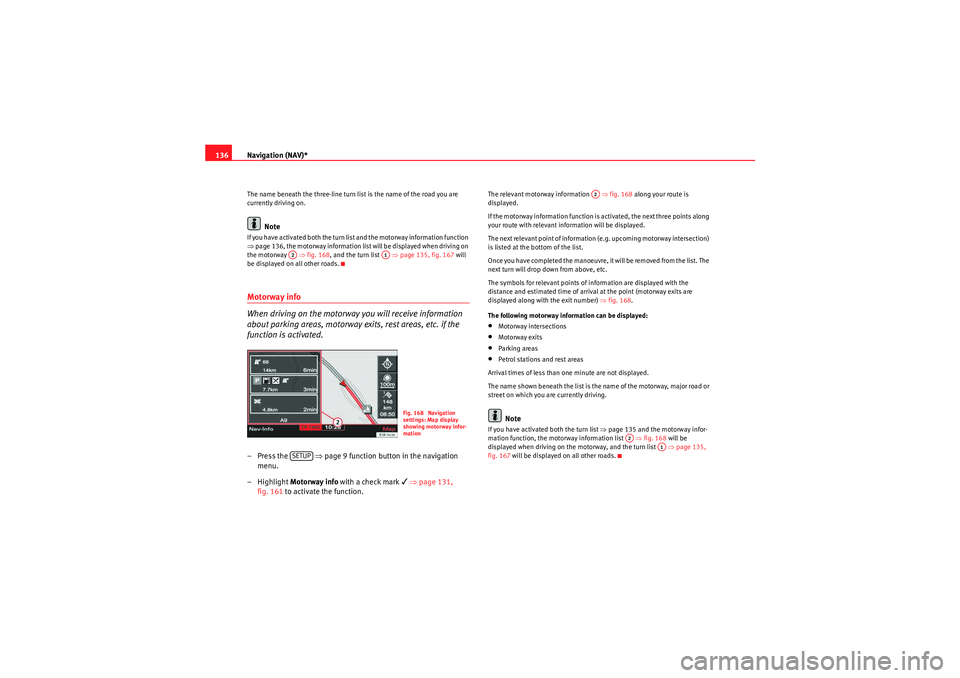
The relevant motorway information ⇒fig. 168 along your route is
displayed.
If the motorway information function is activated, the next three points along
your route with relevant information will be displayed.
The next relevant point of information (e.g. upcoming motorway intersection)
is listed at the bottom of the list.
Once you have completed the manoeuvre, it will be removed from the list. The
next turn will drop down from above, etc.
The symbols for relevant points of information are displayed with the
distance and estimated time of arrival at the point (motorway exits are
displayed along with the exit number) ⇒fig. 168 .
The following motorway information can be displayed:•Motorway intersections•Motorway exits•Parking areas•Petrol stations and rest areas
Arrival times of less than one minute are not displayed.
The name shown beneath the list is the name of the motorway, major road or
street on which you are currently driving.Note
If you have activated both the turn list ⇒page 135 and the motorway infor-
mation function, the motorway information list ⇒fig. 168 will be
displayed when driving on the motorway, and the turn list ⇒page 135,
fig. 167 will be displayed on all other roads.
A2
A1
Fig. 168 Navigation
settings: Map display
showing motorway infor-
mation
SETUP
A2
A2
A1
media_systemE_EN.book Seite 136 Montag, 21. September 2009 1:48 13
Page 139 of 167
Navigation (NAV)*
138If you have activated the Auto intersection zoom and have set the
Destination , Location or Location 3D map type ⇒page 133, the map will
automatically zoom in at intersections. This provides a better view of the road
layout.
If you activate the Auto intersection zoom function, the Intersection map
function will be deactivated automatically. These two functions are mutually
exclusive.Co mp ass
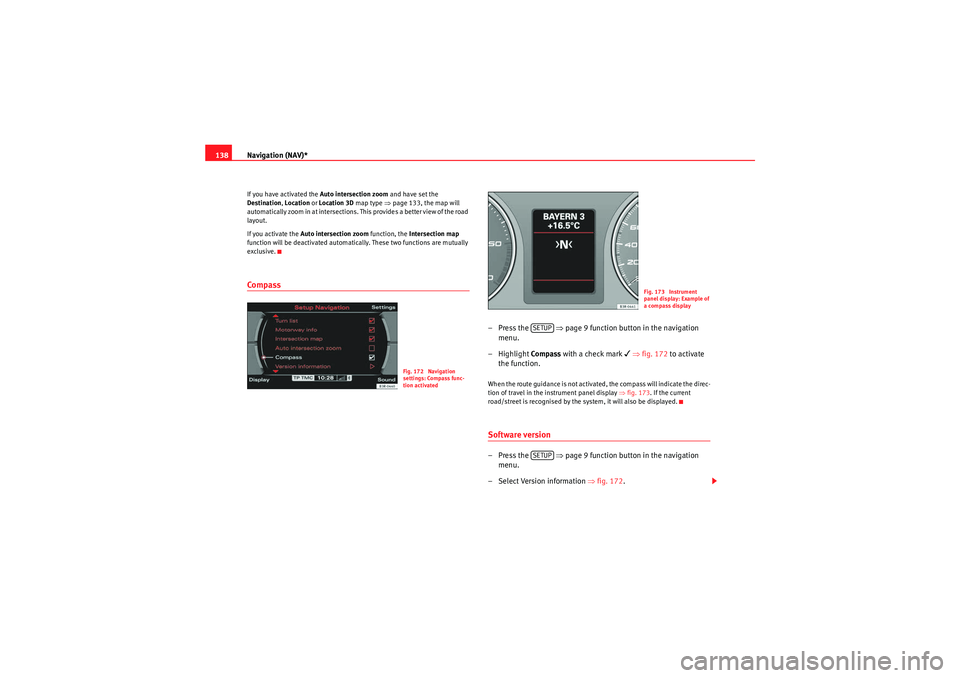
–Press the ⇒ page 9 function button in the navigation
menu.
– Highlight Compass with a check mark
⇒ fig. 172 to activate
the function.
When the route guidance is not activated, the compass will indicate the direc-
tion of travel in the instrument panel display ⇒fig. 173. If the current
road/street is recognised by the system, it will also be displayed.Software version–Press the ⇒ page 9 function button in the navigation
menu.
– Select Version information ⇒fig. 172 .
Fig. 172 Navigation
settings: Compass func-
tion activated
Fig. 173 Instrument
panel display: Example of
a compass display
SETUPSETUP
media_systemE_EN.book Seite 138 Montag, 21. September 2009 1:48 13