2012 Seat Exeo format
[x] Cancel search: formatPage 13 of 167

Handling: General information
12Multi-function steering wheel*Introduction
The multi-function steering wh eel enables quick and easy
operation of selected functions of the navigation system.
To minimise driver distraction when operating the navigation system and its
components, buttons for controlling basic audio and video* functions are
placed on the multi-function steering wheel. However, this applies only if
your vehicle equipment was factory-fitted.
The functions are operated by pressing and scrolling the controls to on
the multi-function steering wheel ⇒fig. 11 :•Press the button repeatedly to switch the display between the
various modes and the phone book* ⇒fig. 11 .•Scroll and press the left thumbwheel to select a function from one of
the menus.•The telephone speech control system* ⇒page 86 is enabled by pressing
the talk button . Press the talk button again to disable the telephone
speech control system*.•Scroll the right thumbwheel up/down to raise/lower the volume as
desired. When you adjust the volume for one audio mode, this will automati-
cally change the volume settings of the other audio systems as well. You can
set the volume for the telephone* or speech control system* independently
of the audio systems.
Fig. 11 Controls on the
multi-function steering
wheel
Fig. 12 Instrument panel
display: Phone book entry
of on-board phone
memory (telephone
mode)
AA
AD
MODE
AB
A1AA
AC
AD
media_systemE_EN.book Seite 12 Montag, 21. September 2009 1:48 13
Page 14 of 167

Handling: General information13
Operating
RADIO, MEDIA (audiovisual
systems)
NAME, TEL
NAV, INFO
CAR, SETUP
•Press the right thumbwheel while the route guidance is enabled to
repeat the last navigation voice cue*.Note
•During an active call, the speech commands of the telephone* cannot be
enabled.•If certain equipment has not been installed in the vehicle, the multi-func-
tion steering wheel assigned to that equipment will be inoperative.Radio modeSelecting the radio
– Press the button ⇒page 12, fig. 11 until a
station/station name from the radio station list appears in the
instrument panel display.
Changing between stations in the radio station list
–Use the left thumbwheel ⇒ page 12, fig. 11 to scroll
up/down
1).
Tuning
– Press the left thumbwheel once to start the station search ⇒page 12, fig. 11 .
– Press the left thumbwheel again to stop the station search.
If you hear only a hissing noise when you change stations, the current station
number has not been assigned or the selected station is currently not within
the reception range.CD/MP3 ModeSelecting CD/MP3 mode
–Press the button ⇒ page 12, fig. 11 until a CD or MP3
track appears in the instrument panel display.
Next/previous track
– Use the left thumbwheel ⇒page 12, fig. 11 to scroll
up/down.
Fast forward
– Press and hold the left thumbwheel to start the fast forward ⇒page 12, fig. 11 .
– Release the left thumbwheel again to continue listening to the CD.Scroll the left thumbwheel up or down several click stops to skip up or down
through the tracks.Te l e p h o n e m o d e *Selecting a phone number
–Press the button ⇒page 12, fig. 11 until a telephone
number appears in the instrument panel display.
1)When the navigation system display shows the radio memory list you can also use the
left thumbwheel to select a station from the list.
AD
MODE
ABAAAAAA
MODE
ABAA
AA
MODE
AB
media_systemE_EN.book Seite 13 Montag, 21. September 2009 1:48 13
Page 15 of 167

Handling: General information
14
Making a call
–Use the left thumbwheel ⇒page 12, fig. 11 to scroll up and
down through the phone book.
– Press the left thumbwheel . The number is dialled and the audio system is muted automatically.
Answering or ending calls
– Press the left thumbwheel ⇒page 12, fig. 11 .
Rejecting a call
– Press and hold the left thumbwheel ⇒page 12, fig. 11 .
Replacing a call
– If a second call is received (call waiting), briefly press the left thumbwheel ⇒page 12, fig. 11 . The current call will be
ended and you will be connected with the second caller.The following telephone status messages appear on the display in the instru-
ment panel: Phone numbers can be stored in different categories in the mobile phone
directory. These categories are displayed as follows:
P Private phone number
W Work phone number
M Mobile phone number
Scroll the left thumbwheel downwards to scroll down the list of stored names
from
A to Z . Scroll the left thumbwheel upwards to scroll up the list of stored
names from Z to A. If you "flick" the left thumbwheel you can jump to the next
letter of the alphabet.
Note
The information shown on the instrument panel display depends on the type
of mobile phone used.
Please wait...
The SIM card memory is being scanned.
SIM CARD
There is no SIM card in the mobile phone.
PIN CODE
The PIN code has not yet been entered.
NO SERVICE
No network connection
CALL
A call is active or incoming. If the caller's telephone
number is available, the display will alternately
give the caller's number and the message CALL .
LINE ENGAGED
Number dialled is engaged.
AAAAAA
AA
AA
TELEPHONE OFF
The telephone is switched off.
CALLING
The connection is being established.
NO ENTRIES
The phone book has no entries.
media_systemE_EN.book Seite 14 Montag, 21. September 2009 1:48 13
Page 17 of 167
Display
16 Roaming symbol*
If your vehicle is equipped with a mobile phone installation* and is not using
your home network, the roaming symbol will also appear in the title line.
Mobile network service provider*
If your vehicle is equipped with a mobile phone installation*, the name of the
mobile network service provider your phone is using will appear in the title
line.
The name of the mobile network service provider as it appears in the display
may be different from the name that appears in the phone display.
Subtitle
The subtitle shows detailed information about the selected menu option,
such as Numbers dialled ⇒ page 15, fig. 14.
Submenu display centre
In the centre of the display, the available options in the particular menu are
listed or notes are displayed.
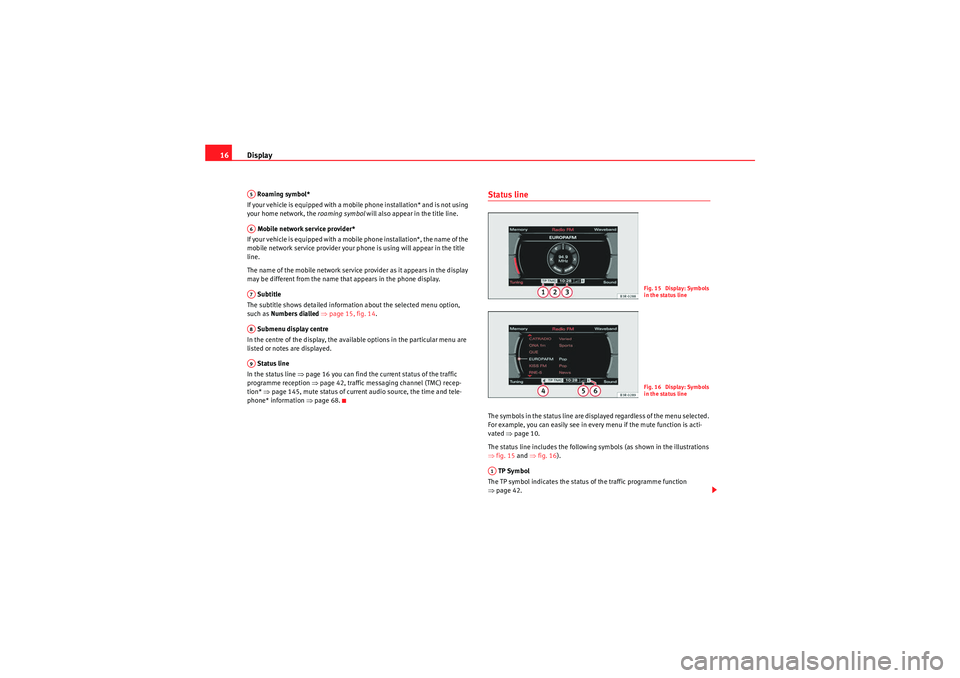
Status line
In the status line ⇒ page 16 you can find the current status of the traffic
programme reception ⇒ page 42, traffic messaging channel (TMC) recep-
tion* ⇒page 145, mute status of current audio source, the time and tele-
phone* information ⇒page 68.
Status lineThe symbols in the status line are displayed regardless of the menu selected.
For example, you can easily see in every menu if the mute function is acti-
vated ⇒page 10.
The status line includes the following symbols (as shown in the illustrations
⇒ fig. 15 and ⇒fig. 16 ).
TP Symbol
The TP symbol indicates the status of the traffic programme function
⇒ page 42.
A5A6A7A8A9
Fig. 15 Display: Symbols
in the status lineFig. 16 Display: Symbols
in the status line
A1
media_systemE_EN.book Seite 16 Montag, 21. September 2009 1:48 13
Page 23 of 167
Drives
22DrivesSystem drivesGeneral observations
The navigation DVD, audio CDs, MP3 CDs and memory cards
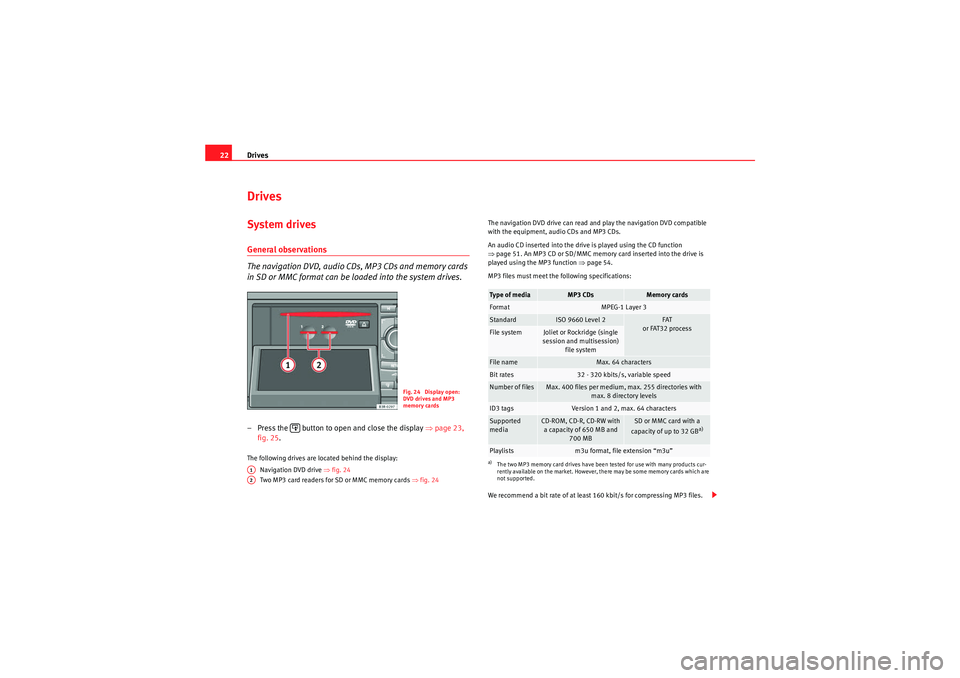
in SD or MMC format can be loaded into the system drives.– Press the button to open and close the display ⇒page 23,
fig. 25 .The following drives are located behind the display:
Navigation DVD drive ⇒ fig. 24
Two MP3 card readers for SD or MMC memory cards ⇒fig. 24 The navigation DVD drive can read and play the navigation DVD compatible
with the equipment, audio CDs and MP3 CDs.
An audio CD inserted into the drive is played using the CD function
⇒
page 51. An MP3 CD or SD/MMC memory card inserted into the drive is
played using the MP3 function ⇒ page 54.
MP3 files must meet the following specifications:
We recommend a bit rate of at least 160 kbit/s for compressing MP3 files.
Fig. 24 Display open:
DVD drives and MP3
memory cards
A1A2
Type of media
MP3 CDs
Memory cards
Format
MPEG-1 Layer 3
Standard
ISO 9660 Level 2
FAT
or FAT32 process
File system
Joliet or Rockridge (single
session and multisession) file system
File name
Max. 64 characters
Bit rates
32 - 320 kbits/s, variable speed
Number of files
Max. 400 files per medium, max. 255 directories with max. 8 directory levels
ID3 tags
Version 1 and 2, max. 64 characters
Supported
media
CD-ROM, CD-R, CD-RW with a capacity of 650 MB and 700 MB
SD or MMC card with a
capacity of up to 32 GB
a)
a)The two MP3 memory card drives have been tested for use with many products cur-
rently available on the market. However, there may be some memory cards which are
not supported.Playlists
m3u format, file extension “m3u”
media_systemE_EN.book Seite 22 Montag, 21. September 2009 1:48 13
Page 26 of 167
Drives25
Operating
RADIO, MEDIA (audiovisual
systems)
NAME, TEL
NAV, INFO
CAR, SETUP
Loading a memory card
The navigation system is equipped with two MP3 memory
card readers.
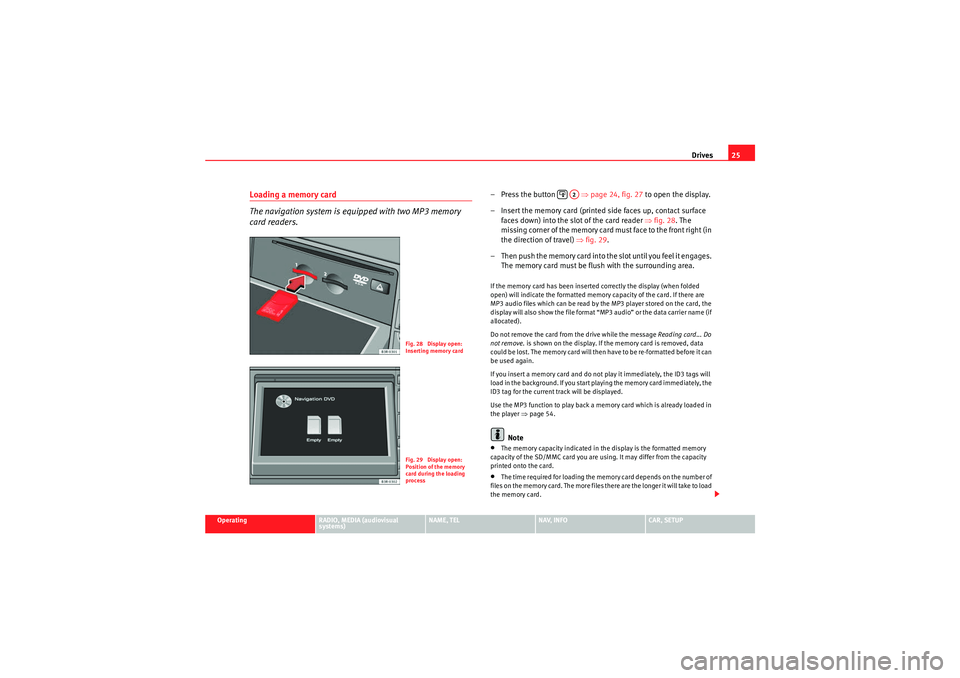
– Press the button ⇒page 24, fig. 27 to open the display.
– Insert the memory card (printed side faces up, contact surface faces down) into the slot of the card reader ⇒fig. 28. The
missing corner of the memory card must face to the front right (in
the direction of travel) ⇒fig. 29 .
– T h e n p u s h t h e m e m o r y c a r d i n t o t h e s l o t u n t i l y o u f e e l i t e n g a g e s . The memory card must be flush with the surrounding area.If the memory card has been inserted correctly the display (when folded
open) will indicate the formatted memory capacity of the card. If there are
MP3 audio files which can be read by the MP3 player stored on the card, the
display will also show the file format “MP3 audio” or the data carrier name (if
allocated).
Do not remove the card from the drive while the message Reading card... Do
not remove. is shown on the display. If the memory card is removed, data
could be lost. The memory card will then have to be re-formatted before it can
be used again.
If you insert a memory card and do not play it immediately, the ID3 tags will
load in the background. If you start playing the memory card immediately, the
ID3 tag for the current track will be displayed.
Use the MP3 function to play back a memory card which is already loaded in
the player ⇒ page 54.
Note
•The memory capacity indicated in the display is the formatted memory
capacity of the SD/MMC card you are using. It may differ from the capacity
printed onto the card.•The time required for loading the memory card depends on the number of
files on the memory card. The more files there are the longer it will take to load
the memory card.
Fig. 28 Display open:
Inserting memory cardFig. 29 Display open:
Position of the memory
card during the loading
process
A2
media_systemE_EN.book Seite 25 Montag, 21. September 2009 1:48 13
Page 27 of 167
Drives
26•Please observe the notes for handling memory cards ⇒page 28.Removing a card– Press the button ⇒page 24, fig. 27 to open the display.
– Briefly press the memory card ⇒fig. 30 . The card is released
from the slot.
– Remove the memory card.When the memory card has been removed, the open display will show Empty.
Do not remove the card from the drive while the message Reading card... Do
not remove. is shown on the display. If the memory card is removed, data
could be lost. The memory card will then have to be re-formatted before it can
be used again.
Note
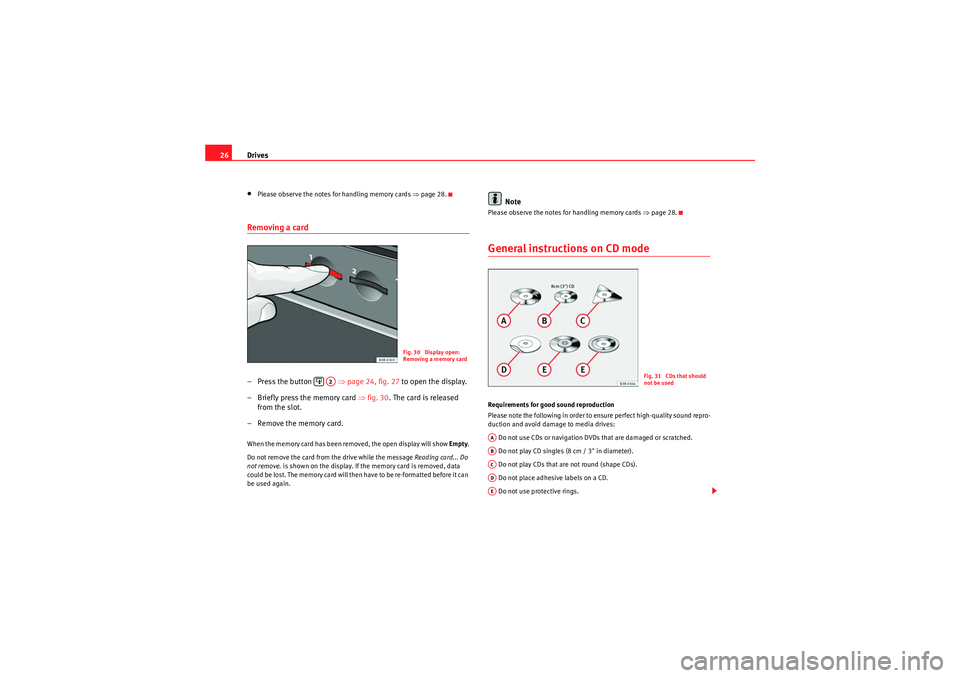
Please observe the notes for handling memory cards ⇒page 28.General instructions on CD modeRequirements for good sound reproduction
Please note the following in order to ensure perfect high-quality sound repro-
duction and avoid damage to media drives:
Do not use CDs or navigation DVDs that are damaged or scratched.
Do not play CD singles (8 cm / 3" in diameter).
Do not play CDs that are not round (shape CDs).
Do not place adhesive labels on a CD.
Do not use protective rings.
Fig. 30 Display open:
Removing a memory card
A2
Fig. 31 CDs that should
not be used
AAABACADAE
media_systemE_EN.book Seite 26 Montag, 21. September 2009 1:48 13
Page 28 of 167
Drives27
Operating
RADIO, MEDIA (audiovisual
systems)
NAME, TEL
NAV, INFO
CAR, SETUP
Do not use dirty CDs or navigation DVDs
Do not use CD covers/stabilisers
Always keep unused CDs or navigation DVDs in a suitable case and never
expose them to direct sunlight.
Cleaning drives and CDs or navigation DVDs
Never use a CD player cleaning disc to clean drives.
Clean CDs or navigation DVDs with a soft lint-free cloth. Wipe the disc in a
straight line from the centre outwards. If necessary, stubborn stains can be
removed with a commercially available CD cleaner or with isopropyl alcohol.
Please never use petrol, paint thinner or vinyl record cleaner, as these can
damage the CDs or the navigation DVDs.
Use of laser equipment
Laser devices are categorised according to DIN IEC 76 (CO) 6/VDE 0837 into
four safety classes. The audio devices used in your vehicle are classified as
safety class 1. Lasers used in devices that fall into this category are very weak
and well shielded, so there is no danger if used correctly.
Error messages
The following may be the reason for a read error on the display:
Note
•It is possible that you may not be able to play CDs which are copy-
protected or CDs containing CD ROM format that do not correspond to the
standard for audio CDs in your player. Only CDs that comply with this
standard have the logo “Compact Disc Digital Audio” printed on the CD.•At extremely high or low outside temperatures, it is possible that the play-
back of a DVD/CD will temporarily not function. A thermostat switch is
installed to protect the DVD/CDs and the reading laser.•Never remove the cover of the equipment. The equipment has no compo-
nents that can be serviced by the owner.Problem
Solution
The navigation DVD, audio CD or
MP3 CD is dirty.
Clean the CD.
The navigation DVD, audio CD or
MP3 CD is scratched.
Check the CD for scratches.
The navigation DVD, audio CD or
MP3 CD has been inserted upside
down.
Insert the CD with the printed side
upwards.
There is condensation on the naviga-
tion DVD, audio CD or MP3 CD.
Wait until the equipment is dry.
The drive mechanism is malfunction-
ing.
Contact a Dealer or qualified work-
shop.
media_systemE_EN.book Seite 27 Montag, 21. September 2009 1:48 13