Page 323 of 592
323
3-3. Using the rear audio system
3
Interior features
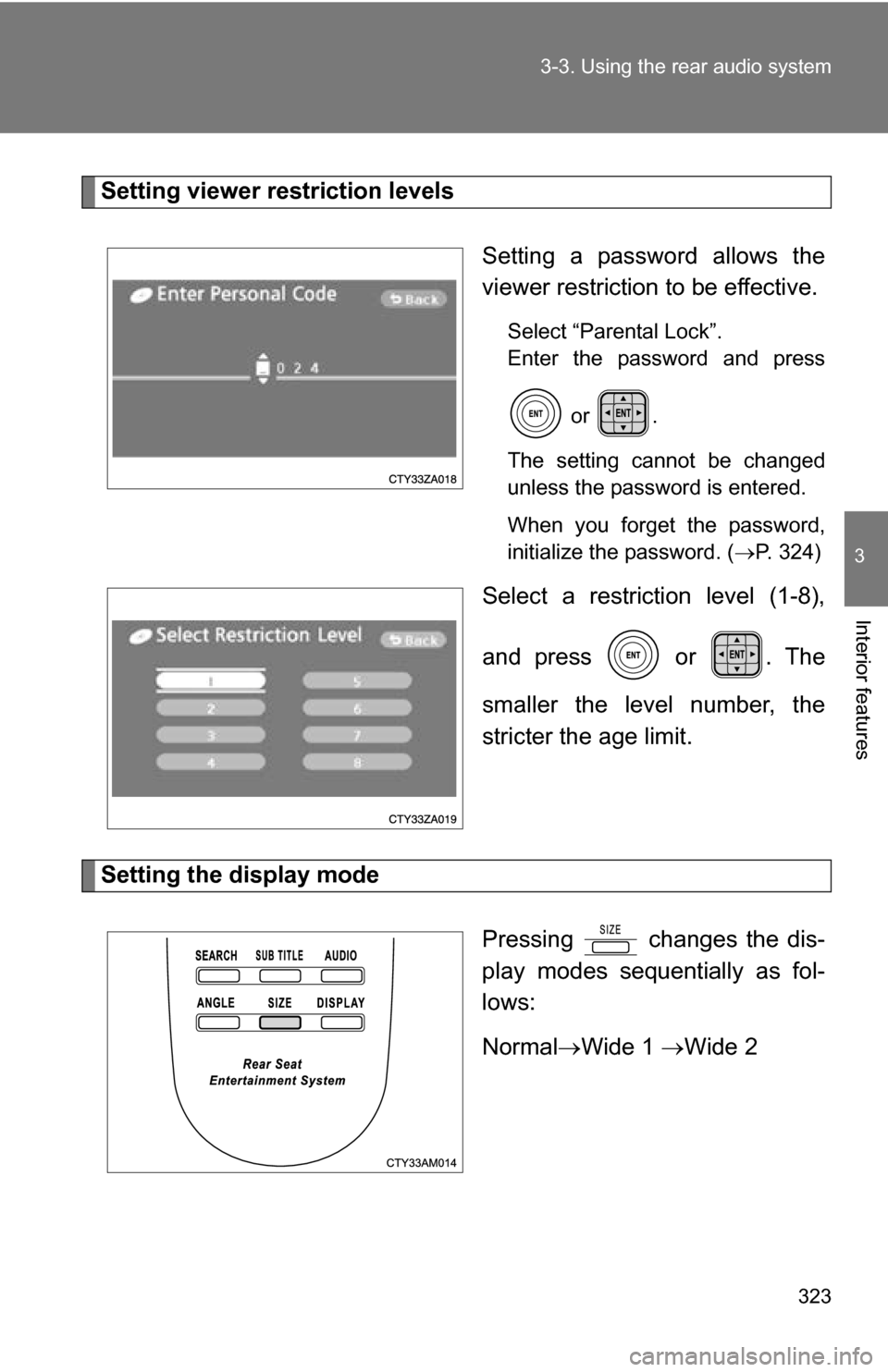
Setting viewer restriction levels
Setting a password allows the
viewer restriction to be effective.
Select “Parental Lock”.
Enter the password and press or .
The setting cannot be changed
unless the password is entered.
When you forget the password,
initialize the password. ( P. 324)
Select a restriction level (1-8),
and press or . The
smaller the level number, the
stricter the age limit.
Setting the display mode
Pressing changes the dis-
play modes sequentially as fol-
lows:
NormalWide 1 Wide 2
Page 324 of 592
324 3-3. Using the rear audio system
■Returning to the previous screen
Select and press or .
■ To initialize the password
Press on the remote controller or unit ten times when the screen to enter
the personal code is displayed.
■ Language code list
CodeLanguage
0514 English
0618 French
0405 German
0920 Italian
0519 Spanish
2608 Chinese
1412 Dutch
1620 Portuguese
1922 Swedish
1821 Russian 1115 Korean
0512 Greek
0101 Afar
0102 Abkhazian
0106 Afrikaans 0113 Amharic
0118 Arabic
0119 Assamese
0125 Aymara
0126 Azerbaijani
0201 Bashkir
0205 Byelorussian
0207 Bulgarian
0208 Bihari
0209 Bislama
0214 Bengali
0215 Tibetan
0218 Breton
0301 Catalan
0315 Corsican
0319 Czech
0325 Welsh
0401 Danish
0426 Bhutani
0515 Esperanto
0520 Estonian
0521 Basque
0601 Persian
0609 Finnish
0610 Fiji
0615 Faroese
0625 Frisian
0701 Irish
0704 Scots-Gaelic
0712 Galician
0714 Guarani
CodeLanguage
Page 326 of 592
326 3-3. Using the rear audio system
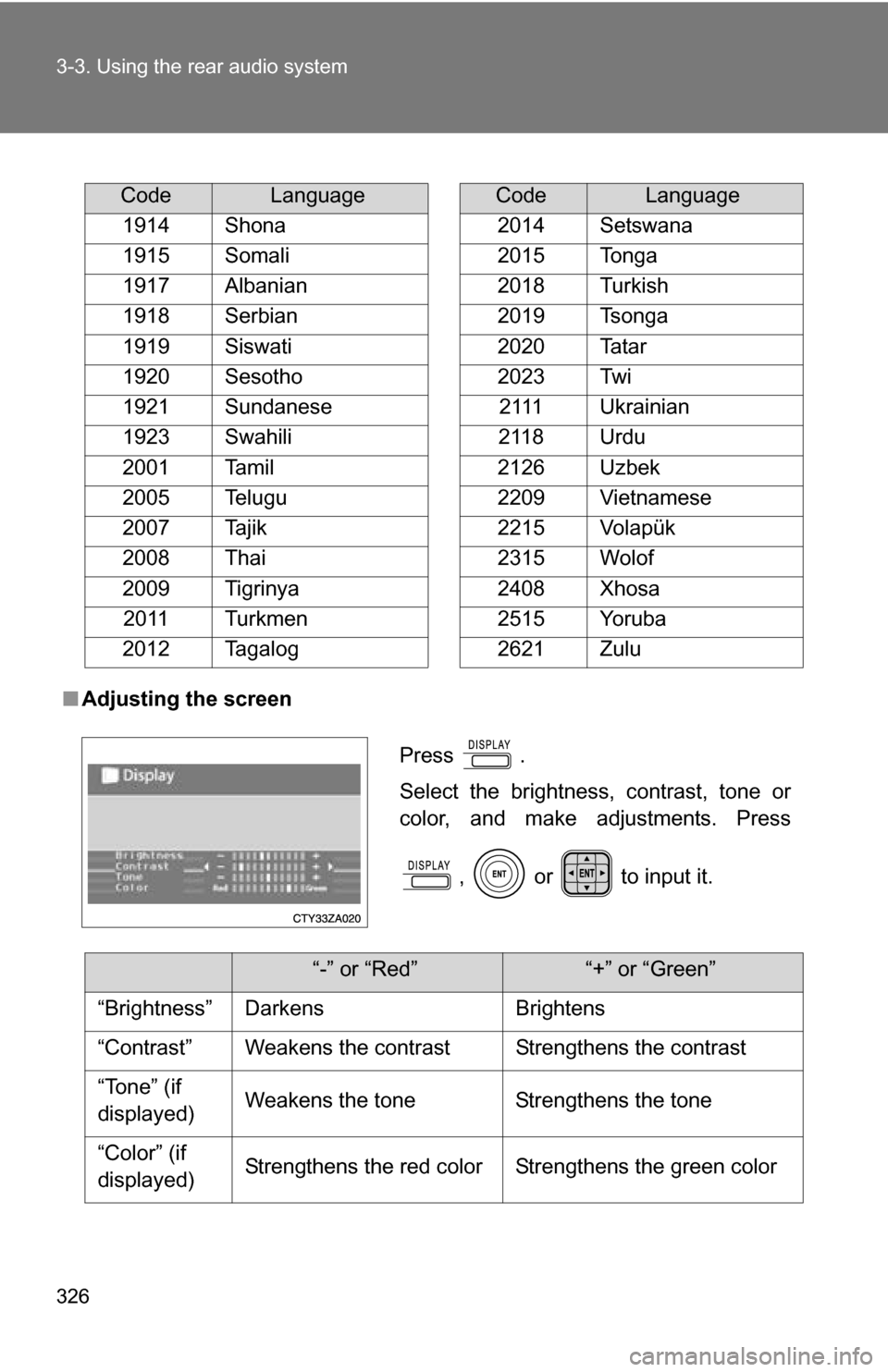
■Adjusting the screen
CodeLanguage
1914 Shona
1915 Somali
1917 Albanian
1918 Serbian
1919 Siswati
1920 Sesotho
1921 Sundanese
1923 Swahili
2001 Tamil
2005 Telugu
2007 Tajik
2008 Thai
2009 Tigrinya 2011 Turkmen
2012 Tagalog
2014 Setswana
2015 Tonga
2018 Turkish
2019 Tsonga
2020 Tatar
2023 Twi 2111 Ukrainian
2118 Urdu
2126 Uzbek
2209 Vietnamese
2215 Volapük
2315 Wolof
2408 Xhosa
2515 Yoruba
2621 Zulu
CodeLanguage
Press .
Select the brightness, contrast, tone or
color, and make adjustments. Press
, or to input it.
“-” or “Red”“+” or “Green”
“Brightness” Darkens Brightens
“Contrast” Weakens the contrast Strengthens the contrast
“Tone” (if
displayed) Weakens the tone Strengthens the tone
“Color” (if
displayed) Strengthens the red color Strengthens the green color
Page 331 of 592
331
3-4. Using the hands-free phone system (for cellular phone)
3
Interior features
Using the hands-free phone system (for cellular phone) (if equipped)
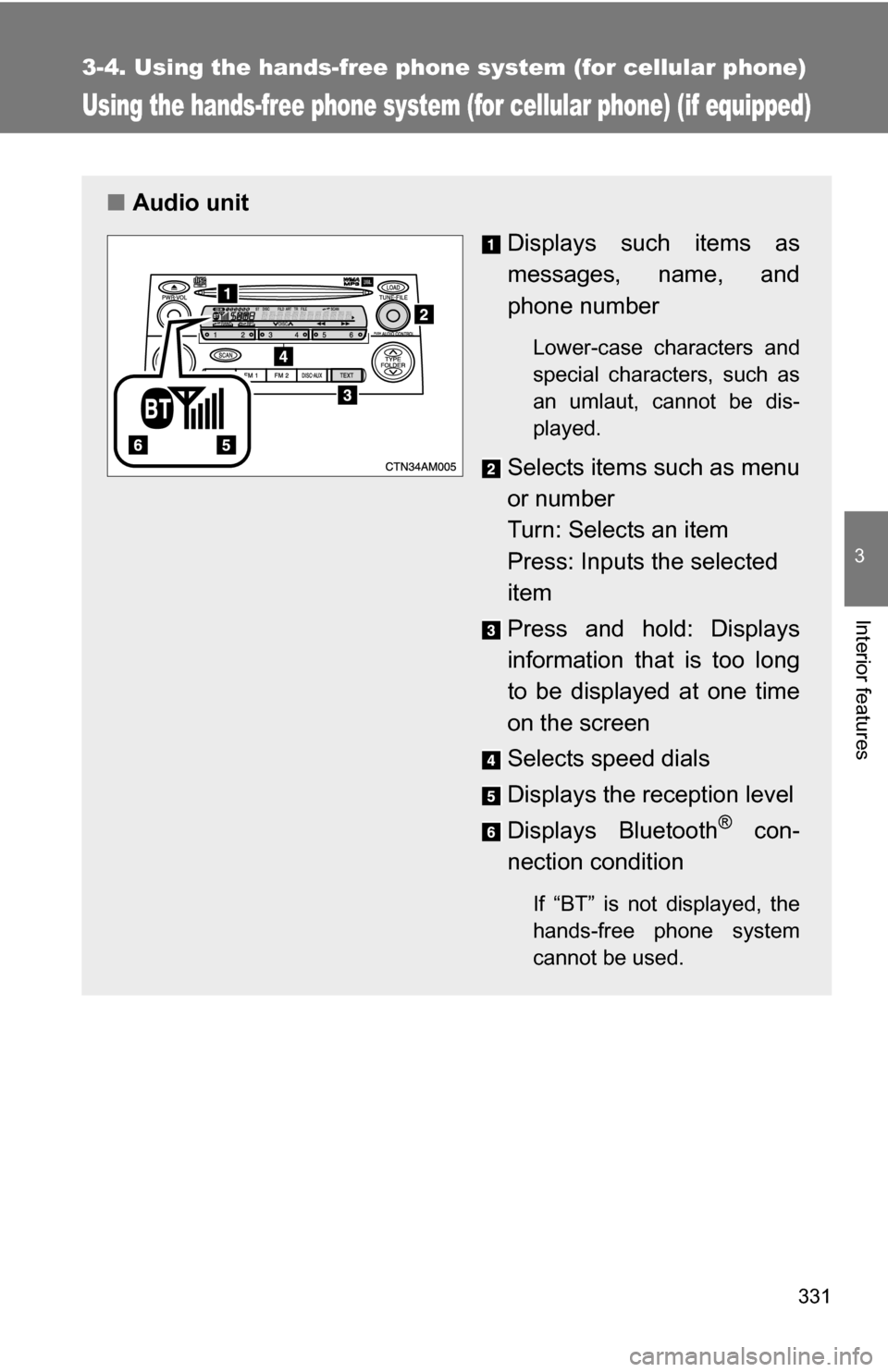
■Audio unit
Displays such items as
messages, name, and
phone number
Lower-case characters and
special characters, such as
an umlaut, cannot be dis-
played.
Selects items such as menu
or number
Turn: Selects an item
Press: Inputs the selected
item
Press and hold: Displays
information that is too long
to be displayed at one time
on the screen
Selects speed dials
Displays the reception level
Displays Bluetooth
® con-
nection condition
If “BT” is not displayed, the
hands-free phone system
cannot be used.
Page 333 of 592
333
3-4. Using the hand
s-free phone system (for cellular phone)
3
Interior features
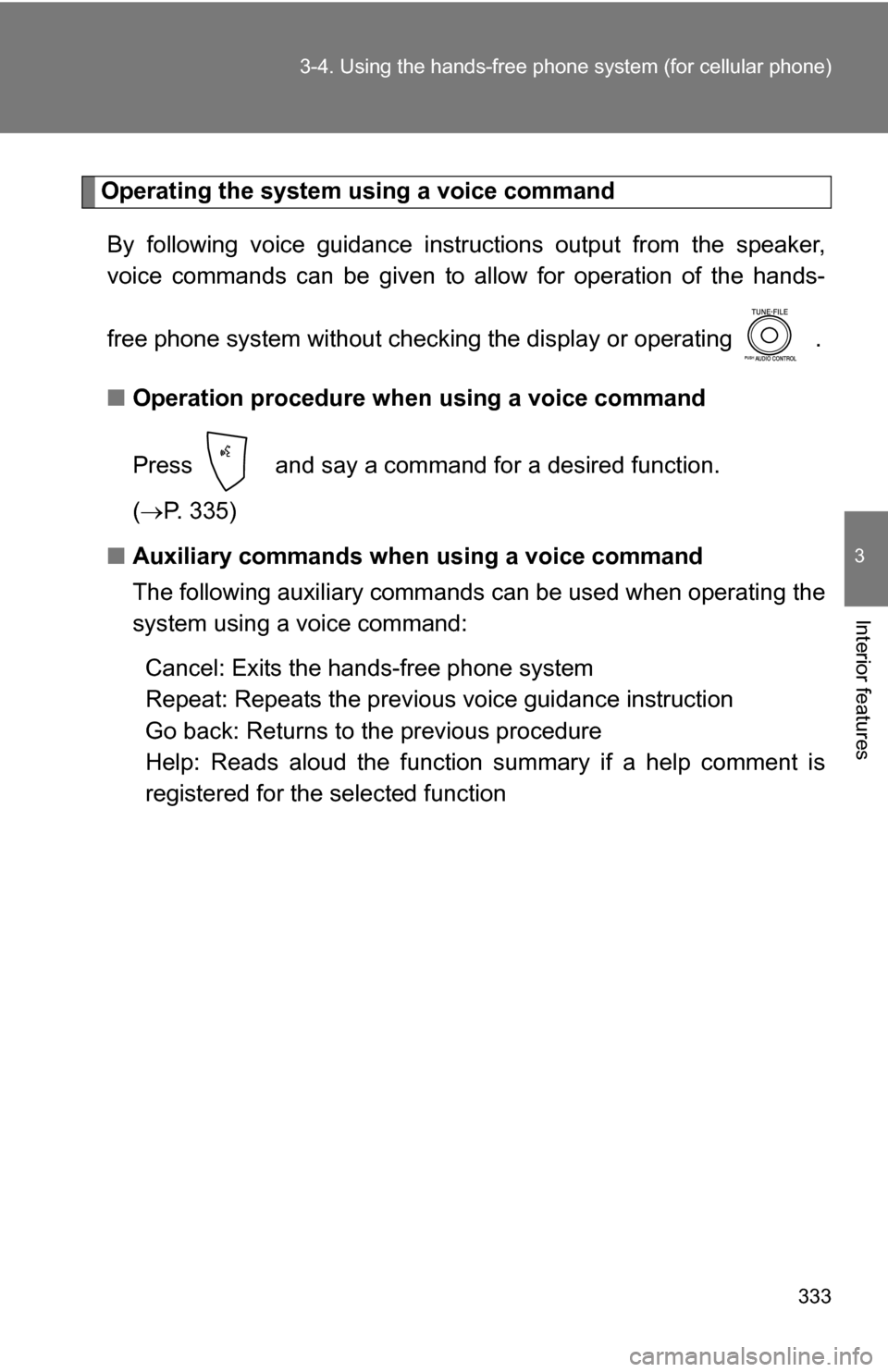
Operating the system using a voice command
By following voice guidance inst ructions output from the speaker,
voice commands can be given to allow for operation of the hands-
free phone system without checking the display or operating .
■ Operation procedure when using a voice command
Press and say a command for a desired function.
( P. 335)
■ Auxiliary commands when using a voice command
The following auxiliary commands can be used when operating the
system using a voice command:
Cancel: Exits the hands-free phone system
Repeat: Repeats the previous voice guidance instruction
Go back: Returns to the previous procedure
Help: Reads aloud the function summary if a help comment is
registered for the selected function
Page 334 of 592

334 3-4. Using the hands-free phone system (for cellular phone)
Using the hands-free phone system for the first time
Before using the hands-free phone system, it is necessary to register
a cellular phone in the system. Th e phone registration mode will be
entered automatically when starting the system with no cellular
phone registered. Follow the procedure below to register a cellular
phone:
Press or .
The introductory guidance and phone name registration instructions
are heard.
Register a phone name by either of the following methods.
a. Select “Record Name” using , and say a name to be
registered.
b. Press and say a name to be registered.
A voice guidance instruction to confirm the input is heard.
Select “Confirm” using a voice command or .
A passkey is displayed and heard, and a voice guidance instruction
for inputting the passkey into the cellular phone is heard. Input the passkey into the cellular phone.
Refer to the manual that comes with the cellular phone for the oper-
ation of the phone.
Guidance for registration completion is heard.
STEP1
STEP2
STEP3
STEP4
Page 354 of 592
354 3-4. Using the hands-free phone system (for cellular phone)
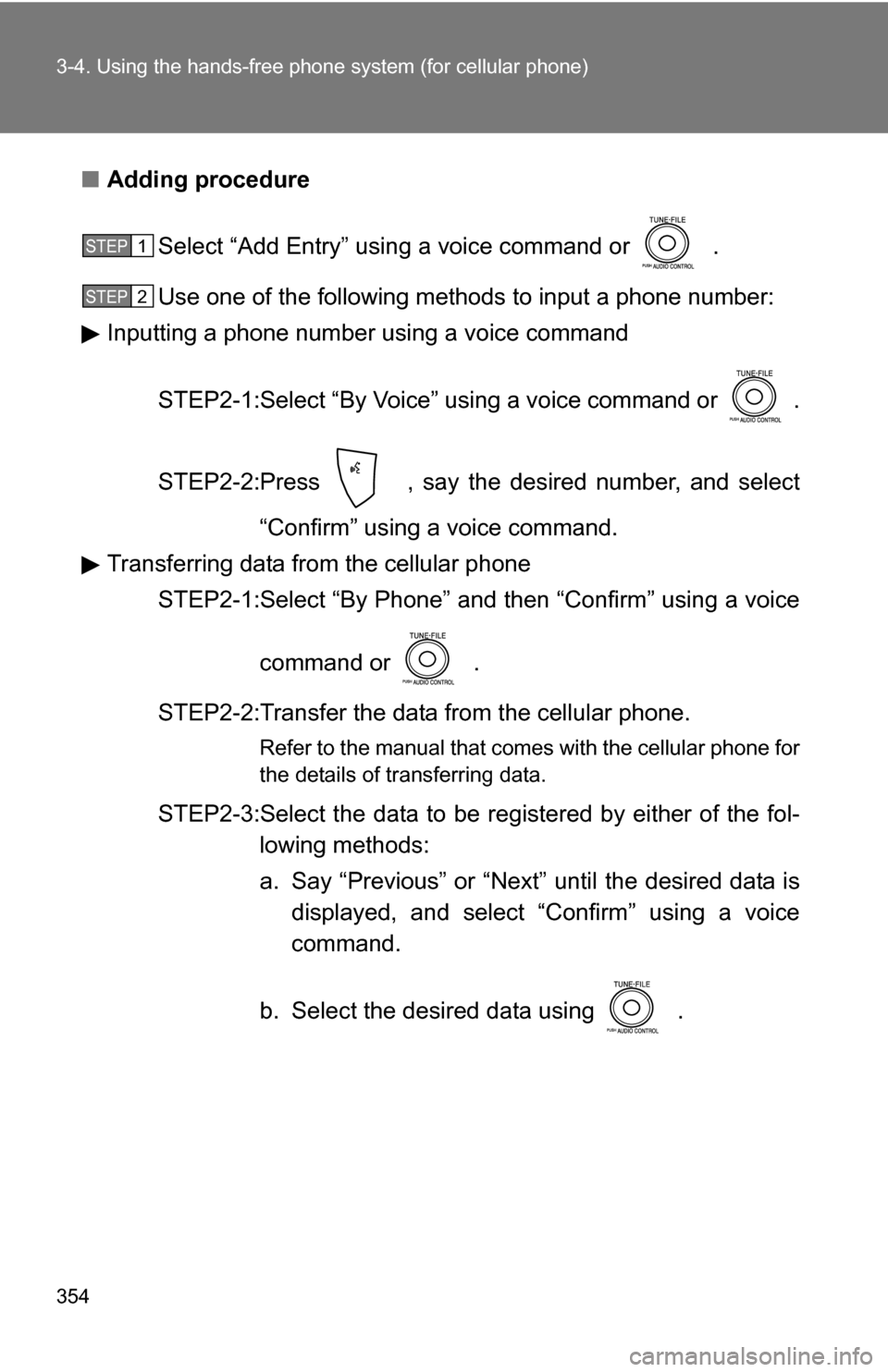
■Adding procedure
Select “Add Entry” using a voice command or .
Use one of the following met hods to input a phone number:
Inputting a phone number using a voice command
STEP2-1:Select “By Voice” using a voice command or .
STEP2-2:Press , say the desired number, and select “Confirm” using a voice command.
Transferring data from the cellular phone
STEP2-1:Select “By Phone” an d then “Confirm” using a voice
command or .
STEP2-2:Transfer the data from the cellular phone.
Refer to the manual that comes with the cellular phone for
the details of transferring data.
STEP2-3:Select the data to be re gistered by either of the fol-
lowing methods:
a. Say “Previous” or “Next” until the desired data is displayed, and select “Confirm” using a voice
command.
b. Select the desired data using .
STEP1
STEP2
Page 355 of 592
355
3-4. Using the hand
s-free phone system (for cellular phone)
3
Interior features
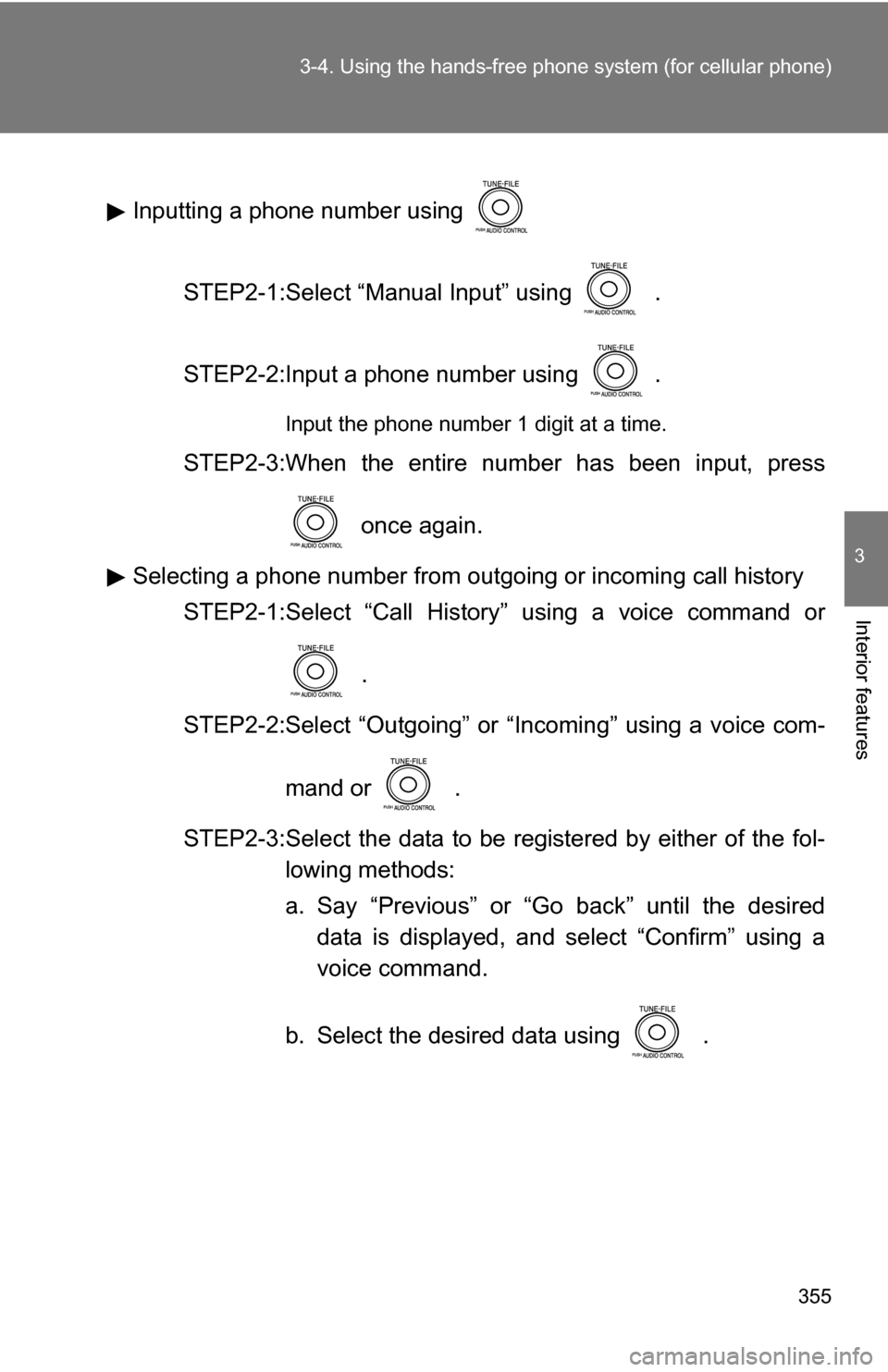
Inputting a phone number using
STEP2-1:Select “Manual Input” using .
STEP2-2:Input a phone number using .
Input the phone number 1 digit at a time.
STEP2-3:When the entire number has been input, press once again.
Selecting a phone number from outgoing or incoming call history STEP2-1:Select “Call History” using a voice command or
.
STEP2-2:Select “Outgoing” or “Incoming” using a voice com-
mand or .
STEP2-3:Select the data to be re gistered by either of the fol-
lowing methods:
a. Say “Previous” or “Go back” until the desired data is displayed, and select “Confirm” using a
voice command.
b. Select the desired data using .