Page 251 of 592
251
3-1. Using the air conditioning system
and defogger
3
Interior features
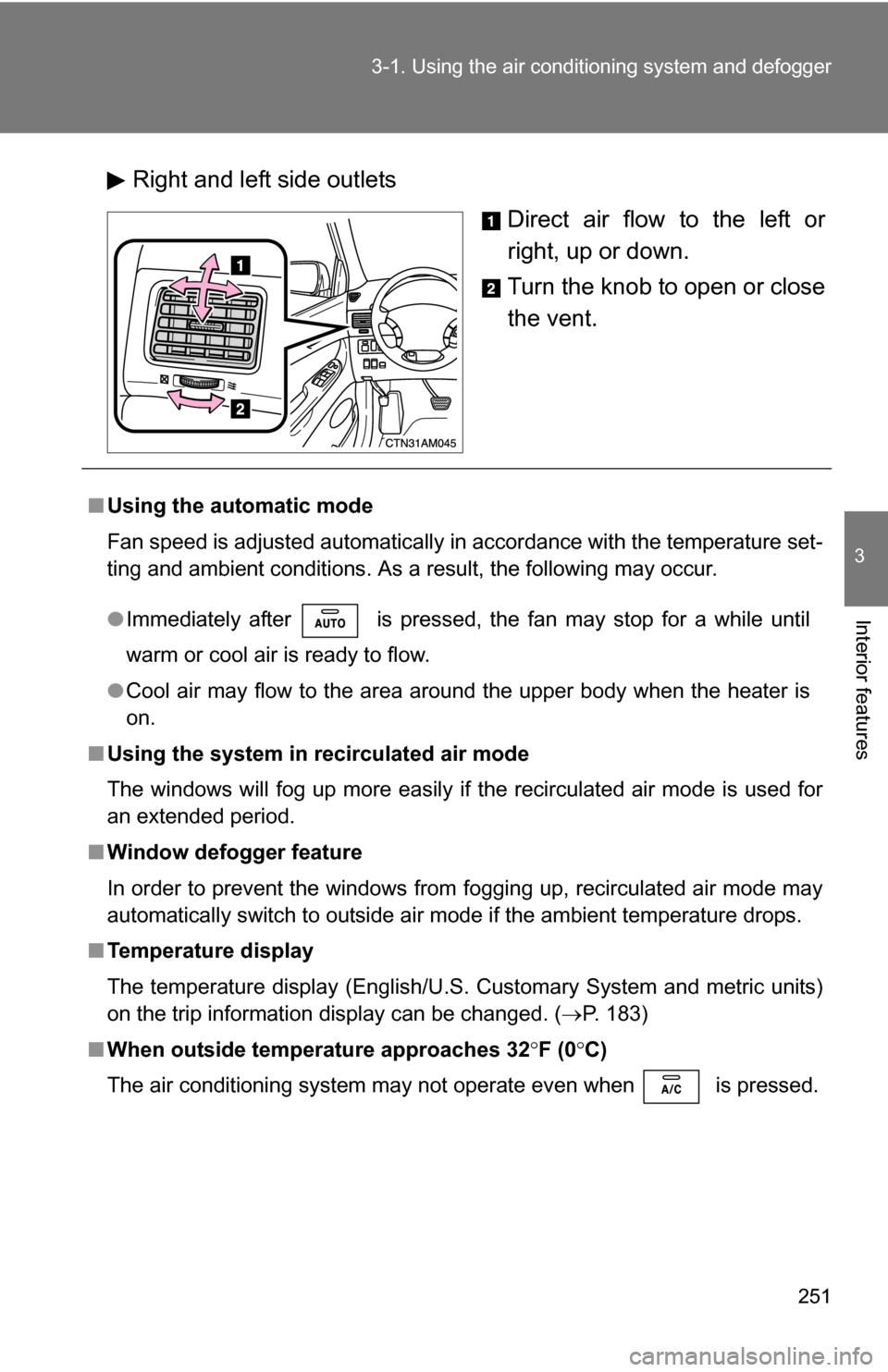
Right and left side outlets
Direct air flow to the left or
right, up or down.
Turn the knob to open or close
the vent.
■Using the automatic mode
Fan speed is adjusted automatically in accordance with the temperature set-
ting and ambient conditions. As a result, the following may occur.
●Immediately after is pressed, the fan may stop for a while until
warm or cool air is ready to flow.
● Cool air may flow to the area around the upper body when the heater is
on.
■ Using the system in recirculated air mode
The windows will fog up more easily if the recirculated air mode is used for
an extended period.
■ Window defogger feature
In order to prevent the windows from fogging up, recirculated air mode may
automatically switch to outside air mode if the ambient temperature drops.
■ Temperature display
The temperature display (English/U.S. Customary System and metric units)
on the trip information display can be changed. ( P. 183)
■ When outside temperature approaches 32 F (0 C)
The air conditioning system may not operate even when is pressed.
Page 256 of 592
256
3-1. Using the air conditioning system and defogger
Rear automatic air conditioning system (if equipped)
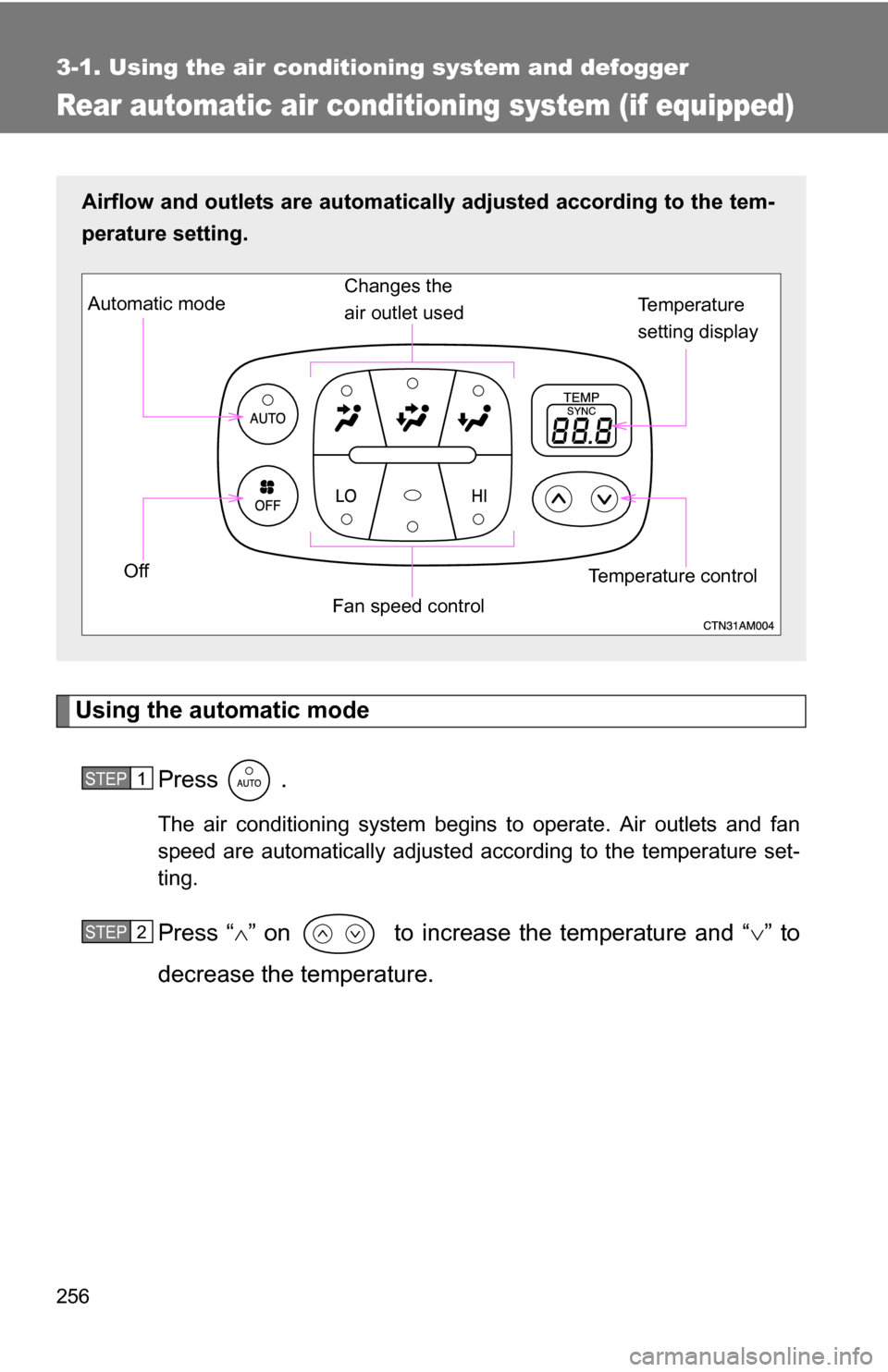
Using the automatic modePress .
The air conditioning system begins to operate. Air outlets and fan
speed are automatically adjusted according to the temperature set-
ting.
Press “” on to increase the temperature and “ ” to
decrease the temperature.
Airflow and outlets are automatica lly adjusted according to the tem-
perature setting.
Temperature
setting display
Fan speed control
Off
Automatic mode
Changes the
air outlet used
Temperature control
STEP1
STEP2
Page 259 of 592
259
3-1. Using the air conditioning system
and defogger
3
Interior features
■Temperature display
The temperature display (English/U.S. Customary System and metric units)
on the trip information display can be changed. ( P. 183)
■ When the front air conditioning system is in simultaneous mode
“SYNC” is shown on the display. The rear air conditioning system controls
will not function. ( P. 247)
NOTICE
■To prevent battery discharge
Do not leave the air conditioning system on longer than necessary when the
engine is off.
Page 265 of 592
265
3-2. Using the audio system
3
Interior features
Using the radio
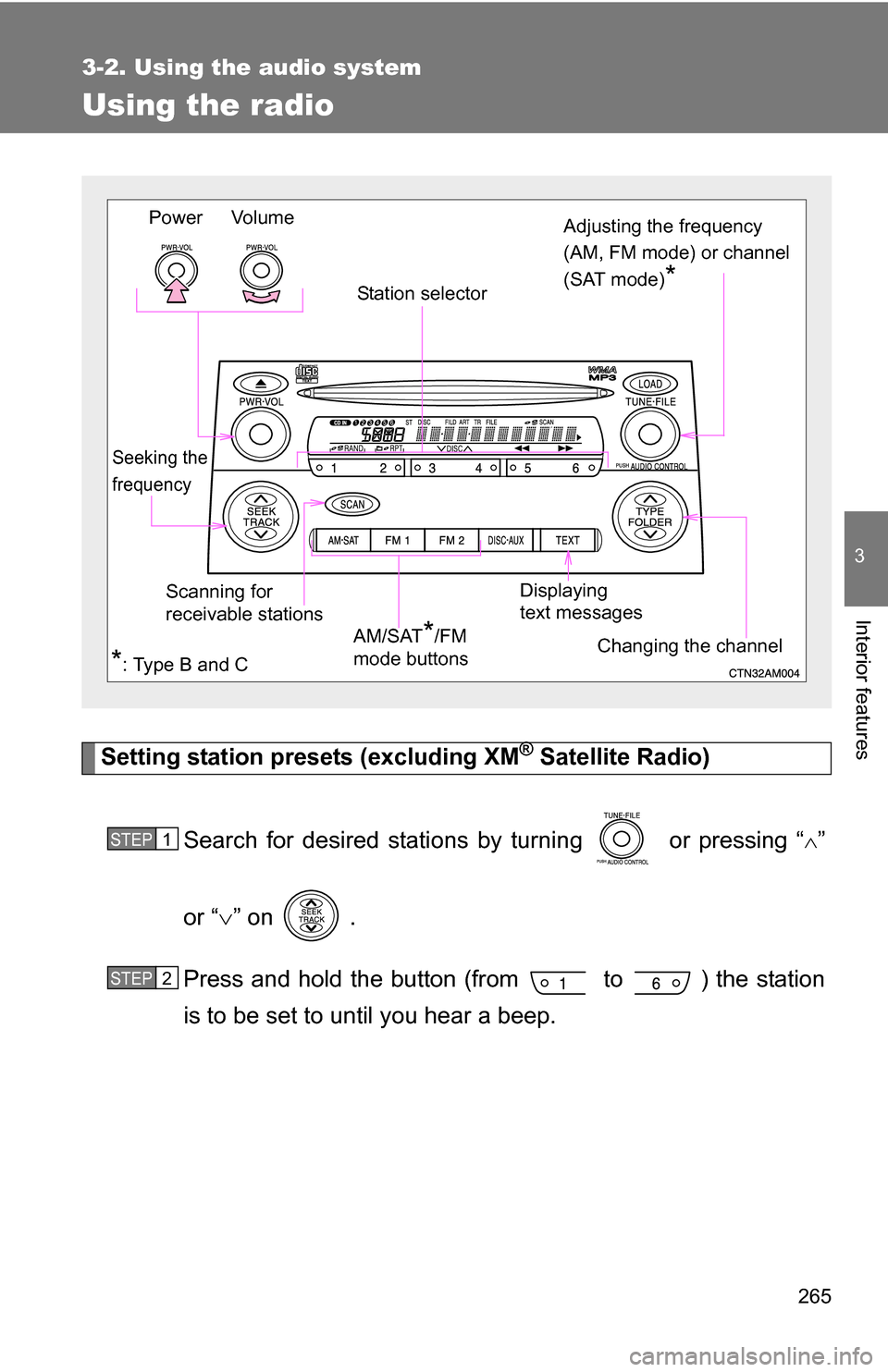
Setting station presets (excluding XM® Satellite Radio)
Search for desired stations by turning or pressing “
”
or “ ” on .
Press and hold the button (from to ) the station
is to be set to until you hear a beep.
Vo lu m e
Scanning for
receivable stations Station selector
Seeking the
frequency
Adjusting the frequency
(AM, FM mode) or channel
(SAT mode)
*
AM/SAT*/FM
mode buttons
Power
Displaying
text messages
Changing the channel
*: Type B and C
STEP1
STEP2
Page 266 of 592
266 3-2. Using the audio system
Scanning radio stations (excluding XM® Satellite Radio)
■ Scanning the preset radio stations
Press and hold until you hear a beep.
Preset stations will be played for 5 seconds each.
When the desired station is reached, press once
again.
■ Scanning all radio stations within range
Press
.
All stations with reception will be played for 5 seconds each.
When the desired station is reached, press once
again.
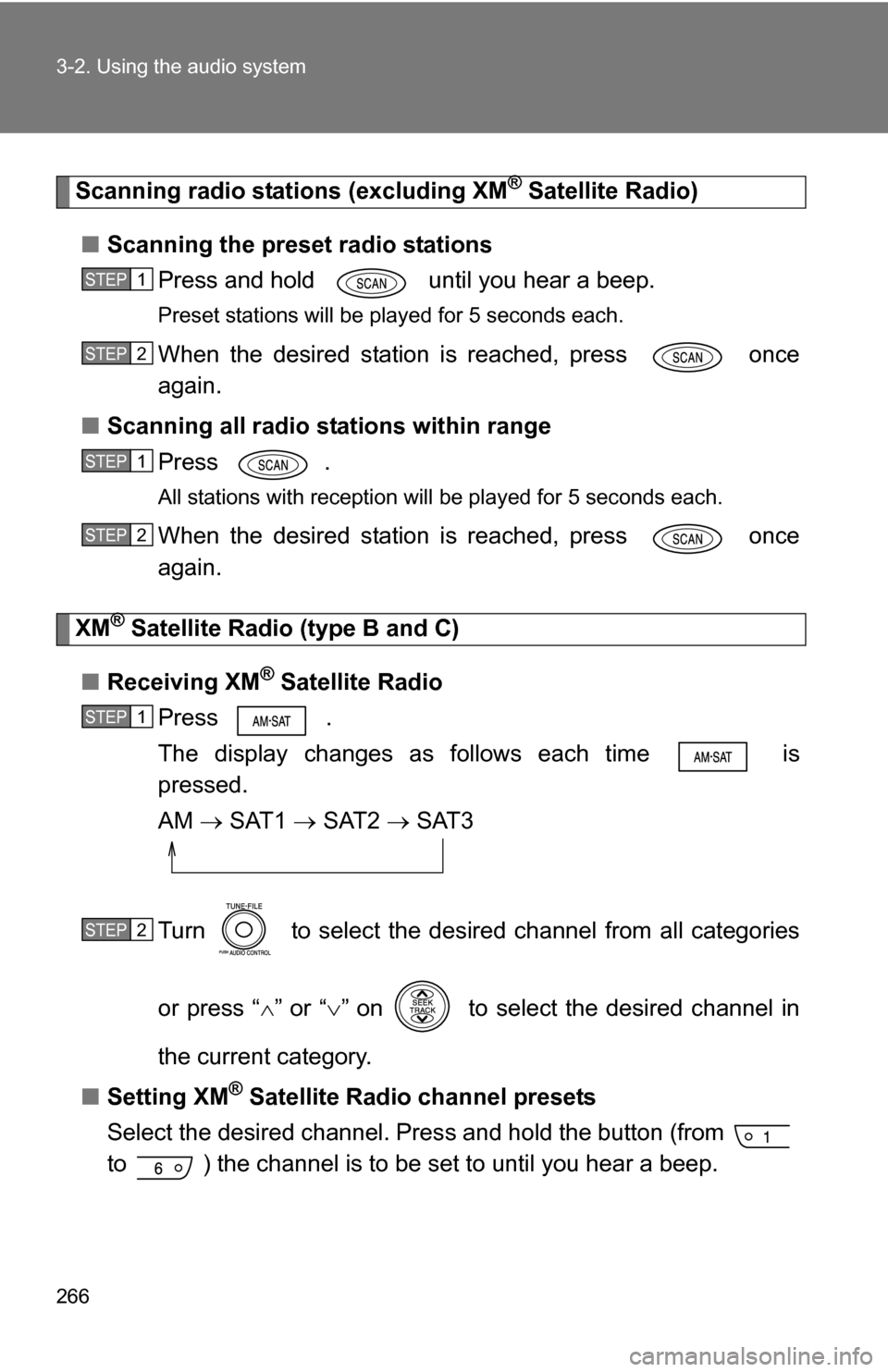
XM® Satellite Radio (type B and C)
■ Receiving XM
® Satellite Radio
Press .
The display changes as follows each time is
pressed.
AM SAT1 SAT2 SAT3
Turn to select the desired channel from all categories
or press “ ” or “ ” on to select the desired channel in
the current category.
■ Setting XM
® Satellite Radio channel presets
Select the desired channel. Pres s and hold the button (from
to ) the channel is to be set to until you hear a beep.
STEP1
STEP2
STEP1
STEP2
STEP1
STEP2
Page 267 of 592
267
3-2. Using the audio system
3
Interior features
■
Changing the channel category
Press “ ” or “ ” on .
■ Scanning XM
® Satellite Radio channels
● Scanning channels in the current category
Press .
When the desired channel is reached, press again.
● Scanning preset channels
Press and hold until you hear a beep.
When the desired channel is reached, press again.
■ Displaying text information
Press .
The display will show up to 10 characters.
The display changes as follows each time is pressed.
●Channel name
● Title (song/program title)
● Name (artist name/feature)
● Channel number
STEP1
STEP2
STEP1
STEP2
Page 271 of 592
271
3-2. Using the audio system
3
Interior features
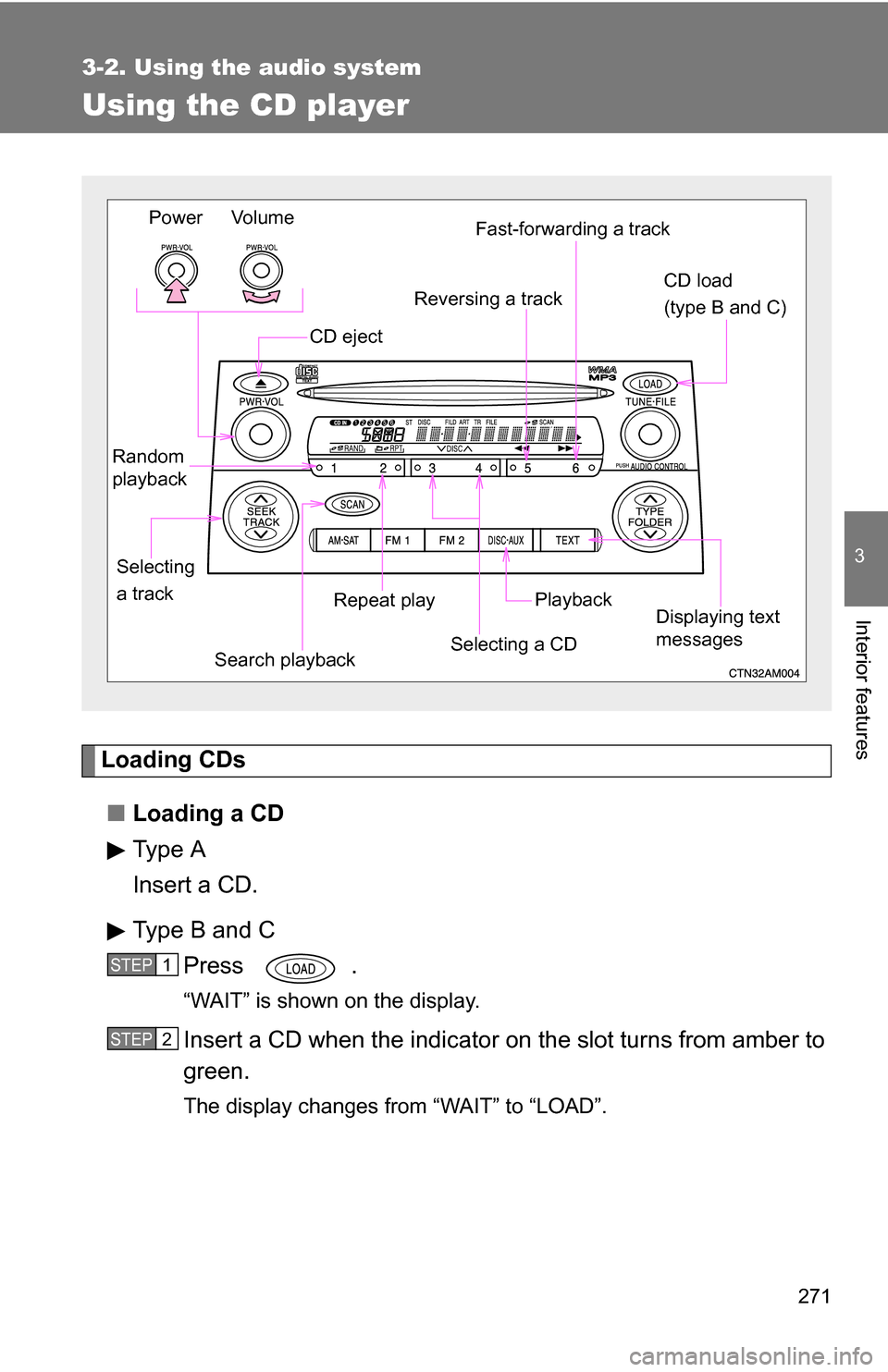
Using the CD player
Loading CDs■ Loading a CD
Type A
Insert a CD.
Type B and C
Press .
“WAIT” is shown on the display.
Insert a CD when the indicator on the slot turns from amber to
green.
The display changes from “WAIT” to “LOAD”.
Vo lu m e
Power
Random
playback
Repeat playPlayback
CD eject
Displaying text
messages
Selecting
a track CD load
(type B and C)
Fast-forwarding a track
Selecting a CD
Reversing a track
Search playback
STEP1
STEP2
Page 272 of 592
272 3-2. Using the audio system
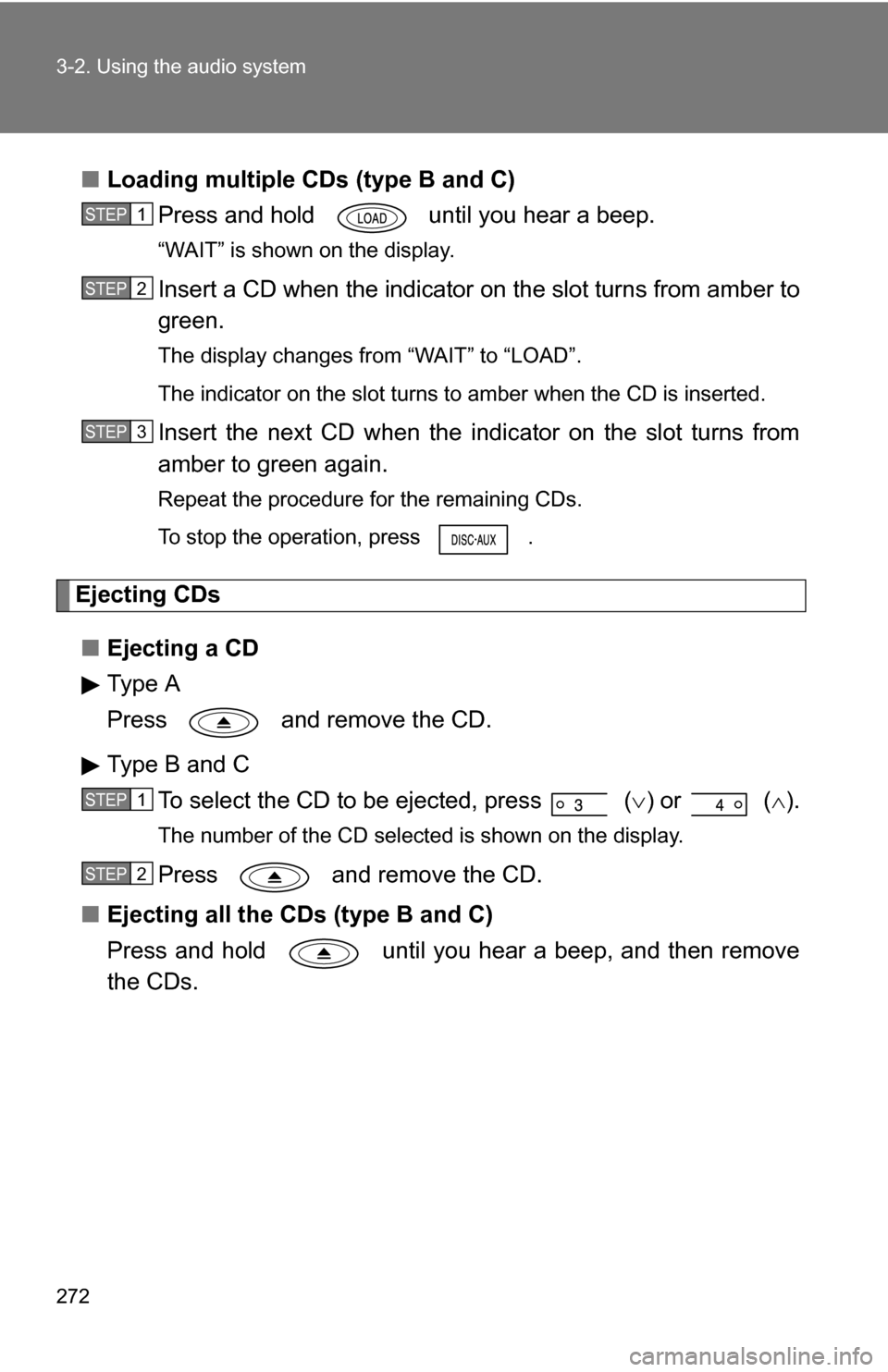
■Loading multiple CDs (type B and C)
Press and hold until you hear a beep.
“WAIT” is shown on the display.
Insert a CD when the indicator on the slot turns from amber to
green.
The display changes from “WAIT” to “LOAD”.
The indicator on the slot turns to amber when the CD is inserted.
Insert the next CD when the indicator on the slot turns from
amber to green again.
Repeat the procedure for the remaining CDs.
To stop the operation, press .
Ejecting CDs
■ Ejecting a CD
Type A
Press and remove the CD.
Type B and C
To select the CD to be ejected, press
() or ( ).
The number of the CD selected is shown on the display.
Press and remove the CD.
■ Ejecting all the CDs (type B and C)
Press and hold until you hear a beep, and then remove
the CDs.
STEP1
STEP2
STEP3
STEP1
STEP2