Page 273 of 592
273
3-2. Using the audio system
3
Interior features
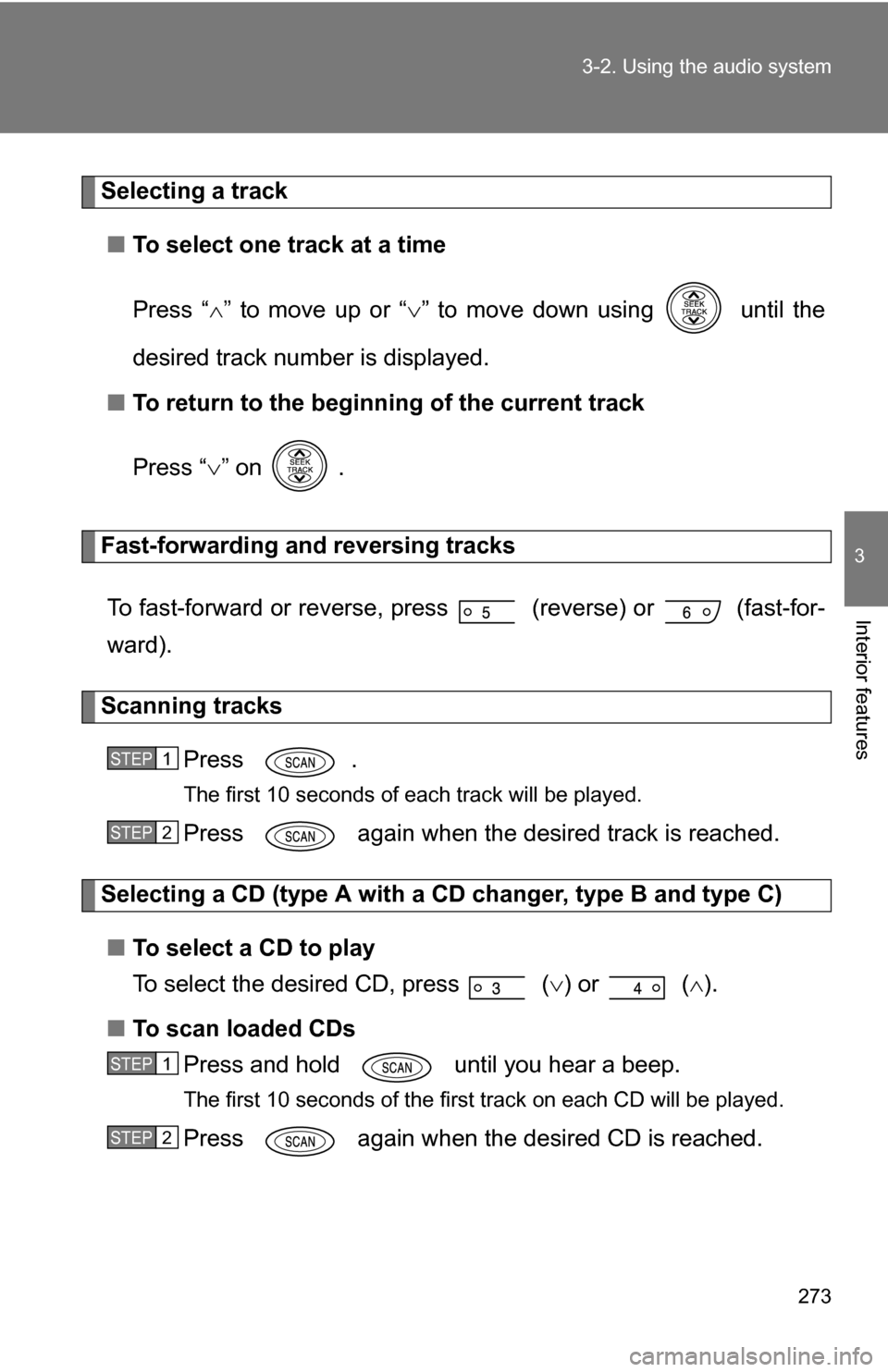
Selecting a track
■ To select one track at a time
Press “ ” to move up or “ ” to move down using until the
desired track number is displayed.
■ To return to the beginning of the current track
Press “ ” on .
Fast-forwarding and reversing tracks
To fast-forward or reverse, press (reverse) or
(fast-for-
ward).
Scanning tracks
Press .
The first 10 seconds of each track will be played.
Press again when the desired track is reached.
Selecting a CD (type A with a CD changer, type B and type C)■ To select a CD to play
To select the desired CD, press
() or ( ).
■ To scan loaded CDs
Press and hold until you hear a beep.
The first 10 seconds of the first track on each CD will be played.
Press again when the desired CD is reached.
STEP1
STEP2
STEP1
STEP2
Page 274 of 592
274 3-2. Using the audio system
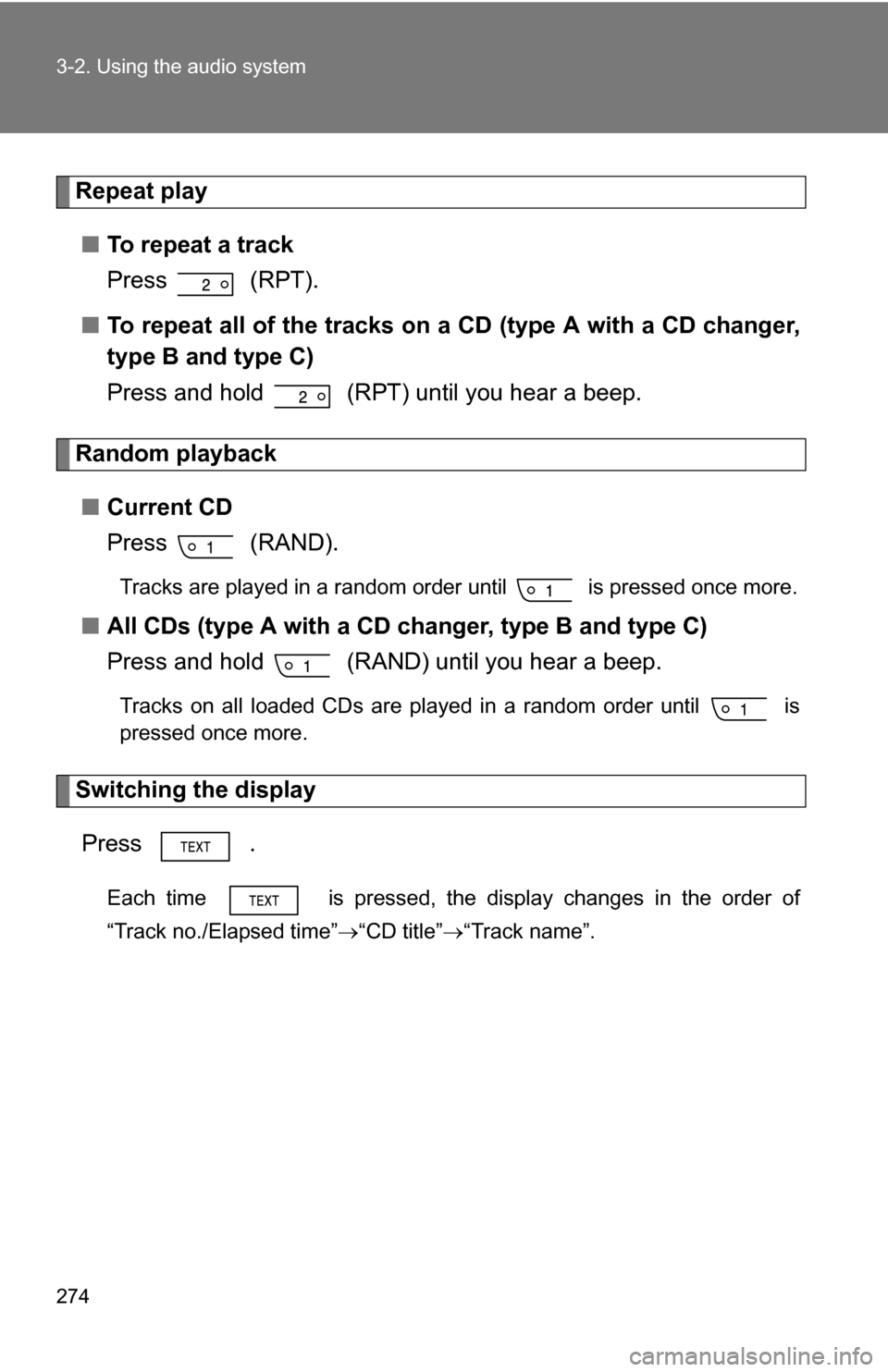
Repeat play■ To repeat a track
Press (RPT).
■ To repeat all of the tracks on a CD (type A with a CD changer,
type B and type C)
Press and hold (RPT) until you hear a beep.
Random playback
■ Current CD
Press (RAND).
Tracks are played in a random order until is pressed once more.
■All CDs (type A with a CD ch anger, type B and type C)
Press and hold (RAND) until you hear a beep.
Tracks on all loaded CDs are played in a random order until is
pressed once more.
Switching the display
Press .
Each time is pressed, the display changes in the order of
“Track no./Elapsed time” “CD title”“Track name”.
Page 275 of 592
275
3-2. Using the audio system
3
Interior features
■
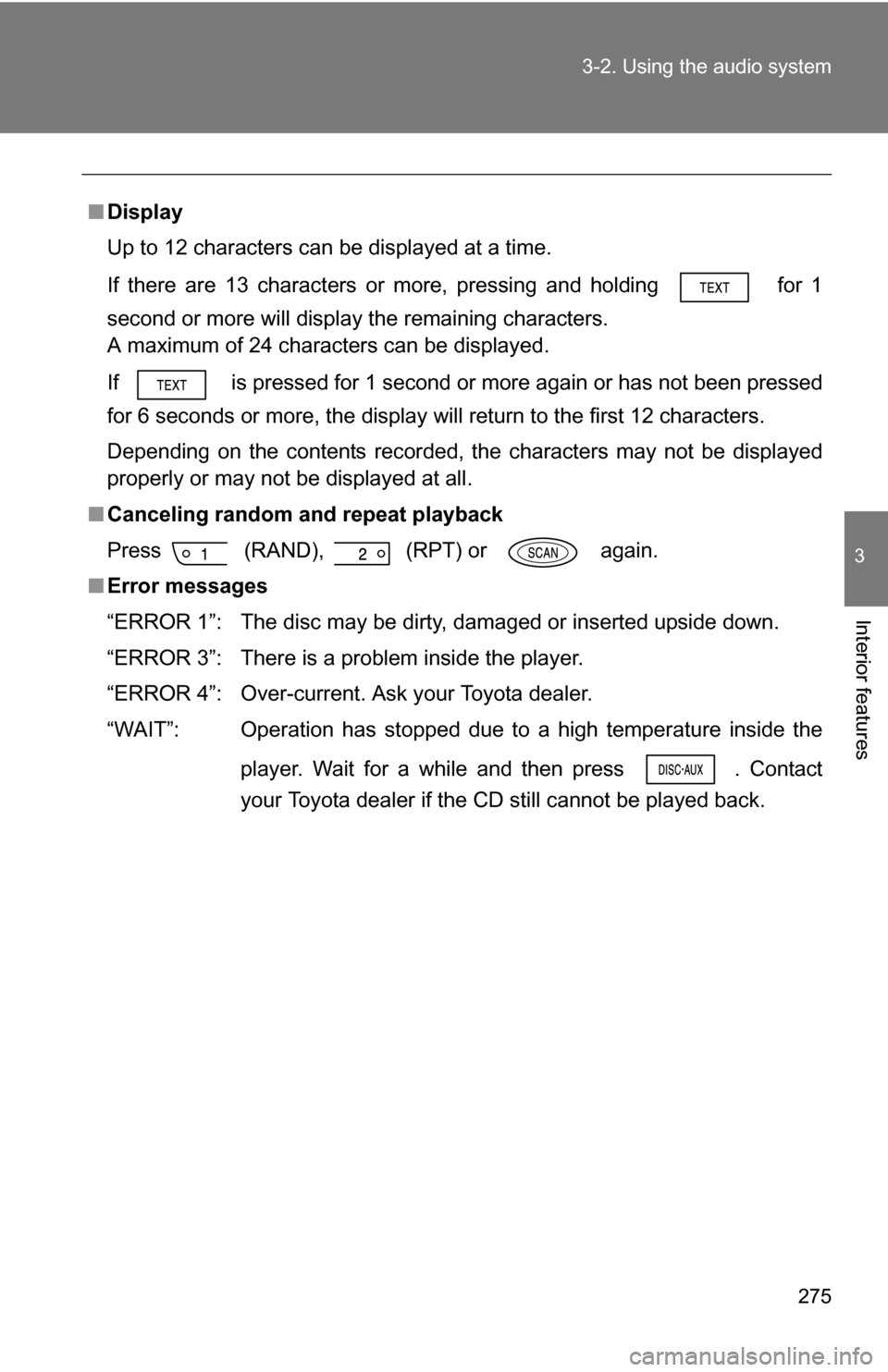
Display
Up to 12 characters can be displayed at a time.
If there are 13 characters or more, pressing and holding for 1
second or more will display the remaining characters.
A maximum of 24 characters can be displayed.
If is pressed for 1 second or more again or has not been pressed
for 6 seconds or more, the display will return to the first 12 characters.
Depending on the contents recorded, the characters may not be displayed
properly or may not be displayed at all.
■ Canceling random and repeat playback
Press
(RAND), (RPT) or again.
■ Error messages
“ERROR 1”: The disc may be dirty, damaged or inserted upside down.
“ERROR 3”: There is a problem inside the player.
“ERROR 4”: Over-current. Ask your Toyota dealer.
“WAIT”: Operation has stopped due to a high temperature inside the
player. Wait for a while and then press . Contact
your Toyota dealer if the CD still cannot be played back.
Page 279 of 592
279
3-2. Using the audio system
3
Interior features
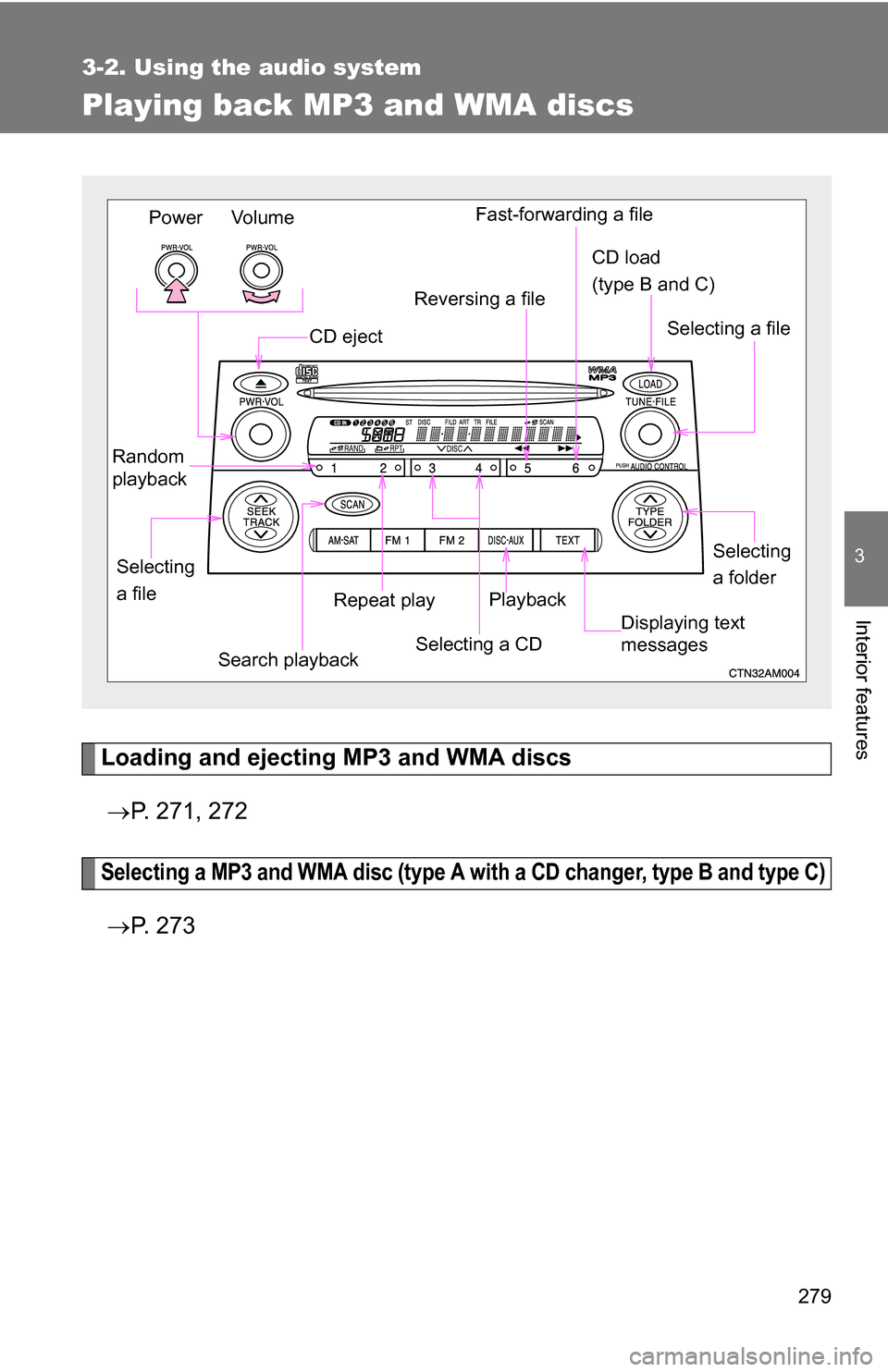
Playing back MP3 and WMA discs
Loading and ejecting MP3 and WMA discs P. 271, 272
Selecting a MP3 and WMA disc (type A with a CD changer, type B and type C)
P. 2 7 3
Vo lu m e
Power
Random
playback
Repeat playPlayback
CD eject
Displaying text
messages
Selecting
a file CD load
(type B and C)
Fast-forwarding a file
Selecting a CD
Reversing a file
Search playback
Selecting a file
Selecting
a folder
Page 281 of 592
281
3-2. Using the audio system
3
Interior features
Fast-forwarding and reversing files
To fast-forward or reverse, press (reverse) or
(fast-for-
ward).
Repeat play
■ To repeat a file
Press (RPT).
■ To repeat all of the files in a folder
Press and hold (RPT) until you hear a beep.
Random playback
■ To play files from a partic ular folder in random order
Press (RAND).
■ To play all of the files on a disc in random order
Press and hold (RAND) until you hear a beep.
Switching the display
Press .
Each time is pressed, the display changes in the order of
“Folder no./File no./Elapsed time” “Folder name”“File name” “Album
title” (MP3 only) “Track title” “Artist name”.
■Display
P. 275
■ Canceling random and repeat playback
P. 275
Page 284 of 592
284 3-2. Using the audio system
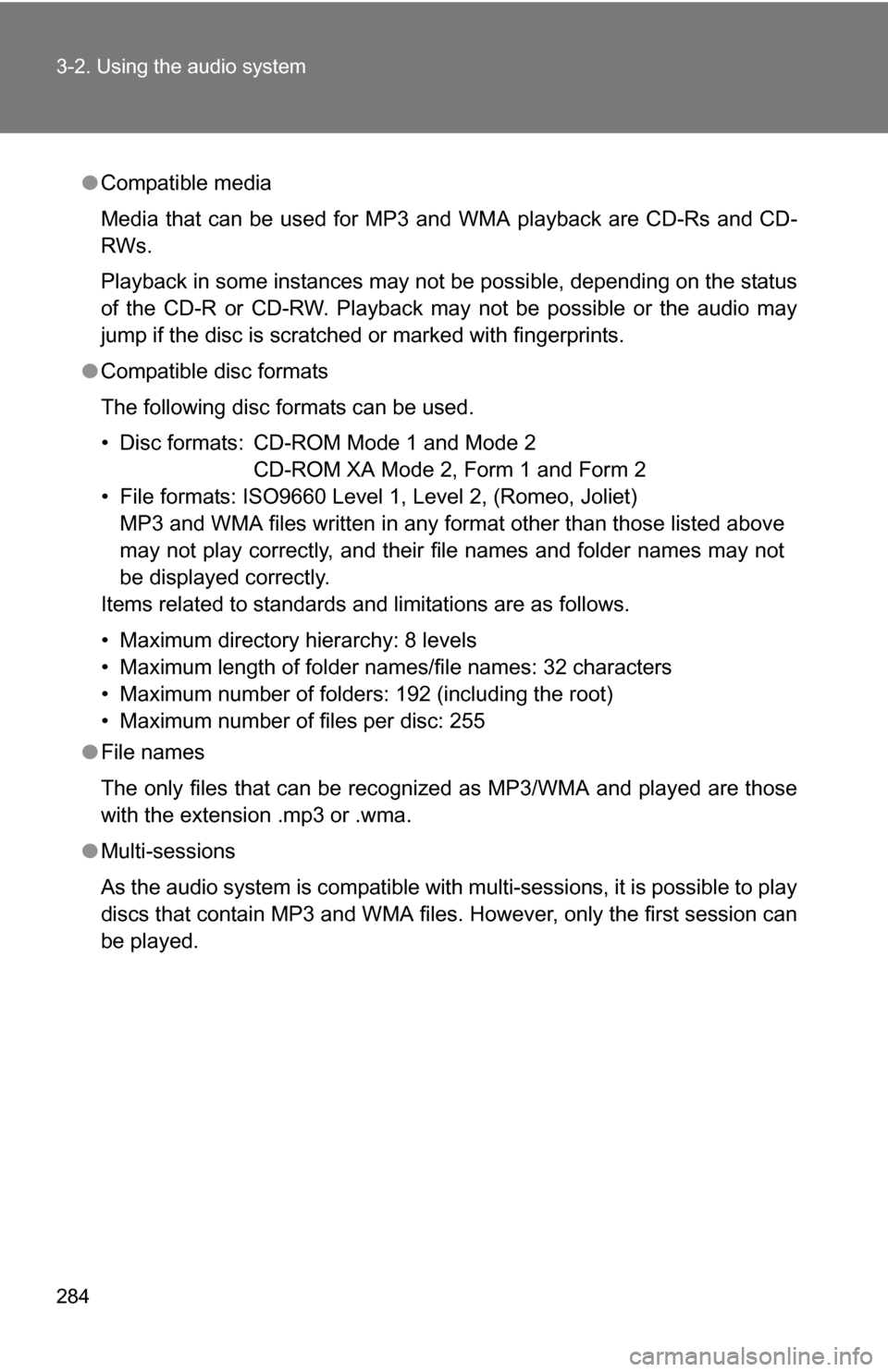
●Compatible media
Media that can be used for MP3 and WMA playback are CD-Rs and CD-
RWs.
Playback in some instances may not be possible, depending on the status
of the CD-R or CD-RW. Playback may not be possible or the audio may
jump if the disc is scratched or marked with fingerprints.
● Compatible disc formats
The following disc formats can be used.
• Disc formats: CD-ROM Mode 1 and Mode 2
CD-ROM XA Mode 2, Form 1 and Form 2
• File formats: ISO9660 Level 1, Level 2, (Romeo, Joliet) MP3 and WMA files written in any format other than those listed above
may not play correctly, and their file names and folder names may not
be displayed correctly.
Items related to standards and limitations are as follows.
• Maximum directory hierarchy: 8 levels
• Maximum length of folder names/file names: 32 characters
• Maximum number of folders: 192 (including the root)
• Maximum number of files per disc: 255
● File names
The only files that can be recognized as MP3/WMA and played are those
with the extension .mp3 or .wma.
● Multi-sessions
As the audio system is compatible with multi-sessions, it is possible to play
discs that contain MP3 and WMA files. However, only the first session can
be played.
Page 287 of 592
287
3-2. Using the audio system
3
Interior features
Optimal use of the audio system
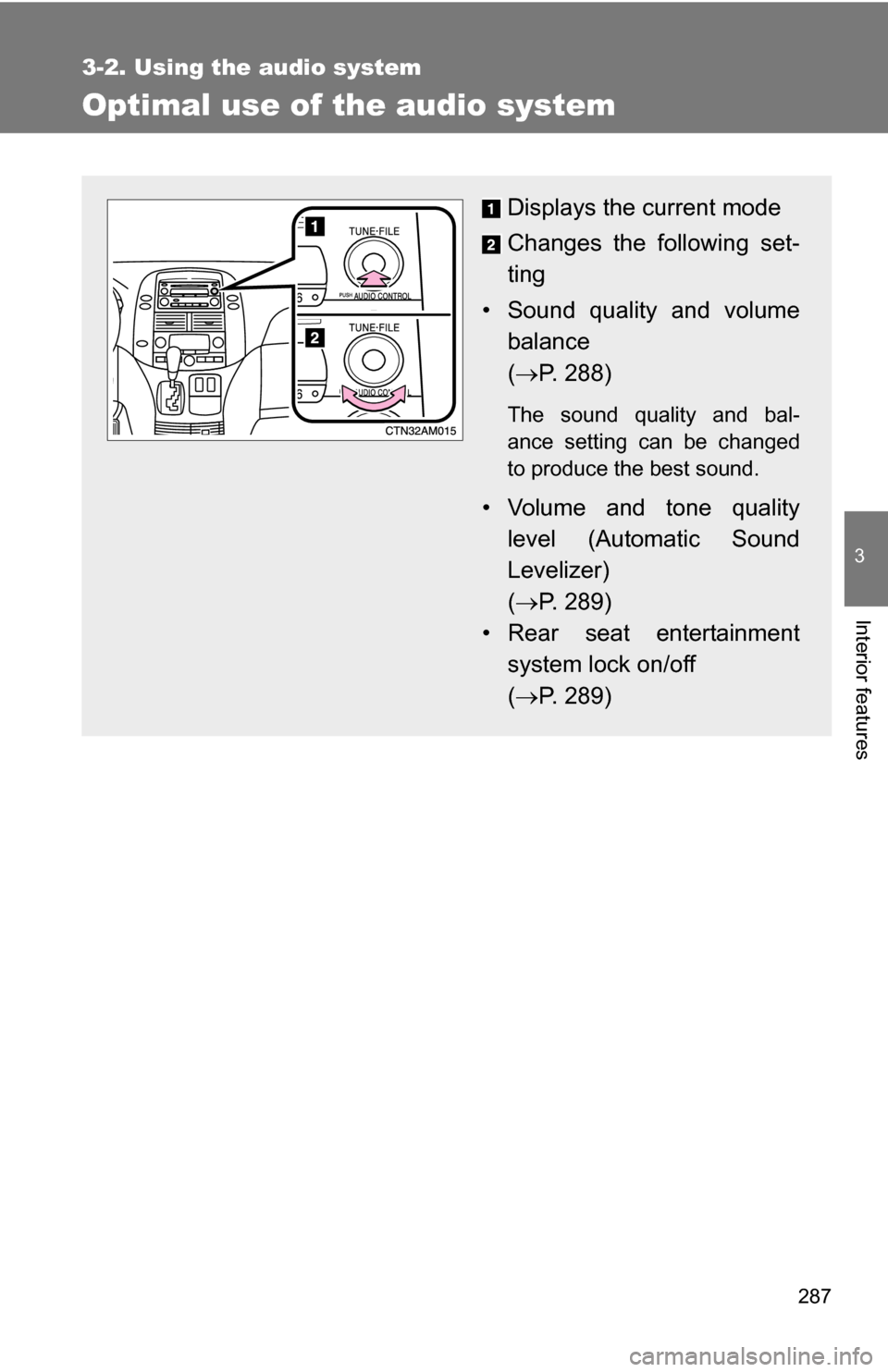
Displays the current mode
Changes the following set-
ting
• Sound quality and volume balance
( P. 288)
The sound quality and bal-
ance setting can be changed
to produce the best sound.
• Volume and tone quality
level (Automatic Sound
Levelizer)
( P. 289)
• Rear seat entertainment system lock on/off
( P. 289)
Page 288 of 592
288 3-2. Using the audio system
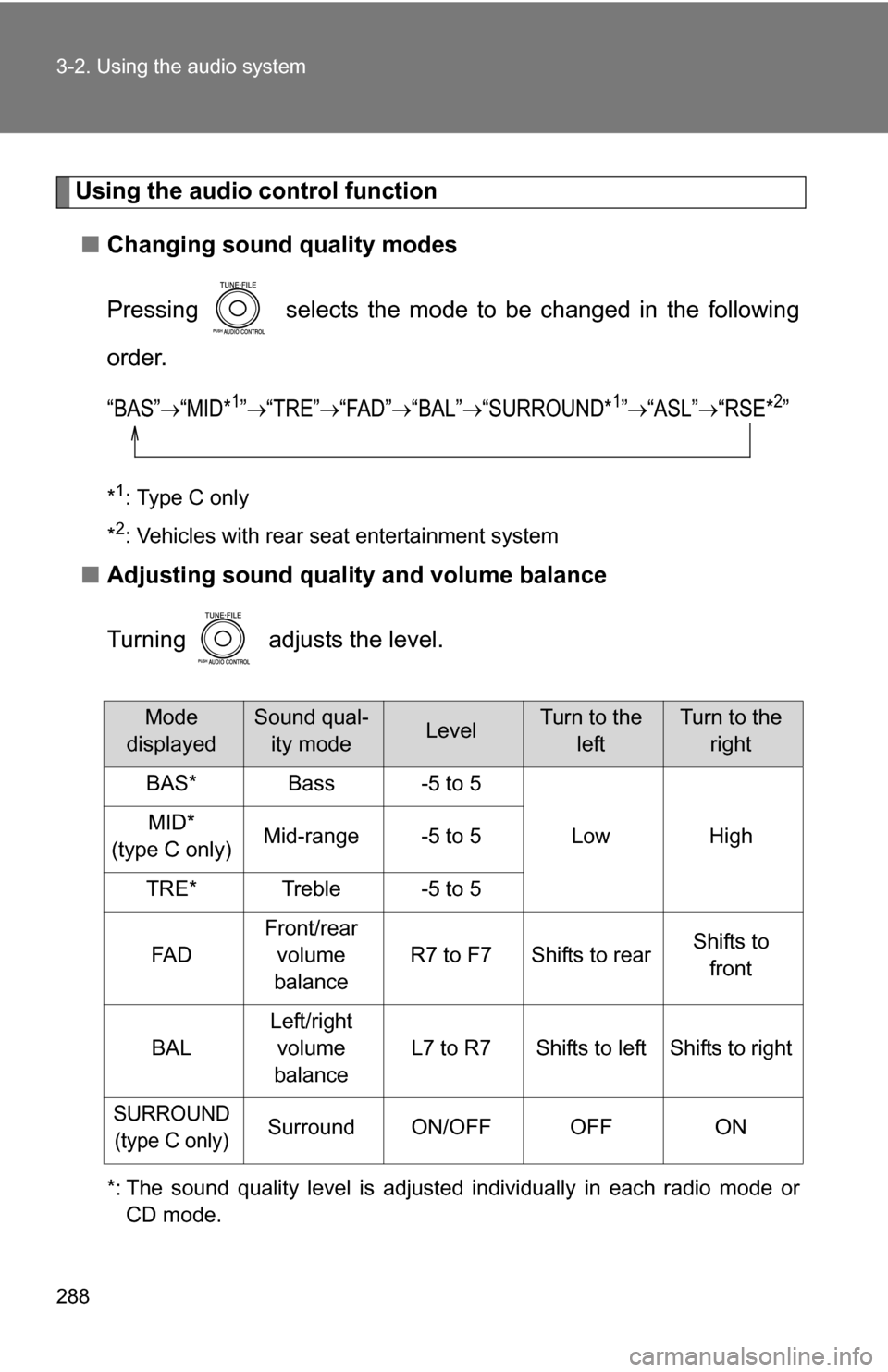
Using the audio control function■ Changing sound quality modes
Pressing selects the mode to be changed in the following
order.
“BAS”“MID*1”“TRE”“FAD”“BAL”“SURROUND*1”“ASL”“RSE*2”
*1: Type C only
*
2: Vehicles with rear seat entertainment system
■ Adjusting sound quality and volume balance
Turning adjusts the level.
*: The sound quality level is adjusted individually in each radio mode or
CD mode.
Mode
displayedSound qual- ity modeLevelTurn to the leftTurn to the right
BAS*Bass-5 to 5
LowHighMID*
(type C only)Mid-range-5 to 5
TRE*Treble-5 to 5
FA D
Front/rear volume
balance
R7 to F7Shifts to rearShifts to front
BAL
Left/right volume
balance
L7 to R7Shifts to leftShifts to right
SURROUND (type C only)SurroundON/OFFOFFON