Page 308 of 592
308 3-3. Using the rear audio system
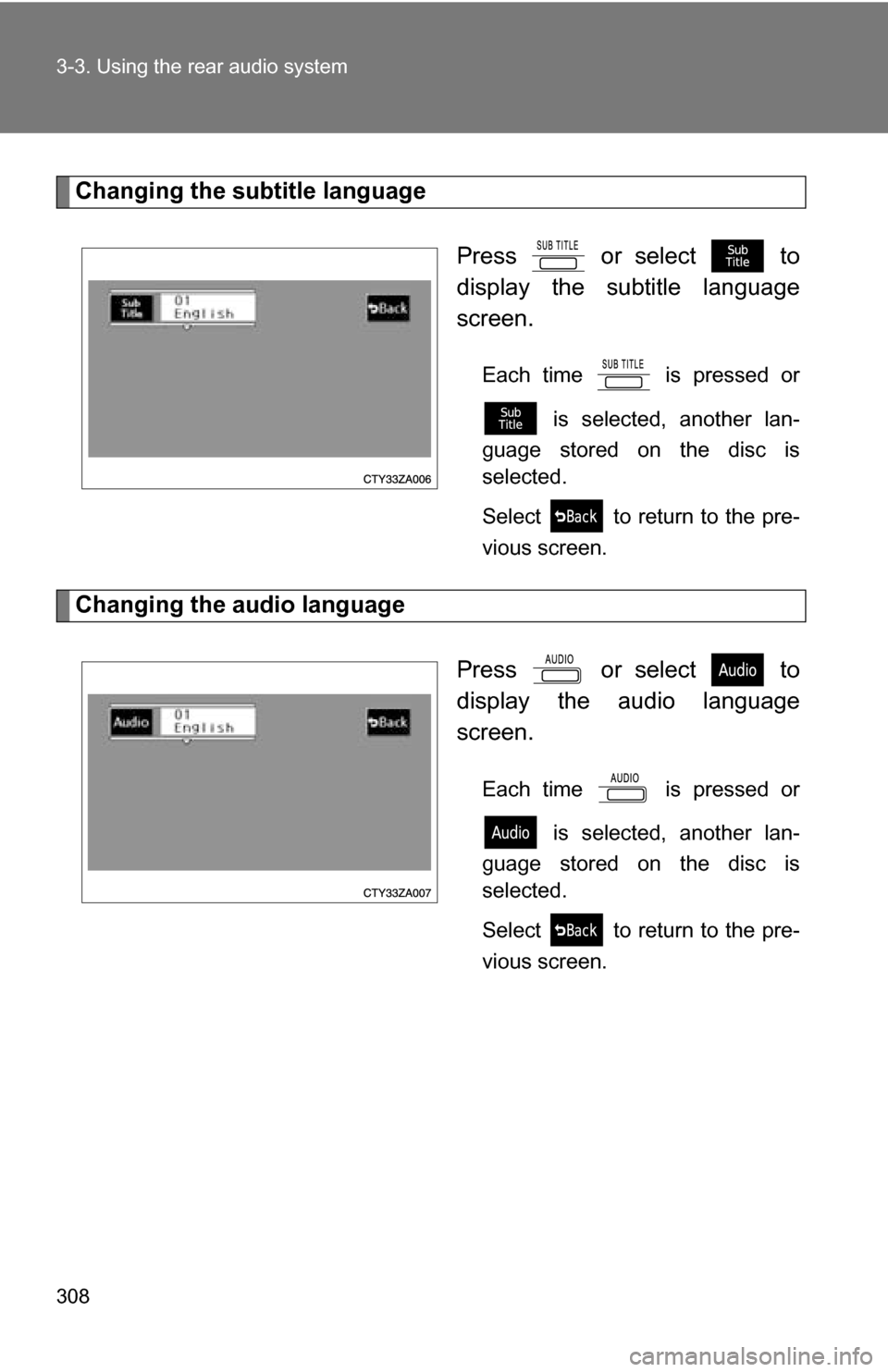
Changing the subtitle languagePress or select to
display the subtitle language
screen.
Each time is pressed or is selected, another lan-
guage stored on the disc is
selected.
Select to return to the pre-
vious screen.
Changing the audio language
Press or select to
display the audio language
screen.
Each time is pressed or is selected, another lan-
guage stored on the disc is
selected.
Select to return to the pre-
vious screen.
Page 309 of 592
309
3-3. Using the rear audio system
3
Interior features
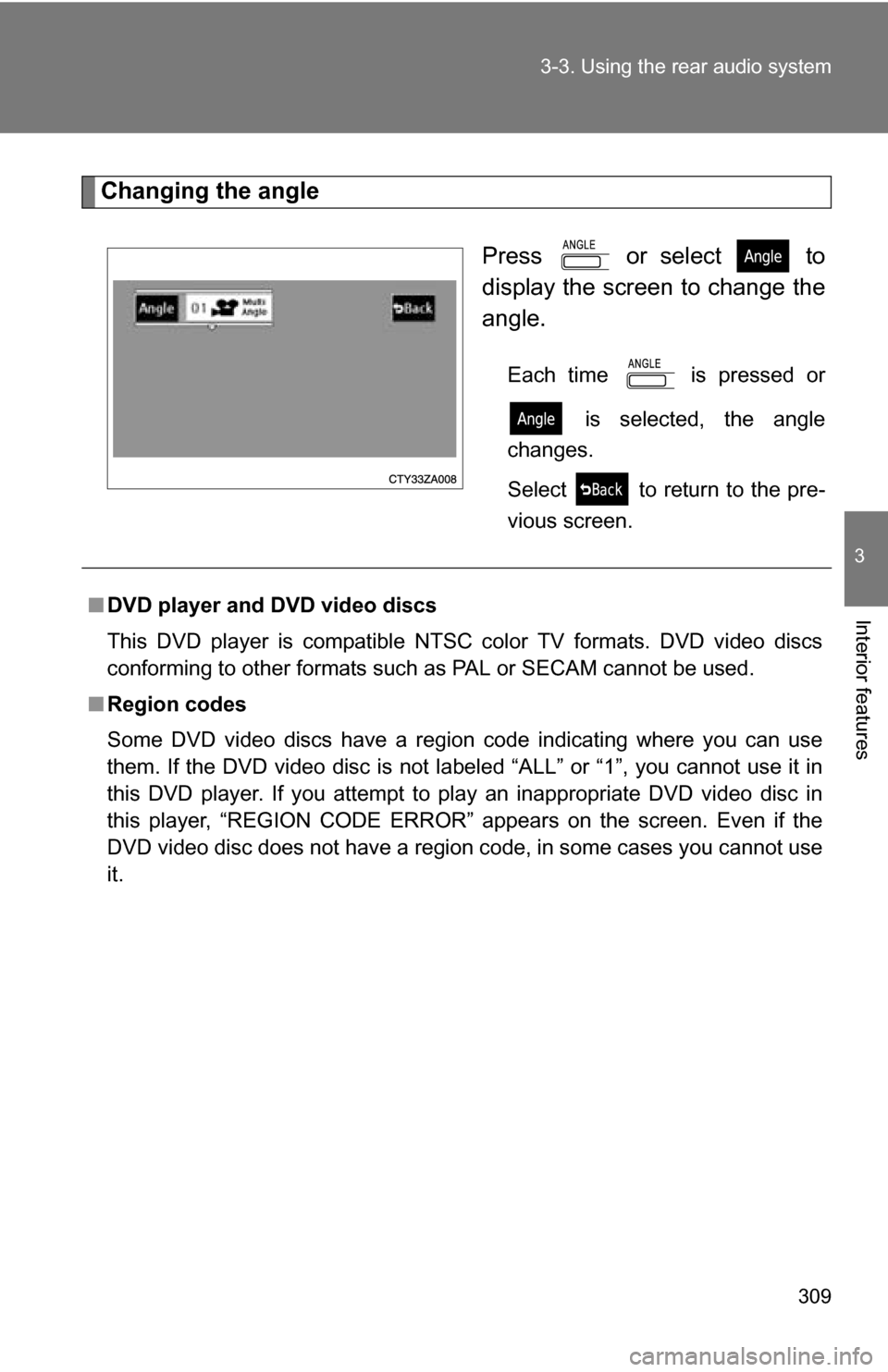
Changing the angle
Press or select to
display the screen to change the
angle.
Each time is pressed or is selected, the angle
changes.
Select to return to the pre-
vious screen.
■ DVD player and DVD video discs
This DVD player is compatible NTSC color TV formats. DVD video discs
conforming to other formats such as PAL or SECAM cannot be used.
■ Region codes
Some DVD video discs have a region code indicating where you can use
them. If the DVD video disc is not labeled “ALL” or “1”, you cannot use it in
this DVD player. If you attempt to play an inappropriate DVD video disc in
this player, “REGION CODE ERROR” appears on the screen. Even if the
DVD video disc does not have a region code, in some cases you cannot use
it.
Page 312 of 592
312
3-3. Using the rear audio system
Using the DVD player (video CD)
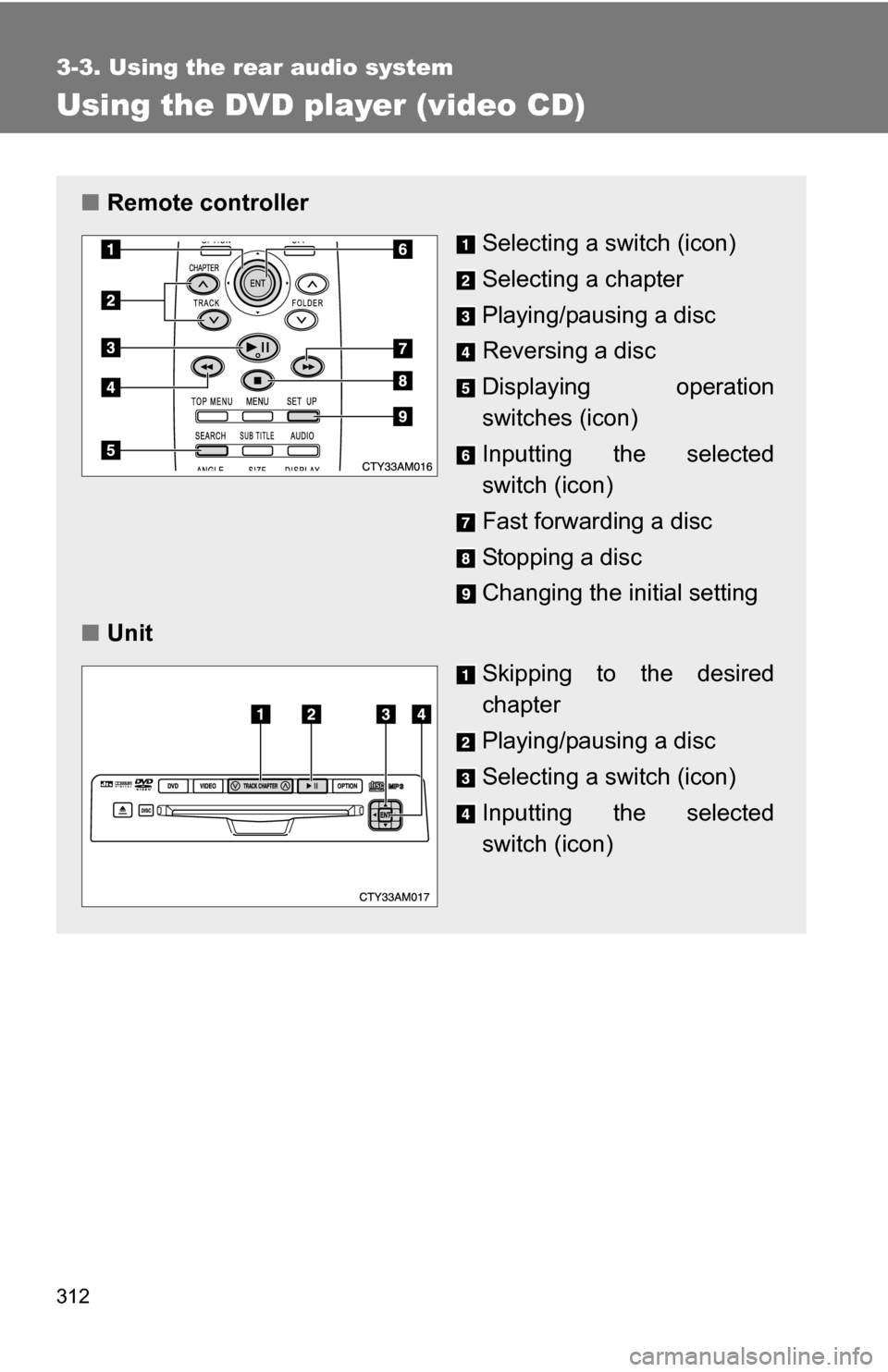
■Remote controller
Selecting a switch (icon)
Selecting a chapter
Playing/pausing a disc
Reversing a disc
Displaying operation
switches (icon)
Inputting the selected
switch (icon)
Fast forwarding a disc
Stopping a disc
Changing the initial setting
■ Unit
Skipping to the desired
chapter
Playing/pausing a disc
Selecting a switch (icon)
Inputting the selected
switch (icon)
Page 313 of 592
313
3-3. Using the rear audio system
3
Interior features
■
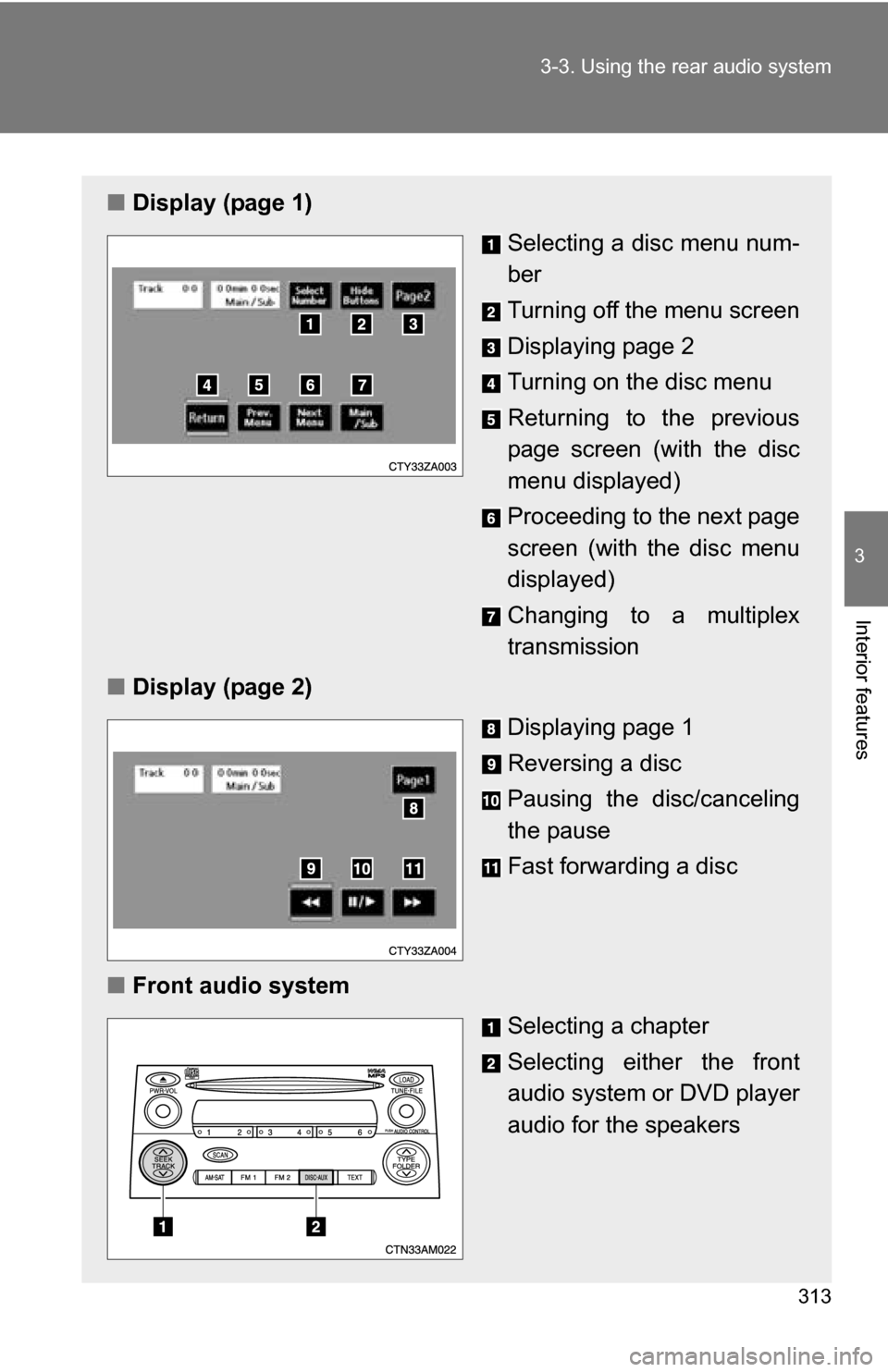
Display (page 1)
Selecting a disc menu num-
ber
Turning off the menu screen
Displaying page 2
Turning on the disc menu
Returning to the previous
page screen (with the disc
menu displayed)
Proceeding to the next page
screen (with the disc menu
displayed)
Changing to a multiplex
transmission
■ Display (page 2)
Displaying page 1
Reversing a disc
Pausing the disc/canceling
the pause
Fast forwarding a disc
■ Front audio system
Selecting a chapter
Selecting either the front
audio system or DVD player
audio for the speakers
Page 314 of 592
314 3-3. Using the rear audio system
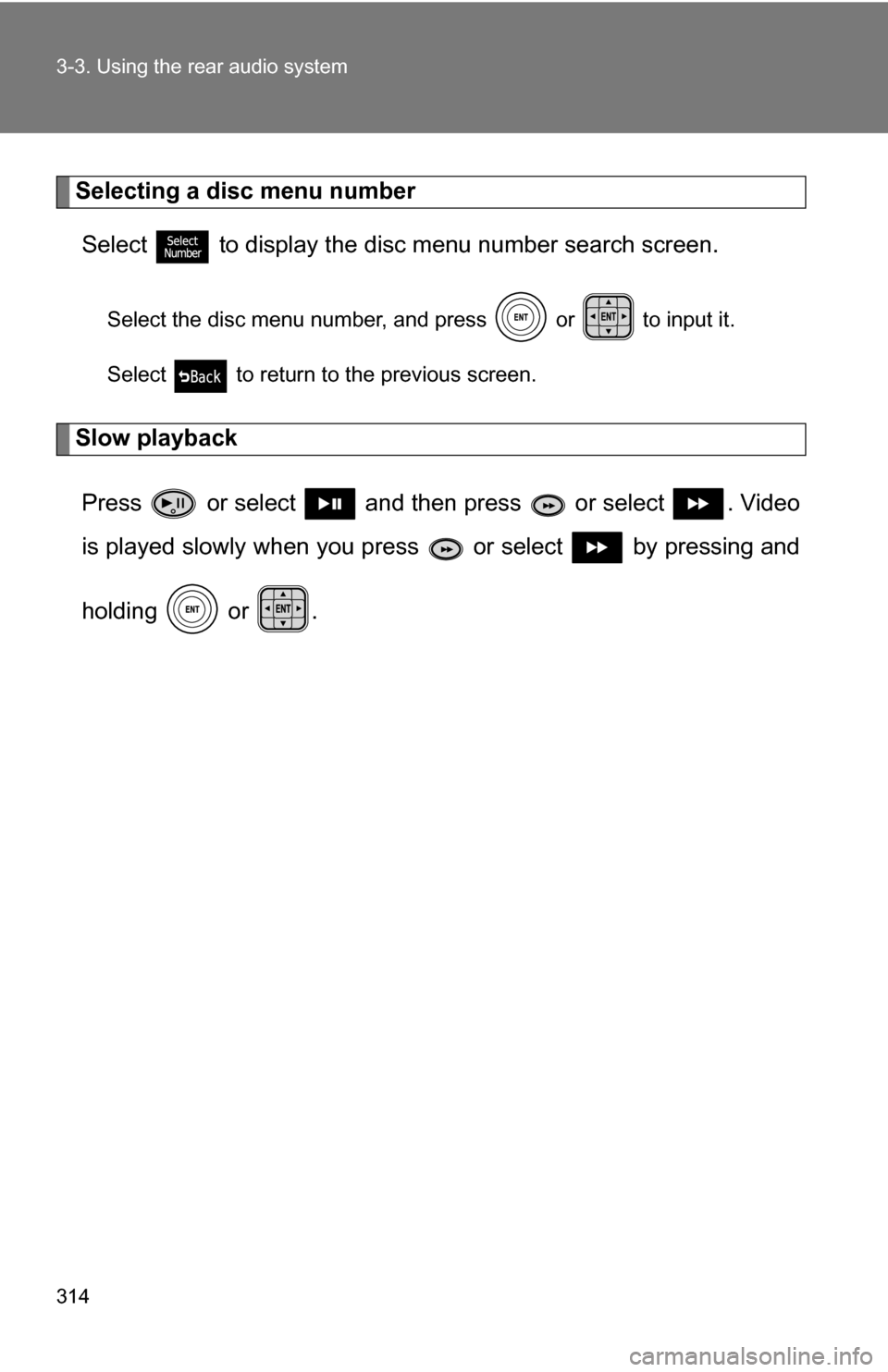
Selecting a disc menu numberSelect
to display the disc menu number search screen.
Select the disc menu number, and press or to input it.
Select to return to the previous screen.
Slow playback
Press or select and then press or select . Video
is played slowly when you press or select by pressing and
holding or .
Page 315 of 592
315
3-3. Using the rear audio system
3
Interior features
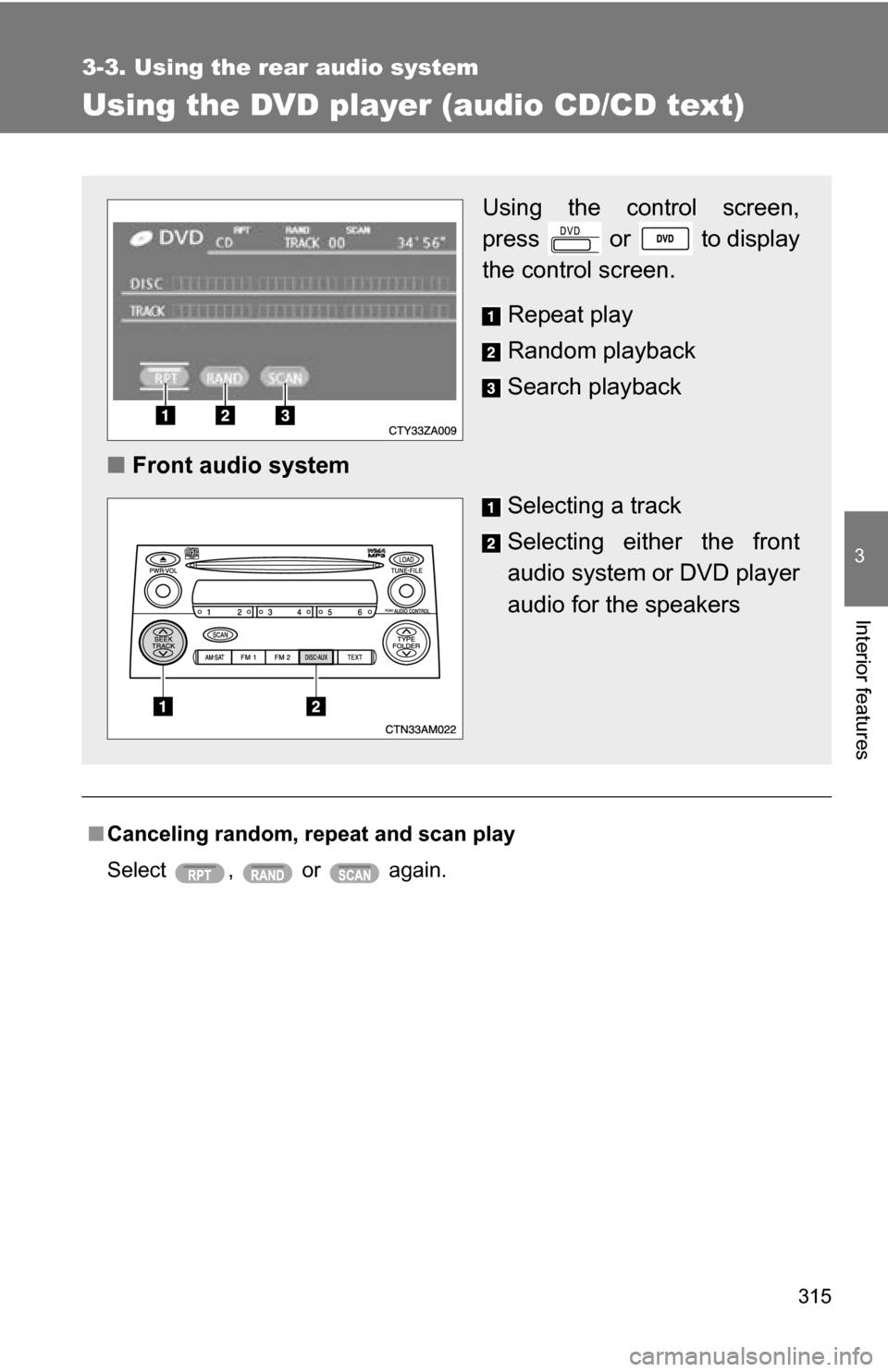
Using the DVD player (audio CD/CD text)
■Canceling random, repeat and scan play
Select , or again.
Using the control screen,
press or to display
the control screen.
Repeat play
Random playback
Search playback
■ Front audio system
Selecting a track
Selecting either the front
audio system or DVD player
audio for the speakers
Page 316 of 592
316
3-3. Using the rear audio system
Using the DVD player (MP3 discs)
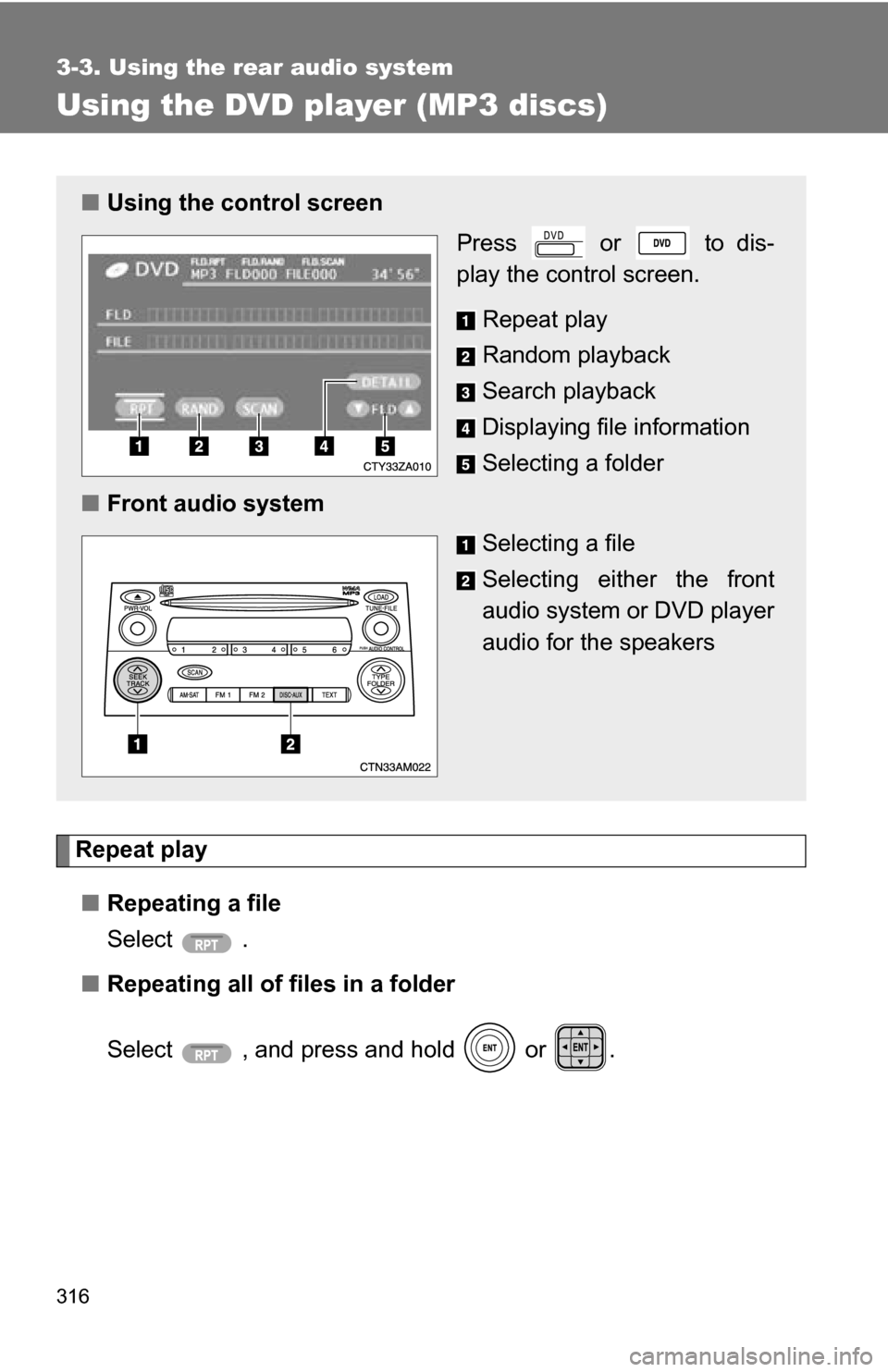
Repeat play■ Repeating a file
Select .
■ Repeating all of files in a folder
Select , and press and hold or .
■Using the control screen
Press or to dis-
play the control screen.
Repeat play
Random playback
Search playback
Displaying file information
Selecting a folder
■ Front audio system
Selecting a file
Selecting either the front
audio system or DVD player
audio for the speakers
Page 320 of 592
320
3-3. Using the rear audio system
Changing the initial setting
Changing the audio languageSelect “Audio Language”.
Select the language you want to
hear, and press or to
input it.
Select “Others” if you cannot find
the language you want to hear.
Enter the appropriate 4-digit lan-
guage code. (P. 324)
Select a number, and press
or to input it.
If a code that is not in the list is
entered, “Incorrect Code” will
appear on the screen.
Press or select to
display the initial setting
screen.
The following in itialization can
be changed here.
● Audio language
● Subtitle language
● DVD language
● Angle mark
● Parental lock