2023 HYUNDAI IONIQ 5 display
[x] Cancel search: displayPage 262 of 680
Convenience Features
5-70
exterior feAtures
Hood
Opening the hood
ONE1051041
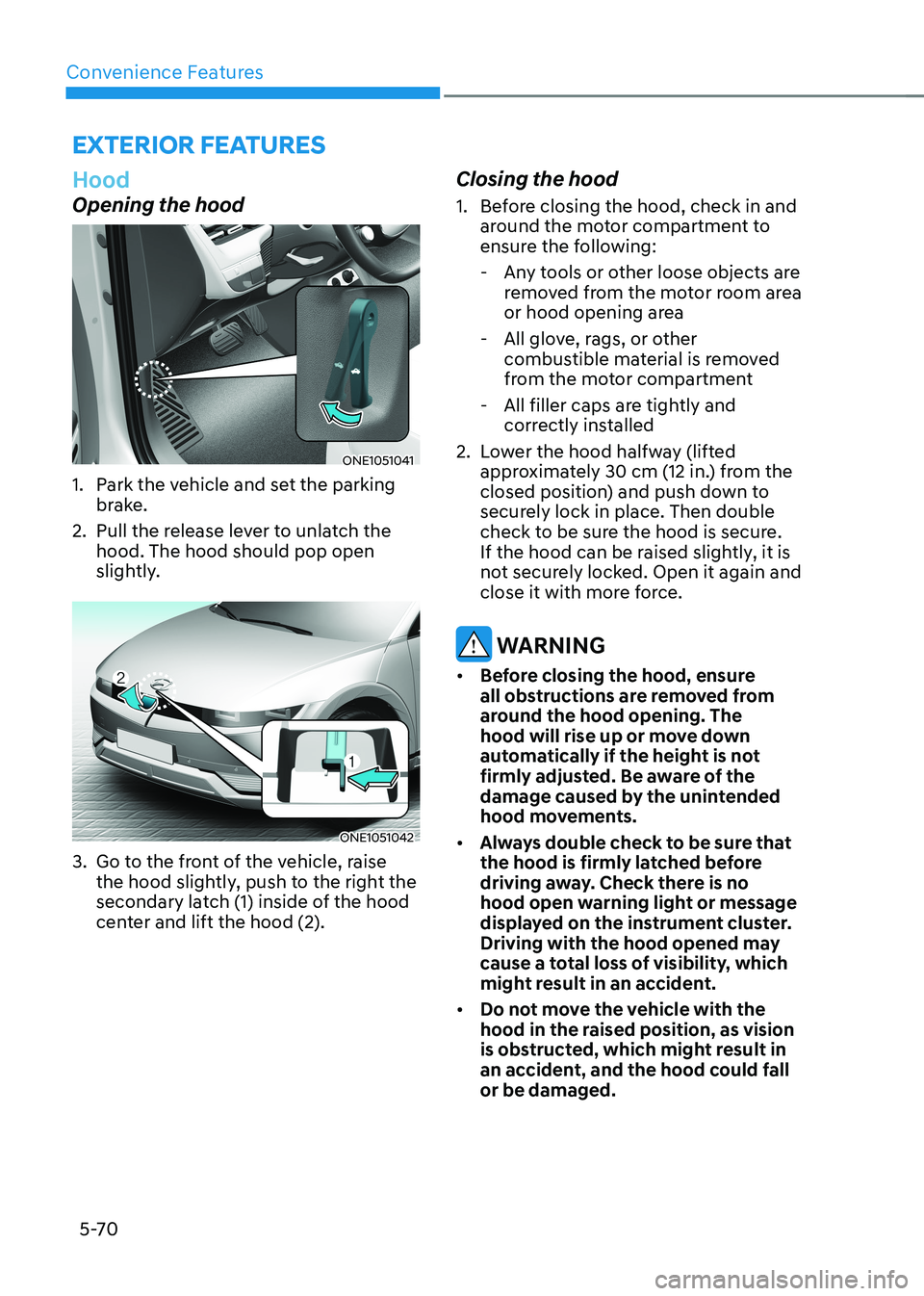
1. Park the vehicle and set the parking brake.
2. Pull the release lever to unlatch the hood. The hood should pop open
slightly.
ONE1051042
3. Go to the front of the vehicle, raise the hood slightly, push to the right the
secondary latch (1) inside of the hood
center and lift the hood (2). Closing the hood
1. Before closing the hood, check in and
around the motor compartment to
ensure the following:
- Any tools or other loose objects are removed from the motor room area
or hood opening area
- All glove, rags, or other combustible material is removed
from the motor compartment
- All filler caps are tightly and correctly installed
2. Lower the hood halfway (lifted approximately 30 cm (12 in.) from the
closed position) and push down to
securely lock in place. Then double
check to be sure the hood is secure.
If the hood can be raised slightly, it is
not securely locked. Open it again and
close it with more force.
WARNING
• Before closing the hood, ensure
all obstructions are removed from
around the hood opening. The
hood will rise up or move down
automatically if the height is not
firmly adjusted. Be aware of the
damage caused by the unintended
hood movements.
• Always double check to be sure that
the hood is firmly latched before
driving away. Check there is no
hood open warning light or message
displayed on the instrument cluster.
Driving with the hood opened may
cause a total loss of visibility, which
might result in an accident.
• Do not move the vehicle with the
hood in the raised position, as vision
is obstructed, which might result in
an accident, and the hood could fall or be damaged.
Page 274 of 680
Convenience Features
5-82
ONE1051214R
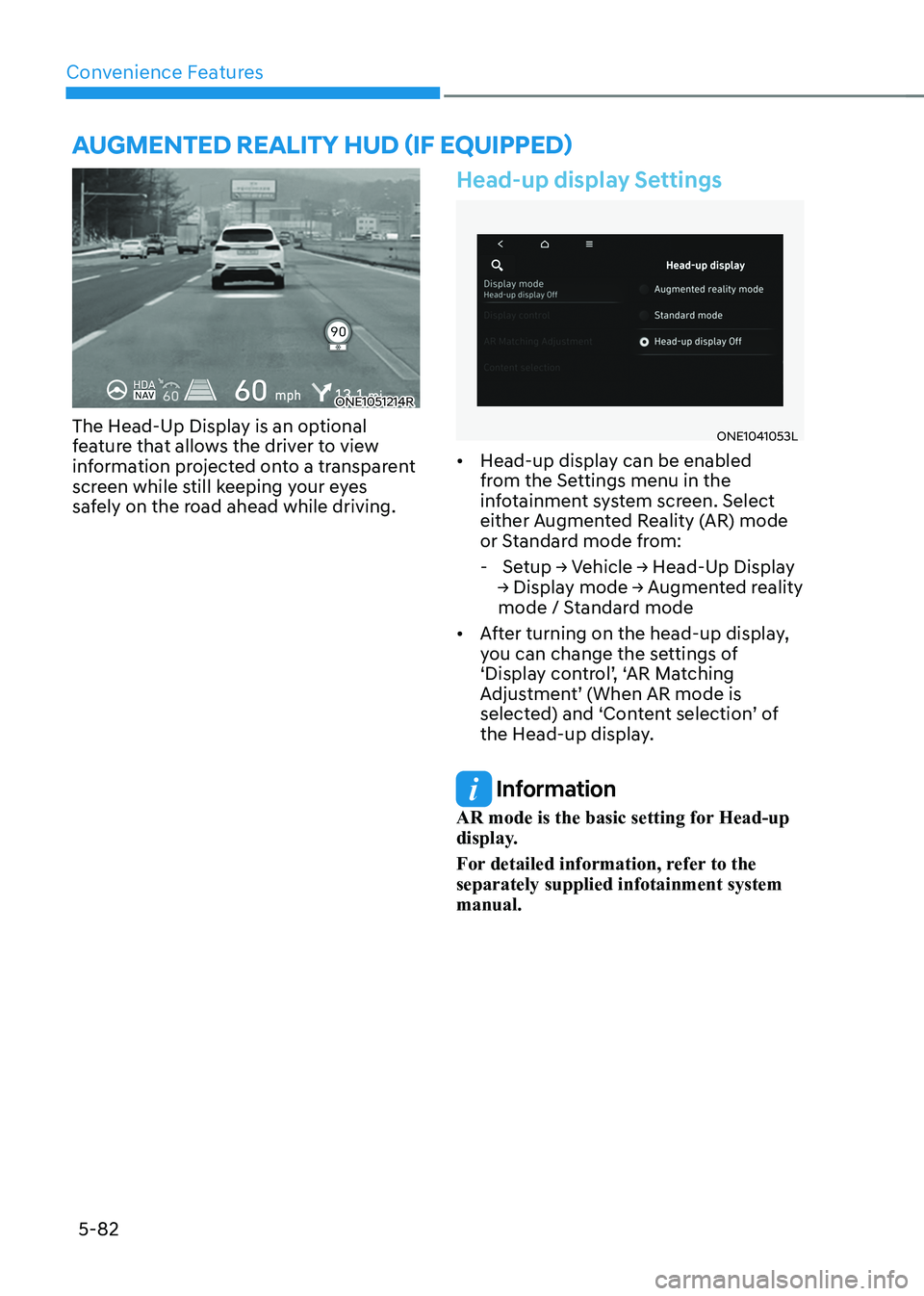
The Head-Up Display is an optional
feature that allows the driver to view
information projected onto a transparent
screen while still keeping your eyes
safely on the road ahead while driving.
Head-up display Settings
ONE1041053L
• Head-up display can be enabled
from the Settings menu in the
infotainment system screen. Select
either Augmented Reality (AR) mode
or Standard mode from:
- Setup → Vehicle → Head-Up Display
→ Display mode → Augmented reality
mode / Standard mode
• After turning on the head-up display,
you can change the settings of
‘Display control’, ‘AR Matching
Adjustment’ (When AR mode is
selected) and ‘Content selection’ of
the Head-up display.
Information
AR mode is the basic setting for Head-up
display.
For detailed information, refer to the separately supplied infotainment system manual.
aUgmenTed realITy hUd (If eQUIPPed)
Page 275 of 680

05
5-83
Head-up display Information
AR mode display information
ONE1051217E
ONE1051218E
1. Turn by Turn (TBT) navigation information
2. Traffic information
3. Speedometer information
4. SCC set speed information
5. SCC vehicle distance information
6. Lane Following Assist information
7. Lane Safety information
8. Blind-Spot Safety information
9. Highway Auto Speed Change
information
10. Highway Driving Assist information
11. Turn by turn (TBT) navigation
information (AR)
12. Lane Safety Information (AR)
13. Front Vehicle indicator (AR) (if
Highway Lane Change Assist function equipped)
14. Leading Vehicle Departure Alert (AR)
15. Highway Lane Change Assist
information (AR)
Standard mode display information
ONE1051244N
1. Turn by Turn (TBT) navigation information
2. Traffic information
3. Speedometer information
4. SCC set speed information
5. SCC vehicle distance information
6. Lane Following Assist information
7. Lane Safety information
8. Blind-Spot Safety information
9. Highway Auto Speed Change
information
10. Highway Driving Assist information
11. Surrounding vehicle information
Information
Standard Head-up display information may not be consistent based on the
different system settings menu.
Page 276 of 680

Convenience Features
5-84
Precautions while Using the
Head-up display
• It may sometimes be difficult to read
information on the Head-Up Display in
the following situations.
- The driver is improperly positioned in the driver’s seat
- The driver wears polarizing-filter sunglasses
- An object is located above the head-up display cover
- The vehicle is driven on a wet road
- Any improper lighting accessory is installed inside the vehicle, or there
is incoming light from outside of the
vehicle
- The driver wears glasses
- The driver wears contact lenses
When it is difficult to read the Head-
up display information, adjust the
image position, brightness level or
AR matching information from the
Settings menu in the infotainment
system screen.
• The AR mode display information may
be difficult to recognize when the
vehicle is driven under severe weather
condition, such as heavy rain, heavy
snow, low visibility, etc.
• Since the information displayed on
the head-up display partially overlaps
with the road ahead, you may feel
fatigue and discomfort while driving.
If you feel tired or uncomfortable,
adjust the image, and if the symptoms
persist, turn off the head-up display
before driving.
• When the direct flash light or
sunlight hits the front windshield, a
warning message will appear. If the
temperature of the front windshield
keep rises, Head-up display will be
deactivated temporarily to protect
Head-up display from the high
temperature. When the temperature
drops, Head-up display will be
reactivated. •
For your safety, make sure to stop the
vehicle before adjusting the settings.
• Do not tint the front windshield glass
or add other types of metallic coating.
Otherwise, the Head-Up Display
image may be invisible.
• Do not place any accessories on the
crash pad or attach any objects on the windshield glass.
• When replacing the front windshield
glass, replace it with a windshield
glass designed for Head-Up Display
operation. Otherwise, duplicated
images may be displayed on the windshield glass.
WARNING
• The warning information of Blind-
Spot Safety on the Head-Up Display
are supplemental. Do not solely
depend on them to change lanes.
Always take a look around before changing lanes.
The driving route guidance display
in the augmented reality mode is an
auxiliary function. Be sure to check
the navigation screen together.
• ALWAYS pay attention on the road
while driving when the Head-Up
Display is on.
Information
Head-Up Display includes GPL, LGPL,
MPL and other open source license
softwares. All license notices including
related source code are provided at http://
www.mobis.co.kr/opensource/list.do.
If the driver requests on-board
software open source code via MOBIS_
[email protected] within 3 years
after buying this product, a CD-ROM or
other storage device will be sent with the minimum cost covering storage device cost and delivery cost.
Page 286 of 680
Convenience Features
5-94
High Beam Assist Operation
Display and control • After selecting ‘High Beam Assist’
in the Settings menu, High Beam
Assist will operate by following the
procedure below.
- Place the headlamp switch in the AUTO position and push
the headlamp lever towards the
instrument cluster. The High Beam
Assist (
) indicator light will
illuminate on the cluster and High
Beam Assist will be enabled.
- When High Beam Assist is enabled, high beam will turn on when vehicle
speed is above 40 km/h (25 mph).
When vehicle speed is below 25
km/h (15 mph), high beam will turn
off.
- The High Beam (
) indicator light
will illuminate on the cluster when high beam is on.
• When High Beam Assist is operating, if
the headlamp lever or switch is used,
High Beam Assist operates as follow:
- If the headlamp lever is pulled towards you when the high beam
is off, the high beam will turn on
without High Beam Assist canceled.
When you let go of the headlamp
lever, the lever will move to the middle and the high beam will turn
off.
- If the headlamp lever is pulled towards you when the high beam is
on by High Beam Assist, low beam will turn on and the function will
turn off.
- If the headlamp switch is placed from AUTO to another position
(headlamp/position/off), High
Beam Assist will turn off and the
corresponding lamp will turn on. •
When High Beam Assist is operating,
high beam switches to low beam if
any of the following conditions occur:
- When the headlamp of an oncoming vehicle is detected.
- When the tail lamp of a vehicle in front is detected.
- When the headlamp or tail lamp of a motorcycle or a bicycle is detected.
- When the surrounding ambient light is bright enough that high beams
are not required.
- When streetlights or other lights are detected.
Information
The images or colors may be displayed
differently depending on the specifications
of the instrument panel or theme.
Page 291 of 680
05
5-99
Information
Use a clean soft microfiber cloth to gently wipe any finger prints off the touch screen.
„„Climate control panel
„„Infotainment System (Climate)
The actual shape may differ from the illustration.ONE1051127L/ONE1051115N
aUTomaTIc clImaTe conTrol sysTem
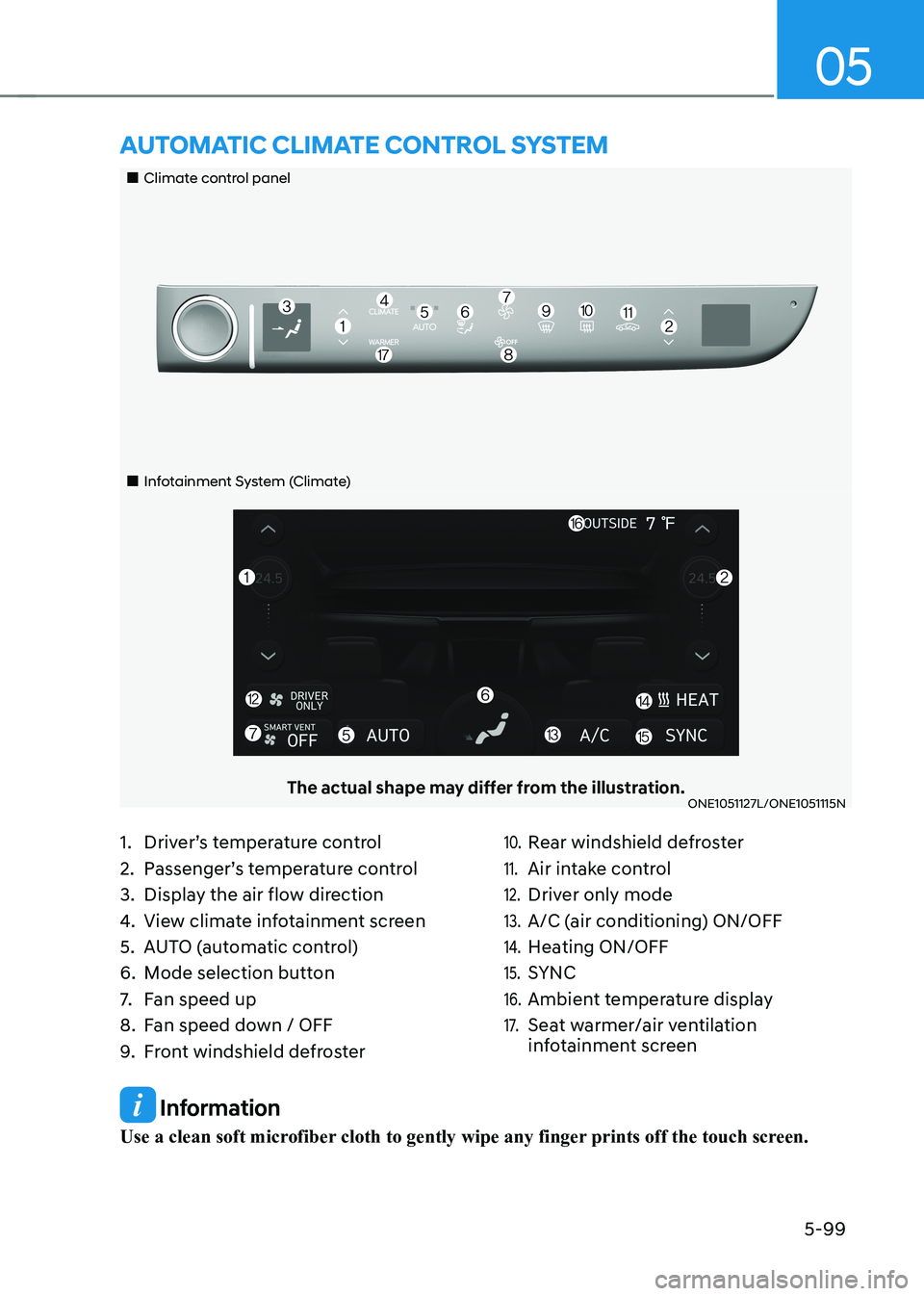
1. Driver’s temperature control
2. Passenger’s temperature control
3. Display the air flow direction
4. View climate infotainment screen
5. AUTO (automatic control)
6. Mode selection button
7. Fan speed up
8. Fan speed down / OFF
9. Front windshield defroster10. Rear windshield defroster
11. Air intake control
12. Driver only mode
13. A/C (air conditioning) ON/OFF
14. Heating ON/OFF
15. SYNC
16. Ambient temperature display
17. Seat warmer/air ventilation
infotainment screen
Page 294 of 680
Convenience Features
5-102
Manual Temperature Control
Mode
The heating and cooling system can
be controlled manually by selecting
functions other than AUTO. In this case,
the system works sequentially according
to the order of the functions selected.
When selecting any other functions
except AUTO while using automatic
operation, the functions not selected will
be controlled automatically.
1. Start the vehicle.
2. Set the mode to the desired position.To improve the effectiveness of
heating and cooling, select the mode
according to the following: - Heating:
- Cooling:
3. Set the temperature control to the desired value.
4. Set the air intake control to Fresh or
Recirculation mode.
5. Set the fan speed control to the desired speed.
6. If air conditioning is desired, turn the air conditioning system on.
7. Select AUTO to revert back to full
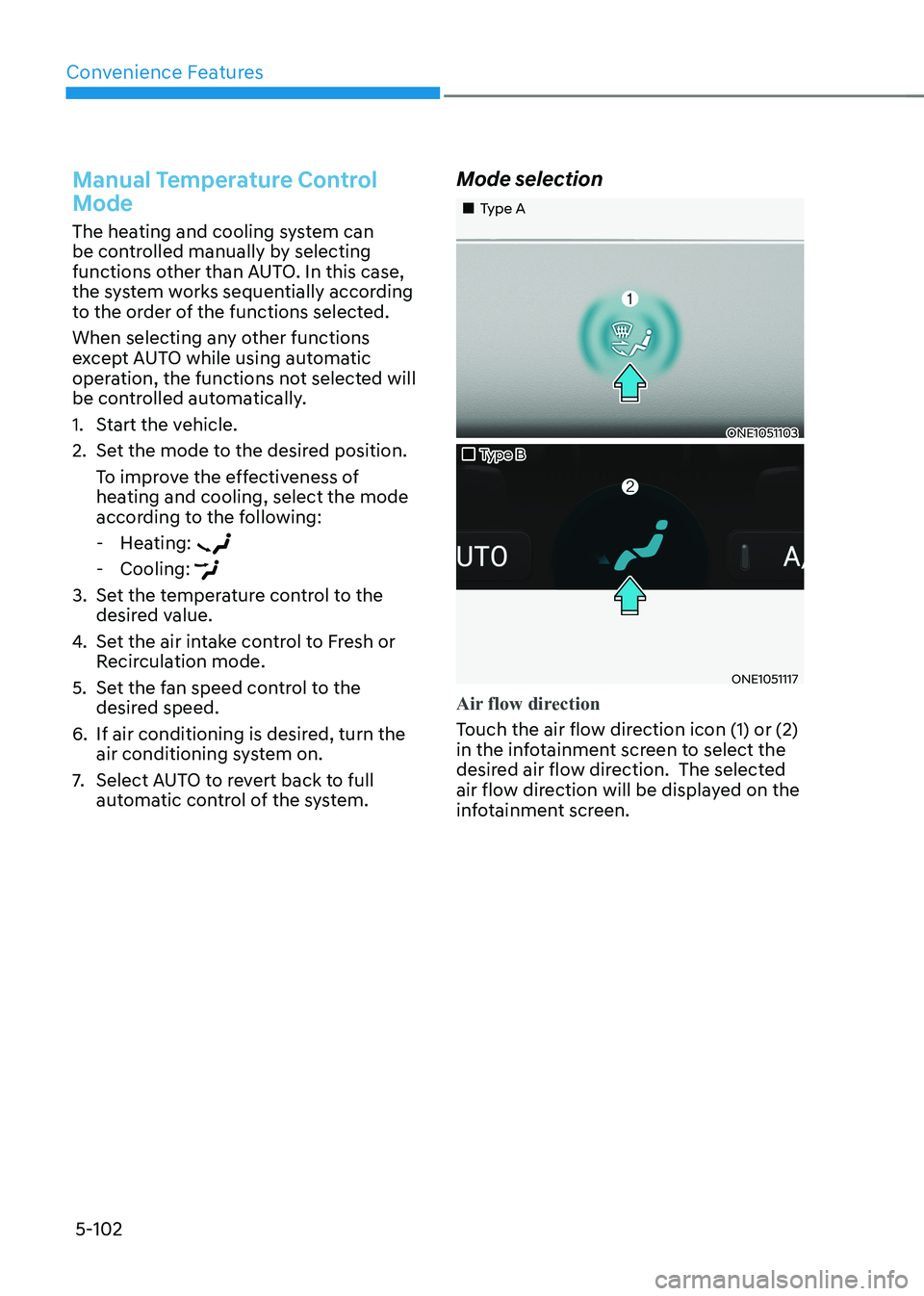
automatic control of the system. Mode selection
„„Type A
ONE1051103
„„Type B
ONE1051117
Air flow direction
Touch the air flow direction icon (1) or (2)
in the infotainment screen to select the
desired air flow direction. The selected
air flow direction will be displayed on the
infotainment screen.
Page 302 of 680
Convenience Features
5-110
System Operation
Cooling / Ventilation
1. Select the Face Level (
) mode in the
infotainment screen.
2. Set the air intake control to fresh or recirculation mode.
3. Set the temperature to the desired position.
4. Set the fan speed to the desired speed.
Heating
1. Select the Floor Level (
) mode in
the infotainment screen.
2. Set the air intake control to fresh or recirculation mode.
3. Set the temperature to the desired position.
4. Set the fan speed to the desired speed.
5. If desired, turn the air conditioning ON
with the temperature set high in order
to dehumidify the air before it enters
into the cabin.
If the windshield fogs up, select the Front
Defrost (
) mode.
Operation Tips
• To keep dust or unpleasant fumes
from entering the vehicle through the
ventilation system, temporarily set the
air intake control to the recirculation
mode. Return the control to the
Recirculation mode to the Fresh mode
when the unpleasant air outside has
diminished. This will help keep the
driver alert and comfortable.
• To help prevent the inside of the
windshield from fogging, set the air
intake control to fresh mode and the
fan speed to the desired position, turn
on the air conditioning system, and
adjust the temperature control to the
desired temperature. Air conditioning
Your HYUNDAI Vehicle air conditioning
system is filled with R-1234yf refrigerant.
1. Touch the [CLIMATE] icon to display
climate information the infotainment
screen.
2. Select A/C icon (indicator light ON) in the climate information screen to
activate the air-condition.
3. Set the temperature low.
4. Set the direction of air flow by
touching the mode selection icon.
5. Touch the HEAT icon (indicator light OFF) to turn on the air-condition.
When maximum cooling is desired, set
the temperature to the lowest position,
then set the fan speed control to the
highest setting.
Air conditioning system operation tips
• If the vehicle has been parked in
direct sunlight during hot weather,
open the windows for a short time
to let the hot air inside the vehicle escape.
• After sufficient cooling has been
achieved, switch back from
recirculation mode to fresh mode.
• To help reduce moisture inside of
the windows on rainy or humid
days, decrease the humidity inside
the vehicle by operating the air
conditioning system with the windows
and sunroof closed.
• Use the air conditioning system
every month only for a few minutes
to ensure maximum system
performance.
• If you operate air conditioner
excessively, the difference between
the temperature of the outside air and
that of the windshield could cause
the outer surface of the windshield to
fog up, causing loss of visibility. In this
case, set the mode selection to the
position and fan speed control to the
lowest speed.