2023 HYUNDAI IONIQ 5 display
[x] Cancel search: displayPage 200 of 680

Convenience Features
5-8
When you set the Two Press Unlock function
1. Make sure you have the smart key in your possession.
2. Touch the touch sensor on the door handle(engraved part) or press the
Door Unlock button (2) on the smart
key. The driver’s door handle will
pop out and the driver’s door will be
unlocked.
3. Touch the touch sensor on the door handle(engraved part) or press the
Door Unlock button (2) on the smart
key within 4 seconds again. All door
handles will pop out and the doors will
be unlocked and the hazard warning
lights will blink twice and the chime will sound.
4. After unlocking the doors, the doors
will automatically re-lock after 30 seconds unless a door is opened. Two Press Unlock Feature
The priority for unlocking the driver door
only, or unlocking all the doors with
one press may be adjusted in the User
Settings menu in the LCD cluster display.
The Two Press Unlock feature, when
enabled, will require the user to press
the door unlock button once for driver
door only and twice for unlocking all the
doors.
Select or Deselect the Two Press Unlock
Feature in the User Settings menu in the
LCD cluster display. The option can be
found under the following menu:
USER SETTINGS → DOOR →TWO PRESS
UNLOCK
The Two Press Unlock Feature can also
be enabled or disabled by pressing
the door lock and unlock buttons
simultaneously on the Key FOB:
Press and hold both the DOOR LOCK
button and the DOOR UNLOCK button
simultaneously until the hazard warning
lights blink.
This will enable or disable the Two Press
Unlock feature. Repeat this procedure to enable/disable the mode again.
Page 213 of 680

05
5-21
Remote Start with Digital Key •
When the shift button of your vehicle
is in P (Park) and all of the doors
including trunk and hood is locked
and the vehicle is off, press the Door
Lock button in the Hyundai Digital
Key app then press the Remote Start
button within 4 seconds.
You can confirm the engine is on if the
hazard warning lights blinks two times and the chime sounds.
• If you want to turn off the engine,
press Remote Engine Stop. Air
Conditioner / Heating system
maintains the same status as when
you last used the vehicle.
• Unless you put the registered digital
key(smartphone) on the interior
authentication pad (wireless charger)
when the remote start function is on,
the engine will turn off.
• If you do not get on the vehicle within
10 minutes after the engine turns on,
the vehicle will turn off.
For more information, refer to the Engine
Start/Stop button in chapter 6.
Vehicle information Display
The digital key application displays
the vehicle information such as
driving or door conditions through the
communication with the vehicle. • How to check : Select the vehicle
what you want to check and touch
the vehicle image, then vehicle
information display page will be
shown.
• Contents : accumulated odometer,
latest fuel economy, driving range,
fuel remaining, tire pressure, doors
lock/unlock status and last data
updated time.
à Displayed vehicle date could be
differed from the current vehicle condition.
à For more information, please refer to
the ‘Tutorial’ on your Digital key app.
Smartphone change/App deletion
If you change your smartphone or delete
the Hyundai Digital Key App, please refer
to the following to set up your Digital
Key:
Smartphone Change/ Reset
If you change or reset the smartphone,
the registered digital key in your previous
smartphone may not be used. Please
refer to following procedure to use the
digital key.
1. Install the digital key application and
log in.
2. If you are the owner, retry the Digital key save process.
3. If you are the sharer, need to re-share the key from owner.
App delete & reinstall/ Delete App data
You can re-download the digital key
from server in these cases as follow
procedure.
1. Reinstall the application and log in.
2. Input the PIN number for user verification.
3. If PIN is correct, digital key data will be re-downloaded to your
smartphone and you can use it
without any further registration or sharing.
Smartphone operability with Digital Key
The digital key application may not
be available to old type smartphones.
Please check the available smartphone
models with your dealer. NFC antenna position on the smartphone can be
confirmed on each smartphone’s manual
or contact to customer service center of
the smartphone manufacture.
Page 216 of 680
Convenience Features
5-24
Digital key (Card key)
Digital key (Card key) save
1. Install Hyundai digital key app in
main user’s smartphone and register
the digital key (smartphone). Please
refer to the registration method of the
digital key (smartphone).
2. Using the [Pair Card Key] menu on the digital key application, you can
activate the Card Key registration mode.
à NFC authentication : enter the NFC
authentication menu and contact the smartphone on the outside door handle.
à Bluetooth authentication : enter the
Bluetooth authentication menu and
press the [OK] button for activation.
If you activate the registration mode,
you should complete the Card saving
process within 5 minutes.
à If you have not registered the digital
key (smartphone), please register the
digital key (card key) with two smart
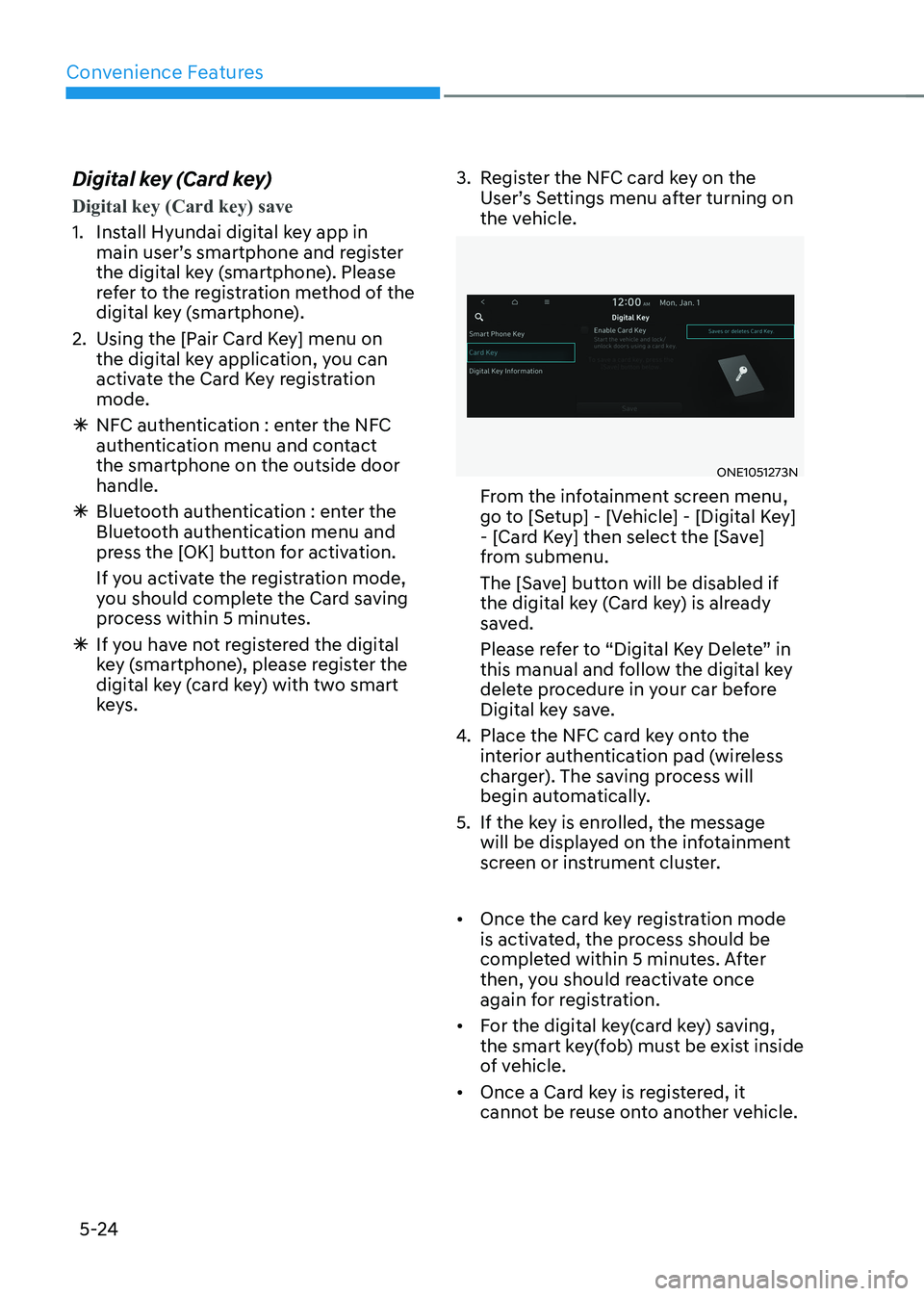
keys. 3. Register the NFC card key on the
User’s Settings menu after turning on
the vehicle.
ONE1051273N
From the infotainment screen menu,
go to [Setup] - [Vehicle] - [Digital Key]
- [Card Key] then select the [Save]
from submenu.
The [Save] button will be disabled if
the digital key (Card key) is already
saved.
Please refer to “Digital Key Delete” in
this manual and follow the digital key
delete procedure in your car before
Digital key save.
4. Place the NFC card key onto the
interior authentication pad (wireless
charger). The saving process will
begin automatically.
5. If the key is enrolled, the message will be displayed on the infotainment
screen or instrument cluster.
• Once the card key registration mode
is activated, the process should be
completed within 5 minutes. After
then, you should reactivate once
again for registration.
• For the digital key(card key) saving,
the smart key(fob) must be exist inside
of vehicle.
• Once a Card key is registered, it
cannot be reuse onto another vehicle.
Page 221 of 680

05
5-29
Vehicle personalization with digital key
The available personalization function in the vehicle is as follows.
SystemPersonalization Item
USMHUD
Display mode, Display control, AR matching
adjustment, Content selection
Lamp Blink number of one-touch signal lamps
Cluster Information display on the cluster, Voice volume,
Welcome sound, Theme selection
Seat/Mirror -
Door Automatic door lock/unlock, Two Press Unlock
Air conditioning Temperature unit, shut off outside air (interlocked
with washer fluid), Automatic ventilation, Auto
defogging on/off
Convenience Wireless charging system on/off (all seats)
NFC Digital key on/off, Smartphone Key Paring/Deletion,
Card key Save/Delete
AVN Navigation
Preferred volume of the navigation system, Recent
destination
User preset Radio preset Phone
connectivity Bluetooth preferential connect CarPlay/Android
Auto/MirrorLink On/Off
Air conditioning Operating
condition Latest operation setup of the following functions:
Temperature, AUTO, air flow direction, air volume,
air conditioner, air intake control, SYNC, Front
windshield defroster, OFF
Driving Smart mode -
For more information of personalization, refer to the infotainment system manual.
CAUTION
If you leave the digital key after locking or unlocking the doors or starting up the
vehicle with the smart key, the doors can be locked by the central door lock. Please
carry around the digital key all the time.
Page 230 of 680

Convenience Features
5-38
NOTICE
Child safety lock failure
ONE1051205L
When electronic child safety lock does
not work even though the button is
pressed, the message will be displayed
and an alarm will sound. If this occurs,
have the vehicle inspected by an
authorized HYUNDAI dealer.
Safe Exit Assist (if equipped with
electronic child safety lock)
Safe Exit Assist helps prevent the rear
occupant from opening the rear door.
When an approaching vehicle from the
rear area is detected after the vehicle
stops, the rear doors will not unlock even
when the driver tries to unlock the rear
doors using the electronic child safety
lock button.
For more details, refer to “Safe Exit
Assist (SEA)” section in chapter 7.
Vehicle Auto-Shut Off Function
If you forget to turn off the vehicle that
EV Drivable for a period of time, Vehicle
Shuts Off automatically to prevent waste
electric power. Operating Conditions
Vehicle Auto-Shut Off timer activates
when the following conditions are met •
Not Auto-Shut Off timer reset condition
- Vehicle is not EV ready state(Only Ignition On) or the utility mode on
- Gear Shift Other than P
- Stepped on the brake pedal of the accelerator pedal
- Fastened driver’s seat belt and passenger’s seat belt
- Passenger`s seat is occupied
- The vehicle moves(vehicle speed is above 2 mph (3 km/h))
- When Auto-Shut Off timer is left 10minutes, the user setting mode
pops up in the instrument cluster.
And you can check the time left. If
you push the ‘OK’ button, Auto-Shut
off timer is reset.
ODN8A059340
• Head unit is not updating
• Outside of vehicle charging connector engaged or outside V2L used
• If you want to deactivate auto-shut
off function during inside V2L, use the Utility mode
System Operation
If the system is satisfied operating
conditions after 90 minutes, vehicle shut
off automatically.
Page 232 of 680

Convenience Features
5-40
InTegraTed memory sysTem (If eQUIPPed)
ONE1051023
Integrated Memory System for the
driver’s seat is provided to store and
recall the following memory settings with
a simple button operation. • Driver’s seat position
• Outside rearview mirror position
• Head-Up Display (HUD) : display
mode, position, AR matching
adjustment (if equipped)
WARNING
Never attempt to operate the
integrated memory system while the
vehicle is moving.
This could result in loss of control, and
an accident causing death, serious
injury, or property damage.
Information
• If the battery is disconnected, the memory settings will be erased.
• If integrated memory system does not
operate normally, have the system inspected by an authorized HYUNDAI
dealer.
Storing Memory Positions
1. Shift to P (Park) while the Start/Stop
button is in the ON position.
2. Adjust the driver’s seat position, outside rearview mirror position, and
head-up display height to the desired position.
3. Hold the button (1 or 2). The system will beep once and notify you ‘Driver
1 (or 2) settings saved’ will appear on
the infotainment screen.
Recalling Memory Positions
1. Shift to P (Park) while the Start/Stop button is in the ON position.
2. Press the desired memory button (1 or 2). The system will beep once, and
then the driver’s seat position, outside
rearview mirror position, and head-
up display height will automatically
adjust to the stored positions.
3. ‘Driver 1 (or 2) settings applied’ will appear on the infotainment screen.
Information
• In order to adjust the memory button (2) while adjusting the memory button
(1), press the memory button (1) to
pause the adjustment of (1), then press memory button (2).
• If you adjust the seat, rearview mirror,
head-up display while recalling the
stored positions, the manually adjusted settings will be applied.
Page 245 of 680
05
5-53
3) Two-Way Communication
Programming (For select garage
door openers)
If your garage door opener has the
‘myQ’ logo on its side, your opener
likely has Two-Way Communication
capability. HomeLink has the capability
to establish Two-Way Communication
with your garage door opener. HomeLink
can receive and display “closing”
or “opening” status messages from
compatible garage door openers. At
any time, Home-Link can also recall
and display the last recorded status
communicated by the garage door
opener to indicate your garage door
being “closed” or “opened”.
To check if your garage door opener is
compatible with this feature, refer to
www.homelink.com/compatible/Two-
way-Communication. If your garage
door opener has this functionality, AND
the Two-Way Communication indicators
(4), (6) in the mirror appear while the
garage door is opening/closing, then
no further steps are needed. Two-Way
Communication Programming is already
complete. However, if your garage door
opener has this functionality, AND the
Two-Way Communication indicators (4),
(6) in the mirror DO NOT appear while
the garage door is opening/closing, use
the following instructions to enable this
functionality.
1. In your vehicle, press and hold the programmed HomeLink button for 2
seconds, then release. Confirm that
the garage door is moving. AFTER it
stops, you will have one minute to
complete the following steps:
à A ladder and/or second person may
simplify the following steps. 2. On your garage door opener in your
garage, locate the “Learn” button
(usually near where the hanging
antenna wire is attached to the garage
door opener). If there is difficulty
locating this button, reference the
device’s owner’s manual.
3. Press and release the “Learn” button.
4. A light on your garage door opener
may flash, and your Two-Way
Communication indicators (4), (6) in
your vehicle may flash, confirming
completion of the process.
5. Return to the vehicle and firmly press and release the programmed
HomeLink button to activate
your garage door. The Two-Way
Communication indicators (4), (6)
flash in orange when the door is
moving. Do not make any additional
button presses until AFTER the garage
door has come to a complete stop.
6. Your Two-Way Communication programming is now complete.
Information
If your garage door opener has Two-
Way Communication functionality,
it is possible for HomeLink to stop
functioning the garage door shortly
after initial programming, IF the Two-
Way Communication Programming
wasn’t properly completed. This
usually happens after the first 10 times
a programmed HomeLink button is
pressed. If you experience this, completing
the “Programming a New HomeLink
Button” and “Two-Way Communication
Programming” will restore door operation.
Page 247 of 680
05
5-55
2) Two-Way Communication Display
Behavior
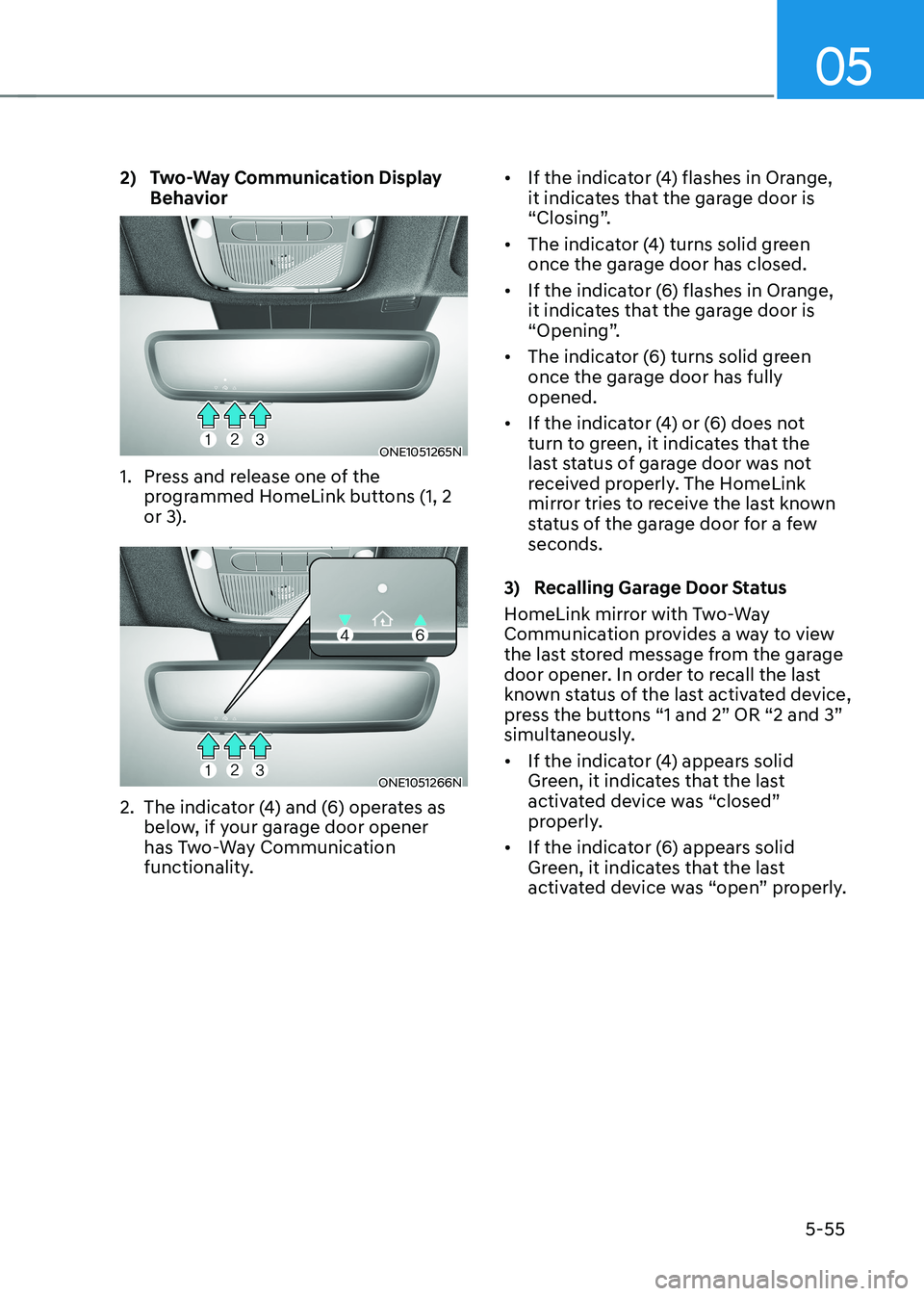
ONE1051265N
1. Press and release one of the programmed HomeLink buttons (1, 2
or 3).
ONE1051266N
2. The indicator (4) and (6) operates as below, if your garage door opener
has Two-Way Communication
functionality. •
If the indicator (4) flashes in Orange,
it indicates that the garage door is
“Closing”.
• The indicator (4) turns solid green
once the garage door has closed.
• If the indicator (6) flashes in Orange,
it indicates that the garage door is
“Opening”.
• The indicator (6) turns solid green
once the garage door has fully opened.
• If the indicator (4) or (6) does not
turn to green, it indicates that the
last status of garage door was not
received properly. The HomeLink
mirror tries to receive the last known
status of the garage door for a few seconds.
3) Recalling Garage Door Status
HomeLink mirror with Two-Way
Communication provides a way to view
the last stored message from the garage
door opener. In order to recall the last
known status of the last activated device,
press the buttons “1 and 2” OR “2 and 3”
simultaneously. • If the indicator (4) appears solid
Green, it indicates that the last
activated device was “closed”
properly.
• If the indicator (6) appears solid
Green, it indicates that the last
activated device was “open” properly.