2023 HYUNDAI IONIQ 5 display
[x] Cancel search: displayPage 463 of 680
07
7-61
•
The distance between the vehicle and
the road signs is too far
• The vehicle encounters illuminant
road signs
• Intelligent Speed Limit Assist
incorrectly recognizes numbers in the
street signals or other signs as the speed limit
• The minimum speed limit sign is on
the road
• The brightness changes suddenly, for
example when entering or exiting a tunnel or passing under a bridge
• Headlamps are not used or the
brightness of the headlamps are weak
at night or in the tunnel
• Road signs are difficult to recognize
due to the reflection of sunlight, street
lights, or oncoming vehicles
• The navigation information or GPS
information contain errors.
• The driver does not follow the guide
of the navigation.
• The driver is driving a new road that is
not in the navigation system yet.
• The field of view of the front view
camera is obstructed by sun glare
• Driving on a road that is sharply
curved or continuously curved
• Driving through speed bumps, or
driving up and down or left to right on
steep inclines
• The vehicle is shaking heavily
• There is an error in the navigation map
information or GPS information
• The driver is not driving along the
navigation guide route
• Driving on a newly opened road
Information
For more details on the limitations of the
front view camera, refer to “Forward
Collision-Avoidance Assist (FCA)” section
in this chapter.
WARNING
• Intelligent Speed Limit Assist is a
supplemental function that helps the
driver to comply with the speed limit
on the road, and may not display the
correct speed limit or control the
driving speed properly.
• Always set the vehicle speed to the
speed limit in your country.
Page 465 of 680
07
7-63
ONE1071203L
Leading Vehicle Departure Alert
- If ‘Leading Vehicle Departure Alert’ is selected, the function will inform the
driver when the front vehicle departs
from a stop.
ONE1071210N
Warning Timing
With the vehicle on, select ‘Driver
Assistance → Warning Timing’ from the
Settings menu to change the initial
warning activation time for Driver
Attention Warning.
When the vehicle is first delivered,
Warning Timing is set to ‘Normal’. If you
change the Warning Timing, the Warning
Timing of other Driver Assistance
systems may change.
Information
If the vehicle is restarted, Warning Timing will maintain the last setting.
Driver Attention Warning
Operation
Basic function
Display and warning
The basic function of Driver Attention
Warning is to inform the driver the
‘Attention Level’ and to warn the driver
‘Consider taking a break’.
Attention Level
„„Function off „„Standby/Disabled
ONE1071089LONE1071011L
„„Attentive driving„„Inattentive driving
ONE1071256LONE1071013L
• The driver can monitor his/her driving
conditions on the cluster.
- When the ‘Inattentive Driving Warning’ is deselected from the
Settings menu, ‘System Off’ is
displayed.
- Driver Attention Warning will operate when vehicle speed is
between 0 - 130 mph (0 - 210 km/h).
- When vehicle speed is not within the operating speed, the message
‘Standby’ will be displayed.
Page 466 of 680

Driver Assistance System
7-64
•
The driver’s attention level is displayed
on the scale of 1 to 5. The lower the
level is, the more inattentive the driver is.
• The level decreases when the driver
does not take a break for a certain
period of time.
Taking a break
ONE1071014L
• The ‘Consider taking a break’ message
will appear on the cluster and an
audible warning will sound to suggest
that the driver take a break, when the
driver’s attention level is below 1.
• Driver Attention Warning will not
suggest a break when the total driving
time is shorter than 10 minutes or 10
minutes has not passed after the last
break was suggested.
WARNING
For your safety, change the Settings
after parking the vehicle at a safe
location.
CAUTION
• Driver Attention Warning may
suggest a break depending on the
driver’s driving pattern or habits,
even if the driver doesn’t feel fatigue.
• Driver Attention Warning is a
supplemental function and may not
be able to determine whether the
driver is inattentive.
• The driver who feels fatigued should
take a break at a safe location, even
though there is no break suggestion
by Driver Attention Warning.
Information
• For more details on setting the functions in the infotainment system,
refer to “Vehicle Settings” section in
chapter 4.
• Driver Attention Warning will reset the
last break time to 00:00 in the following situations:
- The vehicle is turned off
- The driver unfastens the seat belt
and opens the driver’s door
- The vehicle is stopped for more than 10 minutes
• When the driver resets Driver Attention
Warning, the last break time is set to
00:00 and the driver’s attention level is set to High.
Page 467 of 680
07
7-65
Leading Vehicle Departure Alert
function
ONE1071133L
When a detected vehicle in front departs
from a stop, Leading Vehicle Departure
Alert will inform the driver by displaying
the ‘Leading vehicle is driving away’
message on the cluster and an audible
warning will sound.
WARNING
• If any other system’s warning
message is displayed or audible
warning is generated, Leading
Vehicle Departure Alert's warning
message may not be displayed
and audible warning may not be
generated.
• The driver should hold the
responsibility to safely drive and
control the vehicle.
CAUTION
• Leading Vehicle Departure Alert is a
supplemental function and may not
alert the driver whenever the front
vehicle departs from a stop.
• Always check the front of the
vehicle and road conditions before
departure.
Information
The images or colors may be displayed
differently depending on the specifications
of the instrument panel or theme.
Driver Attention Warning
Malfunction and Limitations
Driver Attention Warning
malfunction
OTM070107L
When Driver Attention Warning is not
working properly, the ‘Check Driver
Attention Warning (DAW) system’
warning message will appear on the
cluster for several seconds, and the
master (
) warning light will illuminate
on the cluster. If this occurs, have the
vehicle be inspected by an authorized
HYUNDAI dealer.
Limitations of Driver Attention
Warning
Driver Attention Warning may not work
properly in the following situations: • The vehicle is driven violently
• The vehicle intentionally crosses over
lanes frequently
• The vehicle is controlled by Driver
Assistance system, such as Lane
Keeping Assist
Page 470 of 680

Driver Assistance System
7-68
„„Left side„„Right side
ONE1071090ONE1071091
Blind-Spot View Monitor displays the
rear blind spot area of the vehicle in the
cluster when the turn signal is turned on
to help safely change lanes.
Detecting sensor
ONE1071017K
[1], [2]: Surround-side view camera (camera located at bottom of the mirror)
Refer to the picture above for the
detailed location of the detecting
sensors.
Blind-Spot View Monitor
Settings
Setting features
Blind-Spot View
With the vehicle on, select ‘Driver
Assistance → Blind-Spot Safety → Blind-
Spot View’ from the Settings menu to
turn on Blind-Spot View Monitor and
deselect to turn off the function.
Blind-Spot View Monitor
Operation
Operating switch
ONE1051062
Turn signal lever
Blind-Spot View Monitor will turn on and
off when the turn signal is turned on and
off.
BLIND-SPOT VIEW MONITOR (BVM) (IF EQUIPPED)
Page 471 of 680
07
7-69
Blind-Spot View Monitor
Operating conditions
•
\When the turn signal turns off, the
image on the instrument cluster will
turn off.
• When the hazard warning flasher
is on, Blind-Spot View Monitor will
turn off, regardless of the turn signal
status.
• When other important warning is
displayed on the instrument cluster,
Blind-Spot View Monitor may turn off.
Blind-Spot View Monitor
Malfunction
When Blind-Spot View Monitor is not
working properly, or the cluster display
flickers, or the camera image does not
display properly, have the vehicle be
inspected by an authorized HYUNDAI
dealer.
WARNING
• The image shown on the cluster may
differ from the actual distance of the
object. Make sure to directly check
the vehicle's surroundings for safety.
• Always keep the camera lens clean.
If the lens is covered with foreign
material, it may adversely affect
camera performance and Blind-
Spot View Monitor may not operate
properly.
Page 476 of 680
Driver Assistance System
7-74
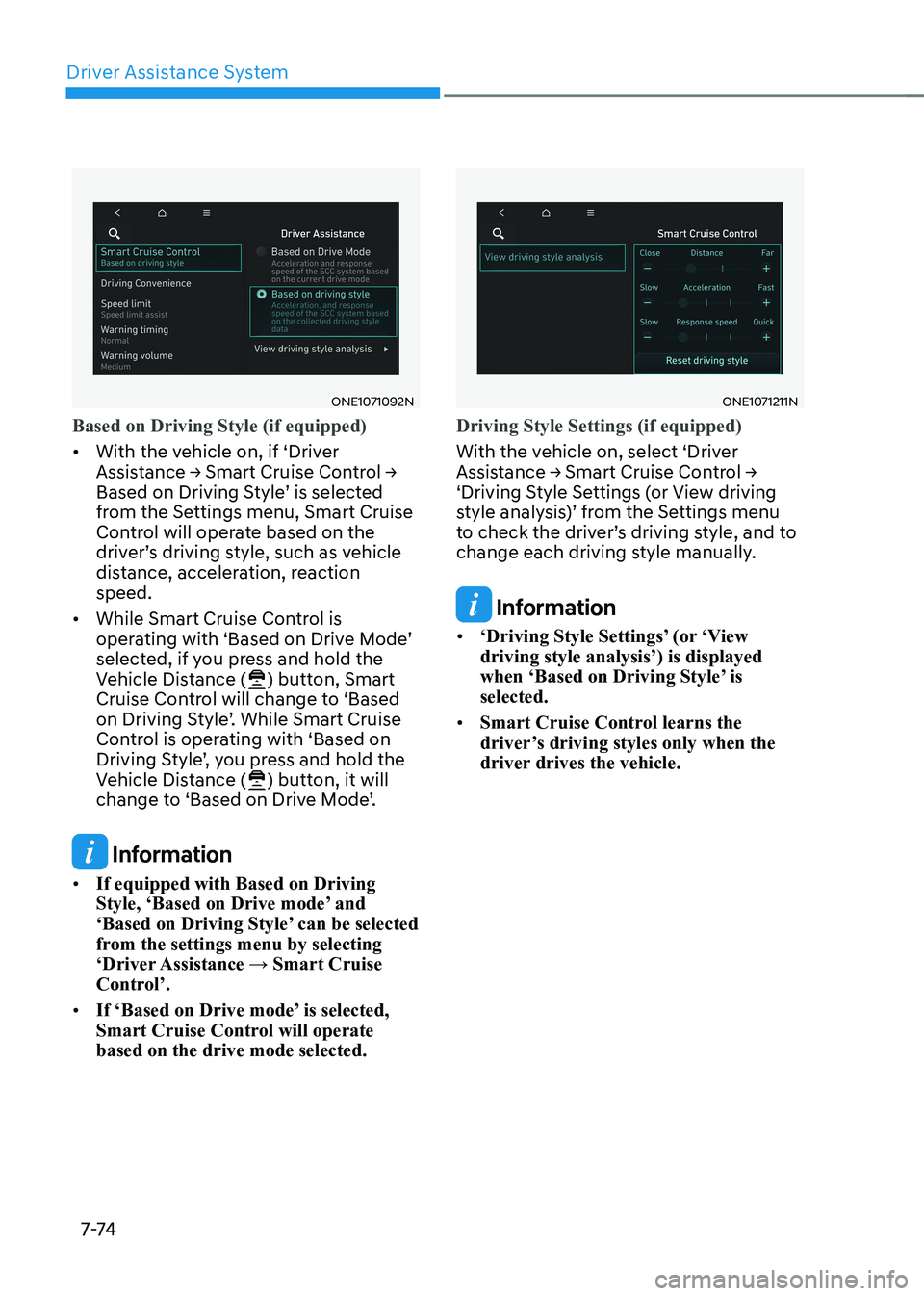
ONE1071092N
Based on Driving Style (if equipped)
• With the vehicle on, if ‘Driver
Assistance → Smart Cruise Control →
Based on Driving Style’ is selected
from the Settings menu, Smart Cruise
Control will operate based on the
driver’s driving style, such as vehicle
distance, acceleration, reaction speed.
• While Smart Cruise Control is
operating with ‘Based on Drive Mode’
selected, if you press and hold the
Vehicle Distance (
) button, Smart
Cruise Control will change to ‘Based
on Driving Style’. While Smart Cruise
Control is operating with ‘Based on
Driving Style’, you press and hold the
Vehicle Distance (
) button, it will
change to ‘Based on Drive Mode’.
Information
• If equipped with Based on Driving
Style, ‘Based on Drive mode’ and
‘Based on Driving Style’ can be selected
from the settings menu by selecting
‘Driver Assistance → Smart Cruise
Control’.
• If ‘Based on Drive mode’ is selected,
Smart Cruise Control will operate based on the drive mode selected.
ONE1071211N
Driving Style Settings (if equipped)
With the vehicle on, select ‘Driver
Assistance → Smart Cruise Control →
‘Driving Style Settings (or View driving
style analysis)’ from the Settings menu
to check the driver’s driving style, and to
change each driving style manually.
Information
• ‘Driving Style Settings’ (or ‘View driving style analysis’) is displayed
when ‘Based on Driving Style’ is selected.
• Smart Cruise Control learns the
driver’s driving styles only when the
driver drives the vehicle.
Page 478 of 680
Driver Assistance System
7-76
Overtaking Acceleration Assist
Overtaking Acceleration Assist operates
when the turn signal indicator is turned
on to the left while Smart Cruise Control
is operating, and the following conditions
are satisfied: • Your vehicle speed is above 40 mph
(60 km/h)
• The hazard warning flasher is off
• A vehicle is detected in front of your
vehicle
• Deceleration is not needed to
maintain distance with the vehicle in
front
WARNING
• When the turn signal indicator is
turned on to the left (left-hand drive)
or turned on to the right (right-
hand drive) while there is a vehicle
ahead, the vehicle may accelerate
temporarily. Pay attention to the
road conditions at all times.
• Regardless of your countries driving
direction, Overtaking Acceleration
Assist will operate when the
conditions are satisfied. When
using the function in countries with
different driving direction, always
check the road conditions at all times. Display and control
Basic function
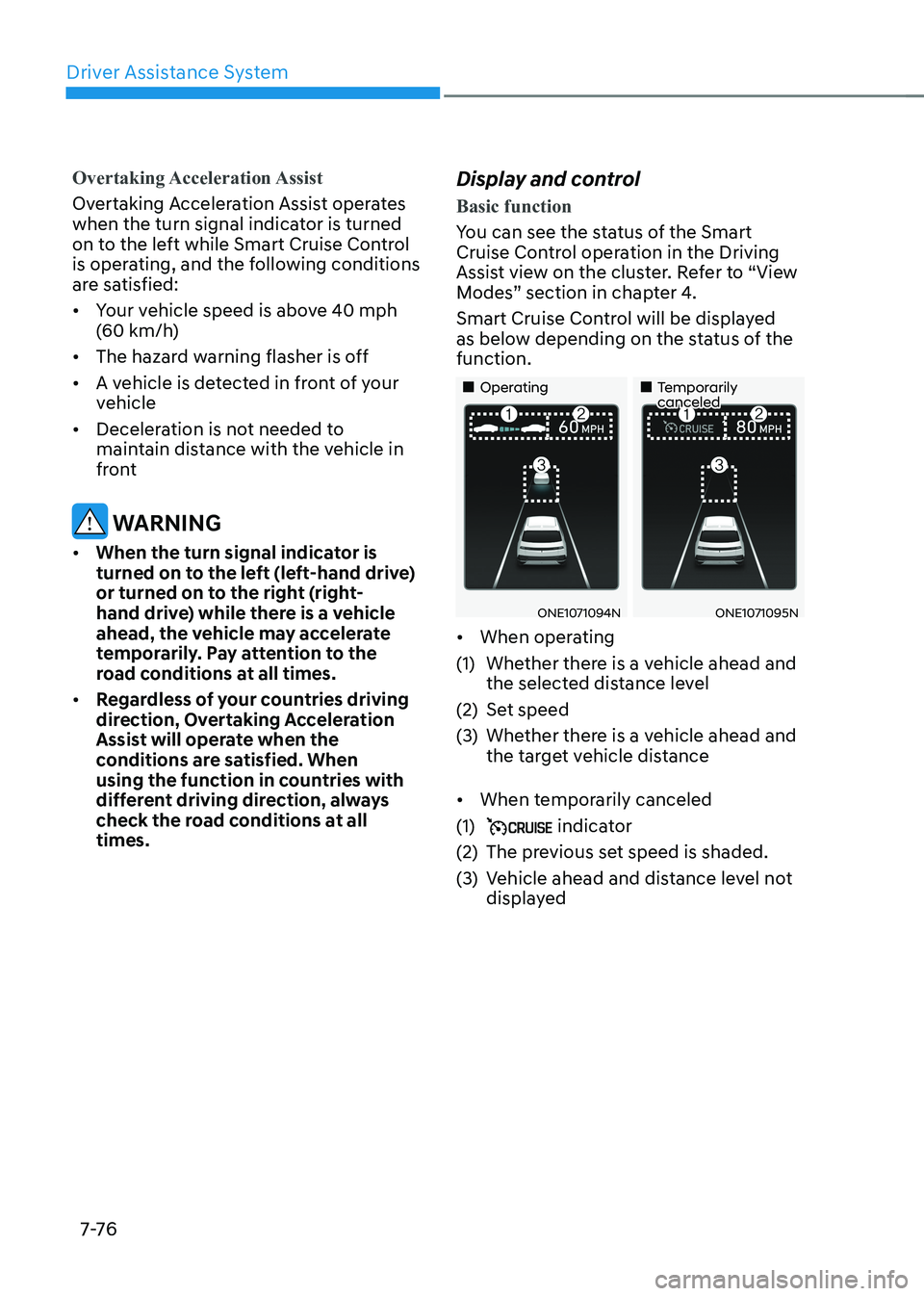
You can see the status of the Smart
Cruise Control operation in the Driving
Assist view on the cluster. Refer to “View
Modes” section in chapter 4.
Smart Cruise Control will be displayed
as below depending on the status of the function.
„„Operating
„„Temporarily canceled
ONE1071094NONE1071095N
• When operating
(1) Whether there is a vehicle ahead and the selected distance level
(2) Set speed
(3) Whether there is a vehicle ahead and the target vehicle distance
• When temporarily canceled
(1)
indicator
(2) The previous set speed is shaded.
(3) Vehicle ahead and distance level not displayed