Page 506 of 680
Driver Assistance System
7-104
Information
For more details on the display refer to
“Smart Cruise Control (SCC)” and “Lane
Following Assist (LFA)” sections in this
chapter.
Highway Driving Assist operating
Highway Driving Assist will operate when
entering or driving on the main road of
highways, and satisfying all the following conditions: - Lane Following Assist is operating
- Smart Cruise Control is operating
Information
• While driving on the highway, if
Smart Cruise Control starts operating,
Highway Driving Assist will operate.
• When entering the main roads of
highways while Smart Cruise Control is
operating, Driving Assist will not turn
on if Lane Following Assist is turned off. •
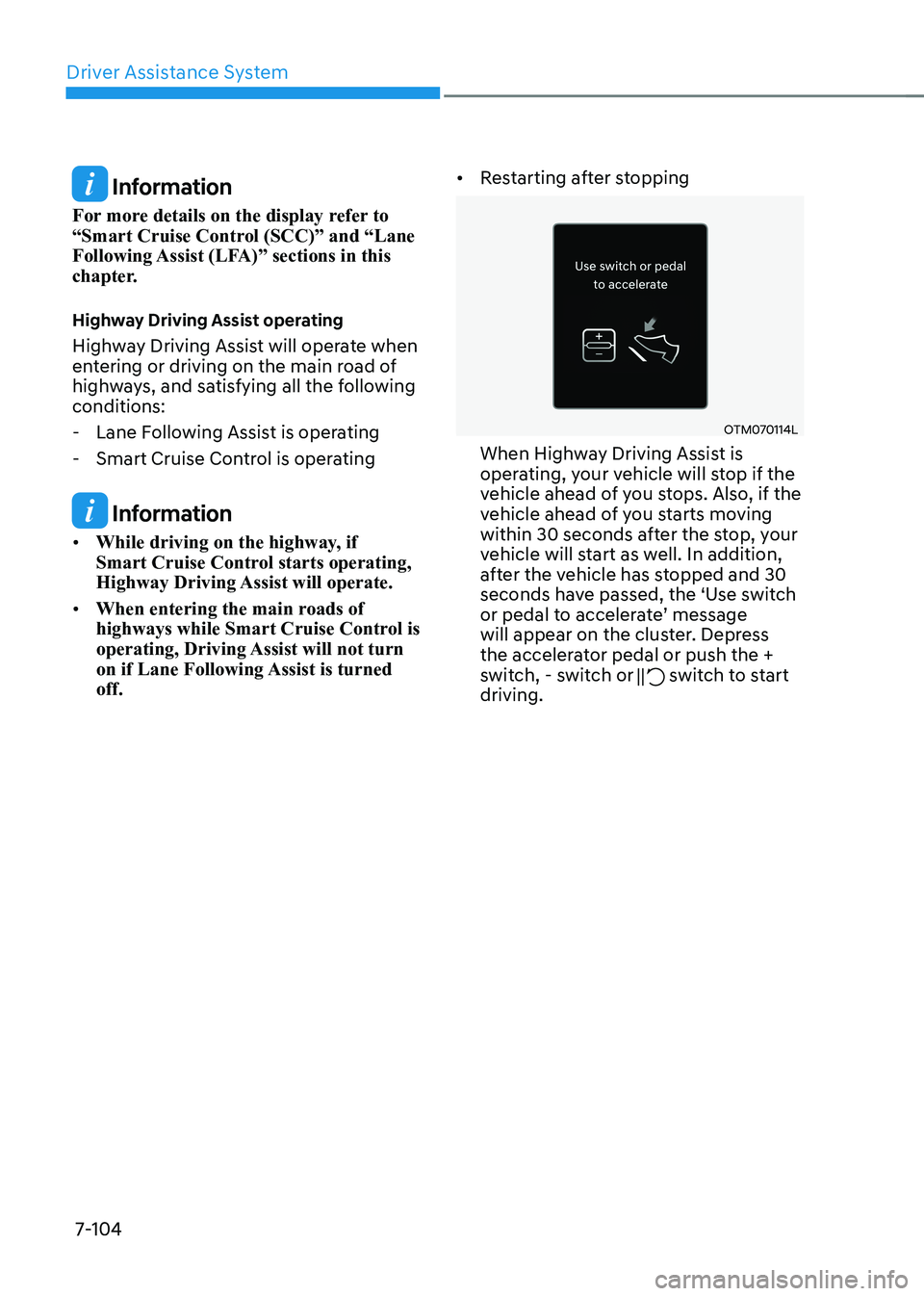
Restarting after stopping
OTM070114L
When Highway Driving Assist is
operating, your vehicle will stop if the
vehicle ahead of you stops. Also, if the
vehicle ahead of you starts moving
within 30 seconds after the stop, your
vehicle will start as well. In addition,
after the vehicle has stopped and 30
seconds have passed, the ‘Use switch
or pedal to accelerate’ message
will appear on the cluster. Depress
the accelerator pedal or push the +
switch, - switch or
switch to start
driving.
Page 509 of 680
07
7-107
Highway Lane Change Assist (if equipped)
Display and control
You can see the status of the Highway
Lane Change Assist function operation
in the Driving Assist view on the cluster.
Refer to “View Modes” section in chapter
4.
Highway Lane Change Assist function
will be displayed as below depending on
the status of the function.
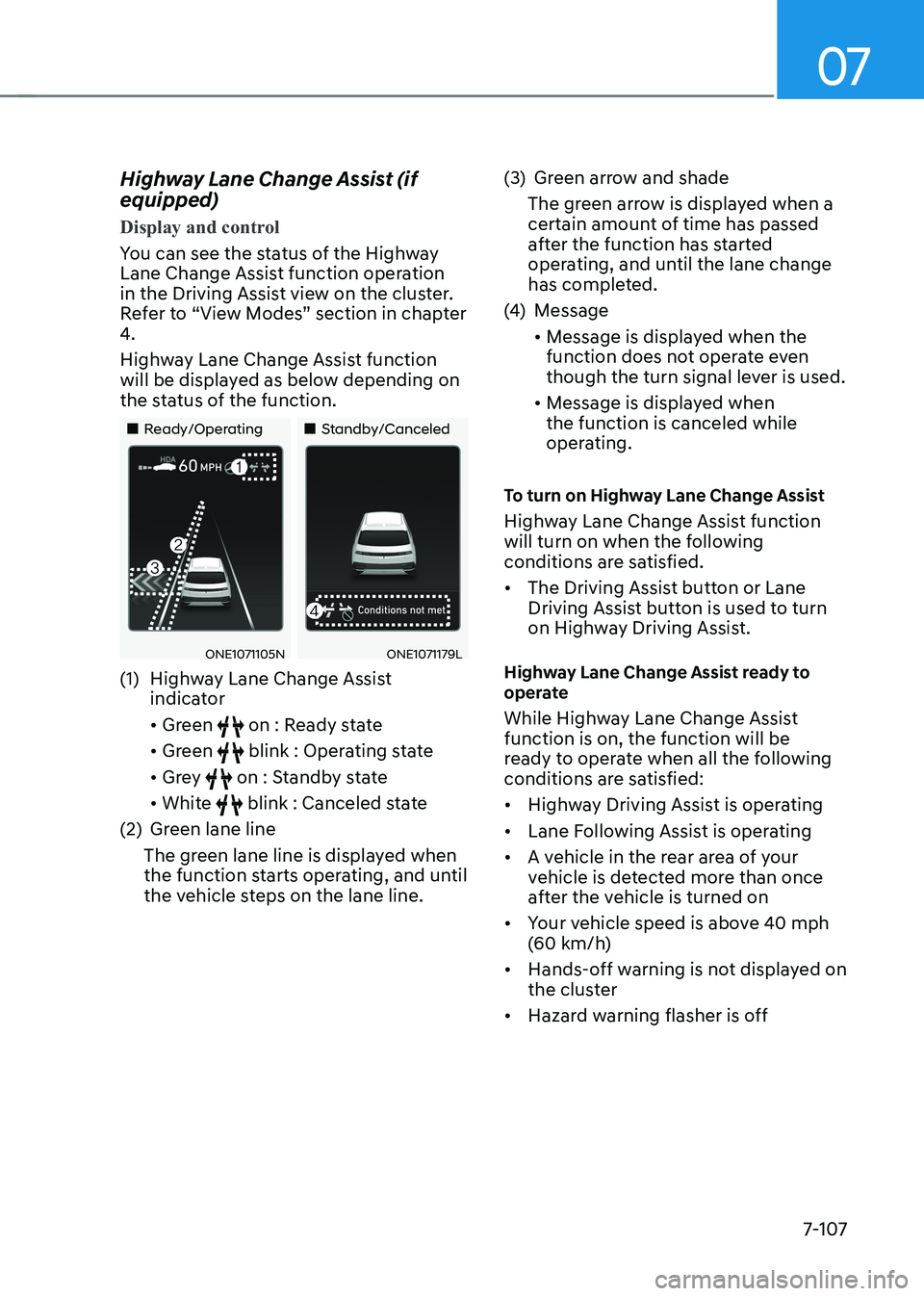
„„Ready/Operating
„„Standby/Canceled
ONE1071105NONE1071179L
(1) Highway Lane Change Assist indicator • Green
on : Ready state
• Green
blink : Operating state
• Grey
on : Standby state
• White
blink : Canceled state
(2) Green lane line
The green lane line is displayed when
the function starts operating, and until
the vehicle steps on the lane line. (3) Green arrow and shade
The green arrow is displayed when a
certain amount of time has passed
after the function has started
operating, and until the lane change
has completed.
(4) Message • Message is displayed when the
function does not operate even
though the turn signal lever is used.
• Message is displayed when the function is canceled while
operating.
To turn on Highway Lane Change Assist
Highway Lane Change Assist function
will turn on when the following
conditions are satisfied. • The Driving Assist button or Lane
Driving Assist button is used to turn
on Highway Driving Assist.
Highway Lane Change Assist ready to
operate
While Highway Lane Change Assist function is on, the function will be
ready to operate when all the following
conditions are satisfied: • Highway Driving Assist is operating
• Lane Following Assist is operating
• A vehicle in the rear area of your
vehicle is detected more than once
after the vehicle is turned on
• Your vehicle speed is above 40 mph
(60 km/h)
• Hands-off warning is not displayed on
the cluster
• Hazard warning flasher is off
Page 512 of 680
Driver Assistance System
7-110
WARNING
• While Highway Driving Assist is
operating, the function will cancel if
one of the following occurs:
- Highway Driving Assist is turned
off
- Lane Following Assist or Smart
Cruise Control is turned off or
temporarily canceled
- Hands-off warning message is
displayed on the cluster
- The hazard warning flasher is turned on
- Forward Collision-Avoidance
Assist or Blind-Spot Collision-
Avoidance Assist warning message
is displayed
- Possible collision is detected in the
next lane, even though there are
no Forward Collision-Avoidance
Assist and Blind Spot Collision-
Avoidance Assist warning
- The target lane to make a lane
change disappears
- The target lane to make a lane
change is not detected
- There is a problem with turn signal lamps -
Highway Lane Change Assist
function is off (The function turns
off when the function is turned off
from the settings menu, when the
road changes to a one-way road,
when there is a intersection or
crosswalk ahead, when you enter
a road with no structure, such as
a medium strip, guardrail, etc.,
or when there is a pedestrian or
cyclist on the driving lane.)
- Your vehicle speed is below 35
mph (55 km/h)
• While the function is operating,
when the function is canceled,
depending on the driving conditions,
the vehicle may drive to the middle
of the driving lane or steering assist
may stop. Always pay attention to
road and driving conditions while driving.
• The function may not operate
properly on roads with pedestrians
or cyclists, such as an intersection
or crosswalk. Always pay attention
to road and driving conditions while driving.
Information
The images or colors may be displayed
differently depending on the specifications
of the instrument panel or theme.
Page 515 of 680
07
7-113
ONE1071037N
ONE1071039
Rear View Monitor shows the area
behind the vehicle to assist you when parking or backing up. Detecting sensor
ONE1071038N
[1] : Rear view camera
Refer to the picture above for the
detailed location of the detecting sensor.
Rear View Monitor Settings
Camera settings
ONE1071214L
• You can change Rear View Monitor
‘Display Contents’ by touching the
setup icon (
) on the screen while
Rear View Monitor is operating, or
selecting ‘Driver Assistance → Parking
Safety → Camera Settings’ from the
Settings menu while the vehicle is on.
• To use Rear View while Driving, select
'Camera Settings → Display Contents →
Keeps Rear Camera' from the Settings
menu while the vehicle is on.
• In the Display Contents, you can
change setting for 'Rear View' and
in the Display Settings, you can
change the screen's 'Brightness' and
'Contrast'.
REAR VIEW MONITOR (RVM) (IF EQUIPPED)
Page 517 of 680
07
7-115
Operating conditions
Press the Parking/View button (1) while
the gear is in D (Drive) or N (Neutral),
the driving rear view will appear on the
screen.
Off conditions
• Press the Parking/View button (1)
again, the driving rear view will turn
off.
• Press one of the infotainment system
button (2), the driving rear view will
turn off.
• Shift the gear to P (Park), the driving
rear view will turn off.
When operating
If the gear is shifted to R (Reverse), while
Driving rear view is displayed on the
screen, the screen will change to rear
view with parking guidance.
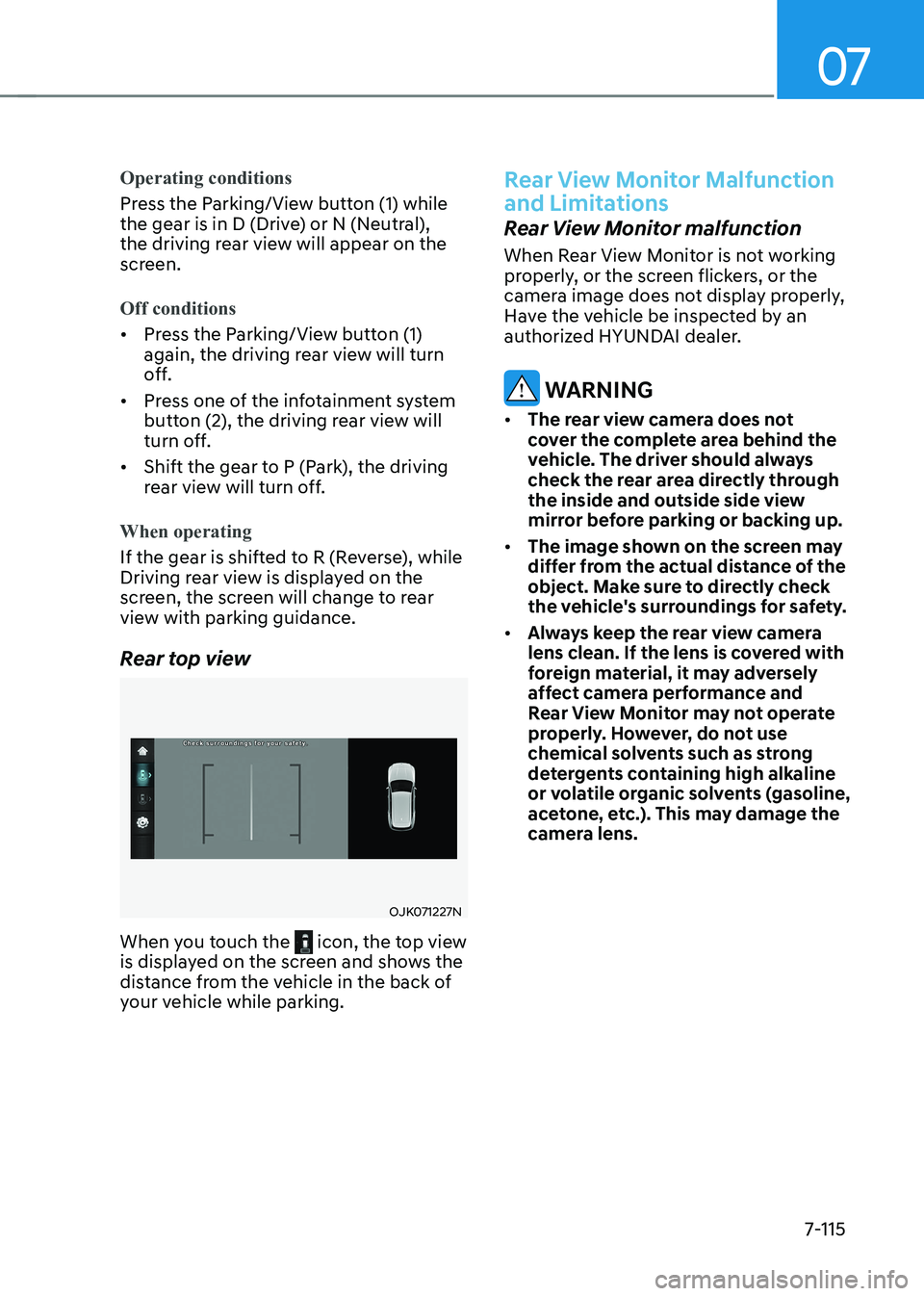
Rear top view
OJK071227N
When you touch the
icon, the top view
is displayed on the screen and shows the
distance from the vehicle in the back of
your vehicle while parking.
Rear View Monitor Malfunction
and Limitations
Rear View Monitor malfunction
When Rear View Monitor is not working
properly, or the screen flickers, or the
camera image does not display properly,
Have the vehicle be inspected by an
authorized HYUNDAI dealer.
WARNING
• The rear view camera does not
cover the complete area behind the
vehicle. The driver should always
check the rear area directly through
the inside and outside side view
mirror before parking or backing up.
• The image shown on the screen may
differ from the actual distance of the
object. Make sure to directly check
the vehicle's surroundings for safety.
• Always keep the rear view camera
lens clean. If the lens is covered with
foreign material, it may adversely
affect camera performance and
Rear View Monitor may not operate
properly. However, do not use
chemical solvents such as strong
detergents containing high alkaline
or volatile organic solvents (gasoline,
acetone, etc.). This may damage the
camera lens.
Page 519 of 680
07
7-117
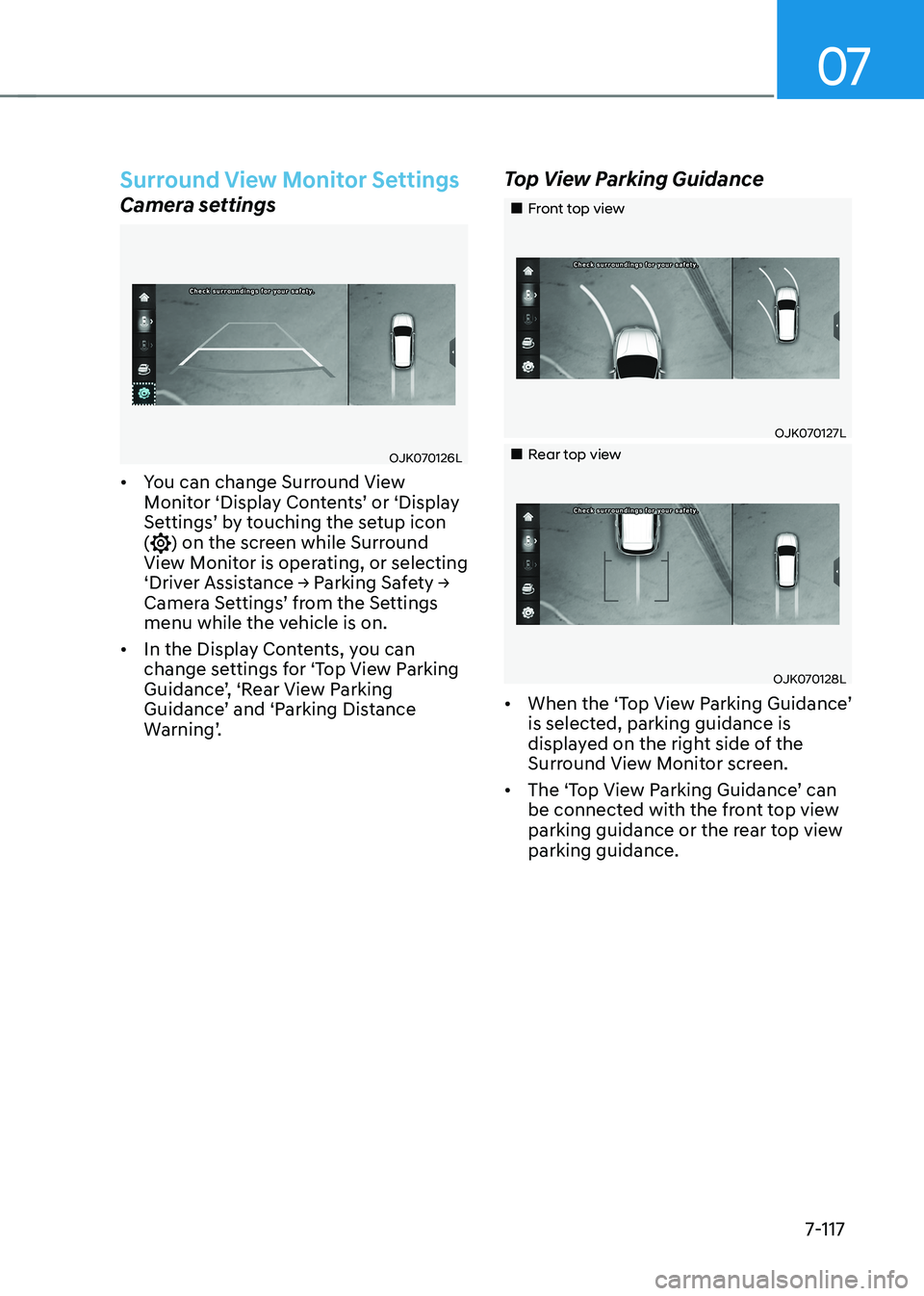
Surround View Monitor Settings
Camera settings
OJK070126L
• You can change Surround View
Monitor ‘Display Contents’ or ‘Display
Settings’ by touching the setup icon (
) on the screen while Surround
View Monitor is operating, or selecting
‘Driver Assistance → Parking Safety →
Camera Settings’ from the Settings
menu while the vehicle is on.
• In the Display Contents, you can
change settings for ‘Top View Parking
Guidance’, ‘Rear View Parking
Guidance’ and ‘Parking Distance
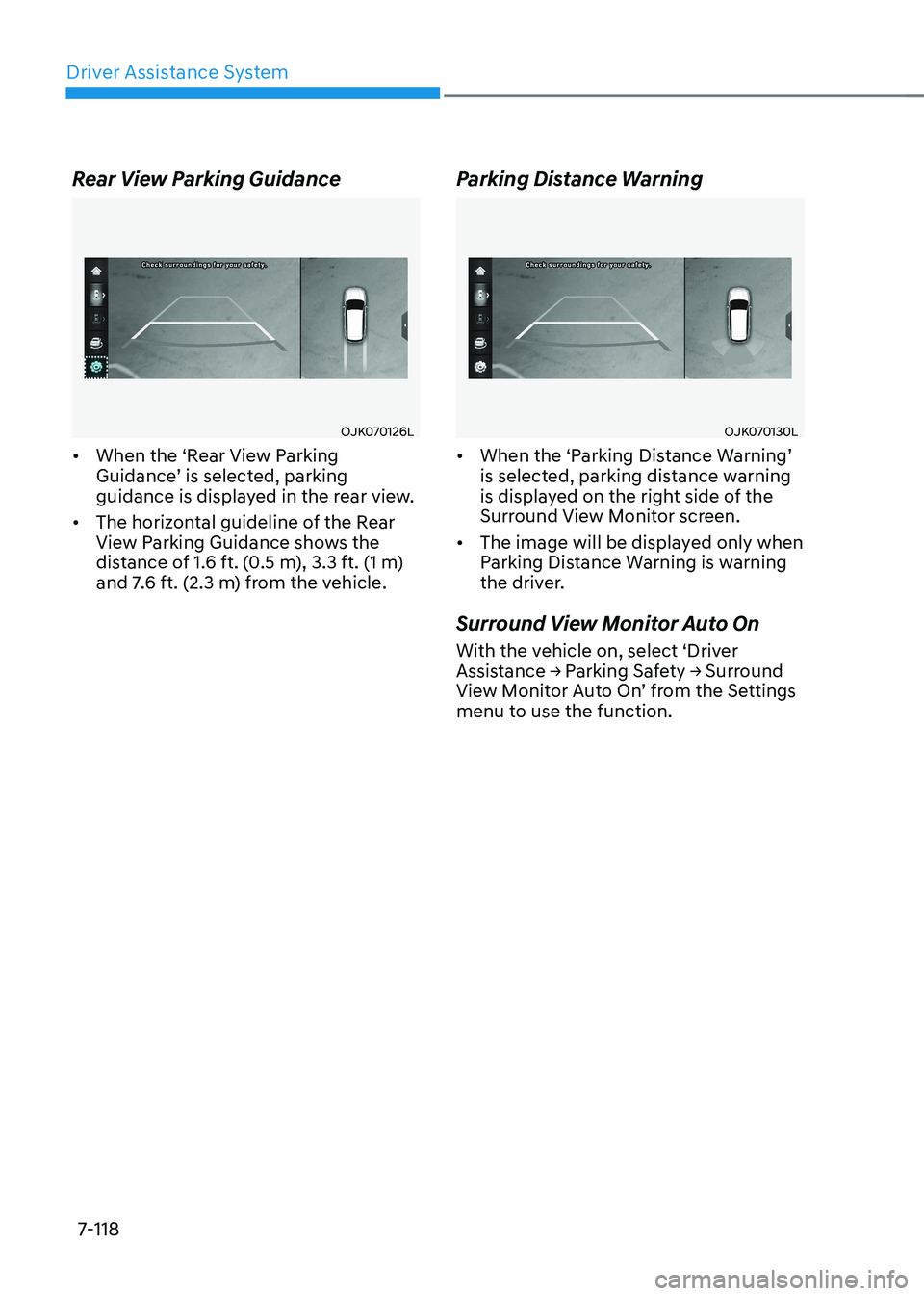
Warning’. Top View Parking Guidance
„„Front top view
OJK070127L
„„Rear top view
OJK070128L
• When the ‘Top View Parking Guidance’
is selected, parking guidance is
displayed on the right side of the
Surround View Monitor screen.
• The ‘Top View Parking Guidance’ can
be connected with the front top view
parking guidance or the rear top view parking guidance.
Page 520 of 680
Driver Assistance System
7-118
Rear View Parking Guidance
OJK070126L
• When the ‘Rear View Parking
Guidance’ is selected, parking
guidance is displayed in the rear view.
• The horizontal guideline of the Rear
View Parking Guidance shows the
distance of 1.6 ft. (0.5 m), 3.3 ft. (1 m)
and 7.6 ft. (2.3 m) from the vehicle. Parking Distance WarningOJK070130L
• When the ‘Parking Distance Warning’
is selected, parking distance warning
is displayed on the right side of the
Surround View Monitor screen.
• The image will be displayed only when
Parking Distance Warning is warning
the driver.
Surround View Monitor Auto On
With the vehicle on, select ‘Driver
Assistance → Parking Safety → Surround
View Monitor Auto On’ from the Settings
menu to use the function.
Page 521 of 680
07
7-119
Surround View Monitor
Operation
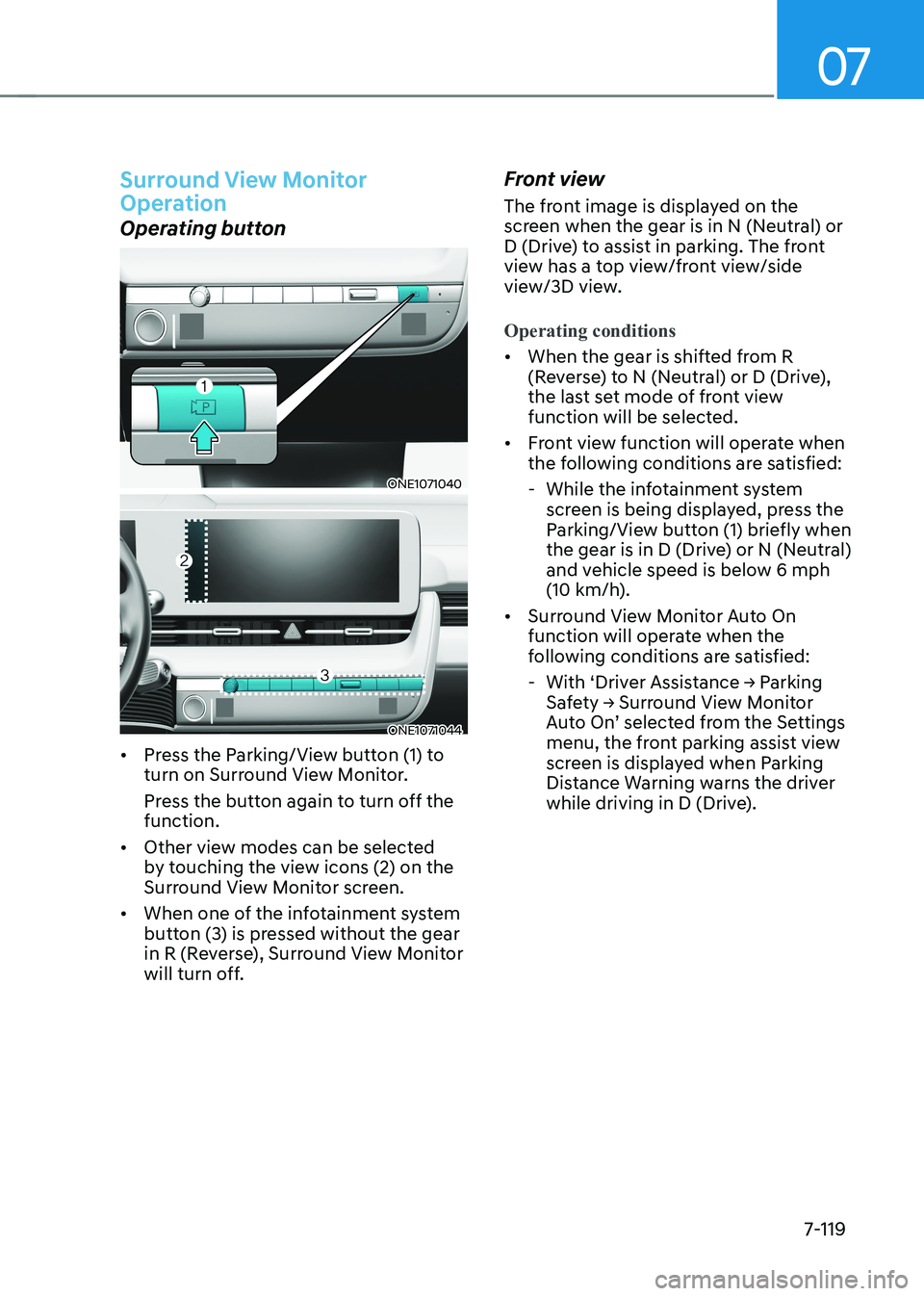
Operating button
ONE1071040
ONE1071044
• Press the Parking/View button (1) to
turn on Surround View Monitor.
Press the button again to turn off the function.
• Other view modes can be selected
by touching the view icons (2) on the
Surround View Monitor screen.
• When one of the infotainment system
button (3) is pressed without the gear
in R (Reverse), Surround View Monitor
will turn off. Front view
The front image is displayed on the
screen when the gear is in N (Neutral) or
D (Drive) to assist in parking. The front
view has a top view/front view/side
view/3D view.
Operating conditions
•
When the gear is shifted from R
(Reverse) to N (Neutral) or D (Drive),
the last set mode of front view
function will be selected.
• Front view function will operate when
the following conditions are satisfied:
- While the infotainment system screen is being displayed, press the
Parking/View button (1) briefly when
the gear is in D (Drive) or N (Neutral)
and vehicle speed is below 6 mph
(10 km/h).
• Surround View Monitor Auto On
function will operate when the
following conditions are satisfied:
- With ‘Driver Assistance → Parking
Safety → Surround View Monitor
Auto On’ selected from the Settings
menu, the front parking assist view
screen is displayed when Parking
Distance Warning warns the driver
while driving in D (Drive).
![HYUNDAI IONIQ 5 2023 Owners Manual 07
7-113
ONE1071037N
ONE1071039
Rear View Monitor shows the area
behind the vehicle to assist you when parking or backing up. Detecting sensor
ONE1071038N
[1] : Rear view camera
Refer to the pictur](/manual-img/35/56168/w960_56168-514.png "HYUNDAI IONIQ 5 2023 Owners Manual 07
7-113
ONE1071037N
ONE1071039
Rear View Monitor shows the area
behind the vehicle to assist you when parking or backing up. Detecting sensor
ONE1071038N
[1] : Rear view camera
Refer to the pictur")