2023 HONDA HRV Automatic Power
[x] Cancel search: Automatic PowerPage 279 of 664
Continued277
uuAudio System Basic Operation uPlaying SiriusXM ® Radio
Features
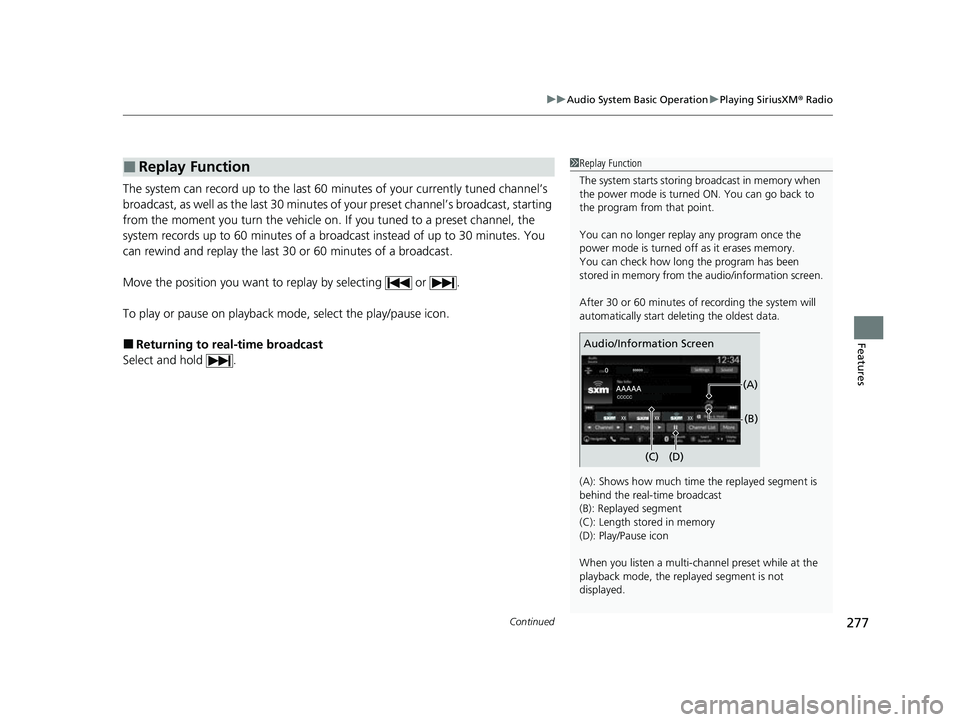
The system can record up to the last 60 minutes of your currently tuned channel’s
broadcast, as well as the last 30 minutes of your preset channel’s broadcast, starting
from the moment you turn the vehicle on. If you tuned to a preset channel, the
system records up to 60 minutes of a broadcast instead of up to 30 minutes. You
can rewind and replay the last 30 or 60 minutes of a broadcast.
Move the position you want to replay by selecting or .
To play or pause on playback mode, select the play/pause icon.
■Returning to real-time broadcast
Select and hold .
■Replay Function1 Replay Function
The system starts storing broadcast in memory when
the power mode is turned ON. You can go back to
the program from that point.
You can no longer repl ay any program once the
power mode is turned off as it erases memory.
You can check how long the program has been
stored in memory from th e audio/information screen.
After 30 or 60 minutes of recording the system will
automatically start deleting the oldest data.
(A): Shows how much time the replayed segment is
behind the real-time broadcast
(B): Replayed segment
(C): Length stored in memory
(D): Play/Pause icon
When you listen a multi-channel preset while at the
playback mode, the repl ayed segment is not
displayed.
Audio/Information Screen
(C) (B)
(A)
(D)
23 HR-V-313V06000_01.book 277 ページ 2022年4月4日 月曜日 午前10時49分
Page 292 of 664
290
uuAudio System Basic Operation uPlaying Bluetooth ® Audio
Features
Playing Bluetooth ® Audio
Your audio system allows you to listen to music from your Bluetooth-compatible
phone.
This function is available when the phone is paired and connected to the vehicle’s
Bluetooth ® HandsFreeLink ® (HFL) system.
2 Phone Setup P. 394
1Playing Bluetooth ® Audio
Not all Bluetooth -enabled phones with streaming
audio capabilities are compatible with the system.
For a list of compatible phones:
•U.S.: Visit automobiles.honda.com/handsfreelink/ ,
or call 1-888-528-7876.
•Canada: For more info rmation on smartphone
compatibility, call 1-855-490-7351.
It may be illegal to perform some data device
functions while driving.
Only one phone can be used with HFL at a time.
When there is more than one paired phone in the
vehicle, the system automatically connects to the
prioritized phone. You can a ssign priority to a phone
in the Bluetooth ® device list.
2 Phone Setup P. 394
The connected phone for Bluetooth® Audio can be
different.
If more than one phone is paired to the HFL system,
there may be a delay before the system begins to play.
In some cases, the name of the artist, album, or track
may not appear correctly.
Some functions may not be available on some devices.
If a phone is currently conne cted via Apple CarPlay or
Android Auto, Bluetooth® Audio from that phone is
unavailable. However, a se cond previously paired
phone can stream Bluetooth® Audio by selecting
from the Bluetooth ® device list.
2 Phone Setup P. 394
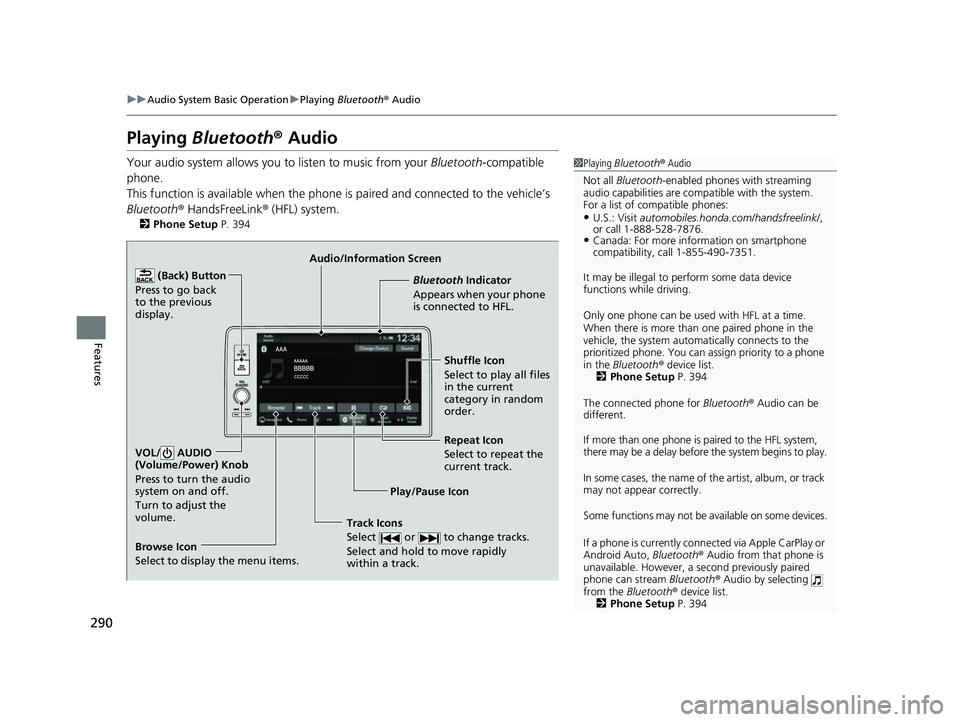
Audio/Information Screen
Browse Icon
Select to display the menu items. Play/Pause IconBluetooth Indica
t
or
Appears when your phone
is connected to HFL.
Track Icons
Select or to change tracks.
Select and hold to move rapidly
within a track.
Repeat Icon
Select to repeat the
current track.
(Back) Button
Press to go back
to the previous
display.VOL/ AUDIO
(Volume/Power) Knob
Press to turn the audio
system on and off.
Turn to adjust the
volume.
Shuffle Icon
Select to play all files
in the current
category in random
order.
23 HR-V-313V06000_01.book 290 ページ 2022年4月4日 月曜日 午前10時49分
Page 326 of 664

324
uuGeneral Information on the Audio System uHonda App License Agreement
Features
E. Information Coll ection and Storage
1. Information Collection, Use, Transmission and Storage of Data. Consent to Use of Data:
You agree that HONDA and PROVIDERS may
collect and use your information gathered in any manner as part of product support services related to the SOFTWARE or related services.
HONDA may share such information with third parties, including, without limitation, PROVIDERS, th ird party software and services
suppliers, their affiliates and/or their desi gnated agents, solely to improve their products or to provide services or technolo gies to you.
HONDA, third party software and systems s uppliers, their affiliates and/or their designated agent may disclose this information to others,
but not in a form that pe rsonally identifies you.
2. Information Storage.
Depending on the type of multimedia system you have in your VEHICLE, certain information may be stored for ease
of use of the SOFTWARE including, without limitation, search hi story, location history in certain applications, previous and saved
destinations, map locations within certain applications, and device numbers and contact information.
(a) Vehicle Health Information.
Your VEHICLE may remotely trans mit information regarding the status and health of your VEHICLE
(“VEHICLE INFORMATION”) to HONDA without notification to you. VEHICLE INFORMATION may contain VEHICLE maintenance and
malfunction status that is derived from VEHICLE diagnostic data and includes, but is not limited to, status of powered doors and windows,
battery life data, battery charging data, VEHICLE speed, coolant temperat ure, air compressor revolution, output power, warning codes,
diagnostic trouble codes, fuel injection volu me, and engine rotations per minute. VEHICL E HEALTH INFORMATION may be used by HON DA
for research and development, to deliver HONDA SERVICES and information to you, and to contact you, and is retained only for a period
of time necessary to fulfill these goals.
(b) VEHICLE Geolocation Data (non-navigation/map based).
If you opt-in to geolocation-based SERVICES, your vehicle’s geolocation data
(latitude and longitude) will be automatically se nt from your VEHICLE to HONDA and PROVIDERS.
(c) You understand that the inputting or uploading of information to your VEHICLE’s multimedia system or the SOFTWARE or SERVIC ES is
at your own risk and that HONDA is not responsible for unauthorized access to or use of any personal or other information. All information
uploaded to the SOFTWARE and SERVICES may be stored on your VEHICLES’s multimedia system and you understand that the security and
safety of your VEHICLE’s multimedia system is your sole responsibility.
23 HR-V-313V06000_01.book 324 ページ 2022年4月4日 月曜日 午前10時49分
Page 394 of 664
392
uuBluetooth ® HandsFreeLink ®u HFL Menus
Features
HFL Menus
The power mode must be in ACCESSORY or ON to use the system.
■Phone settings screen
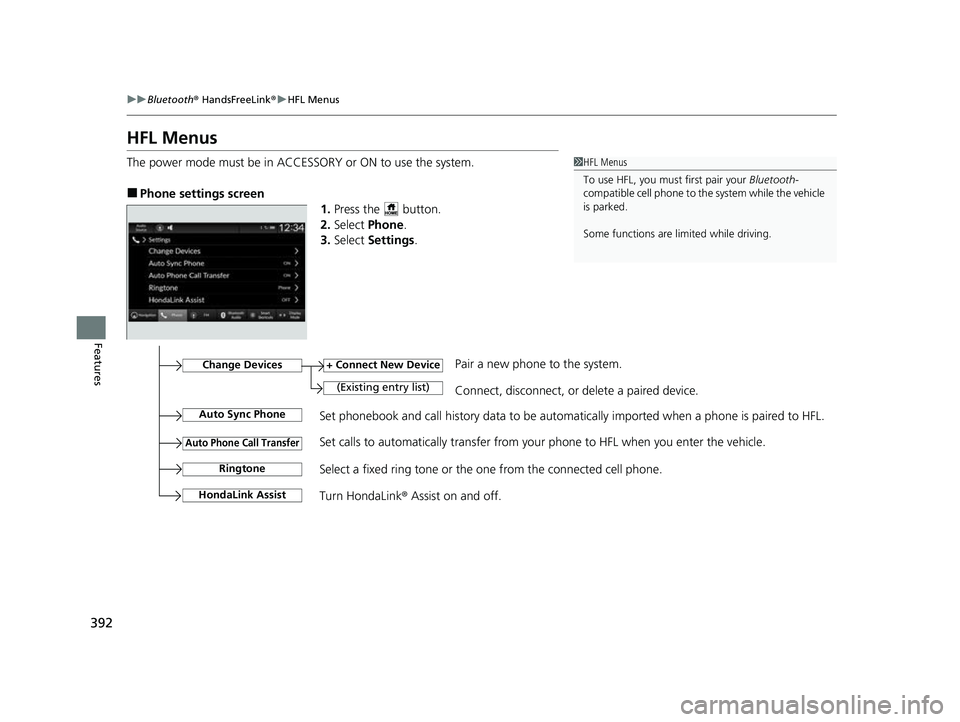
1.Press the button.
2. Select Phone .
3. Select Settings .
1HFL Menus
To use HFL, you must first pair your Bluetooth-
compatible cell phone to th e system while the vehicle
is parked.
Some functions are li mited while driving.
Set phonebook and call history data to be automatically imported when a phone is paired to HFL.
+ Connect New Device
(Existing entry list)Connect, disconnect, or delete a paired device.
Change DevicesPair a new phone to the system.
Auto Sync Phone
Auto Phone Call Transfer
Ringtone
HondaLink Assist
Set calls to automatically transfer from your phone to HFL when you enter the vehicle.
Select a fixed ring tone or the one from the connected cell phone.
Turn HondaLink ® Assist on and off.
23 HR-V-313V06000_01.book 392 ページ 2022年4月4日 月曜日 午前10時49分
Page 426 of 664
uuWhen Driving uStarting the Engine
424
Driving
You can turn the engine off when the vehicle is completely stopped.
1. Put the transmission into
(P.
2. Press the ENGINE START/STOP button.
■Stopping the Engine1Stopping the Engine
The power mode will automatically turn to VEHICLE
OFF about 20 minutes afte r the following conditions
have been met:
•A door has been opened, such as when leaving the
vehicle.
•The driver’s seat belt is not fastened.•The transmission is in ( P.
23 HR-V-313V06000_01.book 424 ページ 2022年4月4日 月曜日 午前10時49分
Page 435 of 664
433
uuWhen Driving uHill Descent Control System
Driving
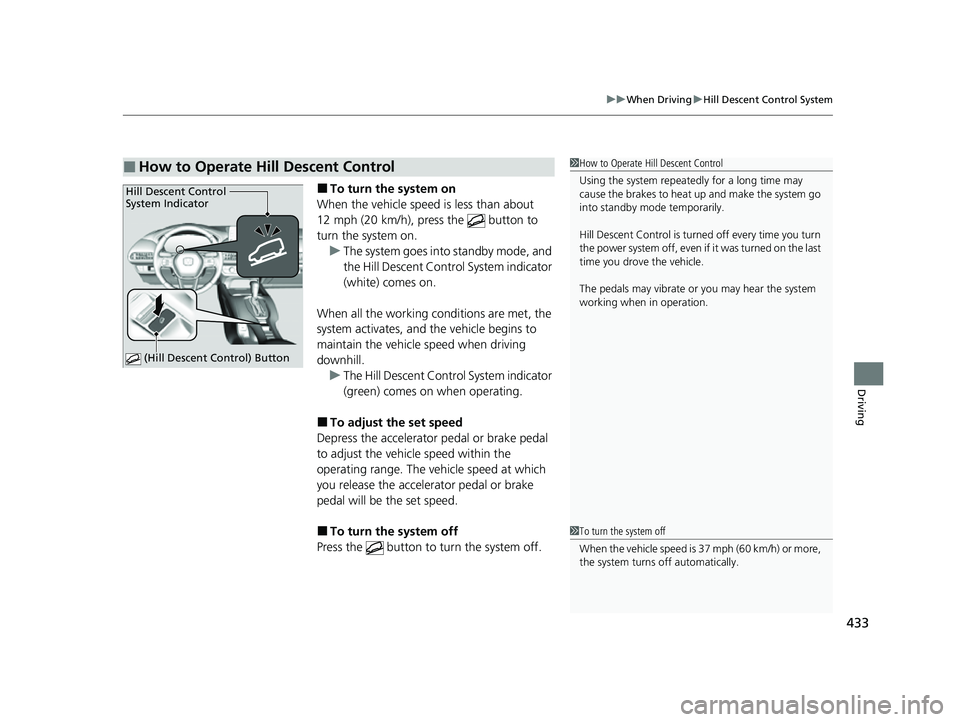
■To turn the system on
When the vehicle speed is less than about
12 mph (20 km/h), press the button to
turn the system on. u The system goes into standby mode, and
the Hill Descent Control System indicator
(white) comes on.
When all the working c onditions are met, the
system activates, and the vehicle begins to
maintain the vehicle speed when driving
downhill. u The Hill Descent Control System indicator
(green) comes on when operating.
■To adjust the set speed
Depress the accelerator pedal or brake pedal
to adjust the vehicl e speed within the
operating range. The vehicle speed at which
you release the accelerator pedal or brake
pedal will be the set speed.
■To turn the system off
Press the button to turn the system off.
■How to Operate Hill Descent Control1 How to Operate Hill Descent Control
Using the system repeated ly for a long time may
cause the brakes to heat up and make the system go
into standby mode temporarily.
Hill Descent Control is turned off every time you turn
the power system off, even if it was turned on the last
time you drove the vehicle.
The pedals may vibrate or you may hear the system
working when in operation.
Hill Descent Control
System Indicator
(Hill Descent Control) Button
1To turn the system off
When the vehicle speed is 37 mph (60 km/h) or more,
the system turns off automatically.
23 HR-V-313V06000_01.book 433 ページ 2022年4月4日 月曜日 午前10時49分
Page 439 of 664

437
uuWhen Driving uReal Time AWD with Intelligent Control SystemTM*
Driving
Real Time AWD with Intelligent Control SystemTM*
Your vehicle is equipped with the AWD sy stem. When the system senses a loss of
front wheel traction, it automatically transfe rs some power to the rear wheels. This
allows you to utilize all available traction and may increase mobility.
You still need to exercise the same care when accelerating, steering, and braking
that you would in a two wheel drive vehicle.
If you excessively spin all four wheels and overheat the AWD system, only the front
wheels receive power. Stop until the system cools down.1 Real Time AWD with In telligent Control SystemTM*
NOTICE
Do not continuously spin the front tires of your
vehicle. Continuously spinning the front tires can
cause transmission or re ar differential damageM
The AWD system may not f unction properly if tire
type and size are mixed. Make sure to use the same
size and type of tire, and the air pressures as
specified.
2 Tire and Wheel Replacement P. 588
* Not available on all models
23 HR-V-313V06000_01.book 437 ページ 2022年4月4日 月曜日 午前10時49分
Page 444 of 664
442
uuWhen Driving uTire Pressure Monitoring System (TPMS)
Driving
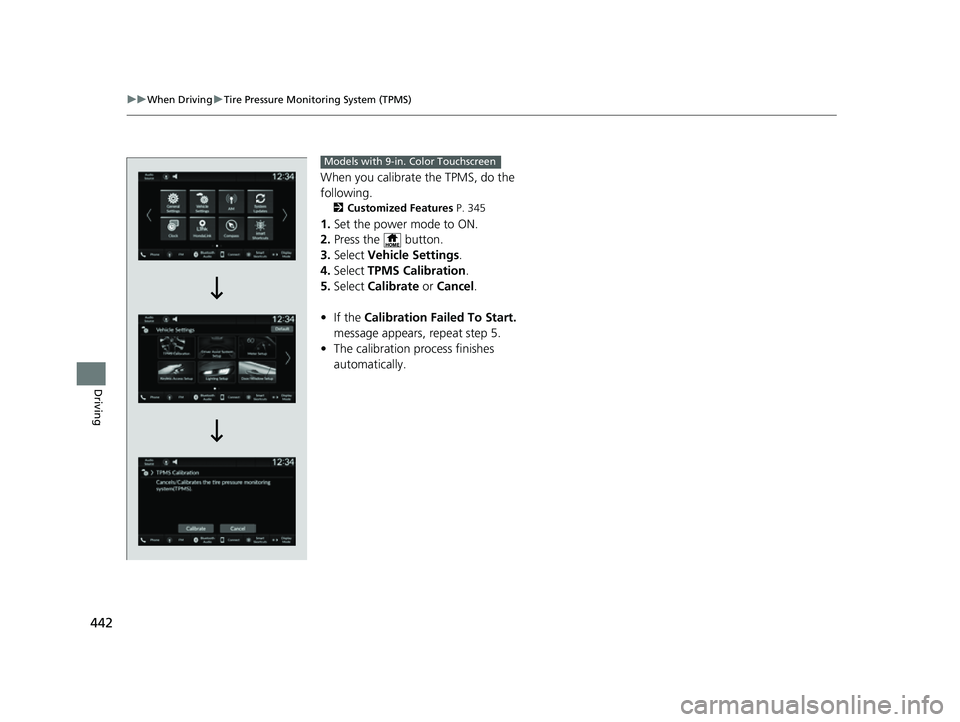
When you calibrate the TPMS, do the
following.
2 Customized Features P. 345
1.Set the power mode to ON.
2. Press the button.
3. Select Vehicle Settings .
4. Select TPMS Calibration .
5. Select Calibrate or Cancel .
• If the Calibration Failed To Start.
message appears, repeat step 5.
• The calibration pr ocess finishes
automatically.
Models with 9-in. Color Touchscreen
23 HR-V-313V06000_01.book 442 ページ 2022年4月4日 月曜日 午前10時49分