2018 CHEVROLET CITY EXPRESS radio
[x] Cancel search: radioPage 14 of 74
Chevrolet City Express Infotainment System (GMNA-Localizing-U.S./Canada-
11683801) - 2018 - crc - 7/12/17
Radio 13
are also subject to interference as
they travel from transmitter to
receiver.
Satellite Radio Reception (If
Equipped)
When the satellite radio is used for
the first time or the battery has been
replaced, the satellite radio may not
work properly. This is not a
malfunction. Wait more than
10 minutes with satellite radio on
and the vehicle outside of any metal
or large building for satellite radio to
receive all of the necessary data.
No satellite radio reception is
available and“NO SAT”is displayed
when the SAT band option is
selected unless an optional satellite
receiver and antenna are installed
and a SiriusXM Satellite Radio
service subscription is active.
Satellite radio performance may be
affected if cargo carried on the roof
blocks the satellite radio signal.
If possible, do not put cargo over
the satellite antenna. A build up of ice on the satellite
radio antenna can affect satellite
radio performance. Remove the ice
to restore satellite radio reception.
Cellular Phone Usage
Cellular phone usage can cause
interference with the vehicle's radio.
Fixed Mast Antenna
The fixed mast antenna will go
through most car washes as long as
it is securely attached. If the
antenna becomes slightly bent,
straighten it out by hand. If it is
badly bent, replace it.
Occasionally check that the antenna
is tight at the base. If tightening is
required, protect the paint from
damage.
Page 25 of 74
Chevrolet City Express Infotainment System (GMNA-Localizing-U.S./Canada-
11683801) - 2018 - crc - 7/12/17
24 Navigation
Map Types
.2-Dimensional (2D) View –The
2D map is a two-dimensional flat
representation of the map data,
similar to a road map.
. 2-Dimensional (2DN) View –The
2DN map is a two-dimensional
representation of the map data,
similar to a road map, focused
on the vehicle’s position with the
top of the map aligned North.
. 3-Dimensional (3D) View –The
3D map displays the map from
an elevated perspective,
providing a panoramic view over
a long distance.
The map in 3D view always
appears with the current forward
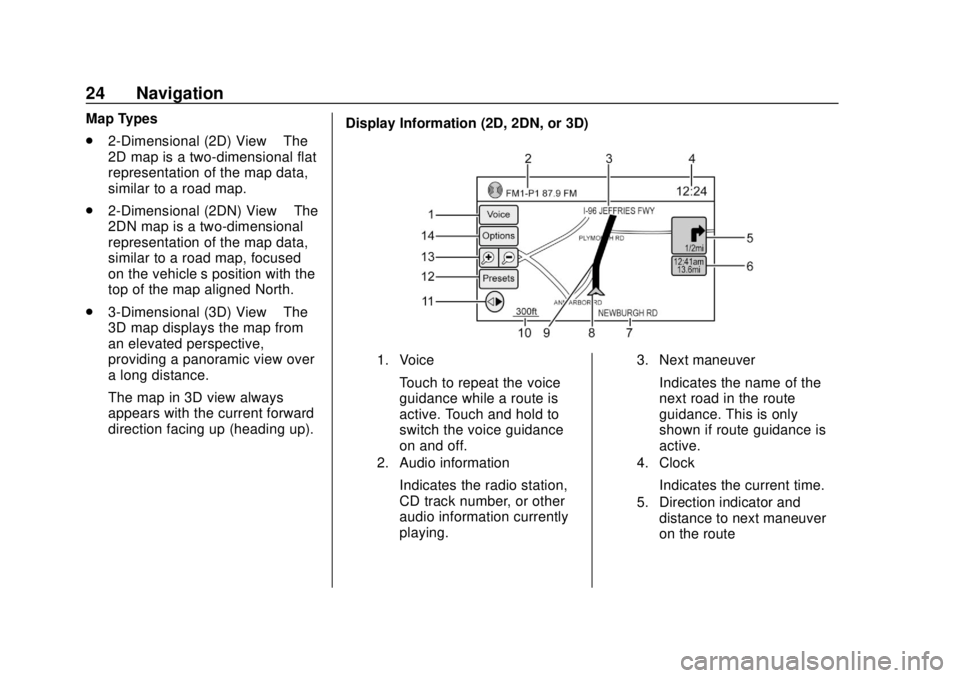
direction facing up (heading up). Display Information (2D, 2DN, or 3D)
1. Voice
Touch to repeat the voice
guidance while a route is
active. Touch and hold to
switch the voice guidance
on and off.
2. Audio information
Indicates the radio station,
CD track number, or other
audio information currently
playing.
3. Next maneuver
Indicates the name of the
next road in the route
guidance. This is only
shown if route guidance is
active.
4. Clock
Indicates the current time.
5. Direction indicator and
distance to next maneuver
on the route
Page 26 of 74
Chevrolet City Express Infotainment System (GMNA-Localizing-U.S./Canada-
11683801) - 2018 - crc - 7/12/17
Navigation 25
When route guidance is
active but the route has
been deviated from, this
area displays a compass
icon with an arrow
indicating the destination
direction.
When route guidance is
active and on route, this
area indicates the distance
to the next point and the
turning direction at that
point.
6. Estimated time of arrivaland distance to destination
or remaining time of travel
and distance to destination
When touching this
selection, the indicator will
switch between estimated
arrival time and remaining
travel time.
This indicator only appears
once the destination is set
and the route guidance is
initiated.
7. Current road indicator
The location of where the
car is positioned.
8. Vehicle icon
Indicates the current
location and direction of the
vehicle.
9. Suggested route
Appears as a bold blue line
during route guidance.
10. Scale indicator
Indicates the scale of
the map.
11. Compass icon
Indicates the direction of
the map. When in 2D
mode, touching this icon
will switch the map view
between the North Up and
Heading Up modes.
12. Presets
This option switches On
and Off with APPS
hon
the center stack and shows
a menu of the radio presets
on the display.
13.VZoom in andUZoom
out icons
Touch to zoom the map in
or out. When zooming in or
out, the scale on the bottom
right side of the display
changes to indicate the new
scale level.
14. Options
Touch to access the map
options menu display.
To scroll the map in either direction: 1. Touch and release the display anywhere on the map.
2. Touch the display again and move your finger along the
display in the desired direction.
After releasing and touching the
map again, a marker will display at
the point touched and, if possible,
the position determined.
When the current location of the
vehicle is recognized, the street
name will be shown at the bottom of
the display. If the location is not
Page 29 of 74

Chevrolet City Express Infotainment System (GMNA-Localizing-U.S./Canada-
11683801) - 2018 - crc - 7/12/17
28 Navigation
.2D-North/Heading Up
Touch to switch the display
between Head and North
for 2D mode. When Head is
selected, the display always
shows the map in the
driving direction. When
North is selected, the top of
the map is always oriented
north. This option can only
be selected when the Map
View is set to 2D.
. Auto Zoom
Touch to choose a setting
for automatic zooming.
Available settings are
Never, Always, and Only
with a Route.
. Show Points of Interest
on Map
Touch to switch various
map icons on or off
including gas stations,
restaurants, banks, and
parking. .
My Points of Interest Alert
Touch to control options.
Choose Off to disable the
alert. Choose Show Only to
have the alert display.
Choose Show & Beep to
have an audible beep in
addition to the alert
displaying.
. Show Presets On Map
Touch to switch on or off
the radio station preset on
the map view.
. Map Data Information
Touch to display the version
of the currently
installed map.
. Split Map for Freeway Exit
Touch to switch on or off
the split view map when
approaching a freeway exit.
. Show Lane Information
Touch to switch on or off
lane information when
available. .
Show Speed Limit
Touch to switch on or off
the display of speed limit
information when available.
. Show Estimated Time
Touch to control the display
of estimated time of arrival
or trip time remaining.
. Customize Travel Speed
Touch to customize travel
speeds on local roads and
freeways the along route.
. Speed Limit Warning
Touch to control the limit
alert that activates when
the vehicle speed is greater
then the speed limit
information for the current
location. Choose Off to
disable the alert. Choose
Show Only to have the alert
display. Choose Show &
Beep to have an audible
beep in addition to the alert
displaying.
Page 46 of 74
Chevrolet City Express Infotainment System (GMNA-Localizing-U.S./Canada-
11683801) - 2018 - crc - 7/12/17
Navigation 45
event. The route list is displayed.
Touch the names of two streets
on the list to avoid that portion of
the route and then touch
Recalculate Route to calculate
the new route.
. List All Traffic Events
Touch List All Traffic Events to
display a list of all traffic events
in the area, including those that
are not directly along the current
route. Touch the line of a specific
event on the display to see more
details about that item.
Traffic Flow Feature
Using information received from
SiriusXM Traffic, the system informs
of traffic levels on certain highways
and roads in the area along the
route. When a route is active, touch
MAP to display the map of the
current vehicle location. Any roads
with traffic flow information will
appear colored as follows:
. Green: traffic is light and moving
at normal speeds >72 km
(>45 mph). .
Yellow: traffic is heavy and
moving slowly 16-72 km
(10-45 mph).
. Red: traffic is grid-locked and
not moving <16 km (<10 mph).
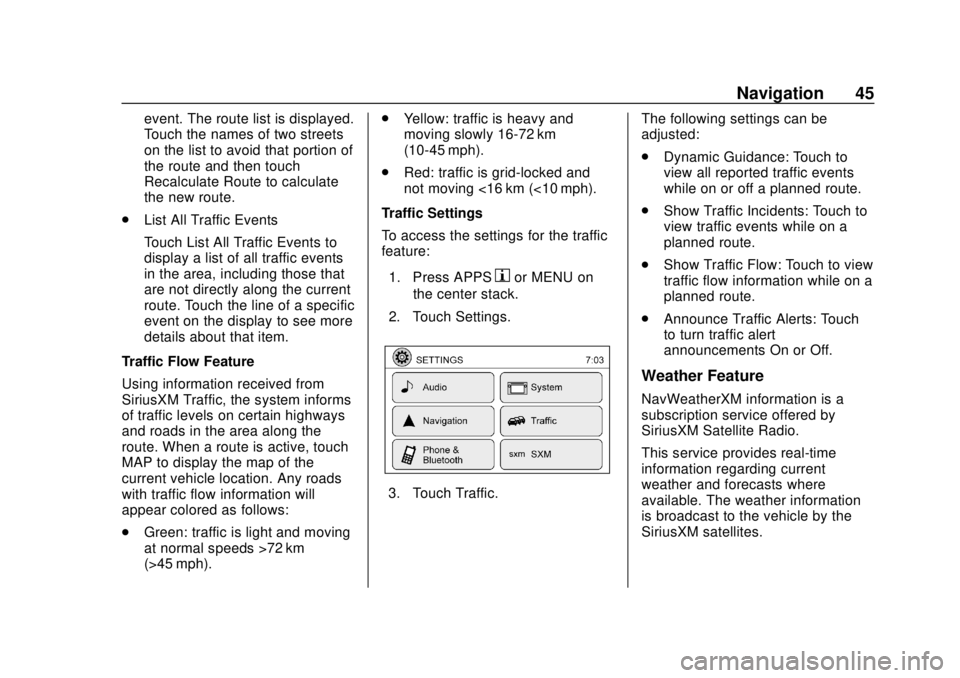
Traffic Settings
To access the settings for the traffic
feature:
1. Press APPS
hor MENU on
the center stack.
2. Touch Settings.
3. Touch Traffic. The following settings can be
adjusted:
.
Dynamic Guidance: Touch to
view all reported traffic events
while on or off a planned route.
. Show Traffic Incidents: Touch to
view traffic events while on a
planned route.
. Show Traffic Flow: Touch to view
traffic flow information while on a
planned route.
. Announce Traffic Alerts: Touch
to turn traffic alert
announcements On or Off.
Weather Feature
NavWeatherXM information is a
subscription service offered by
SiriusXM Satellite Radio.
This service provides real-time
information regarding current
weather and forecasts where
available. The weather information
is broadcast to the vehicle by the
SiriusXM satellites.
Page 49 of 74

Chevrolet City Express Infotainment System (GMNA-Localizing-U.S./Canada-
11683801) - 2018 - crc - 7/12/17
48 Navigation
From the SiriusXM Travel Link
menu, touch SiriusXM Movie. The
system displays the Movie and
Theater search page.
To search movies:
.Touch Movie to choose a
movie name.
. Touch Theater to choose a
specific theater.
. Touch Date to choose which
date to search movies and/or
theaters.
. Touch Search to view a list of
movies or theaters.
When searching by movie, a list will
display movies to select. When a
movie is selected, a theater list will
appear with a direction arrow and
distance from the current vehicle
location. The direction and distance
will update every 10 seconds as the
vehicle is moving. The direction
arrow represents the location of the
theater from the current vehicle
location. The distance represents
the straight line distance between
the vehicle location and the theater. Movie details are available when a
movie is selected. The details
include Cast, Synopsis, and Theater
Information. Touch the appropriate
icon to display more information.
Cast and Synopsis:
.
Actors
. Show Times
. Rating (G, PG-13, R, etc.)
. Length of movie
Theater information includes
address, phone number, distance,
and amenities.
Troubleshooting
XM Travel Link services use the
SiriusXM Satellite Signal and GPS
Satellite Signal to provide this
feature.
When the vehicle is started, it can
take up to five minutes for the radio
to receive the Travel Link services.
Travel Link Messages
No GPS Signal : Move the vehicle
into a position that is visible to
the sky. Acquiring Signal :
Radio is
downloading the activation
information or not receiving a good
signal. Move the vehicle to an open
area and restart the vehicle.
No XM Signal : Reception is
blocked. Move the vehicle into an
open area.
Global Positioning
System (GPS)
This navigation system combines
the data obtained from the vehicle
and from GPS (Global Positioning
System) satellites to calculate the
current location of the vehicle. This
position is then displayed
throughout route guidance to a
destination.
Vehicle Positioning
At times, the position of the vehicle
on the map could be inaccurate due
to one or more of the following
reasons:
. The road system has changed.
Page 55 of 74

Chevrolet City Express Infotainment System (GMNA-Localizing-U.S./Canada-
11683801) - 2018 - crc - 7/12/17
54 Voice Recognition
.Canada and Alaska contain
many roads with incomplete map
data. As a result, when
searching for a route, the route
may include roads with
incomplete data. In regions
where road data is not complete,
voice guidance may stop for
long periods of time. Be sure to
follow the actual traffic
restrictions while driving.
Audio System Voice
Commands
To access the audio system voice
commands:
1. Press
g/Von the steering
wheel.
2. Say “Audio.”
3. Speak a command such as: .FM: Switches the audio
system to the FM mode.
. AM: Switches the audio
system to the AM mode. .
SXM: If equipped, switches
the audio system to the
SiriusXM Satellite
Radio mode.
. CD: Switches the audio
system to the CD mode.
A CD must be inserted for
this command to be
functional.
. iPod: Switches the audio
system to the iPod mode.
An iPod must be connected
for this command to be
available and functional.
The following
sub-commands are
available for iPod:
‐Now Playing
‐ Menu
‐ Playlists
‐ Artists
‐ Albums
‐ Genres
‐ Songs
‐ Shuffle Songs ‐
Composers
‐ Audiobooks
‐ Podcasts
. Say “Next Page” to access
these commands. Say
“Previous Page” to return to
the first page of commands.
. USB: Switches the audio
system to the USB mode.
A USB device must be
inserted for this command
to be available and
functional.
. Bluetooth: Switches the
audio system to the
Bluetooth audio mode.
A compatible Bluetooth
audio device must be
connected to the system for
this command to be
functional.
. AUX: Switches the audio
system to the AUX mode.
An AUX device must be
connected for this
command to be functional.
Page 61 of 74

Chevrolet City Express Infotainment System (GMNA-Localizing-U.S./Canada-
11683801) - 2018 - crc - 7/12/17
60 Bluetooth Phone/Devices
Bluetooth Phone/
Devices
Bluetooth
Overview
The vehicle may be equipped with
the Bluetooth Hands-Free Phone
System. If there is a compatible
Bluetooth enabled cellular phone, it
can be set up with a wireless
connection between your cellular
phone and the in-vehicle phone
module. With Bluetooth wireless
technology, hands-free telephone
calls can be made with the cellular
phone in the vehicle.
Once the cell phone is connected to
the in-vehicle phone module, no
other phone connecting procedure
is required. The phone is
automatically connected with the
in-vehicle phone module when the
ignition is turned on with the
connected cell phone turned on and
carried in the vehicle.Up to five different Bluetooth cell
phones can be registered to the
in-vehicle phone module. However,
only one cell phone can be used at
a time.
Before using the Bluetooth
Hands-Free Phone System:
.
Set up the wireless connection
between a cellular phone and
the in-vehicle phone module
before using the hands-free
phone system.
. Some Bluetooth enabled cellular
phones may not be recognized
by the in-vehicle phone module.
. The hands-free phone will not be
usable under the following
conditions:
‐The vehicle is outside of the
cellular service area.
‐ The vehicle is in an area
where it is difficult to receive a
cellular signal; such as in a
tunnel, in an underground
parking garage, near a tall
building, or in a
mountainous area. ‐
The cellular phone is locked to
prevent it from being dialed.
. When the radio wave condition
is not ideal or ambient sound is
too loud, it may be difficult to
hear the other person’s voice
during a call.
. Immediately after the ignition is
turned on, it may be impossible
to receive a call for a short
period of time.
. Do not place the cellular phone
in an area surrounded by metal
or far away from the in-vehicle
phone module to prevent tone
quality degradation and wireless
connection disruption.
. While a cellular phone is
connected through the Bluetooth
wireless connection, the battery
power of the cellular phone may
discharge quicker than usual.
The Bluetooth Hands-Free
Phone System cannot charge
cellular phones.
. Some cellular phones or other
devices may cause interference
or a buzzing noise to come from