2017 AUDI TT ROADSTER ad blue
[x] Cancel search: ad bluePage 118 of 314
Telephone
Se e¢ pag e 114, Conn ecting a cell phone using
Bluetooth .
Example: you have connected yo ur business cell
phone to the MMI as the ma in phone and your
p rivate ce ll phone as the additiona l phone . To be
ab le to call contacts from your private c ell phone
directory , you must switch the ma in and addi
tional phone, since the directory from the main
phone is always displayed.
S wi tc h ing the ma in and add itional phone
Requirement: a main phone and an addit ional
phone must be connect ed.
Sw itc h main and additional ph one: select:
I MENU ! button >Telephone > right control but
ton >
S wi tch ma in and addit ional ph one.
(D Tips
-Please note that the directory from the
main phone is always displayed.
- You can see if a cell p hone is connected as
the main o r additional phone in the connec
tion manager ¢
page 176. Or: the device
name of the connected main phone is
shown in the
T elephone menu (s uch as My
Phone).
- If the main phone does not connect auto
matically to the MMI when the ignition is
switched on, for examp le because it is out
of the vehicle range or the B luetooth func
tion is switched off, then a previously paired
additional phone is automatically connected
as the main phone .
- You can send and receive messages on your
main phone as well as on your additional
phone
c> page 116, fig . 11 4. You do not
need to switch you r main phone and addi
tiona l phone for this.
- You can also make your connected cell
phone the default phone by selecting
S et a s
default telepho ne
in the Connection m an·
age r¢
page 177 .
116
Using the telephone
Opening the telephone
App lies to: vehicles with telepho ne
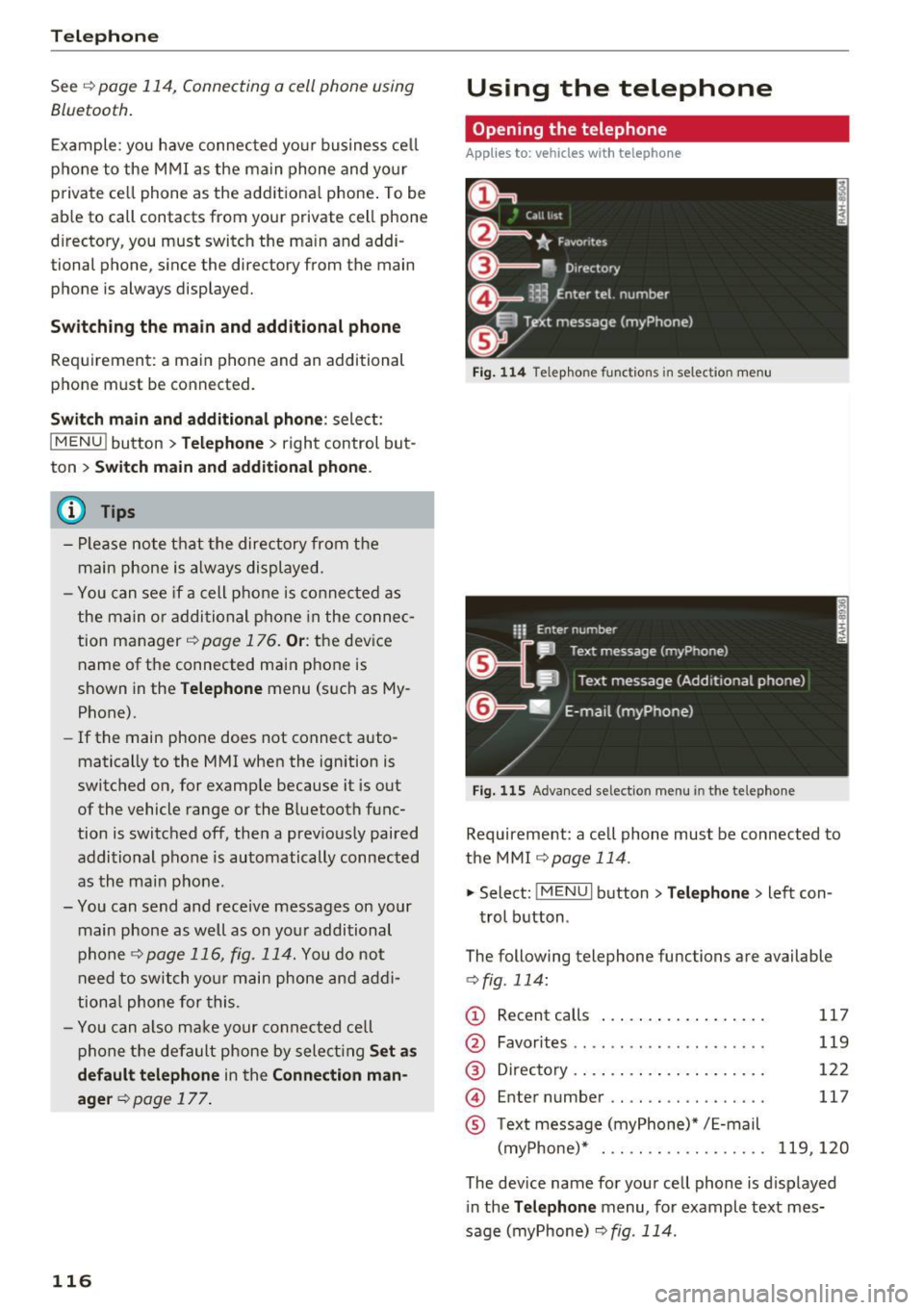
Fig . 11 4 Telep hone fu nctio ns in se lect ion me nu
Fig. 115 A dva nced selectio n menu in t he te le p hone
Requirement: a cell phone must be connected to
the MMI
r:::;, page 114 .
"'Select : !M ENUI button> Tele phone > left con
trol button .
The following telephone functions are available
c> fig. 114:
(!) Rec ent calls
@
®
©
®
Favorites .. .. .. .. .. .... .. .... .
D irectory .. .. .. .. .. ..... ..... .
Enter number .. .. .. .... .. .... .
Text message (myPhone)* / E-mail
(myPhone)* . .. .. .. ... .. . .... .
117
119
122
117
119,120
The device name for your cell phone is d isplayed
in the
Tel ephone menu, for example text mes
sage (myPhone)
r:::;, fig . 114.
Page 120 of 314
Telephone
-Ending a phone call/cancel dialing: select and
confirm End call. Or : press the control knob.
A ccepting another call: see
q page 118, During
a phone call.
Caller information : the name, phone number or
Unknown appears in the Infotainment system
display depending on if the ca ller has bee n stored
in the directory and if the phone number has
been transmitted. A picture may also be dis
p layed, depending on whether you have assigned
a picture to a contact in your directory and if it
was transferred to your MMI. You can find out if
your cell phone supports this function from your cell phone network provider, your cell phone
owner's manual or at www.audiusa .com/blue
tooth .
{D) Tips
The radio or media playback is muted during a
phone call.
During a phone call
Applies to: vehicles with telephone
Requirement: there must be a call in progress.
"" Press the right control button.
The fo llowing options are possible during a call
depending on the ce ll phone being used and the
type of connection:
- Making an additional call: select: Find contact
> Recent calls /Directory /Favorites > an entry
from the list.
- Accepting an incoming call when there is an
active call and a call on hold : select Replace .
The active call is replaced with the incoming
call.
- Answering an additional call : if there is an in
coming call w hile another call is active, you can
select Accept call to put the exist ing call on
hold and answer the incomi ng call.
If you select
Decline , the incoming call w ill be declined.
Addit ional functions include:
Mute: if you se lect and confirm this function, the
other person on the phone cannot hear you . You
can hear the other person.
118
Hold call /Resume : you can place the existing call
on hold and resume it again . To res ume the call,
se lect and confirm the call you would like to re
sume .
Transfer call to mobile device* : select and con
firm Transfer call to mobile device to transfer
the exist ing ca ll from the MMI to your cell phone .
Switch to hands-free mode*: Requiremen t: you
must have a phone call in progress on your cell
phone. Select and confirm Switch to hands-free
mode to transfer the call from your cell phone to
the MMI.
Swap call: alternate between two phone calls
while one of the calls is on hold. Se lecting End
call will end the active phone call. A phone call on
hold can be resumed through the right control
button
> Resume .
Add to conference : a party on hold and up to five
active part ies (depending on the network) can be
added to a conference call. To make an addit ional
ca ll, put all participants in the current conference
call on hold using the right control button
> Hold
conference . Press the left control button . Se lect
and confirm Call list/Directory /Favorites
> an
entry from the list.
You can add called contacts
to the conference using the right control button
> Add to conference. Resume takes all part ies off
hold.
Multi-party calling: select the right con trol but
ton
> Telephone settings > Call options . When
the function is switched on~ you can accept an
additional ca ll using Accept call or decline a ca ll
using Decline. When the function is switched off,
you can Replace the call or Decline.
Connection manager: see
q page 176.
Telephone settings: see q page 124.
(D Tips
-To be notified of a n incom ing call dur ing a
phone call, the call wa iting function in your
cell phone must be switched on when using
the hands-free profile (Handsfree ).
- You can obtain more information from your
cell phone service provider or from your cell
phone user guide.
Ill>
Page 121 of 314
co
co
.... N
" N .... 0
" "' c:o
-W hen leaving the vehicle, the Bl uetoo th
co nnection to the ce ll phone wi ll automati
ca lly disconnect . Depending on your cell
phone, phone ca lls in progress may be a uto
matically redirected from the MMI to your
ce ll phon e and yo u can cont inue the call on
you r phone .
- The display of an i ncoming phone call in the
Infotainment system d is p lay may still be
v is ible fo r a f ew s eco nd s de pending on the
ce ll phone in use. Using th e
Replace or De·
dine
f unct ions m ay then end the a ctive
p ho ne call.
Favorites
Appl ies to: vehicles with telephone
Up to 50 contacts, in addition to the voicemail
number, can be stored in any order in the favor
ites list.
.. Se le ct: I M ENU I bu tton >Telephone > left con
t rol but ton .
-Storing an existing phone number as a favor ·
ite :
sele ct an d c onfirm Recent calls /Directory .
Select and co nf irm a conta ct or phone num ber
from the list . Select: right cont rol button >
Store as favorite. Enter a name for the favor ite
o r se lect a suggest ion. Select and confirm with
Store .
- Renaming a stored favorite :
select and confirm
Favorites > a favorite from the list. Select the
rig ht cont rol button>
Rename favorite .
- Moving a stored favorite :
select and confirm
Favorites > a favorite from the list. Select the
rig ht cont rol button>
Move favor ite . Se lect
and co nfirm the locat ion of t he se lected favor
it e.
- Deleting a stored favorite : select and confirm
Favorites > a favorit e from the list . Select the
r ig ht cont ro l but ton >
Delete favorite > Delete
this favorite or Delete all favorites .
Telephone
Messages
Text messages
Applies to: cell phones with Bluetooth Message Access Profile
(MAP)
Depending on the cell phone being used and the
cell phone network contract, you can receive and
send text messages using the MMI.
Requirement
A cell pho ne mus t be c onnec ted t o th e MMI via
Bl ue toot h M AP (M essage A ccess Pro fil e)
<=> page 11 4 .
.,. Sele ct: ! M EN UI button> Telephone > left con
t rol button
> Text message (MyPhone )/Text
message (additional phone)* .
lnbox
All received text messages are displayed .
Sent text messages
All sent text messages are displayed.
Outbox
All text messages to be sent a re displ aye d.
(D Tips
- Ple ase not e that you may hav e to activat e
t he receivi ng a nd se nding of te xt messages
in y our c ell pho ne dependin g on th e SI M
c ar d be ing use d (for ex am ple, when using a
M ulti -SIM) . Yo u ca n obtain more info rma
tion from yo ur ce ll phone service p rovider or
from your cell phone user guide.
- For more in format ion on t he suppo rted ce ll
p hones, visit
www.audiusa.com/bluetooth
or contact an a uthorized Audi dea ler or a u
thorized Audi Service Fac ility.
- You need a cell phon e with Message Access
Prof ile that a lso s upports the sen ding func
tion t o be able to se nd te xt messages
t hroug h the MMI.
119
Page 122 of 314
Telephone
Write text message
Applies to: cell phones with Bluetooth Message Access Profile
(MAP)
"' Select : I MENU I button >Telephone > left con
trol button
> Text message (MyPhone)/Text
message (additional phone)*> Inbox
> right
control button.
Write text message
Select and confirm the desired template from
the list . Enter a recipient . Select and confirm
Send .
Reply*
Select and confirm the desired template from
the list. Select and confirm
Send.
Message options
Applies to: cell phones with Bluetooth Message Access Profile
(MAP)
.. Se lect: I MENU I button >Telephone > left con
trol button >
Text message (MyPhone)/Text
message (additional phone)* > Inbox /Sent /
Outbox
> right control button.
The fo llowing options may be ava ilab le depend
ing on the se lected menu.
Reply*
A reply can be sent for the selected message in
the
Inbox.
Forward
The selected text message can be forwarded to a
different recipient.
Send again*
The se lected text message can be resent.
Delete this text message*
The selected text message can be deleted.
Read aloud1>
You can have the MMI read an open text mes
sage.
1> Not availa ble in all l ang uage s.
120
Text messaging settings*
To display when a new text message is received,
activate the
Text message notifications. New
text messages are indicated with an enve lope 121
in the Infotainment system display status line.
Connection manager
See¢ page 176.
Telephone settings
See¢ page 124 .
{!) Tips
Messages that are deleted in the MMI are also
deleted in the cell phone automatically.
' E -mail*
App lies to: ce ll ph ones with Bluetooth Message Access Profile
(MAP)
Depending on the type of cell phone used, you
con receive and send e-mails through the MMI.
Requirement: the Message Access Profile (MAP)
must be activated in the Bluetooth settings on
you r ce ll phone and your cell phone m ust be con
nected to the MMI
¢page 114. You can find out
in your cell phone owner's manual if your cell
phone supports this function .
.. Select:
!MENU I button> Telephone > left con
trol button >
E-mail (MyPhone)/E-mail (addi
tional phone)*.
Write new e-mail
- Using a template :
select and confirm the de-
sired template from the list .
- Enter one or more rec ipients.
- Select and confirm
Send .
Inbox
All received e-mails are displayed.
Sent
All sent e-mails are displayed.
Page 123 of 314
co
co
.... N
" N .... 0
" "' c:o
Outbox
All e-m ails th at w ill be sent are d isplayed.
Drafts
All saved e-mails that have not been sent yet a re
d isp layed.
- Fo r more information on the supported cell
phones, v is it
www.audiusa .com/bluetooth
or contact an author ized A udi dealer or au
thorized Audi Service Facili ty.
- To e nsur e that your se nt e-mails a re re
ce ived, connect yo ur cell phone to the Wi-Fi
h otspo t* in t he vehicle so t hat the appli ca
b le e-mail app on yo ur cell phone con tinues
to have Interne t access . If you a re s till not
r eceivin g e-mails eve n though yo u have a
successful connection, then contact your e
mail service provider o r yo ur cell phone
service provider.
Message options
A pp lies to: ce ll ph ones w it h Bl uetooth Message Access Profil e
(MAP)
... Se lect: IMENUI button> Telephone > left con
t ro l button >
E -mail (MyPhone) /E-mail (addi
tional phone)* > Inbo x/Sent /Outbo x
> right
contro l button.
The fo llow ing options may be avai lab le depend
ing on the se lected menu.
Store as template
Ten e-mail templa tes are stored in the M MI. Yo u
can save up to ten a ddi tional temp lates .
- Create an e-ma il.
- Se lect and co nfirm
Store as templ ate .
Resume last edited e-mail
The last e-mai l in progress can be resumed.
Reply*
A reply can be sen t fo r the selec ted e -mail in t he
Inbox .
l) Not availab le in all la nguages .
Telephone
Reply to all*
A reply can be sent for the se lecte d e-m ail in the
In box and it wi ll be sent to all of the en tered re
c ipients .
Forward
The selec te d e-mail can be forwarded to a d iffe r
en t recipient .
Delete this message*
The selected e-mail can be deleted.
Read aloud1
)
Yo u can have the MMI read an o pen e-mail.
E-mail settings*
T o display when a new e-ma il is receive d, ac tiva te
the
E -mail notifications . New e -m ail s are indi cat
ed wi th an envelope~ in the Infotai nment sys
tem display status line .
Connection manager
See c::> pag e 176.
Telephone settings
See c::> page 124 .
(!) Tips
Messages t hat are de lete d in the MMI are also
a utomat ica lly deleted in the connected ce ll
phone.
Listening to voicemail
App lies to : vehicles wi th telepho ne
... Select: !ME NUI button> Telephone > left con
trol button. Se lect and confirm
Recent calls /Di ·
rectory /Favorites > Voicemail.
- Entering the voicemail number:
enter the de
sired n umber. Select and confirm
OK .
-Dialing the voicemail number : select and con
firm
Voicemail.
121
Page 126 of 314
Telephone
You must have a myAu di account in order to im
port contacts from the account. Entering your
myAudi user data or your myAudi PIN is on ly re
qu ired one time . You w ill receive the myAudi PIN
in your my Audi account once you have reg istered
a vehicle in the account .
(D Tips
- Always read the chapter¢ page 133, About
Audi connect.
- For additional informat ion on the myAudi
account, v is it
www .aud i.com /myaud i.
-The imported contacts are stored in the lo
ca l memory of the directory.
- A maxim um of 1,000 contacts can be im
ported. You can check the memory capacity
for the d irectory at any time¢
page 124.
-Never save important data on memory cards
or USB storage dev ices. Audi is not respons i
ble for damaged or lost files and media.
- Contacts that were downloaded from a cell
phone cannot be exported.
- There should be no other files or folders on
the storage medium conta ining the contacts
to be imported.
Settings
Telephone settings
App lies to: ve hicles with telep hone
... Se lect: I MENU I but ton > Telephone > right con-
tro l button >
Telephone settings .
Call options* Multi -party calling :
can be switched on/off .
R ing tone and volume settings
1>
Using the Mute telephone funct ion, you can
sw itch the ringtone on your MMI on or off . The
ringtones are played using the
R ingtone func
tion . Se lect and confirm an entry from the list .
F or the
Rin gtone volume /Mes sage vo lume set
tings, see ¢
page 179. The Microphone input
l e vel
can be adjus ted during a phone call usi ng
the control knob.
l) Depend s on th e connected cell phone.
124
(D Tips
- Severa l cell phones can be paired to the
MMI, but only two* ce ll phones can be ac
t ively connected.
- To delete a ll paired B luetoot h devices, the
Bluetooth function can be reset to the fac
tory default settings ¢
page 176.
· Additional options
App lies to: vehicles wit h telepho ne
... Select: !ME NUI button> Telephone > right con-
trol b utton .
Connection manager
See c::> page 176.
Bluetooth settings
See¢ page 177.
Online settings *
See ¢page 178.
Wi-Fi settings
See c::> page 131, Wi-Fi hotspot .
Directory settings
Applies to: vehicles wit h telephone
... Select: !MENUI button> Te lephone > left con
trol button >
Director y> right control button >
Direc tory settings .
M emory capacity
Shows the Memory capacit y for the directory.
You can manage up to 1 7,000 co ntacts with the
MM I di rectory. Yo u can load up to 4,000 contacts
from your cell phone into each directory. You can
also import up to 1,000 contacts from a storage
device .
Sort order
You can so rt the contacts in your d irec to ry alpha
betically ac co rding to
Last name or First name . IJ,-
Page 127 of 314
CD
CD
.... N
" N ...... 0
" V, co
Import contact s
See c:> page 123, Importing and exporting con
tacts .
Export contacts
See c:> page 123, Importing and exporting con
tacts.
Download directory
To upd ate the contacts in the MMI, you can man
ually download your cell phone contacts . De
pending on the cell phone , the Bluetooth connec
tion may need to be disconnected and reconnect ed to update the contacts.
Hide contacts w ithout phone number
W hen th is function is sw itched on~, contacts
that do not have any numbers ass igned to them
will be grayed out in the d irectory .
Safety belt microphone
Applies to: vehicles with telephone or voice recognitio n sys
tem
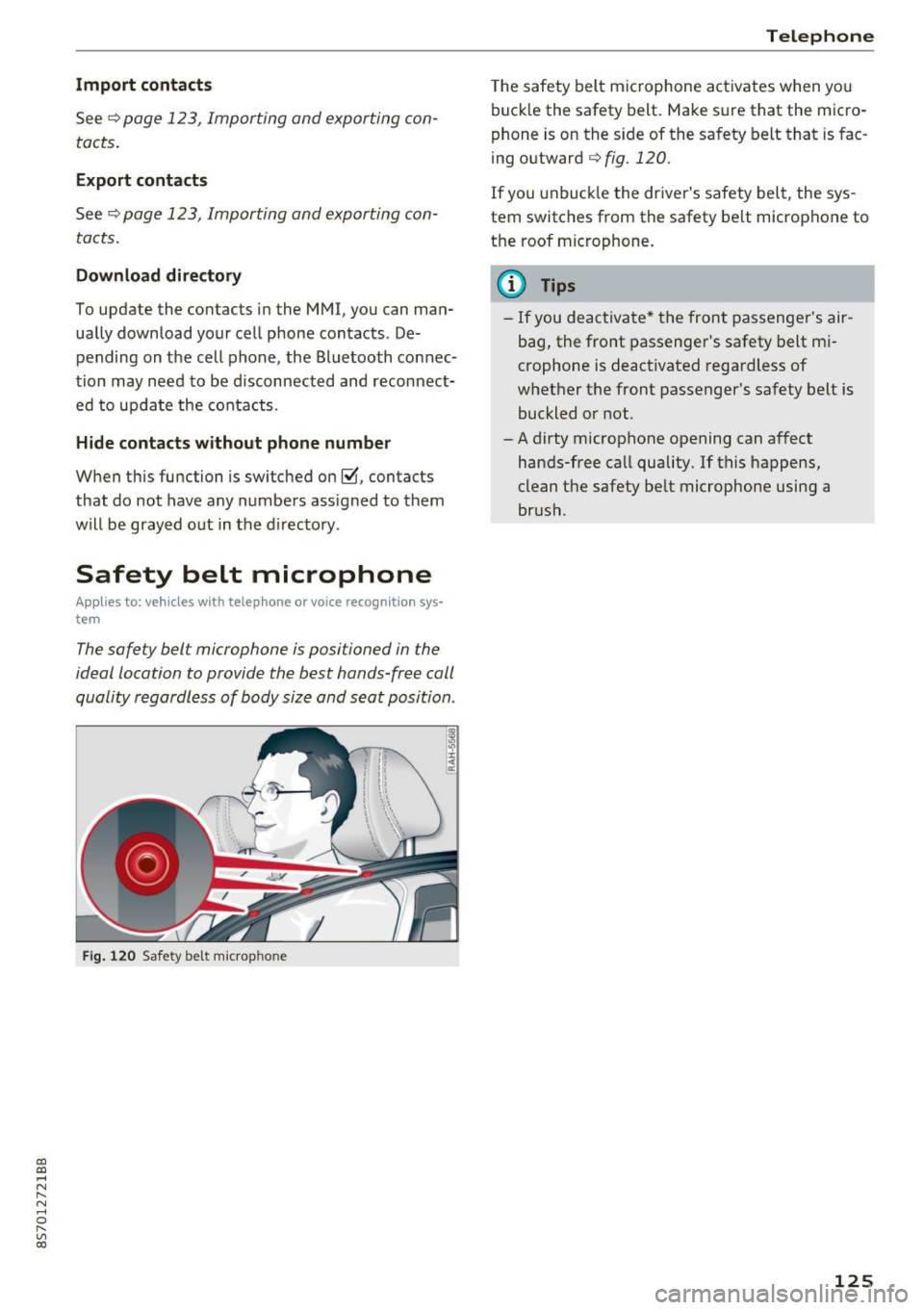
The safety belt microphone is positioned in the
ideal location to provide the best hands-free call
quality regardless of body size and seat position .
Fig. 12 0 Safety bel t mic rop hone
Teleph one
The safety belt mic rophone activates when yo u
buck le the safety belt. Make sure that the micro
phone is on the s ide of the sa fety belt that is fac
ing outward
c:> fig. 120 .
If you unbuck le the dr iver's safety belt, the sys
tem switches from the safety be lt microphone to
the roof microphone.
(D Tips
- If you deactivate * the front passenger's air
bag, the front passenger 's safety belt mi
crophone is deactivated regardless of
whet her the front passenger's safety belt is
buckled or not.
- A dirty microphone opening can affect
hands-free call quality. If this happens,
clean the safety belt microphone using a
br ush .
125
Page 128 of 314
Telephone
Troubleshooting
Applies to: vehicles with telephone
Problem Solution
C onn ecting
the cell phone to the Check if the requirements for connecting a cell phone have been
MMI failed. met¢
page 114.
Or: check if you accidentally declined the connection setup PIN on
your cell phone . If necessary, repeat the connection setup process
¢ page 114 .
After pairing,
n ot a ll cont act s/ no Avoid using sped.al characters in names .
co ntac ts are loaded in the MMI. Avoid using contact groups on your cell phone .
Certain
t e le ph one func tion s are The te lephone funct ions depend on the cell phone service provider
grayed out o r not availab le. and the cell phone you are using. You can obtain more i nfo rma-
tion from your cell phone se rvice provider, in your cell phone user
gu ide or in the database for mob ile dev ices at
www .audi.c om /
bluetoo th .
Some te le phone functi ons are O n corporate phones, some Bluetooth settings may not be com-
switched off o r not available, even patib le or the ce ll phone Bluetooth funct ion may be deactivated.
though the cell phone is support- You can obtain more informat io n from you r system admin istrato r.
ed .
126