2017 AUDI TT ROADSTER ad blue
[x] Cancel search: ad bluePage 130 of 314
Audi connect
"'Enter the PIN for your SIM card .
"' Se lect and confirm
OK.
"'To connect to the Internet automatically in the
future, select and then confirm
Yes.
"' Confirm the system prompt asking to connect
to the Internet with either
Yes, connect once or
Yes, always if required.
After connecting successfully
After connecting successfully, the signal strength
and connection type are displayed in the Info
tainment system status line@/@ Qpage
105,
fig . 111.
You can now use Audi connect.
The list of available Audi connect services is dis
p la yed in the Infotainment system display.
Removing the Audi connect SIM card
"' Press on the Audi connect SIM card briefly. The
card is released from the slot. Remove the Audi
connect SIM card.
@ Note
-Audi connect is designed for use only with
the provided Audi connect SIM card. Audi
AG is not liable for the consequences of us
ing other SIM cards.
- If a SIM card of a different size is inserted in
the SIM card reader instead of an Audi con
nect mini SIM card, do not under any cir
cumstances remove this card yourself due
to the risk of damaging the SIM card reader.
Contact your authorized Audi dealer or au
thorized Audi Service Facility.
(D Tips
-You can connect a cell phone with Bluetooth
(handsfree) to make phone calls
Q page 114.
-Audi does not provide support for other SIM
cards. Audi recommends using only the pro
v ided SIM card .
- You can specify when the MMI connects to
the Internet Q
page 132. The Internet con
nection disconnects automatically once the
requested Audi connect service no longer re
quires any data packets.
128
Configuration through
myAudi
Activating/configuring specific Audi
connect services
Applies to: vehicles with Aud i connect
Some Audi connect services must be activated/
configured through your personal myAudi ac
count before using them for the first time .
- If you do not have a personal myAudi account
yet, you can register online at
my.audiusa.com .
-Add your vehicle to your myAudi account.
-Activate/configure the Audi connect services
you would like for your vehicle in your myAudi account.
- For some Audi connect services, you may also
have to enter your myAudi user data or your
myAudi PIN when accessing services in the MMI
to connect your vehicle to myAudi .
For detailed information on configuration, visit
my.audiusa .com.
Logging into myAudi in the vehicle
Applies to: vehicles with Audi connect
To use some Audi connect services (such as Twit
ter*), you must first connect your vehicle with
myAudi to transfer your personal settings from
your myAudi account.
"'S elect: !MENU I button> Audi connect > right
control button >
Log in.
"' Enter your myAudi user data. Or: enter your
eight-dig it myAudi PIN.
"' Confirm your entry w ith
OK .
Then you can open your personal settings from
your myAudi account in your vehicle .
(D Tips
You can receive your myA udi PIN if you have
set up a myAudi account. For additional infor
mation, see
my.audiusa.com .
Page 161 of 314

co
co
.... N
" N .... 0
" "' c:o
When importing, the audio files a re automatical
l y sorted into the media center categor ies based
on the stored addit ional info rmation
c:> page 165. The copied video files are stored in
the media ce nter under the
Videos category.
Playing the Ju kebo x
Req uirement: the J ukebox must contain audio/
vi deo fi les
c:> page 158, Adding files to the Juke
box.
The Jukebox is a ccesse d and ope rated thr ou gh
the MMI
(D c:> page 164, fig . 144.
Displaying Jukebox memory capacity
Select: r igh t control button > Jukebox memory
capacity .
Inform ation abou t the J ukebox memory
c a pacity an d the numbe r of store d tra cks is dis
p layed .
Deleting tracks from the Jukebox1
)
Req uirement: the Ju kebox must contain audio/
video fi les.
- Deleting an entry : select an entry from the
Jukebox media center. Select: rig ht cont ro l but
ton
> Delete from Jukebox > This entry or En
tire list .
- The s tatus of the de leti ng p rocess is shown in
the MMI. Jukebox playback stops d uring the de
l eting process a nd starts again au tomatically
on ce the dele tio n i s comp lete.
(D Note
D o not import au dio/video files when the en
g in e is t urned off because this will d rain the
ve hicl e battery.
(D Tips
-Tracks fro m aud io C Ds cannot be impo rted
t o the Jukebox for leg al re as ons.
- Files that have al rea dy been import ed are
a utomat ica lly r ecogn ized and ca n not be
cop ied to the Juk eb ox again.
- It is no t possib le to play audio/v ideo* files
i n the C D/D V D* drive while import ing the m.
l) Not in th e Playba ck view .
Media
-The Jukebox does not provi de a n export
function d ue to legal reasons .
- F iles o r trac ks w ithout store d ad di tional in
formatio n are listed as
Unknown . Audi rec
ommends adding a dditio nal info rmation
(such as ID3 tags) to a udio f iles.
- Reset the J ukebox to t he factory default set
tings when selling your vehicle
c:> page 176 .
Bluetooth audio player
Applies to: vehicles with Bluetooth
With the Bluetooth audio player, you con ploy
music wirelessly from your Bluetooth-capable
device (such as a cell phone) through the MMI.
Requirement: the vehicle must be stationa ry and
the Bluetooth function on your Bl uetooth device
and the
Bluetooth audio player c:> page 177 in
t h e MMI m ust both be switched on .
-Connecting a Bluetooth de vice : press the
! MEDI Ai button. Press the left control button
until t he source overv iew is d isp layed. Select
and confirm
Bluetooth audio player @
Gpoge 164, fig. 145.
-If necessa ry, select and co nfirm, Not connected
> Connect Bluetooth audio player . The Blue
t ooth dev ice searc h starts . Fo llow the inst ruc
tions in the M MI.
- Select and confirm the des ired Bluetooth de
vice from the list. The M MI generates a PIN fo r
t he co nne ction.
- Select and confirm
Yes .
-Enter the PIN for connect ing on your Bl uetooth
dev ice.
Or : if the PIN is already displayed on
your Bl uetoo th device, confi rm it in the Blue
t ooth device and in the MMI. The t ime a llowed
for e ntering the P IN is lim ite d t o ap prox ima tely
3 0 seconds.
T he media is s tarted and operated thro ugh the
mobile device o r the MMI, de pending on t he de
vice be ing used.
@ Tips
- Check fo r any connection reques ts on you r
B lu etoo th devi ce .
159
Page 162 of 314
Media
-Multiple Bluetooth audio players can be
connected to the MMI, but only one mobile
device can be active.
- Bluetooth protocols AVRCP ( 1.0/1.3/1.4)
and A2DP are supported.
- Note the volume se tting on your Bluetooth
device. A udi recommends setting your mo
bile device to the maxim um vo lume when
us ing it as a Bluetooth audio player.
- The supported media functions (such as
shuffle) depend on the Bluetooth device be
i ng used.
- For more information on the supported de
vices, visit
www.audi.com /bluetooth or
contact your author ized Audi dealer or au
thorized Audi Service Facility.
Wi-Fi audio player
A ppl ies to: ve hicles w ith Wi-F i
Using the Wi-Fi audio player media source on the
MMI, you can connect and operate your Wi-Fi-ca
pable media player (su ch as a smartphone) to
wirelessly play music from your media player
li
brary. The media player is connected through the
vehicle's Wi-Fi hotspot . A UPnP Server opp or an
integrated UPnPIDLNA server on your media
player is required to access your media player
li
brary.
Req uirement: the Wi-Fi function on your media
p layer must be switched on. The
Audi MMI con
nect
app or a UPnP server app must be installed
on your med ia player .
Or: you must be us ing a
media player wit h an integrated UPnP/DLNA
server .
-Connecting a media player : press the I MEDIA!
button. Press the left control button unti l the
sources overview
c::;,page 164 is d isp layed. Se
lect and co nfirm
W i-Fi audio player
(J) c::;, page 164, fig . 145.
- If necessary, select a nd confirm Wi -Fi off >
Turn on Wi-Fi
to activate Wi-Fi in the MMI. Se
lect
Wi-Fi settings , if necessary. Select the
same settings on the wire less media player
that are used for the Wi -Fi hotspot .
-Start ing the Wi -Fi audio pl ayer : start the Audi
MMI conne ct
app or a UPn P serve r app . Or: al
low medi a shar ing o n your medi a player.
160 Operating the medi
a playe r:
the med ia p layer is
operated through the MMI.
- Press the left control b utton repeatedly until
the
Folders menu item appears . Select and con
firm
Folders.
- Playing mu sic from the media player:
select
and confirm
Media cent er.
Web radio :
see c::;, page 161.
A WARNING
-As t he d river, do not allow usage of the Wi
Fi ho tspot to distract you from driv ing, as
this could increase the r isk of an accide nt.
- It is o nly safe to use tablets, laptops, mo
b ile devices and other s imilar devices when
t he vehicle is stat ionary because , like all
loose objec ts, they co uld be thrown a round
t he inside o f th e ve hicle in a crash and ca u se
serious inju ries. Store these types of devices
secure ly w hile d riving .
- Do no t use any W i-Fi devices wit hin range of
t he airbags while dr iv ing. A lso rea d the
warn ings in the chapter
¢page 196.
(D Note
You are re spon sib le fo r all pre ca utio ns taken
fo r d ata p rotection, an ti- v irus pro te cti on and
protection ag ain st loss o f data on mobi le de
v ices that a re used to access the Internet
thro ugh the W i-F i hotspot .
(D Tips
-The Wi-Fi connec tion is reconf igure d when
inserting or removin g the m ini SIM ca rd in
t h e SIM card reader*. There may be a tem
porary interr upt ion in aud io playback, de
pend ing o n the media player.
- Always read the chapter
c::;, page 133, About
Audi connect.
- Please note that a Wi-Fi connection does
not automatically make it possible to use
t h e Internet. For addit ional information,
see
c::;, page 127.
-To avoid interr upt ions during playback, de
act ivate the power sav ing funct io n on the
media player or co nnect it to a cha rger.
Page 165 of 314
co
co
.... N
" N .... 0
" "' c:o
connector from the Apple device with the re
lease tabs pressed in@
¢page 162, fig. 142.
The media are started and operated through the
mobile device or the MMI, depending on the de
vice being used
q page 164.
Connecting two mobile devices: if two mobile
devices (for example iPod and smartphone) are
connected at the same time, then both devices
can be used as playback sources.
You can connect mobile devices using the analog
AUX port.
-Connecting a mobile device to the AUX input:
connect the cable®¢ fig. 143 to the AUX in
put @ on the Audi music interface and then to
the mobile device © (such as an MP3 player or
smartphone) .
-Disconnecting a mobile device from the AUX
input:
remove the cable®¢ fig. 143 from the
Audi music interface.
-Operation: select and confirm the External au
dio player
source @¢ page 164, fig. 144 . The
media are started and operated through the
mobile device@~
fig. 143.
.8, WARNING
Driving requires your complete and undivided
attention. As the driver, you have complete
responsibility for safety in traffic. Never oper
ate mobile devices while driving, because this
increases the risk of an accident.
@ Note
- Remove the connector from the Audi music
interface carefully so it is not damaged.
- Use a USB extension cable to connect devi
ces that have an integrated USB connector
(such as a USB stick) to prevent damage to
your USB device and the Audi music inter
face.
- Extremely high or low temperatures that
can occur inside vehicles can damage mobile
devices and/or impair their performance.
Never leave mobile devices in the vehicle in
extremely high or low temperatures .
Media
{!) Tips
-Do not use an additional adapter or USB ex
tension cable to connect mobile devices to
the Audi music interface that already have a
cable or that must be connected with a USB
adapter( ¢
page 162). They may impair the
functionality .
- You can purchase the AUX connector cable
from an authorized Audi dealer or at spe
cialty stores .
- Functionality is not guaranteed for mobile
devices that do not conform to the USB 2.0
standard.
- USB hubs are not supported .
- Some versions of the iPod such as the iPod
shuffle cannot be connected to the USB
adapter for devices with Apple Dock connec
tor . Connect these devices using a AUX con
nector cable.
- Video playback through the Audi music in
terface is only supported if the connected
device is recognized as a USB storage device
(for example a USB stick). Apple devices and
MTP devices (such as smartphones) are not
recognized as USB storage devices .
- iPod/iPhone malfunctions also affect the
operation of the MMI. Reset your iPod/
iPhone if this happens.
- For important information on operating
your iPod/iPhone, refer to the user guide for
the device. Audi recommends updating the
iPod/iPhone software to the latest version.
- For more information about the Audi music
interface and supported devices, check the
Audi database for mobile devices at
www.audiusa.com/bluetooth or contact an
authorized Audi dealer or authorized Audi
Service Facility.
163
Page 166 of 314
Media
Playing media
Accessing media
You can start and operate various media
through the MMI control panel.
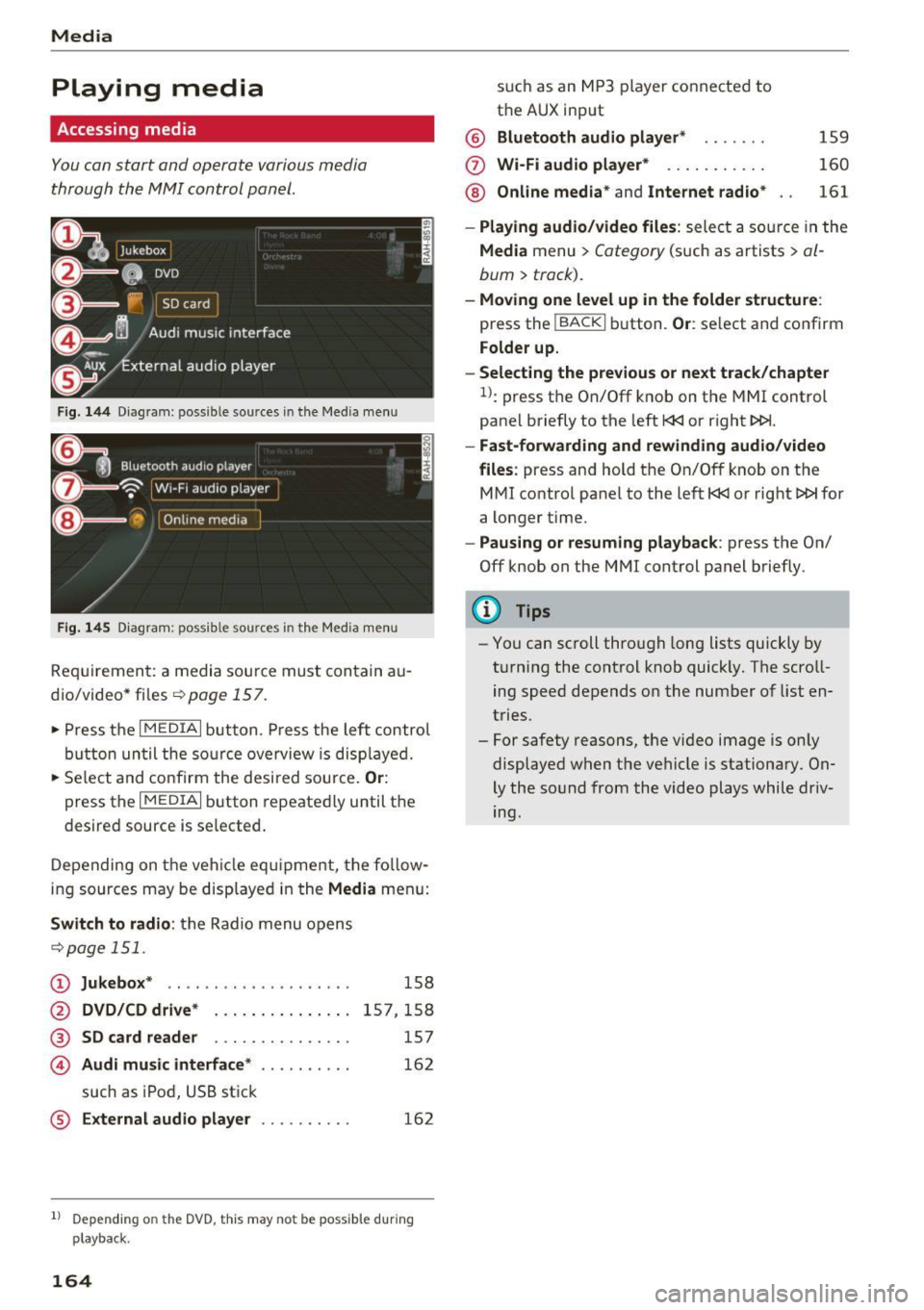
Fig . 14 4 Dia gr am : possible sources in the Media m enu
F ig. 145 D iag ra m : possible sources in t he Me dia me nu
Re qu ir emen t: a media sou rce must contain a u
dio/video* files-=>
page 157.
• Press t he I M EDIAi bu tton. Press the left co ntro l
button until the so urce ove rview is disp laye d.
• Se lect and confirm the desi red sou rce.
Or :
press the I MEDIAi button repeated ly until the
desired source is selected .
D epending on the ve hicle eq uipme nt, t he fo llow
i ng sources may be disp laye d in the
Media men u:
Switch to radio : the R adio menu o pens
-=> page 1 51.
CD Jukebox * .. ... ... ..... ..... ..
@ DVD/CD drive* ..... ....... .. .
® SD card reader . . . . . . . . . . . . . . .
© Audi music interface* ....... ...
such as iPod, U SB st ick
® External audio player . .. ...... .
158
15 7,1 58
157
16 2
162
1l Depend ing o n the DVD, this may not be possible du rin g
playback.
164
s u ch a s an MP3 player conne cte d to
t h e AUX input
@ Bluetooth audio player * .. .... .
(f) Wi -Fi audio player* .......... .
@ Online media* and Internet radio *
159
160
161
- Playing audio/video files : select a so urce in the
Media menu > Category (such as a rtists > al
bum> track).
-Moving one level up in the folder structu re :
press the IBACKI b utton. Or : select and confirm
Folder up.
- Selecting the previous or next track /chapter
1>: press t he On/Off k nob on the MMI control
panel briefly to the left
l
- Fast-forwarding and rew inding audio/video
files :
press and hold t he On/Off knob on the
M Ml control panel to the left
l
a longer time.
-Pausing or resuming playback : press the On/
Off knob on the MMI control panel b riefly.
(D Tips
- Yo u can scroll through long lists quickly by
t ur nin g the control knob quickly. The scroll
ing speed depends o n the number of list en
tries.
- For safety reasons, the vi deo image is on ly
displaye d when the vehicle is stationary. On
ly the so und from the video plays while driv
ing.
Page 173 of 314
co
co
.... N
" N .... 0
" "' c:o
Media
on the system language and cannot a lways
be g uaranteed .
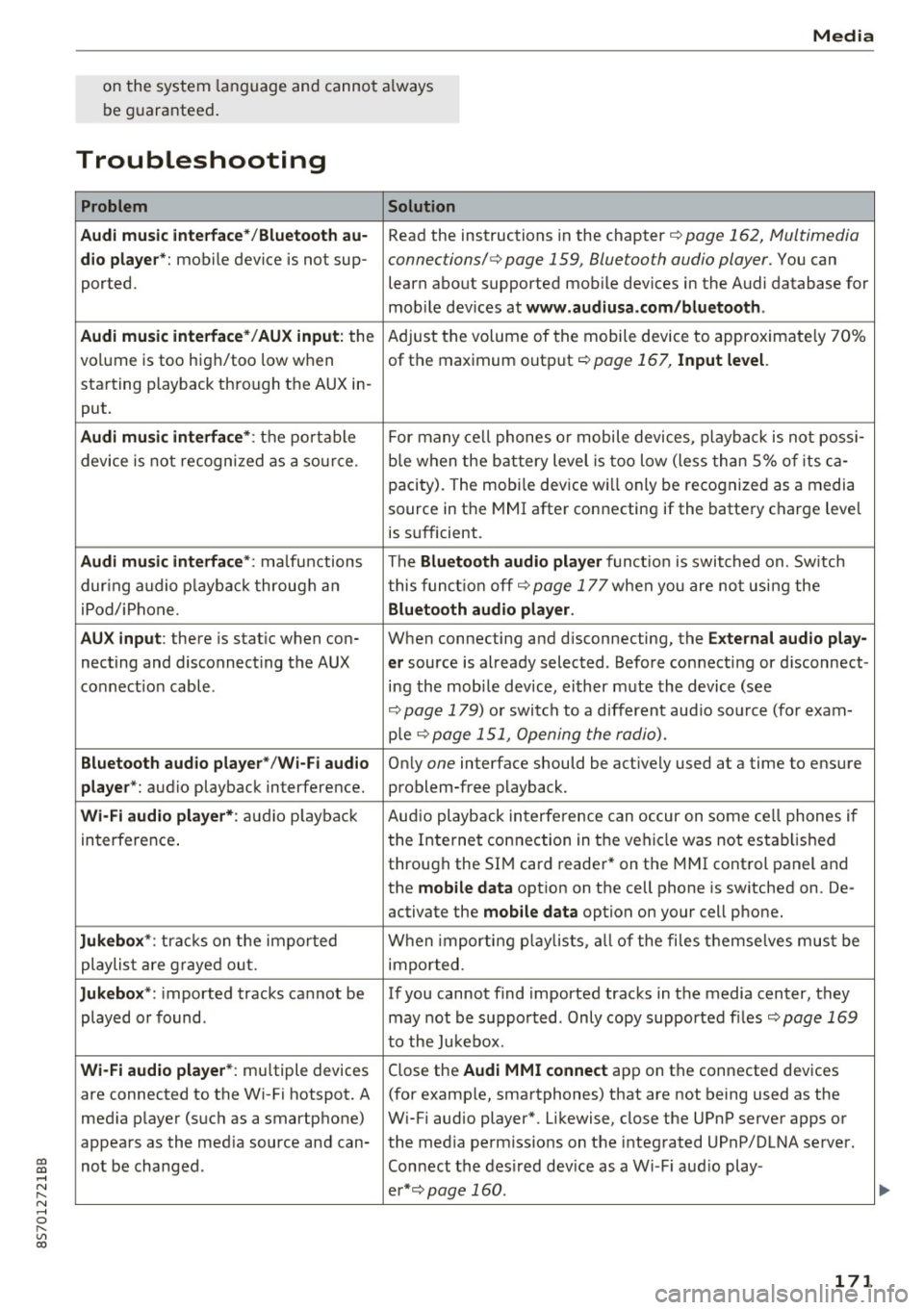
Troubleshooting
Problem Solution
Audi music interface* /Bluetooth au-
Read the instructions in the chapter ¢ page 162, Multimedia
dio player *: mobile device is not sup-connections/ ¢ page 159, Bluetooth audio player. You can
ported. learn about supported mobile devices in the Audi database for
mob ile dev ices at
www .audiusa.com /bluetooth .
Audi music interface* /AUX input:
the Adjust the volume of the mobile device to approximate ly 70%
volume is too high/too low when of the maximum output
¢ page 167, Input level.
starting playback through the AUX in-
put.
Audi music interface *: the portable For many cell phones or mobile devices, playback is not possi-
device is not recognized as a source. b
le when the battery level is too low (less than 5% of its ca-
pacity) . The mobi le device will only be recognized as a media
source in the MMI after connecting if the battery charge level
is sufficient.
Audi music interface *: malfunctions The Bluetooth audio player functio n is switched on. Switch
dur ing audio playback through an this funct io n off¢
page 177 when you are not using the
iPod/ iPhone .
Bluetooth audio player.
AUX input:
there is stat ic when con- When connecting and d isconnecting, the E xternal audio play-
necting and disconnect ing the AUX er source is already selected . Before connecting or d isconnect-
connection cable. ing the mobile dev ice, either m ute the device (see
¢ page 179) or switch to a different aud io so urce (fo r exam-
p ie
¢page 151, Opening the radio).
Bluetooth audio player * /Wi-Fi audio On ly one interface should be act ively used at a time to ensure
player* : audio playback interference. problem-free playback.
Wi-Fi audio player* : audio pla yback Aud io playback interference can occur on some ce ll phones if
in terference . the Internet connection in the vehicle was not estab lished
through the SIM card reader* on the MMI control panel and
the
mobile data option on the cell phone is switched on. De-
activate the
mobile data option on your cell phone.
Jukebox* : tracks on the imported When importing p laylists , all of the files themse lves must be
playlist are grayed out. imported.
Jukebox*: imported tracks cannot be If you cannot find imported tracks in the media center, they
played or found . may not be supported. Only copy supported f iles
¢ page 169
to the Jukebox .
Wi-Fi audio player* : multiple devices
Close the Audi MMI connect app on the connected devices
are connected to the Wi-Fi hotspot. A (for exam ple, smartphones) that are not being used as the
med ia p layer (such as a smartphone) Wi-Fi audio player*. Likewise, close the UPnP server apps or
appears as the med ia source and can- the med ia permiss ions on the integrated UPnP/DLNA server.
not be changed . Connect the desired dev ice as a W i- F i aud io play-
er* ¢page 160 .
171
...
Page 174 of 314

Media
Problem Solution
Online media*:
connection failed be-To establish a connection to the MMI, the MMI connection
tween the MMI and the
Audi MMI switch must lbe switched on in the Audi MMI connect app sta-
connect app. tus screen.
Bluetooth
audio player *: interference Playback interference can occur when using the Bluetooth au-
with track display and audio playback. dio player if a music player app from a third party provider is
open. Audi recommends using the integrated media player on
your Bluetooth device (such as a smartphone) .
172
Page 178 of 314
System settings
Individual speech training (on ly when the vehi
cle is stationary): yo u can adapt the voice recog
n ition system to yo ur voice or pro nunciat ion in
order to improve the system's ability to recogni ze
your speech. Individua l train ing is comprised of
20 speech e ntries that cons ist of commands and
sequences o f num bers . You can dele te the p ro
g ramm ed vo ice tra ining w ith the
Reset individu·
al spee ch training
func tion.
Factory settings
The fo llow ing funct ions can be reset to the facto
ry default set tings :
-Sound settings
- Rad io
- Media settings
-Jukebox *
- Directory *
- Telephone*
- Bluetooth and Wi-Fi *
- Navigation sett ings *
- Navigation and online memory*
- Voice recognition system*
- Message settings*
-Apps *
- Tool tips
- Audi connect *
You can select the desi red functions individually
or all at once with the
Select all entries option.
Select and confirm
Restore factory settings .
@ Tips
-Make su re that not only t he settings we re
d eleted but also the stored data, if ap plica
bl e.
- If you reset the
Navigation and online
memory* or Audi connect*
to t he factory
default settings, the system automatically
r estarts afte r approximate ly 20 seconds.
The I nfota inme nt system display will be
b lack for several m inu tes when r estart ing.
- Please note t hat the vo ice recog nit io n sys
t e m* is not availabl e in Cabr io le ts t hat do
not hav e a factory- insta lled safety bel t mi
crophone.
176
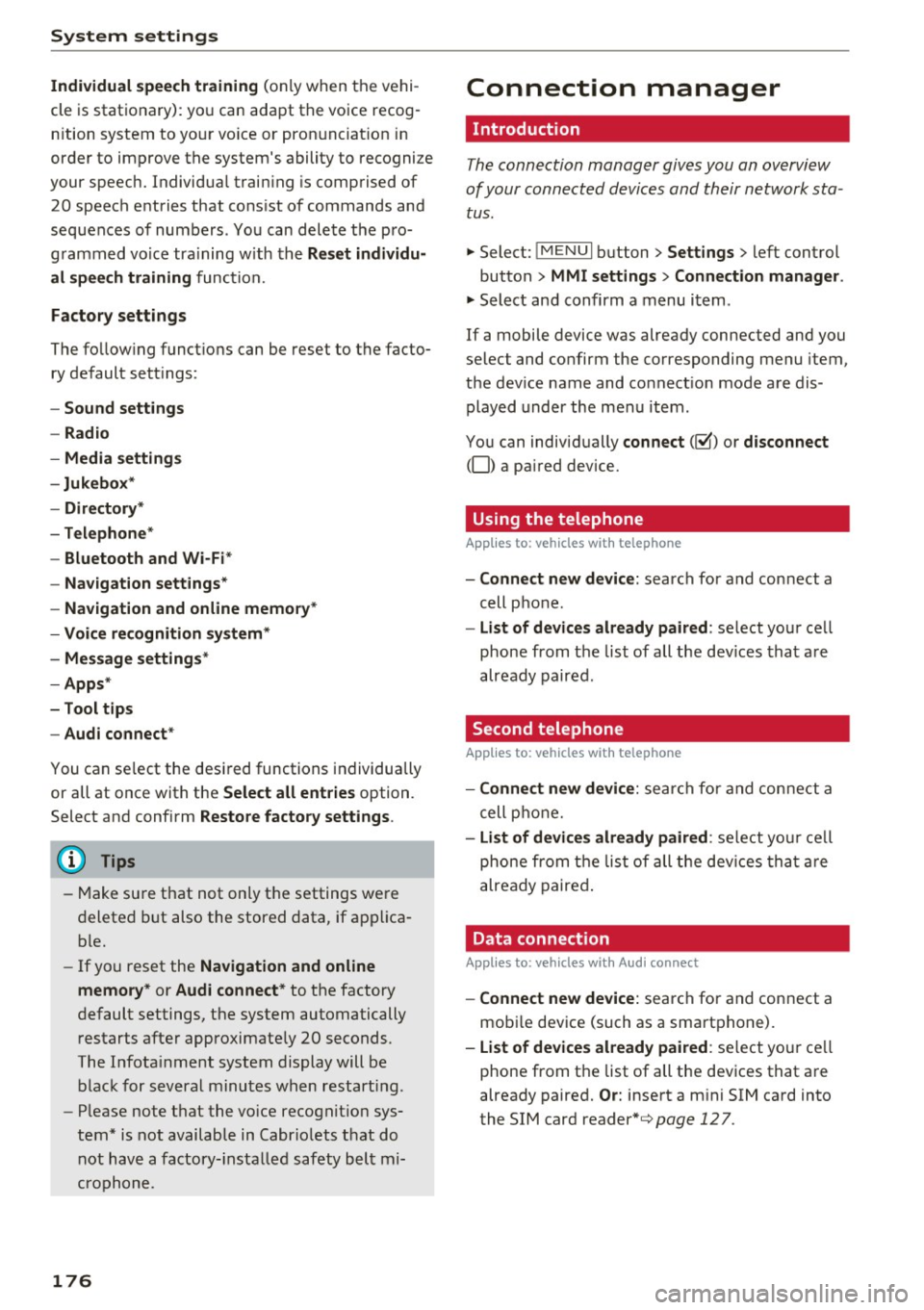
Connection manager
' Introduction
The connection manager gives you an overview
of your connected devices and their network sta
tus.
"' Select: !ME NUI button> Settings > left control
button
> MMI settings > Conne ction manager .
"'Select and confirm a menu i tem .
If a mobile device was already connected and you
se lect and co nfirm the corresponding menu item,
the dev ice name and co nnect ion mode a re dis
played under the men u item.
You can individ ually
connect (~) or disconnect
(0) a pa ired device.
' Using the telephone
App lies to : vehicles wit h te lepho ne
- Connect new device: search for and con nect a
cell p ho ne.
- List of devices already paired : select your ce ll
phone from t he list of all th e dev ices tha t are
already paired .
Second telephone
Applies to : vehicles wi th telepho ne
- Connect new device : search for and co nnect a
c ell p hone.
- List of device s already paired : sele ct yo ur cell
ph one fr om t he list of all the dev ices tha t ar e
a lready paired .
Data connection
Applies to : vehicles wi th Audi connec t
-Connect new device: search for and con nect a
mob ile dev ice (such as a smart pho ne).
- List of devices already paired : select yo ur ce ll
phone from t he list of all the dev ices that a re
already paired.
Or: insert a m ini SIM ca rd into
the SIM card
reader *¢page 127.