2017 AUDI TT ROADSTER bluetooth
[x] Cancel search: bluetoothPage 5 of 314

co
co
.... N
" N .... 0
" "' c:o
Opening the selection/options menu with
the control knob . . . . . . . . . . . . . . . . . . . . 102
Letter/number speller . . . . . . . . . . . . . . . . 102
Free text search . . . . . . . . . . . . . . . . . . . . . 104
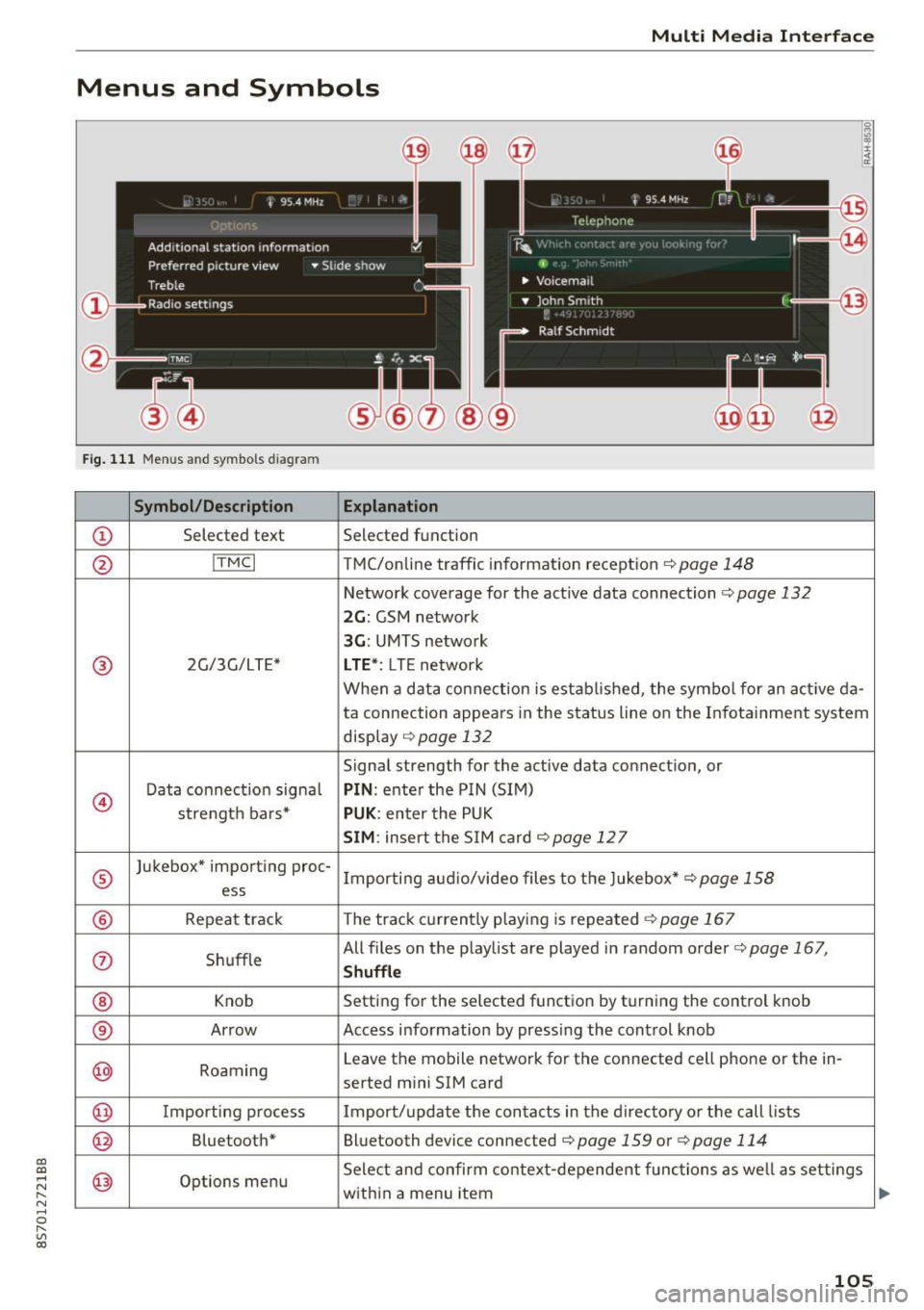
Menus and Symbols . . . . . . . . . . . . . . . . . . 105
Voice recognition system . . . . . . . . 108
Operating . . . . . . . . . . . . . . . . . . . . . . . . . . 107
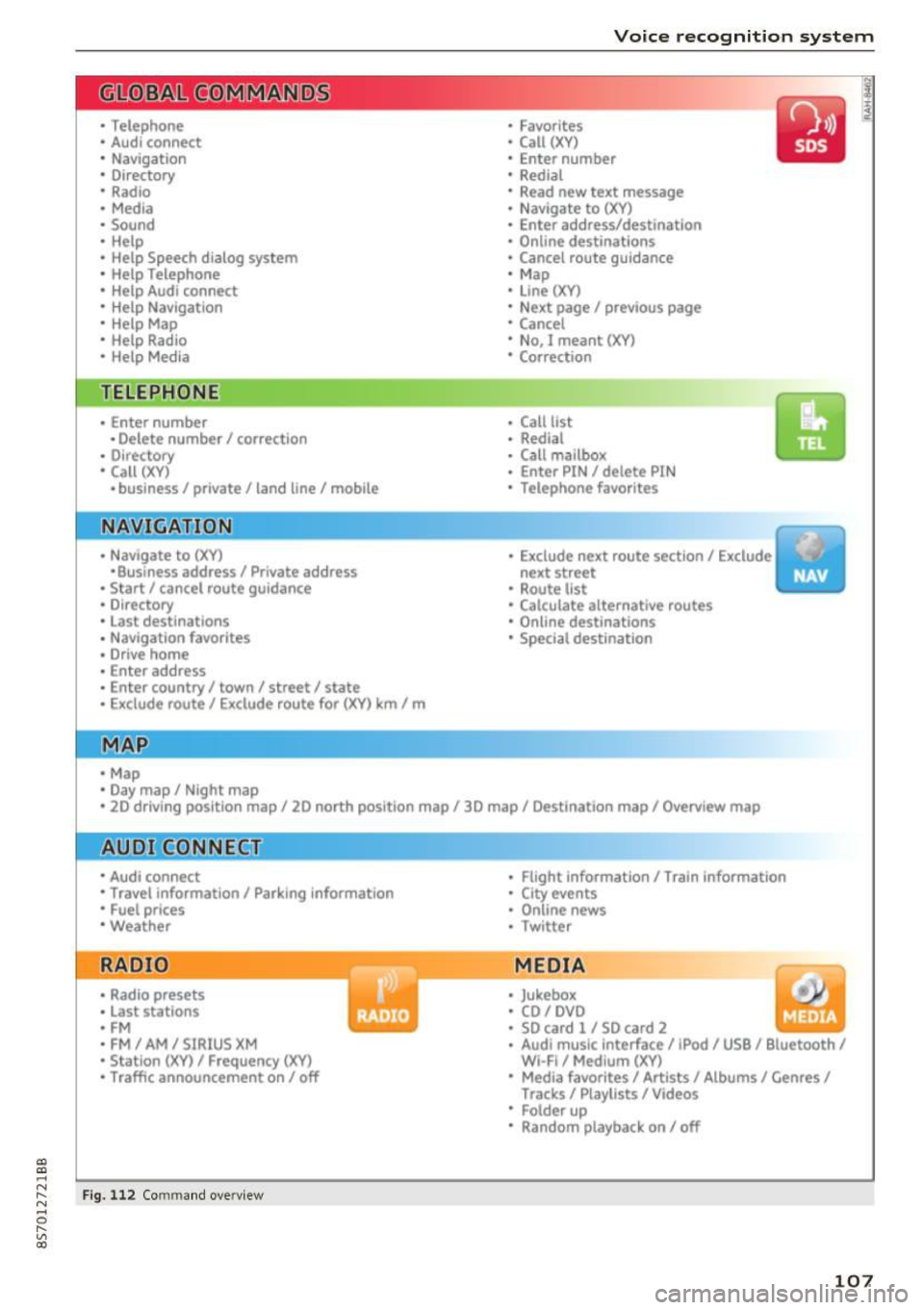
Command overview information . . . . . . . . 108
Commands . . . . . . . . . . . . . . . . . . . . . . . . . 109
Telephone . . . . . . . . . . . . . . . . . . . . . . . . 114
Introduction . . . . . . . . . . . . . . . . . . . . . . . . 114
Setup . . . . . . . . . . . . . . . . . . . . . . . . . . . . . 114
Using the te lephone . . . . . . . . . . . . . . . . . 116
Favorites . . . . . . . . . . . . . . . . . . . . . . . . . . . 119
Messages . . . . . . . . . . . . . . . . . . . . . . . . . . 119
L istening to voicemail . . . . . . . . . . . . . . . . 121
Emergency call functions . . . . . . . . . . . . . 122
Directory . . . . . . . . . . . . . . . . . . . . . . . . . . . 122
Settings . . . . . . . . . . . . . . . . . . . . . . . . . . . 124
Safety belt microphone . . . . . . . . . . . . . . . 125
Troubleshooting . . . . . . . . . . . . . . . . . . . . . 126
Audi connect . . . . . . . . . . . . . . . . . . . . . 127
Introduction . . . . . . . . . . . . . . . . . . . . . . . . 127
Setup . . . . . . . . . . . . . . . . . . . . . . . . . . . . . 127
Configuration through myAudi . . . . . . . . . 128
Audi connect services. . . . . . . . . . . . . . . . . 129
W i-F i hotspot . . . . . . . . . . . . . . . . . . . . . . . 131
Configur ing the data connect ion . .. .. .. .
About Audi connect ............ ..... .
Troubleshooting .................... .
N .
. av1gat1on .. ................ ..... .
132
133
135
136
Opening navigation . . . . . . . . . . . . . . . . . . 136
Entering a destination . . . . . . . . . . . . . . . . 137
Cancel route guidance . . . . . . . . . . . . . . . . 141
Home address . . . . . . . . . . . . . . . . . . . . . . 142
Favorites . . . . . . . . . . . . . . . . . . . . . . . . . . . 142
Directory contacts . . . . . . . . . . . . . . . . . . . 142
Addit ional settings . . . . . . . . . . . . . . . . . . 142
Map ... .. ... ... .. .. .... ... .. .. .. .. . 144
Online map display . . . . . . . . . . . . . . . . . . 147
Accessing traffic information . . . . . . . . . . 148
Troubleshooting . . . . . . . . . . . . . . . . . . . . . 150
Table of contents
Radio ...... .. .. .................. .
151
Opening the radio . . . . . . . . . . . . . . . . . . . 151
Radio funct ions . . . . . . . . . . . . . . . . . . . . . 152
Radio menu . . . . . . . . . . . . . . . . . . . . . . . . 153
Favorites . . . . . . . . . . . . . . . . . . . . . . . . . . . 153
Additional settings . . . . . . . . . . . . . . . . . . 154
Troubleshooting . . . . . . . . . . . . . . . . . . . . . 155
Med ia .... .. .. .. .... .. .. .... ... .. .. 156
Introduction ... .. .. ...... ....... .. .. 156
Notes . . . . . . . . . . . . . . . . . . . . . . . . . . . . . 156
Media drives . . . . . . . . . . . . . . . . . . . . . . . . 157
Bluetooth audio player . . . . . . . . . . . . . . . 159
Wi-Fi audio player . . . . . . . . . . . . . . . . . . . 160
Online media and Internet radio . . . . . . . . 161
Multimedia connections . . . . . . . . . . . . . . 162
Playing media . . . . . . . . . . . . . . . . . . . . . . . 164
Additional settings . . . . . . . . . . . . . . . . . . 167
Supported media and file formats . . . . . . 169
Troubleshooting .. .. ................. 171
Audi smartphone interface . . . . . . 173
Setup . . . . . . . . . . . . . . . . . . . . . . . . . . . . . 173
Operating . . . . . . . . . . . . . . . . . . . . . . . . . . 173
Troubleshooting .. .. ................. 174
System settings .................. 175
Setting the date and time . . . . . . . . . . . . . 175
MM I settings . . . . . . . . . . . . . . . . . . . . . . . 175
Connection manager . . . . . . . . . . . . . . . . . 176
System update . . . . . . . . . . . . . . . . . . . . . . 178
Sound settings . . . . . . . . . . . . . . . . . . . . . . 179
Vo lume settings . . . . . . . . . . . . . . . . . . . . . 179
Restarting the MMI (Reset) . . . . . . . . . . . . 180
Software license information . . . . . . . . . . 180
Safety . . . . . . . . . . . . . . . . . . . . . . . . . . . . 181
Safe driving . . . . . . . . . . . . . . . . . . . . . . 181
Basics . . . . . . . . . . . . . . . . . . . . . . . . . . . . . 181
Correct passenger seating positions . . . . . 182
Driver and passenger side footwell . . . . . . 184
Pedal area . . . . . . . . . . . . . . . . . . . . . . . . . . 184
Stow ing luggage . . . . . . . . . . . . . . . . . . . . 185
Reporting Safety Defects . . . . . . . . . . . . . . 187
Safety belts . . . . . . . . . . . . . . . . . . . . . . 189
General notes . . . . . . . . . . . . . . . . . . . . . . . 189
Why safety belts? . . . . . . . . . . . . . . . . . . . 190
3
Page 107 of 314
CD
CD
.... N
" N ...... 0
" V, co
Multi Media Interface
Menus and Symbols
I~ :c
' ~
@
14
Fig. 111 Menus and symbols diagram
Symbol/Description Explanation
CD Selected text Selected function
@ I
TMC I TMC/online traffic informat ion recept ion c::>page 148
Network coverage for the active data connection c::> page 132
2G: GSM network
3G : UMTS network
® 2G/3G/LTE* LTE *: LTE network
When a data connection is establ ished, the symbol for an act ive da-
ta connection appea rs in the status line on the Infota inment system
display
c::> page 132
Signal strength for the active data connect ion, or
@
Data connect ion signa l PIN: enter the PIN (SIM)
strength bars*
PUK : enter the PUK
SIM: insert the SIM card c::> page 12 7
®
Jukebox* importing proc-
Importing audio/video files to the Jukebox*
c::> page 158
ess
® Repeat track The track currently playing is repeated c::>page 167
0 Shuffle All files on the playlist are played in random o
rder
c::> page 167,
Shuffle
® Knob Setting for the selected function by turning the control knob
® Arrow Access information by pressing the control
knob
@ Roaming Leave the mobile network for the connected cell phone or the in-
serted mini SIM card
@ Importing process Import/update the contacts in the directory or the call lists
@ Bluetooth* Bluetooth device connected c::> page 159 or c::> page 114
@ Options menu Select
and confirm context-dependent functions as well as settings
within a menu item
105
Page 109 of 314
"'
"' ....
N
" N ....
R v> CX)
• Telephone
• Audi connect
• Navigation
• Directory
• Radio
• Med ia
• Sound
• Help
• Help Speech dia log system
• Help Telephone
• Help Audi connect
• Help Navigation
• Help Map
• Help Radio
• Help Media
TELEPHONE
· Enter number
• Delete number/ correc tion
• Directory
• Call (XY)
·business/ private/ land line/ mobile
NAVIG:ATI0N
• Navigate to (XV)
• Business address/ Private address
• Start/ cancel route guidance
· Directory
• Last destinations
• N avigation favorites
• Drive home
• Enter address
• Enter country/ town/ street/ state
• Exclude routt / Exclude route for (XY) km/ m
• M ap
• Day map / Night map
Voice recognition system
• Favor ites
• Call (XY)
• Enter number
• Redial
• Read new tex t message
• N avigate to
(XV)
• Enter address/destination
• Onhne destinations
• Cancel route guidance
• M ap
• Line (XY)
• Next page/ previous page
• Cancel
• N o, l meant
()(Y)
• Correction
• Call list
• Redial
• Call mailbox
• Enter PIN/ delete PI N
• Telephone favori tes
• Exclude ne xt route section / Exclude
nex t street
• Route list
• Calculate alternative routes
· Online destinations
• Special destination
• 20 driving position map/ 20 north position map/ 30 map/ Destination map/ Overview map
AllJC !H C0NNECf
• Audi connect
• Travel information/ Parking Information
• Fuel prices
• Weather
RADIO
• Radio presets
• Last stations
• FM
• FM / AM/ SIRIUS XM
• Station (XY) / Frequency (XY)
• T raffic announcement on/ off
Fig . 112 Co mmand overv ie w
• Flight Information I Train Information
• City events
• Online news
• Twitter
MEDIA
• Jukebo x
• CO/ DVD y
• SO card l / SD card 2
· Audi music Interface/ !Pod/ USB / Bluetooth /
Wl ·Fi / Medium (XV)
• Media favorites/ Artists/ Albums/ Genres/
Tracks/ Playlists / Videos
• Folder up
· Random playback on / off
107
Page 112 of 314
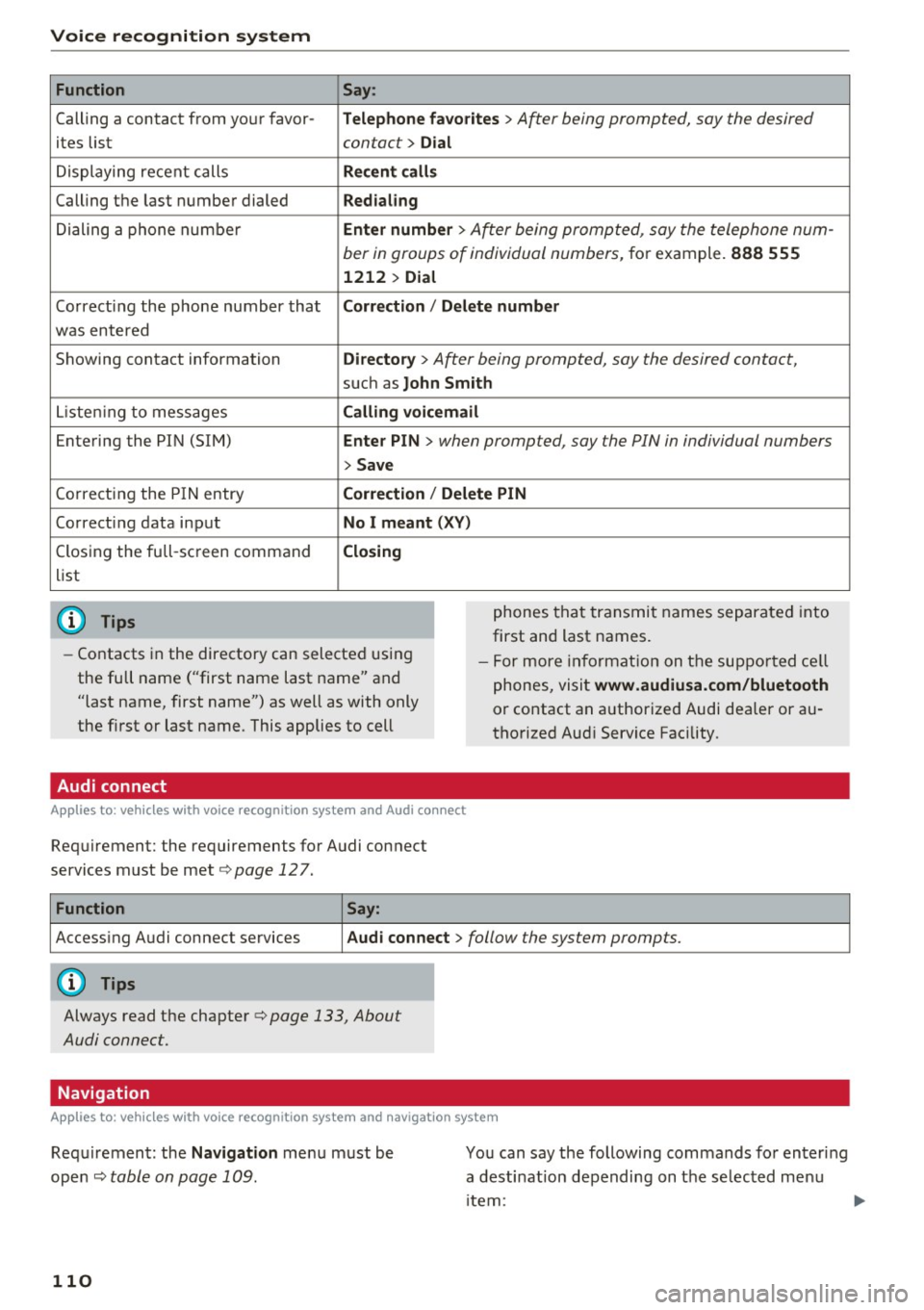
Voice recognition system Function
Calling a contact from your favor -
ites list
Displaying recent calls
Calling the last number dialed
Dialing a phone number
Co rrecting the phone number that
was entered
Showing contact information
L isten ing to messages
Entering the PIN (SIM)
C orrecting the P IN entry
Correcting data input
Closing the full-sc reen command
list
@ Tips
Say :
T elepho ne fa vo rites
> After being prompted, soy the desired
contact>
D ial
Re cen t c alls
Redialing
Enter number
> After being prompted, say the telephone num-
ber in groups of individual numbers,
for example. 888 555
1212 > Dial
Correct ion / Delete number
Dire ctory >
After being prompted, soy the desired contact,
such as John Smi th
Calling voic email
Ente r PIN
> when prompted, soy the PIN in individual numbers
> Save
Correct ion
I Delete PIN
No I m eant ( XV )
Closing
phones that transmit names separated into
first and last names.
- Contacts in the directory can selected using
the full name ("first name last name" and
"last name, first name") as well as with only
the first or last name. This applies to cell -
For more information on the suppo rted ce ll
phones, visit
www.audiusa.com/bluetooth
or contact an authorized Audi dealer or au
thorized Aud i Service Facility.
Audi connect
A ppl ies to: ve hicles w ith vo ice recognit ion sys te m and Audi co nnect
Requirement: the requirements for Audi connect
services must be met
c> page 12 7.
Function Say:
Accessing Audi connect services Aud i connect > follow the system prompts.
(D Tips
Always read the chapter c> page 133, About
Audi connect.
Navigation
A pp lies to: ve hicles w ith vo ice recognition syste m and navigation system
Requirement: the Navigation menu must be
ope n
Q table on page 109 .
110
You can say the following commands fo r entering
a desti nation depending on the se lec ted menu
i tem:
Page 115 of 314
Voice recognition system
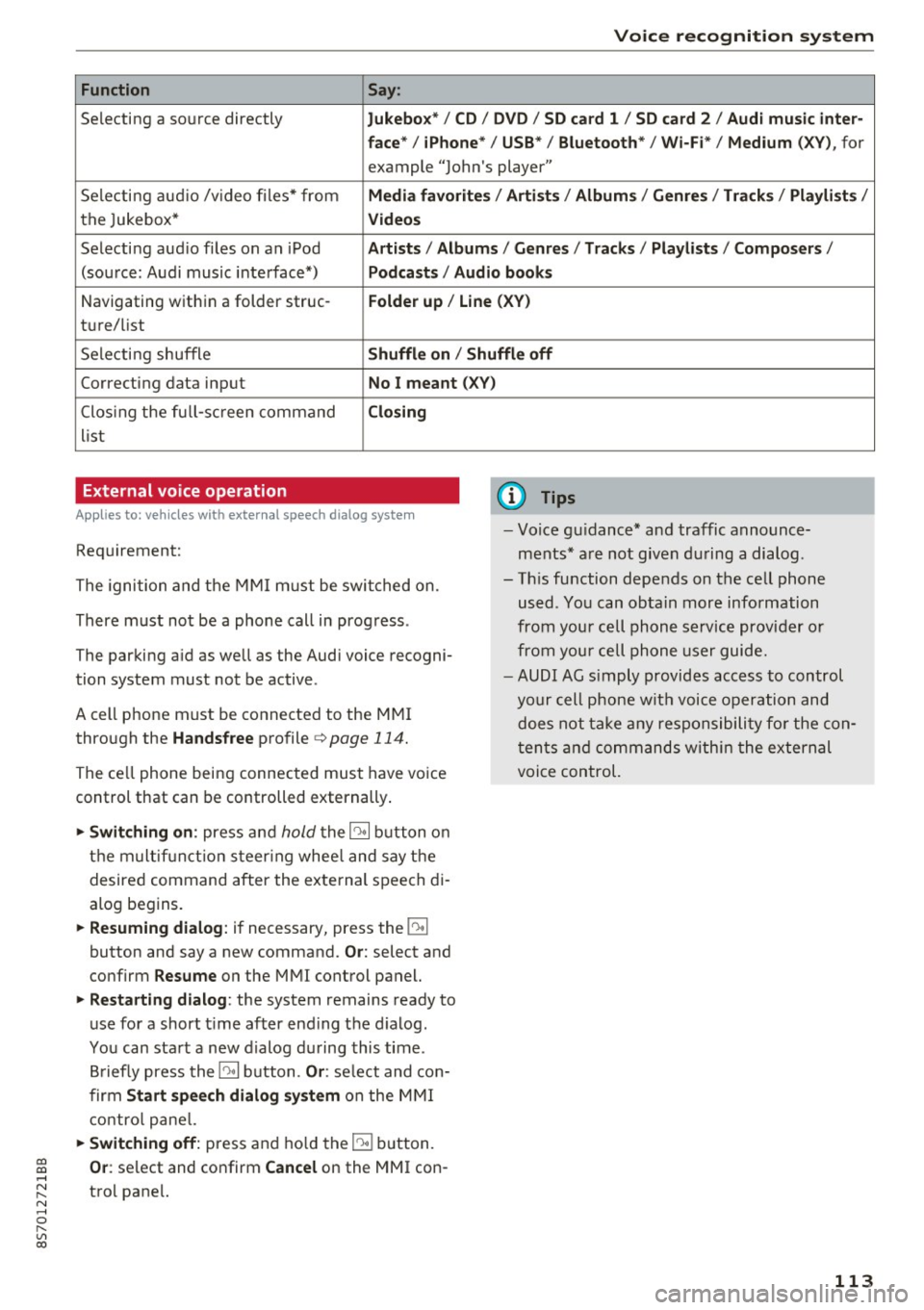
Function Say:
Selecting a so urce directly Jukebo x*/ CD/ DV D/ SD ca rd 1 / SD card 2 / Audi mu sic inter-
face * / iPhon e* / USB * / Bluetooth * / Wi -Fi * / Medium
(XV ), for
example "Jolhn's player"
Selecting aud io /v ideo files* from
Media favorite s/ Artists / Album s/ Genr es/ Track s/ Playli st s /
the Jukebox* Videos
Selecti ng aud io files on an iPod A rtists / Albums / Genre s/ Track s/ Playlists /Compos ers/
(sou rce: Audi music interface*) Podcast s / Audio books
Navigating w ith in a folder struc-Folder up / Line (XV )
tu re/list
Selecti ng shuffle
Shuffl e on / Shuffle off
Correcting data input No I meant (X V)
Clos ing the fu ll- sc reen command Closing
list
External voice operation
Applies to: veh icles with external speech dialog system
Requirement:
The ignition and the MMI m ust be swi tched on.
There must not be a phone call in progress .
The parki ng aid as well as the Audi voice recogni
tion system must not be active.
A cell phone must be connected to the MMI through the
Handsfree profile ¢page 114.
The ce ll phone being connected must have vo ice
control that can be controlled externally .
... Switching on : press and hold the 10• 1 button o n
the m ult if u nct ion s teer ing whee l and say the
desired command after the external speech di
alog begins .
... Resuming dialog : if necessary, press the 10•1
button and say a new command. Or: select and
confirm
R esume on the MMI control panel.
... Restarting dialog : the system remains ready to
use for a short t ime after end ing the d ialog.
You can sta rt a new dialog du ring this time .
B riefly press the
10• 1 button. Or : select and con
firm
Start sp eec h dialog sy stem on the M MI
contro l pane l.
... Switching off: press and ho ld the 51 b utton.
(D Tips
- Vo ice gu idance* and traffic announce
ments * are not given du ring a dialog .
- Th is function depends on the cell phone
used . You can obtain more information
from your cell phone service provider or
from your cell phone user guide.
- AUDI AG s imply provides access to control
your cell phone wit h voice opera tion and
does not take any responsibility fo r the con
t en ts and commands within the external
voice control.
~ Or : select and confirm Cancel on the MMI con-....
~ trol pane l. N ..... 0 r---
"' c:o
113
Page 116 of 314
Telephone
Telephone Introduction
Applies to: vehicles with telephone
To make phone coils in your vehicle using the
/11/111, connect your cell phone to the /11/111 via
Bluetooth.
Hand sfree
Afte r you have connected you r ce ll phone to the
MMI via Bluetooth , you can use the handsfree
system and operate telephone functions through
your MMI. You can make calls using the antenna
on your cell phone.
A WARNING
-Med ical experts warn that cell phones can
interfere w ith the funct ion of pacemakers .
Always mainta in a m inimum d istance of 20
c ent imeters between the cell phone anten
na and the pacemaker.
- Do not carry the cell phone in a pocket di
rectly over the pacemaker when the phone
is switched on.
- Sw itch the cell phone off immediately if
you suspect it may be interfering w ith the
pacemaker.
- Do not use the vo ice recognit ion sys-
tem* c>
page 108 in emergenc ies because
your vo ice may change in stressful situa
t ions. It may take longe r to dial the number
o r the system may not be able to dial it at
all. Dial the emergency n umbe r manually .
- Switch your cell phone off in areas where
there is a risk of an exp losion . These loca
tions are not always clea rly mar ked. This
may include gas stations, fuel and chemical
storage facilities or transport vehicles, or lo cations where fue l vapors (such as propane
or gaso line vapor in vehicles or bui ld ings),
chemicals or large quantities of dust parti
cles (such as flour, sawdust or metal) may
be present in the air. This also applies to all
other locations where you would normally
turn yo ur vehicle engine off .
- The demands of traffic requ ire yo ur full at
tent ion. Always read the chapter c>
page 96,
Traffic safety information.
114
-
(D Tips
- To learn which Bluetooth connections and
wh ich of the funct ions in your cell phone are
supported, check with your cell phone serv
ice provider or the database for mobile devi
ces at
www .audiu sa.com /bluetooth .
-The Bluetooth connection range is limited
to inside the vehicle . It can also be affected
by local condit ions and interference with
other devices .
Setup
Connecting a cell phone using Bluetooth
Applies to: vehicles with telephone
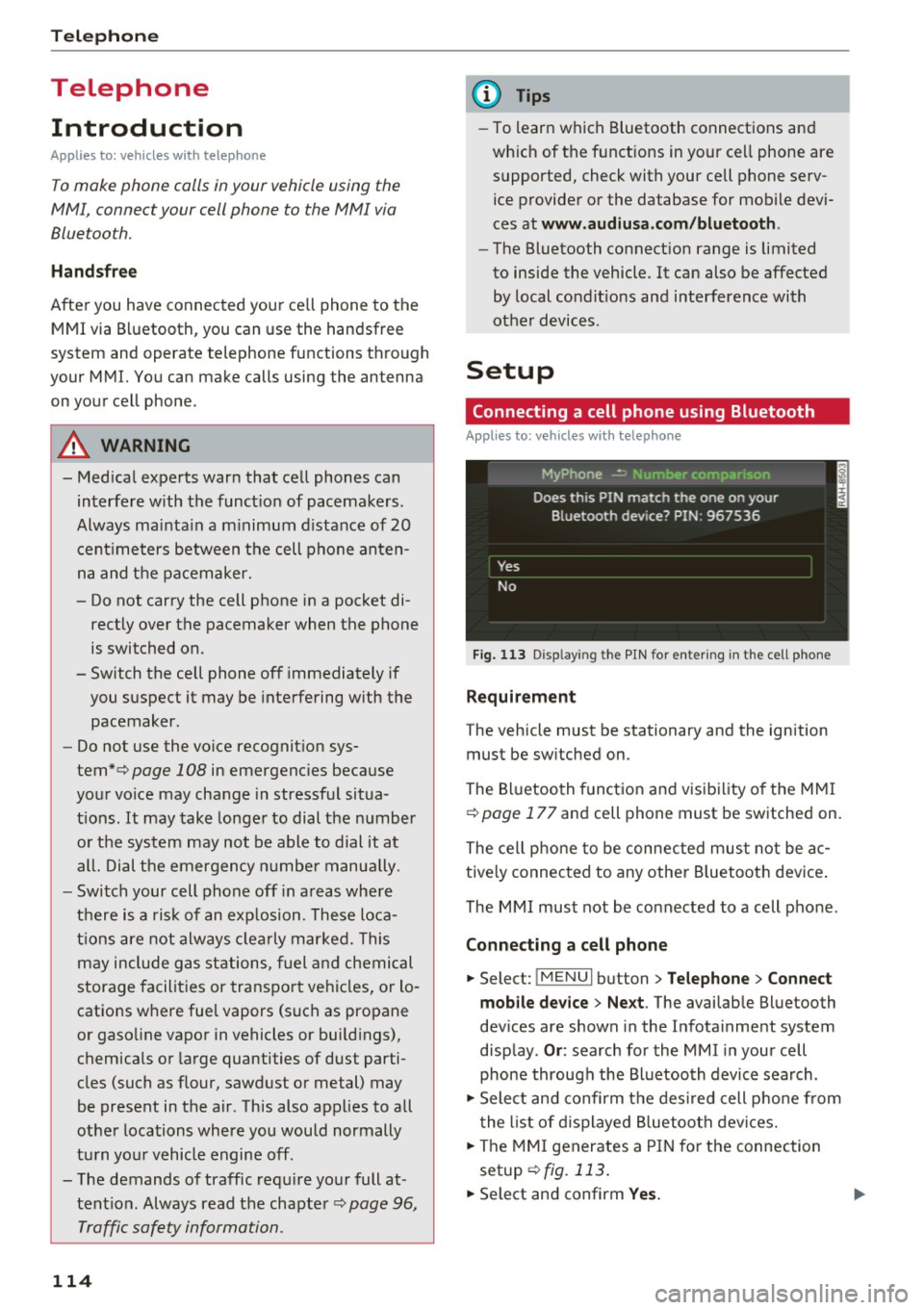
Fig. 11 3 Disp laying the PIN for entering in the cell phone
Requirement
The vehicle must be stationary and the ignition
must be sw itched on.
The Bluetooth funct ion and visibility of the MMI
c>
page 177 and cell phone must be switched on.
The cell phone to be connected must not be ac
tive ly connected to any othe r Bluetoot h dev ice .
The MMI must not be connected to a cell phone.
Connecting a cell phone
... Select: !MENUI button> Tel ephone > Connect
mob ile d ev ice > Ne xt .
The available Bluetooth
dev ices are shown in the Infotainment system
disp lay .
Or : search for the MMI in your cell
phone through the Bluetooth device search .
... Sele ct and confirm the des ired cell p hone from
the list of d isplayed B luetooth devices.
... The MMI generates a PIN for the connection
setup
c> fig. 113.
... Select and confirm Yes. .,..
Page 117 of 314
co
co
.... N
" N .... 0
" "' c:o
~ Enter the PIN for connecting on your cell
phone.
O r: when the PIN is displayed on your
ce ll phone, confirm the PIN on your ce ll phone
and in the MMI. The time allowed for entering
the PIN is limited to approximately 30 seconds.
~ Pay attention to any additional system prompts
displayed on your cell phone, for example if the
system should connect automatically in the fu
ture. Depend ing on the ce ll phone, you may
have to confirm downloading the directory sep
arately.
After conn ecting succes sfully
After connecting successfully, a sho rt message
w ith informat ion about the connected profi les
will appear. You can also change profiles later.
Select:
IMENU ! button> Setting s> left control
button >
MMI setting s > Conn ecti on ma nag er
c>page 177.
In addition, the cell phone contacts are automat
ically loaded in the MMI directory. This p rocess
can take several minutes, depending on the num
ber of contacts.
@ Tips
- Making phone calls through the MMI is only
possib le using the
Hand sfree Bl uetooth pro
file.
- You can apply additional settings to con
nected cell phones using the connection
manager
c> page 176.
- You can also search for the MMI in you r ce ll
phone using the Bluetooth device search .
- You only have to pair your dev ice one time.
Bluetooth devices that are already paired
automatically connect to the MMI when the Bluetooth function is switched on, they are
within range and the ignit ion is switched on.
The last connected cell phone is given first
prior ity .
- Authorizing the MMI connection in your cell
phone will make automat ic connection pos
s ible .
- Pay attention to any system prompts dis
played on your cell phone, for example if
the system should connect automat ica lly in
the future. Depending on the cell phone,
T e le ph on e
you may also need to download the directo
ry and confirm access to your text messages
separately .
- When leaving the vehicle, the Bluetooth
connection to the cell phone will automati
cally disconnect. Depending on your cell
phone, phone calls in progress may be auto
matically redirected from the MMI to your
cell phone and you can continue the call on
your phone.
- You can obtain more information from your
cell phone service provider or from yo ur cell
phone user gu ide. For informat ion on us ing
the te lephone, v is it
www .audiu sa .co m/
blu eto oth
or contact your authorized A udi
dea ler or authorized Audi Service Facility .
Operating two telephones through the
MMI
You can connect two cell phones to the MMI, for
example your business cell phone as the main
phone and your private cell phone as the addi
tional phone. You con be reached in your vehicle
through both cell phones.
The first connected ce ll phone is displayed as the
main phone in the MMI. The second cell phone is
connected as the additional phone.
The directory from the connected main phone
will a lways be displayed. If you would like to use
the d irectory from the additional phone, you
must switch the main and addit ional phone
c> page 116.
Connecting a ce ll phone as the m ain phone
Connect your cell phone to the MMI via Blue
tooth. The first connected cell phone is disp layed
as the
Main phone in the MMI.
See
c> page 114, Connecting a cell phone using
Bluetooth .
Connecting a ce ll phone as the additional
phone
Requirement: a ce ll phone must be connected to
the MMI as the main phone.
Se lect:
I MENU I button> Tel ephon e> right con-
t rol button >
Connect additional telephone . ..,.
115
Page 118 of 314
Telephone
Se e¢ pag e 114, Conn ecting a cell phone using
Bluetooth .
Example: you have connected yo ur business cell
phone to the MMI as the ma in phone and your
p rivate ce ll phone as the additiona l phone . To be
ab le to call contacts from your private c ell phone
directory , you must switch the ma in and addi
tional phone, since the directory from the main
phone is always displayed.
S wi tc h ing the ma in and add itional phone
Requirement: a main phone and an addit ional
phone must be connect ed.
Sw itc h main and additional ph one: select:
I MENU ! button >Telephone > right control but
ton >
S wi tch ma in and addit ional ph one.
(D Tips
-Please note that the directory from the
main phone is always displayed.
- You can see if a cell p hone is connected as
the main o r additional phone in the connec
tion manager ¢
page 176. Or: the device
name of the connected main phone is
shown in the
T elephone menu (s uch as My
Phone).
- If the main phone does not connect auto
matically to the MMI when the ignition is
switched on, for examp le because it is out
of the vehicle range or the B luetooth func
tion is switched off, then a previously paired
additional phone is automatically connected
as the main phone .
- You can send and receive messages on your
main phone as well as on your additional
phone
c> page 116, fig . 11 4. You do not
need to switch you r main phone and addi
tiona l phone for this.
- You can also make your connected cell
phone the default phone by selecting
S et a s
default telepho ne
in the Connection m an·
age r¢
page 177 .
116
Using the telephone
Opening the telephone
App lies to: vehicles with telepho ne
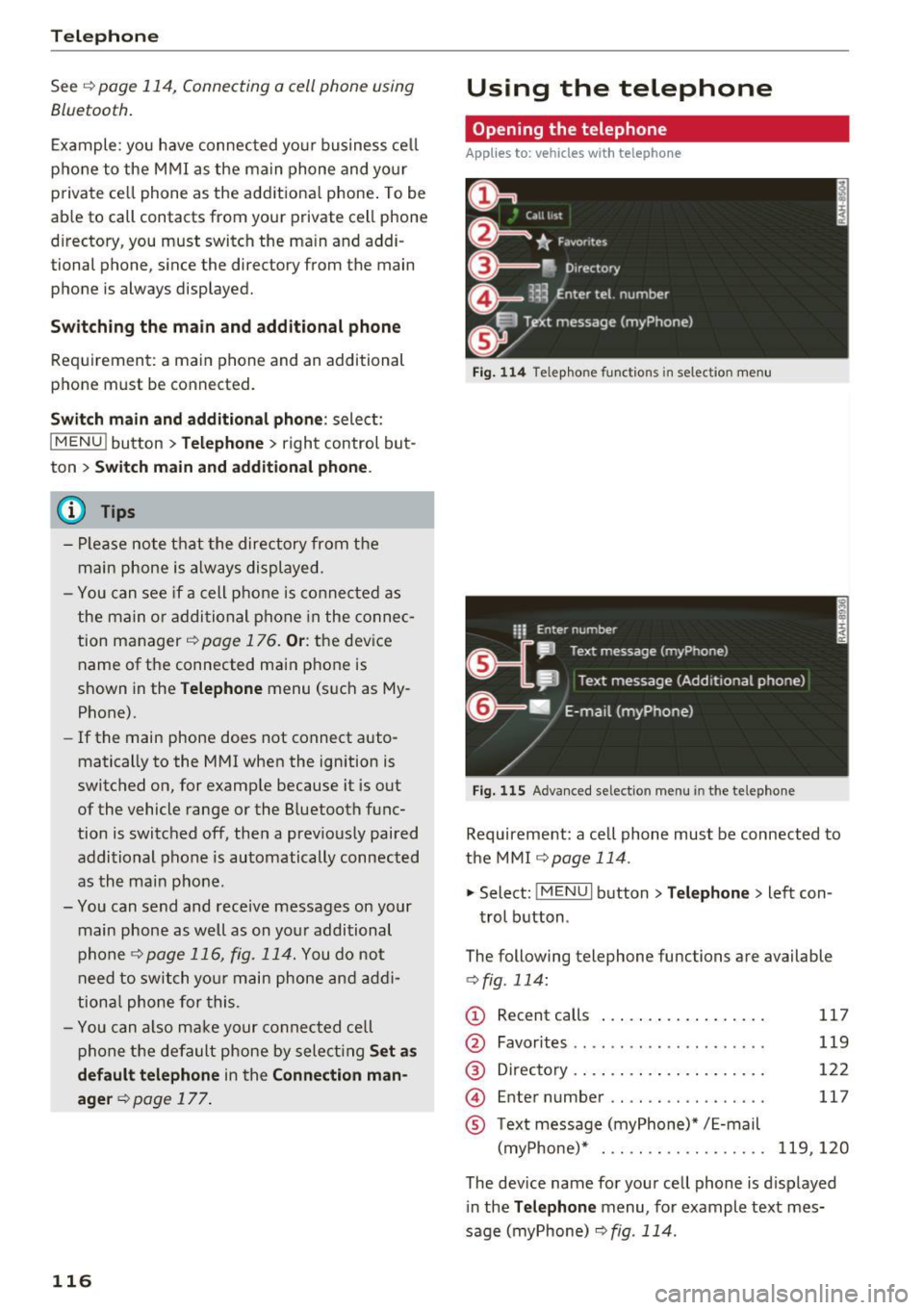
Fig . 11 4 Telep hone fu nctio ns in se lect ion me nu
Fig. 115 A dva nced selectio n menu in t he te le p hone
Requirement: a cell phone must be connected to
the MMI
r:::;, page 114 .
"'Select : !M ENUI button> Tele phone > left con
trol button .
The following telephone functions are available
c> fig. 114:
(!) Rec ent calls
@
®
©
®
Favorites .. .. .. .. .. .... .. .... .
D irectory .. .. .. .. .. ..... ..... .
Enter number .. .. .. .... .. .... .
Text message (myPhone)* / E-mail
(myPhone)* . .. .. .. ... .. . .... .
117
119
122
117
119,120
The device name for your cell phone is d isplayed
in the
Tel ephone menu, for example text mes
sage (myPhone)
r:::;, fig . 114.