2017 AUDI TT ROADSTER bluetooth
[x] Cancel search: bluetoothPage 162 of 314
Media
-Multiple Bluetooth audio players can be
connected to the MMI, but only one mobile
device can be active.
- Bluetooth protocols AVRCP ( 1.0/1.3/1.4)
and A2DP are supported.
- Note the volume se tting on your Bluetooth
device. A udi recommends setting your mo
bile device to the maxim um vo lume when
us ing it as a Bluetooth audio player.
- The supported media functions (such as
shuffle) depend on the Bluetooth device be
i ng used.
- For more information on the supported de
vices, visit
www.audi.com /bluetooth or
contact your author ized Audi dealer or au
thorized Audi Service Facility.
Wi-Fi audio player
A ppl ies to: ve hicles w ith Wi-F i
Using the Wi-Fi audio player media source on the
MMI, you can connect and operate your Wi-Fi-ca
pable media player (su ch as a smartphone) to
wirelessly play music from your media player
li
brary. The media player is connected through the
vehicle's Wi-Fi hotspot . A UPnP Server opp or an
integrated UPnPIDLNA server on your media
player is required to access your media player
li
brary.
Req uirement: the Wi-Fi function on your media
p layer must be switched on. The
Audi MMI con
nect
app or a UPnP server app must be installed
on your med ia player .
Or: you must be us ing a
media player wit h an integrated UPnP/DLNA
server .
-Connecting a media player : press the I MEDIA!
button. Press the left control button unti l the
sources overview
c::;,page 164 is d isp layed. Se
lect and co nfirm
W i-Fi audio player
(J) c::;, page 164, fig . 145.
- If necessary, select a nd confirm Wi -Fi off >
Turn on Wi-Fi
to activate Wi-Fi in the MMI. Se
lect
Wi-Fi settings , if necessary. Select the
same settings on the wire less media player
that are used for the Wi -Fi hotspot .
-Start ing the Wi -Fi audio pl ayer : start the Audi
MMI conne ct
app or a UPn P serve r app . Or: al
low medi a shar ing o n your medi a player.
160 Operating the medi
a playe r:
the med ia p layer is
operated through the MMI.
- Press the left control b utton repeatedly until
the
Folders menu item appears . Select and con
firm
Folders.
- Playing mu sic from the media player:
select
and confirm
Media cent er.
Web radio :
see c::;, page 161.
A WARNING
-As t he d river, do not allow usage of the Wi
Fi ho tspot to distract you from driv ing, as
this could increase the r isk of an accide nt.
- It is o nly safe to use tablets, laptops, mo
b ile devices and other s imilar devices when
t he vehicle is stat ionary because , like all
loose objec ts, they co uld be thrown a round
t he inside o f th e ve hicle in a crash and ca u se
serious inju ries. Store these types of devices
secure ly w hile d riving .
- Do no t use any W i-Fi devices wit hin range of
t he airbags while dr iv ing. A lso rea d the
warn ings in the chapter
¢page 196.
(D Note
You are re spon sib le fo r all pre ca utio ns taken
fo r d ata p rotection, an ti- v irus pro te cti on and
protection ag ain st loss o f data on mobi le de
v ices that a re used to access the Internet
thro ugh the W i-F i hotspot .
(D Tips
-The Wi-Fi connec tion is reconf igure d when
inserting or removin g the m ini SIM ca rd in
t h e SIM card reader*. There may be a tem
porary interr upt ion in aud io playback, de
pend ing o n the media player.
- Always read the chapter
c::;, page 133, About
Audi connect.
- Please note that a Wi-Fi connection does
not automatically make it possible to use
t h e Internet. For addit ional information,
see
c::;, page 127.
-To avoid interr upt ions during playback, de
act ivate the power sav ing funct io n on the
media player or co nnect it to a cha rger.
Page 165 of 314
co
co
.... N
" N .... 0
" "' c:o
connector from the Apple device with the re
lease tabs pressed in@
¢page 162, fig. 142.
The media are started and operated through the
mobile device or the MMI, depending on the de
vice being used
q page 164.
Connecting two mobile devices: if two mobile
devices (for example iPod and smartphone) are
connected at the same time, then both devices
can be used as playback sources.
You can connect mobile devices using the analog
AUX port.
-Connecting a mobile device to the AUX input:
connect the cable®¢ fig. 143 to the AUX in
put @ on the Audi music interface and then to
the mobile device © (such as an MP3 player or
smartphone) .
-Disconnecting a mobile device from the AUX
input:
remove the cable®¢ fig. 143 from the
Audi music interface.
-Operation: select and confirm the External au
dio player
source @¢ page 164, fig. 144 . The
media are started and operated through the
mobile device@~
fig. 143.
.8, WARNING
Driving requires your complete and undivided
attention. As the driver, you have complete
responsibility for safety in traffic. Never oper
ate mobile devices while driving, because this
increases the risk of an accident.
@ Note
- Remove the connector from the Audi music
interface carefully so it is not damaged.
- Use a USB extension cable to connect devi
ces that have an integrated USB connector
(such as a USB stick) to prevent damage to
your USB device and the Audi music inter
face.
- Extremely high or low temperatures that
can occur inside vehicles can damage mobile
devices and/or impair their performance.
Never leave mobile devices in the vehicle in
extremely high or low temperatures .
Media
{!) Tips
-Do not use an additional adapter or USB ex
tension cable to connect mobile devices to
the Audi music interface that already have a
cable or that must be connected with a USB
adapter( ¢
page 162). They may impair the
functionality .
- You can purchase the AUX connector cable
from an authorized Audi dealer or at spe
cialty stores .
- Functionality is not guaranteed for mobile
devices that do not conform to the USB 2.0
standard.
- USB hubs are not supported .
- Some versions of the iPod such as the iPod
shuffle cannot be connected to the USB
adapter for devices with Apple Dock connec
tor . Connect these devices using a AUX con
nector cable.
- Video playback through the Audi music in
terface is only supported if the connected
device is recognized as a USB storage device
(for example a USB stick). Apple devices and
MTP devices (such as smartphones) are not
recognized as USB storage devices .
- iPod/iPhone malfunctions also affect the
operation of the MMI. Reset your iPod/
iPhone if this happens.
- For important information on operating
your iPod/iPhone, refer to the user guide for
the device. Audi recommends updating the
iPod/iPhone software to the latest version.
- For more information about the Audi music
interface and supported devices, check the
Audi database for mobile devices at
www.audiusa.com/bluetooth or contact an
authorized Audi dealer or authorized Audi
Service Facility.
163
Page 166 of 314
Media
Playing media
Accessing media
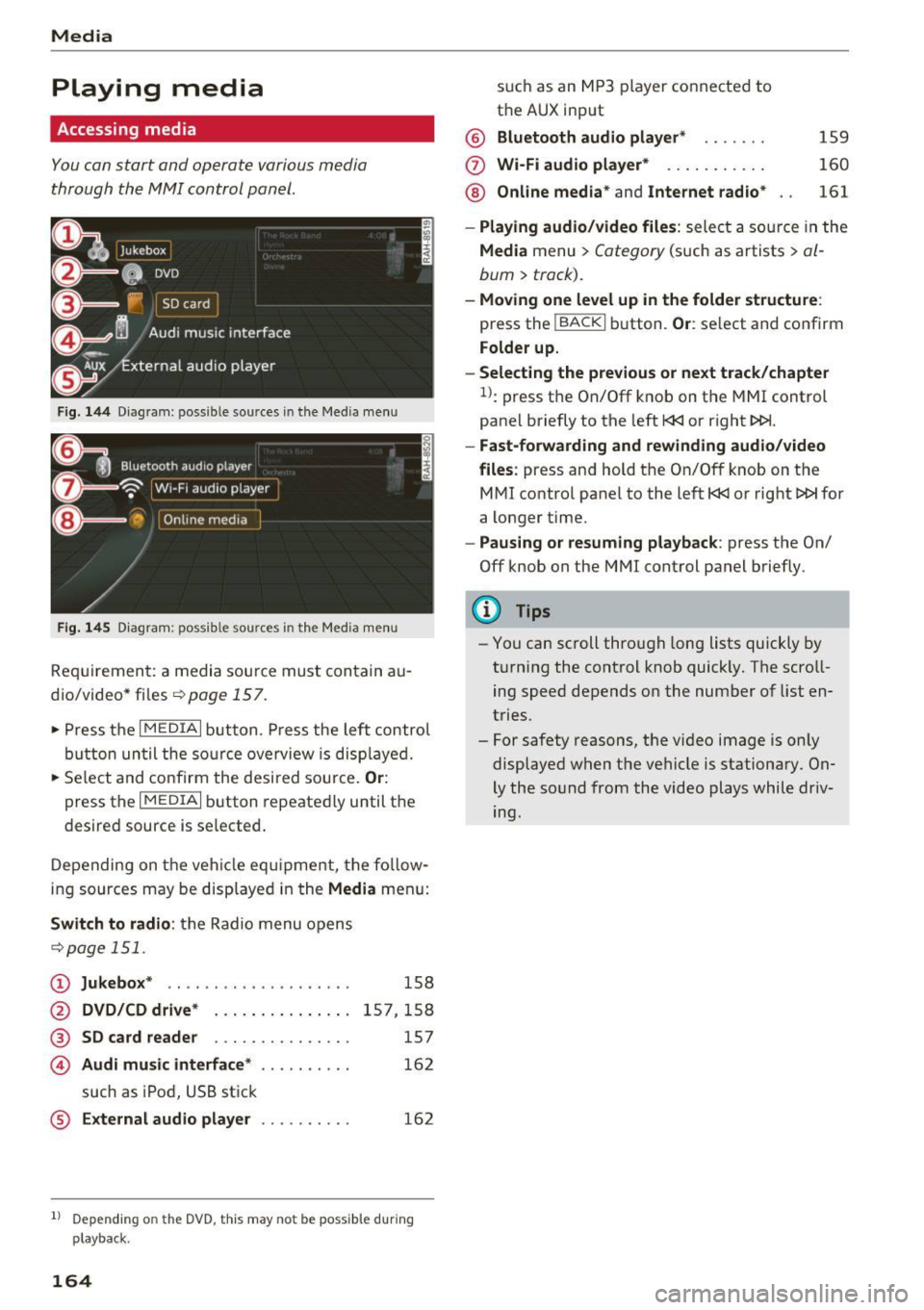
You can start and operate various media
through the MMI control panel.
Fig . 14 4 Dia gr am : possible sources in the Media m enu
F ig. 145 D iag ra m : possible sources in t he Me dia me nu
Re qu ir emen t: a media sou rce must contain a u
dio/video* files-=>
page 157.
• Press t he I M EDIAi bu tton. Press the left co ntro l
button until the so urce ove rview is disp laye d.
• Se lect and confirm the desi red sou rce.
Or :
press the I MEDIAi button repeated ly until the
desired source is selected .
D epending on the ve hicle eq uipme nt, t he fo llow
i ng sources may be disp laye d in the
Media men u:
Switch to radio : the R adio menu o pens
-=> page 1 51.
CD Jukebox * .. ... ... ..... ..... ..
@ DVD/CD drive* ..... ....... .. .
® SD card reader . . . . . . . . . . . . . . .
© Audi music interface* ....... ...
such as iPod, U SB st ick
® External audio player . .. ...... .
158
15 7,1 58
157
16 2
162
1l Depend ing o n the DVD, this may not be possible du rin g
playback.
164
s u ch a s an MP3 player conne cte d to
t h e AUX input
@ Bluetooth audio player * .. .... .
(f) Wi -Fi audio player* .......... .
@ Online media* and Internet radio *
159
160
161
- Playing audio/video files : select a so urce in the
Media menu > Category (such as a rtists > al
bum> track).
-Moving one level up in the folder structu re :
press the IBACKI b utton. Or : select and confirm
Folder up.
- Selecting the previous or next track /chapter
1>: press t he On/Off k nob on the MMI control
panel briefly to the left
l
- Fast-forwarding and rew inding audio/video
files :
press and hold t he On/Off knob on the
M Ml control panel to the left
l
a longer time.
-Pausing or resuming playback : press the On/
Off knob on the MMI control panel b riefly.
(D Tips
- Yo u can scroll through long lists quickly by
t ur nin g the control knob quickly. The scroll
ing speed depends o n the number of list en
tries.
- For safety reasons, the vi deo image is on ly
displaye d when the vehicle is stationary. On
ly the so und from the video plays while driv
ing.
Page 173 of 314
co
co
.... N
" N .... 0
" "' c:o
Media
on the system language and cannot a lways
be g uaranteed .
Troubleshooting
Problem Solution
Audi music interface* /Bluetooth au-
Read the instructions in the chapter ¢ page 162, Multimedia
dio player *: mobile device is not sup-connections/ ¢ page 159, Bluetooth audio player. You can
ported. learn about supported mobile devices in the Audi database for
mob ile dev ices at
www .audiusa.com /bluetooth .
Audi music interface* /AUX input:
the Adjust the volume of the mobile device to approximate ly 70%
volume is too high/too low when of the maximum output
¢ page 167, Input level.
starting playback through the AUX in-
put.
Audi music interface *: the portable For many cell phones or mobile devices, playback is not possi-
device is not recognized as a source. b
le when the battery level is too low (less than 5% of its ca-
pacity) . The mobi le device will only be recognized as a media
source in the MMI after connecting if the battery charge level
is sufficient.
Audi music interface *: malfunctions The Bluetooth audio player functio n is switched on. Switch
dur ing audio playback through an this funct io n off¢
page 177 when you are not using the
iPod/ iPhone .
Bluetooth audio player.
AUX input:
there is stat ic when con- When connecting and d isconnecting, the E xternal audio play-
necting and disconnect ing the AUX er source is already selected . Before connecting or d isconnect-
connection cable. ing the mobile dev ice, either m ute the device (see
¢ page 179) or switch to a different aud io so urce (fo r exam-
p ie
¢page 151, Opening the radio).
Bluetooth audio player * /Wi-Fi audio On ly one interface should be act ively used at a time to ensure
player* : audio playback interference. problem-free playback.
Wi-Fi audio player* : audio pla yback Aud io playback interference can occur on some ce ll phones if
in terference . the Internet connection in the vehicle was not estab lished
through the SIM card reader* on the MMI control panel and
the
mobile data option on the cell phone is switched on. De-
activate the
mobile data option on your cell phone.
Jukebox* : tracks on the imported When importing p laylists , all of the files themse lves must be
playlist are grayed out. imported.
Jukebox*: imported tracks cannot be If you cannot find imported tracks in the media center, they
played or found . may not be supported. Only copy supported f iles
¢ page 169
to the Jukebox .
Wi-Fi audio player* : multiple devices
Close the Audi MMI connect app on the connected devices
are connected to the Wi-Fi hotspot. A (for exam ple, smartphones) that are not being used as the
med ia p layer (such as a smartphone) Wi-Fi audio player*. Likewise, close the UPnP server apps or
appears as the med ia source and can- the med ia permiss ions on the integrated UPnP/DLNA server.
not be changed . Connect the desired dev ice as a W i- F i aud io play-
er* ¢page 160 .
171
...
Page 174 of 314

Media
Problem Solution
Online media*:
connection failed be-To establish a connection to the MMI, the MMI connection
tween the MMI and the
Audi MMI switch must lbe switched on in the Audi MMI connect app sta-
connect app. tus screen.
Bluetooth
audio player *: interference Playback interference can occur when using the Bluetooth au-
with track display and audio playback. dio player if a music player app from a third party provider is
open. Audi recommends using the integrated media player on
your Bluetooth device (such as a smartphone) .
172
Page 178 of 314
System settings
Individual speech training (on ly when the vehi
cle is stationary): yo u can adapt the voice recog
n ition system to yo ur voice or pro nunciat ion in
order to improve the system's ability to recogni ze
your speech. Individua l train ing is comprised of
20 speech e ntries that cons ist of commands and
sequences o f num bers . You can dele te the p ro
g ramm ed vo ice tra ining w ith the
Reset individu·
al spee ch training
func tion.
Factory settings
The fo llow ing funct ions can be reset to the facto
ry default set tings :
-Sound settings
- Rad io
- Media settings
-Jukebox *
- Directory *
- Telephone*
- Bluetooth and Wi-Fi *
- Navigation sett ings *
- Navigation and online memory*
- Voice recognition system*
- Message settings*
-Apps *
- Tool tips
- Audi connect *
You can select the desi red functions individually
or all at once with the
Select all entries option.
Select and confirm
Restore factory settings .
@ Tips
-Make su re that not only t he settings we re
d eleted but also the stored data, if ap plica
bl e.
- If you reset the
Navigation and online
memory* or Audi connect*
to t he factory
default settings, the system automatically
r estarts afte r approximate ly 20 seconds.
The I nfota inme nt system display will be
b lack for several m inu tes when r estart ing.
- Please note t hat the vo ice recog nit io n sys
t e m* is not availabl e in Cabr io le ts t hat do
not hav e a factory- insta lled safety bel t mi
crophone.
176
Connection manager
' Introduction
The connection manager gives you an overview
of your connected devices and their network sta
tus.
"' Select: !ME NUI button> Settings > left control
button
> MMI settings > Conne ction manager .
"'Select and confirm a menu i tem .
If a mobile device was already connected and you
se lect and co nfirm the corresponding menu item,
the dev ice name and co nnect ion mode a re dis
played under the men u item.
You can individ ually
connect (~) or disconnect
(0) a pa ired device.
' Using the telephone
App lies to : vehicles wit h te lepho ne
- Connect new device: search for and con nect a
cell p ho ne.
- List of devices already paired : select your ce ll
phone from t he list of all th e dev ices tha t are
already paired .
Second telephone
Applies to : vehicles wi th telepho ne
- Connect new device : search for and co nnect a
c ell p hone.
- List of device s already paired : sele ct yo ur cell
ph one fr om t he list of all the dev ices tha t ar e
a lready paired .
Data connection
Applies to : vehicles wi th Audi connec t
-Connect new device: search for and con nect a
mob ile dev ice (such as a smart pho ne).
- List of devices already paired : select yo ur ce ll
phone from t he list of all the dev ices that a re
already paired.
Or: insert a m ini SIM ca rd into
the SIM card
reader *¢page 127.
Page 179 of 314
MMI connect app
Applies to: vehicles with Audi connect
Requ ireme nt: the Audi MMI connect app m ust
be i nst alled and open on your mobile devi ce.
- Connect new dev ice : search for and connect a
mobile device (s uch as a smartp hone).
- List of devices already paired : select your mo
bile device from th e list of a ll the devices that
are already paired.
Music
Applies to vehicles with Bluetooth or Wi -Fi audio player
Audio player
Req uirement: the Bl uetooth func tion a nd v is ib ili
ty mus t be sw itche d on in the MMI
¢page 177
and on the ce ll phone.
- Connect new device : press the contro l knob .
Se lect
Bluetooth audio player . Search fo r and
c o nne ct a mobile device.
- List of devices already paired : selec t a Bl ue
tooth device fro m the l ist of all the devi ces that
are already paire d.
Wi-Fi audio player
Req uirement: the Wi -Fi hotspot on the M MI
¢
page 131 and the Wi-Fi o n your cell p ho ne
must be switch ed on .
-Connect new device : press the control knob.
Sea rch for and connect a Wi-Fi capable device .
-DisconnectWi-Fi audio player : deactivate the
Wi-Fi on your Wi-Fi capab le device . The dev ice
will be automat ically removed from the list .
Directory
Applies to: vehicles with telephone
Display contacts from a cell phone (or an addi
tional cell phone) .
Requirement: cell phones must not be connected
to the MMI through the B luetooth remote SIM
access p rofile o r thr ough t he
Handsfree profi le.
co -Connect new device : search for and connect a co
;:::: new cell p hone.
" N ...... 0
" "' c:o
System settings
- List of devices already paired : select yo ur cell
phone from t he list of all the cell phones that
are a lready paired .
Audi smartphone
Applies to: vehicles with Aud i smartphone interface
- Connect yo ur ce ll phone to the Audi music in
terface¢
page 162 using a USB adapter
¢ page 162, fig . 142 .
-Select your cell pho ne from the list of cell
p hones that have a lready bee n connected .
Additional options
Depending on the selected f unction, yo u can use
t h e right contro l bu tto n to access the ava ilab le
additional options in t he connection manager.
Bluetooth settings
- Bluetooth:
select a nd confi rm a setti ng for the
Bluetooth co nnection visib ility . Se lect
Visible
for the MMI to be vis ible to othe r devic es. Se
lect
Invisible for the MMI to not be visib le to
o the r dev ices. However, i t is st ill poss ible t o es ·
t ablish a Blue tooth connec tion wit h pa ire d de
vices when the vi sibili ty is sw itched off . Select
Off to turn v is ib ility off . Then a Bl uetooth con
nection is not possib le .
- Bluetooth audio player: when t his function is
sw itched on~, the B luetooth a udio p laye r is
avai lab le as a source in the
Media men u.
- Delete Bluetooth device : the selected cell
phone/mob ile dev ice is disconnected from the
M MI.
- Show Bluetooth profile : you can Connect or
Disconnect the Handsfree profile and the Di
rectory/contacts *
separately.
- Bluetooth audio player : switch this f unction on
~ to be able to select the Bluetooth aud io play
er as a source i n the Med ia menu .
-Bluetooth name : the MMI Bluetooth name (fo r
examp le .,A UDI MMI 2017") is d isp layed and
can be changed.
When the funct io n is switched on~, the symbol
@ ¢
page 105 , fig. 111 appea rs in the In fotain-
ment system display.
1111-
177
Page 299 of 314
co
co
.... N
" N .... 0
" "' c:o
A
A/C (climate control system) . . . . . . . . . . . . . 53
Accessories . . . . . . . . . . . . . . . . . . . . . . . . . . 295
Active lane assist . . . . . . . . . . . . . . . . . . . . . . 7 4
Activating vibration warning . . . . . . . . . . . .
76
Adjusting steering time . . . . . . . . . . . . . . . . 76
Cleaning the camera area . . . . . . . . . . . . . 267
Indicator light . . . . . . . . . . . . . . . . . . . . . . . 75
Messages . . . . . . . . . . . . . . . . . . . . . . . . . . . 75
Switching on/off . . . . . . . . . . . . . . . . . . . . . 75
Adaptive dampers . . . . . . . . . . . . . . . . . . . . . . 80
Adaptive light . . . . . . . . . . . . . . . . . . . . . . . . . 80
Adapt ive light (indicator light) . . . . . . . . . . . 16
Additional phone ............ .. .. . 115, 176
Adjusting a ir distribution (Cl imate control sys-
tem) . . . . . . . . . . . . . . . . . . . . . . . . . . . . . . . .
53
Adjusting the air vents . . . . . . . . . . . . . . . . . . 54
Adjusting the center console lighting . . . . . . 42
Adjusting the sound . . . . . . . . . . . . . . . . . . . 179
Adjusting the temperature (climate control
system) . . . . . . . . . . . . . . . . . . . . . . . . . . . . . .
53
Advanced Airbag System
Children . . . . . . . . . . . . . . . . . . . . . . . . . . . 220
Componen ts . . . . . . . . . . . . . . . . . . . . . . . .
203
Front airbags . . . . . . . . . . . . . . . . . . . . . . . 201
How the components work together . . . . 204
Airbag . . . . . . . . . . . . . . . . . . . . . . . . . . . . . . 196
Indicator light . . . . . . . . . . . . . . . . . . . . . . . 14
Airbag system . . . . . . . . . . . . . . . . . . . . . . . . 215
Advanced Airbag-System . . . . . . . . . . . . . . 200
Care . . . . . . . . . . . . . . . . . . . . . . . . . . . . . . 210
Child restraints . . . . . . . . . . . . . . . . . . . . . 220
Components (front airbags) . . . . . . . . . . . 203
Danger of fitting a child safety seat on the
front passenger seat . . . . . . . . . . . . . . . . .
197
Disposal . . . . . . . . . . . . . . . . . . . . . . . . . . . 210
Front airbags . . . . . . . . . . . . . . . . . . . . . . . 200
H ow do the front airbags work? . . . . . . . . 205
H ow many airbags does my vehicle have? 203
Important information . . . . . . . . . . . . . . . 196
Important safety instructions on the knee
airbag system ................. ..... .
213
Knee airbags. ....................... 212
Monitoring . . . . . . . . . . . . . . . . . . . . . . . . . 207
PASSENGER AIR BAG light . . . . . . . . . . . . 208
Repairs ... . .. .. ............. .. .. .. . 210
Safety instructions . . . . . . . . . . . . . . . . . . . 209
Index
Side airbags . . . . . . . . . . . . . . . . . . . . . . . . 214
Warning/Indicator lights . . . . . . . . . . . . . 207
When must the system be inspected? . . . 207
Alarm system
refer to Anti-theft alarm system . . . . . . 24, 29
Alignment pin (changing the wheel) . . . . . . 272
All season tires . . . . . . . . . . . . . . . . . . . . . . . 260
All weather lights . . . . . . . . . . . . . . . . . . . . . . 39
All wheel drive . . . . . . . . . . . . . . . . . . . . . . . . 91
Alternative routes .. .. ................. 143
Ambient lighting . . . . . . . . . . . . . . . . . . . . . . 41
AMI
refer to Audi music interface . . . . . . . . . . . 162
Android Auto
refer to Audi smartphone interface
Announcements (settings)
refer to Voice guidance ........... .. . .
Anti-freeze
173
143
Windshield washer system . . . . . . . . . . . . 244
Anti-lock braking system (ABS) . . . . . . . . . . . 88
Anti-s lip regulat ion . . . . . . . . . . . . . . . . . . . . 88
Anti-theft alarm system . . . . . . . . . . . . . . . . . 29
Apple CarPlay
refer to Audi smartphone interface . . . . . 173
Armrest .......... .. .................. 48
Ashtray . . . . . . . . . . . . . . . . . . . . . . . . . . . . . . 48
Aspect rat io (video) . . . . . . . . . . . . . . . . . . .
167
Audi connect . . . . . . . . . . . . . . . . . . . . . . . . . 127
Data connection . . . . . . . . . . . . . . . . . . . . . 132
Data protection . . . . . . . . . . . . . . . . . . . . . 134
Services (overview) . . . . . . . . . . . . . . . . . . 129
Setup . . . . . . . . . . . . . . . . . . . . . . . . . . . . . 127
Audi magnetic ride
refer to Adaptive dampers . . . . . . . . . . . . . 80
Audi music interface . . . . . . . . . . . . . . . . . . . 162
Audi music stream
refer to W i- Fi . . . . . . . . . . . . . . . . . . . . . . . 160
Audio files . . . . . . . . . . . . . . . . . . . . . . . . . . . 164
Audio player
Bluetooth audio player . . . . . . . . . . . . . . .
159
Wi-Fi aud io player . . . . . . . . . . . . . . . . . . . 160
Audio track . . . . . . . . . . . . . . . . . . . . . . . . . . 167
Audi Service Repair Manuals and Literature 293
Audi smartphone interface ......... 173, 177
Audi virtual cockpit (instrument cluster) . . . . 8
297