2015 MERCEDES-BENZ C-Class net
[x] Cancel search: netPage 77 of 214

Selecting a point of interest
Requirement for "Calling a POI": a mobile
phone is connected to COMAND
(Y page 104).
Requirements for "Viewing the vicinity of the
destination" and "Loading data from the Inter-
net": mbrace must be activated for Internet
access (Y page 136). The complete address of the POI is shown.
Viewing the vicinity of the destination
X To select symbol 0043: turn the controller and
press to confirm.
If street images are available, the street in
the vicinity of the destination address is
shown.
Calling up the map
X Select Map
Map.
X Move the map, change the map scale and
select the POI (Y page 75).
Calling up the POI
X Select Call Call.
If a telephone number is available,
COMAND switches to the telephone func-
tion.
Loading data from the Internet
X Select www
www.
If an Internet address is available, data is
loaded from the Internet.
Saving a POI
X To select Save
Save: turn and press the control-
ler.
The POI can be saved as: R
a navigable contact in the address book
R My Address
Starting route calculation
X To select Continue Continue: press the controller. Using Map
0043
Crosshair
0044 Distance of crosshair position from cur-
rent vehicle position
X To switch to navigation mode: press the
00CB button.
X To show the menu: slide6the control-
ler.
X To select Destination Destination: turn and press the
controller.
X Select Using Map
Using Map.
The map with crosshair is shown.
X To move the map: slide1, 4or
2 the controller.
X To change the map scale: turn the con-
troller until the desired map scale is
selected.
The scale is displayed at the bottom. Turn-
ing clockwise zooms out from the map;
turning counter-clockwise zooms in. Destination input
75Navigation Z
Page 96 of 214
Additional functions:
R
Moving the map (Y page 64)Map display
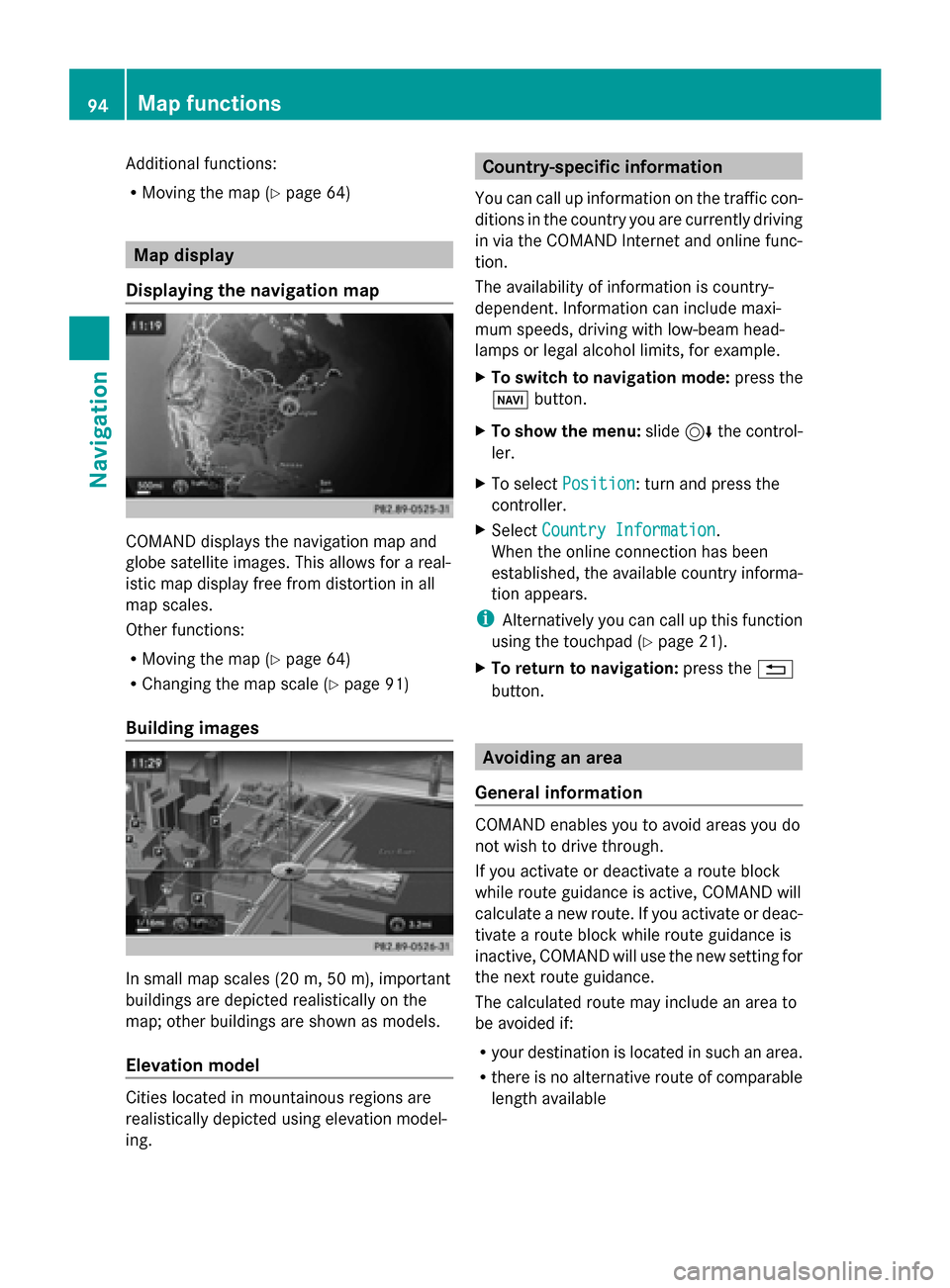
Displaying the navigation map COMAND displays the navigation map and
globe satellite images. This allows for a real-
istic map display free from distortion in all
map scales.
Other functions:
R Moving the map (Y page 64)
R Changing the map scale (Y page 91)
Building images In small map scales (20 m, 50 m), important
buildings are depicted realistically on the
map; other buildings are shown as models.
Elevation model Cities located in mountainous regions are
realistically depicted using elevation model-
ing. Country-specific information
You can call up information on the traffic con-
ditions in the country you are currently driving
in via the COMAND Internet and online func-
tion.
The availability of information is country-
dependent. Information can include maxi-
mum speeds, driving with low-beam head-
lamps or legal alcohol limits, for example.
X To switch to navigation mode: press the
00BE button.
X To show the menu: slide6the control-
ler.
X To select Position Position: turn and press the
controller.
X Select Country Information
Country Information.
When the online connection has been
established, the available country informa-
tion appears.
i Alternatively you can call up this function
using the touchpad (Y page 21).
X To return to navigation: press the0038
button. Avoiding an area
General information COMAND enables you to avoid areas you do
not wish to drive through.
If you activate or deactivate a route block
while route guidance is active, COMAND will
calculate a new route. If you activate or deac-
tivate a route block while route guidance is
inactive, COMAND will use the new setting for
the next route guidance.
The calculated route may include an area to
be avoided if:
R
your destination is located in such an area.
R there is no alternative route of comparable
length available 94
Map functionsNavigation
Page 104 of 214
Your COMAND equipment
These operating instructions describe all
standard and optional equipment available
for your COMAND system at the time of pur-
chase. Country-specific differences are pos-
sible. Please note that your COMAND system
may not be equipped with all the features
described. This also applies to safety-relevant
systems and functions. Therefore, the equip-
ment on your COMAND system may differ
from that in the descriptions and illustrations.
Should you have any questions concerning
equipment and operation, please consult an
authorized Mercedes-Benz Center. Important safety notes
G
WARNING
If you operate mobile communication equip-
ment while driving, you will be distracted from
traffic conditions. You could also lose control
of the vehicle. There is a risk of an accident.
Only operate this equipment when the vehicle
is stationary.
If you make a call on your mobile phone while
driving, always use hands-free mode. Only
use the mobile phone when road, weather
and traffic conditions permit. Some jurisdic-
tions prohibit the driver from using a mobile
phone while driving a vehicle.
Bear in mind that at a speed of 30 mph
(approximately 50 km/h), the vehicle covers
a distance of 44 feet (approximately 14 m)
per second.
Excessive levels of electromagnetic radiation
may cause damage to your health and the
health of others.
There is scientific discussion surrounding the
possible health risks posed by electromag-
netic fields. You can reduce this risk by using
an exterior antenna. Therefore, connect your mobile communica-
tions equipment to the vehicle's exterior
antenna wherever possible. General notes
Introduction
A Bluetooth ®
interface is available for teleph-
ony.
If your mobile phone supports the Blue-
tooth ®
profile PBAP (P honeBook Access
Profile), the contacts are automatically dis-
played in COMAND.
You can use the message function if your
mobile phone supports the MAP Bluetooth ®
profile ( Message AccessProfile).
With a suitable mobile phone, you can use the
hands-free system and receive vCards via the
Bluetooth ®
interface.
You can obtain more information about suit-
able mobile phones on the Internet at
http://www.mbusa-mobile.com. Or call
the Mercedes-Benz Customer Assistance
center at
1-800-FOR-MERCedes(1-800-367-6372) for
the USA or at 1-800-387-0100 for Canada. Call disconnection while the vehicle is
in motion
A call may be disconnected if:
R there is insufficient network coverage in
certain areas.
R you move from one transmitter/receiver
area (cell) into another and no channels are
free.
R you use a SIM card which is not compatible
with the network available. Operating options
You can operate the telephone by:
R using the controller: 102
General notesTelephone
Page 105 of 214
turning
sliding
009500520096or009700520064
pressing
R using the touchpad (Y page 21).
R using the 0061or0076 button on the mul-
tifunction steering wheel
R using the Voice Control System (see the
separate Voice Control System operating
instructions)
Unless stated otherwise, the descriptions and
illustrations in this section refer to COMAND. Function restrictions
You may have to wait before using telephony
via COMAND in the following situations:
R when the mobile phone is switched off.
R if Bluetooth ®
is switched off on the mobile
phone
R if the mobile phone has not logged on to a
mobile phone network
R if the Bluetooth ®
function is switched off in
COMAND
The telephone automatically tries to log on to
a network. If no network is available, you may
not be able to make a " 911" emergency call.
If you attempt to make an outgoing call, the
No Service No Service message will appear for a short
while. "911" emergency call
G
WARNING
The 911 emergency call system is a public
service. Using it without due cause is a crim-
inal offense.
The following conditions must be fulfilled in
order to make a 911emergency call:
R a valid and operational SIM card is inserted
in the mobile phone
R the mobile phone is switched on R
the PIN has been entered in the mobile
phone
R a mobile phone network is available
R the mobile phone is connected to COMAND
via Bluetooth ®
If you cannot make an emergency call, you
must arrange rescue measures yourself.
To make an emergency call:
X Enter the telephone number
(Y page 109).
X Press 0061.
The telephone makes the connection.
X Wait until the emergency call center
answers and describe the emergency sit-
uation. Telephone menu
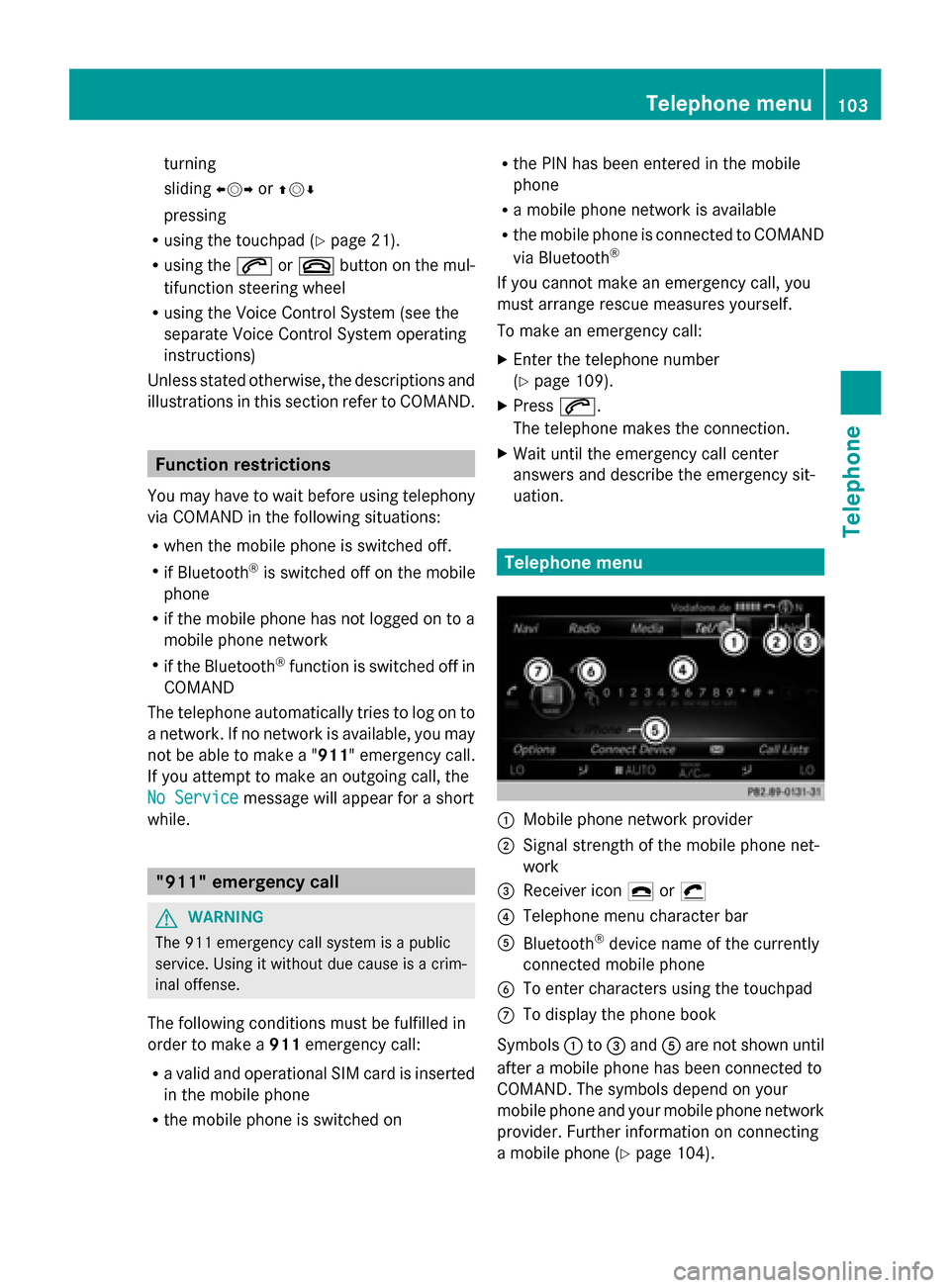
0043
Mobile phone network provider
0044 Signal strength of the mobile phone net-
work
0087 Receiver icon 0071or0075
0085 Telephone menu character bar
0083 Bluetooth ®
device name of the currently
connected mobile phone
0084 To enter characters using the touchpad
006B To display the phone book
Symbols 0043to0087 and 0083are not shown until
after a mobile phone has been connected to
COMAND. The symbols depend on your
mobile phone and your mobile phone network
provider. Further information on connecting
a mobile phone (Y page 104). Telephone menu
103Telephone Z
Page 106 of 214
Symbol
0044shows the current signal strength
of the mobile phone network. If all bars are
filled, you have optimum reception.
If the bars are not filled, you have very poor
reception or no reception at all.
i Receiver icon shows whether a call is
active/being connected 0075or not 0071.
X To call up the telephone menu: press the
002B button.
X To show the menu bar: slide6the con-
troller.
If the mobile phone connected supports the
MAP Bluetooth ®
profile (Message Access
Profile), the 0083menu item is available. Fur-
ther information on text messages and e-mail
(Y page 127).
If you have an unread text message or e-mail,
the 0082 mail symbol is displayed at the top
in the status bar. The symbol disappears once
you have read the text message or e-mail. The
ú symbol is displayed as soon as the mes-
sage memory on the mobile phone or SIM
card is full. The symbol disappears once you
delete at least one message. Connecting/disconnecting a mobile
phone Prerequisites
For telephony via the Bluetooth ®
interface,
you require a Bluetooth ®
-capable mobile
phone. The mobile phone must support
Hands-Free Profile 1.0 or above.
On COMAND
X Activate Bluetooth ®
(Y page 42).
On the mobile phone
X Switch on the mobile phone and enter the
PIN when prompted to do so (see the man-
ufacturer's operating instructions).
X Activate Bluetooth ®
and, if necessary,
Bluetooth ®
visibility for other devices (see
the manufacturer's operating instructions). This visibility is for restricted periods of
time on some mobile phones (see the man-
ufacturer's operating instructions).
X Set the Bluetooth ®
device name for the
mobile phone if necessary.
The Bluetooth ®
device names for all of one
manufacturer's products might be identical.
To make it possible to clearly identify your
mobile phone, change the device name (see
the manufacturer's operating instructions).
The name can be freely selected.
If the mobile phone supports the PBAP
(Phone BookAccess Profile) and MAP
(Message AccessProfile) Bluetooth ®
pro-
files, the following information will be trans-
mitted after you connect:
R Phone book
R Call lists
R Messages
The battery of the mobile phone should
always be kept sufficiently charged in order
to prevent malfunctions.
i Not all mobile phones available on the
market are equally suitable. You can obtain
more detailed information about suitable
mobile phones and about the connection
between the mobile phone and COMAND
on the Internet at
http://www.mbusa-mobile.com.
You can also obtain more information by
calling.
In the USA, you can get in touch with the
Mercedes-Benz Customer Assistance
Center on 1-800-FOR-MERCedes
(1-800-367-6372).
In Canada, you can get in touch with the
Customer Relations Center on
1-800-387-0100.
i Some displays (e.g. the signal strength)
depend on the supported version of the
Hands-Free Profile. 104
Connecting/disconnecting a mobile phoneTelephone
Page 107 of 214
Procedure and general information
Searching for and authorizing (connect-
ing) a mobile phone
Before using your mobile phone with
COMAND for the first time, you will need to
search for the phone (Y page 105) and then
authorize it (Y page 106). Depending on the
mobile phone, authorization either takes
place by means of Secure Simple Pairing or
by entering a passkey. COMAND automati-
cally makes the system suitable for your
mobile phone available. You can recognize
Secure Simple Pairing by a code which is dis-
played in COMAND and on the mobile phone.
You can recognize the passkey system by the
fact that you have to enter a code on the
mobile phone and in COMAND. The mobile
phone is always connected automatically
after authorization.
If COMAND does not detect your mobile
phone, this may be due to particular security
settings on your mobile phone. You can also
start the search procedure and authorization
on the mobile phone (Y page 107).
Device-specific information on authorizing
and connecting Bluetooth ®
-capable mobile
phones can be found on the Internet at
http://www.mercedes-benz.com/
connect .
You can authorize up to 15 mobile phones.
Only one mobile phone can be connected to
COMAND at any one time.
De-authorizing (disconnecting) a mobile
phone
The connection is terminated automatically if
you leave the receiver range of COMAND or
deactivate Bluetooth ®
on your mobile phone.
If you no longer want the Bluetooth ®
connec-
tion to be established automatically, the
mobile phone must be de-authorized (discon-
nected) (Y page 108). Searching for a mobile phone
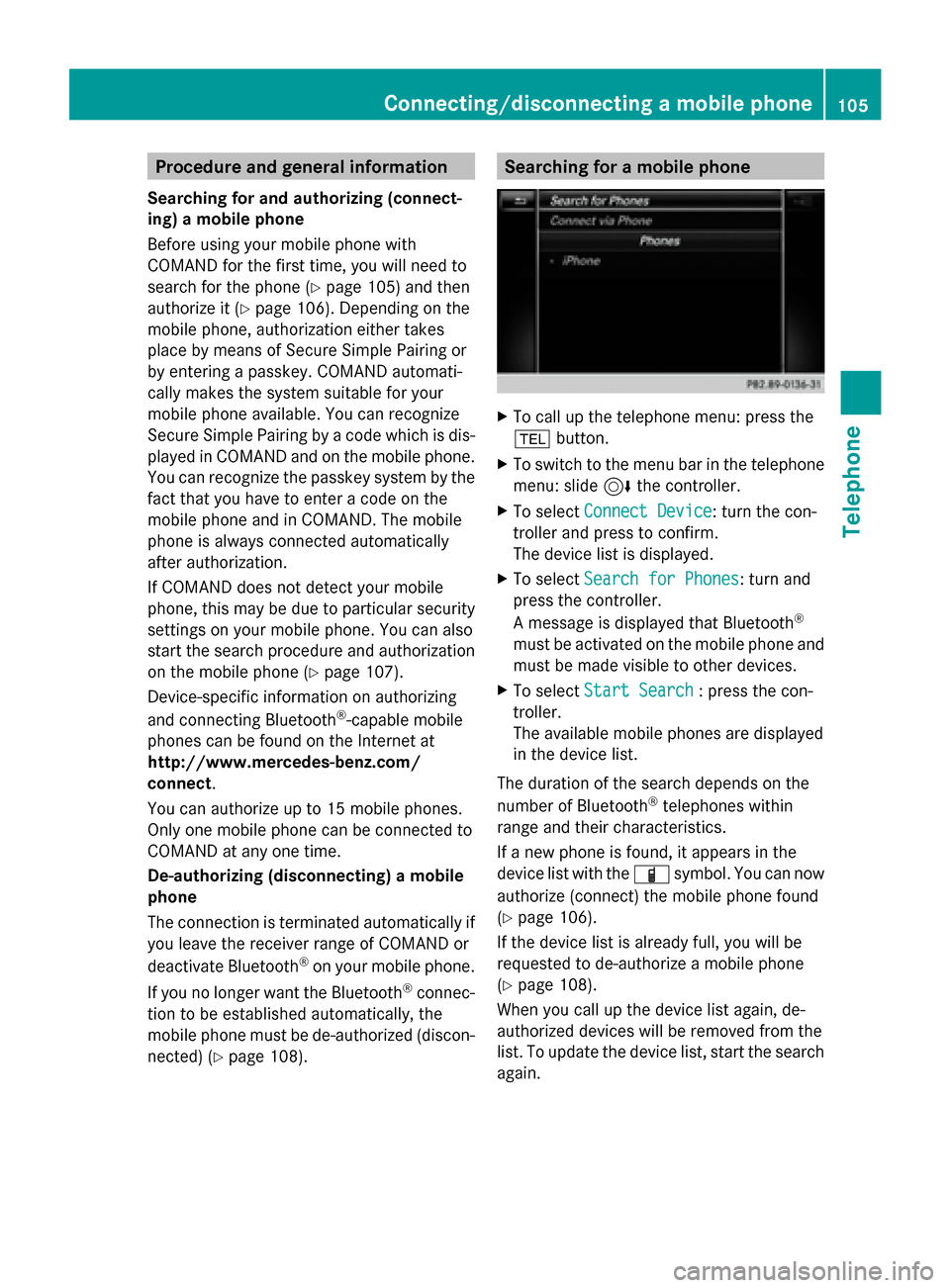
X
To call up the telephone menu: press the
002B button.
X To switch to the menu bar in the telephone
menu: slide 6the controller.
X To select Connect Device
Connect Device: turn the con-
troller and press to confirm.
The device list is displayed.
X To select Search for Phones Search for Phones: turn and
press the controller.
A message is displayed that Bluetooth ®
must be activated on the mobile phone and
must be made visible to other devices.
X To select Start Search Start Search : press the con-
troller.
The available mobile phones are displayed
in the device list.
The duration of the search depends on the
number of Bluetooth ®
telephones within
range and their characteristics.
If a new phone is found, it appears in the
device list with the 00D3symbol. You can now
authorize (connect) the mobile phone found
(Y page 106).
If the device list is already full, you will be
requested to de-authorize a mobile phone
(Y page 108).
When you call up the device list again, de-
authorized devices will be removed from the
list. To update the device list, start the search
again. Connecting/disconnecting a mobile phone
105Telephone Z
Page 108 of 214
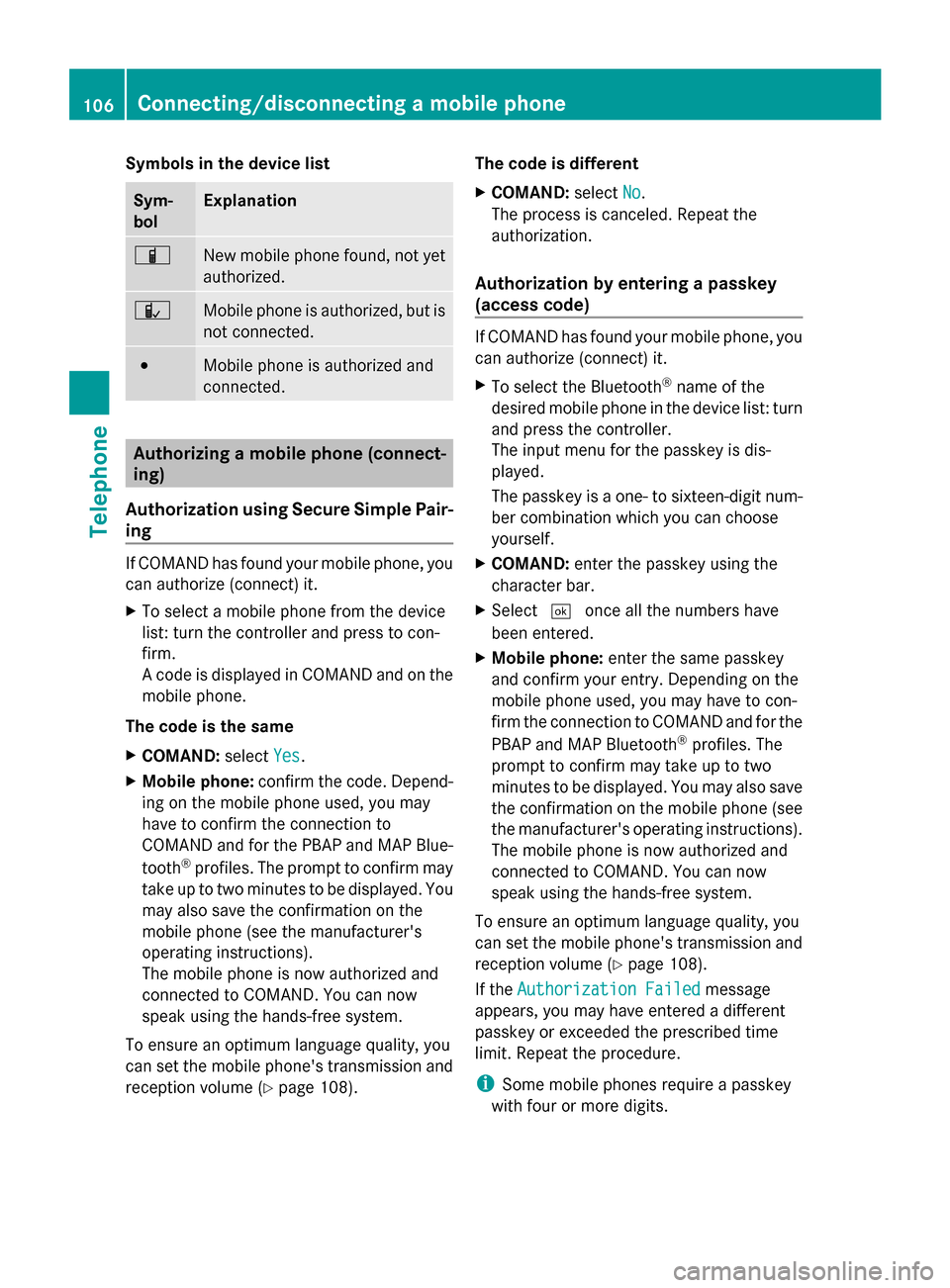
Symbols in the device list
Sym-
bol Explanation
00D3
New mobile phone found, not yet
authorized.
00DC
Mobile phone is authorized, but is
not connected.
0036
Mobile phone is authorized and
connected.
Authorizing a mobile phone (connect-
ing)
Authorization using Secure Simple Pair-
ing If COMAND has found your mobile phone, you
can authorize (connect) it.
X To select a mobile phone from the device
list: turn the controller and press to con-
firm.
A code is displayed in COMAND and on the
mobile phone.
The code is the same
X COMAND: selectYes Yes.
X Mobile phone: confirm the code. Depend-
ing on the mobile phone used, you may
have to confirm the connection to
COMAND and for the PBAP and MAP Blue-
tooth ®
profiles. The prompt to confirm may
take up to two minutes to be displayed. You
may also save the confirmation on the
mobile phone (see the manufacturer's
operating instructions).
The mobile phone is now authorized and
connected to COMAND. You can now
speak using the hands-free system.
To ensure an optimum language quality, you
can set the mobile phone's transmission and
reception volume (Y page 108). The code is different
X
COMAND: selectNo
No.
The process is canceled. Repeat the
authorization.
Authorization by entering a passkey
(access code) If COMAND has found your mobile phone, you
can authorize (connect) it.
X
To select the Bluetooth ®
name of the
desired mobile phone in the device list: turn
and press the controller.
The input menu for the passkey is dis-
played.
The passkey is a one- to sixteen-digit num-
ber combination which you can choose
yourself.
X COMAND: enter the passkey using the
character bar.
X Select 0054once all the numbers have
been entered.
X Mobile phone: enter the same passkey
and confirm your entry. Depending on the
mobile phone used, you may have to con-
firm the connection to COMAND and for the
PBAP and MAP Bluetooth ®
profiles. The
prompt to confirm may take up to two
minutes to be displayed. You may also save
the confirmation on the mobile phone (see
the manufacturer's operating instructions).
The mobile phone is now authorized and
connected to COMAND. You can now
speak using the hands-free system.
To ensure an optimum language quality, you
can set the mobile phone's transmission and
reception volume (Y page 108).
If the Authorization Failed
Authorization Failed message
appears, you may have entered a different
passkey or exceeded the prescribed time
limit. Repeat the procedure.
i Some mobile phones require a passkey
with four or more digits. 106
Connecting/disconnecting a mobile phoneTelephone
Page 112 of 214
X
To select Calls Received
Calls Received orCalls
Calls
Dialed
Dialed: turn and press the controller.
The relevant list is displayed.
X To select an entry and make a call: turn and
press the controller.
Further information about ending a call
(Y page 113).
Using the phone book X
To call up the telephone menu: press the
002B button.
X To select Name
Name in the telephone menu: turn
and press the controller.
X Search for a contact (Y page 114).
X To make a call: press the controller.
Further information about ending a call
(Y page 113).
Using speed dial Option 1
X
To call up the telephone menu: press the
002B button.
X To highlight a number from the character
bar: turn the controller.
X Press the controller for longer than two
seconds.
The telephone menu displays the selected
entry. The number is dialed.
Option 2:
X To call up the telephone menu: press the
002B button.
X To switch to the menu bar: slide 6the
controller.
X To select Call Lists
Call Lists: turn and press the
controller.
X To select Speed Dial Preset List
Speed Dial Preset List : turn
and press the controller.
The speed dial list is displayed.
X To select an entry and make a call: turn and
press the controller.
The telephone menu displays the selected
entry. The number is dialed. Further information on setting up speed dial
(Y
page 126).
Further information about ending a call
(Y page 113). Functions available during a call
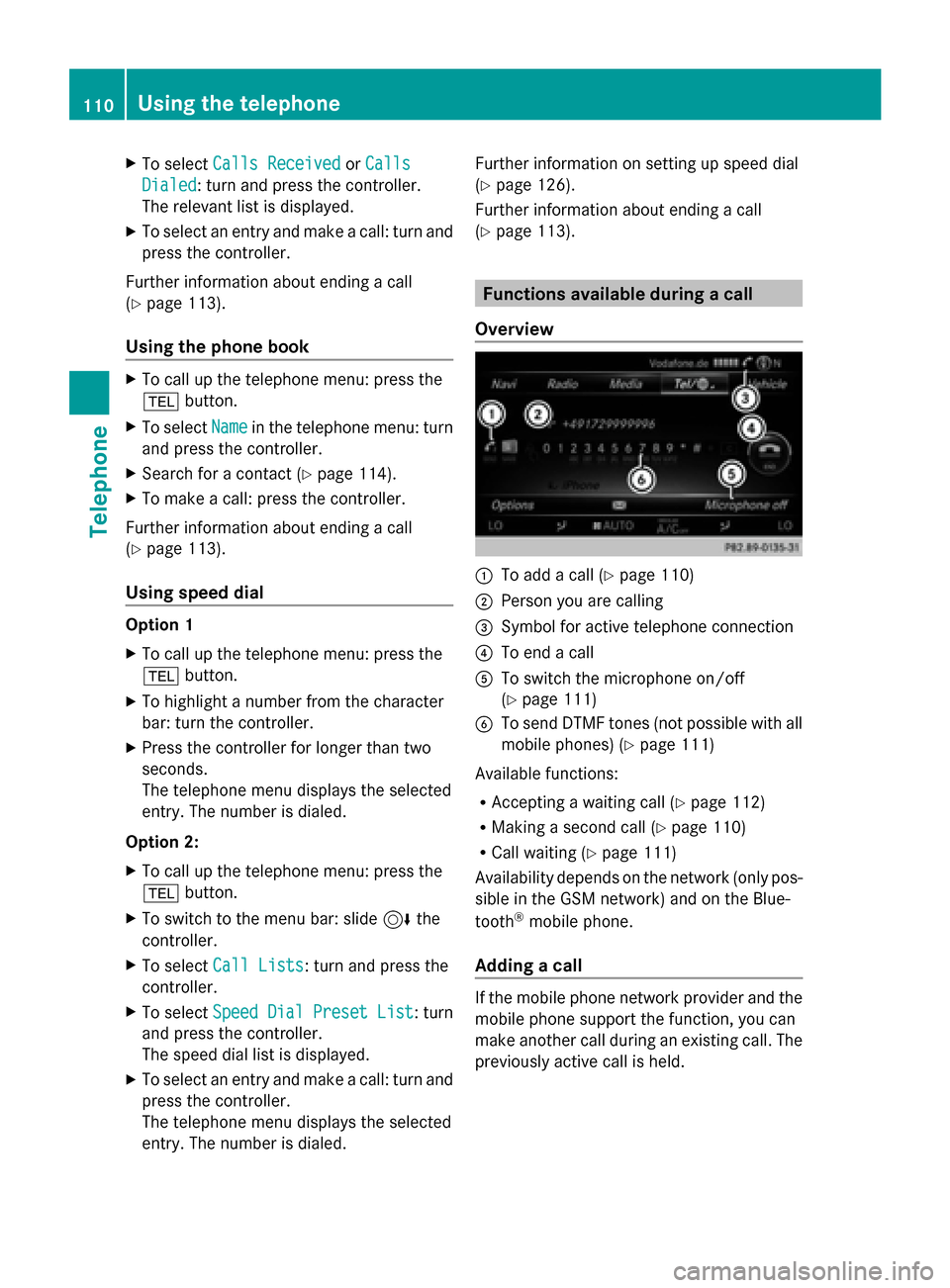
Overview 0043
To add a call (Y page 110)
0044 Person you are calling
0087 Symbol for active telephone connection
0085 To end a call
0083 To switch the microphone on/off
(Ypage 111)
0084 To send DTMF tones (not possible with all
mobile phones) (Y page 111)
Available functions:
R Accepting a waiting call (Y page 112)
R Making a second call (Y page 110)
R Call waiting (Y page 111)
Availability depends on the network (only pos-
sible in the GSM network) and on the Blue-
tooth ®
mobile phone.
Adding a call If the mobile phone network provider and the
mobile phone support the function, you can
make another call during an existing call. The
previously active call is held.110
Using the telephoneTelephone