2015 MERCEDES-BENZ C-Class net
[x] Cancel search: netPage 148 of 214
Internet radio
General notes
A good Internet connection enables an effi-
cient transmission of audio data. Connecting
your mobile phone to the vehicle's exterior
antenna via the phone bracket ensures the
best possible reception.
i Bear in mind that a relatively large volume
of data can be transmitted when using
Internet radio. An average 12 8kbit per sec-
ond data transfer rate can transfer 56 MB
of data in one hour.
The data transfer rate of a station is dis-
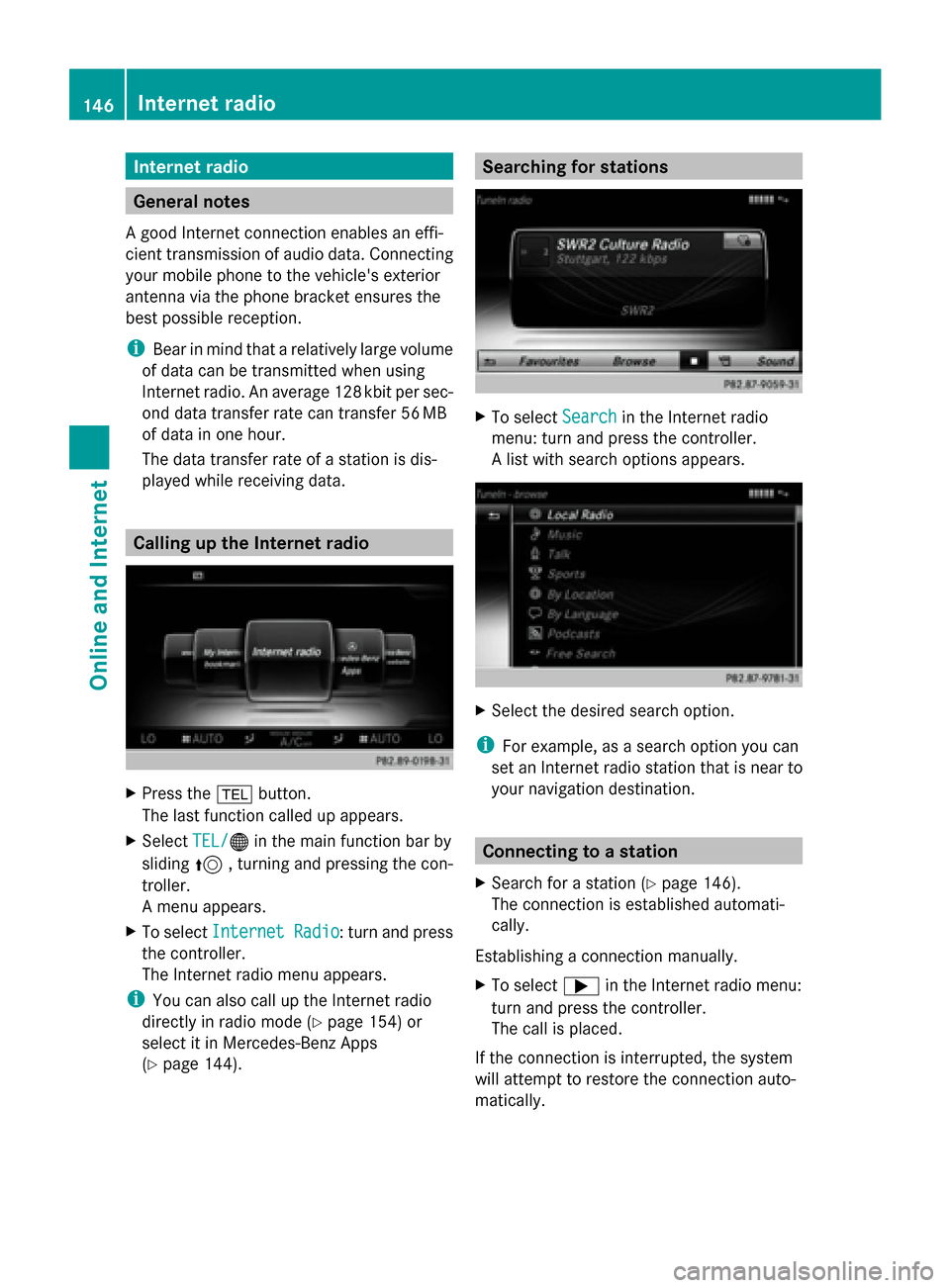
played while receiving data. Calling up the Internet radio
X
Press the 002Bbutton.
The last function called up appears.
X Select TEL/ TEL/00A7 in the main function bar by
sliding 5, turning and pressing the con-
troller.
A menu appears.
X To select Internet Radio
Internet Radio : turn and press
the controller.
The Internet radio menu appears.
i You can also call up the Internet radio
directly in radio mode (Y page 154) or
select it in Mercedes-Benz Apps
(Y page 144). Searching for stations
X
To select Search Searchin the Internet radio
menu: turn and press the controller.
A list with search options appears. X
Select the desired search option.
i For example, as a search option you can
set an Internet radio station that is near to
your navigation destination. Connecting to a station
X Search for a station (Y page 146).
The connection is established automati-
cally.
Establishing a connection manually.
X To select 0065in the Internet radio menu:
turn and press the controller.
The call is placed.
If the connection is interrupted, the system
will attempt to restore the connection auto-
matically. 146
Internet radioOnline and Internet
Page 149 of 214
Manually re-establishing a connection
X
Select 0065again in the Internet radio
menu.
Ending data transfer:
X Select 00DBin the Internet radio menu.
or
X Change to another audio source, for exam-
ple Media
Media.
If you change to a main function that is not an
audio source, e.g. navigation, the data con-
nection remains on. You can continue listen-
ing to the set station. Pressing the 002Bbut-
ton takes you back to Internet radio. Saving a station as a favorite
X To select the Favorites Favoritesmenu: turn and
press the controller.
X Select Save ... as Favorite
Save ... as Favorite.
The set station is saved as a favorite. Further options X
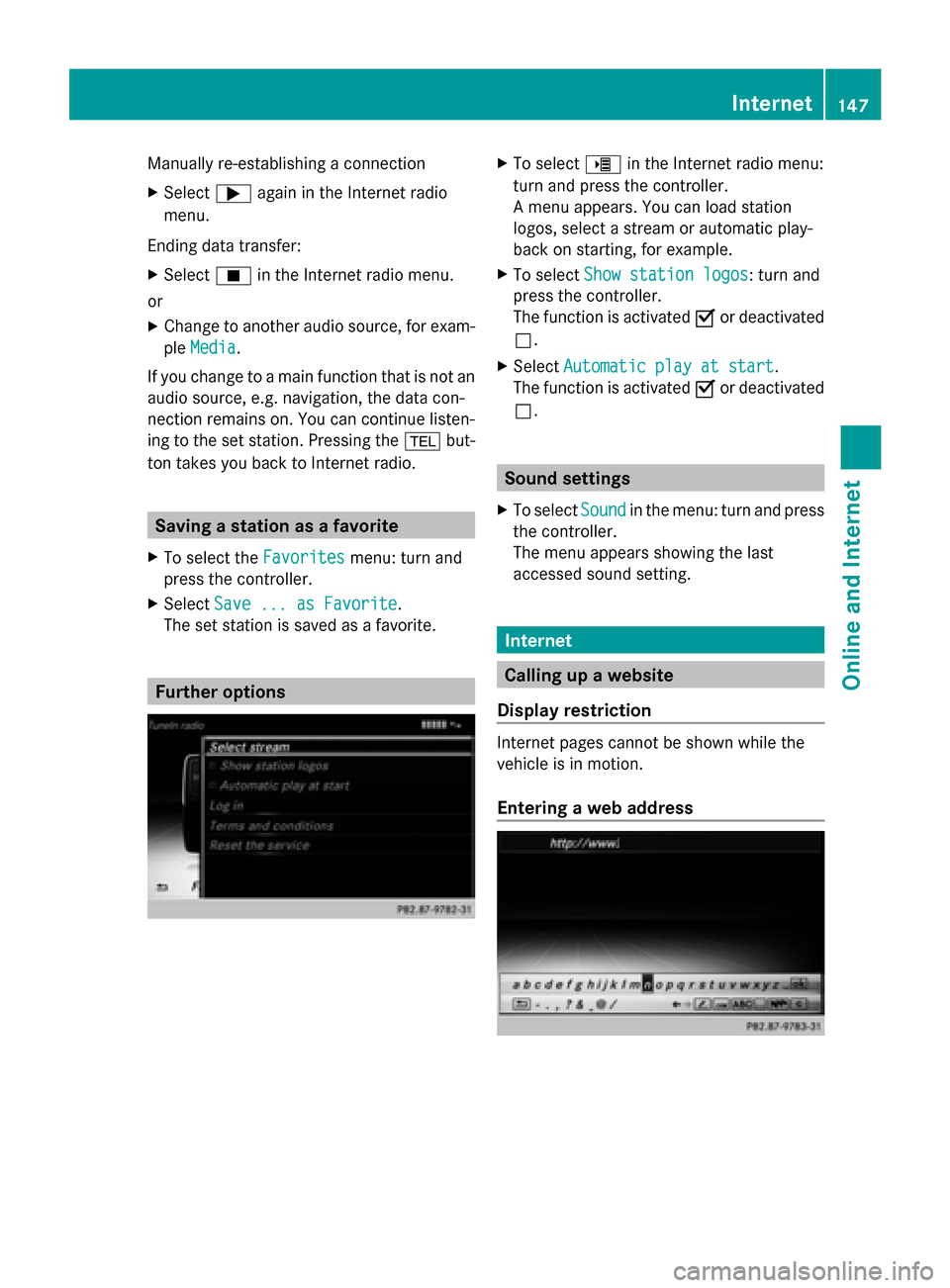
To select 00DEin the Internet radio menu:
turn and press the controller.
A menu appears. You can load station
logos, select a stream or automatic play-
back on starting, for example.
X To select Show station logos Show station logos: turn and
press the controller.
The function is activated 0073or deactivated
0053.
X Select Automatic play at start
Automatic play at start.
The function is activated 0073or deactivated
0053. Sound settings
X To select Sound
Soundin the menu: turn and press
the controller.
The menu appears showing the last
accessed sound setting. Internet
Calling up a website
Display restriction Internet pages cannot be shown while the
vehicle is in motion.
Entering a web address Internet
147Online and Internet
Page 150 of 214
X
Press the 002Bbutton.
The last function called up appears.
X Select TEL/
TEL/00A7 in the main function bar by
sliding 5, turning and pressing the con-
troller.
A menu appears.
X To select Internet
Internet: turn and press the
controller.
The menu for the Internet functions
appears.
X To select www
www: turn the controller and press
to confirm.
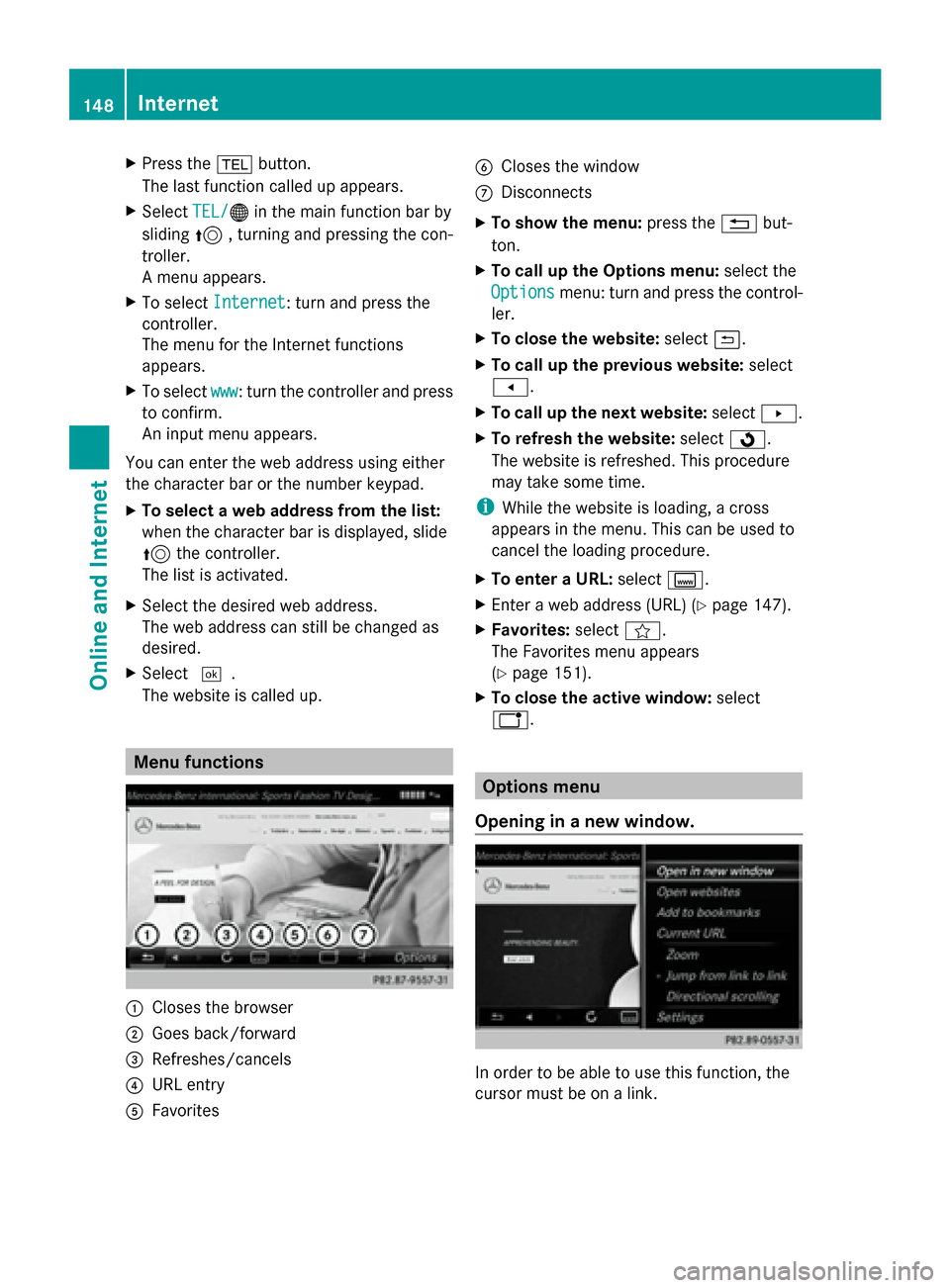
An input menu appears.
You can enter the web address using either
the character bar or the number keypad.
X To select a web address from the list:
when the character bar is displayed, slide
5 the controller.
The list is activated.
X Select the desired web address.
The web address can still be changed as
desired.
X Select 0054.
The website is called up. Menu functions
0043
Closes the browser
0044 Goes back/forward
0087 Refreshes/cancels
0085 URL entry
0083 Favorites 0084
Closes the window
006B Disconnects
X To show the menu: press the0038but-
ton.
X To call up the Options menu: select the
Options
Options menu: turn and press the control-
ler.
X To close the website: select0039.
X To call up the previous website: select
007F.
X To call up the next website: select0080.
X To refresh the website: select0080.
The website is refreshed. This procedure
may take some time.
i While the website is loading, a cross
appears in the menu. This can be used to
cancel the loading procedure.
X To enter a URL: selectg.
X Enter a web address (URL) (Y page 147).
X Favorites: selectf.
The Favorites menu appears
(Y page 151).
X To close the active window: select
h. Options menu
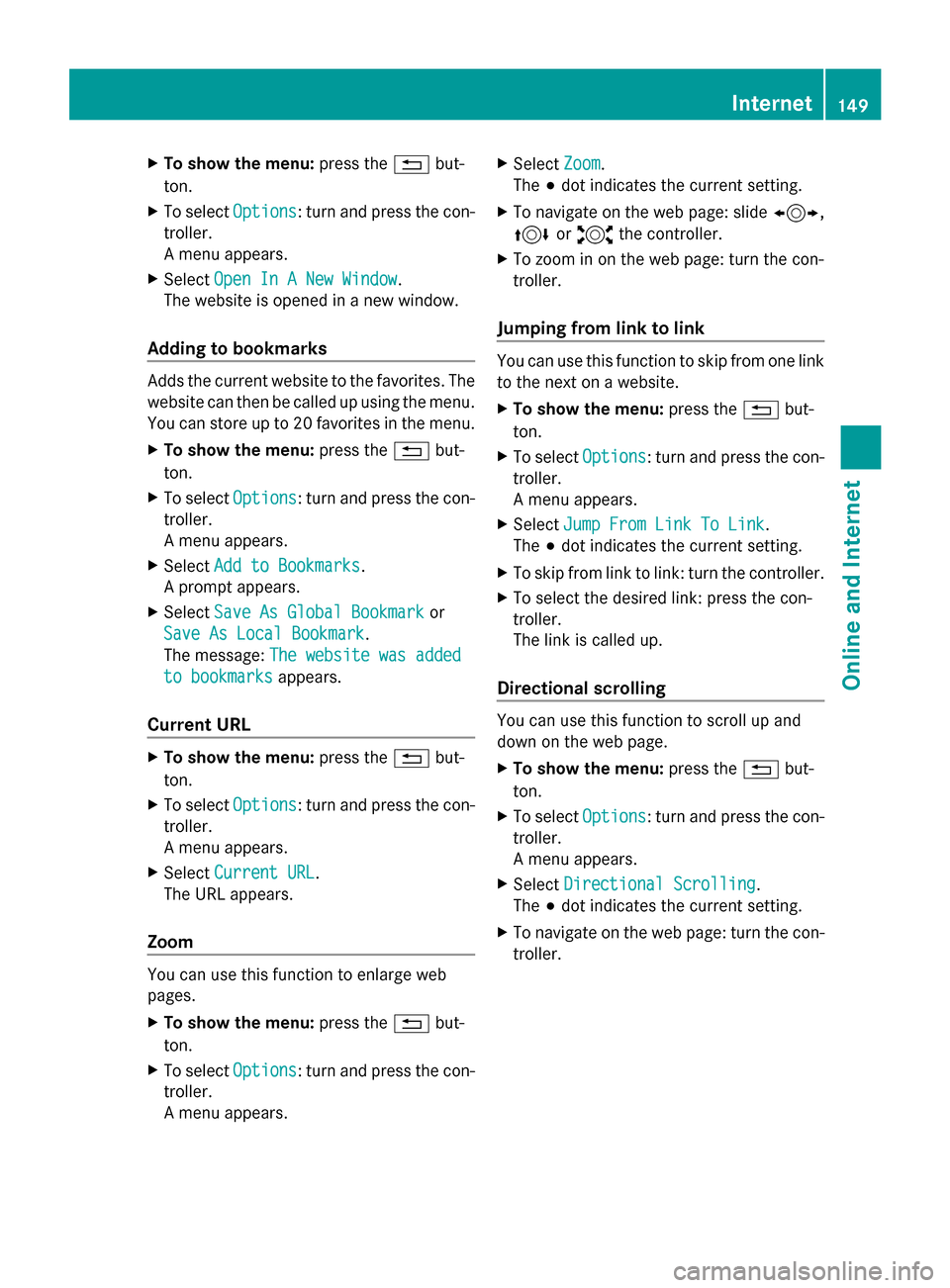
Opening in a new window. In order to be able to use this function, the
cursor must be on a link.148
InternetOnline and Internet
Page 151 of 214
X
To show the menu: press the0038but-
ton.
X To select Options
Options: turn and press the con-
troller.
A menu appears.
X Select Open In A New Window
Open In A New Window .
The website is opened in a new window.
Adding to bookmarks Adds the current website to the favorites. The
website can then be called up using the menu.
You can store up to 20 favorites in the menu.
X To show the menu: press the0038but-
ton.
X To select Options
Options: turn and press the con-
troller.
A menu appears.
X Select Add to Bookmarks
Add to Bookmarks .
A prompt appears.
X Select Save As Global Bookmark
Save As Global Bookmark or
Save As Local Bookmark
Save As Local Bookmark.
The message: The website was added The website was added
to bookmarks
to bookmarks appears.
Current URL X
To show the menu: press the0038but-
ton.
X To select Options
Options: turn and press the con-
troller.
A menu appears.
X Select Current URL
Current URL .
The URL appears.
Zoom You can use this function to enlarge web
pages.
X To show the menu: press the0038but-
ton.
X To select Options
Options: turn and press the con-
troller.
A menu appears. X
Select Zoom
Zoom.
The 003Bdot indicates the current setting.
X To navigate on the web page: slide 1,
4 or2 the controller.
X To zoom in on the web page: turn the con-
troller.
Jumping from link to link You can use this function to skip from one link
to the next on a website.
X
To show the menu: press the0038but-
ton.
X To select Options Options: turn and press the con-
troller.
A menu appears.
X Select Jump From Link To Link
Jump From Link To Link.
The 003Bdot indicates the current setting.
X To skip from link to link: turn the controller.
X To select the desired link: press the con-
troller.
The link is called up.
Directional scrolling You can use this function to scroll up and
down on the web page.
X
To show the menu: press the0038but-
ton.
X To select Options Options: turn and press the con-
troller.
A menu appears.
X Select Directional Scrolling
Directional Scrolling .
The 003Bdot indicates the current setting.
X To navigate on the web page: turn the con-
troller. Internet
149Online and Internet
Page 152 of 214
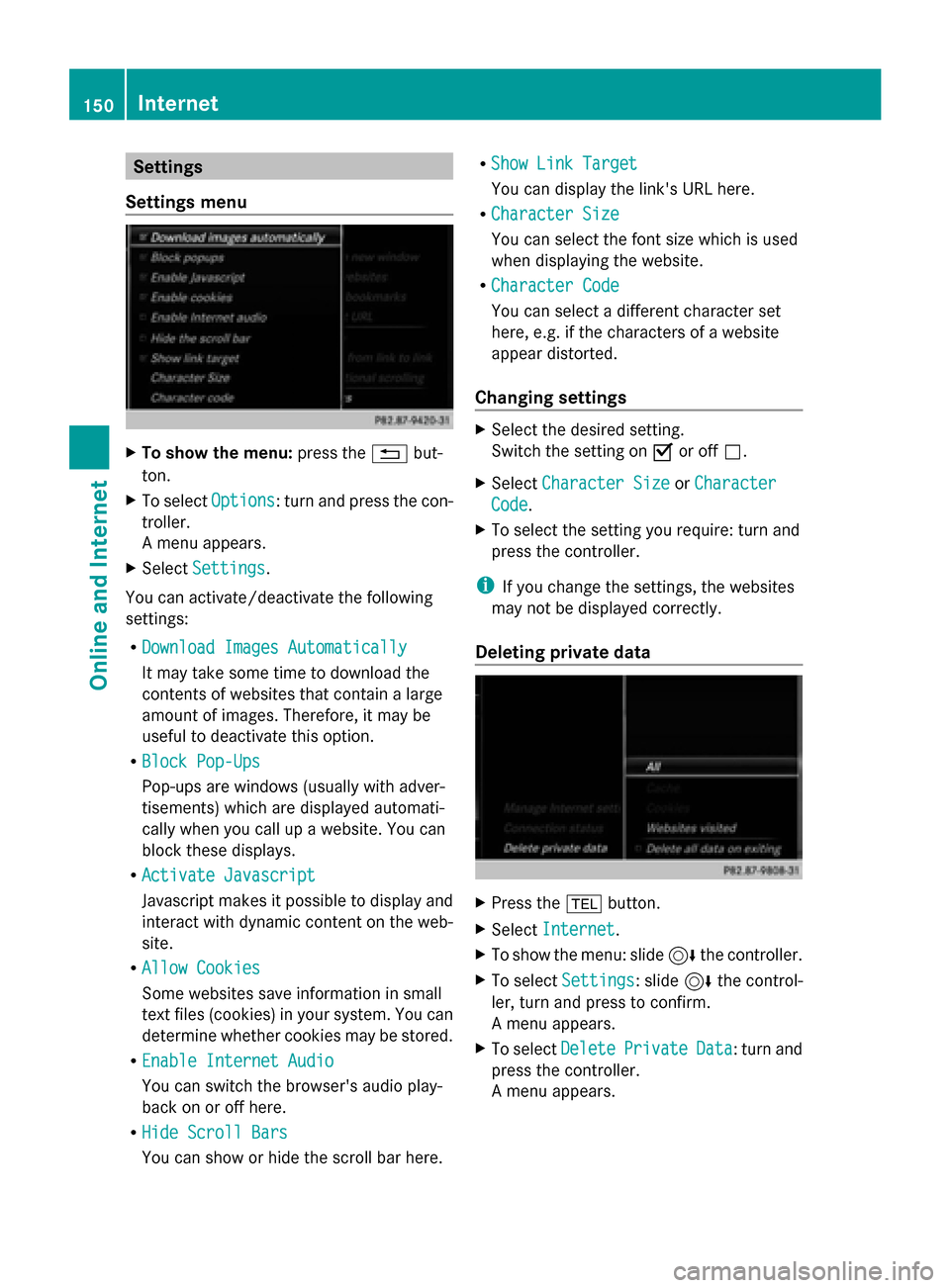
Settings
Settings menu X
To show the menu: press the0038but-
ton.
X To select Options
Options: turn and press the con-
troller.
A menu appears.
X Select Settings Settings.
You can activate/deactivate the following
settings:
R Download Images Automatically Download Images Automatically
It may take some time to download the
contents of websites that contain a large
amount of images. Therefore, it may be
useful to deactivate this option.
R Block Pop-Ups
Block Pop-Ups
Pop-ups are windows (usually with adver-
tisements) which are displayed automati-
cally when you call up a website. You can
block these displays.
R Activate Javascript
Activate Javascript
Javascript makes it possible to display and
interact with dynamic content on the web-
site.
R Allow Cookies
Allow Cookies
Some websites save information in small
text files (cookies) in your system. You can
determine whether cookies may be stored.
R Enable Internet Audio
Enable Internet Audio
You can switch the browser's audio play-
back on or off here.
R Hide Scroll Bars
Hide Scroll Bars
You can show or hide the scroll bar here. R
Show Link Target Show Link Target
You can display the link's URL here.
R Character Size Character Size
You can select the font size which is used
when displaying the website.
R Character Code
Character Code
You can select a different character set
here, e.g. if the characters of a website
appear distorted.
Changing settings X
Select the desired setting.
Switch the setting on 0073or off 0053.
X Select Character Size
Character Size orCharacter Character
Code
Code.
X To select the setting you require: turn and
press the controller.
i If you change the settings, the websites
may not be displayed correctly.
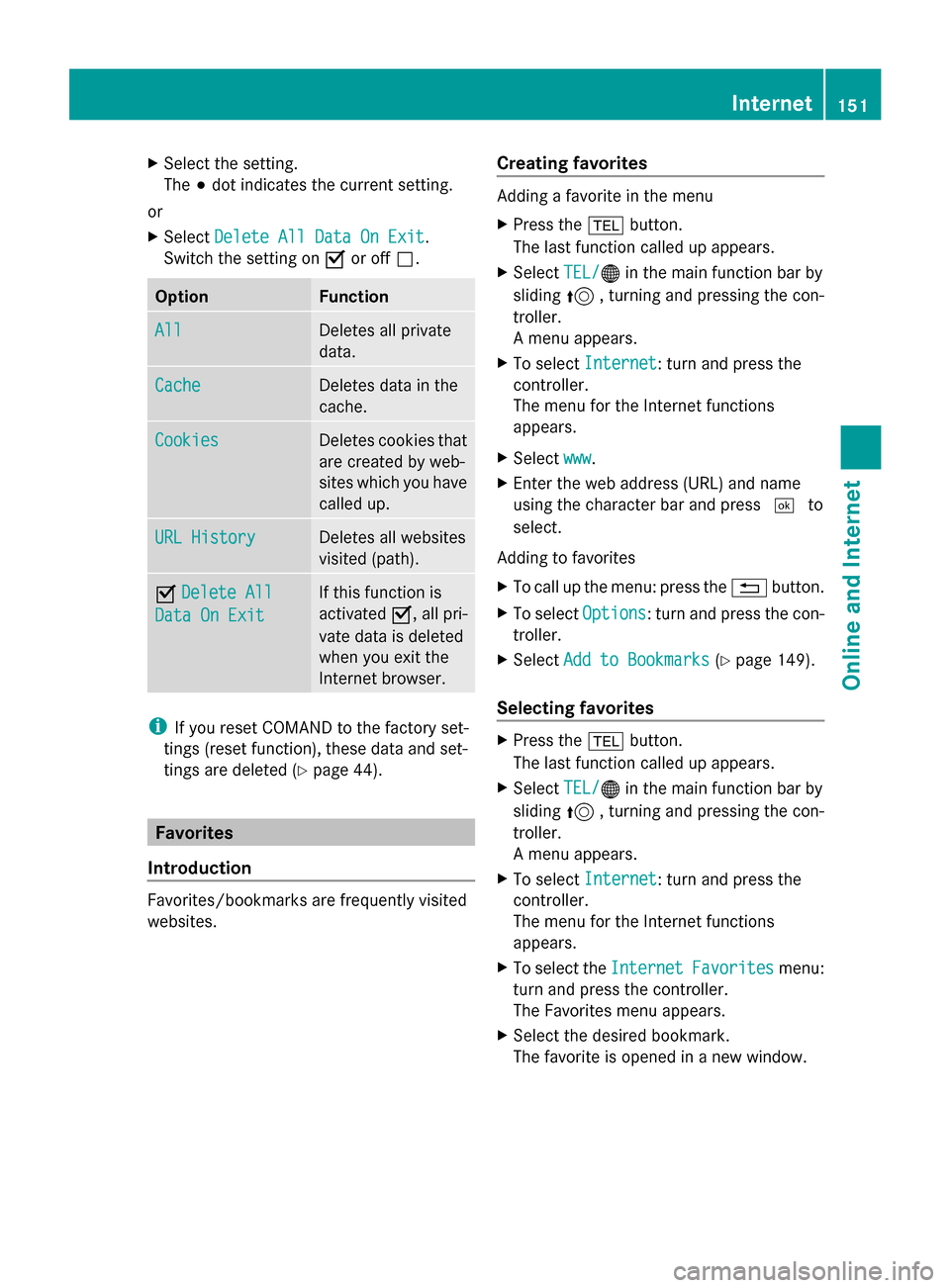
Deleting private data X
Press the 002Bbutton.
X Select Internet
Internet.
X To show the menu: slide 6the controller.
X To select Settings
Settings: slide 6the control-
ler, turn and press to confirm.
A menu appears.
X To select Delete DeletePrivate
Private Data
Data: turn and
press the controller.
A menu appears. 150
InternetOnline and Internet
Page 153 of 214
X
Select the setting.
The 003Bdot indicates the current setting.
or
X Select Delete All Data On Exit
Delete All Data On Exit.
Switch the setting on 0073or off 0053. Option Function
All All Deletes all private
data.
Cache Cache Deletes data in the
cache.
Cookies Cookies Deletes cookies that
are created by web-
sites which you have
called up.
URL History URL History Deletes all websites
visited (path).
0073
Delete All Delete All
Data On Exit
Data On Exit If this function is
activated
0073, all pri-
vate data is deleted
when you exit the
Internet browser. i
If you reset COMAND to the factory set-
tings (reset function), these data and set-
tings are deleted (Y page 44). Favorites
Introduction Favorites/bookmarks are frequently visited
websites. Creating favorites Adding a favorite in the menu
X
Press the 002Bbutton.
The last function called up appears.
X Select TEL/ TEL/00A7 in the main function bar by
sliding 5, turning and pressing the con-
troller.
A menu appears.
X To select Internet
Internet: turn and press the
controller.
The menu for the Internet functions
appears.
X Select www www.
X Enter the web address (URL) and name
using the character bar and press 0054to
select.
Adding to favorites
X To call up the menu: press the 0038button.
X To select Options Options: turn and press the con-
troller.
X Select Add to Bookmarks Add to Bookmarks (Ypage 149).
Selecting favorites X
Press the 002Bbutton.
The last function called up appears.
X Select TEL/
TEL/00A7 in the main function bar by
sliding 5, turning and pressing the con-
troller.
A menu appears.
X To select Internet
Internet: turn and press the
controller.
The menu for the Internet functions
appears.
X To select the Internet InternetFavorites
Favorites menu:
turn and press the controller.
The Favorites menu appears.
X Select the desired bookmark.
The favorite is opened in a new window. Internet
151Online and Internet
Page 154 of 214
Editing favorites
X
Press the 002Bbutton.
The last function called up appears.
X Select TEL/
TEL/00A7 in the main function bar by
sliding 5, turning and pressing the con-
troller.
A menu appears.
X To select Internet
Internet: turn and press the
controller.
The menu for the Internet functions
appears.
X To select the Internet
Internet Favorites Favorites menu:
turn and press the controller.
The Favorites menu appears.
X To bring the desired favorites to the front.
X To select Edit
Edit: slide 6and press the
controller.
An input menu appears.
X Enter the web address (URL) and name
using the character bar.
Deleting favorites X
Press the 002Bbutton.
The last function called up appears.
X Select TEL/
TEL/00A7 in the main function bar by
sliding 5, turning and pressing the con-
troller.
A menu appears.
X To select Internet
Internet: turn and press the
controller.
The menu for the Internet functions
appears.
X To select the Internet
Internet Favorites Favorites menu:
turn and press the controller.
The Favorites menu appears.
X Select the desired favorites.
X Select Delete
Delete .
A prompt appears.
X Select Yes
YesorNo
No.
If you select Yes
Yesthe favorite is deleted.
If you select No
No the process is canceled. Closing the Internet browser
X Select 0038in the browser menu
(Y page 148).
or
X Press the 0038button for longer than two
seconds.
A prompt appears, asking whether you
want to close the Internet browser.
X Select Yes YesorNo
No.
If you select Yes
Yes the application is closed.
If you select No
Nothe process is canceled. 152
InternetOnline and Internet
Page 156 of 214
Radio mode
Switching to radio mode
X Press the 002Abutton.
The radio display appears. You will hear the
last station played on the last waveband
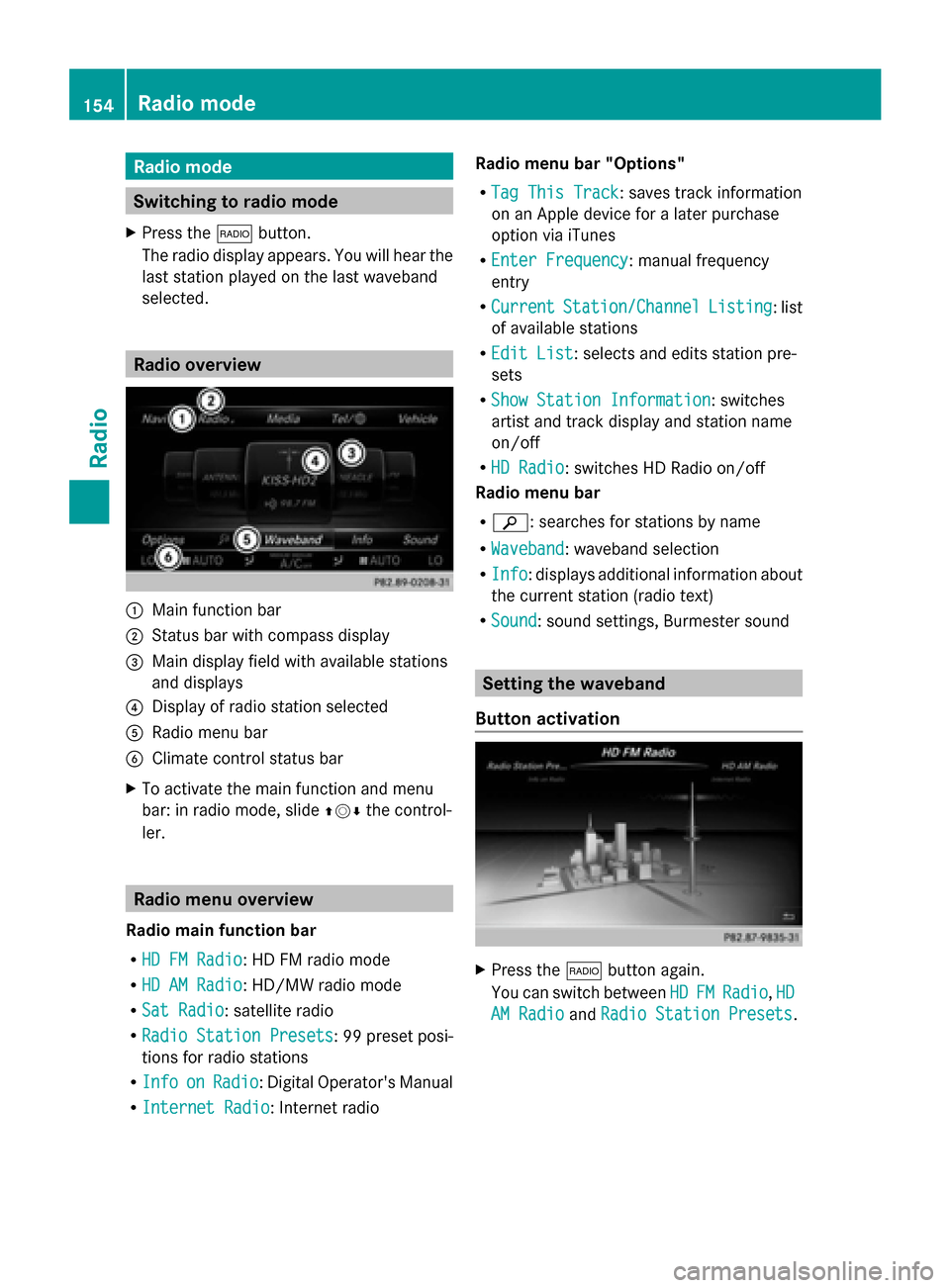
selected. Radio overview
0043
Main function bar
0044 Status bar with compass display
0087 Main display field with available stations
and displays
0085 Display of radio station selected
0083 Radio menu bar
0084 Climate control status bar
X To activate the main function and menu
bar: in radio mode, slide 009700520064the control-
ler. Radio menu overview
Radio main function bar
R HD FM Radio HD FM Radio: HD FM radio mode
R HD AM Radio
HD AM Radio: HD/MW radio mode
R Sat Radio
Sat Radio: satellite radio
R Radio Station Presets
Radio Station Presets : 99 preset posi-
tions for radio stations
R Info
Info on
onRadio
Radio : Digital Operator's Manual
R Internet Radio
Internet Radio: Internet radio Radio menu bar "Options"
R Tag This Track
Tag This Track: saves track information
on an Apple device for a later purchase
option via iTunes
R Enter Frequency Enter Frequency: manual frequency
entry
R Current Current Station/Channel
Station/Channel Listing
Listing: list
of available stations
R Edit List
Edit List : selects and edits station pre-
sets
R Show Station Information
Show Station Information: switches
artist and track display and station name
on/off
R HD Radio HD Radio: switches HD Radio on/off
Radio menu bar
R 00D3: searches for stations by name
R Waveband Waveband : waveband selection
R Info Info : displays additional information about
the current station (radio text)
R Sound
Sound: sound settings, Burmester sound Setting the waveband
Button activation X
Press the 002Abutton again.
You can switch between HD
HDFM
FM Radio
Radio, HD
HD
AM Radio
AM Radio andRadio Station Presets
Radio Station Presets. 154
Radio modeRadio