2015 MERCEDES-BENZ C-Class net
[x] Cancel search: netPage 113 of 214
0043
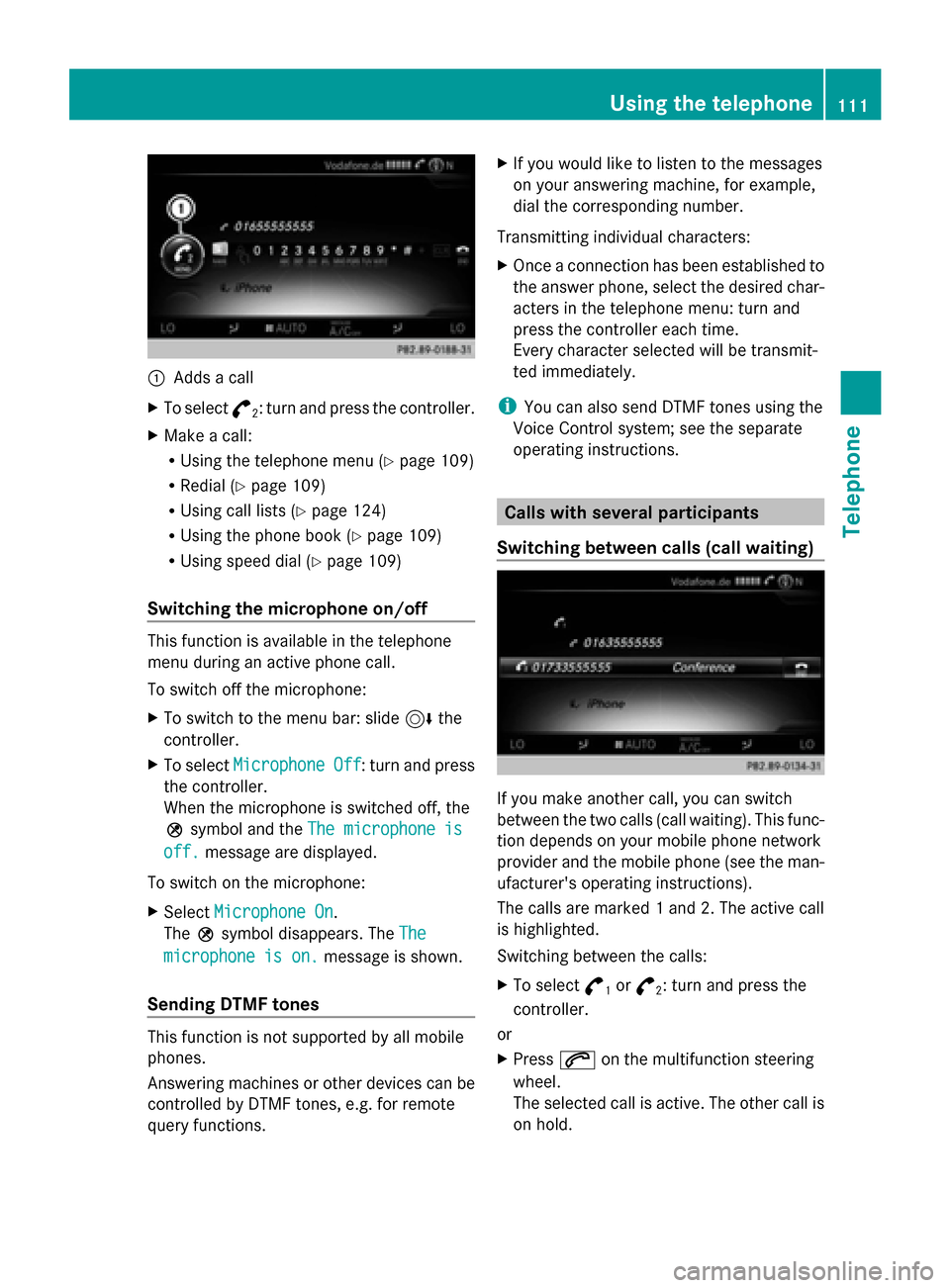
Adds a call
X To select °
2: turn and press the controller.
X Make a call:
R
Using the telephone menu (Y page 109)
R Redial (Y page 109)
R Using call lists (Y page 124)
R Using the phone book (Y page 109)
R Using speed dial (Y page 109)
Switching the microphone on/off This function is available in the telephone
menu during an active phone call.
To switch off the microphone:
X To switch to the menu bar: slide 6the
controller.
X To select Microphone Off
Microphone Off : turn and press
the controller.
When the microphone is switched off, the
004D symbol and the The microphone is
The microphone is
off. off. message are displayed.
To switch on the microphone:
X Select Microphone On
Microphone On.
The 004Dsymbol disappears. The The
The
microphone is on.
microphone is on. message is shown.
Sending DTMF tones This function is not supported by all mobile
phones.
Answering machines or other devices can be
controlled by DTMF tones, e.g. for remote
query functions. X
If you would like to listen to the messages
on your answering machine, for example,
dial the corresponding number.
Transmitting individual characters:
X Once a connection has been established to
the answer phone, select the desired char-
acters in the telephone menu: turn and
press the controller each time.
Every character selected will be transmit-
ted immediately.
i You can also send DTMF tones using the
Voice Control system; see the separate
operating instructions. Calls with several participants
Switching between calls (call waiting) If you make another call, you can switch
between the two calls (call waiting). This func-
tion depends on your mobile phone network
provider and the mobile phone (see the man-
ufacturer's operating instructions).
The calls are marked 1 and 2. The active call
is highlighted.
Switching between the calls:
X
To select °
1or
°
2: turn and press the
controller.
or
X Press 0061on the multifunction steering
wheel.
The selected call is active. The other call is
on hold. Using the telephone
111Telephone Z
Page 114 of 214
Ending the active call
X
To select 0076in the telephone menu: turn
and press the controller.
or
X Press 0076on the multifunction steering
wheel.
The other call is still on hold.
X To activate the call on hold: select Con‐ Con‐
tinue
tinue.
The call on hold is activated. If you select
Hang up
Hang up, the call on hold is also ended.
i On some mobile phones, the call on hold
is activated as soon as the active call is
ended.
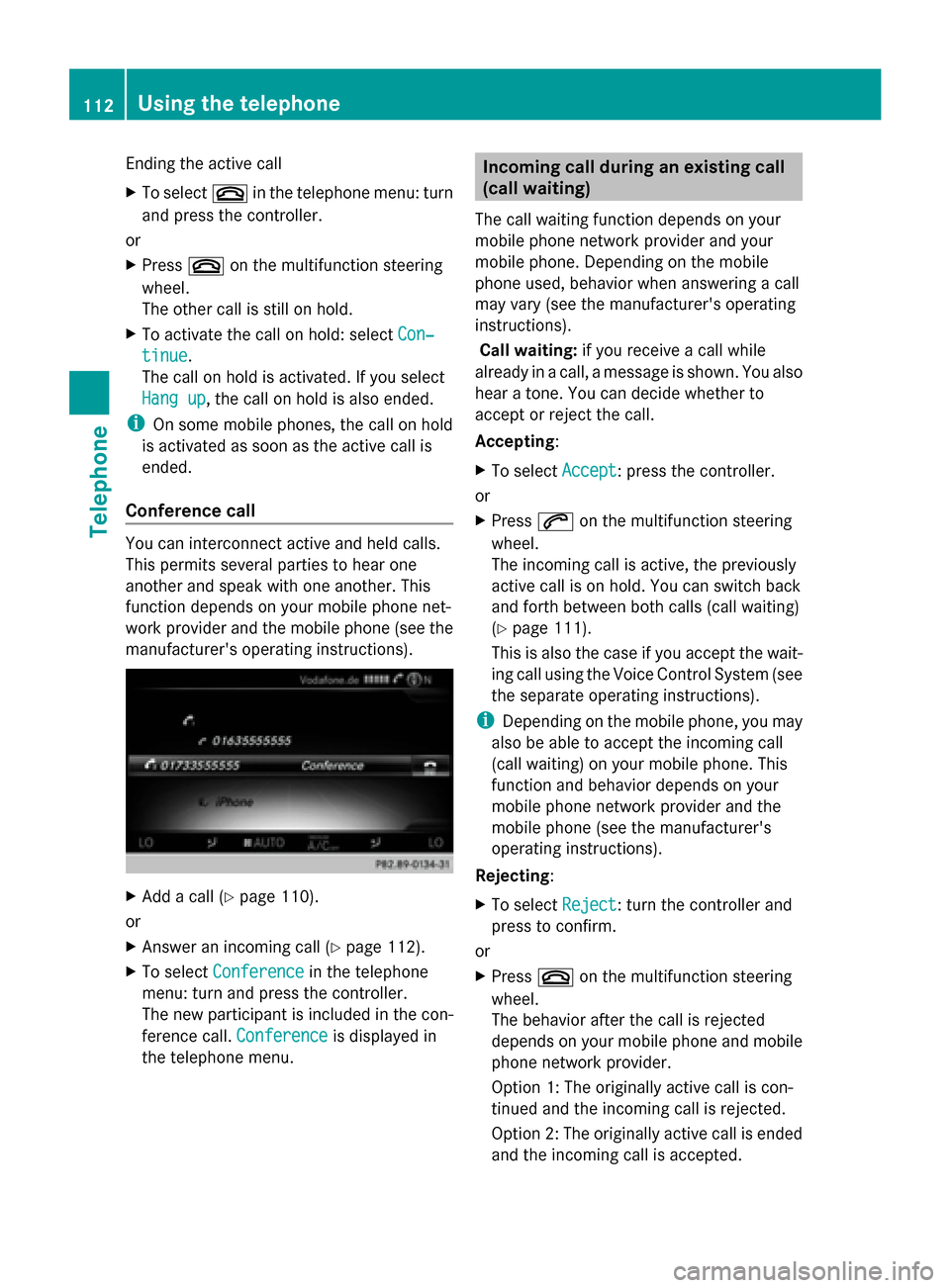
Conference call You can interconnect active and held calls.
This permits several parties to hear one
another and speak with one another. This
function depends on your mobile phone net-
work provider and the mobile phone (see the
manufacturer's operating instructions). X
Add a call (Y page 110).
or
X Answer an incoming call (Y page 112).
X To select Conference
Conference in the telephone
menu: turn and press the controller.
The new participant is included in the con-
ference call. Conference
Conference is displayed in
the telephone menu. Incoming call during an existing call
(call waiting)
The call waiting function depends on your
mobile phone network provider and your
mobile phone. Depending on the mobile
phone used, behavior when answering a call
may vary (see the manufacturer's operating
instructions).
Call waiting: if you receive a call while
already in a call, a message is shown. You also
hear a tone. You can decide whether to
accept or reject the call.
Accepting:
X To select Accept Accept: press the controller.
or
X Press 0061on the multifunction steering
wheel.
The incoming call is active, the previously
active call is on hold. You can switch back
and forth between both calls (call waiting)
(Y page 111).
This is also the case if you accept the wait-
ing call using the Voice Control System (see
the separate operating instructions).
i Depending on the mobile phone, you may
also be able to accept the incoming call
(call waiting) on your mobile phone. This
function and behavior depends on your
mobile phone network provider and the
mobile phone (see the manufacturer's
operating instructions).
Rejecting:
X To select Reject
Reject : turn the controller and
press to confirm.
or
X Press 0076on the multifunction steering
wheel.
The behavior after the call is rejected
depends on your mobile phone and mobile
phone network provider.
Option 1: The originally active call is con-
tinued and the incoming call is rejected.
Option 2: The originally active call is ended
and the incoming call is accepted. 112
Using the telephoneTelephone
Page 120 of 214

X
Draw the letter on the touchpad surface.
The first contact with the selected first
character is highlighted in the address
book.
Further information on handwriting recog-
nition on the touchpad ( Ypage 23).
X Draw additional letters on the touchpad
surface one after another.
X To complete the search and return to the
phone book: press the touchpad.
X To select and call the contact: glide up or
down and press. Adding a new contact
You can enter address data directly into the
address book. If you store telephone num-
bers in the COMAND phone book, these are
also saved in the address book. If you store a
navigation destination, COMAND creates an
address book entry which includes the com-
plete navigable address data.
X Call up the address book (Y page 117).
X To switch to the menu bar: slide 6the
controller.
X To select New
New : turn and press the controller.
The surname and first name input lines are
displayed.
X Enter characters using the controller
(Y page 28) or the touchpad (Y page 23).
X To save the surname and first name: select
0054.
The details for the contact are displayed.
X To add a desired entry (e.g. Add E-Mail
Add E-Mail
Address
Address): turn and press the controller.
Depending on the type of entry, the corre-
sponding input menu appears.
X Enter characters using the controller
(Y page 28) or the touchpad (Y page 23).
X To finish and save an entry: select 0054. Displaying contact details
X
Call up the address book (Y page 117).
X To select a contact: turn and press the con-
troller.
The details for the contact are displayed.
The entries can be categorized as follows:
\ Business details
0088 Home details
i An address book entry can contain the
following information:
R name
R first name
R company
R up to five telephone numbers
R two email addresses
R Internet address
R two addresses
R two navigation addresses (transferred
from navigation( Ypage 69))
R geo-coordinates Adding information to a contact
X Call up the address book (Y page 117).
X To select a contact: turn and press the con-
troller.
The details for the contact are displayed.
X To add a desired entry (e.g. Add E-Mail Add E-Mail
Address
Address): turn and press the controller.
Depending on the type of entry, the corre-
sponding input menu appears. 118
Address bookTelephone
Page 124 of 214

Saving or editing the contact data on
COMAND does not change the contacts on
the mobile phone. If automatic download-
ing of phone contacts is activated,
COMAND displays the copy ¥with the
changed data. To add additional data, such
as additional phone numbers or e-mail
addresses, select this contact. In this way,
you avoid creating additional copies of the
mobile phone entry. Deleting the contact
X Call up the address book (Y page 117).
X Search for a contact (Y page 117).
X To select G: slide 9the controller.
X To select Delete Entry
Delete Entry: turn and press
the controller.
X To select Yes Yes: turn and press the controller.
The contact is deleted.
or
X To select No
No: turn and press the controller.
The process is canceled. Importing contacts
Information and requirements Contacts can be imported as vCards (vcf
files). A vCard is an electronic business card.
A memory card, USB device or a Bluetooth ®
connection can be used for importing.
i Up to 2000 entries can be imported into
the address book. A message notifies you
when the maximum number is reached. In
order to be able to then import new con-
tacts, you have to delete existing contacts
(Y page 122). Source Prerequisites
Memory card The SD memory card is
inserted. It contains
importable contact details. USB device The USB device is inserted
into the USB port. It con-
tains importable contact
details.
Bluetooth
®
connection If the sending of vCards is
supported via Bluetooth
®
,
vCards can be received on
mobile phones or net-
books, for example.
Bluetooth ®
must be acti-
vated in COMAND and on
the respective device (see
the manufacturer's operat-
ing instructions). Importing from the memory card or USB
device
Contacts imported from the memory card or
from a USB device can be recognized by the
00BB
symbol.
The following conditions must be fulfilled in
order to import vCards:
R vCards (vcf files) may be located in the main
directory or in folders. COMAND allows you
to select the relevant folders directly.
R vCards must have the file extension ".vcf".
i COMAND supports vCards in versions 2.1
and 3.0. X
To switch to the menu bar in the telephone
menu or the address book: slide 6the
controller.
X To select Options Options: turn and press the con-
troller. 122
Address bookTelephone
Page 129 of 214
X
To select Call Lists
Call Lists: turn and press the
controller.
X Select Speed Dial Preset List
Speed Dial Preset List.
The speed dial list is displayed.
X To highlight the desired memory position:
turn the controller.
X To select G: slide 9the controller.
X To select Delete All Speed Dial Pre‐
Delete All Speed Dial Pre‐
sets sets: turn and press the controller.
X To select Yes
Yes: turn and press the controller.
All speed dials are deleted.
or
X To select No
No: turn and press the controller.
The process is canceled. Messages (text messages and e-
mails) General notes
New messages are identified by the 008F
symbol in the COMAND display and an audi-
ble signal. Once you have read all the mes-
sages, the symbol is no longer displayed.
COMAND displays the 100 newest text mes-
sages and e-mails.
The ú symbol is displayed when the
mobile phone's message memory is full. The
symbol is no longer displayed if you delete
messages on the mobile phone. Prerequisites
To use the message functions, the connected
mobile phone must support the Bluetooth ®
MAP profile. The prompt for the MAP Blue-
tooth ®
profile may have to be confirmed on
the mobile phone.
With some mobile phones, some settings still
have to be made after connecting to
COMAND (see the manufacturer's operating
instructions). The messages are displayed the
next time you connect to COMAND. An e-mail account must be set up on the
mobile phone for the e-mail function (see the
manufacturer’s operating instructions).
To read and write e-mails in COMAND, the e-
mail account first needs to be configured
(Y page 128).
Some mobile phones with the MAP Blue-
tooth ®
profile:
R only show new text messages.
R do not support the deleting or editing of
text messages.
R do not support the drafts folder for text
messages.
R do not support the sending of text mes-
sages.
R do not support the e-mail function.
R do not send messages in a locked status.
Not all mobile phones available on the market
are equally suitable. You can obtain further
information about settings and supported
functions of Bluetooth ®
-capable mobile
phones on the Internet at
http://www.mbusa-mobile.com. Or call
the Mercedes-Benz Customer Assistance
Center at 1-800-FOR-MERCedes
(1-800-367-6372)( for the USA) or Customer
Relations at 1-800-387-0100 (for Canada). Settings
Calling up the settings menu for mes-
sages Messages (text messages and e-mails)
127Telephone Z
Page 137 of 214

Your COMAND equipment
................136
General notes .................................... 136
Establishing/ending the connec-
tion ..................................................... 136
Google™ Local Search ......................137
Destination/route download ...........140
Weather ............................................. 142
Mercedes-Benz Apps ........................144
Options .............................................. 145
Internet radio .................................... 146
Internet .............................................. 147 135Online and Internet
Page 138 of 214
Your COMAND equipment
These operating instructions describe all
standard and optional equipment available
for your COMAND system at the time of pur-
chase. Country-specific differences are pos-
sible. Please note that your COMAND system
may not be equipped with all the features
described. This also applies to safety-relevant
systems and functions. Therefore, the equip-
ment on your COMAND system may differ
from that in the descriptions and illustrations.
Should you have any questions concerning
equipment and operation, please consult an
authorized Mercedes-Benz Center. General notes
Conditions for access
To use Mercedes-Benz Apps and Internet
access, the following conditions must be ful-
filled:
R mbrace is activated and operational
R mbrace is activated for Mercedes-Benz
Apps and Internet access
Priority of connections: an emergency call
has the highest priority. When a service call,
e.g. a breakdown service call or the MB Info
Call, is active, an emergency call can still be
initiated.
A service call, on the other hand, has priority
over a current Internet connection. Therefore,
you cannot establish an Internet connection
during a service call.
i The availability of individual Mercedes-
Benz Apps may vary depending on the
country.
i The terms of use are shown when the sys-
tem is used for the first time and then once
a year thereafter. Only read and accept the
terms of use when the vehicle is stationary.
i The driver is not permitted to call up web-
sites while driving and use of the Mercedes-
Benz Apps is restricted. Establishing/ending the connection
Establishing the connection
Read the conditions for establishing a con-
nection (Y page 136).
A connection can be established by:
R entering a web address (Y page 147).
R calling up the Mercedes-Benz Mobile Web-
site (Y page 144).
R calling up a Mercedes-Benz App
(Y page 144).
R calling up a Favorite.
R calling up the Internet radio (Y page 146).
R establishing an Internet connection via a
wireless networking device. The "Allow
shared WiFi usage" option must be acti-
vated on COMAND for this (Y page 39).
Ending the connection
X Press Cancel
Cancel in the connections window. Connection status
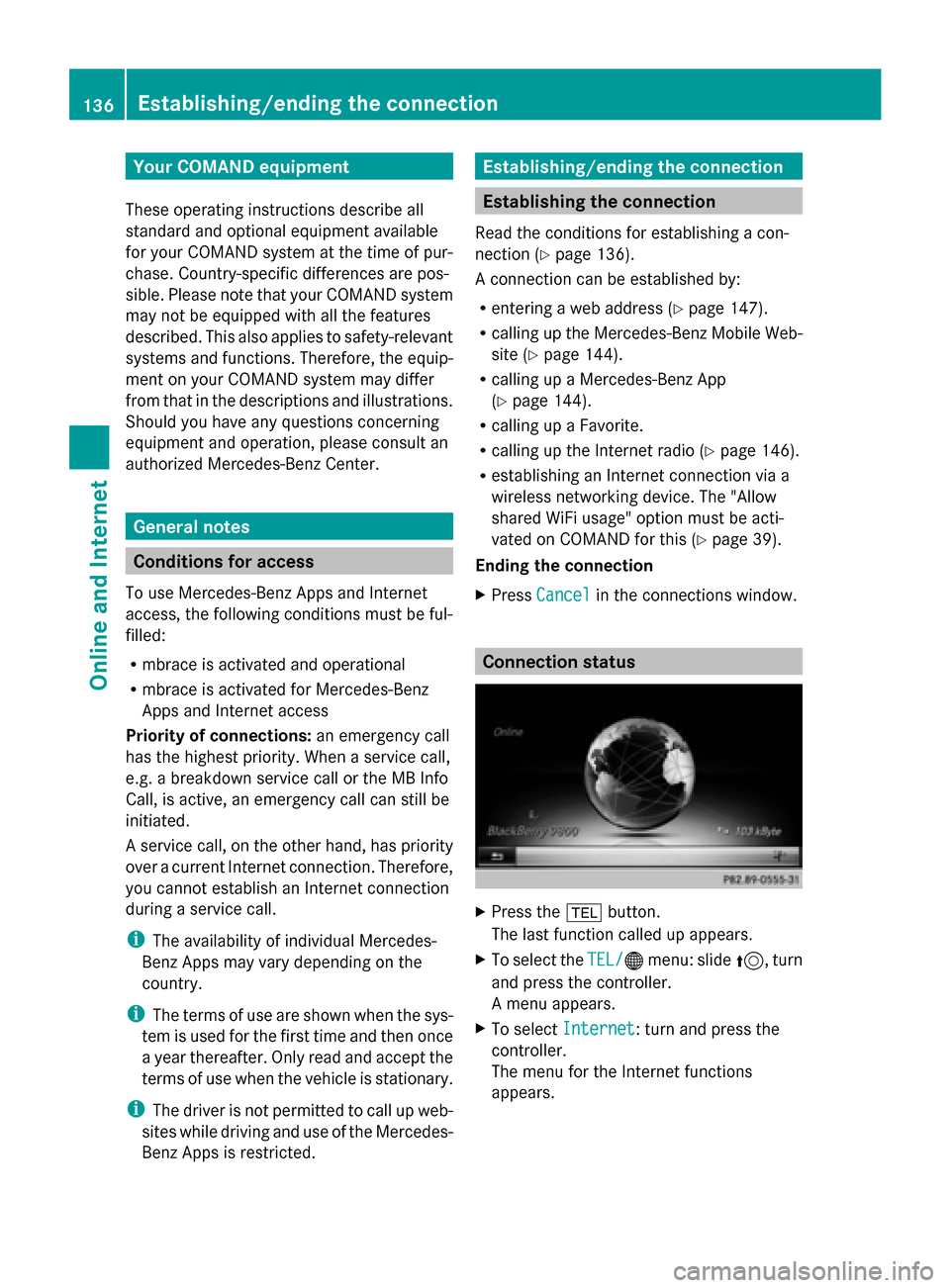
X
Press the 002Bbutton.
The last function called up appears.
X To select the TEL/ TEL/00A7menu: slide 5, turn
and press the controller.
A menu appears.
X To select Internet Internet : turn and press the
controller.
The menu for the Internet functions
appears. 136
Establishing/ending
theconnectionOnline and Internet
Page 139 of 214
X
To select Settings
Settings: slide 6the control-
ler, turn and press to confirm.
A menu appears.
X To select Connection Status
Connection Status: turn and
press the controller.
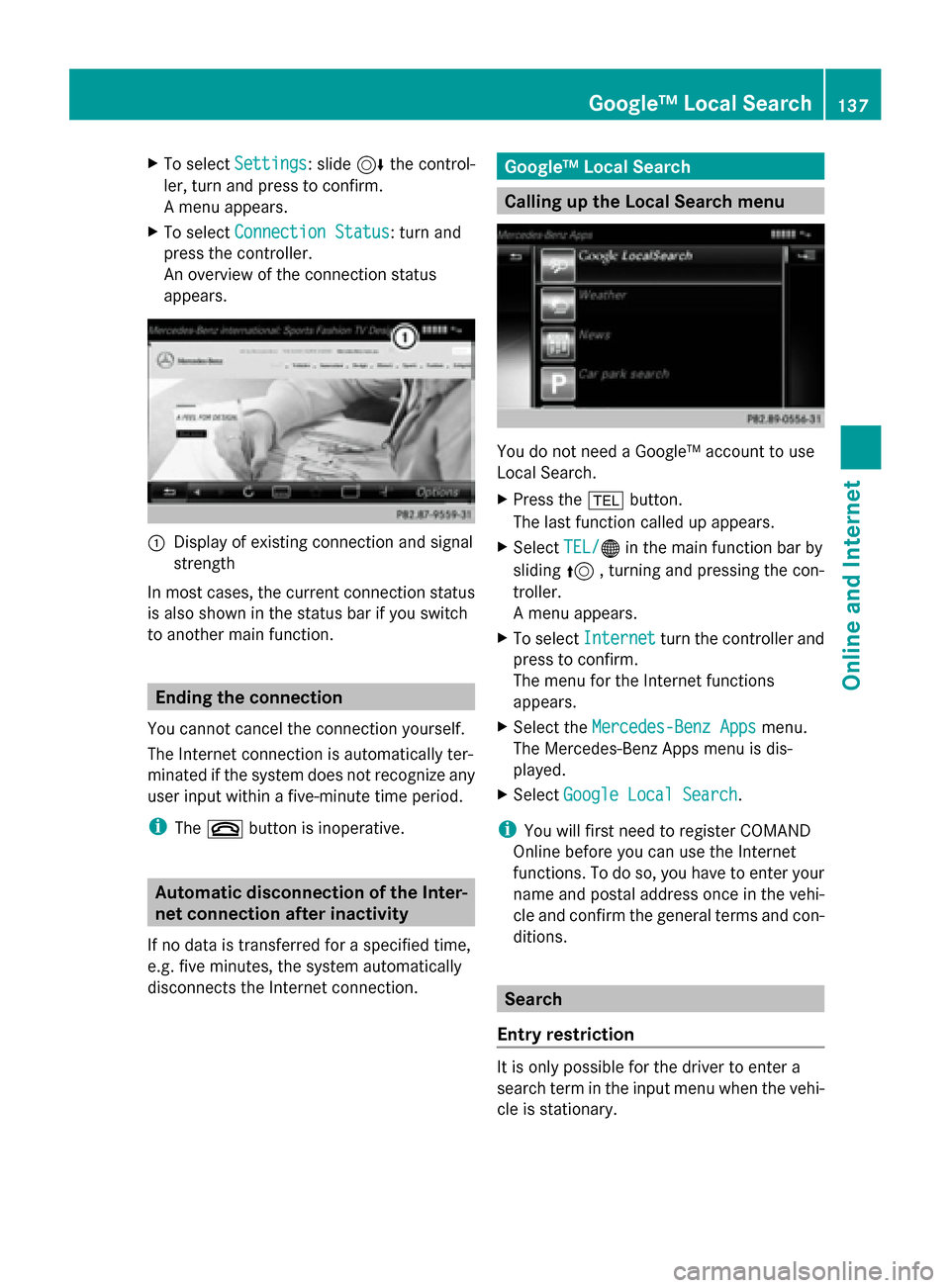
An overview of the connection status
appears. 0043
Display of existing connection and signal
strength
In most cases, the current connection status
is also shown in the status bar if you switch
to another main function. Ending the connection
You cannot cancel the connection yourself.
The Internet connection is automatically ter-
minated if the system does not recognize any
user input within a five-minute time period.
i The 0076 button is inoperative. Automatic disconnection of the Inter-
net connection after inactivity
If no data is transferred for a specified time,
e.g. five minutes, the system automatically
disconnects the Internet connection. Google™ Local Search
Calling up the Local Search menu
You do not need a Google™ account to use
Local Search.
X
Press the 002Bbutton.
The last function called up appears.
X Select TEL/ TEL/00A7 in the main function bar by
sliding 5, turning and pressing the con-
troller.
A menu appears.
X To select Internet Internet turn the controller and
press to confirm.
The menu for the Internet functions
appears.
X Select the Mercedes-Benz Apps Mercedes-Benz Apps menu.
The Mercedes-Benz Apps menu is dis-
played.
X Select Google Local Search Google Local Search.
i You will first need to register COMAND
Online before you can use the Internet
functions. To do so, you have to enter your
name and postal address once in the vehi-
cle and confirm the general terms and con-
ditions. Search
Entry restriction It is only possible for the driver to enter a
search term in the input menu when the vehi-
cle is stationary. Google™ Local Search
137Online and Internet