Page 219 of 426
Remote Control
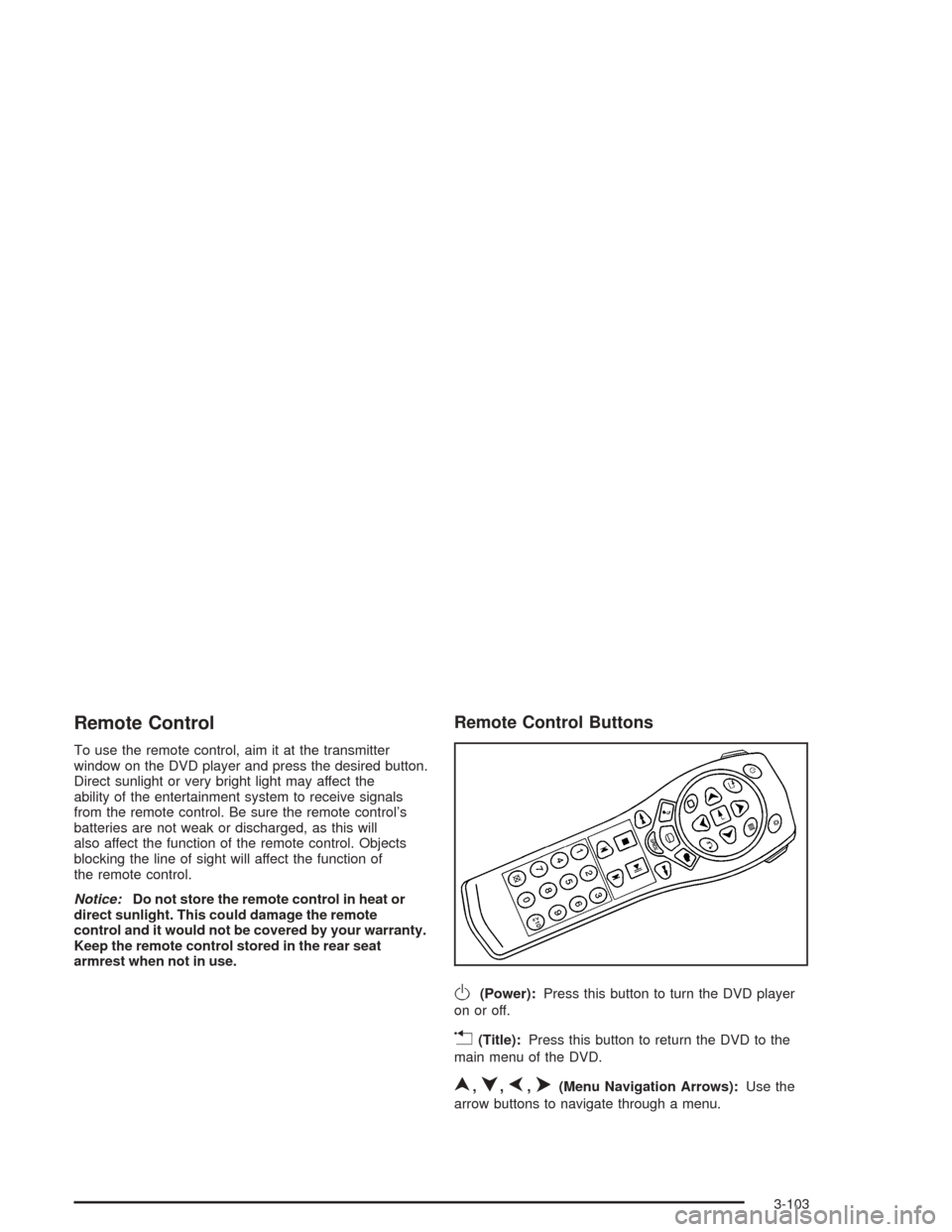
To use the remote control, aim it at the transmitter
window on the DVD player and press the desired button.
Direct sunlight or very bright light may affect the
ability of the entertainment system to receive signals
from the remote control. Be sure the remote control’s
batteries are not weak or discharged, as this will
also affect the function of the remote control. Objects
blocking the line of sight will affect the function of
the remote control.
Notice:Do not store the remote control in heat or
direct sunlight. This could damage the remote
control and it would not be covered by your warranty.
Keep the remote control stored in the rear seat
armrest when not in use.
Remote Control Buttons
O(Power):Press this button to turn the DVD player
on or off.
v(Title):Press this button to return the DVD to the
main menu of the DVD.
n,q,p,o(Menu Navigation Arrows):Use the
arrow buttons to navigate through a menu.
3-103
Page 226 of 426
Problem Recommended Action
When I return to the
DVD from the system
menu, sometimes it
plays from the beginning
and sometimes from
where it left off.If the stop button was
pressed once, it resumes
play from where it left off.
If the stop button was
pressed twice, it will start
at the beginning of the
DVD. However, if a change
was made to the menu
the DVD will start from
where it left off, even if
the stop button was only
pressed once.
The fast forward,
reverse, previous
and next functions
do not work.Some commands that do
one thing for DVDs will
not always work or
perform the same function
for audio CDs or games.
These functions may also
be disabled when the DVD
is playing the copyright
information or previews.Problem Recommended Action
My disc is stuck in the
player. The eject button
does not work.Press the eject button on
the DVD player. Turn the
power off, then on again,
then press the eject button
on the DVD player. Do not
attempt to force or remove
the disc from the player. If
the problem persists, return
to your dealer for further
assistance.
I lost the remote control
and/or the headphones.Contact your dealer for
assistance.
What is the best way
to clean the screen?Wipe the video screen with
a soft cloth that is slightly
damp with water.
Sometimes the wireless
headphone audio
cuts out or buzzes
for a moment, then it
comes back.This could be caused by
blocking the transmitting
area between the
headphones and the
transmitter on the DVD
player. Make sure nothing
is between the headphones
and the DVD player.
3-110
Page 231 of 426
When listening to a cassette tape, press the up or the
down arrow to go to the next or the previous selection.
The SEEK button is inactive if the tape mode on the
front radio is in use.
When listening to a CD, press the up arrow to hear the
next track on the CD. Press the down arrow to go
back to the start of the current track if more than ve
seconds have played. The SEEK button is inactive if the
CD mode on the front radio is in use.
xw(Volume):Press the up or down arrow to
increase or decrease the volume on the wired
headphones (not included). The arrows on the right is
for the right headphone and the arrows on the left is for
the left headphone.
Theft-Deterrent Feature
THEFTLOCK®is designed to discourage theft of your
radio. The feature works automatically by learning
a portion of the Vehicle Identication Number (VIN).
If the radio is moved to a different vehicle, it will
not operate and LOCKED will appear on the display.
With THEFTLOCK activated, your radio will not
operate if stolen.
Audio Steering Wheel Controls
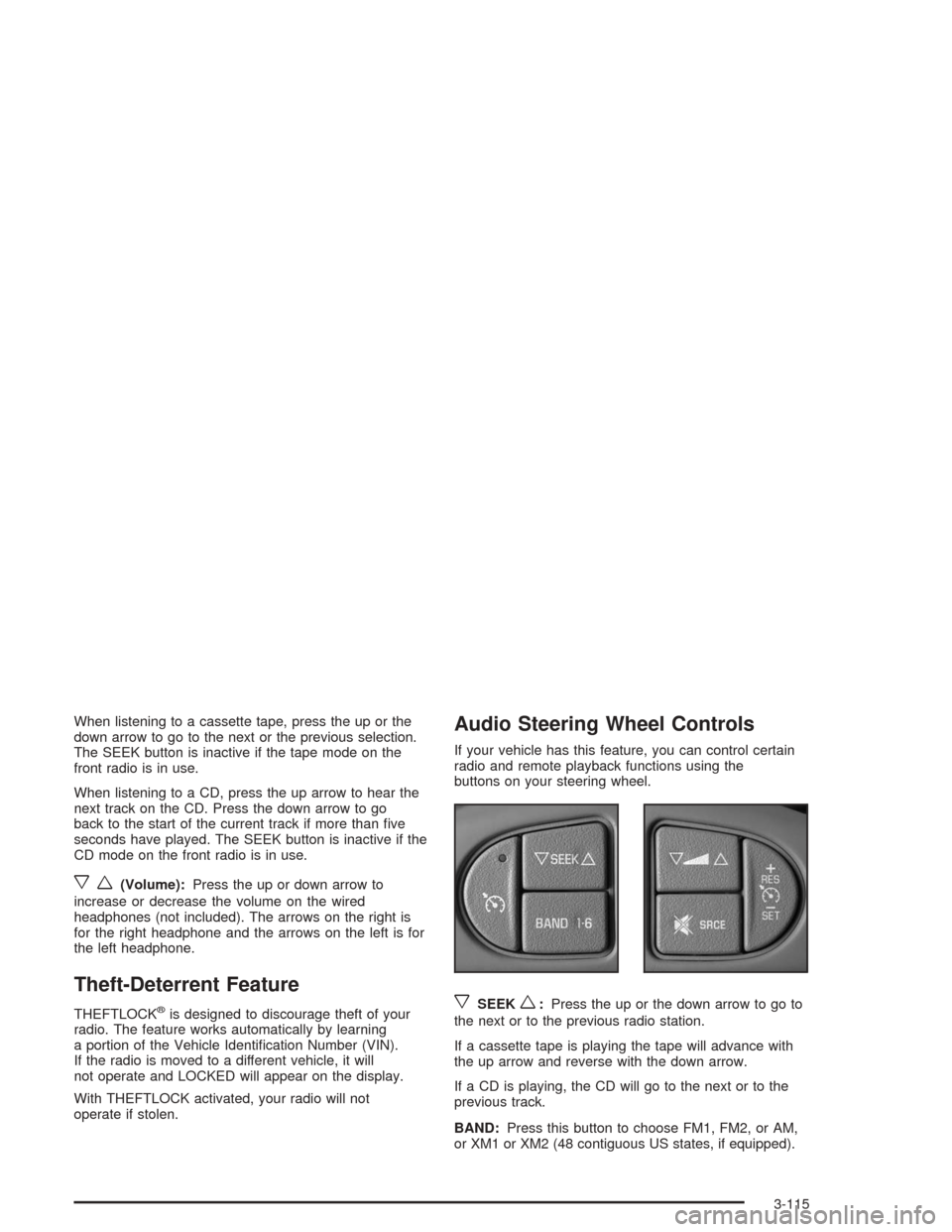
If your vehicle has this feature, you can control certain
radio and remote playback functions using the
buttons on your steering wheel.
xSEEKw:Press the up or the down arrow to go to
the next or to the previous radio station.
If a cassette tape is playing the tape will advance with
the up arrow and reverse with the down arrow.
If a CD is playing, the CD will go to the next or to the
previous track.
BAND:Press this button to choose FM1, FM2, or AM,
or XM1 or XM2 (48 contiguous US states, if equipped).
3-115
Page 243 of 426
Anti-lock Brake System (ABS)
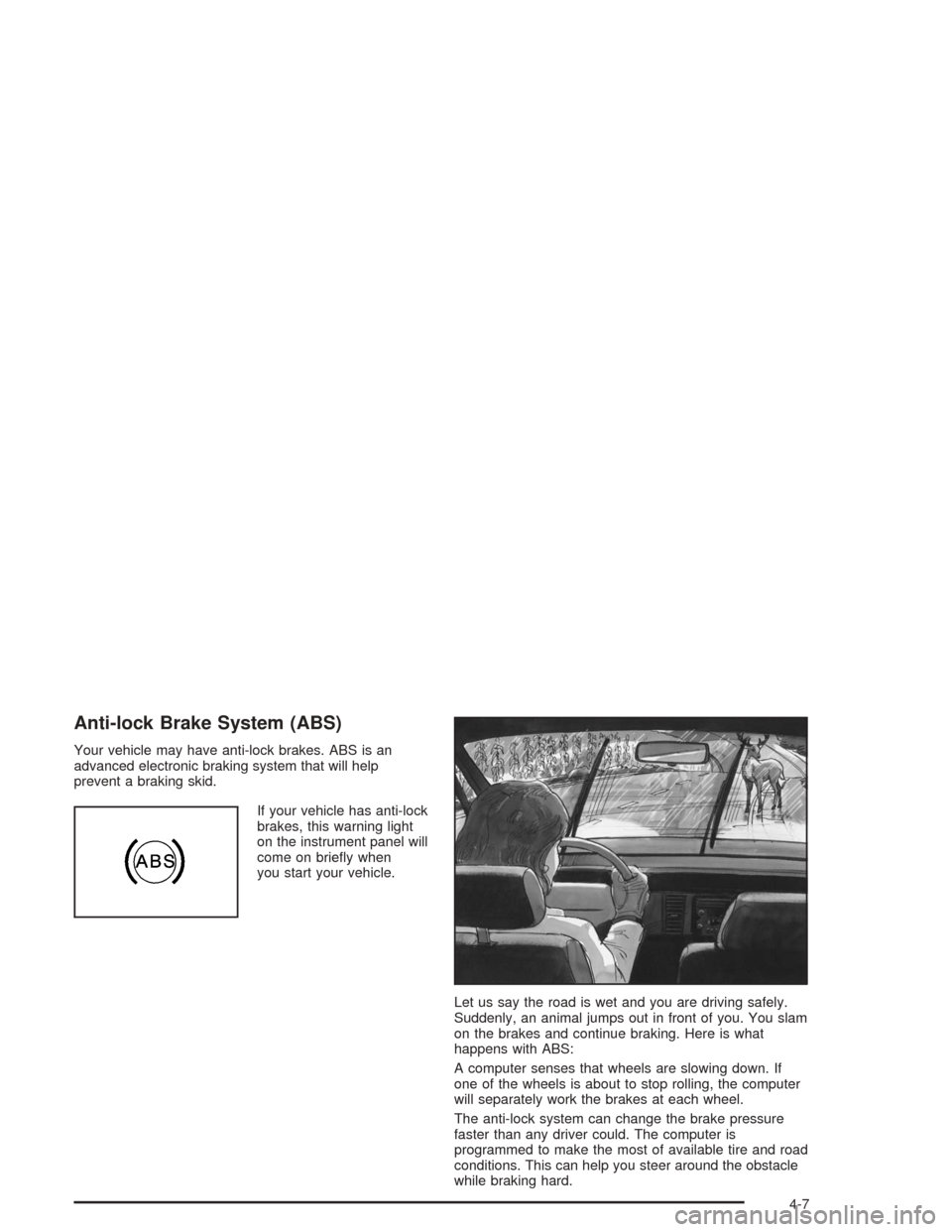
Your vehicle may have anti-lock brakes. ABS is an
advanced electronic braking system that will help
prevent a braking skid.
If your vehicle has anti-lock
brakes, this warning light
on the instrument panel will
come on briey when
you start your vehicle.
Let us say the road is wet and you are driving safely.
Suddenly, an animal jumps out in front of you. You slam
on the brakes and continue braking. Here is what
happens with ABS:
A computer senses that wheels are slowing down. If
one of the wheels is about to stop rolling, the computer
will separately work the brakes at each wheel.
The anti-lock system can change the brake pressure
faster than any driver could. The computer is
programmed to make the most of available tire and road
conditions. This can help you steer around the obstacle
while braking hard.
4-7
Page 244 of 426
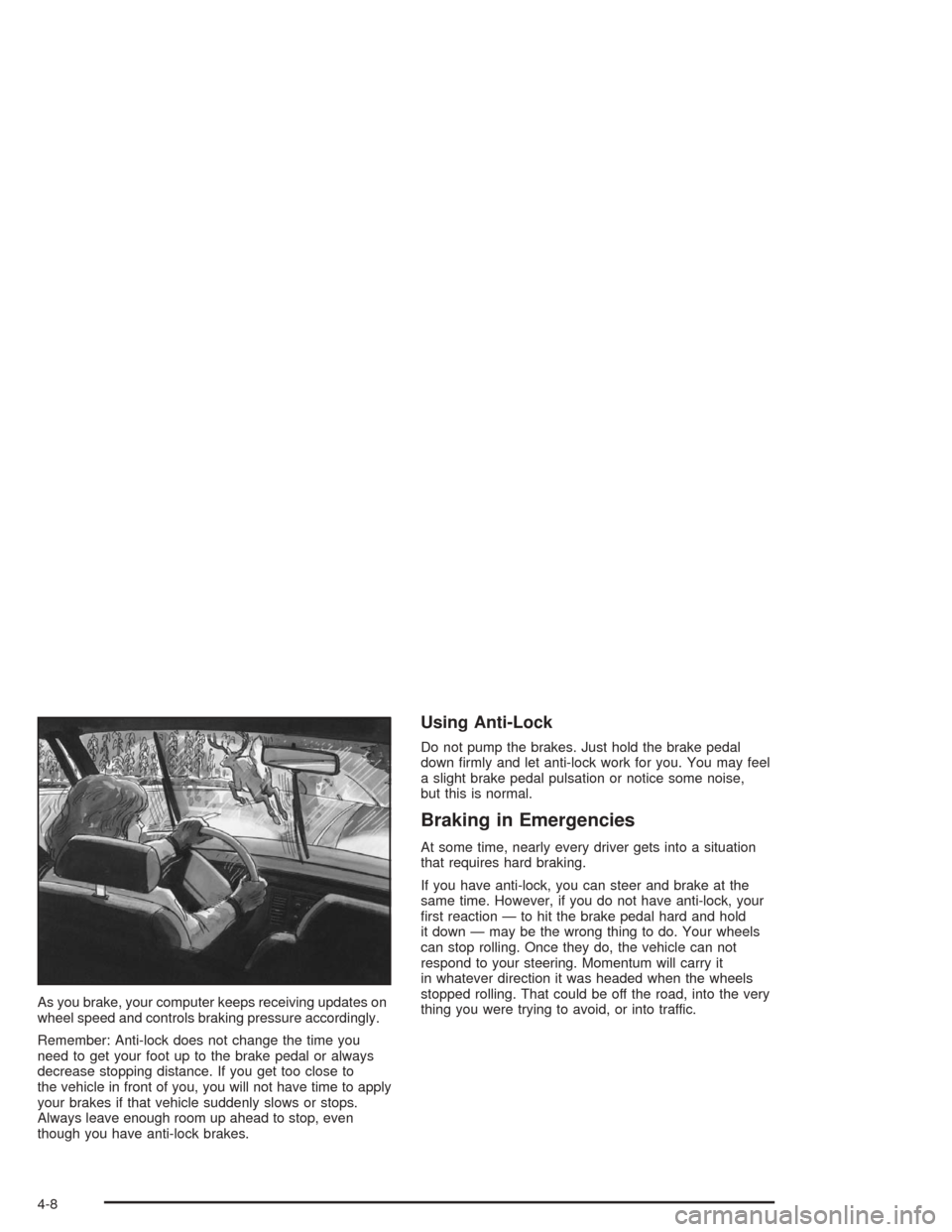
As you brake, your computer keeps receiving updates on
wheel speed and controls braking pressure accordingly.
Remember: Anti-lock does not change the time you
need to get your foot up to the brake pedal or always
decrease stopping distance. If you get too close to
the vehicle in front of you, you will not have time to apply
your brakes if that vehicle suddenly slows or stops.
Always leave enough room up ahead to stop, even
though you have anti-lock brakes.
Using Anti-Lock
Do not pump the brakes. Just hold the brake pedal
down rmly and let anti-lock work for you. You may feel
a slight brake pedal pulsation or notice some noise,
but this is normal.
Braking in Emergencies
At some time, nearly every driver gets into a situation
that requires hard braking.
If you have anti-lock, you can steer and brake at the
same time. However, if you do not have anti-lock, your
rst reaction — to hit the brake pedal hard and hold
it down — may be the wrong thing to do. Your wheels
can stop rolling. Once they do, the vehicle can not
respond to your steering. Momentum will carry it
in whatever direction it was headed when the wheels
stopped rolling. That could be off the road, into the very
thing you were trying to avoid, or into traffic.
4-8
Page 245 of 426
If you do not have anti-lock, use a “squeeze” braking
technique. This will give you maximum braking
while maintaining steering control. You can do this by
pushing on the brake pedal with steadily increasing
pressure.
In an emergency, you will probably want to squeeze the
brakes hard without locking the wheels. If you hear or
feel the wheels sliding, ease off the brake pedal.
This will help you retain steering control. If youdohave
anti-lock, it is different. See “Anti-Lock Brake System”
in this section.
In many emergencies, steering can help you more than
even the very best braking.Enhanced Traction System (ETS)
Your vehicle may have an Enhanced Traction
System (ETS) that limits wheel spin. This is especially
useful in slippery road conditions. The system operates
only if it senses that one or both of the front wheels
are spinning or beginning to lose traction. When
this happens, the system reduces engine power and
may also upshift the transaxle to limit wheel spin.
This light will come on
when your Enhanced
Traction System is
engaged and limiting
wheel spin.
You may feel or hear the system working, but this is
normal. This light will also come on when the anti-lock
brake system is working.
If your vehicle is in cruise control when the enhanced
traction system begins to limit wheel spin, the cruise
control will automatically disengage. When road
conditions allow you to safely use it again, you may
re-engage the cruise control. See “Cruise Control” under
Turn Signal/Multifunction Lever on page 3-8Turn
Signal/Multifunction Lever.
4-9
Page 247 of 426
Steering
Power Steering
If you lose power steering assist because the engine
stops or the system is not functioning, you can steer but
it will take much more effort.
Steering Tips
Driving on Curves
It is important to take curves at a reasonable speed.
A lot of the “driver lost control” accidents mentioned on
the news happen on curves.
Here is why:
Experienced driver or beginner, each of us is subject to
the same laws of physics when driving on curves.
The traction of the tires against the road surface makes
it possible for the vehicle to change its path when
you turn the front wheels. If there is no traction, inertia
will keep the vehicle going in the same direction. If
you have ever tried to steer a vehicle on wet ice, you
will understand this.
The traction you can get in a curve depends on the
condition of your tires and the road surface, the angle at
which the curve is banked, and your speed. While you are
in a curve, speed is the one factor you can control.Suppose you are steering through a sharp curve.
Then you suddenly apply the brakes. Both control
systems — steering and braking — have to do their work
where the tires meet the road. Unless you have
four-wheel anti-lock brakes, adding the hard braking can
demand too much of those places. You can lose control.
The same thing can happen if you are steering through
a sharp curve and you suddenly accelerate. Those
two control systems — steering and acceleration — can
overwhelm those places where the tires meet the
road and make you lose control.
What should you do if this ever happens? Ease up on
the brake or accelerator pedal, steer the vehicle the way
you want it to go, and slow down.
Speed limit signs near curves warn that you should
adjust your speed. Of course, the posted speeds
are based on good weather and road conditions. Under
less favorable conditions you will want to go slower.
If you need to reduce your speed as you approach
a curve, do it before you enter the curve, while your front
wheels are straight ahead.
Try to adjust your speed so you can “drive” through the
curve. Maintain a reasonable, steady speed. Wait to
accelerate until you are out of the curve, and then
accelerate gently into the straightaway.
4-11
Page 248 of 426
Steering in Emergencies
There are times when steering can be more effective
than braking. For example, you come over a hill and nd
a truck stopped in your lane, or a car suddenly pulls
out from nowhere, or a child darts out from between
parked cars and stops right in front of you. You
can avoid these problems by braking — if you can stop
in time. But sometimes you can not; there is not
room. That is the time for evasive action — steering
around the problem.
Your vehicle can perform very well in emergencies like
these. First apply your brakes — but, unless you
have anti-lock, not enough to lock your wheels.
SeeBraking on page 4-6. It is better to remove as much
speed as you can from a possible collision. Then
steer around the problem, to the left or right depending
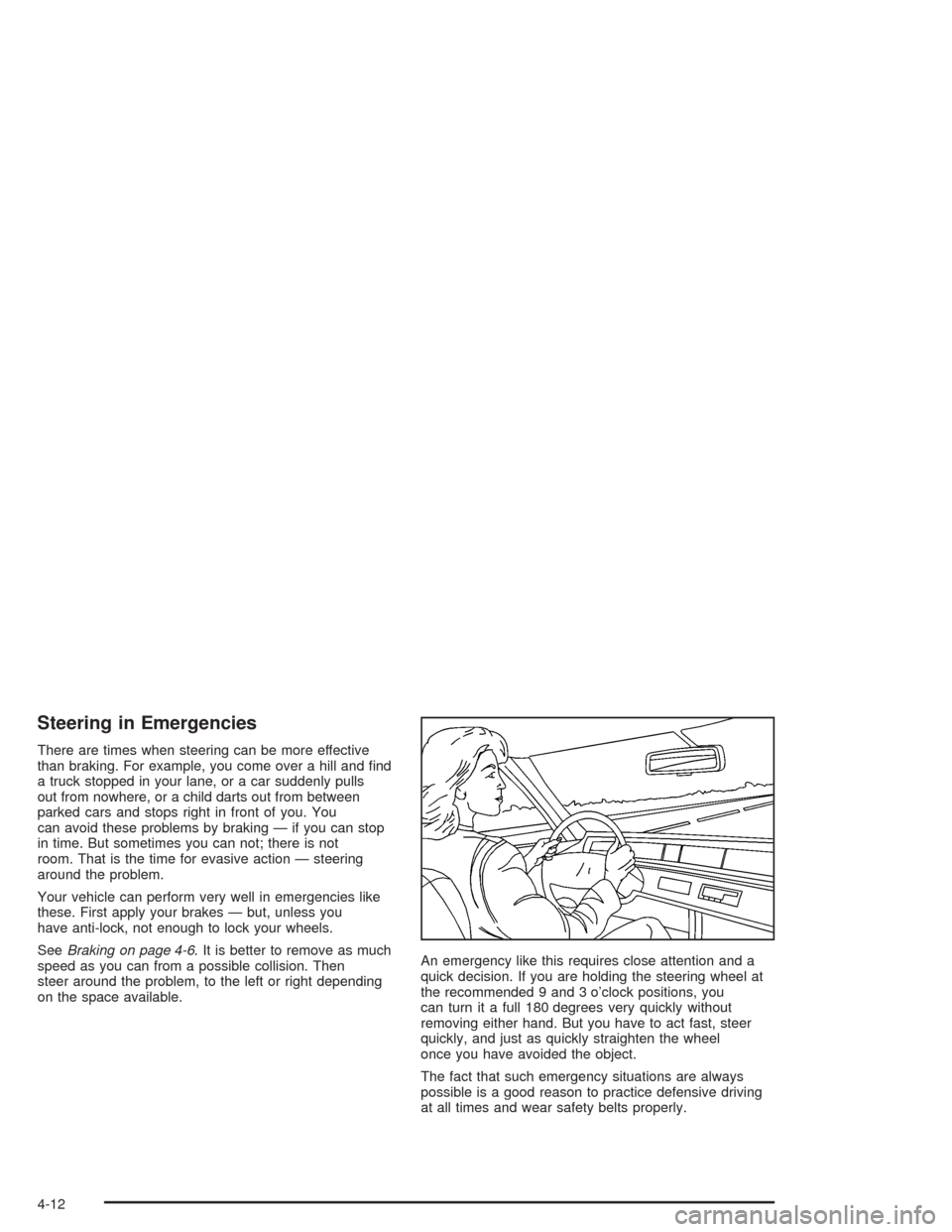
on the space available.An emergency like this requires close attention and a
quick decision. If you are holding the steering wheel at
the recommended 9 and 3 o’clock positions, you
can turn it a full 180 degrees very quickly without
removing either hand. But you have to act fast, steer
quickly, and just as quickly straighten the wheel
once you have avoided the object.
The fact that such emergency situations are always
possible is a good reason to practice defensive driving
at all times and wear safety belts properly.
4-12