2003 BMW 760LI SEDAN navigation
[x] Cancel search: navigationPage 136 of 229
Navigation
134
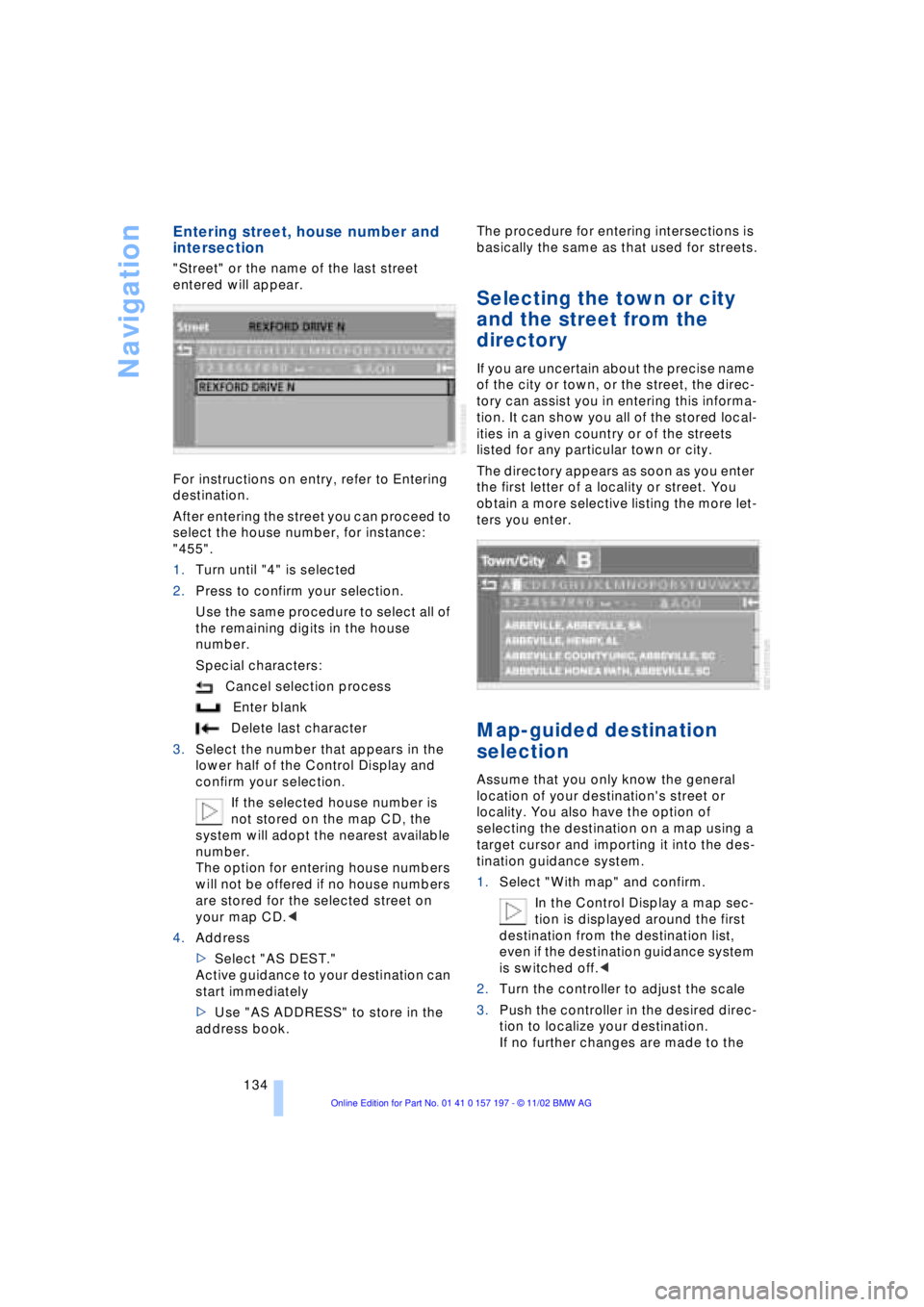
Entering street, house number and
intersection
"Street" or the name of the last street
entered will appear.
For instructions on entry, refer to Entering
destination.
After entering the street you can proceed to
select the house number, for instance:
"455".
1.Turn until "4" is selected
2.Press to confirm your selection.
Use the same procedure to select all of
the remaining digits in the house
number.
Special characters:
Cancel selection process
Enter blank
Delete last character
3.Select the number that appears in the
lower half of the Control Display and
confirm your selection.
If the selected house number is
not stored on the map CD, the
system will adopt the nearest available
number.
The option for entering house numbers
will not be offered if no house numbers
are stored for the selected street on
your map CD.<
4.Address
>Select "AS DEST."
Active guidance to your destination can
start immediately
>Use "AS ADDRESS" to store in the
address book.The procedure for entering intersections is
basically the same as that used for streets.
Selecting the town or city
and the street from the
directory
If you are uncertain about the precise name
of the city or town, or the street, the direc-
tory can assist you in entering this informa-
tion. It can show you all of the stored local-
ities in a given country or of the streets
listed for any particular town or city.
The directory appears as soon as you enter
the first letter of a locality or street. You
obtain a more selective listing the more let-
ters you enter.
Map-guided destination
selection
Assume that you only know the general
location of your destination's street or
locality. You also have the option of
selecting the destination on a map using a
target cursor and importing it into the des-
tination guidance system.
1.Select "With map" and confirm.
In the Control Display a map sec-
tion is displayed around the first
destination from the destination list,
even if the destination guidance system
is switched off.<
2.Turn the controller to adjust the scale
3.Push the controller in the desired direc-
tion to localize your destination.
If no further changes are made to the
Page 137 of 229
At a glance
Controls
Driving tips
Communications
Navigation
Entertainment
Mobility
Reference
135
map, after a brief pause the name of the
street or locality marked by the cursor
will appear on the screen.
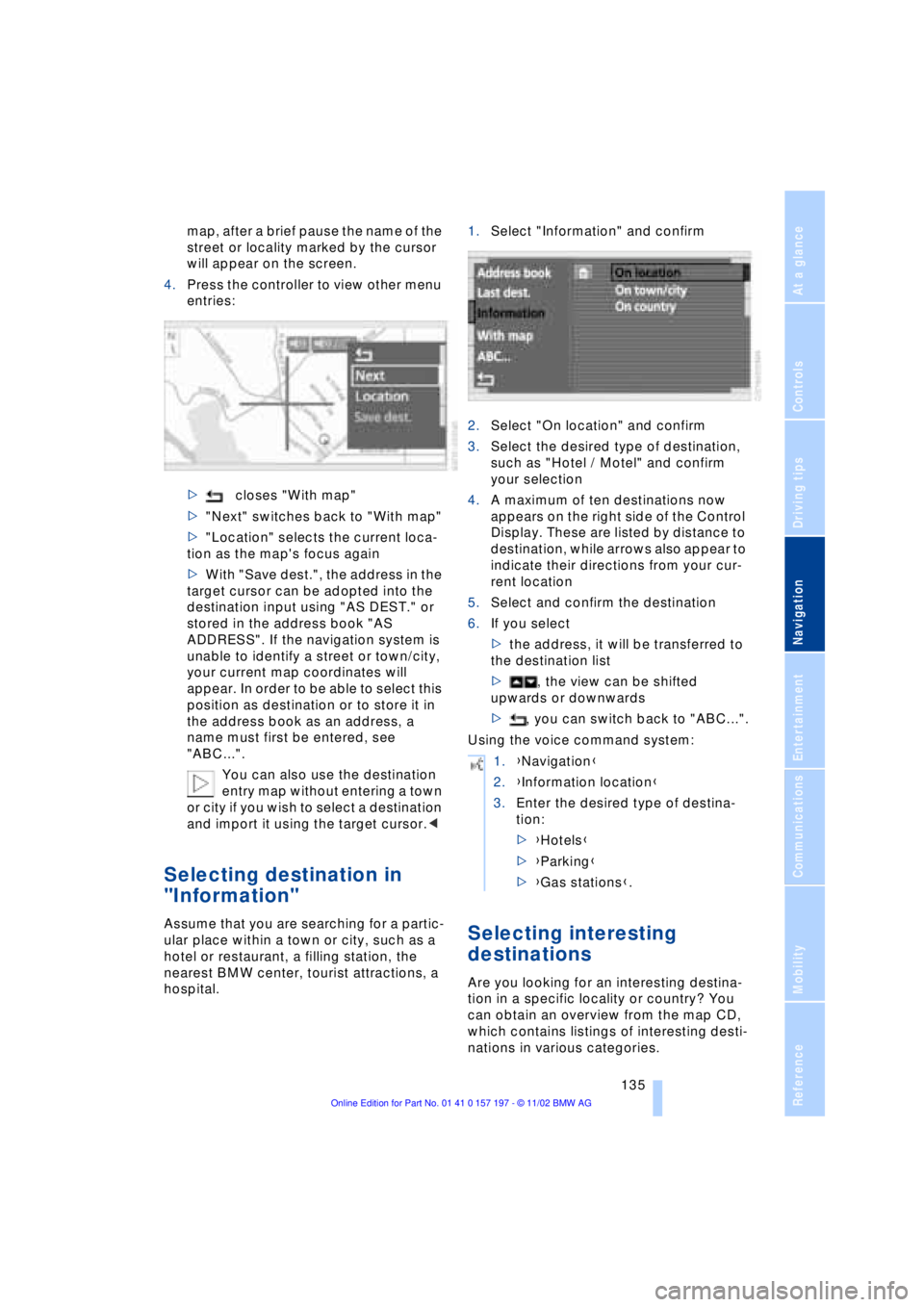
4.Press the controller to view other menu
entries:
>closes "With map"
>"Next" switches back to "With map"
>"Location" selects the current loca-
tion as the map's focus again
>With "Save dest.", the address in the
target cursor can be adopted into the
destination input using "AS DEST." or
stored in the address book "AS
ADDRESS". If the navigation system is
unable to identify a street or town/city,
your current map coordinates will
appear. In order to be able to select this
position as destination or to store it in
the address book as an address, a
name must first be entered, see
"ABC...".
You can also use the destination
entry map without entering a town
or city if you wish to select a destination
and import it using the target cursor.<
Selecting destination in
"Information"
Assume that you are searching for a partic-
ular place within a town or city, such as a
hotel or restaurant, a filling station, the
nearest BMW center, tourist attractions, a
hospital.1.Select "Information" and confirm
2.Select "On location" and confirm
3.Select the desired type of destination,
such as "Hotel / Motel" and confirm
your selection
4.A maximum of ten destinations now
appears on the right side of the Control
Display. These are listed by distance to
destination, while arrows also appear to
indicate their directions from your cur-
rent location
5.Select and confirm the destination
6.If you select
>the address, it will be transferred to
the destination list
>, the view can be shifted
upwards or downwards
>, you can switch back to "ABC...".
Using the voice command system:Selecting interesting
destinations
Are you looking for an interesting destina-
tion in a specific locality or country? You
can obtain an overview from the map CD,
which contains listings of interesting desti-
nations in various categories.
1.{Navigation}
2.{Information location}
3.Enter the desired type of destina-
tion:
>{Hotels}
>{Parking}
>{Gas stations}.
Page 138 of 229
Navigation
136 1.Select "Information" and confirm
2.Select "On town/city" or "On country"
and confirm. A screen for entering the
town/city appears on the Control Dis-
play
3.Enter the desired town/city or country,
select "Next" and confirm
4.Select your destination category, such
as "Airport" and confirm your selection.
"ABC..." appears on the Control Display
screen along with an alphabetical listing
containing all entries in the selected
destination category. You can obtain a
more selective display of the informa-
tion contained in the directory by
entering one or more letters
5.Select the desired entry.
Using the voice command system:
Recent destinations
Returning to a recent destination
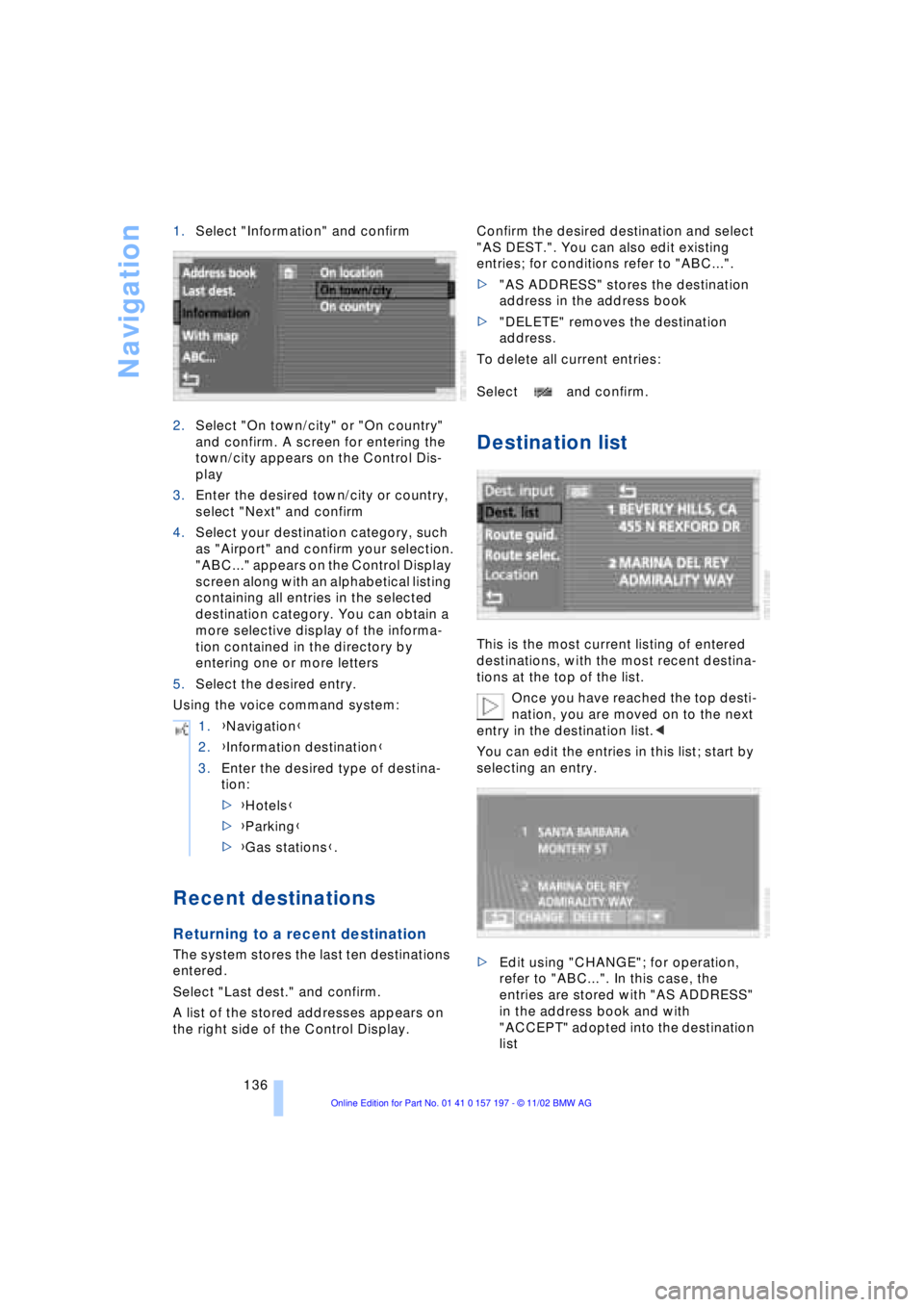
The system stores the last ten destinations
entered.
Select "Last dest." and confirm.
A list of the stored addresses appears on
the right side of the Control Display.Confirm the desired destination and select
"AS DEST.". You can also edit existing
entries; for conditions refer to "ABC...".
>"AS ADDRESS" stores the destination
address in the address book
>"DELETE" removes the destination
address.
To delete all current entries:
Select and confirm.
Destination list
This is the most current listing of entered
destinations, with the most recent destina-
tions at the top of the list.
Once you have reached the top desti-
nation, you are moved on to the next
entry in the destination list.<
You can edit the entries in this list; start by
selecting an entry.
>Edit using "CHANGE"; for operation,
refer to "ABC...". In this case, the
entries are stored with "AS ADDRESS"
in the address book and with
"ACCEPT" adopted into the destination
list 1.{Navigation}
2.{Information destination}
3.Enter the desired type of destina-
tion:
>{Hotels}
>{Parking}
>{Gas stations}.
Page 139 of 229
At a glance
Controls
Driving tips
Communications
Navigation
Entertainment
Mobility
Reference
137
>Use "DELETE" to remove an entry
>Use to move the address in the
destination list. This can change the
order of the destination list.
To delete all current entries:
Select and confirm.
Selecting route
The navigation system also provides you
with the option of selecting a specific travel
route. You can define criteria for deter-
mining your individual route.
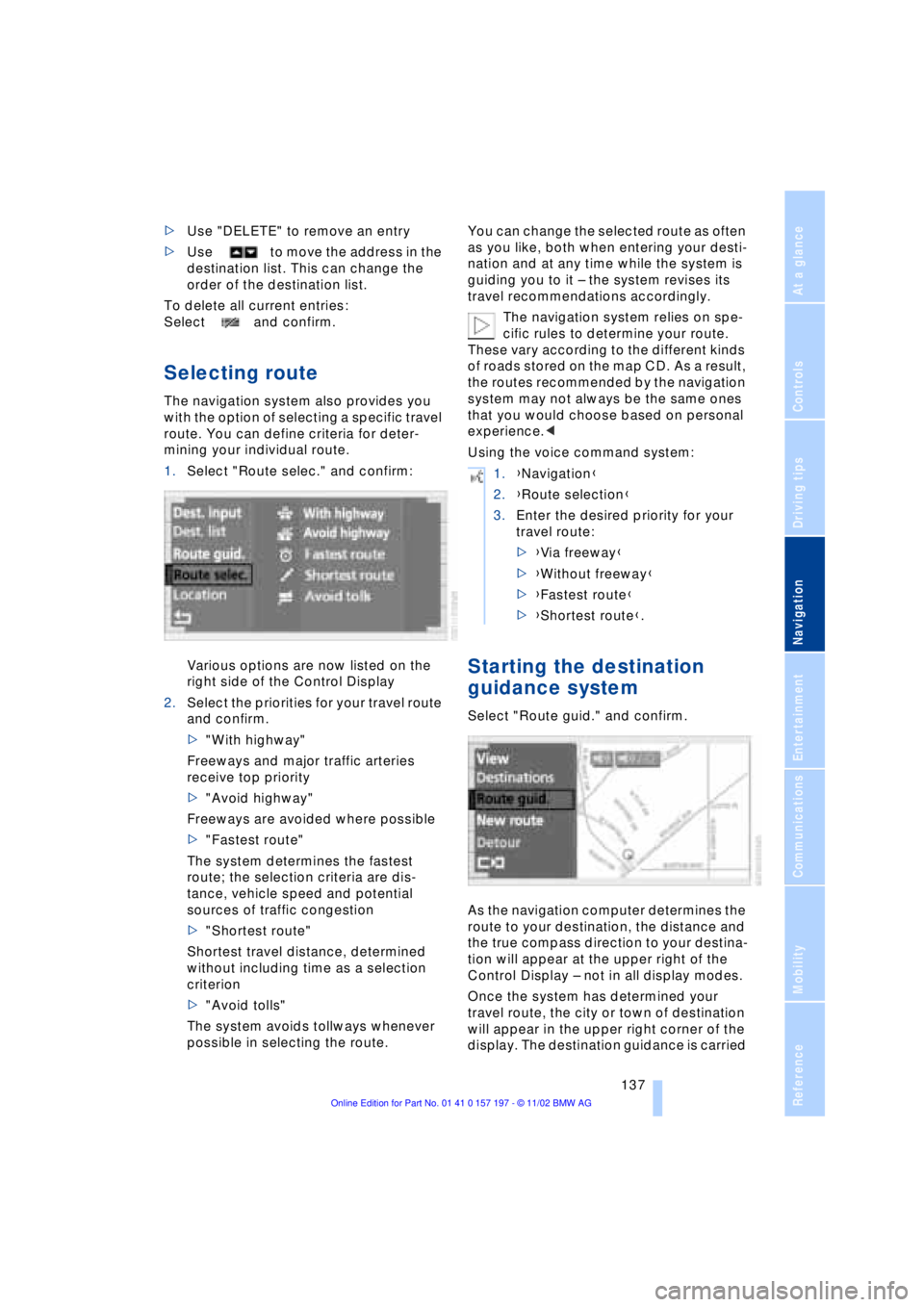
1.Select "Route selec." and confirm:
Various options are now listed on the
right side of the Control Display
2.Select the priorities for your travel route
and confirm.
>"With highway"
Freeways and major traffic arteries
receive top priority
>"Avoid highway"
Freeways are avoided where possible
>"Fastest route"
The system determines the fastest
route; the selection criteria are dis-
tance, vehicle speed and potential
sources of traffic congestion
>"Shortest route"
Shortest travel distance, determined
without including time as a selection
criterion
>"Avoid tolls"
The system avoids tollways whenever
possible in selecting the route.You can change the selected route as often
as you like, both when entering your desti-
nation and at any time while the system is
guiding you to it Ð the system revises its
travel recommendations accordingly.
The navigation system relies on spe-
cific rules to determine your route.
These vary according to the different kinds
of roads stored on the map CD. As a result,
the routes recommended by the navigation
system may not always be the same ones
that you would choose based on personal
experience.<
Using the voice command system:
Starting the destination
guidance system
Select "Route guid." and confirm.
As the navigation computer determines the
route to your destination, the distance and
the true compass direction to your destina-
tion will appear at the upper right of the
Control Display Ð not in all display modes.
Once the system has determined your
travel route, the city or town of destination
will appear in the upper right corner of the
display. The destination guidance is carried
1.{Navigation}
2.{Route selection}
3.Enter the desired priority for your
travel route:
>{Via freeway}
>{Without freeway}
>{Fastest route}
>{Shortest route}.
Page 140 of 229
Navigation
138 out in dependence on the selected view,
refer to Displaying route.
The system also provides you with voice
instructions.
You will also be guided to your desti-
nation if you select a different menu,
e.g. "Entertainment" or "Climate". You will
be informed of a required change in direc-
tion in good time before each intersection
with voice instructions.<
Displaying route
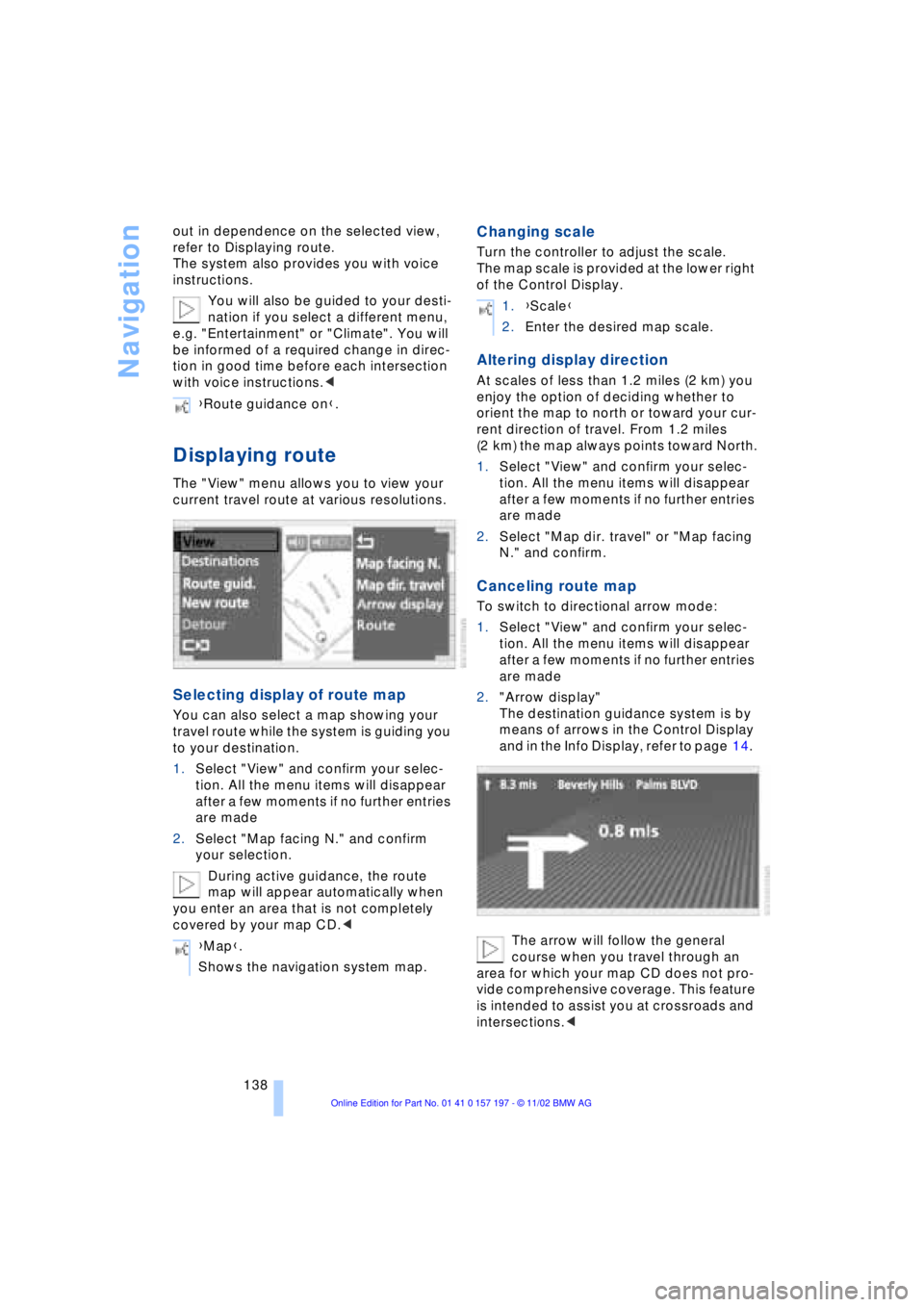
The "View" menu allows you to view your
current travel route at various resolutions.
Selecting display of route map
You can also select a map showing your
travel route while the system is guiding you
to your destination.
1.Select "View" and confirm your selec-
tion. All the menu items will disappear
after a few moments if no further entries
are made
2.Select "Map facing N." and confirm
your selection.
During active guidance, the route
map will appear automatically when
you enter an area that is not completely
covered by your map CD.<
Changing scale
Turn the controller to adjust the scale.
The map scale is provided at the lower right
of the Control Display.
Altering display direction
At scales of less than 1.2 miles (2 km) you
enjoy the option of deciding whether to
orient the map to north or toward your cur-
rent direction of travel. From 1.2 miles
(2 km) the map always points toward North.
1.Select "View" and confirm your selec-
tion. All the menu items will disappear
after a few moments if no further entries
are made
2.Select "Map dir. travel" or "Map facing
N." and confirm.
Canceling route map
To switch to directional arrow mode:
1.Select "View" and confirm your selec-
tion. All the menu items will disappear
after a few moments if no further entries
are made
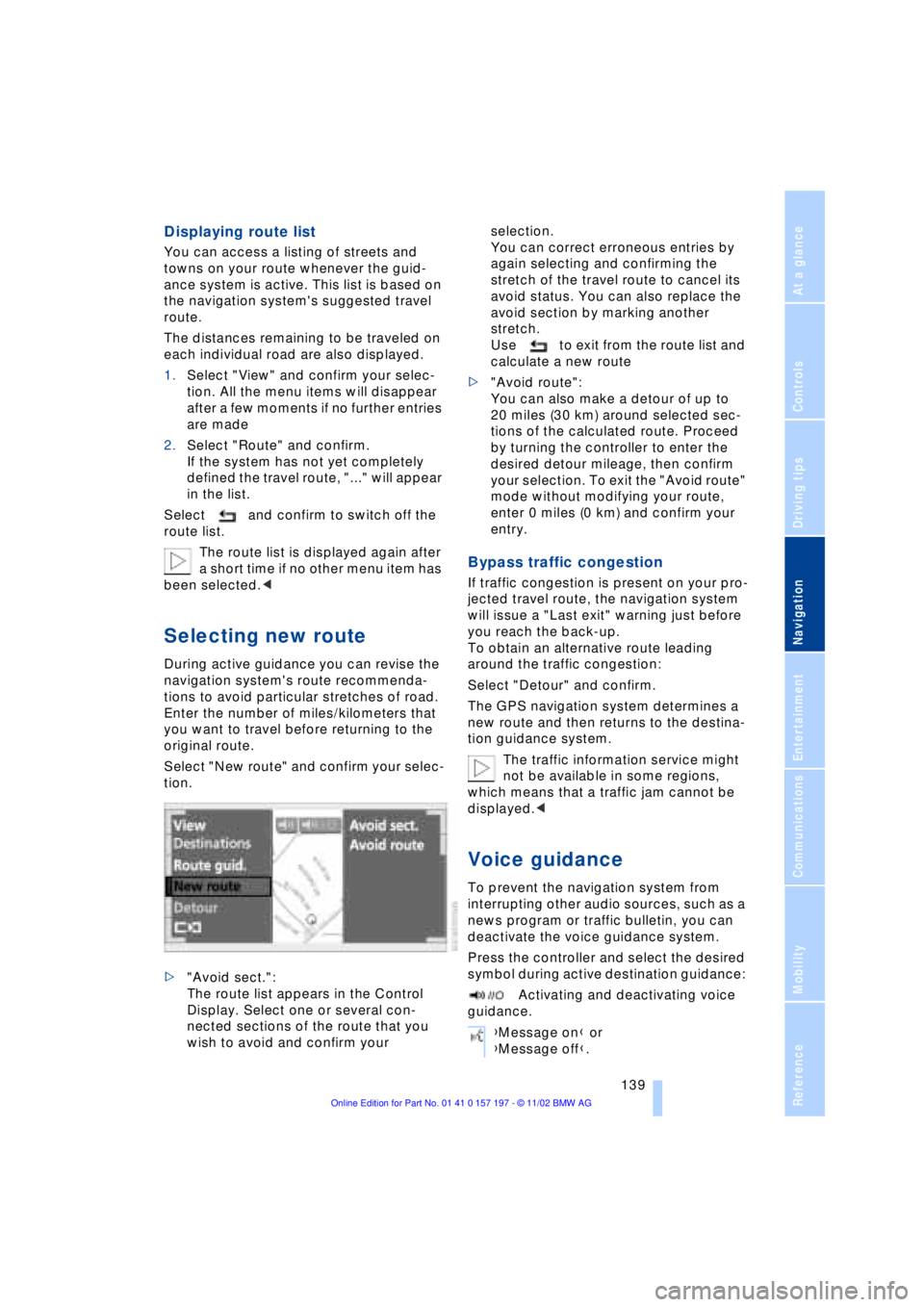
2."Arrow display"
The destination guidance system is by
means of arrows in the Control Display
and in the Info Display, refer to page 14.
The arrow will follow the general
course when you travel through an
area for which your map CD does not pro-
vide comprehensive coverage. This feature
is intended to assist you at crossroads and
intersections.< {Route guidance on}.
{Map}.
Shows the navigation system map.
1.{Scale}
2.Enter the desired map scale.
Page 141 of 229
At a glance
Controls
Driving tips
Communications
Navigation
Entertainment
Mobility
Reference
139
Displaying route list
You can access a listing of streets and
towns on your route whenever the guid-
ance system is active. This list is based on
the navigation system's suggested travel
route.
The distances remaining to be traveled on
each individual road are also displayed.
1.Select "View" and confirm your selec-
tion. All the menu items will disappear
after a few moments if no further entries
are made
2.Select "Route" and confirm.
If the system has not yet completely
defined the travel route, "..." will appear
in the list.
Select and confirm to switch off the
route list.
The route list is displayed again after
a short time if no other menu item has
been selected.<
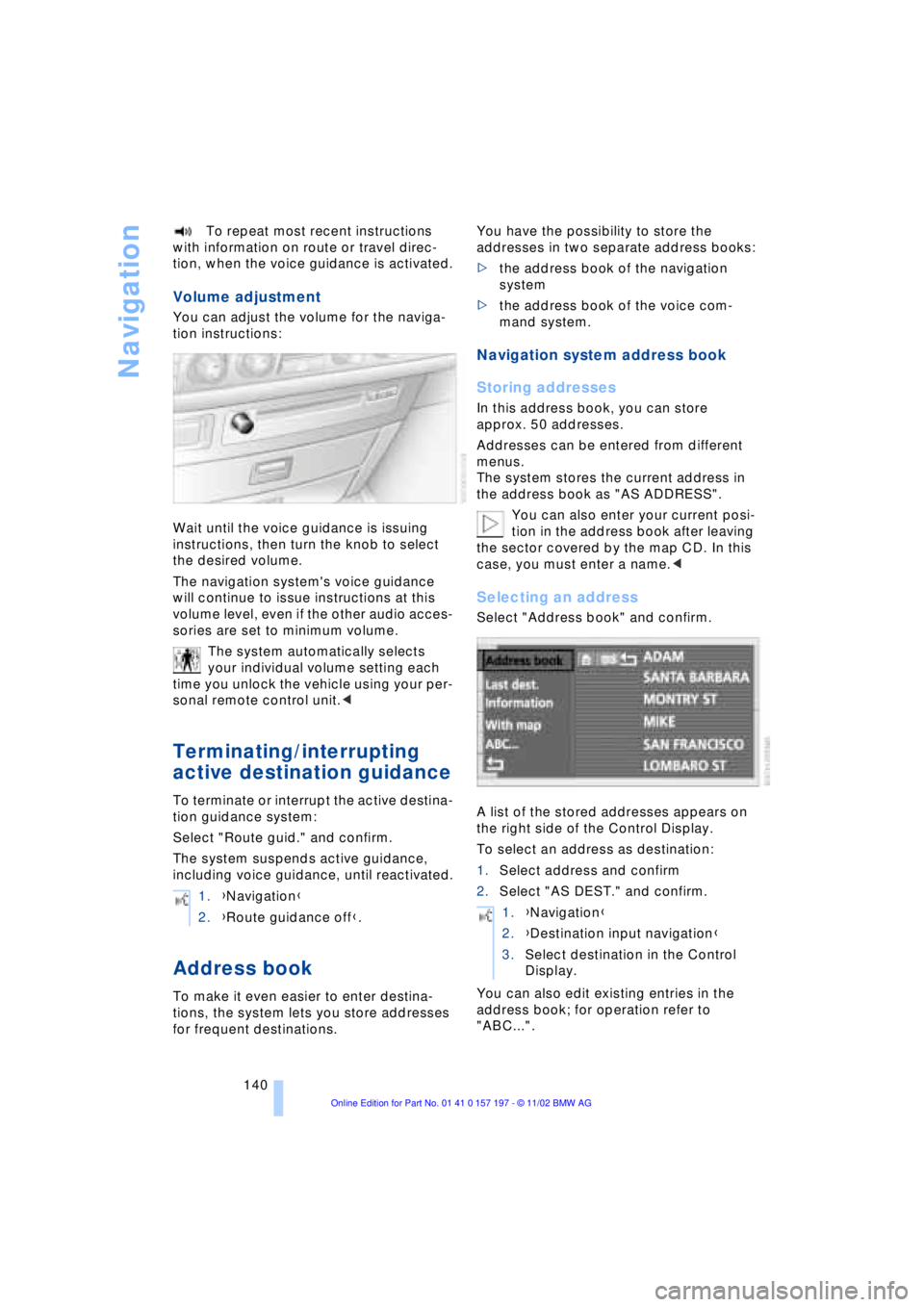
Selecting new route
During active guidance you can revise the
navigation system's route recommenda-
tions to avoid particular stretches of road.
Enter the number of miles/kilometers that
you want to travel before returning to the
original route.
Select "New route" and confirm your selec-
tion.
>"Avoid sect.":
The route list appears in the Control
Display. Select one or several con-
nected sections of the route that you
wish to avoid and confirm your selection.
You can correct erroneous entries by
again selecting and confirming the
stretch of the travel route to cancel its
avoid status. You can also replace the
avoid section by marking another
stretch.
Use to exit from the route list and
calculate a new route
>"Avoid route":
You can also make a detour of up to
20 miles (30 km) around selected sec-
tions of the calculated route. Proceed
by turning the controller to enter the
desired detour mileage, then confirm
your selection. To exit the "Avoid route"
mode without modifying your route,
enter 0 miles (0 km) and confirm your
entry.
Bypass traffic congestion
If traffic congestion is present on your pro-
jected travel route, the navigation system
will issue a "Last exit" warning just before
you reach the back-up.
To obtain an alternative route leading
around the traffic congestion:
Select "Detour" and confirm.
The GPS navigation system determines a
new route and then returns to the destina-
tion guidance system.
The traffic information service might
not be available in some regions,
which means that a traffic jam cannot be
displayed.<
Voice guidance
To prevent the navigation system from
interrupting other audio sources, such as a
news program or traffic bulletin, you can
deactivate the voice guidance system.
Press the controller and select the desired
symbol during active destination guidance:
Activating and deactivating voice
guidance.
{Message on} or
{Message off}.
Page 142 of 229
Navigation
140 To repeat most recent instructions
with information on route or travel direc-
tion, when the voice guidance is activated.
Volume adjustment
You can adjust the volume for the naviga-
tion instructions:
Wait until the voice guidance is issuing
instructions, then turn the knob to select
the desired volume.
The navigation system's voice guidance
will continue to issue instructions at this
volume level, even if the other audio acces-
sories are set to minimum volume.
The system automatically selects
your individual volume setting each
time you unlock the vehicle using your per-
sonal remote control unit.<
Terminating/interrupting
active destination guidance
To terminate or interrupt the active destina-
tion guidance system:
Select "Route guid." and confirm.
The system suspends active guidance,
including voice guidance, until reactivated.
Address book
To make it even easier to enter destina-
tions, the system lets you store addresses
for frequent destinations.You have the possibility to store the
addresses in two separate address books:
>the address book of the navigation
system
>the address book of the voice com-
mand system.
Navigation system address book
Storing addresses
In this address book, you can store
approx. 50 addresses.
Addresses can be entered from different
menus.
The system stores the current address in
the address book as "AS ADDRESS".
You can also enter your current posi-
tion in the address book after leaving
the sector covered by the map CD. In this
case, you must enter a name.<
Selecting an address
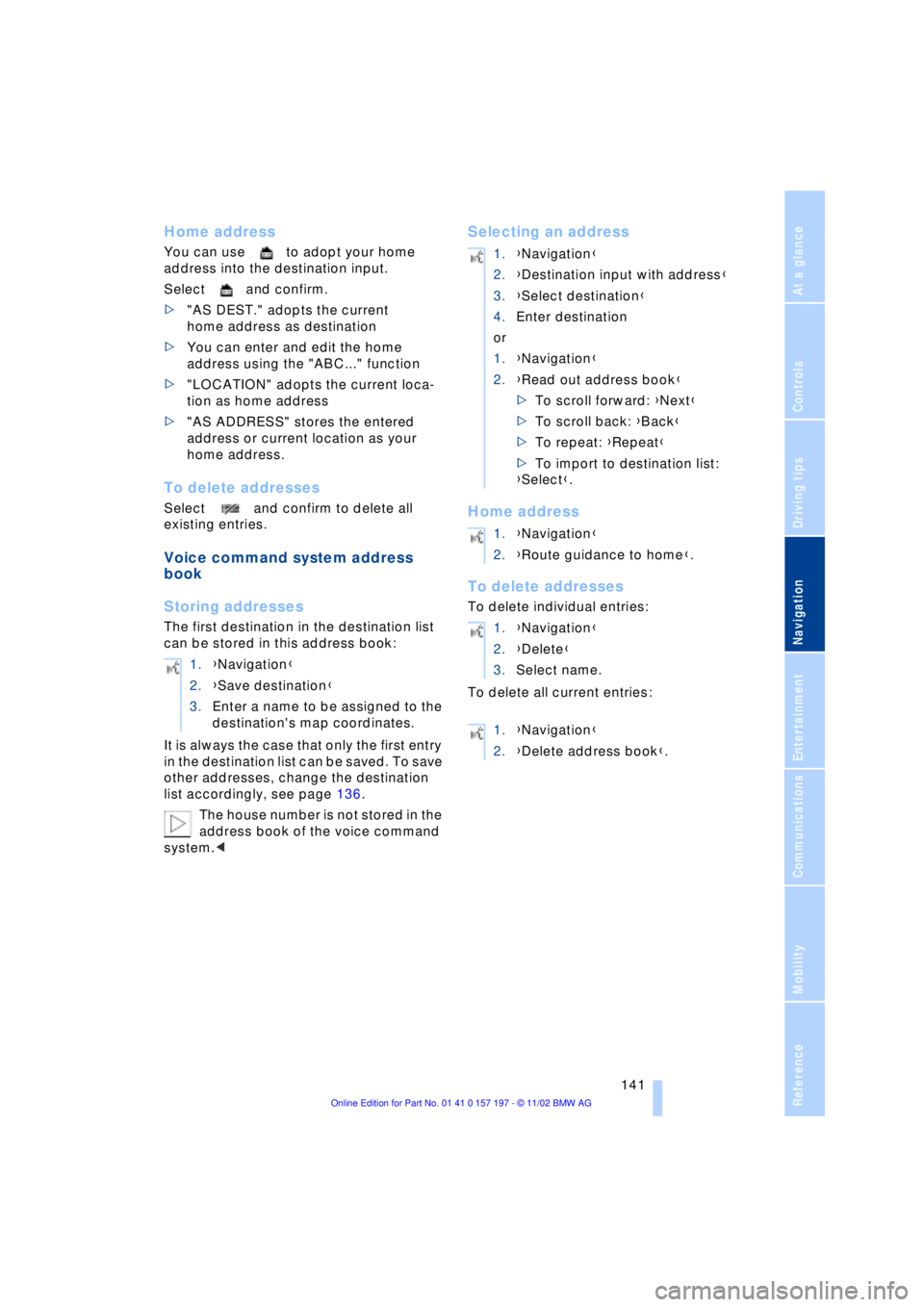
Select "Address book" and confirm.
A list of the stored addresses appears on
the right side of the Control Display.
To select an address as destination:
1.Select address and confirm
2.Select "AS DEST." and confirm.
You can also edit existing entries in the
address book; for operation refer to
"ABC...". 1.{Navigation}
2.{Route guidance off}.
1.{Navigation}
2.{Destination input navigation}
3.Select destination in the Control
Display.
Page 143 of 229
At a glance
Controls
Driving tips
Communications
Navigation
Entertainment
Mobility
Reference
141
Home address
You can use to adopt your home
address into the destination input.
Select and confirm.
>"AS DEST." adopts the current
home address as destination
>You can enter and edit the home
address using the "ABC..." function
>"LOCATION" adopts the current loca-
tion as home address
>"AS ADDRESS" stores the entered
address or current location as your
home address.
To delete addresses
Select and confirm to delete all
existing entries.
Voice command system address
book
Storing addresses
The first destination in the destination list
can be stored in this address book:
It is always the case that only the first entry
in the destination list can be saved. To save
other addresses, change the destination
list accordingly, see page 136.
The house number is not stored in the
address book of the voice command
system.<
Selecting an address
Home address
To delete addresses
To delete individual entries:
To delete all current entries:
1.{Navigation}
2.{Save destination}
3.Enter a name to be assigned to the
destination's map coordinates.
1.{Navigation}
2.{Destination input with address}
3.{Select destination}
4.Enter destination
or
1.{Navigation}
2.{Read out address book}
>To scroll forward: {Next}
>To scroll back: {Back}
>To repeat: {Repeat}
>To import to destination list:
{Select}.
1.{Navigation}
2.{Route guidance to home}.
1.{Navigation}
2.{Delete}
3.Select name.
1.{Navigation}
2.{Delete address book}.