2003 BMW 760LI SEDAN navigation
[x] Cancel search: navigationPage 144 of 229
Navigation
142
Location
Display of current location
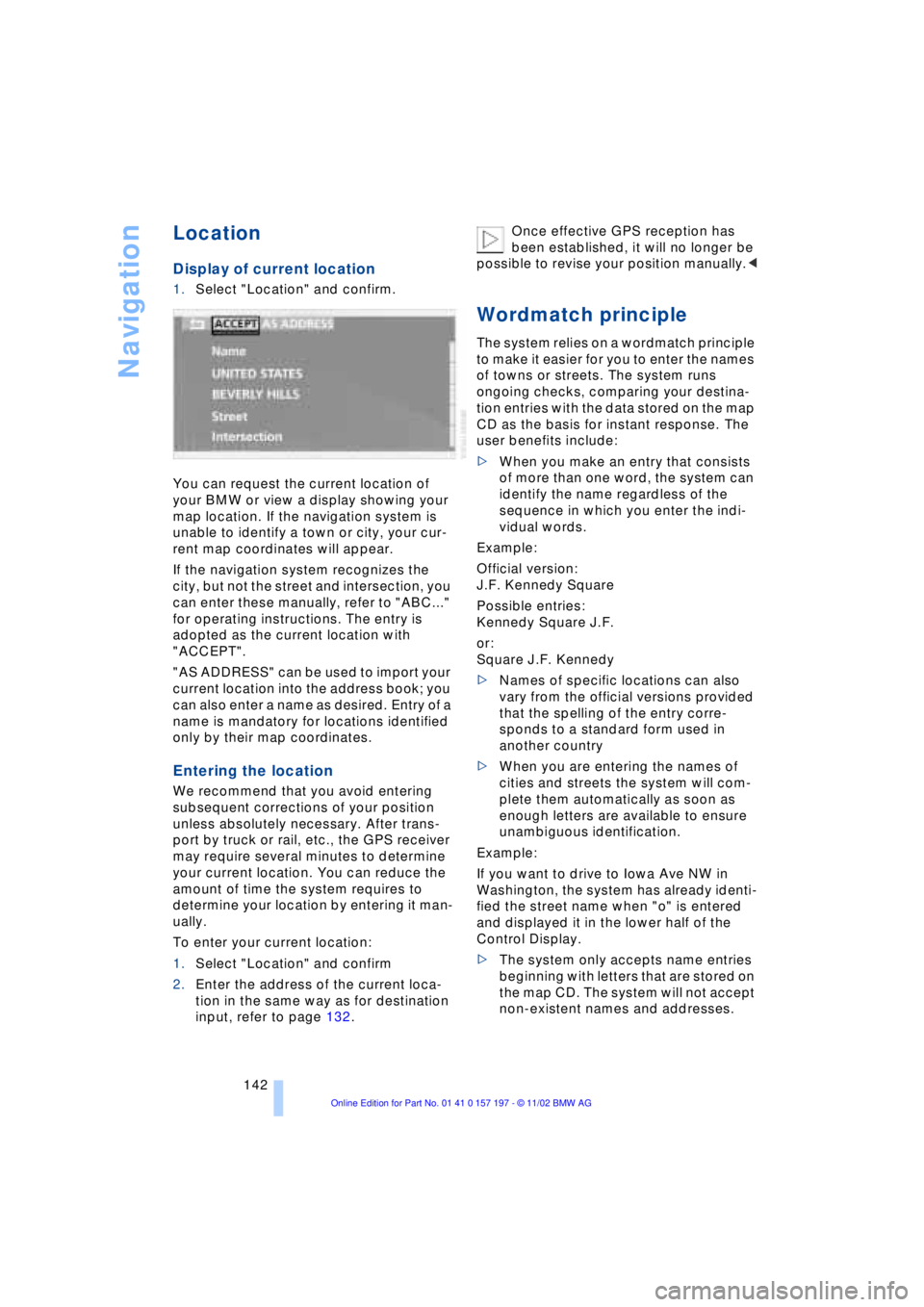
1.Select "Location" and confirm.
You can request the current location of
your BMW or view a display showing your
map location. If the navigation system is
unable to identify a town or city, your cur-
rent map coordinates will appear.
If the navigation system recognizes the
city, but not the street and intersection, you
can enter these manually, refer to "ABC..."
for operating instructions. The entry is
adopted as the current location with
"ACCEPT".
"AS ADDRESS" can be used to import your
current location into the address book; you
can also enter a name as desired. Entry of a
name is mandatory for locations identified
only by their map coordinates.
Entering the location
We recommend that you avoid entering
subsequent corrections of your position
unless absolutely necessary. After trans-
port by truck or rail, etc., the GPS receiver
may require several minutes to determine
your current location. You can reduce the
amount of time the system requires to
determine your location by entering it man-
ually.
To enter your current location:
1.Select "Location" and confirm
2.Enter the address of the current loca-
tion in the same way as for destination
input, refer to page 132.Once effective GPS reception has
been established, it will no longer be
possible to revise your position manually.<
Wordmatch principle
The system relies on a wordmatch principle
to make it easier for you to enter the names
of towns or streets. The system runs
ongoing checks, comparing your destina-
tion entries with the data stored on the map
CD as the basis for instant response. The
user benefits include:
>When you make an entry that consists
of more than one word, the system can
identify the name regardless of the
sequence in which you enter the indi-
vidual words.
Example:
Official version:
J.F. Kennedy Square
Possible entries:
Kennedy Square J.F.
or:
Square J.F. Kennedy
>Names of specific locations can also
vary from the official versions provided
that the spelling of the entry corre-
sponds to a standard form used in
another country
>When you are entering the names of
cities and streets the system will com-
plete them automatically as soon as
enough letters are available to ensure
unambiguous identification.
Example:
If you want to drive to Iowa Ave NW in
Washington, the system has already identi-
fied the street name when "o" is entered
and displayed it in the lower half of the
Control Display.
>The system only accepts name entries
beginning with letters that are stored on
the map CD. The system will not accept
non-existent names and addresses.
Page 145 of 229
At a glance
Controls
Driving tips
Communications
Navigation
Entertainment
Mobility
Reference
143
What to do if É
What to do if É
>you request the current location of your
vehicle, but do not receive a precise
display?
The system is unable to receive enough
GPS signals at your current location
owing to obstructions, your location is
not yet available on your CD, or the
system is in the process of calculating
your location. Please wait and then try
again later on
>the GPS logo disappears from the Con-
trol Display screen?
Reception is interrupted; a building or
similar obstruction may be the cause
>the guidance system refuses to import
an address from the destination direc-
tory as its destination?
The address is in the list, but not on the
map CD currently in use. Choose an
address as close as possible to the
original one, using the destination entry
map as required
>the guidance system does not adopt an
address without the street?
No specified center is defined for the
selected locality on your CD. Enter any
street, or a destination such as the
railway station, etc., then start the guid-
ance system
>you want to enter an address for the
guidance system, but it is not possible
to select the letters for your desired
entry?
The address is in the list, but not on the
map CD currently in use. In this case,
the system will not offer you any letters
to choose from. Choose an address as
close as possible to the original one,
using the destination entry map as
required
>the system stops furnishing directions
on which way to turn as you approach
intersections?
You are driving in an area that has not
yet been completely recorded on the
map CD. Instead of an arrow indicating a turn, you will see an arrow which indi-
cates the general direction of your
planned route;
or
you have left the recommended route
and the system requires a few seconds
to calculate a new recommended route
>while the destination route map has
automatically been adopted for dis-
play?
You are driving in an area that has not
yet been recorded on the map CD. The
guidance system cannot operate under
these conditions. However, you will see
the current position of your BMW in the
map display to help you orient yourself
>the battery has been disconnected?
It will take approx. 15 minutes for the
system to resume operation.
Page 149 of 229
At a glance
Controls
Driving tips
Communications
Navigation
Entertainment
Mobility
Reference
147
Switching on/off
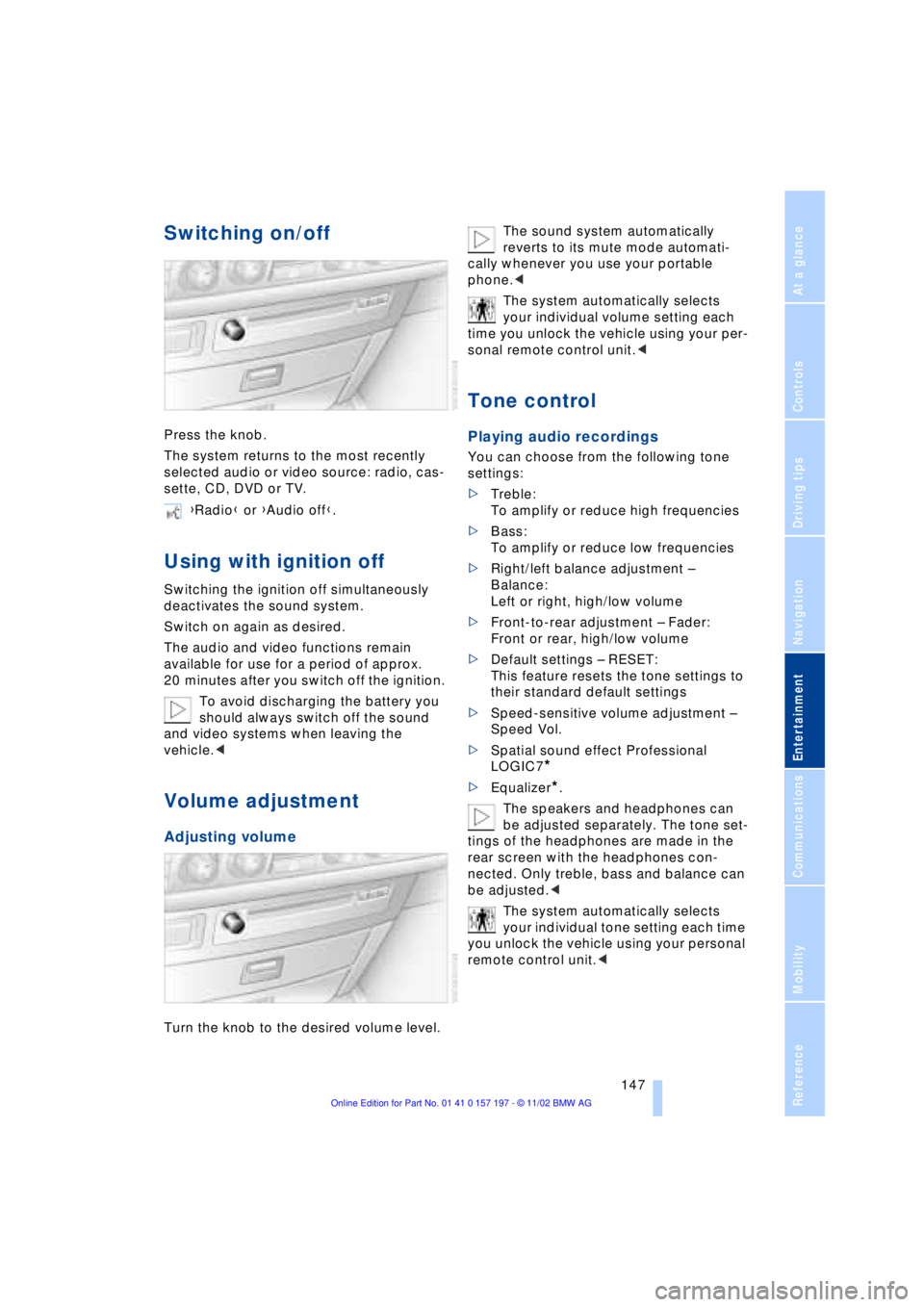
Press the knob.
The system returns to the most recently
selected audio or video source: radio, cas-
sette, CD, DVD or TV.
Using with ignition off
Switching the ignition off simultaneously
deactivates the sound system.
Switch on again as desired.
The audio and video functions remain
available for use for a period of approx.
20 minutes after you switch off the ignition.
To avoid discharging the battery you
should always switch off the sound
and video systems when leaving the
vehicle.<
Volume adjustment
Adjusting volume
Turn the knob to the desired volume level.The sound system automatically
reverts to its mute mode automati-
cally whenever you use your portable
phone.<
The system automatically selects
your individual volume setting each
time you unlock the vehicle using your per-
sonal remote control unit.<
Tone control
Playing audio recordings
You can choose from the following tone
settings:
>Treble:
To amplify or reduce high frequencies
>Bass:
To amplify or reduce low frequencies
>Right/left balance adjustment Ð
Balance:
Left or right, high/low volume
>Front-to-rear adjustment Ð Fader:
Front or rear, high/low volume
>Default settings Ð RESET:
This feature resets the tone settings to
their standard default settings
>Speed-sensitive volume adjustment Ð
Speed Vol.
>Spatial sound effect Professional
LOGIC7
*
>Equalizer*.
The speakers and headphones can
be adjusted separately. The tone set-
tings of the headphones are made in the
rear screen with the headphones con-
nected. Only treble, bass and balance can
be adjusted.<
The system automatically selects
your individual tone setting each time
you unlock the vehicle using your personal
remote control unit.< {Radio} or {Audio off}.
Page 151 of 229
At a glance
Controls
Driving tips
Communications
Navigation
Entertainment
Mobility
Reference
149
Radio
Operating temperatures
Only operate the radio at tempera-
tures of 57 (Ð156) to 1407
(+606) otherwise, malfunctions can
occur.
Even when switched off, the device should
only be exposed to temperatures between
Ð137 (Ð256) and 1857 (+856).<
Starting
1.Switch on audio or video sources, refer
to page 147
If a video source is switched on,
select "Audio" and confirm.<
2.If another audio source is switched on,
select "FM..." or "AM..." and confirm.
Volume adjustment, refer to page 147.
Tone control, refer to page 147.
Stopping
Switch off audio or video sources, refer to
page 147
or switch over to
>CD player, refer to page 153
>CD changer, refer to page 155
>Cassette deck, refer to page 158
>TV, refer to page 160
>DVD, refer to page 162.
Selecting frequency band
Your radio provides reception of the FM
and AM wavebands.
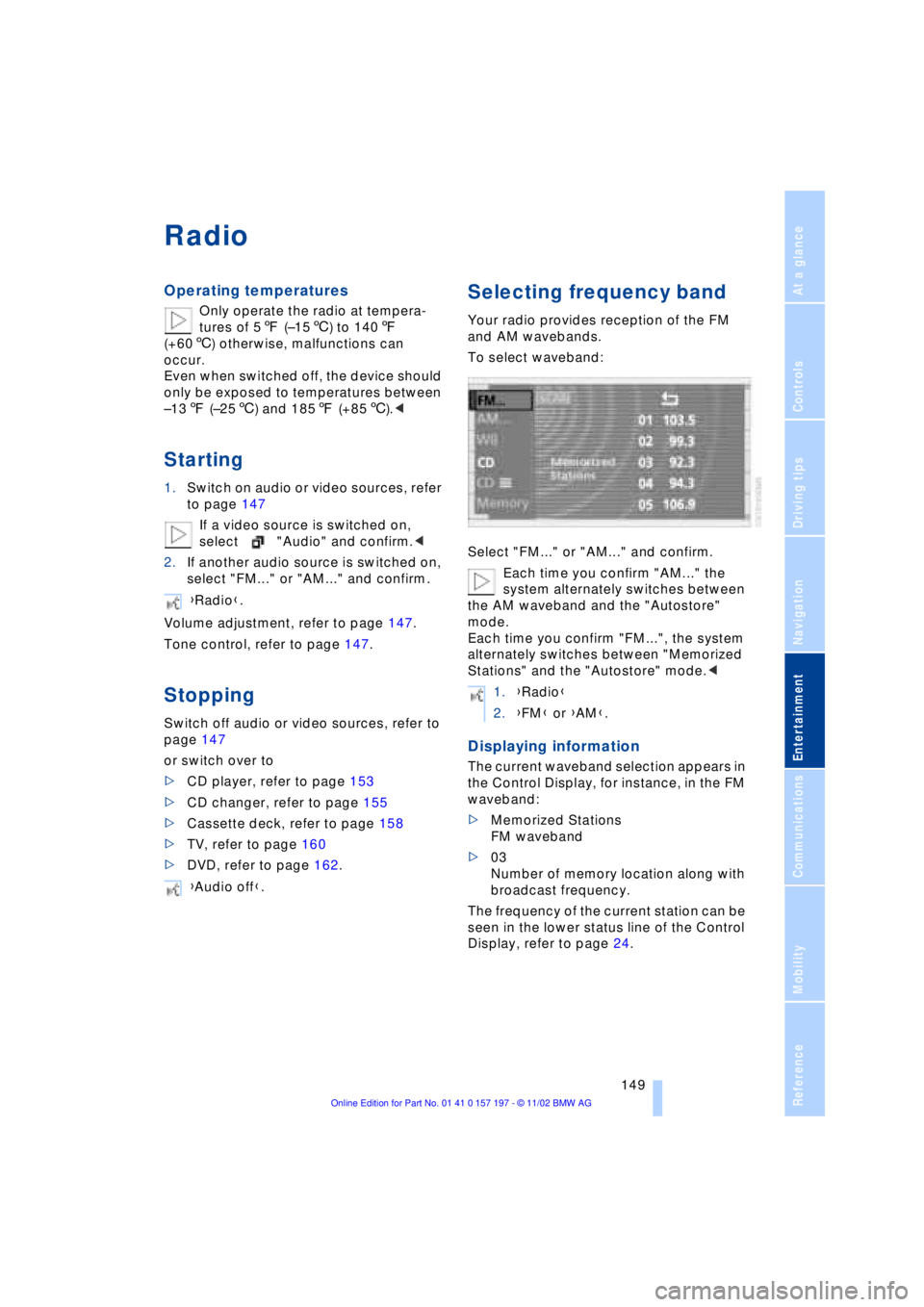
To select waveband:
Select "FM..." or "AM..." and confirm.
Each time you confirm "AM..." the
system alternately switches between
the AM waveband and the "Autostore"
mode.
Each time you confirm "FM...", the system
alternately switches between "Memorized
Stations" and the "Autostore" mode.<
Displaying information
The current waveband selection appears in
the Control Display, for instance, in the FM
waveband:
>Memorized Stations
FM waveband
>03
Number of memory location along with
broadcast frequency.
The frequency of the current station can be
seen in the lower status line of the Control
Display, refer to page 24. {Radio}.
{Audio off}.
1.{Radio}
2.{FM} or {AM}.
Page 153 of 229
At a glance
Controls
Driving tips
Communications
Navigation
Entertainment
Mobility
Reference
151
>"MANUAL"
The stations can be set manually by
turning the controller
4.To store a station:
Select "Memorize" and confirm your
selection
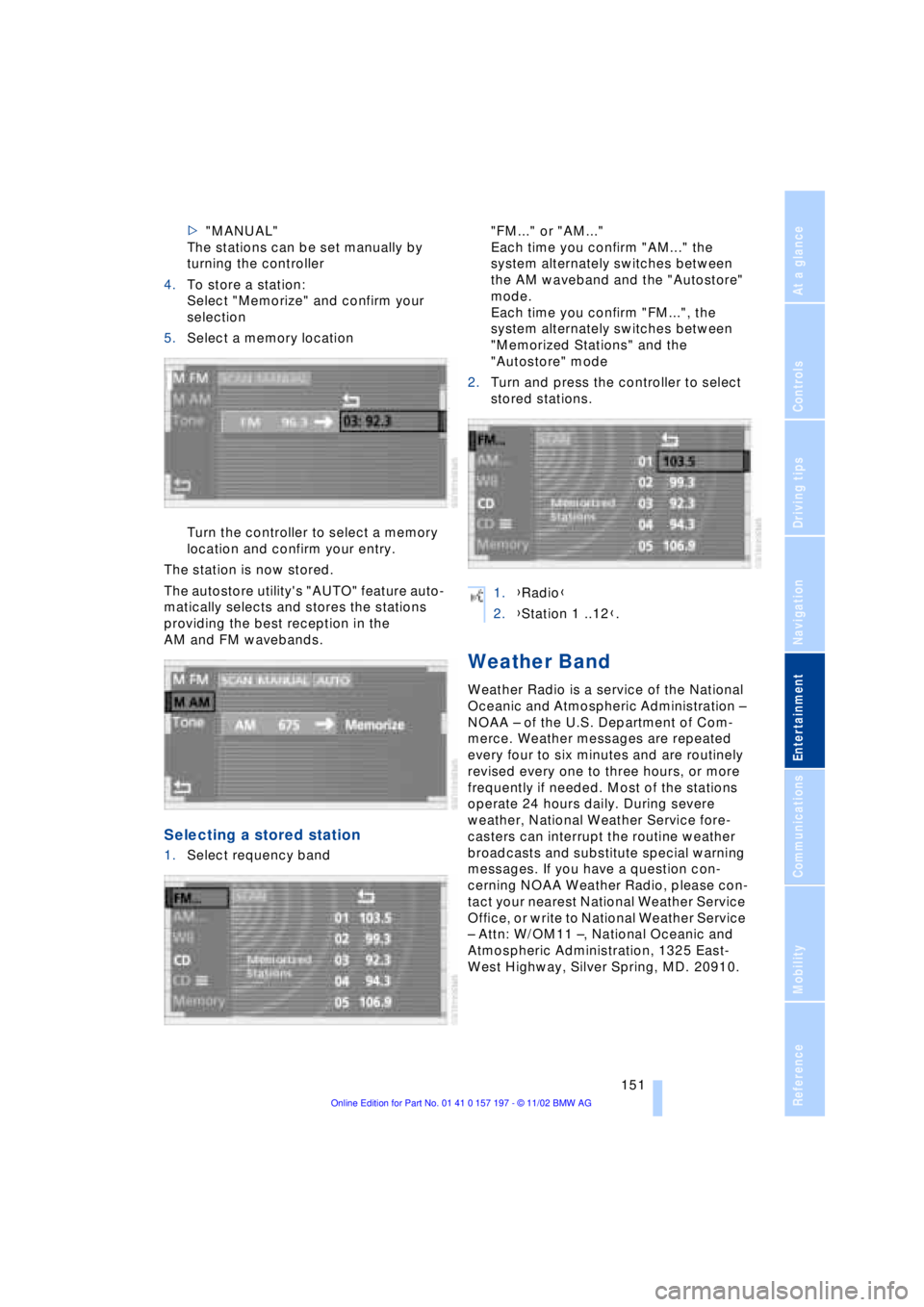
5.Select a memory location
Turn the controller to select a memory
location and confirm your entry.
The station is now stored.
The autostore utility's "AUTO" feature auto-
matically selects and stores the stations
providing the best reception in the
AM and FM wavebands.
Selecting a stored station
1.Select requency band "FM..." or "AM..."
Each time you confirm "AM..." the
system alternately switches between
the AM waveband and the "Autostore"
mode.
Each time you confirm "FM...", the
system alternately switches between
"Memorized Stations" and the
"Autostore" mode
2.Turn and press the controller to select
stored stations.
Weather Band
Weather Radio is a service of the National
Oceanic and Atmospheric Administration Ð
NOAA Ð of the U.S. Department of Com-
merce. Weather messages are repeated
every four to six minutes and are routinely
revised every one to three hours, or more
frequently if needed. Most of the stations
operate 24 hours daily. During severe
weather, National Weather Service fore-
casters can interrupt the routine weather
broadcasts and substitute special warning
messages. If you have a question con-
cerning NOAA Weather Radio, please con-
tact your nearest National Weather Service
Office, or write to National Weather Service
Ð Attn: W/OM11 Ð, National Oceanic and
Atmospheric Administration, 1325 East-
West Highway, Silver Spring, MD. 20910.
1.{Radio}
2.{Station 1 ..12}.
Page 155 of 229
At a glance
Controls
Driving tips
Communications
Navigation
Entertainment
Mobility
Reference
153
CD Compact Disc
To prevent CDs from being copied
illegally, they are often provided with
copy protection by the manufacturer.
Please observe the information on your CD.
These CDs differ from the CD Audio Stan-
dard Red Book, on the basis of which all
CD players and changers are designed.
Under certain circumstances this can pre-
vent or restrict the playing of CDs on your
CD player. In this case please contact the
CD dealer or manufacturer.<
If you play self-recorded audio CDs,
faults, e.g. drop-outs, can occur, or
the CD is not played at all.<
With self-recorded CDs, labels
applied later can become detached
during playback due to the development of
heat, causing irreparable damage to the
device.<
Operating temperatures
Only operate the CD-player at tem-
peratures of 57 (Ð156) to 1407
(+606) otherwise, malfunctions can
occur.
Even when switched off, the device should
only be exposed to temperatures between
Ð137 (Ð256) and 1857 (+856).<
Atmospheric humidity
High levels of humidity inside the player
can condense on the laser's scan lens and
prevent it from reading the CD.
Starting
Insert the CD in the slot.
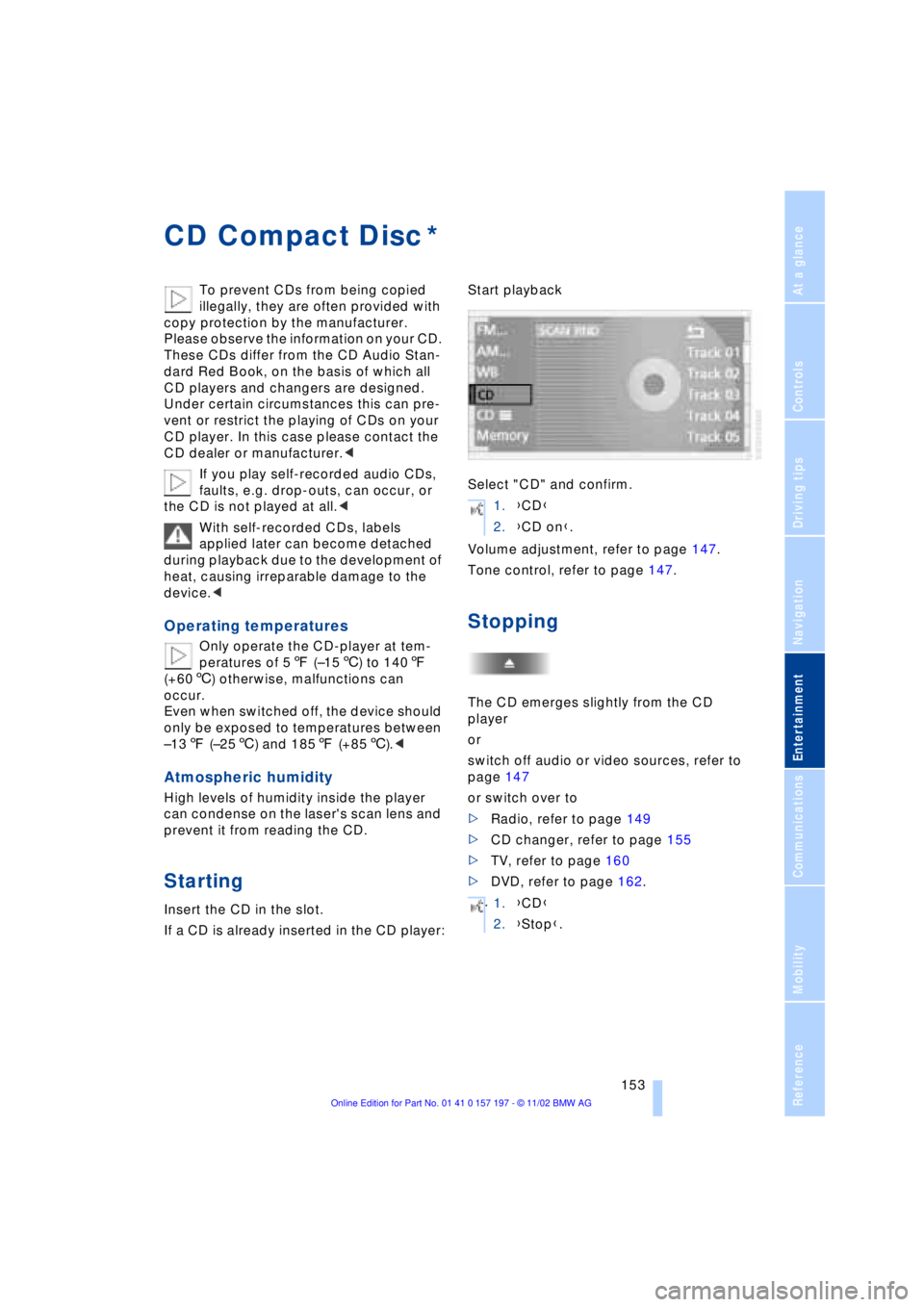
If a CD is already inserted in the CD player:Start playback
Select "CD" and confirm.
Volume adjustment, refer to page 147.
Tone control, refer to page 147.
Stopping
The CD emerges slightly from the CD
player
or
switch off audio or video sources, refer to
page 147
or switch over to
>Radio, refer to page 149
>CD changer, refer to page 155
>TV, refer to page 160
>DVD, refer to page 162.
*
1.{CD}
2.{CD on}.
.
1.{CD}
2.{Stop}.
Page 157 of 229
At a glance
Controls
Driving tips
Communications
Navigation
Entertainment
Mobility
Reference
155
CD changer
Precautions when using laser
equipment
The BMW CD changer is a Class 1 laser
product.
Never remove the cover from the
housing. Do not operate the unit if the
cover is damaged. Operation without the
cover can lead to serious eye injury from
invisible laser beams.
Always refer all repair and maintenance
operations to qualified technicians.<
Copy protection
To prevent CDs from being copied
illegally, they are often provided with
copy protection by the manufacturer.
Please observe the information on your CD.
These CDs differ from the CD Audio Stan-
dard Red Book, on the basis of which all
CD players and changers are designed.
Under certain circumstances, this can pre-
vent or restrict the playing of CDs on your
CD changer. In this case, please contact
the CD dealer or manufacturer.<
Location
The BMW CD changer with a storage
capacity of 6 CDs is installed above the
glove compartment.
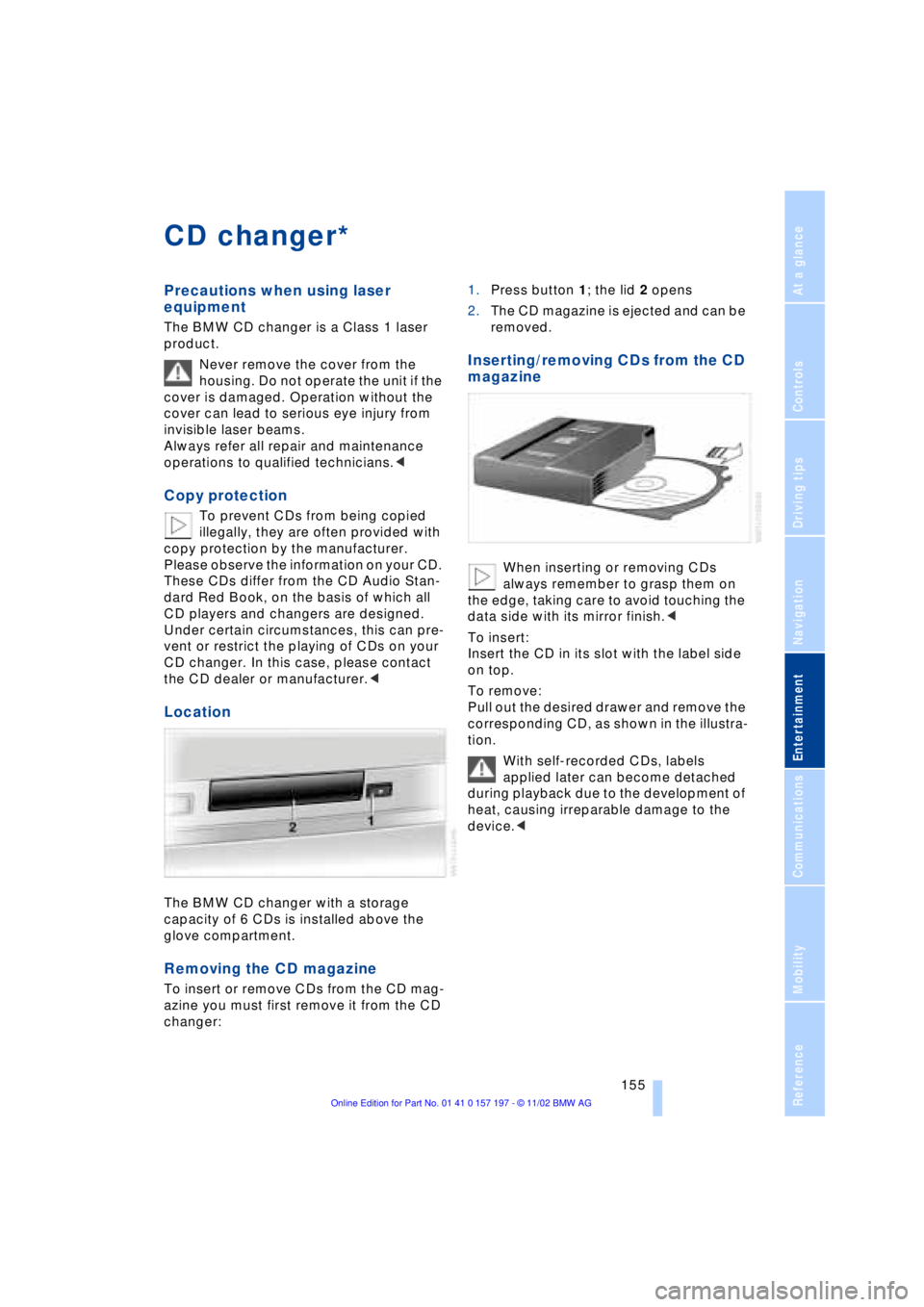
Removing the CD magazine
To insert or remove CDs from the CD mag-
azine you must first remove it from the CD
changer:1.Press button 1; the lid 2 opens
2.The CD magazine is ejected and can be
removed.
Inserting/removing CDs from the CD
magazine
When inserting or removing CDs
always remember to grasp them on
the edge, taking care to avoid touching the
data side with its mirror finish.<
To insert:
Insert the CD in its slot with the label side
on top.
To remove:
Pull out the desired drawer and remove the
corresponding CD, as shown in the illustra-
tion.
With self-recorded CDs, labels
applied later can become detached
during playback due to the development of
heat, causing irreparable damage to the
device.<
*
Page 159 of 229
At a glance
Controls
Driving tips
Communications
Navigation
Entertainment
Mobility
Reference
157
Searching for music tracks
in the Control Display
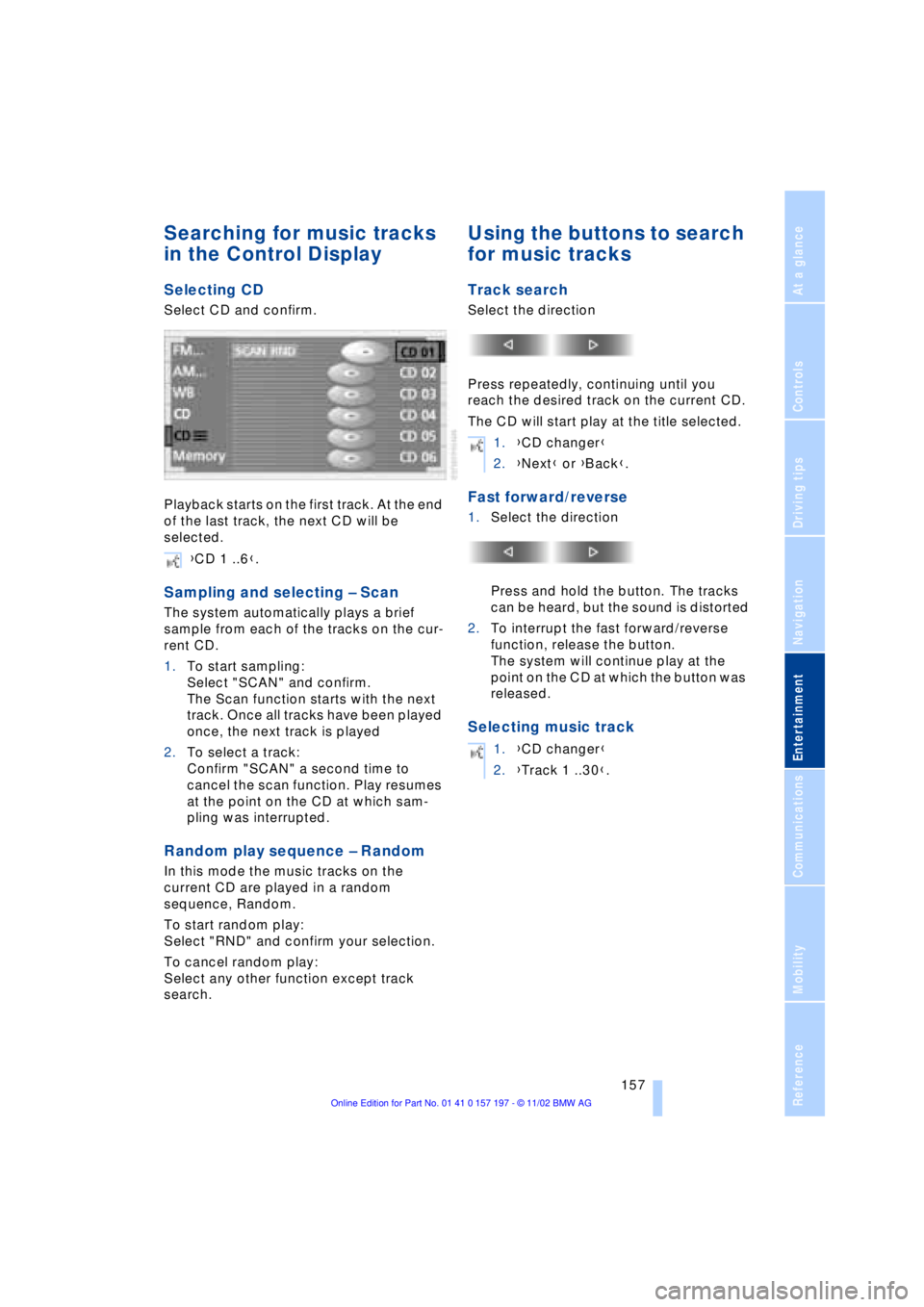
Selecting CD
Select CD and confirm.
Playback starts on the first track. At the end
of the last track, the next CD will be
selected.
Sampling and selecting Ð Scan
The system automatically plays a brief
sample from each of the tracks on the cur-
rent CD.
1.To start sampling:
Select "SCAN" and confirm.
The Scan function starts with the next
track. Once all tracks have been played
once, the next track is played
2.To select a track:
Confirm "SCAN" a second time to
cancel the scan function. Play resumes
at the point on the CD at which sam-
pling was interrupted.
Random play sequence Ð Random
In this mode the music tracks on the
current CD are played in a random
sequence, Random.
To start random play:
Select "RND" and confirm your selection.
To cancel random play:
Select any other function except track
search.
Using the buttons to search
for music tracks
Track search
Select the direction
Press repeatedly, continuing until you
reach the desired track on the current CD.
The CD will start play at the title selected.
Fast forward/reverse
1.Select the direction
Press and hold the button. The tracks
can be heard, but the sound is distorted
2.To interrupt the fast forward/reverse
function, release the button.
The system will continue play at the
point on the CD at which the button was
released.
Selecting music track
{CD 1 ..6}.
1.{CD changer}
2.{Next} or {Back}.
1.{CD changer}
2.{Track 1 ..30}.