2002 FIAT DUCATO 244 phone
[x] Cancel search: phonePage 152 of 246
CONNECT Nav+
151
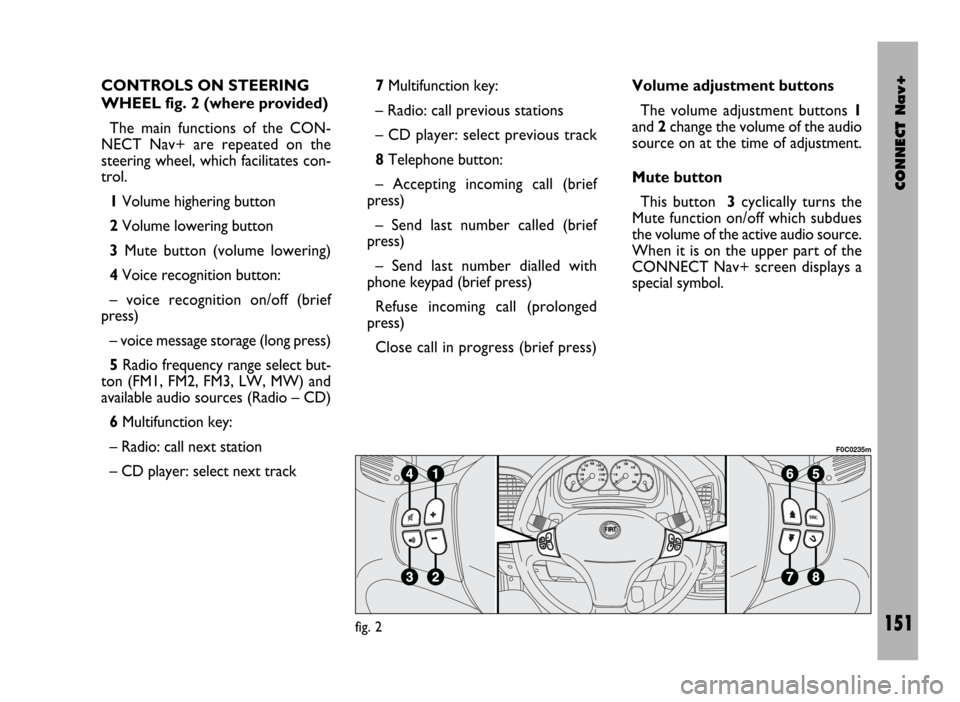
CONTROLS ON STEERING
WHEEL fig. 2 (where provided)
The main functions of the CON-
NECT Nav+ are repeated on the
steering wheel, which facilitates con-
trol.
1Volume highering button
2Volume lowering button
3Mute button (volume lowering)
4Voice recognition button:
– voice recognition on/off (brief
press)
– voice message storage (long press)
5Radio frequency range select but-
ton (FM1, FM2, FM3, LW, MW) and
available audio sources (Radio – CD)
6Multifunction key:
– Radio: call next station
– CD player: select next track 7Multifunction key:
– Radio: call previous stations
– CD player: select previous track
8Telephone button:
– Accepting incoming call (brief
press)
– Send last number called (brief
press)
– Send last number dialled with
phone keypad (brief press)
Refuse incoming call (prolonged
press)
Close call in progress (brief press)Volume adjustment buttons
The volume adjustment buttons 1
and 2change the volume of the audio
source on at the time of adjustment.
Mute button
This button 3cyclically turns the
Mute function on/off which subdues
the volume of the active audio source.
When it is on the upper part of the
CONNECT Nav+ screen displays a
special symbol.
fig. 2
F0C0235m
Page 153 of 246

CONNECT Nav+
152
Voice recognition button
Button 4turns on voice recognition
as follows:
– brief press on the button: voice
recognition on/off
– prolonged press on the button:
voice message storage.
Frequency range and audio
source select button
To cyclically select the frequency
ranges and audio sources available,
briefly and repeatedly press the “SRC”
button 5.
The frequencies and sources avail-
able are: FM1, FM2, FM3, LW, MW,
CD.
Multifunction keys
Multifunction keys 6and 7makes it
possible to call the preset radio sta-
tions in the frequency band set and se-
lect the next or previous track when
playing a CD.Press key 6to choose the next sta-
tions or to play the next CD track.
Press key 7to choose the previous
stations or to play the previous CD
track.
Telephone button
Button 8activates the main functions
of the telephone, depending on the
conditions active when the button is
pressed and the length of the press
(short or long).
Short push:
– taking an incoming call
– sending a call to the last number di-
alled previously
– sending a call to the number dialled
using the phone keypad.
Long push:
– reject incoming call.GENERAL
INFORMATION
IMPORTANT NOTES FOR
USE AND ROAD SAFETY
To avoid creating dangerous situa-
tions for yourself and others in use of
the system, please pay attention to the
following points:
– the CONNECT Nav+ must be
used keeping full control of the vehi-
cle; in the case of doubt in the use of
the functions, it is necessary to stop
before performing the various opera-
tions;
– use of the cell phone is prohibited
near explosive substances.
The navigation system allows you to
reach your destination, indicating each
route change stored on the navigation
CD-ROM. In fact, in calculating the
route, the system takes into account
of all the information stored concern-
Page 154 of 246

CONNECT Nav+
153
ing the roads, advising the best route.
However it cannot take account of the
traffic, sudden interruptions or any
other inconvenience.In carrying out any manoeuvre it is
always necessary to follow the rules of
the road, regardless of the advice giv-
en by the navigation system. If you
leave the suggested route, the naviga-
tion system will calculate a new one
and suggest it to you.
GENERAL INFORMATION
The CONNECT Nav+ controls and
provides information for the following
systems and functions:
– Radio with CD-ROM or Audio CD
player
– GSM Dual Band cell phone with
voice commands
– Navigation system
– On-board computer
– Information and assistance services.
The interface is the multifunction in-
formation display for all the integrat-
ed components.MULTIFUNCTION
INFORMATION DISPLAY
The colour display comprises a 5”
TFT (approx. 7.5 x 10.3 cm) and 320H
x 234V pixel screen.
The display brightness can be
changed depending on the environ-
ment conditions and the driver’s re-
quirements, storing two settings, day
and night, according to the settings
performed in the “Setup / Setup-
CONNECT / Day brightness – Night
brightness”.
Brightness can be switched from day
to night and vice versa if external lights
are on and if light conditions in the
passenger compartment are compat-
ible.
The navigation system
helps the driver while dri-
ving by suggesting, vocally and
graphically, the best route to be fol-
lowed to reach the preset destina-
tion. The suggestions given by the
navigation system do not exempt
the driver from full responsibility
due to driving behaviour and com-
pliance with road and other traffic
regulations. The responsibility for
road safety always and anyway lies
with the vehicle’s driver.
WARNING
Page 155 of 246

CONNECT Nav+
154
SYSTEM SWITCHING ON/OFF
AND STAND-BY
The system may be in one of the fol-
lowing conditions:
– off, with all functions disabled;
– normal status, with all functions ac-
tive or activatable;
– stand-by, with functions partially
active and screen darkened.
Switching the system on
The system is turned on automati-
cally turning the ignition key to MAR.
When the ignition key is at STOP
or removed, the system is turned on
pressing the knob 16-fig. 1or key
•
25-fig. 1for the “Emergency call” (to
use the phone it is necessary to en-
ter the PIN code).Switching the system off
The system is turned off automati-
cally when the ignition key is moved
to STOP. The conditions and func-
tions active before turning off are
memorised and brought back the next
time the engine is started.
Turning off is delayed if a phone call,
an “Emergency call” or a voice com-
mand language change is in progress,
and it will take place after about 20
minutes if the call is over or, if not at
the end of it.
If the system was turned on with the
knob 16-fig. 1or key
•25-fig. 1,
with the ignition key at STOPor re-
moved, it is turned off pressing the
knob again 16-fig. 1or automatically
after 20 minutes, to preserve the bat-
tery.Stand-by (Dark)
During operation with the ignition
key engaged, the system may be set to
stand-by with a prolonged press on
the “MAIN” key 17-fig. 1. This oper-
ating condition (Dark) corresponds to
a dark screen with the volume off, but
the system continues working invisi-
bly, therefore the phone is ready to
receive.
If during stand-by the limit of an ac-
tive function is exceeded, the corre-
sponding warning will be shown.
To bring the system back to the nor-
mal operating condition, briefly press
the “MAIN” key 17-fig. 1or key
•
25-fig. 1for the “Emergency call” (to
use the phone it is necessary to en-
ter the PIN code).
Page 156 of 246

CONNECT Nav+
155
CHOOSING THE
OPERATING MODE
The operating mode is selected
pressing one of the following keys
fig. 1:
– MAIN key 17= MAIN SCREEN
– AUDIO key 18= RADIO WITH
CD PLAYER
– TEL key 19= TELEPHONE
– NAV key 20= NAVIGATOR
– key 14= VOICE RECOGNITION
– TRIP key 21= ON-BOARD
COMPUTER
– key •25= CALL FOR INFOR-
MATION AND ASSISTANCE.
For each operating mode the corre-
sponding menu is shown on the dis-
play.CHOOSING THE MENU
FUNCTIONS
The different operating modes of the
CONNECT Nav+ allow access to dif-
ferent menus, with functions that in
turn show other submenus on the dis-
play and so on.
The procedures for choosing and
confirming the functions of the differ-
ent menus and submenus are howev-
er the same and they are described be-
low.
To go back to the previous screen
from a submenu or to exit the various
operating modes, press “ESC” 23-
fig. 1.Choosing a function
To select a function of the menu on
the display, simply turn the knob 22-
fig. 1in one of the two directions un-
til showing the function required.
Confirming the function chosen
To confirm the function selected,
press the knob 22-fig. 1.
IMPORTANTOn the menu or
submenu pages showing “OK”, to
store the functions chosen it is nec-
essary to exit the corresponding
screen confirming the “OK” function.
Leaving the page of the menu or sub-
menu with the “ESC” key 23-fig. 1,
the previous functions are restored in-
stead of the new settings.
Page 157 of 246
CONNECT Nav+
156
VOLUME ADJUSTMENT
To increase the volume: turn the
knob 16-fig. 1clockwise.
To lower the volume: turn the knob
16-fig. 1counter-clockwise.
During adjustment, the volume lev-
el is shown graphically on the display
(only in the main menu of audio
sources).
IMPORTANTThe volume of
PTY31 Alarm/Traffic Announcement
(TA), telephone, telephone ringer and
voice recognition can be adjusted sep-
arately.
Automatic volume lowering
during phone calls
During phone calls, the radio volume
is turned down automatically and the
screen shows the telephone symbol.MUTE function (turning down
the audio volume)
To turn off the volume of the audio
system (Radio, CD), with any operat-
ing mode on (MAIN, NAV, TRIP),
keep the button 18-fig. 1pressed; this
way the radio turns off and the display
shows the wording “Audio OFF”. To
turn the radio on again, briefly press
the button 18-fig. 1, thereby turning
the audio function on again with the
corresponding screen.
NAV MUTE function (excluding
navigator voice messages)
To turn off the navigator voice in-
structions keep the “NAV” key
pressed 20-fig. 1. The volume will
lower gradually (Soft Mute function)
and the display will show the word-
ing “NAV MUTE”.
Too high a volume may be
a danger for the driver and
for other persons in the traffic. The
volume should therefore always be
adjusted in such a way as to still be
able to hear the noises in the sur-
rounding environment (for example
horns, ambulances, police cars,
etc.).
WARNING
Page 160 of 246

CONNECT Nav+
159
COMPACT DISC
PLAYER (CD)
When the CD player is working the
display shows the following:
– track number (number of track be-
ing played);
– “TA” if the traffic information re-
ception function is on.
TELEPHONE
When the telephone is working the
following are shown on the display:
– name of telephone network access
provider and field strength;
– name or telephone number and du-
ration of conversation during a call;
– remaining credit available on phone
card (if available by network provider);
– symbols and wordings associated
with the phone settings:
call ringer off
“forwarding” function on
“disable” function on
telephone off or no network
SMS message received, not read;– display of “SIM absent” warning if
the SIM card is not inserted;
– display of “enter PIN” or “faulty
card” or “seek network” or “emer-
gency only” or “enter PUK” message
depending on the case;
– display of “dialling interrupted”
warning in the case of momentary in-
terruption of call;
– display of “call over” warning;
– display of “no connection” warning
for interruption of connection from
the network;
– display of “number busy” warning;
– display of “no answer” warning.
Page 164 of 246
CONNECT Nav+
163
– turn knob 22-fig. 1to select the
required value, then press to con-
firm;
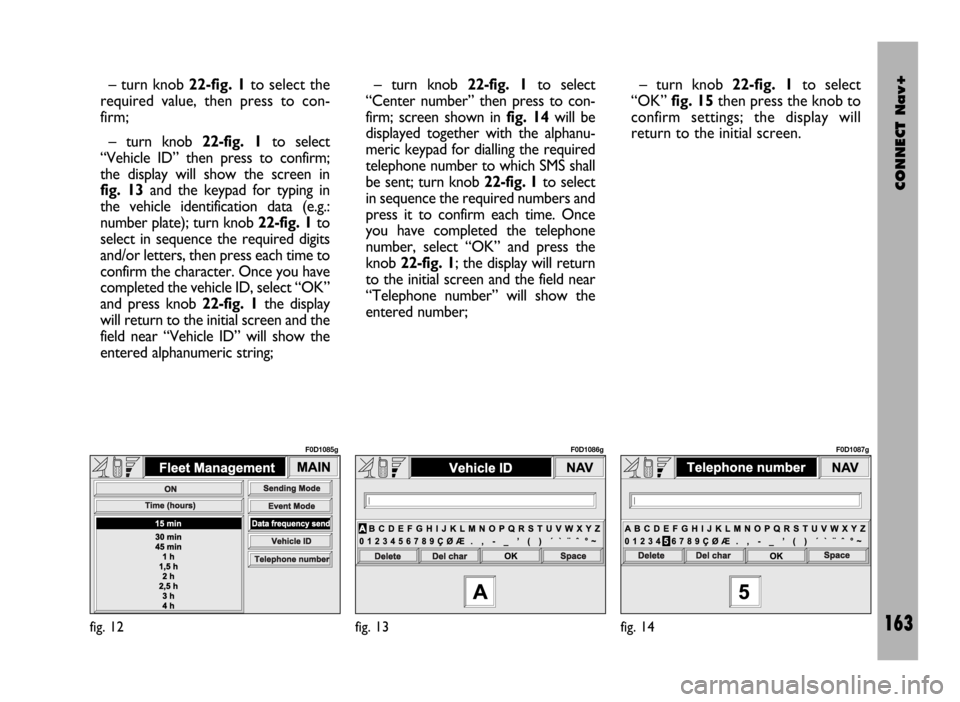
– turn knob 22-fig. 1to select
“Vehicle ID” then press to confirm;
the display will show the screen in
fig. 13and the keypad for typing in
the vehicle identification data (e.g.:
number plate); turn knob 22-fig. 1to
select in sequence the required digits
and/or letters, then press each time to
confirm the character. Once you have
completed the vehicle ID, select “OK”
and press knob 22-fig. 1the display
will return to the initial screen and the
field near “Vehicle ID” will show the
entered alphanumeric string;– turn knob 22-fig. 1to select
“Center number” then press to con-
firm; screen shown in fig. 14will be
displayed together with the alphanu-
meric keypad for dialling the required
telephone number to which SMS shall
be sent; turn knob 22-fig. 1to select
in sequence the required numbers and
press it to confirm each time. Once
you have completed the telephone
number, select “OK” and press the
knob 22-fig. 1; the display will return
to the initial screen and the field near
“Telephone number” will show the
entered number;– turn knob 22-fig. 1to select
“OK” fig. 15then press the knob to
confirm settings; the display will
return to the initial screen.
fig. 12
F0D1085g
fig. 13
F0D1086g
fig. 14
F0D1087g