2002 BMW 745LI SEDAN service interval
[x] Cancel search: service intervalPage 4 of 208
At a glanceControlsDriving tipsCommunicationsNavigationEntertainmentMobilityReference
73Programmable cruise control
Everything under control
77Odometer, outside temperature
display, clock
77Tachometer
78Service Interval Display
80Check Control
81Computer
86Changing settings
Technology for comfort,
convenience and safety
88PDC Park Distance Control*
89Driving stability control/
DSC Dynamic Stability Control
91Driving stability control/ABS Antilock
Brake System
91Dynamic Drive
92EDC Electronic Damping Control*
92RDC Tire Pressure Monitor*
94Self-leveling suspension*
94Adaptive brake lamp
Lamps
96Parking lamps/low beams
97Instrument lighting
97High beams/standing lamps
97Front fog lamps
97Interior lamps
A congenial climate
99Automatic climate control
105Rear air conditioner*
106Parked-car ventilation system
Practical interior accessories
108Universal Garage Door Opener*
109Sun blinds*
110Rear cooler*
110Glove compartment
111Storage compartments
112Beverage holders
112Ashtray, front
113Cigarette lighter, front
113Power socket
113Ashtray, rear
113Cigarette lighter, rear113Center armrest
114Ski bag*
Things to remember when driving
118Break-in procedures
118General driving notes
119Brake system
120Cargo loading
120Roof-mounted luggage rack*
Navigation
124Safety
124GPS
124Map CD
125Starting the navigation system
125Display in assistance window*
126Selection options
126Destination entry
126Manual entry of destination address
128Select the town or city and the street
from the directory
128Map-guided destination selection
129Selecting destination in Information
129Selecting interesting destinations
130Recent destinations
130Destination list
130Route selection
131Starting the destination guidance
system
132Displaying route
133Select new route
133Voice messages
134Terminate/interrupt active guidance
134Creating a directory
135Location
136Wordmatch principle
136What to do if É
Sound system
140Controls
140Care instructions
140To switch on/off
140Using with ignition off
141Volume adjustment
141Tone control
Page 23 of 208
Control Center
22
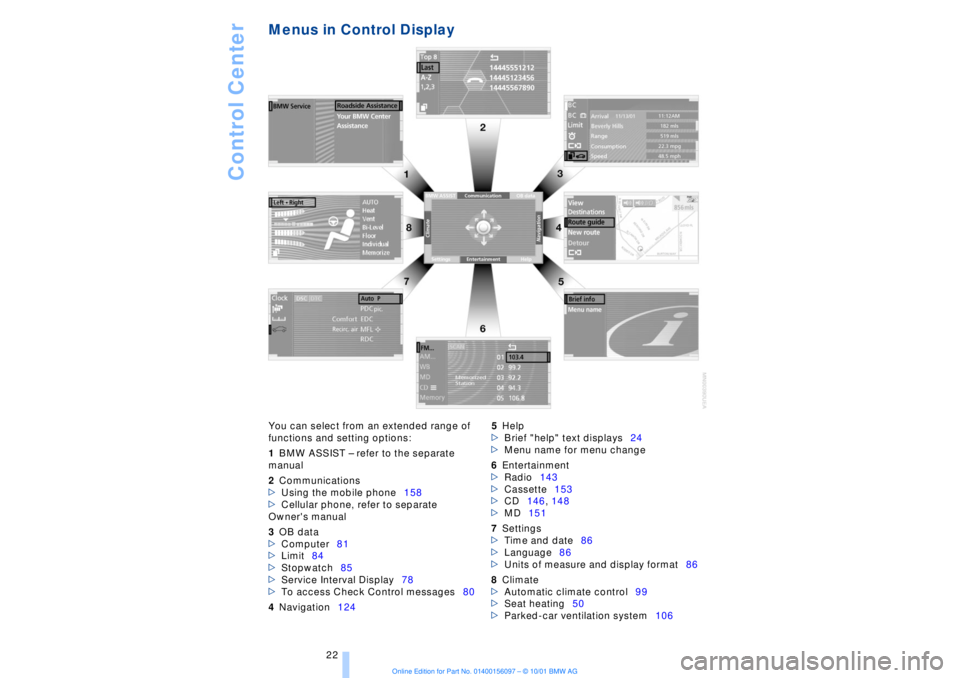
Menus in Control Display You can select from an extended range of
functions and setting options:
1BMW ASSIST Ð refer to the separate
manual
2Communications
>Using the mobile phone158
>Cellular phone, refer to separate
Owner's manual
3OB data
>Computer81
>Limit84
>Stopwatch85
>Service Interval Display78
>To access Check Control messages80
4Navigation1245Help
>Brief "help" text displays24
>Menu name for menu change
6Entertainment
>Radio143
>Cassette153
>CD146, 148
>MD151
7Settings
>Time and date86
>Language86
>Units of measure and display format86
8Climate
>Automatic climate control99
>Seat heating50
>Parked-car ventilation system106
Page 25 of 208
Control Center
24
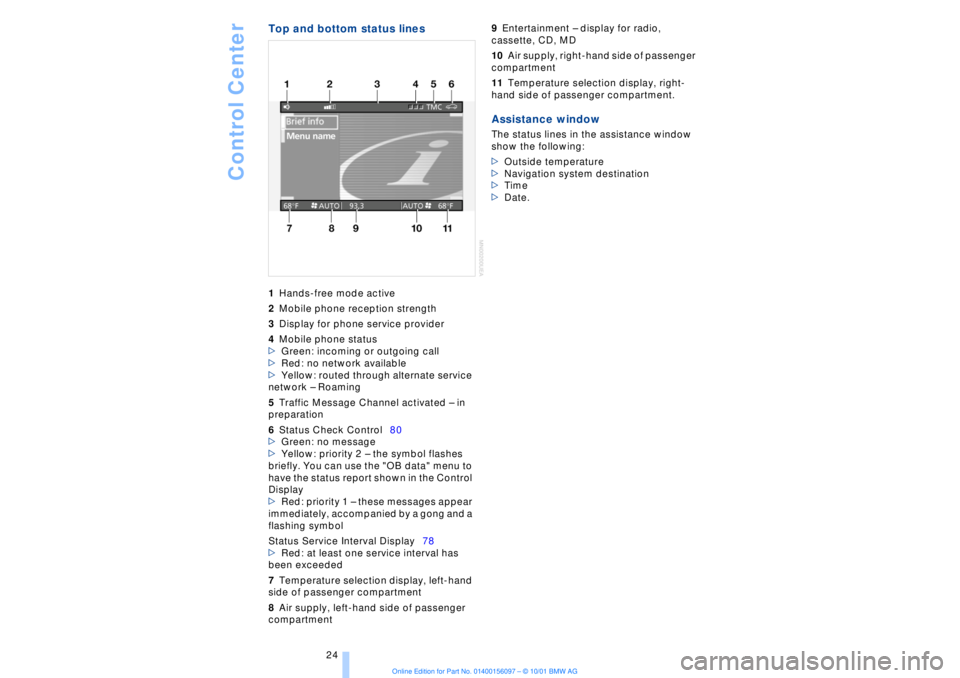
Top and bottom status lines1Hands-free mode active
2Mobile phone reception strength
3Display for phone service provider
4Mobile phone status
>Green: incoming or outgoing call
>Red: no network available
>Yellow: routed through alternate service
network Ð Roaming
5Traffic Message Channel activated Ð in
preparation
6Status Check Control80
>Green: no message
>Yellow: priority 2 Ð the symbol flashes
briefly. You can use the "OB data" menu to
have the status report shown in the Control
Display
>Red: priority 1 Ð these messages appear
immediately, accompanied by a gong and a
flashing symbol
Status Service Interval Display78
>Red: at least one service interval has
been exceeded
7Temperature selection display, left-hand
side of passenger compartment
8Air supply, left-hand side of passenger
compartment 9Entertainment Ð display for radio,
cassette, CD, MD
10Air supply, right-hand side of passenger
compartment
11Temperature selection display, right-
hand side of passenger compartment. Assistance windowThe status lines in the assistance window
show the following:
>Outside temperature
>Navigation system destination
>Time
>Date.
Page 79 of 208
Everything under control
78 warms to its normal operating temperature.
The segments disappear in sequence as
the engine warms to its normal operating
temperature.
Avoid allowing the engine speed to rise as
far as the orange warning sector whenever
possible.
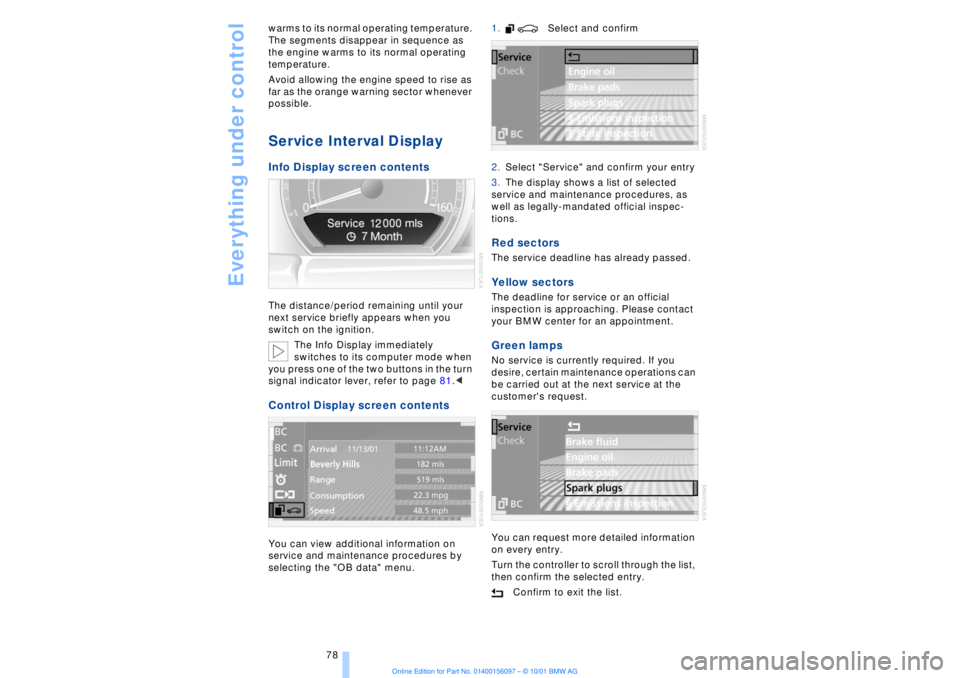
Service Interval Display Info Display screen contents The distance/period remaining until your
next service briefly appears when you
switch on the ignition.
The Info Display immediately
switches to its computer mode when
you press one of the two buttons in the turn
signal indicator lever, refer to page 81.< Control Display screen contents You can view additional information on
service and maintenance procedures by
selecting the "OB data" menu. 1. Select and confirm
2.Select "Service" and confirm your entry
3.The display shows a list of selected
service and maintenance procedures, as
well as legally-mandated official inspec-
tions.
Red sectors The service deadline has already passed. Yellow sectors The deadline for service or an official
inspection is approaching. Please contact
your BMW center for an appointment. Green lamps No service is currently required. If you
desire, certain maintenance operations can
be carried out at the next service at the
customer's request.
You can request more detailed information
on every entry.
Turn the controller to scroll through the list,
then confirm the selected entry.
Confirm to exit the list.
Page 80 of 208
At a glanceControlsDriving tipsCommunicationsNavigationEntertainmentMobilityReference
79
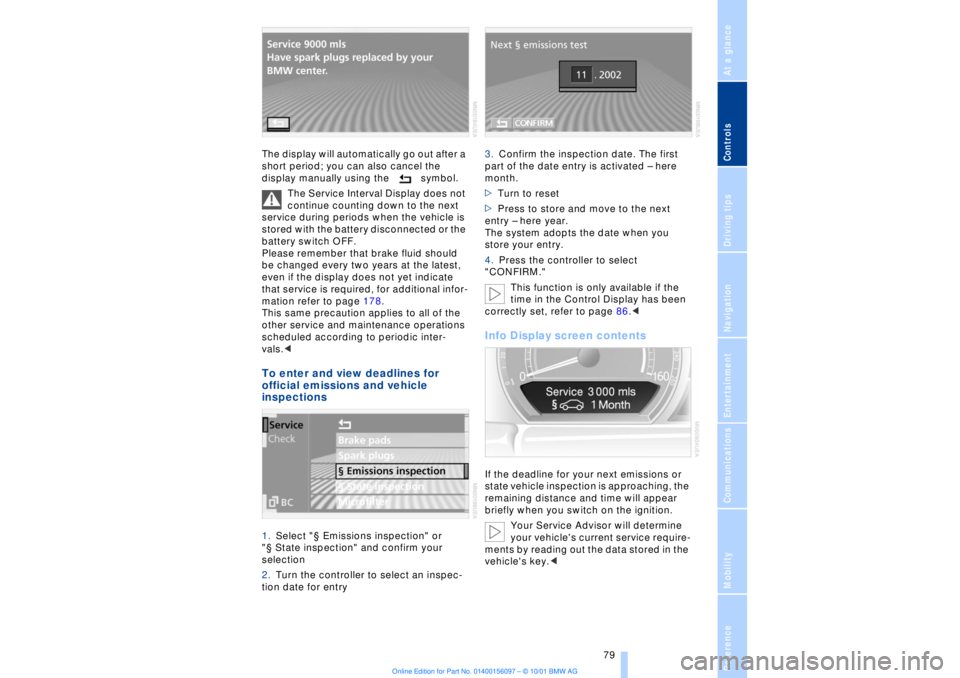
The display will automatically go out after a
short period; you can also cancel the
display manually using the symbol.
The Service Interval Display does not
continue counting down to the next
service during periods when the vehicle is
stored with the battery disconnected or the
battery switch OFF.
Please remember that brake fluid should
be changed every two years at the latest,
even if the display does not yet indicate
that service is required, for additional infor-
mation refer to page 178.
This same precaution applies to all of the
other service and maintenance operations
scheduled according to periodic inter-
vals.< To enter and view deadlines for
official emissions and vehicle
inspections 1.Select "¤ Emissions inspection" or
"¤ State inspection" and confirm your
selection
2.Turn the controller to select an inspec-
tion date for entry 3.Confirm the inspection date. The first
part of the date entry is activated Ð here
month.
>Turn to reset
>Press to store and move to the next
entry Ð here year.
The system adopts the date when you
store your entry.
4.Press the controller to select
"CONFIRM."
This function is only available if the
time in the Control Display has been
correctly set, refer to page 86.<
Info Display screen contents If the deadline for your next emissions or
state vehicle inspection is approaching, the
remaining distance and time will appear
briefly when you switch on the ignition.
Your Service Advisor will determine
your vehicle's current service require-
ments by reading out the data stored in the
vehicle's key.<
Page 81 of 208
Everything under control
80
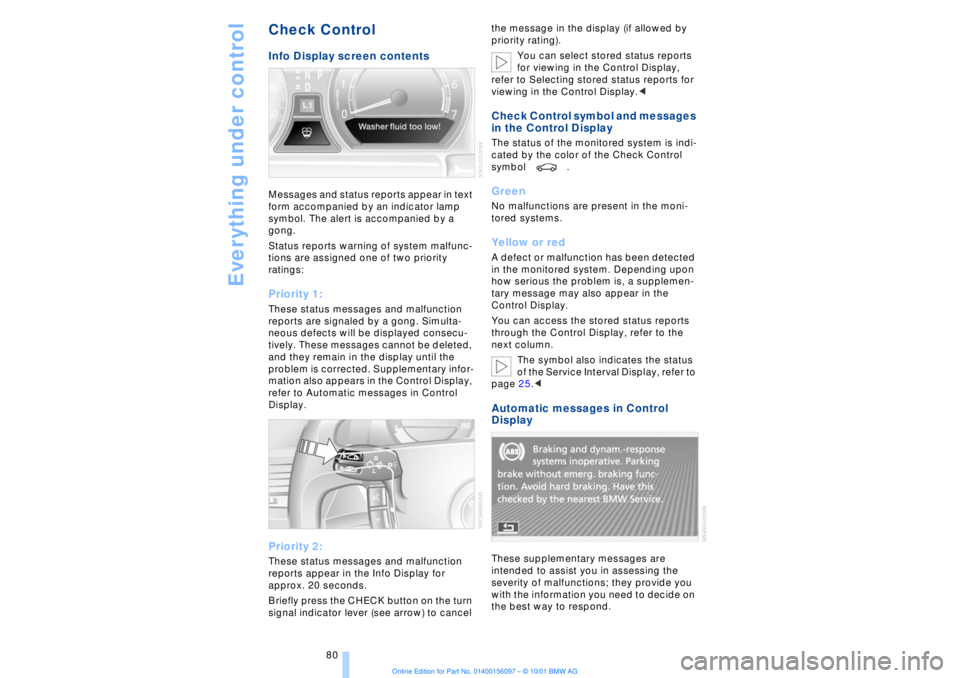
Check Control Info Display screen contents Messages and status reports appear in text
form accompanied by an indicator lamp
symbol. The alert is accompanied by a
gong.
Status reports warning of system malfunc-
tions are assigned one of two priority
ratings: Priority 1: These status messages and malfunction
reports are signaled by a gong. Simulta-
neous defects will be displayed consecu-
tively. These messages cannot be deleted,
and they remain in the display until the
problem is corrected. Supplementary infor-
mation also appears in the Control Display,
refer to Automatic messages in Control
Display. Priority 2: These status messages and malfunction
reports appear in the Info Display for
approx. 20 seconds.
Briefly press the CHECK button on the turn
signal indicator lever (see arrow) to cancel the message in the display (if allowed by
priority rating).
You can select stored status reports
for viewing in the Control Display,
refer to Selecting stored status reports for
viewing in the Control Display.<
Check Control symbol and messages
in the Control Display The status of the monitored system is indi-
cated by the color of the Check Control
symbol . Green No malfunctions are present in the moni-
tored systems. Yellow or red A defect or malfunction has been detected
in the monitored system. Depending upon
how serious the problem is, a supplemen-
tary message may also appear in the
Control Display.
You can access the stored status reports
through the Control Display, refer to the
next column.
The symbol also indicates the status
of the Service Interval Display, refer to
page 25.< Automatic messages in Control
Display These supplementary messages are
intended to assist you in assessing the
severity of malfunctions; they provide you
with the information you need to decide on
the best way to respond.
Page 180 of 208
At a glanceControlsDriving tipsCommunicationsNavigationEntertainmentMobilityReference
179
Maintenance The BMW Maintenance
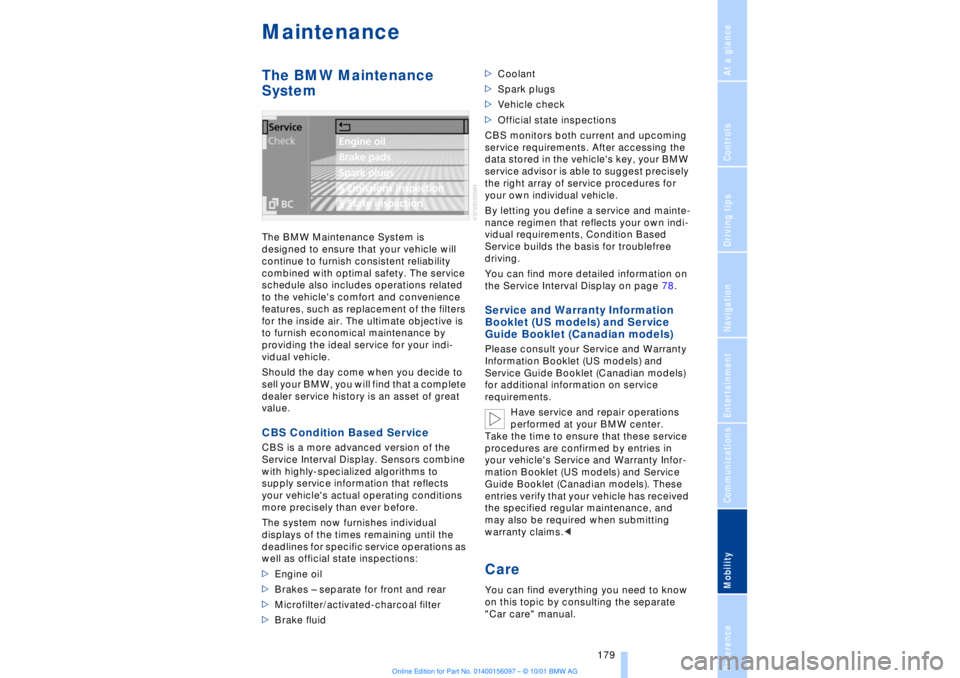
System The BMW Maintenance System is
designed to ensure that your vehicle will
continue to furnish consistent reliability
combined with optimal safety. The service
schedule also includes operations related
to the vehicle's comfort and convenience
features, such as replacement of the filters
for the inside air. The ultimate objective is
to furnish economical maintenance by
providing the ideal service for your indi-
vidual vehicle.
Should the day come when you decide to
sell your BMW, you will find that a complete
dealer service history is an asset of great
value. CBS Condition Based Service CBS is a more advanced version of the
Service Interval Display. Sensors combine
with highly-specialized algorithms to
supply service information that reflects
your vehicle's actual operating conditions
more precisely than ever before.
The system now furnishes individual
displays of the times remaining until the
deadlines for specific service operations as
well as official state inspections:
>Engine oil
>Brakes Ð separate for front and rear
>Microfilter/activated-charcoal filter
>Brake fluid >Coolant
>Spark plugs
>Vehicle check
>Official state inspections
CBS monitors both current and upcoming
service requirements. After accessing the
data stored in the vehicle's key, your BMW
service advisor is able to suggest precisely
the right array of service procedures for
your own individual vehicle.
By letting you define a service and mainte-
nance regimen that reflects your own indi-
vidual requirements, Condition Based
Service builds the basis for troublefree
driving.
You can find more detailed information on
the Service Interval Display on page 78.
Service and Warranty Information
Booklet (US models) and Service
Guide Booklet (Canadian models) Please consult your Service and Warranty
Information Booklet (US models) and
Service Guide Booklet (Canadian models)
for additional information on service
requirements.
Have service and repair operations
performed at your BMW center.
Take the time to ensure that these service
procedures are confirmed by entries in
your vehicle's Service and Warranty Infor-
mation Booklet (US models) and Service
Guide Booklet (Canadian models). These
entries verify that your vehicle has received
the specified regular maintenance, and
may also be required when submitting
warranty claims.< Care You can find everything you need to know
on this topic by consulting the separate
"Car care" manual.
Page 201 of 208
Everything from A to Z
200 Manual operation
Ð doors 37
Ð sliding/tilt sunroof 44
Manual release
Ð automatic transmission
lockout 70
Ð fuel filler door 168
Ð luggage compartment
lid 40
Manual station search 143
Map CD 124
"Map facing N." with navi-
gation system 132
Maximum axle loads 194
Maximum roof weight 194
Maximum speed, see
Limit 84
"MD" 140, 151
MD player 151
Ð fast forward 151
Ð random play 152
Ð reverse 151
Ð sampling 152
Ð scan function 152
Ð switching on 151
Ð track skip 151
"Memo" 86
"Memorize"
Ð "Individual" 104
Memory, refer to Seat, mir-
ror and steering wheel
memory 54
"Memory" for audio
system 140
"Menu name" 23
Menus
Ð computer 22
Ð Control Display 22
"MFL" 53
"M FM" 144, 145
"Microfilter" 179
Microfilter 104
Microphone for hands-free
system 161
MiniDisc, refer to MD 151
Mirrors 52
Ð mirror heaters 52
Ð mirror memory 54
"Missed" 164
Missed calls 164Mobile phone
Ð calling 162
Ð call termination 162
Ð controlling with the but-
tons on the steering
wheel 18
Ð emergency calls 161
Ð hands-free system 161
Ð missed calls 164
Ð operating using the
Control Display 159
Ð redialing 164
Ð selecting phone
numbers 162
Ð switching on and off 162
Ð Top 8 list 163
Ð using with Key Pad 160
Mobile phone, refer to
separate mobile phone
manual 158
Mobile phone battery 159
Mobile phone codes 162
Modifications,
technical 8, 98
Monitor, refer to Control
Center 19
Most frequently called
numbers 163
Most recent mobile phone
numbers 164
N"Navigation" 19, 22
Navigation computer
Ð installation location 124
Navigation destination
Ð manual entry 126
Ð selecting with map 128
Navigation system
Ð destination list 130
Ð digital coverage area 124
Ð town and city centers 136
Ð voice guidance 133
Navigation system
"ACCEPT" command 135
Navigation system "View"
function 132
Navigation target
cursor 128, 129
"Navi info" 54"New route" 133
"Next"
Ð map-guided destination
selection 129
Ð searching for points of
interest 130
Nozzles 99
O"OB data" 19, 22
OBD interface socket 180
Occupant-restraint
systems 50, 55
Odometer 77
Oil additives 177
Oil change intervals, refer
to Service Interval
Display 78
Oil consumption 176
Oil dipstick 176
Oil specifications 177
"ON / OFF" speed limit 84
Onboard Diagnostic (OBD)
system 180
Ð interface socket 180
Onboard tool kit 181
"On country" 130
"On current loc." 129
"1,2,3" 163
"On town/city" 130
Opening and closing
Ð from the inside 37
Ð from the outside 37
Oral note 27
Orientation
Ð changing the display 132
Orientation menu 19
Orientation to north 132
Outside temperature
display 77PPaint and finish care, refer
to Car care manual
Panic mode 36
Park Distance Control
(PDC) 88
Parked-car ventilation 106
Parking aid 88