2002 BMW 745LI SEDAN navigation system
[x] Cancel search: navigation systemPage 120 of 208
At a glanceControlsDriving tipsCommunicationsNavigationEntertainmentMobilityReference
119
Brake system Braking with ABS The best way to achieve optimal response
from the ABS is to apply maximum pres-
sure to the brake pedal during emergencyÐ
panic stops. Since the vehicle maintains
steering responsiveness, you can never-
theless avoid possible obstacles with a
minimum of steering effort.
Pulsation at the brake pedal combines with
sounds from the hydraulic circuits to indi-
cate to the driver that ABS is in its active
mode.
Do not drive with your foot resting on
the brake pedal. Even light but
consistent pedal pressure can lead to high
temperatures, brake wear and possibly
even brake failure.< Disc brakes
Driving in wet conditions While driving in wet conditions and in
heavy rain, it is a good idea to apply light
pressure to the brake pedal every few
miles. Monitor traffic conditions to ensure
that this maneuver does not endanger
other road users. The heat generated in this
process helps dry the pads and rotors to
ensure that full braking efficiency will then
be available when you need it. Hills You can retain full and unimpaired braking
efficiency by downshifting to a gear in
which only minimal brake applications are
needed when descending long or steep
downhill stretches.
You can further enhance the engine's
braking effect by selecting a lower gear in
the automatic transmission's manual
mode, downshifting as far as first gear on
extremely steep stretches, refer to
page 68. This strategy helps you avoid
placing excessive loads on the brake
system.
Corrosion When the vehicle is driven only occasion-
ally, during extended periods when the
vehicle is not used at all, and in operating
conditions where brake applications are
less frequent, there is an increased
tendency for corrosion to form on rotors,
while contaminants accumulate on the
brake pads. This occurs because the
minimal pressure which must be exerted by
the pads during brake applications to clean
the rotors is not reached.
Should corrosion form on the brake rotors,
the brakes will tend to respond with a
pulsating effect that even extended appli-
cation will fail to cure.
Never allow the vehicle to coast with
the transmission in neutral Ð or with
the engine switched off; there is no engine
braking when the transmission is in neutral,
and no power-assist for brakes and
steering when the engine is not running.
Never allow floor mats, carpets or any other
objects to protrude into the area around the
accelerator and brake pedals and obstruct
their movement.< Brake pads
If the brake pad wear indicator lamp
appears in the Check Control,
accompanied by a text: please take
careful note of the additional information in
the Control Display panel.
Warning lamp for Canadian models.
The brake pads have reached their
minimum pad thickness. Have them
replaced at your BMW center as soon as
possible.
For your own safety: use only brake
pads that BMW has released for your
particular vehicle model. Because BMW
cannot assess the suitability of other brake
pads for use on your vehicle, we are unable
to assume continued responsibility for the
vehicle's operating safety if non-approved
pads are installed.<
Page 124 of 208
Navigation
This section contains various examples
that illustrate how the navigation system
provides you with reliable guidance to
your destination.
Page 125 of 208
Navigation
124
NavigationSafetyBy allowing you to find your destination
without having to consult conventional
road maps as you drive, the navigation
system makes an important contribution to
traffic safety.
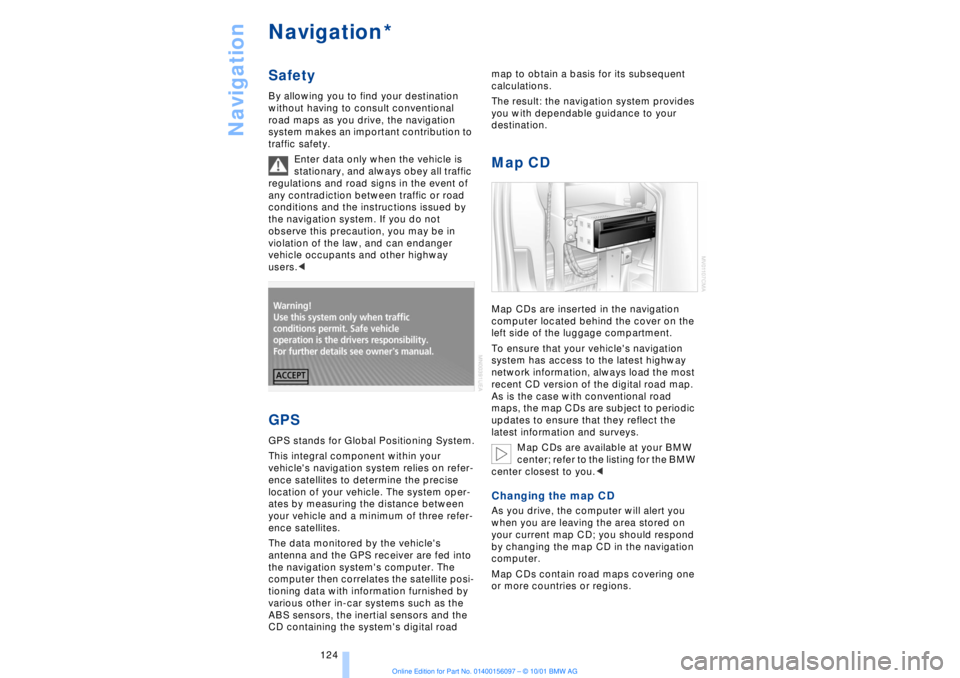
Enter data only when the vehicle is
stationary, and always obey all traffic
regulations and road signs in the event of
any contradiction between traffic or road
conditions and the instructions issued by
the navigation system. If you do not
observe this precaution, you may be in
violation of the law, and can endanger
vehicle occupants and other highway
users.< GPSGPS stands for Global Positioning System.
This integral component within your
vehicle's navigation system relies on refer-
ence satellites to determine the precise
location of your vehicle. The system oper-
ates by measuring the distance between
your vehicle and a minimum of three refer-
ence satellites.
The data monitored by the vehicle's
antenna and the GPS receiver are fed into
the navigation system's computer. The
computer then correlates the satellite posi-
tioning data with information furnished by
various other in-car systems such as the
ABS sensors, the inertial sensors and the
CD containing the system's digital road map to obtain a basis for its subsequent
calculations.
The result: the navigation system provides
you with dependable guidance to your
destination.
Map CDMap CDs are inserted in the navigation
computer located behind the cover on the
left side of the luggage compartment.
To ensure that your vehicle's navigation
system has access to the latest highway
network information, always load the most
recent CD version of the digital road map.
As is the case with conventional road
maps, the map CDs are subject to periodic
updates to ensure that they reflect the
latest information and surveys.
Map CDs are available at your BMW
center; refer to the listing for the BMW
center closest to you.
your current map CD; you should respond
by changing the map CD in the navigation
computer.
Map CDs contain road maps covering one
or more countries or regions.
*
Page 126 of 208
At a glanceControlsDriving tipsCommunicationsNavigationEntertainmentMobilityReference
125
To change the map CD:
1.Press the button
The CD is ejected from the navigation
computer
2.Remove the CD
3.Insert the new CD with the labeled side
up
4.Allow eight seconds for the system to
scan the data from the new CD. Starting the navigation
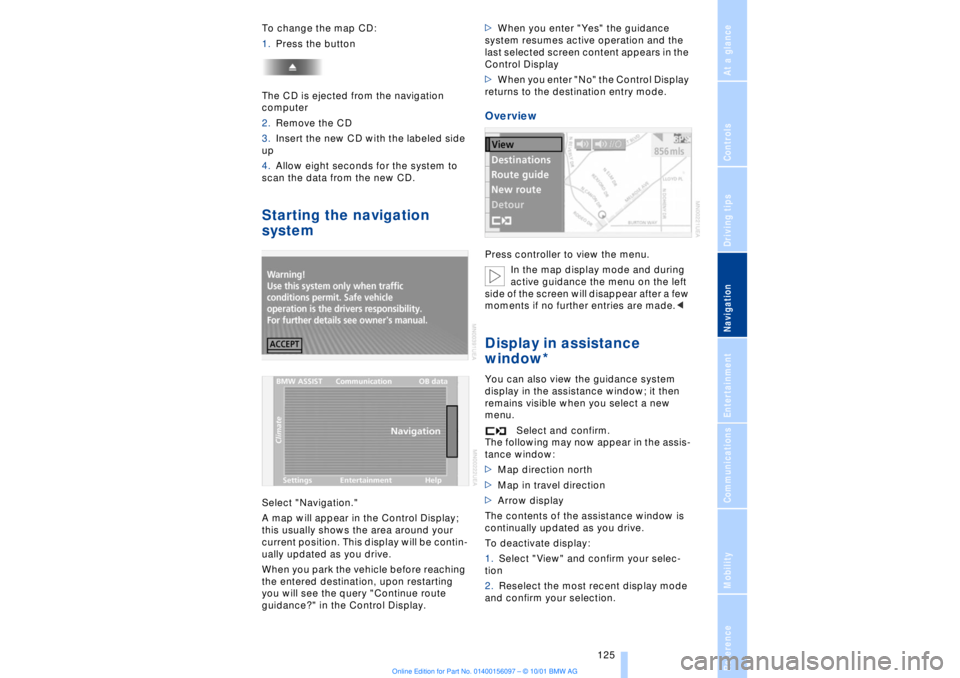
systemSelect "Navigation."
A map will appear in the Control Display;
this usually shows the area around your
current position. This display will be contin-
ually updated as you drive.
When you park the vehicle before reaching
the entered destination, upon restarting
you will see the query "Continue route
guidance?" in the Control Display.>When you enter "Yes" the guidance
system resumes active operation and the
last selected screen content appears in the
Control Display
>When you enter "No" the Control Display
returns to the destination entry mode.
OverviewPress controller to view the menu.
In the map display mode and during
active guidance the menu on the left
side of the screen will disappear after a few
moments if no further entries are made.
display in the assistance window; it then
remains visible when you select a new
menu.
Select and confirm.
The following may now appear in the assis-
tance window:
>Map direction north
>Map in travel direction
>Arrow display
The contents of the assistance window is
continually updated as you drive.
To deactivate display:
1.Select "View" and confirm your selec-
tion
2.Reselect the most recent display mode
and confirm your selection.
Page 127 of 208
Navigation
126
Selection optionsIn entering your destination you can select
from among the following options:
>Manual entry of destination address,
refer to next column
>To select town/city and street from the
directory, refer to page 128
>To select destination with map, refer to
page 128
>To select destination with Information,
refer to page 129
>To select from among recent destina-
tions, refer to page 130
>To select destination from address
book, refer to page 134.
After selecting your destination you can
proceed to start the guidance system,
refer to page 131.Destination entry
Enter data only when the vehicle is
stationary, and always obey the traffic
regulations and road signs in the event of
any contradiction between traffic and road
conditions and the instructions issued by
the navigation system. If you do not
observe this precaution, you may be in
violation of the law, and can endanger
vehicle occupants and other highway
users.<
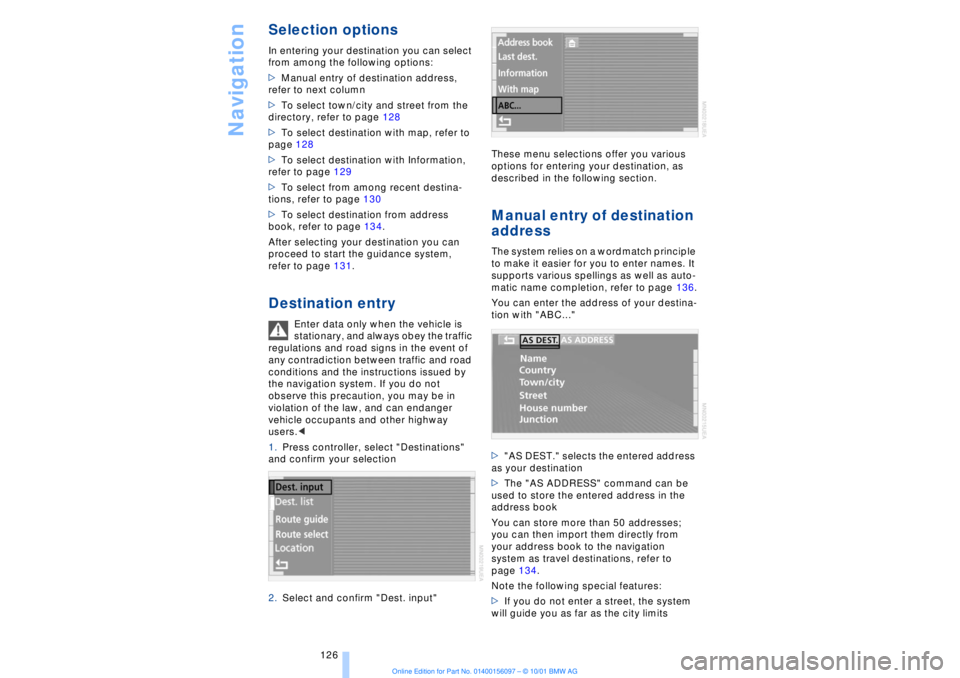
1.Press controller, select "Destinations"
and confirm your selection
2.Select and confirm "Dest. input"These menu selections offer you various
options for entering your destination, as
described in the following section.
Manual entry of destination
addressThe system relies on a wordmatch principle
to make it easier for you to enter names. It
supports various spellings as well as auto-
matic name completion, refer to page 136.
You can enter the address of your destina-
tion with "ABC..."
>"AS DEST." selects the entered address
as your destination
>The "AS ADDRESS" command can be
used to store the entered address in the
address book
You can store more than 50 addresses;
you can then import them directly from
your address book to the navigation
system as travel destinations, refer to
page 134.
Note the following special features:
>If you do not enter a street, the system
will guide you as far as the city limits
Page 128 of 208
At a glanceControlsDriving tipsCommunicationsNavigationEntertainmentMobilityReference
127
>Depending on the data stored on your
map CD, you may also be able to enter the
house or building number on some streets
>You can skip the entry of country and
locality if the current entries are being
retained for your new destination
>You can overwrite street names if you
would like to proceed to another street
within the same locality.
The example shows how to use the naviga-
tion system to find the following destina-
tion:
United States
Beverly Hills, Ca
455 N Rexford Drive
To enter the destination address:
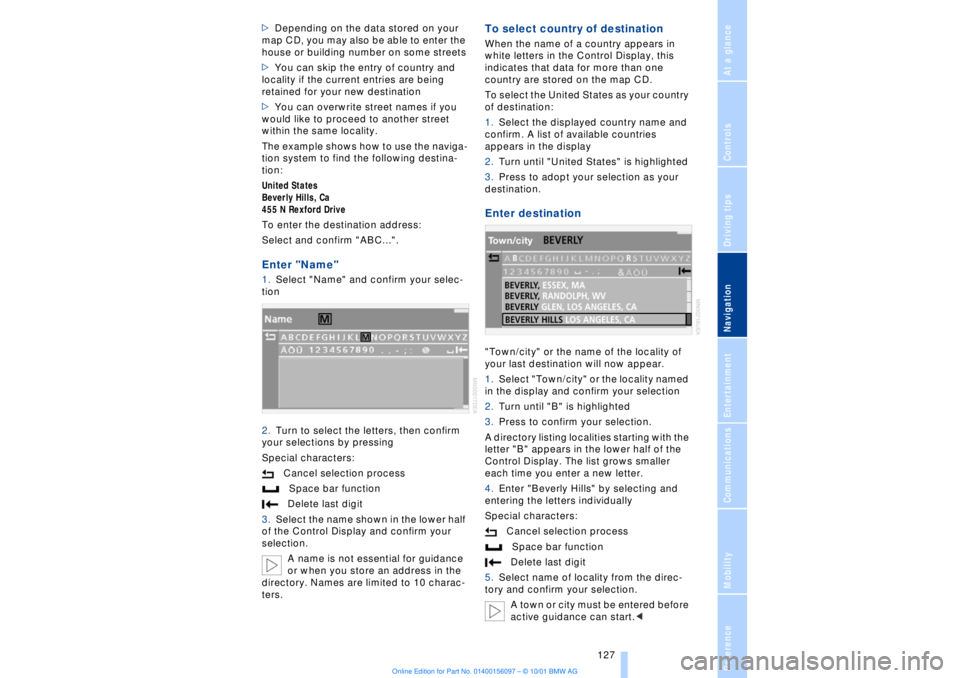
Select and confirm "ABC...".Enter "Name" 1.Select "Name" and confirm your selec-
tion
2.Turn to select the letters, then confirm
your selections by pressing
Special characters:
Cancel selection process
Space bar function
Delete last digit
3.Select the name shown in the lower half
of the Control Display and confirm your
selection.
A name is not essential for guidance
or when you store an address in the
directory. Names are limited to 10 charac-
ters.
To select country of destinationWhen the name of a country appears in
white letters in the Control Display, this
indicates that data for more than one
country are stored on the map CD.
To select the United States as your country
of destination:
1.Select the displayed country name and
confirm. A list of available countries
appears in the display
2.Turn until "United States" is highlighted
3.Press to adopt your selection as your
destination. Enter destination"Town/city" or the name of the locality of
your last destination will now appear.
1.Select "Town/city" or the locality named
in the display and confirm your selection
2.Turn until "B" is highlighted
3.Press to confirm your selection.
A directory listing localities starting with the
letter "B" appears in the lower half of the
Control Display. The list grows smaller
each time you enter a new letter.
4.Enter "Beverly Hills" by selecting and
entering the letters individually
Special characters:
Cancel selection process
Space bar function
Delete last digit
5.Select name of locality from the direc-
tory and confirm your selection.
A town or city must be entered before
active guidance can start.<
Page 129 of 208
Navigation
128
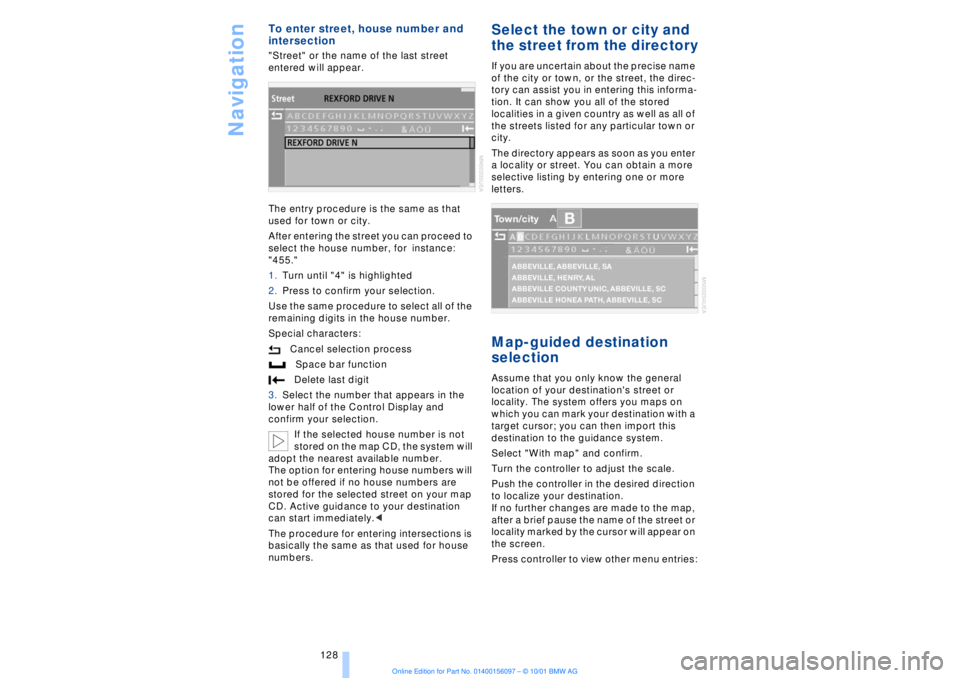
To enter street, house number and
intersection "Street" or the name of the last street
entered will appear.
The entry procedure is the same as that
used for town or city.
After entering the street you can proceed to
select the house number, for instance:
"455."
1.Turn until "4" is highlighted
2.Press to confirm your selection.
Use the same procedure to select all of the
remaining digits in the house number.
Special characters:
Cancel selection process
Space bar function
Delete last digit
3.Select the number that appears in the
lower half of the Control Display and
confirm your selection.
If the selected house number is not
stored on the map CD, the system will
adopt the nearest available number.
The option for entering house numbers will
not be offered if no house numbers are
stored for the selected street on your map
CD. Active guidance to your destination
can start immediately.<
The procedure for entering intersections is
basically the same as that used for house
numbers.
Select the town or city and
the street from the directoryIf you are uncertain about the precise name
of the city or town, or the street, the direc-
tory can assist you in entering this informa-
tion. It can show you all of the stored
localities in a given country as well as all of
the streets listed for any particular town or
city.
The directory appears as soon as you enter
a locality or street. You can obtain a more
selective listing by entering one or more
letters.Map-guided destination
selectionAssume that you only know the general
location of your destination's street or
locality. The system offers you maps on
which you can mark your destination with a
target cursor; you can then import this
destination to the guidance system.
Select "With map" and confirm.
Turn the controller to adjust the scale.
Push the controller in the desired direction
to localize your destination.
If no further changes are made to the map,
after a brief pause the name of the street or
locality marked by the cursor will appear on
the screen.
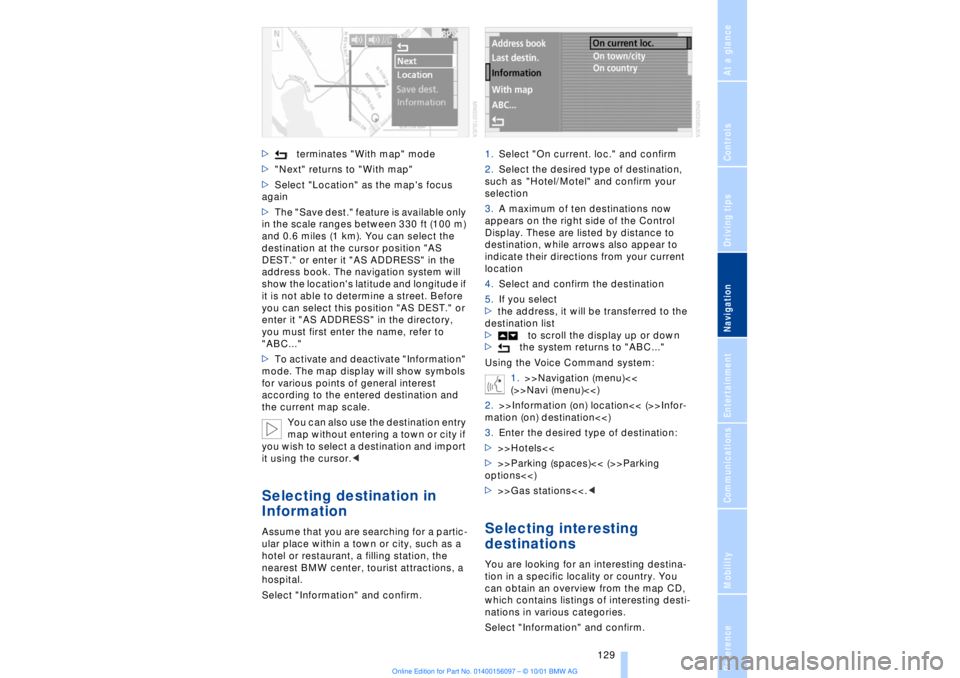
Press controller to view other menu entries:
Page 130 of 208
At a glanceControlsDriving tipsCommunicationsNavigationEntertainmentMobilityReference
129
>terminates "With map" mode
>"Next" returns to "With map"
>Select "Location" as the map's focus
again
>The "Save dest." feature is available only
in the scale ranges between 330 ft (100 m)
and 0.6 miles (1 km). You can select the
destination at the cursor position "AS
DEST." or enter it "AS ADDRESS" in the
address book. The navigation system will
show the location's latitude and longitude if
it is not able to determine a street. Before
you can select this position "AS DEST." or
enter it "AS ADDRESS" in the directory,
you must first enter the name, refer to
"ABC..."
>To activate and deactivate "Information"
mode. The map display will show symbols
for various points of general interest
according to the entered destination and
the current map scale.
You can also use the destination entry
map without entering a town or city if
you wish to select a destination and import
it using the cursor.< Selecting destination in
Information Assume that you are searching for a partic-
ular place within a town or city, such as a
hotel or restaurant, a filling station, the
nearest BMW center, tourist attractions, a
hospital.
Select "Information" and confirm.1.Select "On current. loc." and confirm
2.Select the desired type of destination,
such as "Hotel/Motel" and confirm your
selection
3.A maximum of ten destinations now
appears on the right side of the Control
Display. These are listed by distance to
destination, while arrows also appear to
indicate their directions from your current
location
4.Select and confirm the destination
5.If you select
>the address, it will be transferred to the
destination list
>to scroll the display up or down
>the system returns to "ABC..."
Using the Voice Command system:
1.>>Navigation (menu)<<
(>>Navi (menu)<<)
2.>>Information (on) location<< (>>Infor-
mation (on) destination<<)
3.Enter the desired type of destination:
>>>Hotels<<
>>>Parking (spaces)<< (>>Parking
options<<)
>>>Gas stations<<.<
Selecting interesting
destinationsYou are looking for an interesting destina-
tion in a specific locality or country. You
can obtain an overview from the map CD,
which contains listings of interesting desti-
nations in various categories.
Select "Information" and confirm.