2002 BMW 745LI SEDAN trip computer
[x] Cancel search: trip computerPage 15 of 208
Cockpit
14
Info Display
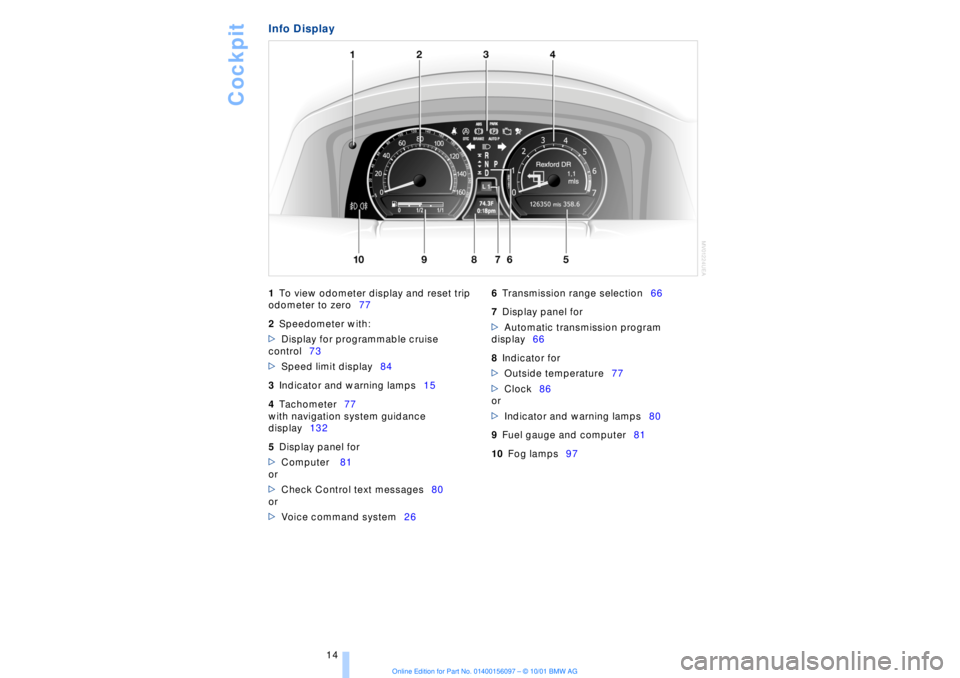
1
To view odometer display and reset trip
odometer to zero77
2
Speedometer with:
>
Display for programmable cruise
control73
>
Speed limit display84
3
Indicator and warning lamps15
4
Tachometer77
with navigation system guidance
display132
5
Display panel for
>
Computer 81
or
>
Check Control text messages80
or
>
Voice command system26
6
Transmission range selection66
7
Display panel for
>
Automatic transmission program
display66
8
Indicator for
>
Outside temperature77
>
Clock86
or
>
Indicator and warning lamps80
9
Fuel gauge and computer81
10
Fog lamps97
Page 78 of 208
At a glanceControlsDriving tipsCommunicationsNavigationEntertainmentMobilityReference
77
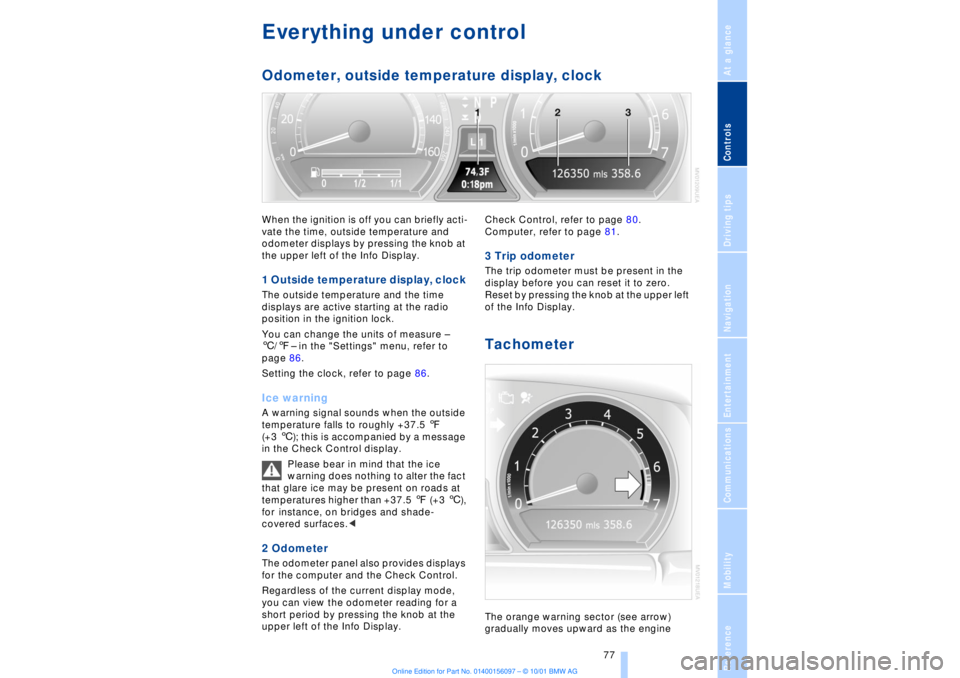
Everything under control Odometer, outside temperature display, clockWhen the ignition is off you can briefly acti-
vate the time, outside temperature and
odometer displays by pressing the knob at
the upper left of the Info Display. 1 Outside temperature display, clock The outside temperature and the time
displays are active starting at the radio
position in the ignition lock.
You can change the units of measure Ð
6/7Ð in the "Settings" menu, refer to
page 86.
Setting the clock, refer to page 86.Ice warning A warning signal sounds when the outside
temperature falls to roughly +37.5 7
(+3 6); this is accompanied by a message
in the Check Control display.
Please bear in mind that the ice
warning does nothing to alter the fact
that glare ice may be present on roads at
temperatures higher than +37.5 7 (+3 6),
for instance, on bridges and shade-
covered surfaces.< 2 Odometer The odometer panel also provides displays
for the computer and the Check Control.
Regardless of the current display mode,
you can view the odometer reading for a
short period by pressing the knob at the
upper left of the Info Display. Check Control, refer to page 80.
Computer, refer to page 81.
3 Trip odometer The trip odometer must be present in the
display before you can reset it to zero.
Reset by pressing the knob at the upper left
of the Info Display. Tachometer The orange warning sector (see arrow)
gradually moves upward as the engine
Page 82 of 208
At a glanceControlsDriving tipsCommunicationsNavigationEntertainmentMobilityReference
81
Select and confirm to cancel the
display.
Selecting stored status reports for
viewing in the Control Display 1.Select the "OB data" menu
2. Select and confirm your selec-
tion
3.Select "Check" and confirm
4.The stored status reports appear in the
display. Select the desired report and
confirm your selection.
The display will disappear automatically
after a short period; you can also cancel it
manually using the symbol. Displays after completion of trip Selected malfunction reports generated
during the trip are shown consecutively
when you switch off the ignition.
If indicated, the following message may
also appear:
"Parking lamps on!"
This message appears when you open the
driver's door after parking. A supplemen-
tary gong is also heard. Even with the ignition and Info Display off,
you can reactivate the screen and display
the messages.
Press the CHECK button for approx.
8 seconds, refer to page 80. The stored
status reports appear again in the display.
If several messages are present, you can
continue to press the CHECK button to
view them in succession.
The Check Control function
>cancels itself automatically after a brief
period
>can be terminated by again pressing the
CHECK button for approx. 8 seconds.
You can select the language in which
Check Control status reports and
messages from the computer will appear,
refer to page 86.<
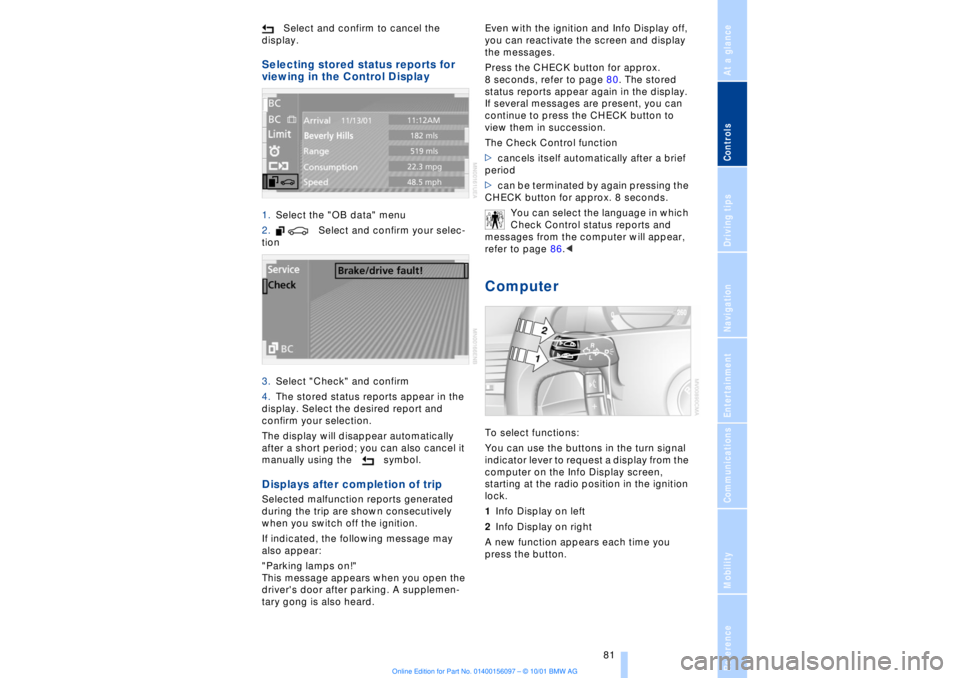
Computer To select functions:
You can use the buttons in the turn signal
indicator lever to request a display from the
computer on the Info Display screen,
starting at the radio position in the ignition
lock.
1Info Display on left
2Info Display on right
A new function appears each time you
press the button.
Page 84 of 208
At a glanceControlsDriving tipsCommunicationsNavigationEntertainmentMobilityReference
83
To avoid serious damage to the engine or
catalytic converter, always refuel as soon
as possible once your cruising range falls
to below 30 miles (50 kilometers).
When refueling you must add at least
approx. 1 1/3 gallons (5 litres) before the
computer will register the additional fuel. Distance to destination When you enter a destination in the naviga-
tion system or manually enter a distance in
the computer prior to departure, the
system can also display the distance
remaining to your destination, refer to
pages 126 and 84.
The system automatically adopts the
distance to your destination using the route
recommended by the navigation system.
When you enter a destination in the
navigation system, any manual
entries will be overwritten no later than
once 1640 feet (500 meters) of the calcu-
lated distance have elapsed.< Energy Control/
Current fuel consumption Shows your current fuel consumption rate
in mpg Ð in litres/100 km on Canadian vehi-
cles. This allows you to see whether your
current driving style is conducive to fuel
economy with minimum exhaust emis-
sions.
When the vehicle is stationary the display
goes to the maximum reading Ð zero on
Canadian models. Average fuel consumption The average fuel consumption is calculated
for the time during which the engine is
running.
You can use the Control Display to view
your fuel consumption rate over two
different distances, refer to Computer or
Trip computer.
Average speed Periods with the vehicle parked and the
engine off are not included in the calcula-
tions of average speed. Time of arrival A display of your estimated time of arrival is
available whenever you enter a destination
in the navigation system, refer to page 126,
or enter the distance manually in the
computer, refer to page 84, prior to depar-
ture.
This function is only available if the
time in the Control Display has been
correctly set, refer to page 86.< Control Display screen contents You can activate the computer function at
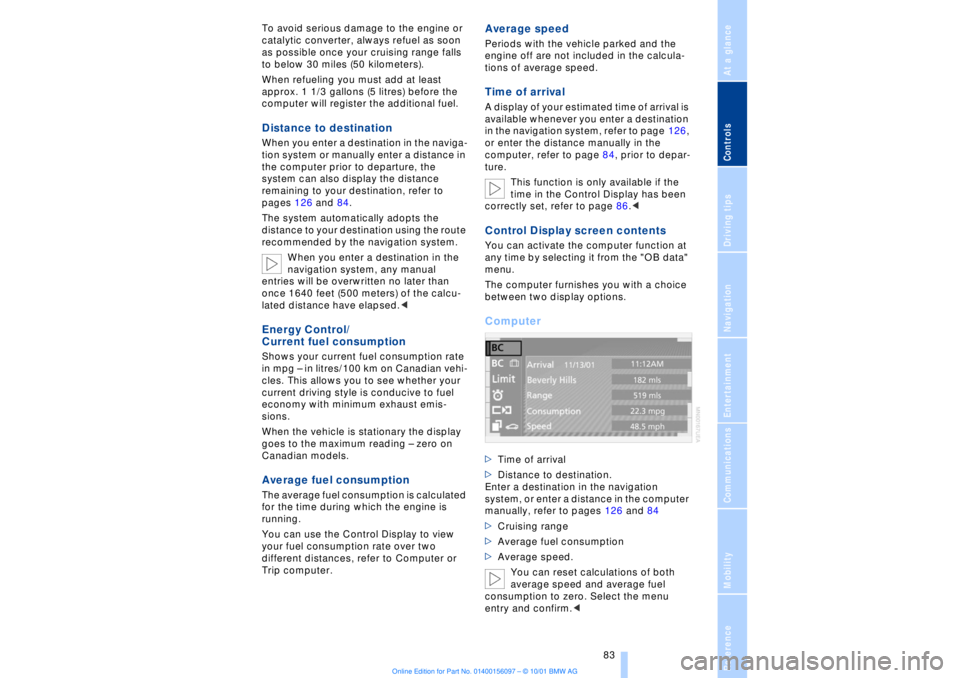
any time by selecting it from the "OB data"
menu.
The computer furnishes you with a choice
between two display options.Computer >Time of arrival
>Distance to destination.
Enter a destination in the navigation
system, or enter a distance in the computer
manually, refer to pages 126 and 84
>Cruising range
>Average fuel consumption
>Average speed.
You can reset calculations of both
average speed and average fuel
consumption to zero. Select the menu
entry and confirm.<
Page 85 of 208
Everything under control
84
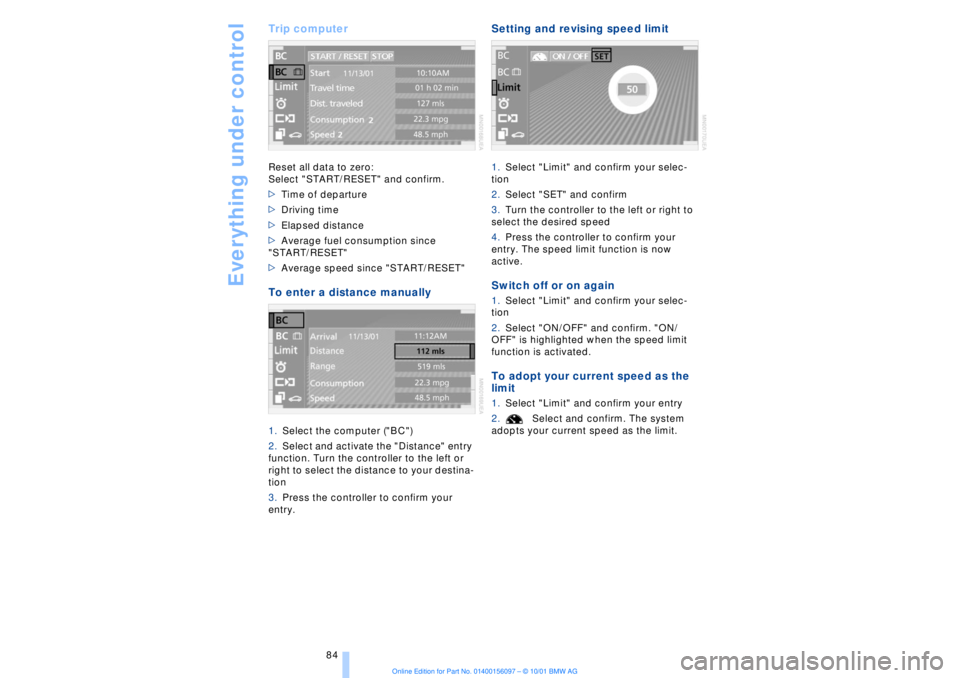
Trip computer Reset all data to zero:
Select "START/RESET" and confirm.
>Time of departure
>Driving time
>Elapsed distance
>Average fuel consumption since
"START/RESET"
>Average speed since "START/RESET" To enter a distance manually 1.Select the computer ("BC")
2.Select and activate the "Distance" entry
function. Turn the controller to the left or
right to select the distance to your destina-
tion
3.Press the controller to confirm your
entry.
Setting and revising speed limit 1.Select "Limit" and confirm your selec-
tion
2.Select "SET" and confirm
3.Turn the controller to the left or right to
select the desired speed
4.Press the controller to confirm your
entry. The speed limit function is now
active. Switch off or on again 1.Select "Limit" and confirm your selec-
tion
2.Select "ON/OFF" and confirm. "ON/
OFF" is highlighted when the speed limit
function is activated. To adopt your current speed as the
limit 1.Select "Limit" and confirm your entry
2.Select and confirm. The system
adopts your current speed as the limit.
Page 86 of 208
At a glanceControlsDriving tipsCommunicationsNavigationEntertainmentMobilityReference
85
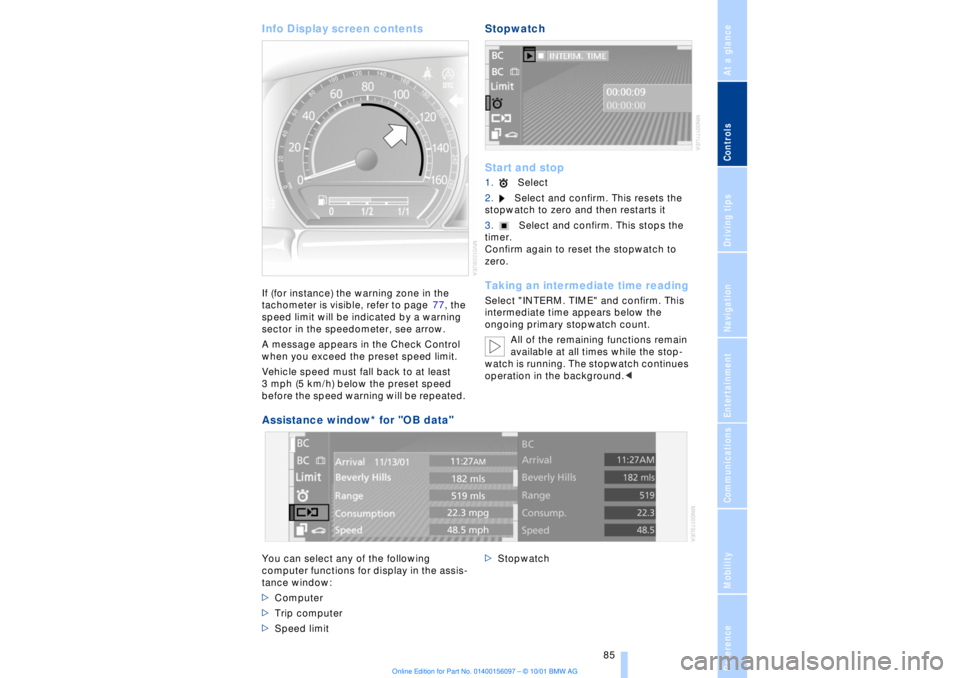
Info Display screen contents If (for instance) the warning zone in the
tachometer is visible, refer to page 77, the
speed limit will be indicated by a warning
sector in the speedometer, see arrow.
A message appears in the Check Control
when you exceed the preset speed limit.
Vehicle speed must fall back to at least
3 mph (5 km/h) below the preset speed
before the speed warning will be repeated.
Stopwatch
Start and stop1.Select
2.Select and confirm. This resets the
stopwatch to zero and then restarts it
3.Select and confirm. This stops the
timer.
Confirm again to reset the stopwatch to
zero. Taking an intermediate time readingSelect "INTERM. TIME" and confirm. This
intermediate time appears below the
ongoing primary stopwatch count.
All of the remaining functions remain
available at all times while the stop-
watch is running. The stopwatch continues
operation in the background.<
Assistance window* for "OB data"
You can select any of the following
computer functions for display in the assis-
tance window:
>Computer
>Trip computer
>Speed limit >Stopwatch