1995 CHEVROLET S10 lock
[x] Cancel search: lockPage 123 of 354
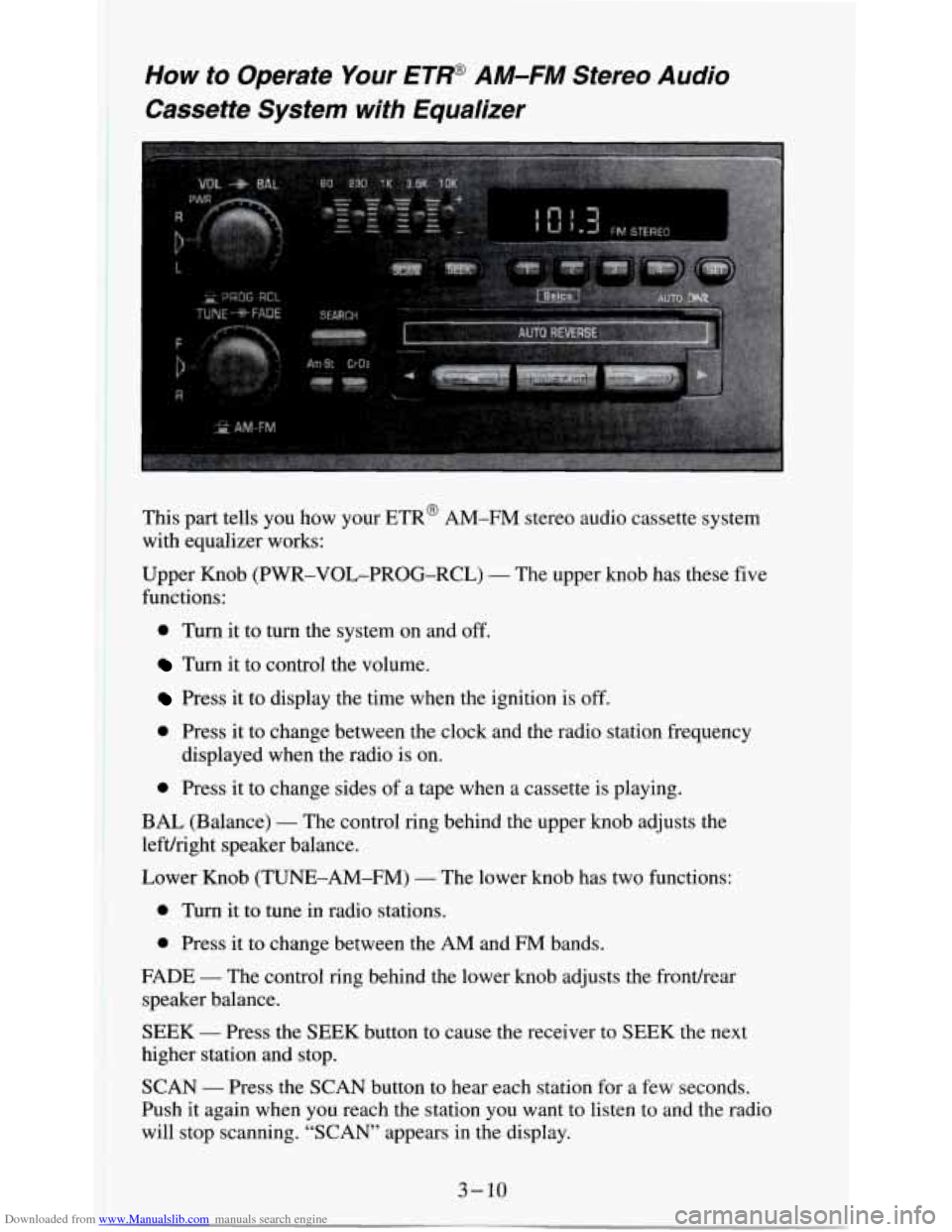
Downloaded from www.Manualslib.com manuals search engine How to Operate Your ETW AM-FM Stereo Audio
Cassette System with Equalizer
This part tells you how your ETR@ AM-FM stereo audio cassette system
with equalizer works:
Upper Knob (PWR-VOL-PROG-RCL)
- The upper knob has these five
functions:
0 Turn it to turn the system on and off.
Turn it to control the volume.
Press it to display the time when the ignition is off.
0 Press it to change between the clock and the radio station frequency
0 Press it to change sides of a tape when a cassette is playing.
displayed
when the radio is on.
BAL (Balance)
- The control ring behind the upper knob adjusts the
lefuright speaker balance.
Lower Knob (TUNE-AM-FM)
- The lower knob has two functions:
0 Turn it to tune in radio stations.
0 Press it to change between the AM and FM bands.
FADE
- The control ring behind the lower knob adjusts the fronthear
speaker balance.
SEEK
- Press the SEEK button to cause the receiver to SEEK the next
higher station and stop.
SCAN
- Press the SCAN button to hear each station for a few seconds.
Push it again when you reach the station you want to listen to and the radio
will stop scanning. “SCAN” appears in the display.
Page 127 of 354

Downloaded from www.Manualslib.com manuals search engine Pushbuttons - The five pushbuttons let you return to favorite stations.
They are also used when you play a disc. (See
“To Play A Compact Disc”.)
To
set the pushbuttons for up to ten favorite stations (5 AM and 5 FM):
1. Tune in the desired station.
2. Push the SET button. “SET” is displayed briefly.
3. Within 5 seconds, push one of the five pushbuttons to store the station.
Whenever
you press that button, the preset station will return. Repeat
the steps for each of the
5 AM and 5 FM stations.
MUTE
- Press the MUTE button and all sound from the radio or CD
player stops. By pressing the button again sound will begin again.
RCL - Press the RCL button to change between the clock and the radio
station frequency displayed when the radio
is on. RCL may be pressed when
the ignition is off to see
the time.
BASS
- Press the BASS A to increase the bass tones and v BASS to
decrease bass tones. Press the center of the control for a preset BASS
position.
The bass level will be displayed briefly when using this control.
TREBLE
- Press the TREB A to increase the treble tones and v TREB to
decrease the treble tones. Press the center of the control for a preset TREB
position. The treble level will be displayed briefly when using this control.
To Play A Compact Disc (CD)
NOTICE:
DO NOT use mini-discs that are called singles. They won’t eject\
.
USE FULL-SIZE COMPACT DISCS. If the disc player is very
hot, or if you’re driving on a very rough road,
a disc may come
out or just not play. If you see the word HOT on the displa\
y, the
disc player is too hot to play the disc. Press RCL to make \
the
word HOT
go off the display. When things get back to normal,
the disc should play again. Press PWR to turn the system on.
Insert a disc partway into the slot, label side up. The player will pull it in.
Wait a few seconds and the disc should play.
If
the disc comes back out, check to see if any of the following are true:
0 The disc is upside down.
0 It is dirty, scratched, or wet.
0 Too much moisture is in the air. (If there is, wait about one hour and try
again.)
3- 14
Page 128 of 354
Downloaded from www.Manualslib.com manuals search engine RCL - Press RCL to see what track is playing. Press it again within 5
seconds to see how long it has been playing. The track number also appears
when
you change the volume or when a new track starts to play.
COMP
- Press the COMP button to make soft and loud passages more
nearly equal in volume. “COMP’ will appear in the display while using this
control.
RDM
- The RDM button means random and when it is pressed, it causes
the CD mechanism to play the tracks
in a random order rather than in the
sequential 1,2,
3 order. “RDM” will appear in the display while using this
control.
To return to normal sequence, press RDM again.
REV
- Press and hold the REV button to quickly return to a favorite
passage. Release it
to display the passage. The counter reading will be
displayed while using this control.
FWD
- Press and hold the FWD button to advance quickly within a track.
Release it to resume playing. Watch the display to stop at
a specific passage.
SCAN
- Press SCAN to sample each track for approximately 10 seconds.
Scanning will continue until the RDM, SCAN or any other motion button is
pressed again.
PREV
- Hold the PREV (4 SEEK) button, or press it more than once, and
the disc will return to previous tracks.
NEXT
- Press NEXT (SEEK ,) to hear the next track now instead of
waiting until the present track is finished. If you hold this button or press it
more than once, the disc will advance further.
ST-PL
- Press ST-PL (Stop-Play) to make the disc stop and the radio
play. Press ST-PL again to restart the disc at the point where it stopped.
Press PWR or turn the ignition key
off to stop the disc player. The disc stays
in the player and will resume playing at the point where it stopped.
Press EJCT to eject the disc and make the radio play. The disc will start at
track
I when you reinsert it.
Anti-Theft Feature
Delco LOC II@ is an Anti-Theft feature for the compact disc player. It can
be used or ignored. If ignored, the system plays normally. If it is used, your
player won’t be usable if it is ever stolen, because it won’t turn
on.
The instructions below tell you how to enter a secret code into the system. If
your car loses battery power for any reason,
you must unlock the system
with the secret code before the radio will turn on.
3-15
Page 129 of 354
Downloaded from www.Manualslib.com manuals search engine To Lock The System:
1. Write down any 6 digit number and keep it in a safe place.
2. Turn the ignition to the ACC (Accessory) or RUN position.
3. Press the PWR knob to turn the radio off.
4. Press the 1 and 4 buttons together. Hold them down until “- - -” shows
on the display.
You are now ready to enter your secret code. Don’t wait more than
15
seconds between steps.
5. Press SET and “000” will appear on the display.
6. Press the SEEK or 4 button to make the first number appear.
7. Press SCAN to make the next two numbers agree with your code.
8. Press BAND and “000” will appear again. Now you are ready to enter
the last three digits
of your code.
9. Repeat steps 6 and 7 for the last three digits of your code.
10. Press BAND and “rEP’ will appear for 5 seconds and then “OOO” will
11. Repeat steps 6 through 10. This time “SEC” will appear - indicating
appear.
that the radio
is secure.
To Unlock The System After A Power Loss
When battery power is reapplied to a secured radio, the radio won’t turn on
and
“LOC” will appear on the display.
Enter your secret code as follows. Pause
no more than 15 seconds between
steps.
1. Turn the ignition on. (Radio off.)
2. Press the SET button. The display will show “000”.
3. Enter the six digits of the code following steps 6-9 above. The display
4. Press the BAND knob and the time appears - indicating that the
will
show the numbers as entered.
disabling sequence was successful. If the display indicates
“SEC”, the
numbers did
not match and the unit is still secured.
3-16
Page 130 of 354

Downloaded from www.Manualslib.com manuals search engine Disabling The Theft System
1.
2.
3.
4.
5.
6.
Press presets 1 and 4 for 5 seconds with ignition on and radio off. The
display will show “SEC”, indicating the unit is in the secure mode.
Press the SET button. The display will show
“000”.
Enter the first three digits of the code following steps 6 and 7 of the
preceding paragraphs (To Lock the System). The display will show the
numbers as entered.
Press the BAND knob. The radio will display
“OOO”.
Enter the second three digits of the code. The display will show the
numbers as entered.
Press the BAND knob.
If the display shows “- - - ”, the disabling
sequence was successful. The numbers matched the user-selected code
or the factory back-up code, and the unit is in the UNSECURED
mode.
If the display shows “SEC”, the disabling sequence was
unsuccessful and the numbers did not match either of the codes and the
unit will remain
in the SECURED mode.
Understanding Radio Reception
FM stereo will give you the best sound. But FM signals will reach only
about 10 to
40 miles (16 to 65 km). And, tall buildings or hills can interfere
with
FM signals, causing the sound to come and go.
The range for most AM stations is greater than for
FM, especially at night.
The longer range, however, can cause stations to interfere with each other.
AM can pick up noise from things like storms and power lines. Try reducing
the treble to reduce this noise if you ever get it.
AM Stereo means the Delco@ system can receive C-QUAM@stereo
broadcasts. Many AM stations around the count use C-QUAM@ to
produce stereo, though some do not. (C-QUAM is a registered trademark
of Motorola, Inc.) If your Delco@ system can get C-QUAM@, your
“STEREO” light will come on when you’re receiving
it.
Be aware that hearing damage from loud noise is almost undetectable until
it is too late. Your hearing can adapt to higher volumes
of sound. Sound that
seems normal can be loud and harmful to your hearing. Take precautions by
adjusting the volume control on your radio to a safe sound level before your
hearing adapts to it.
3
To help avoid hearing loss or damage:
1. Adjust the volume control to the lowest setting.
2. Increase volume slowly until you hear comfortably and clearly.
3-17
Page 138 of 354
Downloaded from www.Manualslib.com manuals search engine Braking
Braking action involves perception time and reaction time.
First, you have to decide to push on the brake pedal. That’s perception time.
Then you have to bring up your foot and do it. That’s reaction time.
Average reaction time is about 3/4 of a second. But that’s only an average. It
might be less with one driver and as long as two or three seconds or more
with another. Age, physical condition, alertness, coordination, and eyesight
all play a part.
So do alcohol, drugs and frustration. But even in 3/4 of a
second, a vehicle moving at
60 mph (100 km/h) travels 66 feet (20 m). That
could be a lot of distance in an emergency,
so keeping enough space
between your vehicle and others is important.
And, of course, actual stopping distances vary greatly with the surface of the
road (whether it’s pavement or gravel); the condition of the road (wet, dry,
icy); tire tread; and the condition of your brakes.
Avoid needless heavy braking. Some people drive in spurts
- heavy
acceleration followed by heavy braking
- rather than keeping pace with
traffic. This is a mistake. Your brakes may not have time to cool between
hard stops. Your brakes will wear out much faster if you do a lot of heavy
braking. If you keep pace with the traffic and allow realistic following
distances, you will eliminate a lot
of unnecessary braking. That means better
braking and longer brake
life.
If your engine ever stops while you’re driving, brake normally but don’t
pump your brakes. If you do, the pedal may get harder to push down. If
your engine stops, you will still have some power brake assist. But you will
use it when you brake. Once the power assist is used up, it may take longer
to stop and the brake pedal will be harder to push.
Anti-Lock Brakes (ABS)
Your vehicle has an advanced electronic braking system that can help you
keep it under control.
If your vehicle has an anti-lock brake system warning light on the
instrument panel, it has four-wheel anti-lock brakes. Otherwise, it has
rear-wheel anti-lock brakes. When you start a vehicle that has four-wheel
anti-lock brakes and begin to drive away, you may hear a momentary motor
or clicking noise. This is the
ABS system testing itself.
4-5
Page 139 of 354
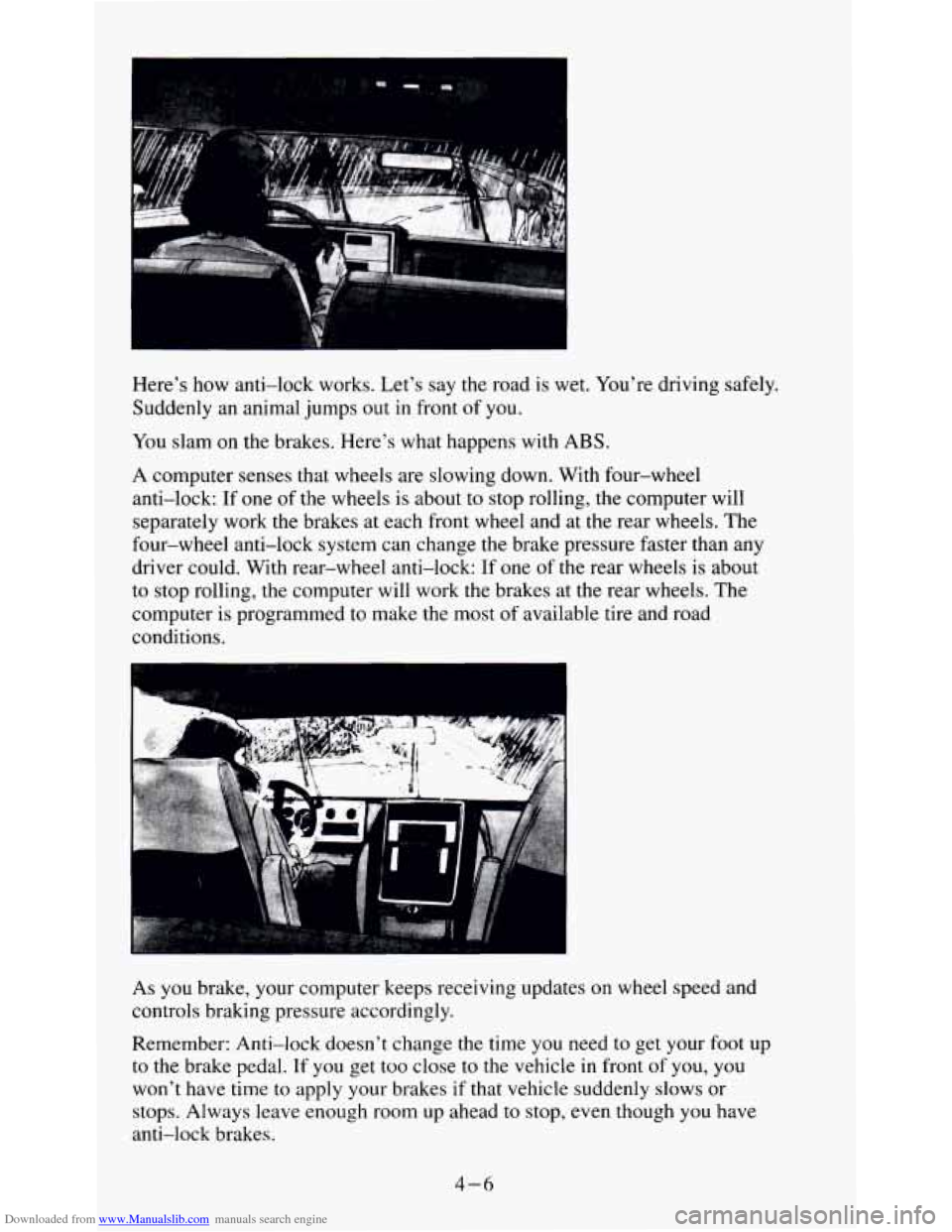
Downloaded from www.Manualslib.com manuals search engine Here's how anti-lock works. Let's say the road is wet. You're driving safely.
Suddenly an animal jumps out
in front of you.
You slam on the brakes. Here's what happens with ABS.
A computer senses that wheels are slowing down. With four-wheel
anti-lock: If one of the wheels
is about to stop rolling, the computer will
separately work the brakes at each front wheel and at the rear wheels. The
four-wheel anti-lock system can change the brake pressure faster than any
driver could. With rear-wheel anti-lock: If one
of the rear wheels is about
to stop rolling, the computer will work the brakes at the rear wheels. The
computer
is programmed to make the most of available tire and road
conditions.
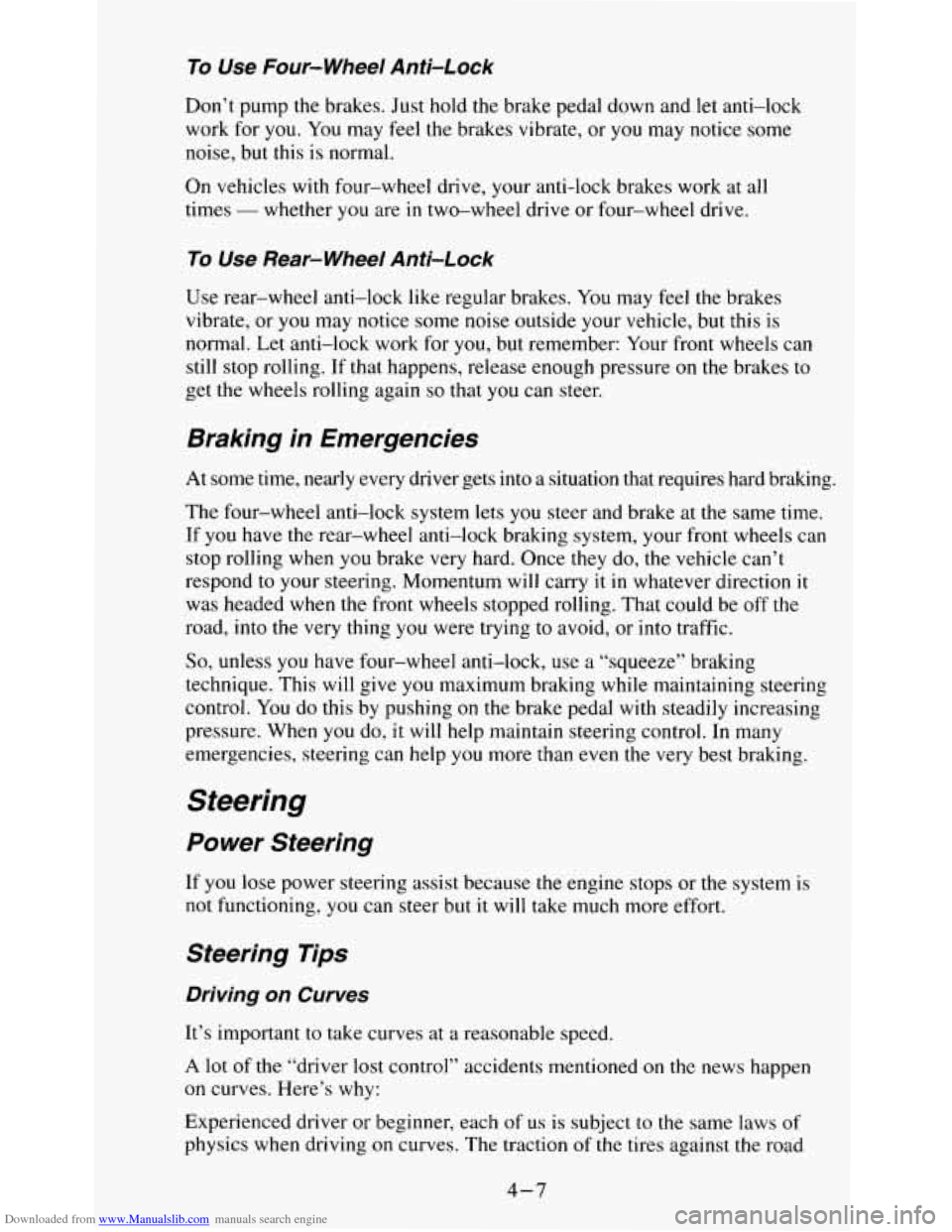
As
you brake, your computer keeps receiving updates on wheel speed and
controls braking pressure accordingly.
Remember: Anti-lock doesn't change the time you need to get your foot up
to the brake pedal. If you get too close
to the vehicle in front of you, you
won't have time to apply your brakes if that vehicle suddenly slows or
stops. Always leave enough room up ahead
to stop, even though you have
anti-lock brakes.
4-6
Page 140 of 354
Downloaded from www.Manualslib.com manuals search engine To Use Four-wheel Anii-Lock
Don’t pump the brakes. Just hold the brake pedal down and let anti-lock
work for
you. You may feel the brakes vibrate, or you may notice some
noise, but
this is normal.
On vehicles with four-wheel drive, your anti-lock brakes work at all
times
- whether you are in two-wheel drive or four-wheel drive.
To Use Rear- Wheel Anii-Lock
Use rear-wheel anti-lock like regular brakes. You may feel the brakes
vibrate, or
you may notice some noise outside your vehicle, but this is
normal. Let anti-lock work for you, but remember: Your front wheels can
still stop rolling. If that happens, release enough pressure
on the brakes to
get the wheels rolling again
so that you can steer.
Braking in Emergencies
At some time, nearly every driver gets into a situation that requires hard braking.
The four-wheel anti-lock system
lets you steer and brake at the same time.
If you have the rear-wheel anti-lock braking system, your front wheels can
stop rolling when you brake very hard. Once they do, the vehicle can’t
respond to your steering. Momentum will carry
it in whatever direction it
was headed when the front wheels stopped rolling. That could be off the
road, into the very thing you were trying
to avoid, or into traffic.
So, unless you have four-wheel anti-lock, use a “squeeze” braking
technique. This will give
you maximum braking while maintaining steering
control. You do this by pushing on the brake pedal with steadily increasing
pressure. When you do, it
will help maintain steering control. In many
emergencies, steering can help
you more than even the very best braking.
Steering
Power Steering
If you lose power steering assist because the engine stops or the system is
not functioning,
you can steer but it will take much more effort.
Steering Tips
Driving on Curves
It’s important to take curves at a reasonable speed.
A lot of the “driver lost control” accidents mentioned on the news happen
on curves. Here’s why:
Experienced driver
or beginner, each of us is subject to the same laws of
physics when driving on curves. The traction of the tires against the road
4-7