2023 TOYOTA RAV4 PRIME change time
[x] Cancel search: change timePage 192 of 662
1923-1. Instrument cluster
display was reset*
• “Distance”: Displays the distance
driven since the display was
reset
*
• “Total Time”: Displays the elapsed time since the display
was reset
*
*
: To reset, display the desired item and press and hold .
■Energy monitor
P.212
■Tire pressure
P.500
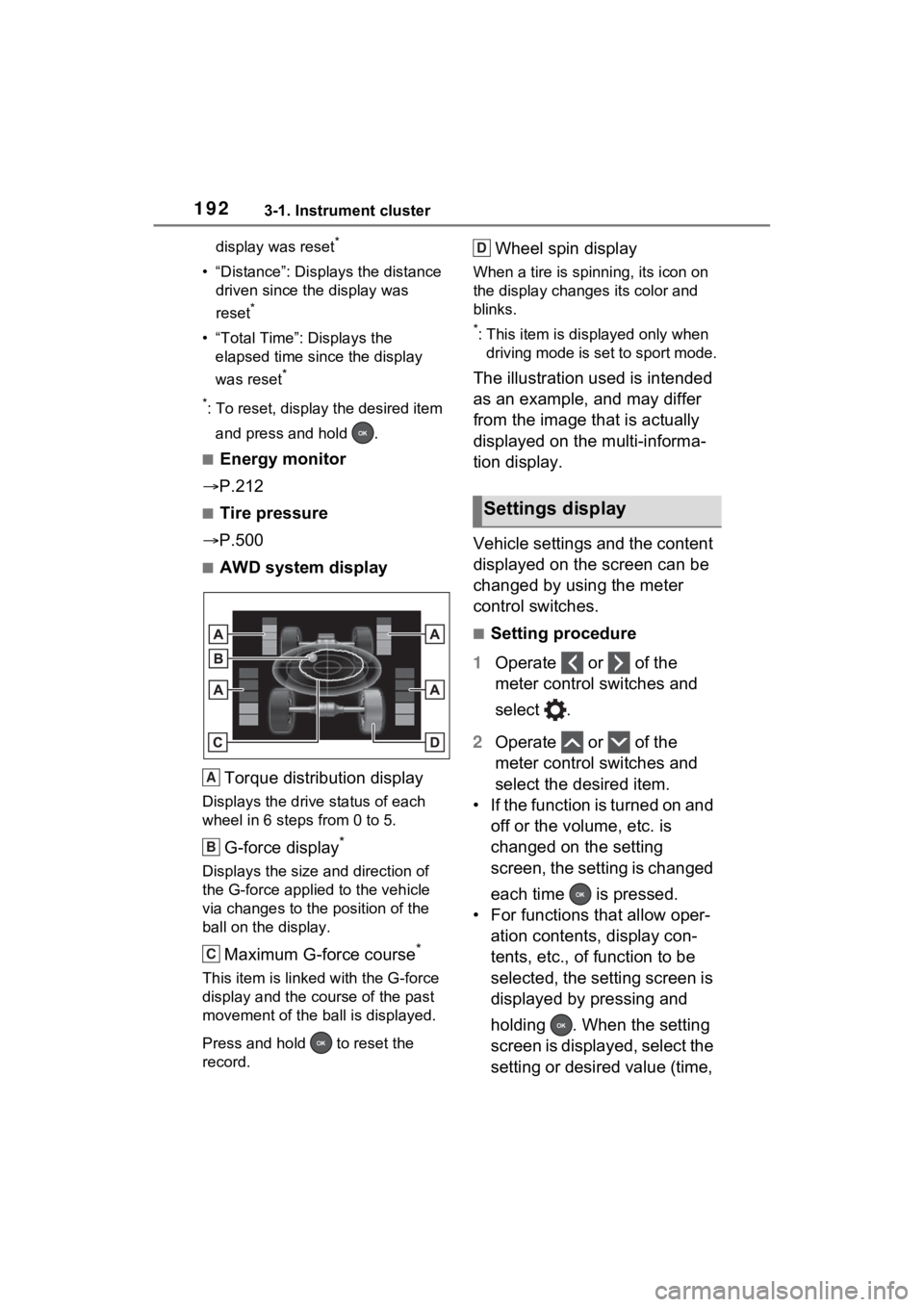
■AWD system display
Torque distribution display
Displays the drive status of each
wheel in 6 steps from 0 to 5.
G-force display*
Displays the size and direction of
the G-force applie d to the vehicle
via changes to the position of the
ball on the display.
Maximum G-force course*
This item is linke d with the G-force
display and the course of the past
movement of the ball is displayed.
Press and hold to reset the
record.
Wheel spin display
When a tire is spi nning, its icon on
the display changes its color and
blinks.
*: This item is displayed only when driving mode is set to sport mode.
The illustration used is intended
as an example, and may differ
from the image that is actually
displayed on the multi-informa-
tion display.
Vehicle settings and the content
displayed on the screen can be
changed by using the meter
control switches.
■Setting procedure
1 Operate or of the
meter control switches and
select .
2 Operate or of the
meter control switches and
select the desired item.
• If the function is turned on and off or the volume, etc. is
changed on the setting
screen, the setting is changed
each time is pressed.
• For functions that allow oper- ation contents, display con-
tents, etc., of function to be
selected, the setting screen is
displayed by pressing and
holding . When the setting
screen is displayed, select the
setting or desired value (time,
A
B
C
Settings display
D
Page 197 of 662

1973-1. Instrument cluster
3
Vehicle status information and indicators
■Suggestion to enable the
power back door (if
equipped)
If the power back door system is
disabled on the screen and
the power back door switch on
the instrument panel is oper-
ated, a suggestion message will
be displayed asking if you wish
to enable the power back door
system. To enable the power
back door system, select “Yes”.
After enabling the power back door
system, press the power back door
switch again to open or close the
power back door.
■Suggestion to turn off the
headlights
If the headlights are left on for a
certain amount of time after the
power switch has been turned
off, a suggestion message will
be displayed.
When the headlight switch is in
the AUTO position: The mes-
sage asking if you wish to turn
the headlights off is displayed.
To turn the headlights off, select
“Yes”.
If the driver’s door is opened after
the power switch is turned off, this
suggestion message will not be dis-
played.
■Customization
The Convenience Services (Sug-
gestion function) can be turned
on/off. (Customizable features:
P.601)
Following information is dis-
played in each area on the
multi-information display.
Content display area (left)
Content display area (center)
Content display area (right)
Driving support system infor-
mation display area
When driving support system infor-
Multi-information dis-
play (with 12.3-inch
display)
The multi-information dis-
play is used to display fuel
efficiency related informa-
tion and various types of
driving-related information.
The multi-information dis-
play can also be used to
change the display settings
and other settings.
Display contents
A
B
C
D
Page 199 of 662
1993-1. Instrument cluster
3
Vehicle status information and indicators
play customizable items/Dis-
play the cursor
Move the main meter and
return to the previous screen
Call sending/receiving and
history display
Linked with the hands-free system,
sending or receiving call is dis-
played. For details regarding the
hands-free system, refer to the
“MULTIMEDIA OWNER’S MAN-
UAL”.
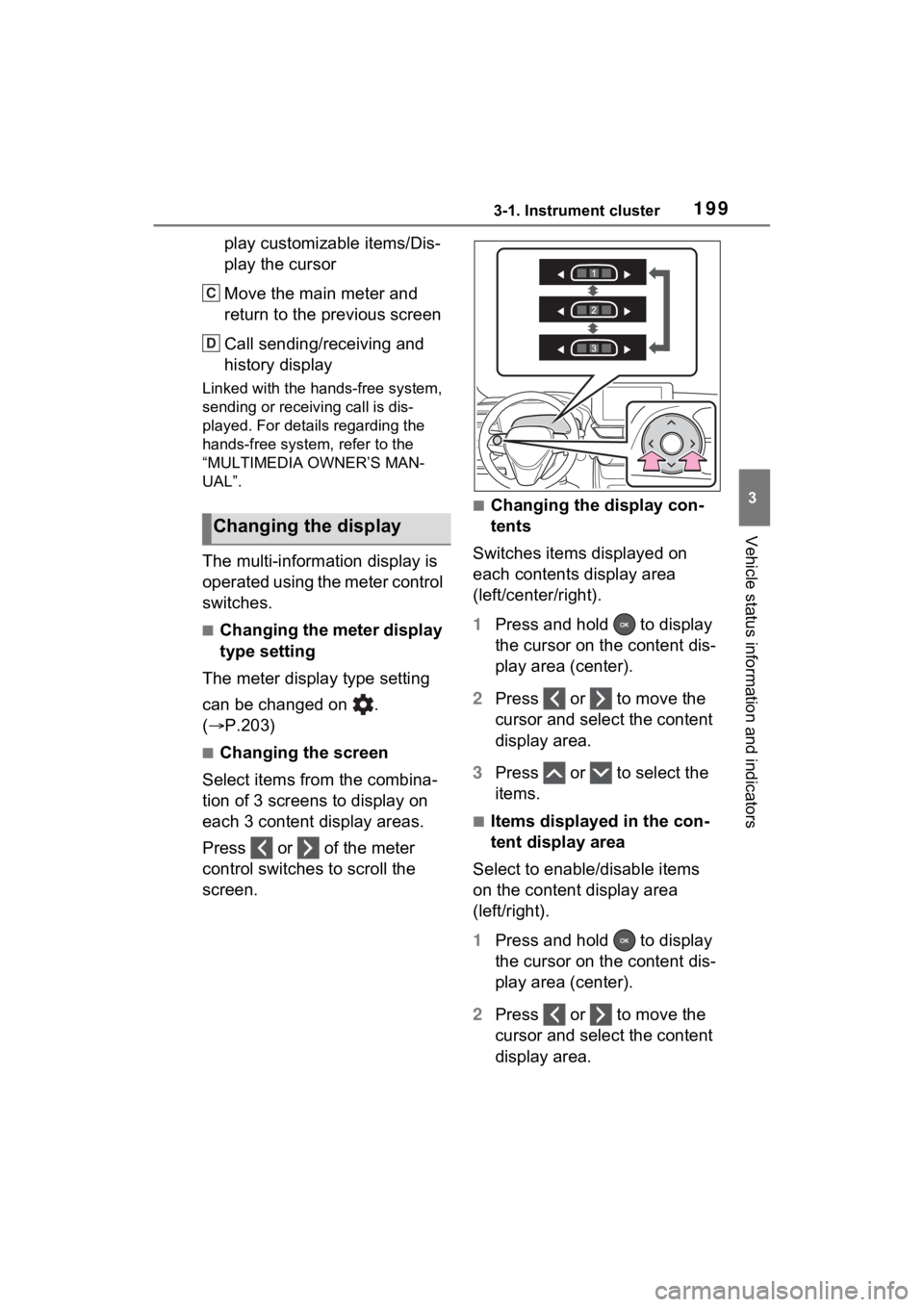
The multi-information display is
operated using the meter control
switches.
■Changing the meter display
type setting
The meter display type setting
can be changed on .
( P.203)
■Changing the screen
Select items from the combina-
tion of 3 screens to display on
each 3 content display areas.
Press or of the meter
control switches to scroll the
screen.
■Changing the display con-
tents
Switches items displayed on
each contents display area
(left/center/right).
1 Press and hold to display
the cursor on the content dis-
play area (center).
2 Press or to move the
cursor and select the content
display area.
3 Press or to select the
items.
■Items displayed in the con-
tent display area
Select to enable/disable items
on the content display area
(left/right).
1 Press and hold to display
the cursor on the content dis-
play area (center).
2 Press or to move the
cursor and select the content
display area.
Changing the display
C
D
Page 201 of 662

2013-1. Instrument cluster
3
Vehicle status information and indicators
The average fuel economy selected
by “Fuel Economy” on the
screen is displayed. (P.191)
*1: Use the displayed fuel consump-
tion as a reference only.
*2: Average fuel economy since the function was reset can be reset
by pressing and holding .
*3: Average fuel economy after starting is reset each time the
hybrid system stops.
■Electricity consumption
When the unit is set to “MPH”:
Electricity consum ption is the con-
sumption rate of the electricity when
EV driving is performed and equiva-
lent to the fuel c onsumption for the
gasoline vehicles. F or this vehicle,
driven distance per kWh of electric-
ity consumed (“mile s/kWh”) is dis-
played as electricity consumption on
each screen.
When the unit is set to “km/h”:
Electricity consum ption is the con-
sumption rate of the electricity when
EV driving is performed and equiva-
lent to the fuel c onsumption for the
gasoline vehicles. F or this vehicle,
electricity consumed per 100 km
(“kWh/100 km”) i s displayed as
electricity consumption on each
screen.
Displays a reference operation
range for using the accelerator
pedal according to driving condi-
tions, and a score result that
evaluates the current driving
status. ECO Accelerator Guidance
“Eco Score”
■ECO Accelerator Guidance
ECO area
Shows that the vehicle is being
driven in an Eco-friendly manner.
Power area
Shows that an Eco-friendly driving
range is being exceeded (during full
power driving etc.).
Current acceleration
Reference operation range
A zone is displayed in blue under
the Eco area which can be used as
a reference operation range for
using the accelerator pedal accord-
ing to driving conditions such as
starting off and cruising.
The ECO Accelerator Guidance
display changes according to the
driving status, such as when start-
ECO Accelerator Guid-
ance/“Eco Score”
[ˆ[¦[²[c[–[¦[²[µ[¨
[–[·[¤[µ[·
[–[·[²[³
[†[µ[¸[¬[¶[¨
A
B
A
B
C
D
Page 204 of 662
2043-1. Instrument cluster
*: To reset, display the desired item and press and hold .
P.212
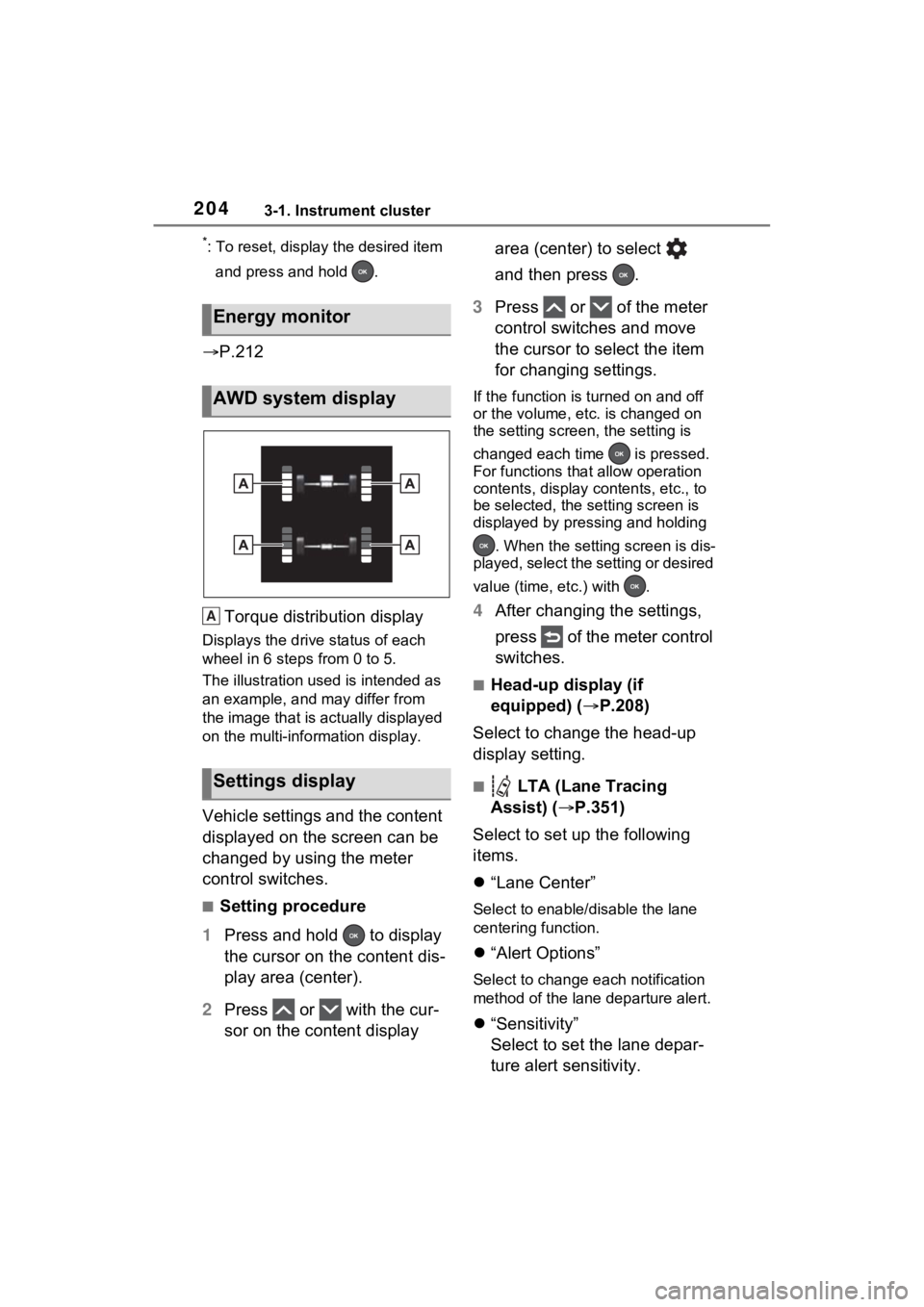
Torque distribution display
Displays the drive status of each
wheel in 6 steps from 0 to 5.
The illustration used is intended as
an example, and may differ from
the image that is actually displayed
on the multi-info rmation display.
Vehicle settings and the content
displayed on the screen can be
changed by using the meter
control switches.
■Setting procedure
1 Press and hold to display
the cursor on the content dis-
play area (center).
2 Press or with the cur-
sor on the content display area (center) to select
and then press .
3 Press or of the meter
control switches and move
the cursor to select the item
for changing settings.
If the function is turned on and off
or the volume, etc. is changed on
the setting screen, the setting is
changed each time is pressed.
For functions that allow operation
contents, display contents, etc., to
be selected, the setting screen is
displayed by pressing and holding
. When the setting screen is dis-
played, select the setting or desired
value (time, etc.) with .
4 After changing the settings,
press of the meter control
switches.
■Head-up display (if
equipped) ( P.208)
Select to change the head-up
display setting.
■ LTA (Lane Tracing
Assist) ( P.351)
Select to set up the following
items.
“Lane Center”
Select to enable /disable the lane
centering function.
“Alert Options”
Select to change each notification
method of the lane departure alert.
“Sensitivity”
Select to set the lane depar-
ture alert sensitivity.
Energy monitor
AWD system display
Settings display
A
Page 207 of 662

2073-1. Instrument cluster
3
Vehicle status information and indicators
Meter Type
Select to change the meter
type setting.
Meter Style
Select to change the meter
style.
Dial Type
Select to change dial type.
( P.178)
Depending on the selected dial
type, this item will not be displayed.
EV indicator
Select to enable/disable the
EV indicator.
Fuel Economy
Select to change the display
on Fuel Economy. ( P.199)
“Hybrid System”
Select to enable/disable refer-
ence operation range.
“Power Consumption”
Select to change the display on
Power Consumption. ( P.199)
Drive Info
Select to change displayed
items on drive information dis-
play. ( P.202)
“Calendar”
Select to set up the calender. This
can only be set if GPS calibration of
clock is turned off in the multimedia
system settings.
Pop-Up Display
Select to enable/disable the
pop-up displays, which may
appear in some situations.
Default Settings Select to reset the meter dis-
play settings.
■Suspension of the settings dis-
play
●In the following situations, opera-
tion of the settings display will be
temporarily suspended.
• When a warning message appears on the multi-information
display
• When the vehicle begins to move
●Settings for functions not
equipped to the vehicle are not
displayed.
●When a function is turned off, the
related settings for that function
are not selectable.
Select to display warning mes-
sages and measures to be
taken if a malfunction is
detected. ( P.552)
WARNING
■Cautions during setting up
the display
As the hybrid system needs to be
operating during setting up the
display, ensure that the vehicle is
parked in a place with adequate
ventilation. In a closed area such
as a garage, exhaust gases
including harmful carbon monox-
ide (CO) may collect and enter
the vehicle. This may lead to
death or a serious health hazard.
NOTICE
■During setting up the display
To prevent 12-vo lt battery dis-
charge, ensure that the hybrid
system is operating while setting
up the display features.
Warning message display
Page 213 of 662

2133-1. Instrument cluster
3
Vehicle status information and indicators
• When the outside temperature has changed su ddenly (at the
entrance/exit of a garage, tunnel,
etc.)
●When “--” or “E” is displayed, the
system may be malfunctioning.
Take your vehicle to your Toyota
dealer.
Display content selected by
“HUD Driving Support” on the
screen is displayed.
( P.209)
■Hybrid System Indicator
Charge area
Hybrid Eco area
Eco area
Power area
Displayed content is the same as
that displayed on the multi-informa-
tion display (Hybrid System Indica-
tor).
For details, re fer to P.175.
■Tachometer
Displays the engine speed in
revolutions per minute. Multimedia Display
Multi-information display
Meter control switches
The energy monitor can be used
to check the vehicle drive status,
hybrid system operation status
and energy regeneration status.
■Display procedure
Multi-information display
Use the meter control switches,
display the energy monitor on
the multi-information display.
For detail regardin g the multi-infor-
mation display, ref er to P.190, 203.
Hybrid System Indica-
tor/Tachometer
A
B
C
D
Energy monitor/con-
sumption screen
You can view the status of
your hybrid system and fuel
consumption information
on the multi-information
display and Multimedia Dis-
play.
System components
Energy monitor
A
B
C
Page 214 of 662
2143-1. Instrument cluster
Multimedia Display
Press from the main menu,
then press “Energy flow”.
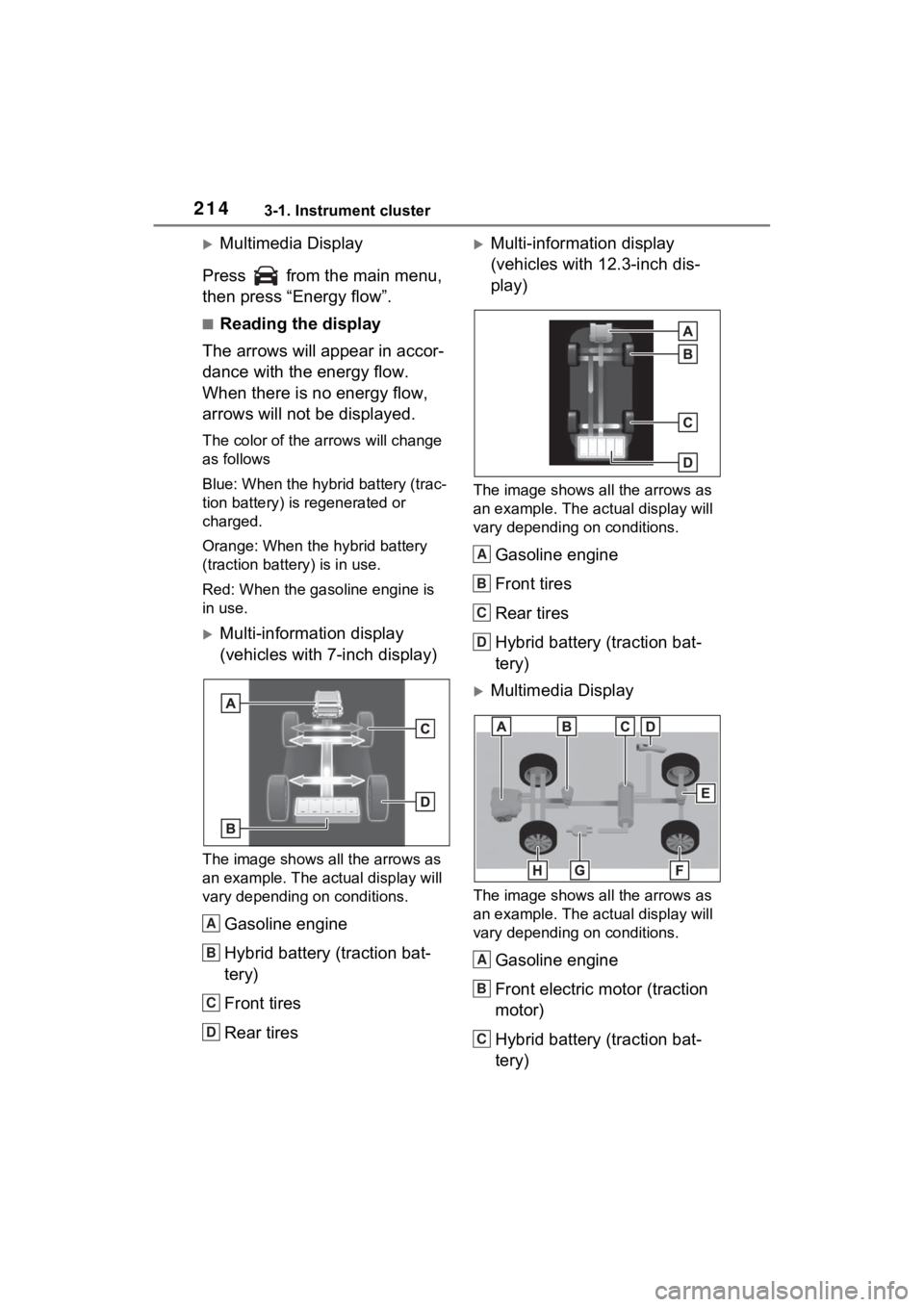
■Reading the display
The arrows will appear in accor-
dance with the energy flow.
When there is no energy flow,
arrows will not be displayed.
The color of the arrows will change
as follows
Blue: When the hybrid battery (trac-
tion battery) is regenerated or
charged.
Orange: When the hybrid battery
(traction battery) is in use.
Red: When the gasoline engine is
in use.
Multi-information display
(vehicles with 7-inch display)
The image shows all the arrows as
an example. The actual display will
vary depending on conditions.
Gasoline engine
Hybrid battery (traction bat-
tery)
Front tires
Rear tires
Multi-information display
(vehicles with 12.3-inch dis-
play)
The image shows all the arrows as
an example. The ac tual display will
vary depending on conditions.
Gasoline engine
Front tires
Rear tires
Hybrid battery (traction bat-
tery)
Multimedia Display
The image shows all the arrows as
an example. The ac tual display will
vary depending on conditions.
Gasoline engine
Front electric motor (traction
motor)
Hybrid battery (traction bat-
tery)
A
B
C
D
A
B
C
D
A
B
C