2023 TOYOTA PRIUS PRIME change time
[x] Cancel search: change timePage 157 of 680

1573-1. Instrument cluster
3
Vehicle status information and indicators
Displays hybrid system output or regeneration level. (P.158)
Clock
The GPS clock’s time is automatically adjusted by utilizing GPS time infor-
mation. For details, refer to the “MULTIMEDIA OWNER’S MANUAL”.
Shift position indicator
Displays the selected shift position ( P.256)
Fuel gauge
Displays the quantity of fuel remaining in the tank.
EV driving range/EV energy remaining
The content can be switched through a customized setting. ( P.166)
EV driving range:
Displays the EV driving range with char ge remaining in the hybrid battery
(traction battery). ( P.159)
EV energy remaining:
Displays the amount of charge remaining in the traction battery. ( P.158)
Distance to empty
Displays driving range with remaining fuel. ( P.158)
Speedometer
Displays the vehicle speed.
SOC (State of Charge) gauge
Displays the amount of charge remaining in the traction battery. ( P.158)
Odometer, trip meter and oil maintenance
Odometer:
Displays the total distance that the vehicle has been driven.
Trip meter:
Displays the distance the vehicle has been driven since the meter was last
reset. Trip meters “A” and “B” can be used to record and display different
distances independently.
Oil maintenance:
Displays the distance until the next engine oil change.
■The meters and display illumi-
nate when
The power switch is in ON.
D
E
F
G
H
I
J
K
Page 162 of 680

1623-1. Instrument cluster
Driving support system infor-
mation (P.165)
■The multi-information display is
displayed when
The power switch is in ON.
■Liquid crystal display
( P.159)
The multi-information display is
operated using the meter control
switches.
/ : Select menu icons,
scroll the screen and move
the cursor
/ : Change displayed
content, scroll the screen and
move the cursor
Press: Enter/Set
Press and hold: Reset/Dis-
play customizable items
Return to the previous
screen/Move the main meter
Call sending/receiving and
history display
Linked with the hands-free system,
sending or receiving call is dis-
played. For details regarding the hands-free system, refer to “MUL-
TIMEDIA OWNER’S MANUAL”.
Information related to each icon
can be displayed by selecting
the icon with the meter control
switches.
Some of the information may be
displayed automatically depending
on the situation.
Changing the display
D
A
B
C
D
WARNING
■Caution for use while driving
For safety, avoid operating the
meter control switch while driving
as much as possible, and do not
look continuously at the multi-
information displa y while driving.
Stop the vehicle and operate the
meter control switch. Failure to do
so may cause a steering wheel
operation error, resulting in an
unexpected accident.
Menu icons
IconDisplay
Driving information dis-
play ( P.163)
Driving support system
information display
( P.165)
Audio system-linked dis-
play ( P.166)
Vehicle information dis-
play ( P.166)
Settings display
( P.166)
Warning message dis-
play ( P.172)
Page 164 of 680
1643-1. Instrument cluster
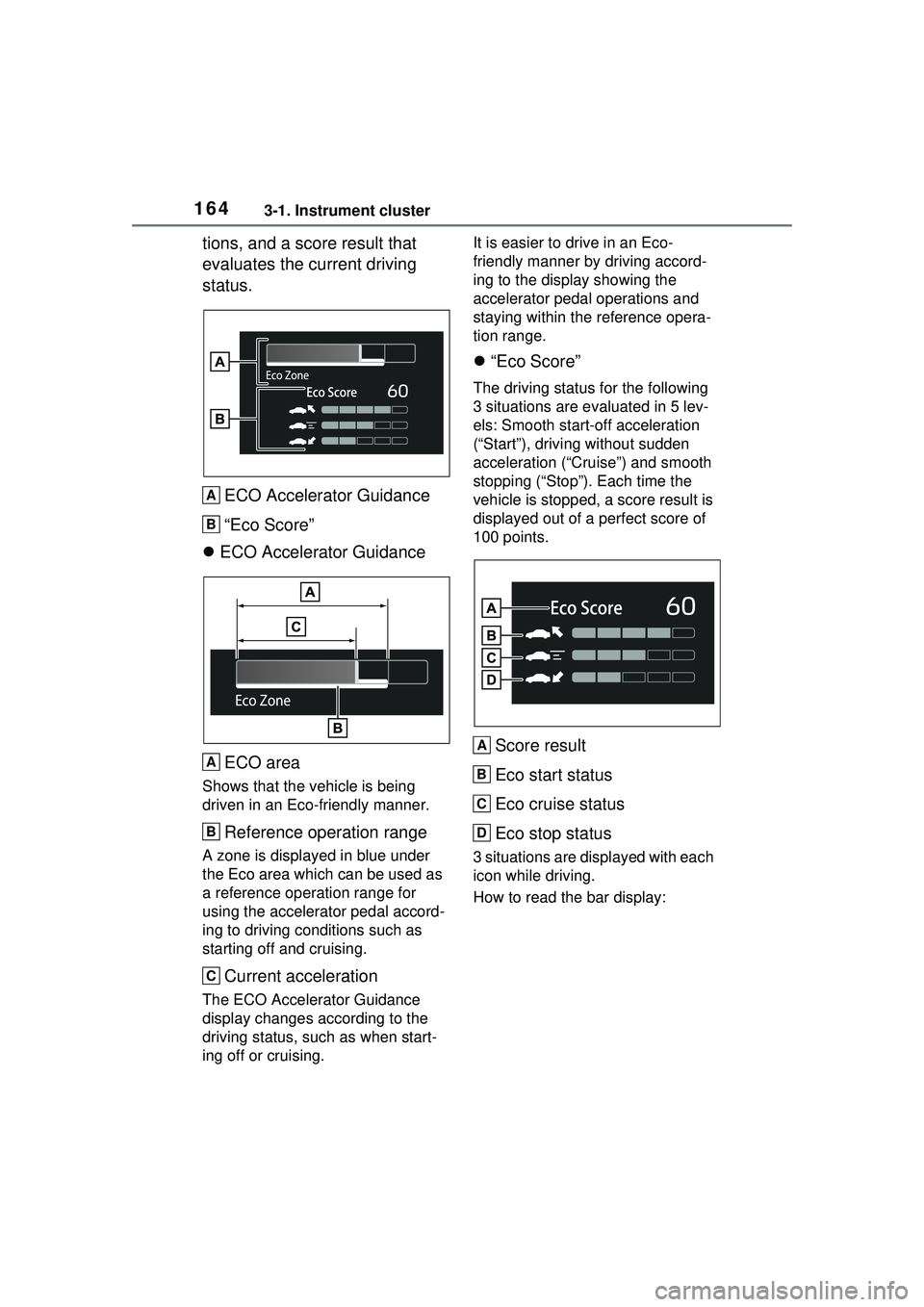
tions, and a score result that
evaluates the current driving
status.ECO Accelerator Guidance
“Eco Score”
ECO Accelerator Guidance
ECO area
Shows that the vehicle is being
driven in an Eco-friendly manner.
Reference operation range
A zone is displayed in blue under
the Eco area which can be used as
a reference operation range for
using the accelerator pedal accord-
ing to driving conditions such as
starting off and cruising.
Current acceleration
The ECO Accelerator Guidance
display changes according to the
driving status, such as when start-
ing off or cruising. It is easier to drive in an Eco-
friendly manner by driving accord-
ing to the display showing the
accelerator pedal operations and
staying within the reference opera-
tion range.
“Eco Score”
The driving status for the following
3 situations are evaluated in 5 lev-
els: Smooth start-off acceleration
(“Start”), driving without sudden
acceleration (“Cruise”) and smooth
stopping (“Stop”). Each time the
vehicle is stopped, a score result is
displayed out of a perfect score of
100 points.
Score result
Eco start status
Eco cruise status
Eco stop status
3 situations are displayed with each
icon while driving.
How to read the bar display:
A
B
A
B
C
A
B
C
D
Page 165 of 680

1653-1. Instrument cluster
3
Vehicle status information and indicators
Not yet evaluated
Low
High
After the hybrid system is started,
the Eco score will not be displayed
until the vehicle speed exceeds
approximately 19 mph (30 km/h).
The Eco score will be reset each
time the hybrid system is started.
■Elapsed time after start-
ing/EV Driving RatioEV driving ratio after starting
The percent traveled using only
electric motor power after starting
the hybrid system is displayed.
*
Elapsed time after starting
Displays the elapsed time since
hybrid system start.
*
*
: It is reset each time the hybrid system stops.
■Solar charging information
screen (if equipped)
P.173
■Electricity consumption
When the unit is set to “miles/kWh”:
Electricity consum ption is the con-
sumption rate of the electricity when
EV driving is performed and equiva-
lent to the fuel consumption for the
gasoline vehicles. For this vehicle,
driven distance per kWh of electric-
ity consumed (“miles/kWh”) is dis-
played as electricity consumption on
each screen.
When the unit is set to “km/kWh” or
“kWh/100km”: Electricity consump-
tion is the consumption rate of the
electricity when EV driving is per-
formed and equivalent to the fuel
consumption for the gasoline vehi-
cles. For this vehicl e, electricity con-
sumed per 100 km (“kWh/100 km”)
or driven distance per kWh of elec-
tricity consumed (“km/kWh”) is dis-
played as electricity consumption on
each screen.
■ECO Accelerator Guid-
ance/“Eco Score” will not oper-
ate when
The ECO Accelerator Guid-
ance/“Eco Score” will not operate in
the following situations:
●The Hybrid System Indicator is not
operating.
●The vehicle is being driven using
the dynamic radar cruise control.
Select to display the operational
status of the following systems:
LTA (Lane Tracing Assist)
( P.305)
LCA (Lane Change Assist) (if
A
B
C
A
B
Driving support system
information display
Page 167 of 680
1673-1. Instrument cluster
3
Vehicle status information and indicators
displayed on the screen can be
changed by using the meter
control switches.
■Setting procedure
1 Operate or of the
meter control switches and
select .
2 Operate or of the
meter control switches and
select the desired item.
• If the function is turned on and off or the volume, etc. is
changed on the setting
screen, the setting is changed
each time is pressed.
• For functions that allow oper- ation contents, display con-
tents, etc., of function to be
selected, the setting screen is
displayed by pressing and
holding . When the setting
screen is displayed, select the
setting or desired value (time,
etc.) with .
3 After changing the settings,
press of the meter control
switches.
■ LDA (Lane Departure
Alert) ( P.313)
Select to set up the following
items.
Lane Departure Alert on/off
Select to enable/disable Lane
Departure Alert system.
“Alert Options”
Select to set the alert type.
“Alert Timing”
Select to set the alert timing.
■ BSM (Blind Spot Moni-
tor) (if equipped) ( P.354)
Select to set up the following
items.
BSM (Blind Spot Monitor)
on/off
Select to enable/disable the BSM
system.
“Support timing”
Select to change the alert timing for
an approaching vehicle.
“Brightness”
Select to switch the brightness of
the outside rear view mirror indica-
tors. ( P.354)
“Buzzer alert”
Select to enable/disable the buzzer
alert which sounds when BSM sys-
tem is operated.
■ PCS (Pre-Collision Sys-
tem) ( P.293)
Select to set up the following
items.
PCS on/off
Select to enable/disable the pre-
collision system.
“Warning timing”
Select to change the pre-collision
warning timing.
■ PDA (Proactive driving
assist) ( P.320)
PDA on/off
Select to enable/disable the PDA
Page 169 of 680

1693-1. Instrument cluster
3
Vehicle status information and indicators
Select to enable/disable the RSA
(Road Sign Assist).
“Notification Method”
Select to change each notification
method used to notify the driver
when the system recognizes
excess speed and Do Not Enter
sign.
“Notification Level”
Select to change each notification
level used to notify the driver when
the system recognizes excess
speed.
■ DRCC ( P.331)
Select to set up the following
items.
“Extended Resume Time” (if
equipped)
Select to enable/disable the
extended resume time function.
( P.333)
“Acceleration Setting”
Select to change the setting for
when vehicle accelerates until the
set vehicle speed is reached.
“Guide message”
Select to enable/disable the guide
message display.
“Curve Speed Reduction”
Select to change the curve speed
reduction function setting.
( P.338)
■ Vehicle Settings
“Charging Settings”
Select to set up the following items.
• “Charging Schedule”
Select to register or change the charging schedule. (
P.123)
• “Charging Current”
Select to change the charging cur-
rent. ( P.119)
• “Connector Lock”
Select to change the method for
locking and unlocking. ( P.103)
• “Battery Cooler”
Select to enable /disable the bat-
tery cooler. ( P.109)
• “Battery Heater”
Select to enable /disable the bat-
tery heater. ( P.108)
Driver Break Suggestion
( P.316)
Select to enable/disable the drive
break suggestion.
“Advanced Drive” (if
equipped)
Select to enable/d isable the Traffic
Jam Assist Function. ( P.348)
“DMC Recording” (if
equipped)
Select to enable/disable the notifi-
cation for driver monitor camera
recording when the operation of
Traffic Jam Assist is started.
( P.348)
LCA (Lane Change Assist) (if
equipped) ( P.310)
Select to enable/disable Lane
Change Assist system.
FCTA (Front Cross Traffic
Alert) (if equipped) ( P.326)
Select to set up the following items.
• FCTA on/off
Select to enable/disable the FCTA
Page 171 of 680

1713-1. Instrument cluster
3
Vehicle status information and indicators
Select to enable/disable Hybrid
System Indicator. (
P.158)
EV indicator
Select to enable/disable the EV
indicator.
EV Drive Information
Select to change the item on the
meter display between “EV Energy
remaining” or “EV Distance remain-
ing”. ( P.155)
(Driving information dis-
play settings)
Select to set up the following items.
• “Hybrid System”
Select to enable/disable the ECO
Accelerator Guidance ( P.158).
• “Fuel Economy”
Select to change the display on
Fuel Economy. ( P.163)
• “Power Consumption”
Select to change the display on
Power Consumption. ( P.163)
(Audio settings)
Select to enable/disable
screen.
(Vehicle information dis-
play settings)
• “Drive Info Type”
Select to change the drive informa-
tion type display between trip and
total. ( P.163)
• “Drive Info Items”
Select to set the items on the upper
and lower side of the drive informa-
tion screen from three items, aver-
age speed, distance and total time.
“Trip Summary”
Select to set the items displayed
from “Drive Info ” or “Charging
Schedule” when the power switch
is turned off.
Pop-Up Display
Select to enable/disable the pop-up
displays, which may appear in
some situations.
“Calendar”
Select to set up the calender. This
can only be set if GPS calibration of
clock is turned off in the multimedia
system settings.
Default Settings
Select to reset the meter display
settings.
■Tire pressure
• It may take a few minutes to dis- play the tire inflation pressure
after the power switch is turned to
ON. It may also take a few min-
utes to display the tire inflation
pressure after inflation pressure
has been adjusted.
• “---” may be displayed if the tire position information cannot be
determined due to unfavorable
radio wave conditions.
• Tire inflation pressure changes with temperature. The displayed
values may also be different from
the values measured using a tire
pressure gauge.
■Suspension of the settings dis-
play
●In the following situations, opera-
tion of the settings display will be
temporarily suspended.
• When a warning message appears on the multi-information
display
• When the vehicle begins to move
Page 173 of 680

1733-1. Instrument cluster
3
Vehicle status information and indicators
Multi-information display
Multimedia Display
Meter control switches
The energy monitor can be used
to check the vehicle drive status,
hybrid system operation status
and energy regeneration status.
■Display procedure
Multi-information display
Use the meter control switches, display the energy monitor on
the multi-information display.
For detail regarding the multi-infor-
mation display, refer to P.161.
Multimedia Display
Touch on the main menu,
then touch “Energy flow” on the
sub menu.
For detail regardin g the Multimedia
Display, refer to “MULTIMEDIA
OWNER’S MANUAL”.
■Reading the display
The arrows will appear in accor-
dance with the energy flow.
When there is no energy flow,
arrows will not be displayed.
The color of the arrows will change
as follows
Blue: When the hybrid battery (trac-
tion battery) is regenerated or
charged.
Orange: When the hybrid battery
(traction battery) is in use.
Red: When the gasoline engine is
in use.
Multi-information display
The image shows all the arrows as
an example. The actual display will
vary depending on conditions.
Energy monitor/con-
sumption screen/solar
charging information
screen (if equipped)
You can view the status of
your hybrid system, fuel
consumption information
and information related to
the solar charging system
on the multi-information
display and Multimedia Dis-
play.
System components
Energy monitor
A
B
C